
Surface Continuity 2009 Autodesk 1 Three Types of
- Slides: 16
Surface Continuity © 2009 Autodesk 1
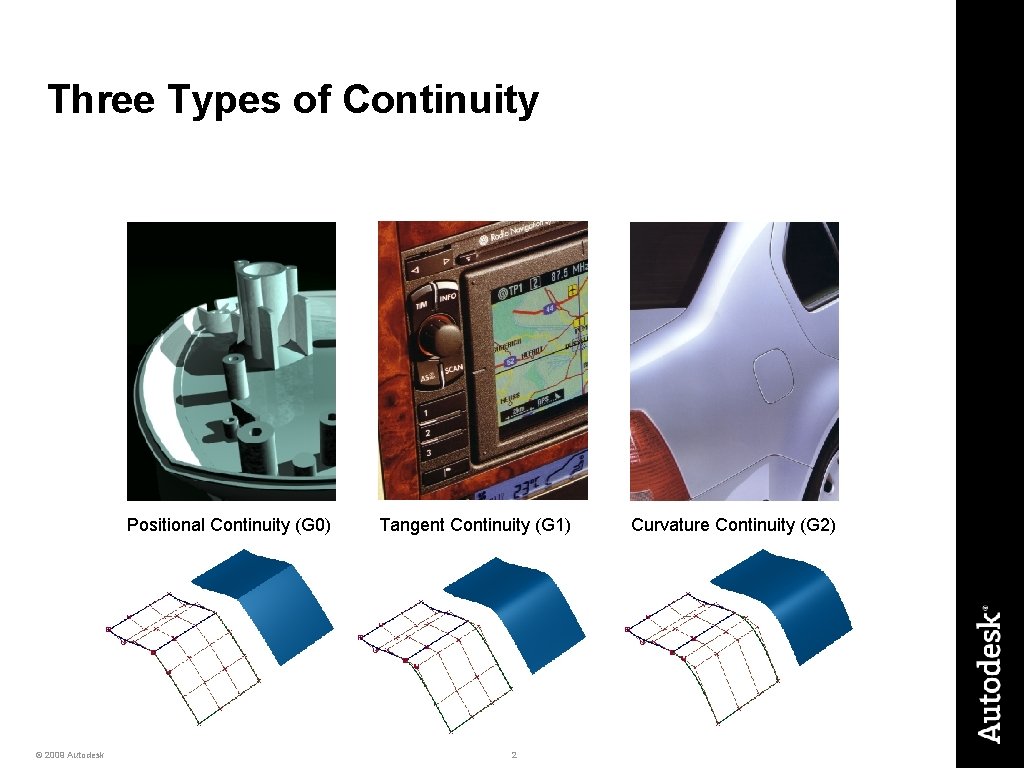
Three Types of Continuity Positional Continuity (G 0) © 2009 Autodesk Tangent Continuity (G 1) 2 Curvature Continuity (G 2)
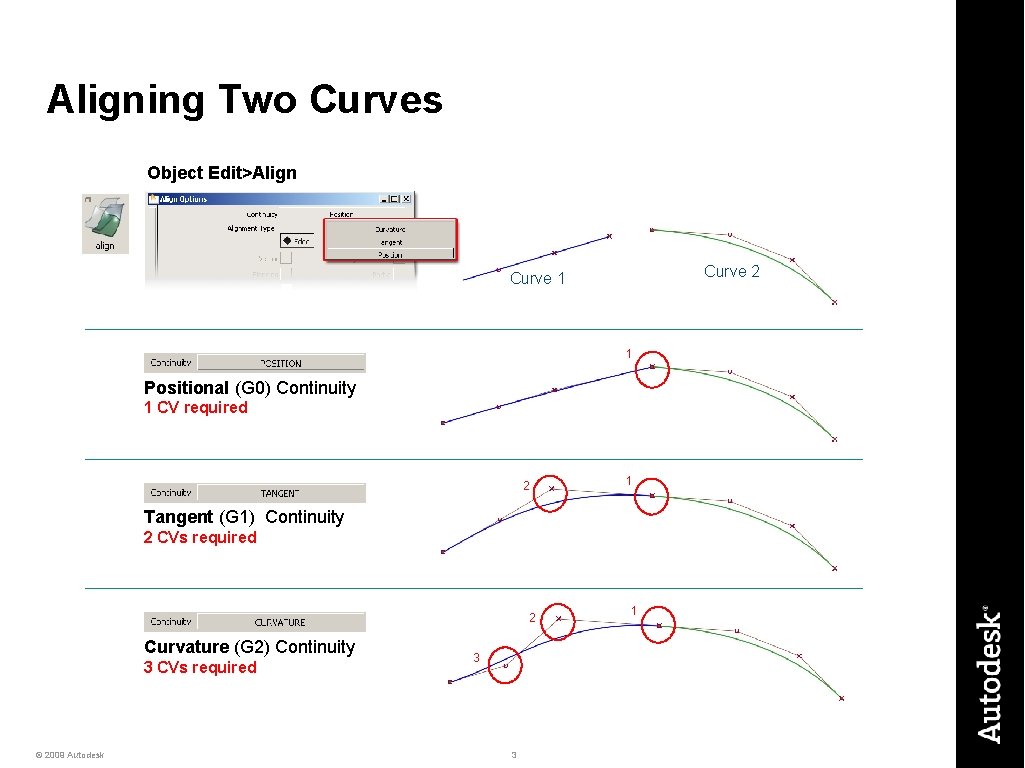
Aligning Two Curves Object Edit>Align Curve 2 Curve 1 1 Positional (G 0) Continuity 1 CV required 2 1 Tangent (G 1) Continuity 2 CVs required 2 Curvature (G 2) Continuity 3 CVs required © 2009 Autodesk 3 3 1
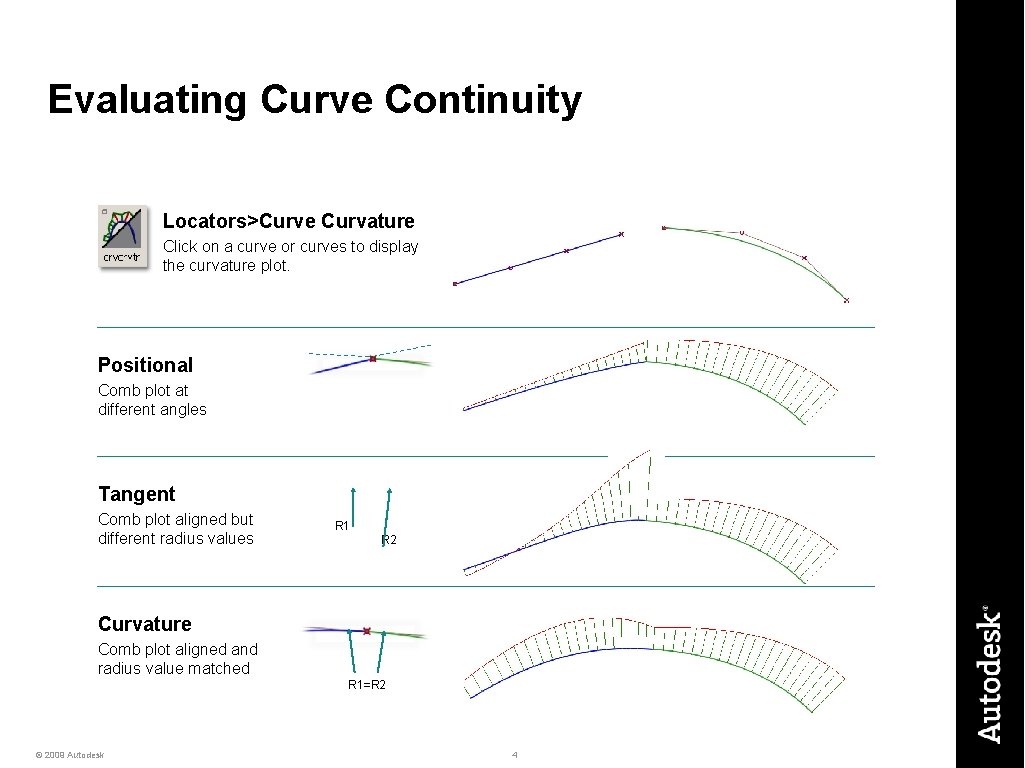
Evaluating Curve Continuity Locators>Curve Curvature Click on a curve or curves to display the curvature plot. Positional Comb plot at different angles Tangent Comb plot aligned but different radius values R 1 R 2 Curvature Comb plot aligned and radius value matched R 1=R 2 © 2009 Autodesk 4
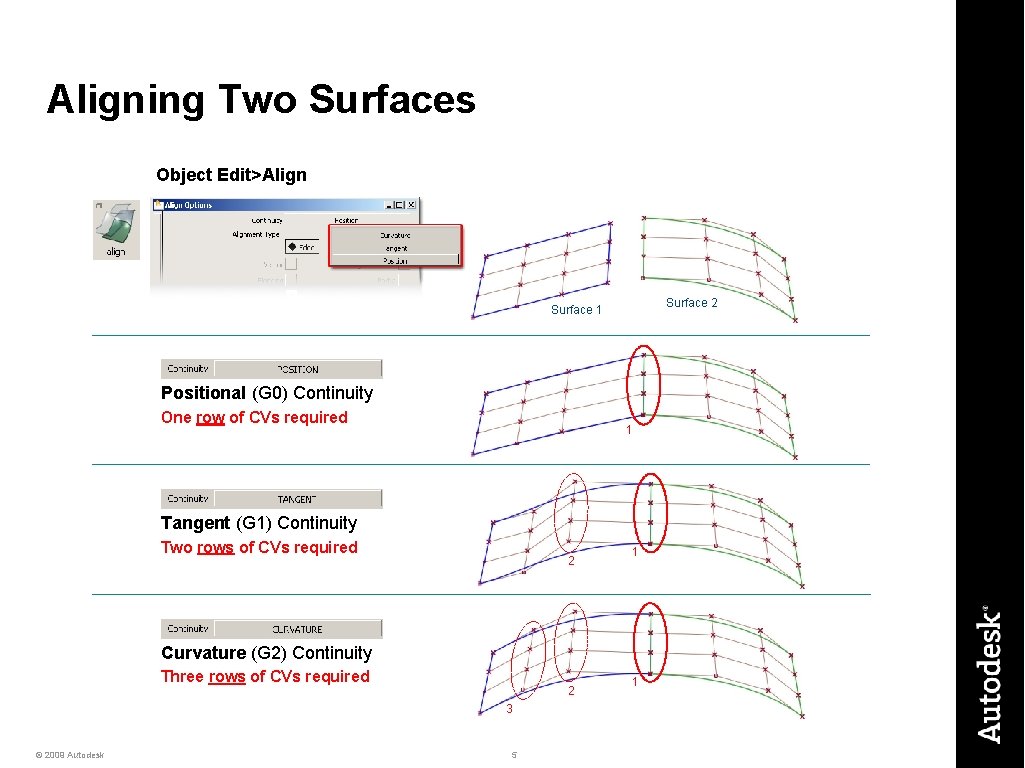
Aligning Two Surfaces Object Edit>Align Surface 2 Surface 1 Positional (G 0) Continuity One row of CVs required 1 Tangent (G 1) Continuity Two rows of CVs required 2 1 Curvature (G 2) Continuity Three rows of CVs required 2 3 © 2009 Autodesk 5 1
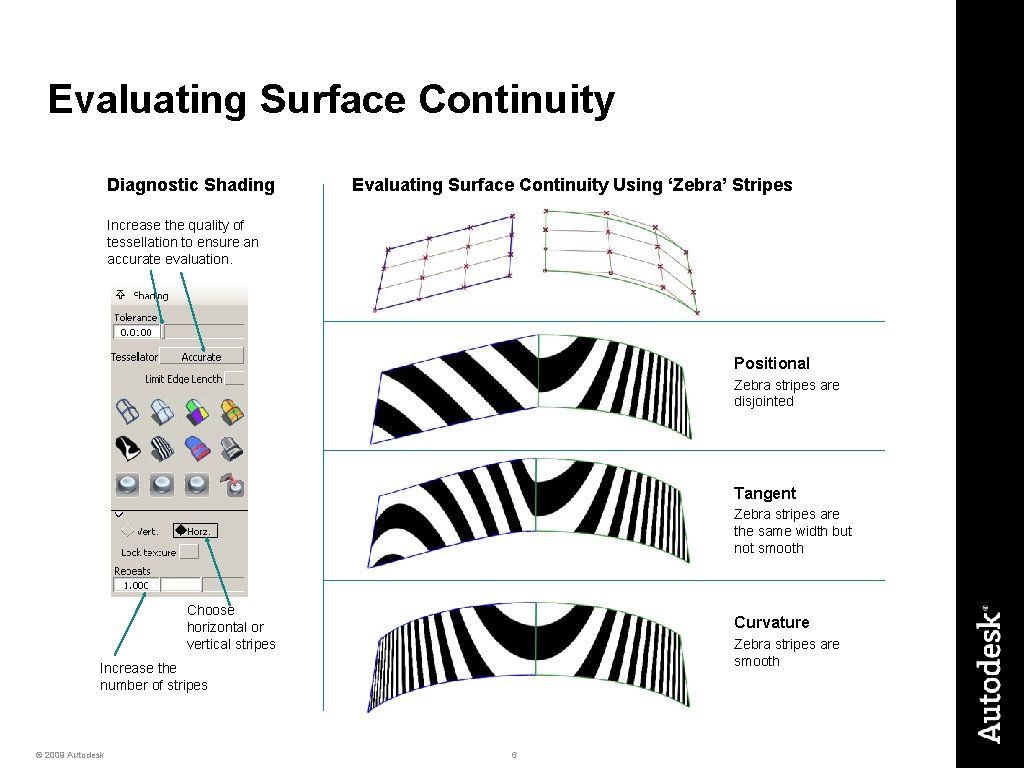
Evaluating Surface Continuity Diagnostic Shading Evaluating Surface Continuity Using ‘Zebra’ Stripes Increase the quality of tessellation to ensure an accurate evaluation. Positional Zebra stripes are disjointed Tangent Zebra stripes are the same width but not smooth Choose horizontal or vertical stripes Curvature Zebra stripes are smooth Increase the number of stripes © 2009 Autodesk 6
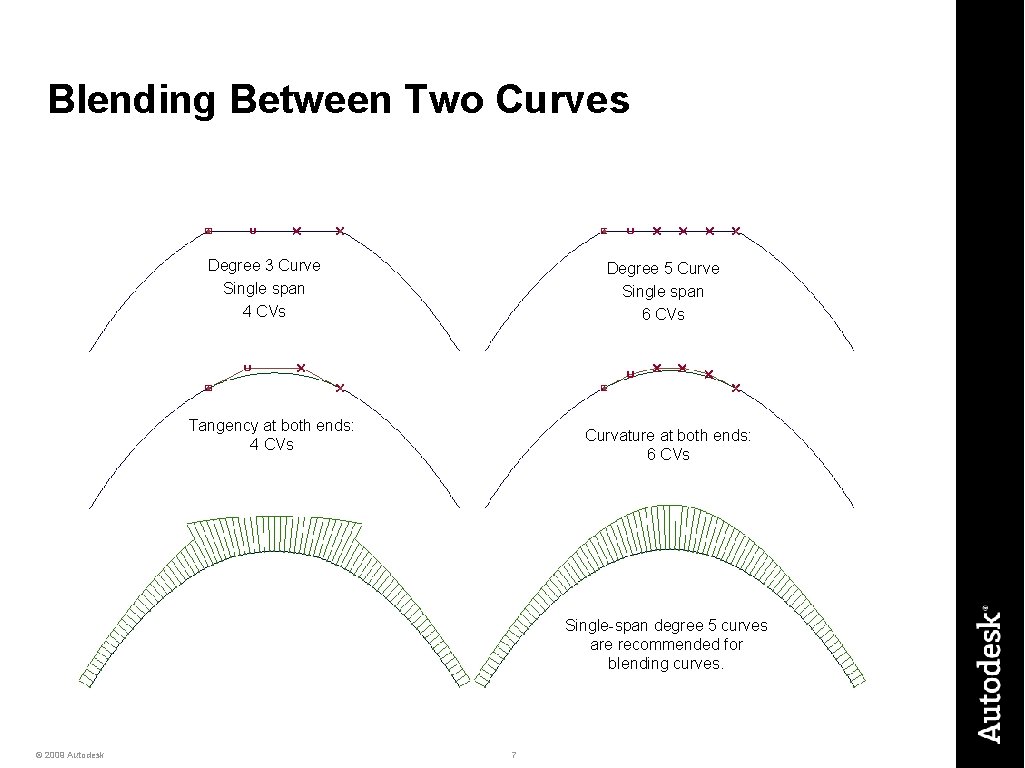
Blending Between Two Curves Degree 3 Curve Single span 4 CVs Degree 5 Curve Single span 6 CVs Tangency at both ends: 4 CVs Curvature at both ends: 6 CVs Single-span degree 5 curves are recommended for blending curves. © 2009 Autodesk 7
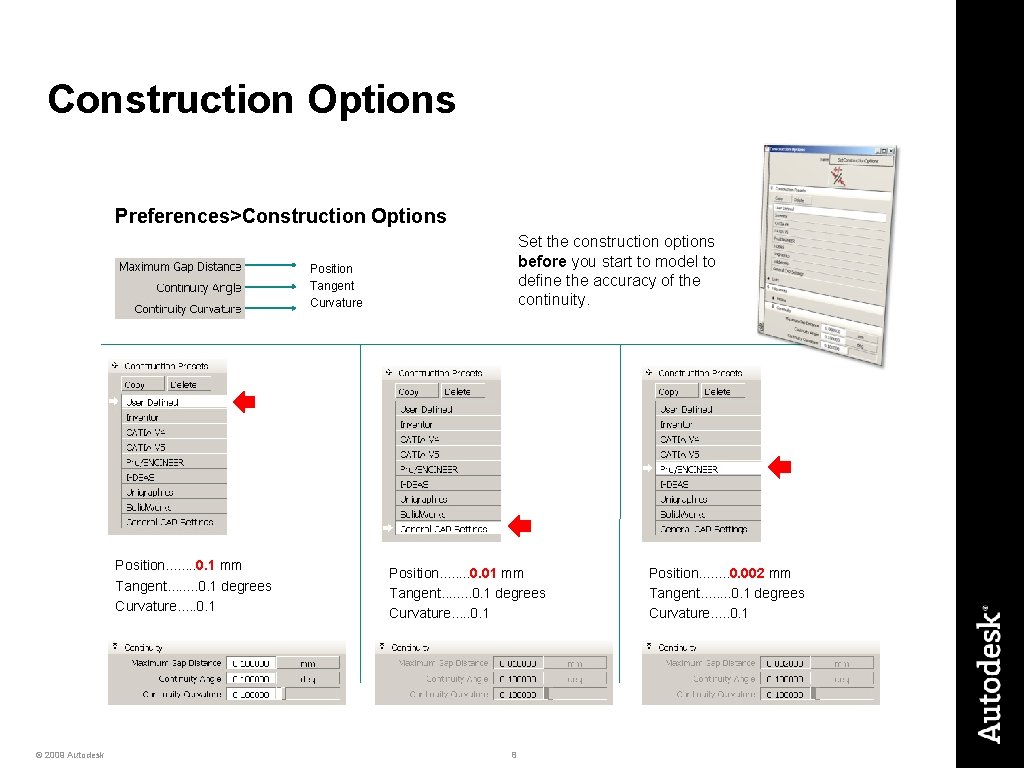
Construction Options Preferences>Construction Options Set the construction options before you start to model to define the accuracy of the continuity. Position Tangent Curvature Position. . . . 0. 1 mm Tangent. . . . 0. 1 degrees Curvature. . . 0. 1 © 2009 Autodesk Position. . . . 0. 01 mm Tangent. . . . 0. 1 degrees Curvature. . . 0. 1 8 Position. . . . 0. 002 mm Tangent. . . . 0. 1 degrees Curvature. . . 0. 1
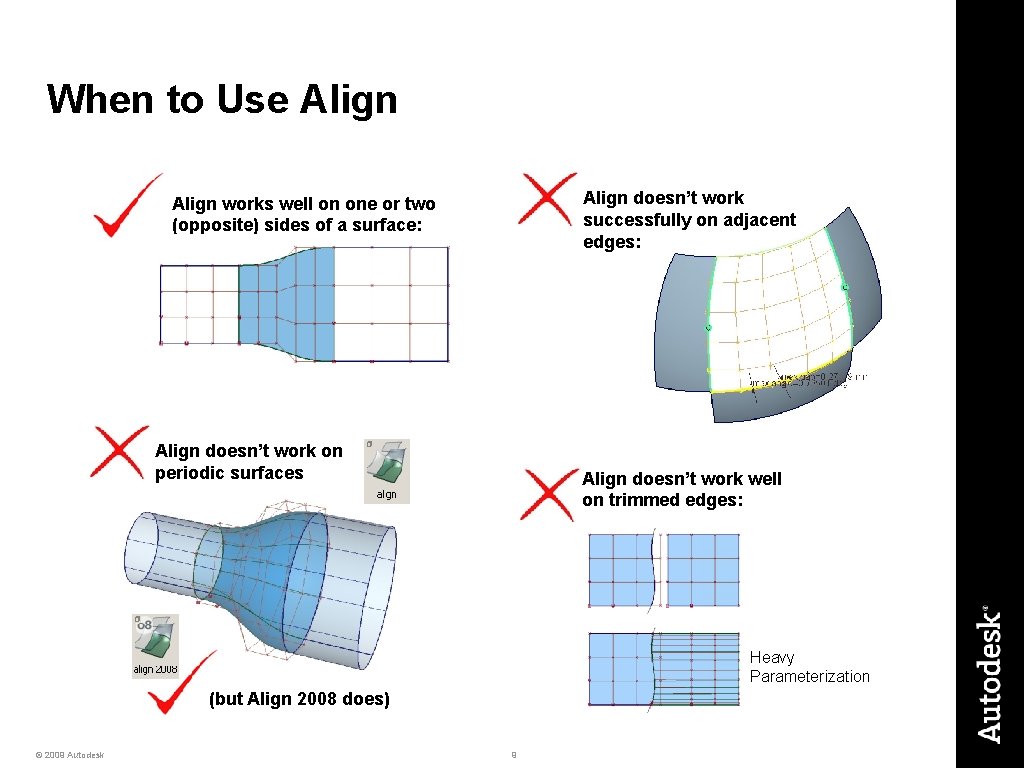
When to Use Align doesn’t work successfully on adjacent edges: Align works well on one or two (opposite) sides of a surface: Align doesn’t work on periodic surfaces Align doesn’t work well on trimmed edges: Heavy Parameterization (but Align 2008 does) © 2009 Autodesk 9
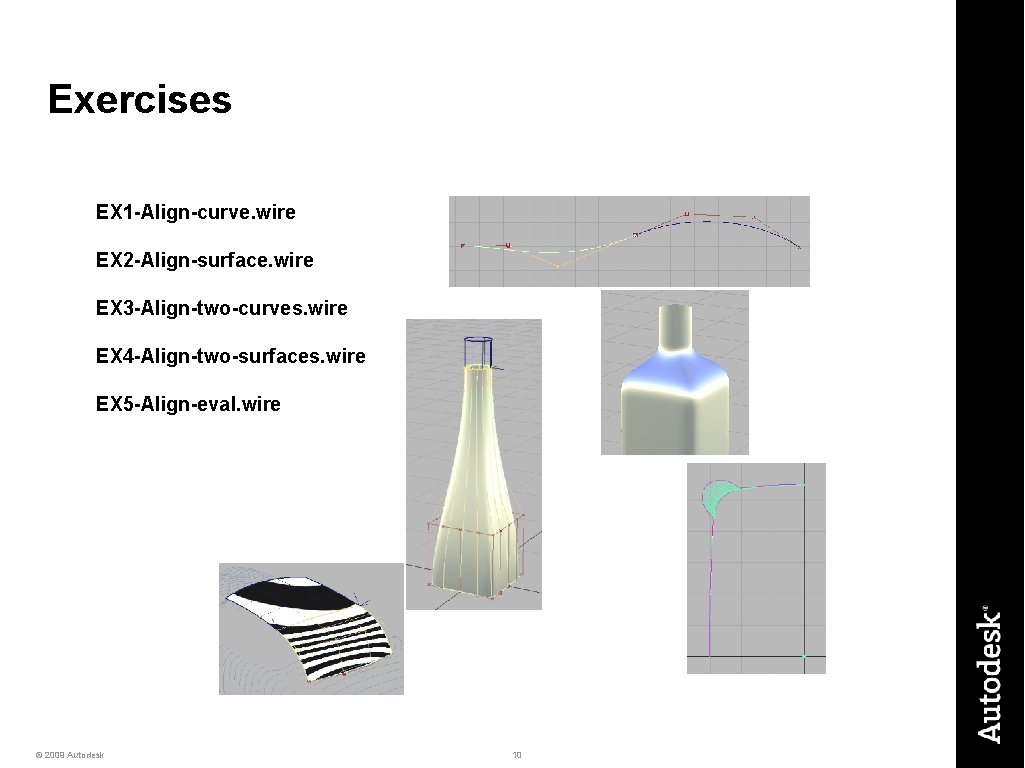
Exercises EX 1 -Align-curve. wire EX 2 -Align-surface. wire EX 3 -Align-two-curves. wire EX 4 -Align-two-surfaces. wire EX 5 -Align-eval. wire © 2009 Autodesk 10
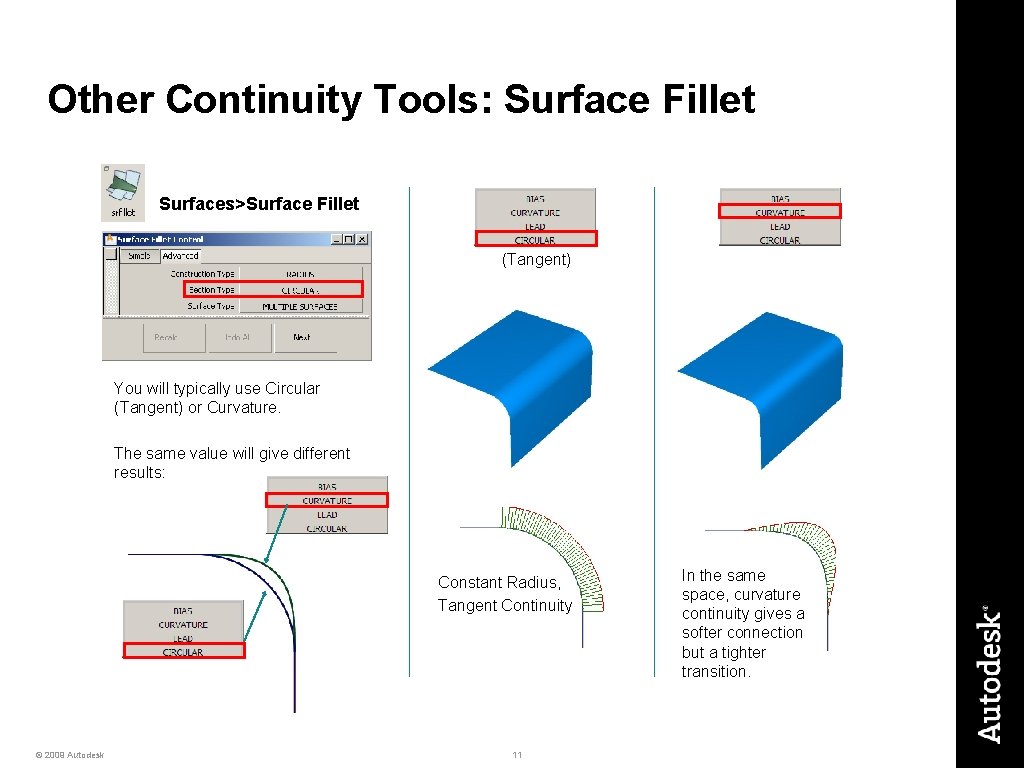
Other Continuity Tools: Surface Fillet Surfaces>Surface Fillet (Tangent) You will typically use Circular (Tangent) or Curvature. The same value will give different results: Constant Radius, Tangent Continuity © 2009 Autodesk 11 In the same space, curvature continuity gives a softer connection but a tighter transition.
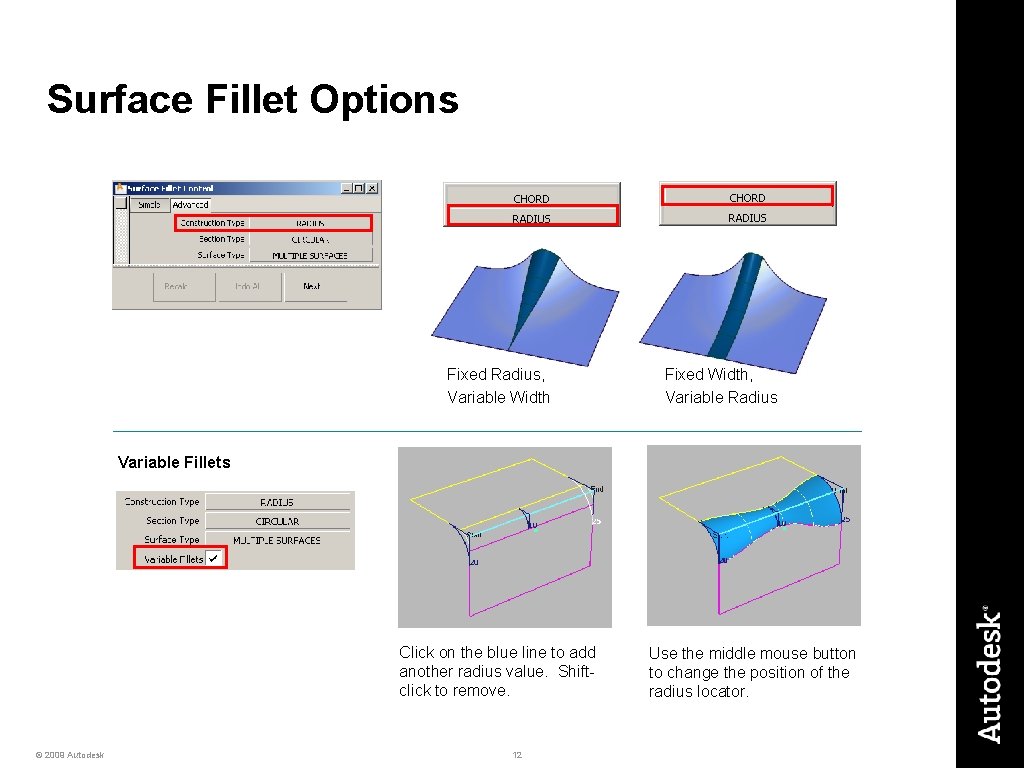
Surface Fillet Options Fixed Radius, Variable Width Fixed Width, Variable Radius Variable Fillets Click on the blue line to add another radius value. Shiftclick to remove. © 2009 Autodesk 12 Use the middle mouse button to change the position of the radius locator.
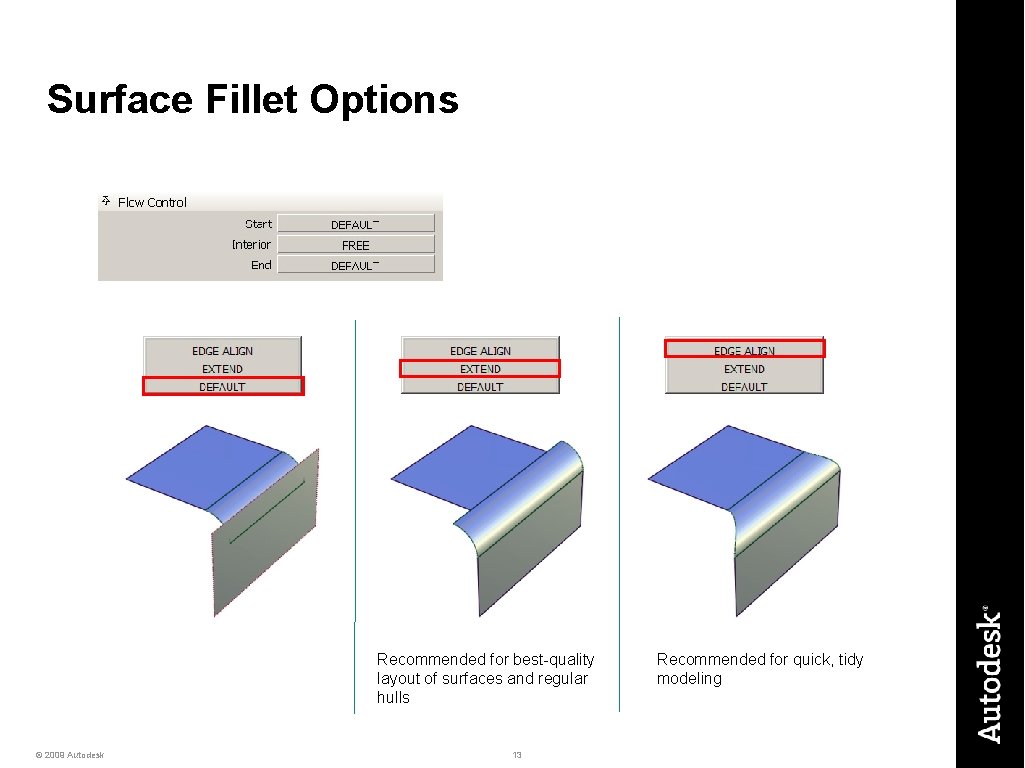
Surface Fillet Options Recommended for best-quality layout of surfaces and regular hulls © 2009 Autodesk 13 Recommended for quick, tidy modeling
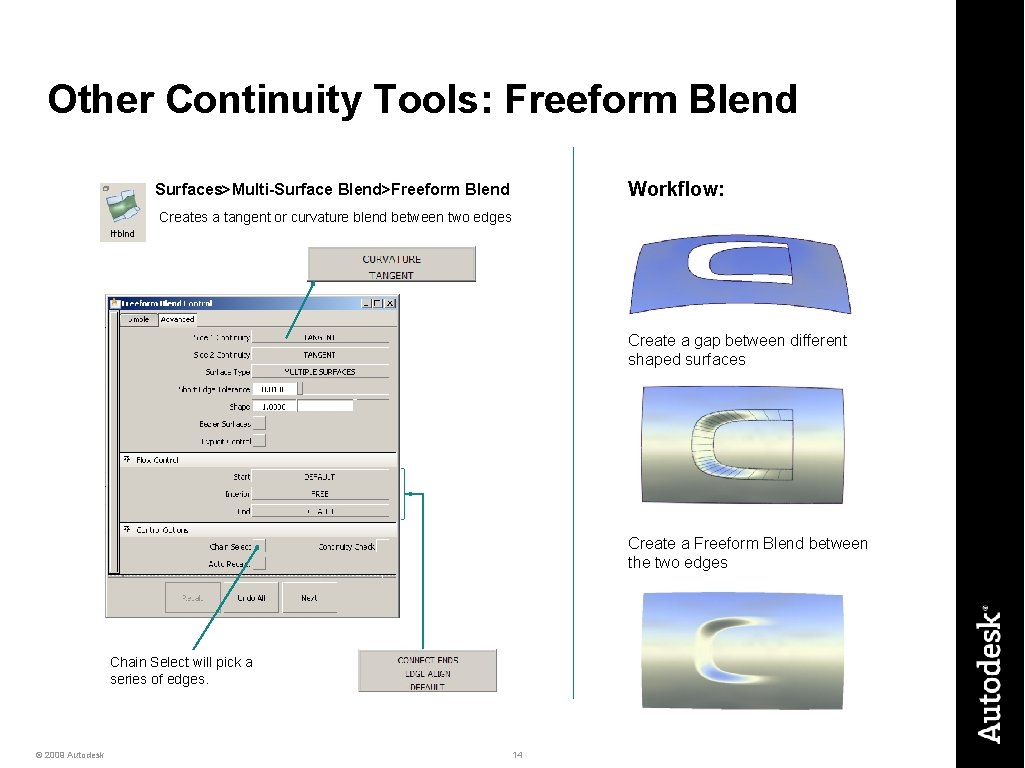
Other Continuity Tools: Freeform Blend Workflow: Surfaces>Multi-Surface Blend>Freeform Blend Creates a tangent or curvature blend between two edges Create a gap between different shaped surfaces Create a Freeform Blend between the two edges Chain Select will pick a series of edges. © 2009 Autodesk 14
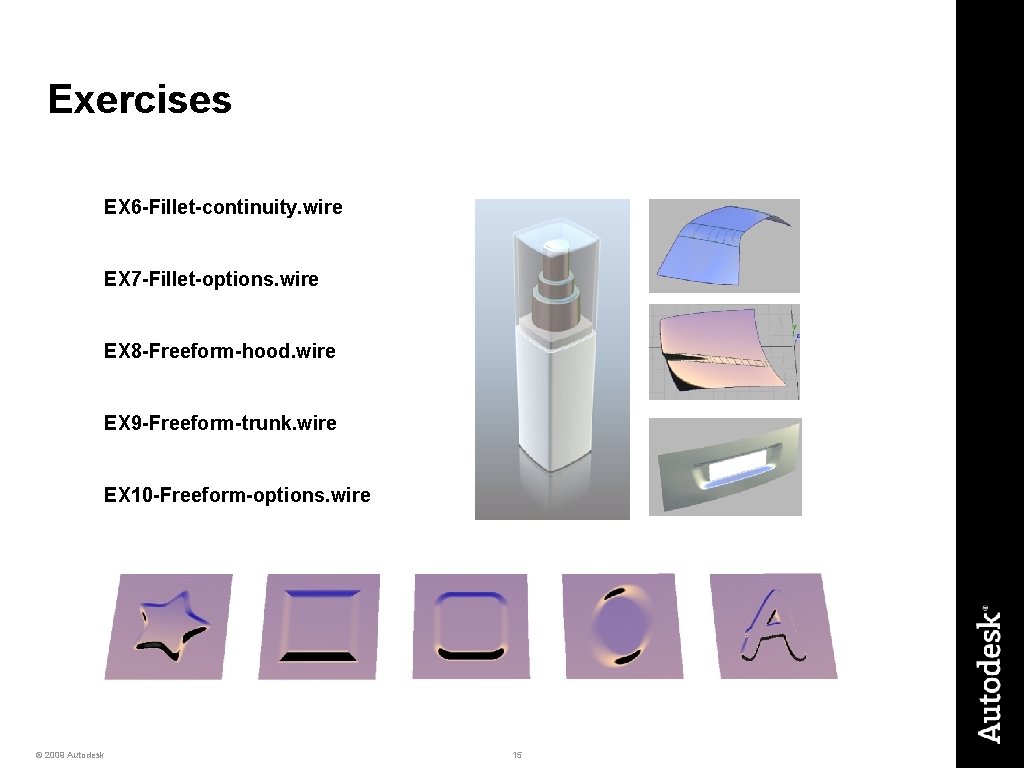
Exercises EX 6 -Fillet-continuity. wire EX 7 -Fillet-options. wire EX 8 -Freeform-hood. wire EX 9 -Freeform-trunk. wire EX 10 -Freeform-options. wire © 2009 Autodesk 15
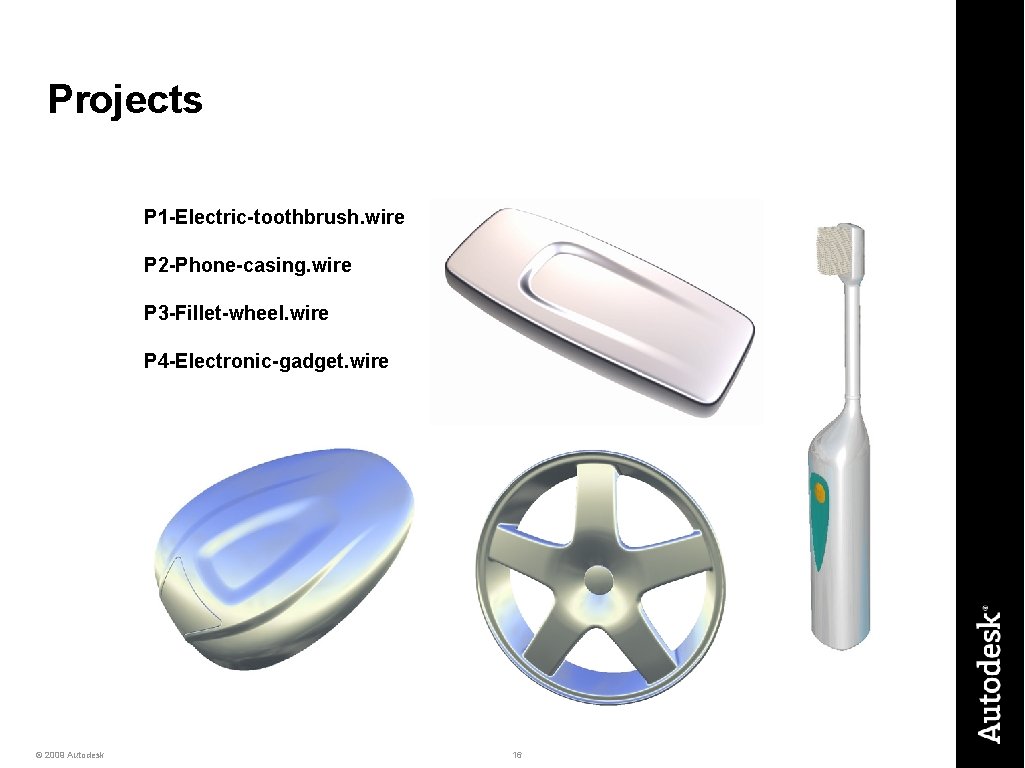
Projects P 1 -Electric-toothbrush. wire P 2 -Phone-casing. wire P 3 -Fillet-wheel. wire P 4 -Electronic-gadget. wire © 2009 Autodesk 16