
Support Hardware and Software Not SDS2 Scan QR

- Slides: 43
Support Hardware and Software (Not SDS/2) Scan QR Code Below to Presenter: Matt Bailey mbailey@connectedsg. com Connected Structural Group 702 -804 -1535 Download Presentation Slides Moderator: Michael Smith Scan QR Code to Left to Access You. Tube Channel
Hardware/Software: Objective • Understand what Hardware Resources SDS/2 uses and how to develop an appropriate system • Provide examples of various input/output hardware with benefit and usage discussion • Provide various solutions to increase productivity using external non-SDS/2 software
Understanding SDS/2 • “Database” Live Multi-User environment – All users accessing the exact same data • No Sync or Refresh Required – Uses read/write file access locks – Data Storage read/write on server – Processing/rendering on client/user workstation
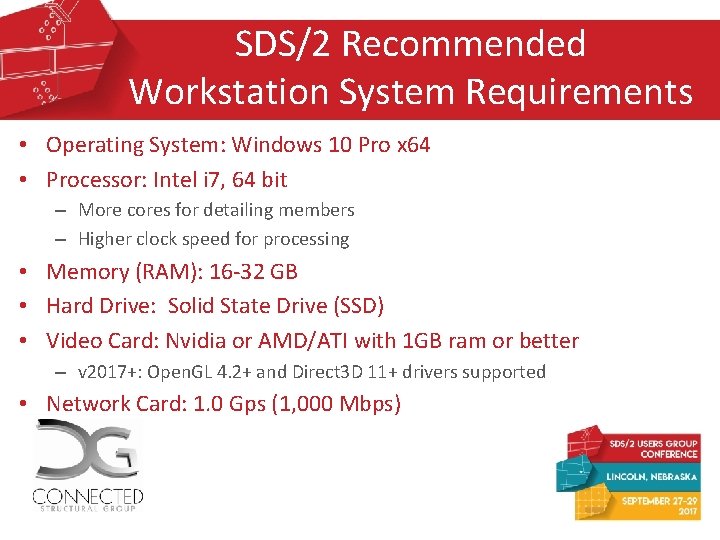
SDS/2 Recommended Workstation System Requirements • Operating System: Windows 10 Pro x 64 • Processor: Intel i 7, 64 bit – More cores for detailing members – Higher clock speed for processing • Memory (RAM): 16 -32 GB • Hard Drive: Solid State Drive (SSD) • Video Card: Nvidia or AMD/ATI with 1 GB ram or better – v 2017+: Open. GL 4. 2+ and Direct 3 D 11+ drivers supported • Network Card: 1. 0 Gps (1, 000 Mbps)
SDS/2 Recommended Workstation Other Hardware • Mouse: Logitech with Multiple Buttons • Monitors: 2+ • Surge Protector
SDS/2 Recommended Server System Requirements • Hard Drive: Solid State Drive (SSD) (Fastest read/write) – Redundant Drives • • • Network Switch: 1. 0 Gps (1, 000 Mbps) (No WIFI Network) Network Cables: Cat 5 e or Cat 6 - 1. 0 Gps (1, 000 Mbps) Battery Backup Virus Protection Data Backup: On-Site, Off-Site, Cloud. (Automate Backups) External File Access: FTP, or Cloud Storage (Even Dropbox)
Average Computer Lifespan • 3 to 5 year lifespan before technology becomes obsolete • Need to stay up-to-date with hardware to meet needs of software.
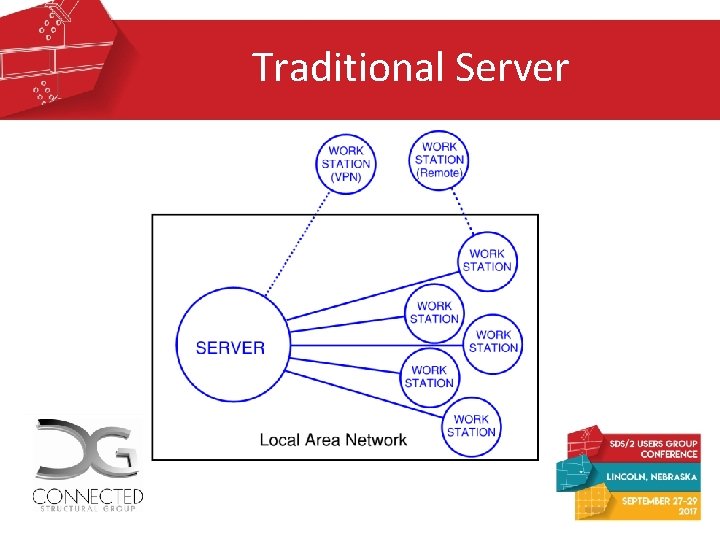
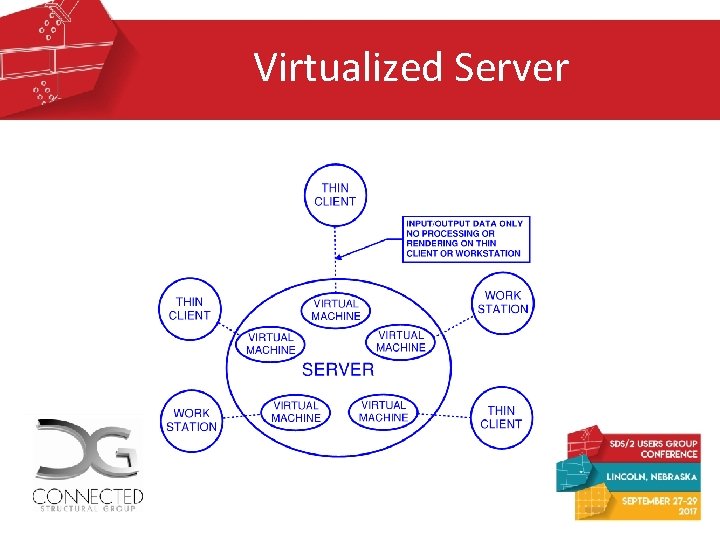
SDS/2 Remote Access • • VPN (Virus Private Network) Server Access Remote Access to physical machine (Goto. My. PC) Remove Access to virtual machine Cloud Server (Cloud Synergistics) Speed of connection is most important!!!
Traditional Server
Virtualized Server
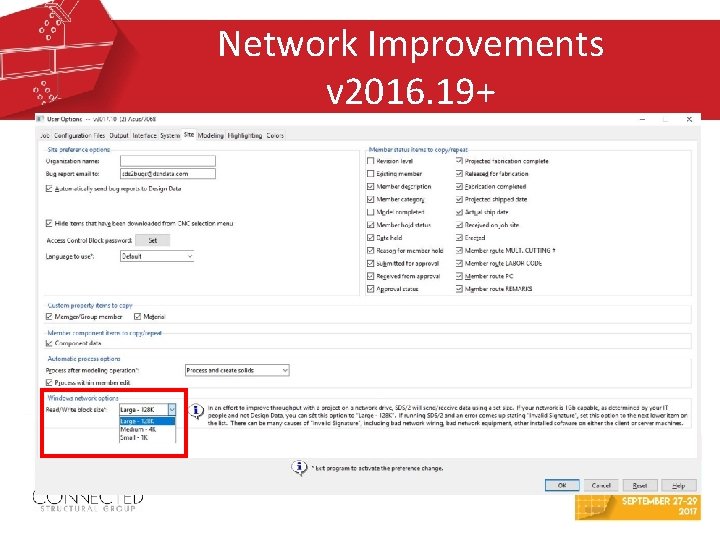
Network Improvements v 2016. 19+
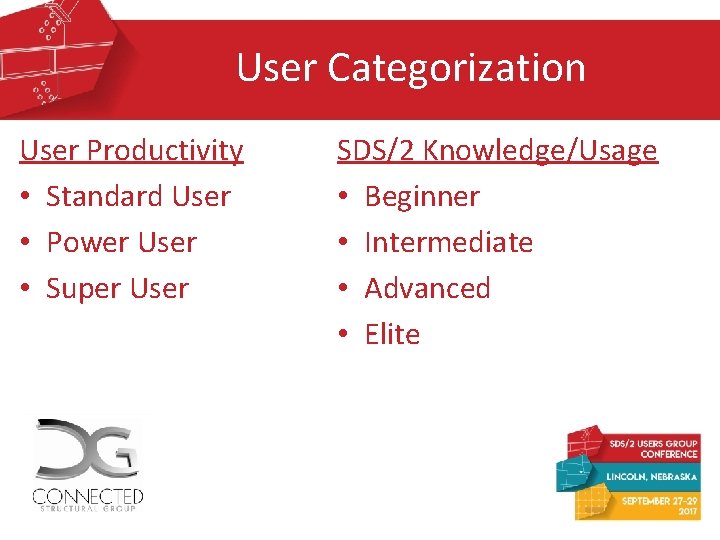
User Categorization User Productivity • Standard User • Power User • Super User SDS/2 Knowledge/Usage • Beginner • Intermediate • Advanced • Elite
Graphics Card/Monitors • Motherboard has 1 output port (less capable) • Most graphics cards have 2 output ports • Some graphics cards have 4 output ports – May need a Mini Display Port Adapter
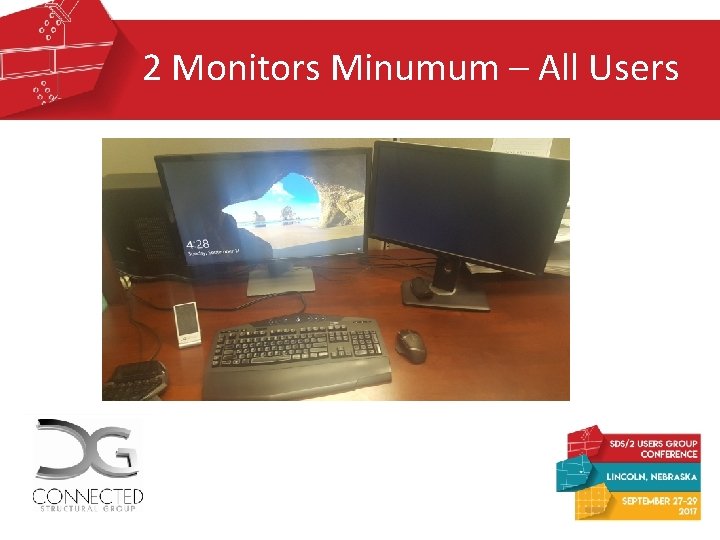
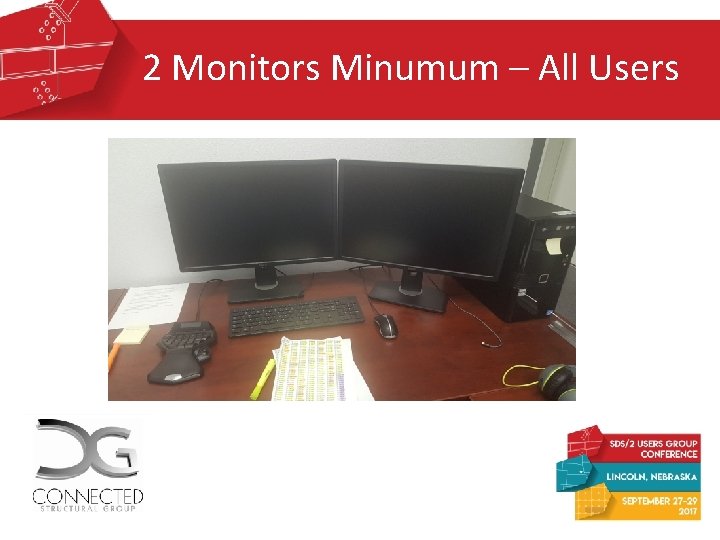
2 Monitors Minumum – All Users
2 Monitors Minumum – All Users
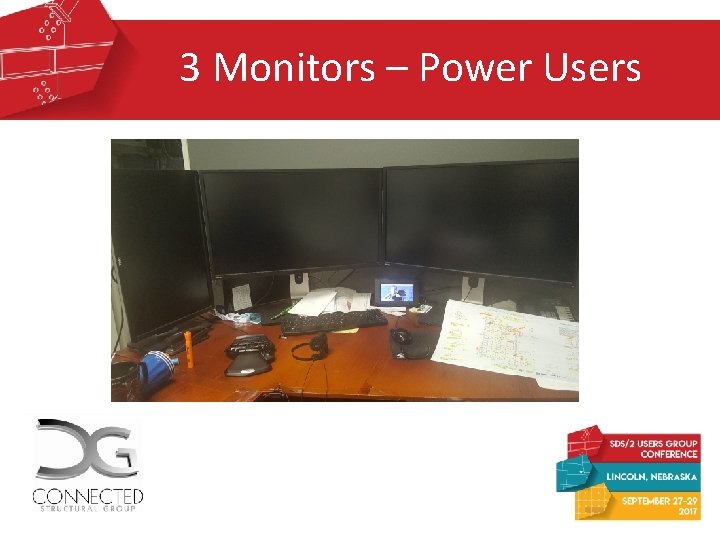
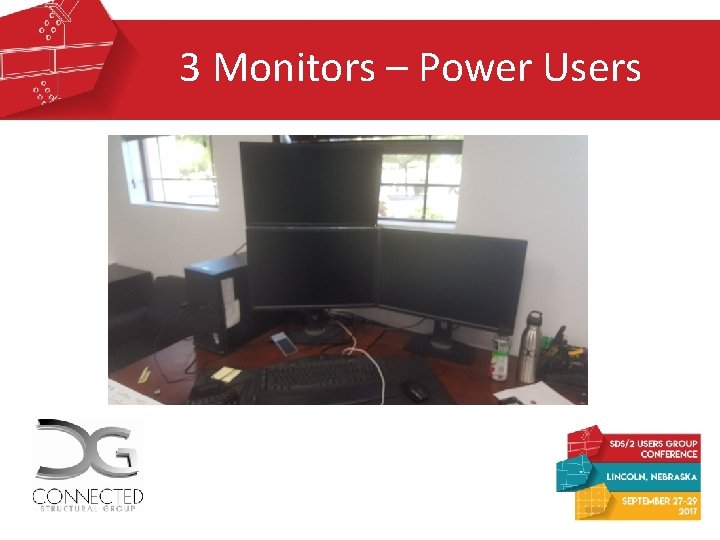
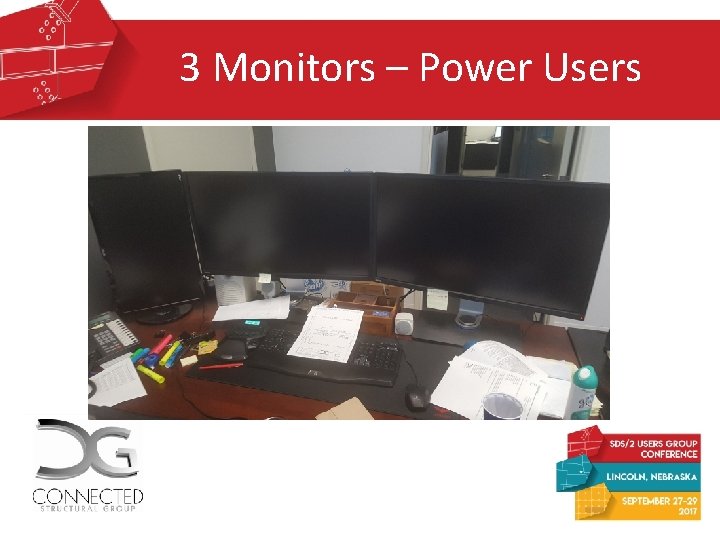
3 Monitors – Power Users
3 Monitors – Power Users
3 Monitors – Power Users
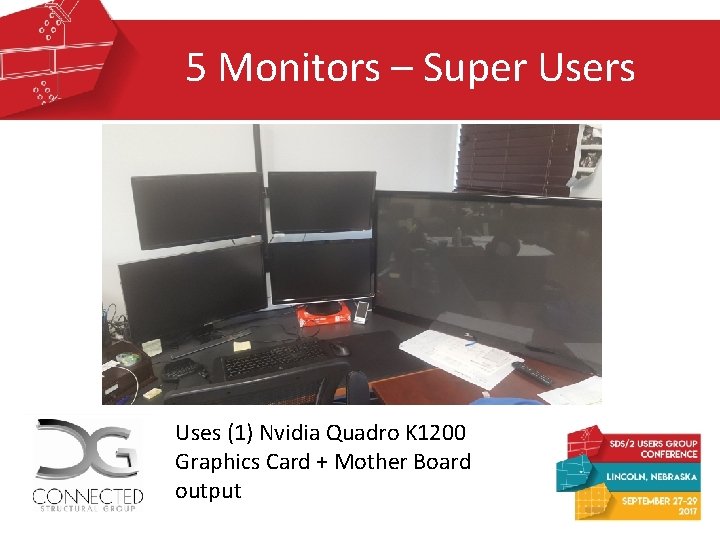
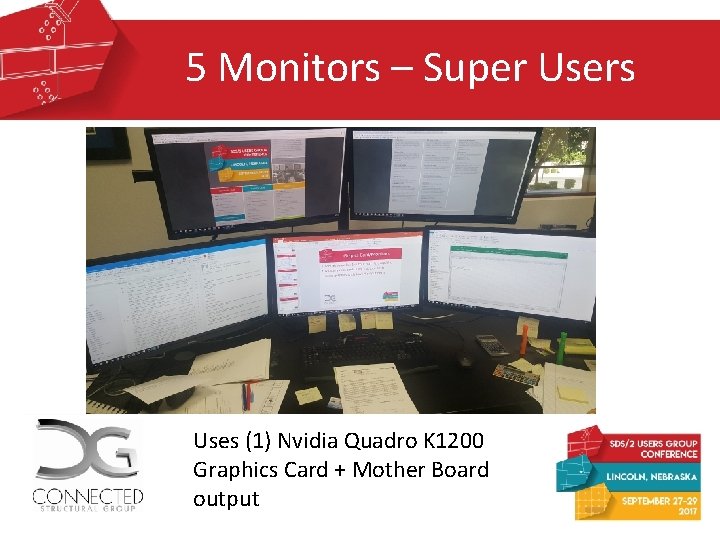
5 Monitors – Super Users Uses (1) Nvidia Quadro K 1200 Graphics Card + Mother Board output
5 Monitors – Super Users Uses (1) Nvidia Quadro K 1200 Graphics Card + Mother Board output
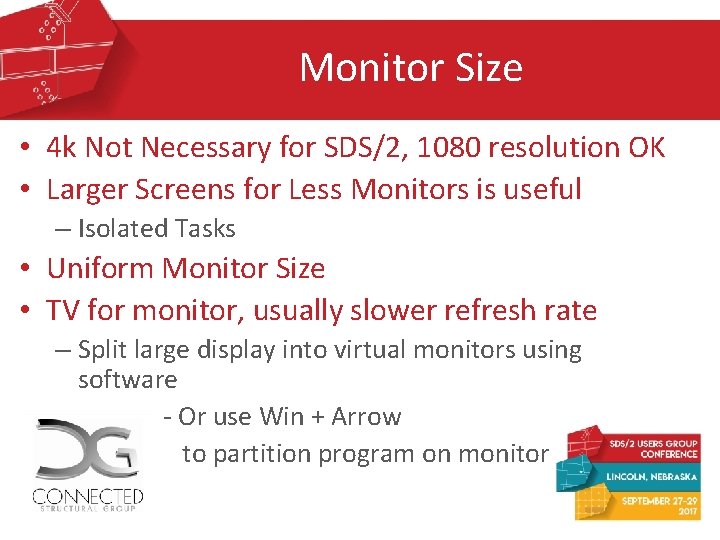
Monitor Size • 4 k Not Necessary for SDS/2, 1080 resolution OK • Larger Screens for Less Monitors is useful – Isolated Tasks • Uniform Monitor Size • TV for monitor, usually slower refresh rate – Split large display into virtual monitors using software - Or use Win + Arrow to partition program on monitor
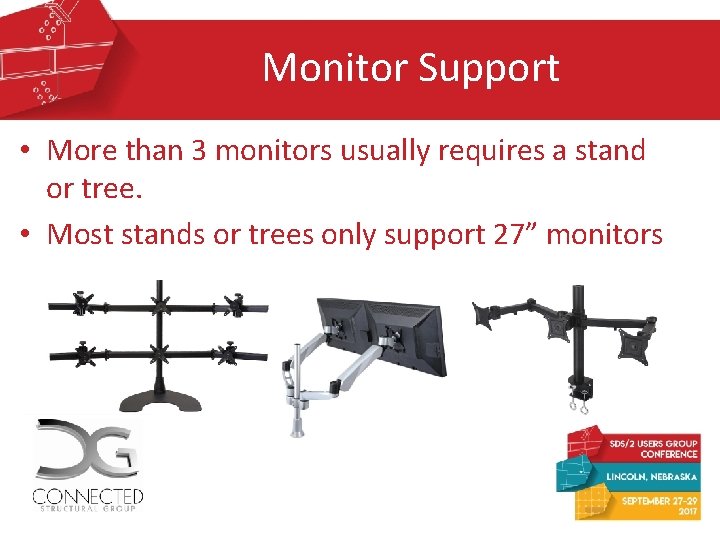
Monitor Support • More than 3 monitors usually requires a stand or tree. • Most stands or trees only support 27” monitors
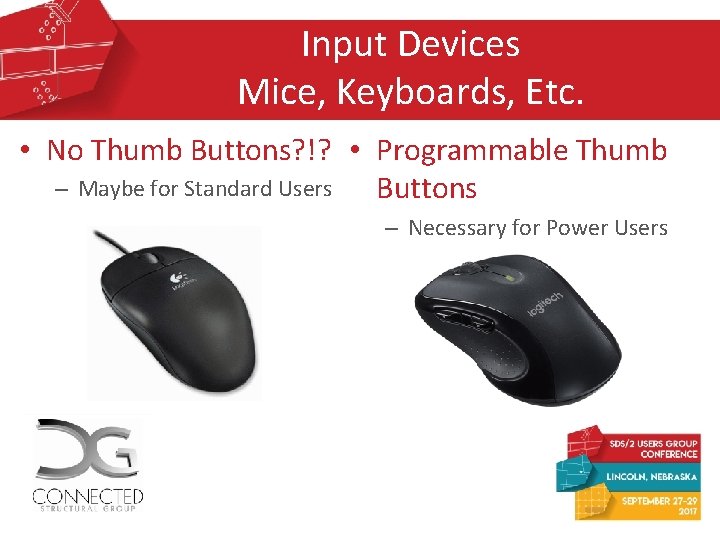
Input Devices Mice, Keyboards, Etc. • No Thumb Buttons? !? • Programmable Thumb – Maybe for Standard Users Buttons – Necessary for Power Users
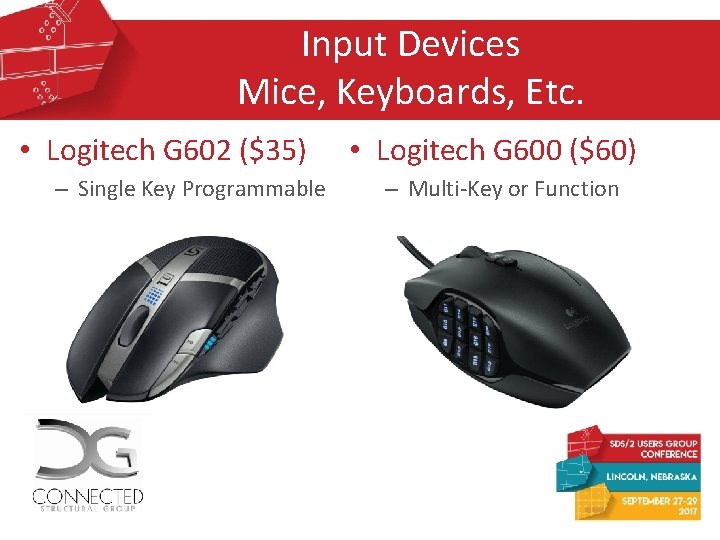
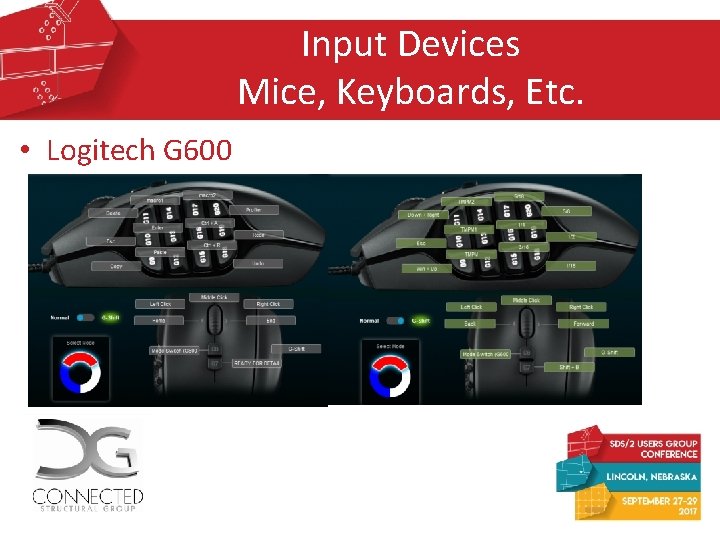
Input Devices Mice, Keyboards, Etc. • Logitech G 602 ($35) – Single Key Programmable • Logitech G 600 ($60) – Multi-Key or Function
Input Devices Mice, Keyboards, Etc. • Logitech G 600
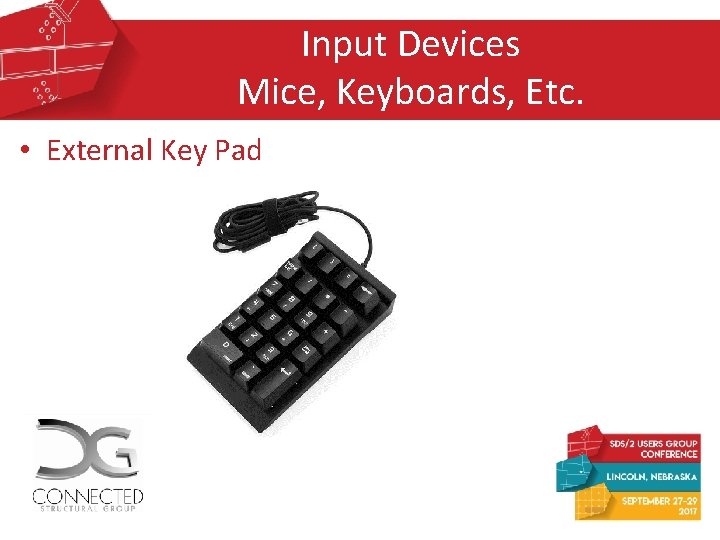
Input Devices Mice, Keyboards, Etc. • External Key Pad
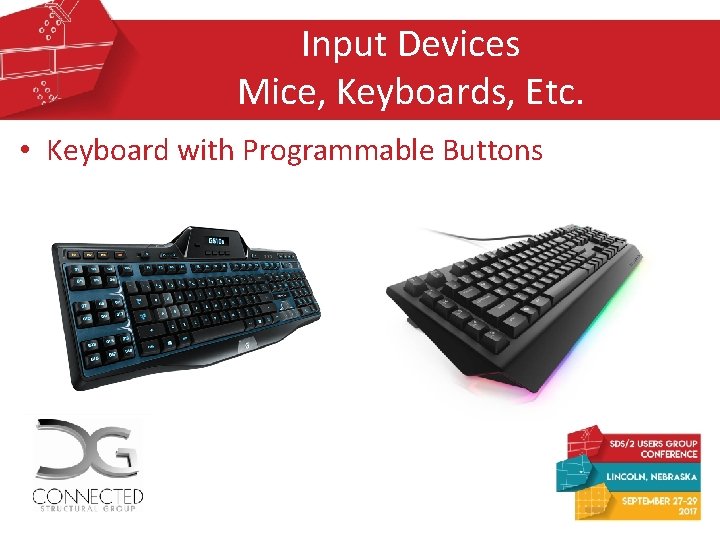
Input Devices Mice, Keyboards, Etc. • Keyboard with Programmable Buttons
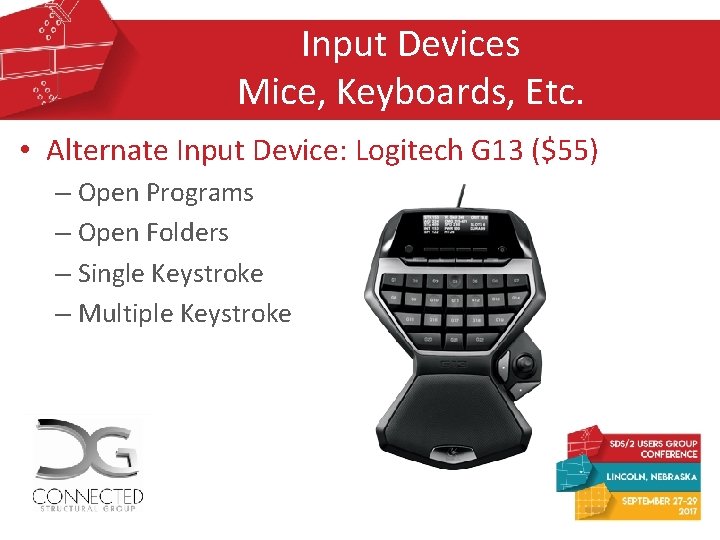
Input Devices Mice, Keyboards, Etc. • Alternate Input Device: Logitech G 13 ($55) – Open Programs – Open Folders – Single Keystroke – Multiple Keystroke
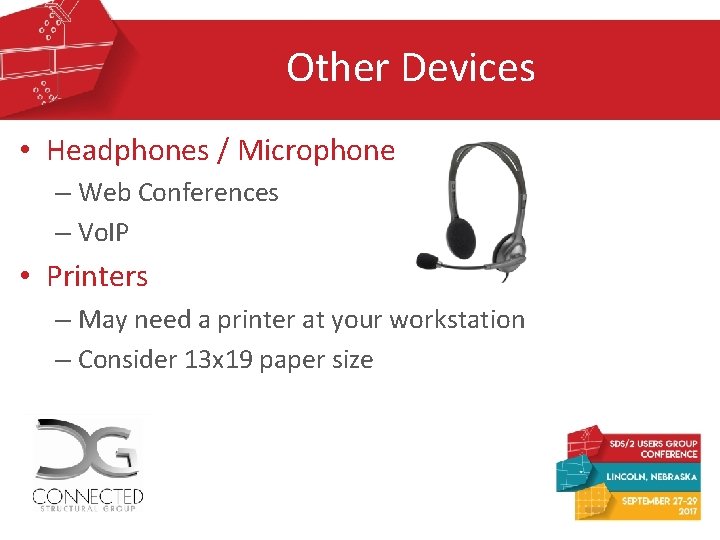
Other Devices • Headphones / Microphone – Web Conferences – Vo. IP • Printers – May need a printer at your workstation – Consider 13 x 19 paper size
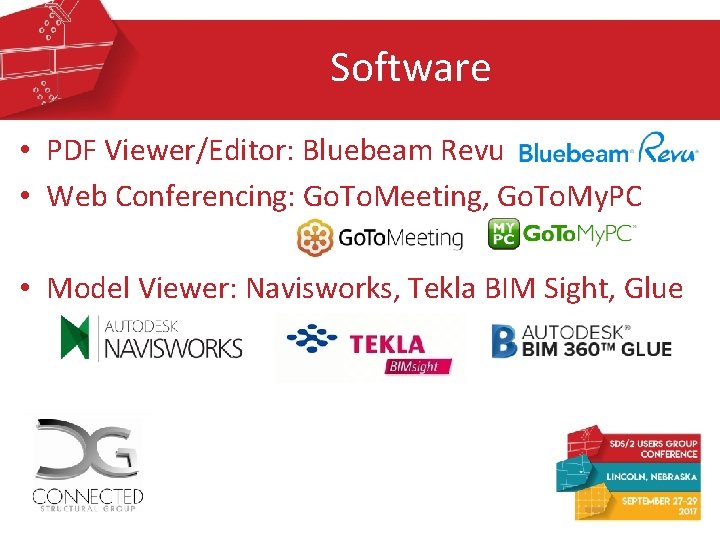
Software • PDF Viewer/Editor: Bluebeam Revu • Web Conferencing: Go. To. Meeting, Go. To. My. PC • Model Viewer: Navisworks, Tekla BIM Sight, Glue
Software • DSTV Viewer: Atek Automation • Revit (for use in SDS/2) – Use Filters to partition model for partial exports - Import smaller models into SDS/2
Software • Screen Capture: Snag-it – Numerous Screen Capture Options – Color Substitution: Convert Black to White – Direct Output to Clipboard or Email – Editor preview for additional mark-ups – Output in various file formats
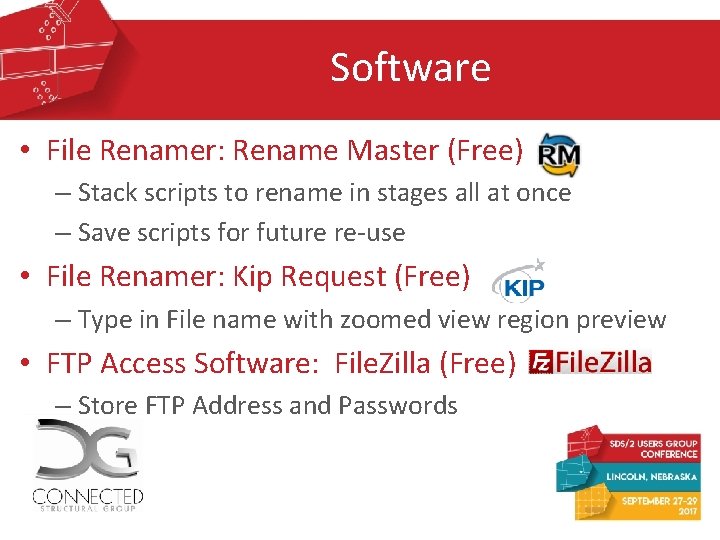
Software • File Renamer: Rename Master (Free) – Stack scripts to rename in stages all at once – Save scripts for future re-use • File Renamer: Kip Request (Free) – Type in File name with zoomed view region preview • FTP Access Software: File. Zilla (Free) – Store FTP Address and Passwords
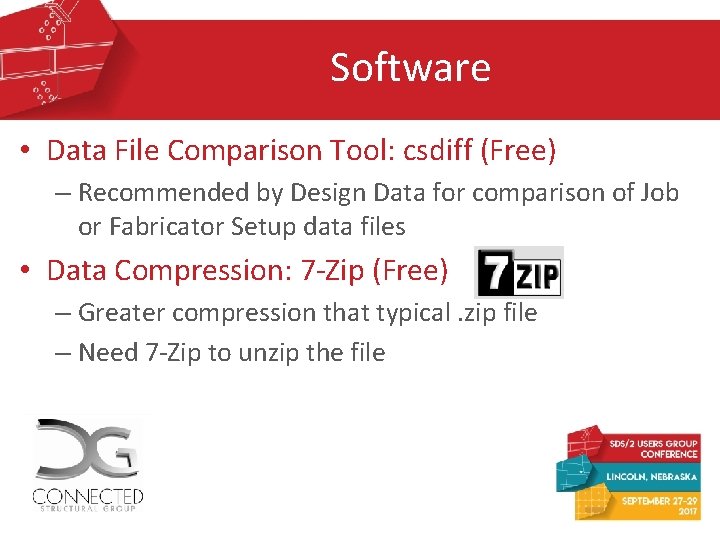
Software • Data File Comparison Tool: csdiff (Free) – Recommended by Design Data for comparison of Job or Fabricator Setup data files • Data Compression: 7 -Zip (Free) – Greater compression that typical. zip file – Need 7 -Zip to unzip the file
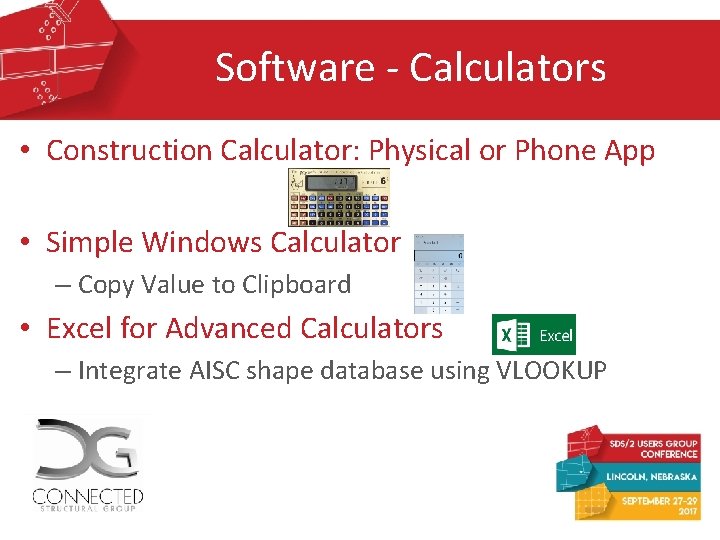
Software - Calculators • Construction Calculator: Physical or Phone App • Simple Windows Calculator – Copy Value to Clipboard • Excel for Advanced Calculators – Integrate AISC shape database using VLOOKUP
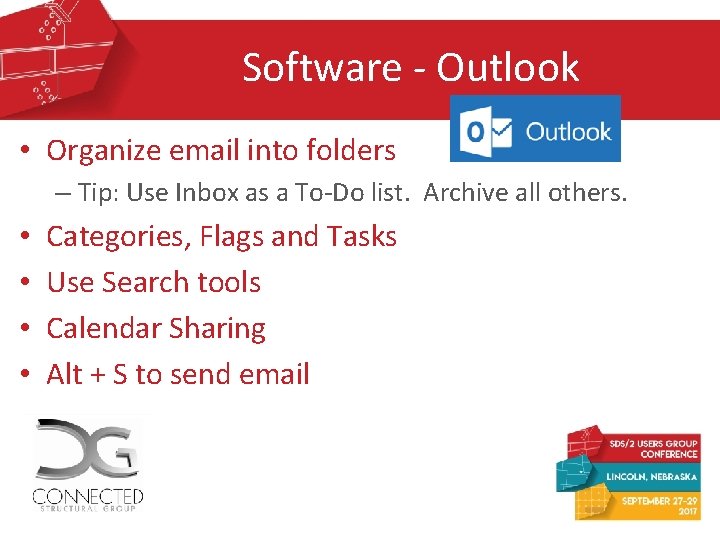
Software - Outlook • Organize email into folders – Tip: Use Inbox as a To-Do list. Archive all others. • • Categories, Flags and Tasks Use Search tools Calendar Sharing Alt + S to send email
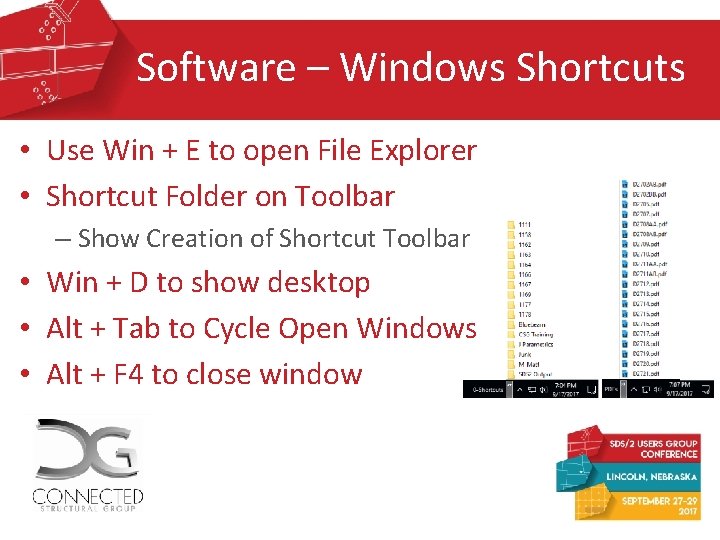
Software – Windows Shortcuts • Use Win + E to open File Explorer • Shortcut Folder on Toolbar – Show Creation of Shortcut Toolbar • Win + D to show desktop • Alt + Tab to Cycle Open Windows • Alt + F 4 to close window
Software – Windows Shortcuts • • • Ctrl + S to save Ctrl + C to copy Ctrl + X to cut Ctrl + V to paste Ctrl + Z to undo Ctrl + A to select all • Ctrl + K to create hyperlink • Ctrl + wheel to Zoom in/out • Ctrl + Shift + Esc to open Task Manager • Copy Folder Address from Address Bar
Software – Windows Shortcuts • Ctrl + Enter to page break or click okay • Ctrl + B, Ctrl + I, Ctrl + U for Bold, Italic, Underline – Does not work with SDS/2 label in v 2017 • Use Home and End, Page Up and Page Down • Use Alt + “__” to access other menu options • Ctrl + Shift + N creates new folder
Software – Windows Shortcuts • Use Ctrl + Left or Right to jump from word to word – Combine with Shift to select from word to word • Use F 2 to Rename File/Folder • Use Win + Arrows to Maximize or Move Windows • Press Win, then type the program or folder (local)
Software - Engineering • Concrete Anchor Designer: – Hilti Profis Anchor (Free) – Simpson Anchor Designer (Free) • Math. CAD Express (Free) – Create math equations and format in a page layout – More advanced and transparent than Excel
Hardware / Software Summary Productivity is limited by Input. • Use tools to assist in time consuming tasks • Put your left hand to work!!! • Program Keys to make your life easy – Reduce time to complete redundant tasks • Become a Super User!
Support Hardware and Software Questions? Presenter: Matt Bailey mbailey@connectedsg. com Connected Structural Group 702 -804 -1535 Scan QR Code Below to Download Presentation Slides Moderator: Michael Smith Scan QR Code to Left to Access You. Tube Channel