
Supplier SQM Training ABOUT SQM 2 MDT Confidential

Supplier SQM Training

ABOUT SQM 2 | MDT Confidential
What is SQM? • SQM stands for Supplier Quality Management – Medtronic’s System for Process Intelligence and Capability Excellence (SPICE). – Software system utilizing SPACE Software from Camline. – SQM utilizes supplier data electronically transmitted to Medtronic via an internet portal or Secure File Transfer Protocol port. 3 | MDT Confidential
Why SQM? • System in which data can be uploaded and valuated against the specific product requirements. • Provide real time feedback prior to release of product and identify opportunities for improvement. • Pre-determine Lot Acceptance and provide shipment authorization upon successful data upload. • Drive common understanding of product variation and opportunities to control sources that increase variation. • Foster an expanded culture to maximize Design for Reliability and Manufacturability (DRM). 4 | MDT Confidential
Key Benefits • Medtronic is looking at SQM implementation at our key suppliers as an opportunity to improve the collaboration between Medtronic and it’s suppliers. • The industry and regulatory pressures demand that we improve the team dynamics between supplier and Medtronic to work together to identify, monitor, and control risk. • The opportunities of risk manifest in many ways, but the key customer concern is in the form of variation, stability and capability. 5 | MDT Confidential
Key Benefits • Facilitates cooperation between Medtronic and our key suppliers. • Improved collaboration between Medtronic and Suppliers, issues are identified and addressed prior to shipment of any material. • Real time data analysis will improve process efficiency and enhance communication. 6 | MDT Confidential

EXPECTATIONS 7 | MDT Confidential
Expectations • Ownership • Compliance • Data Integrity 8 | MDT Confidential
Ownership • Integration – SQM should be integrated into existing training and documentation as part of your quality system. – The SQM upload process should be part of product acceptance activities. • Communication – Think collaboration, how can we do this together. • Product Quality – You are responsible to ensure that all requirements are met per specifications and purchase order as necessary and is not limited to only the parameters being submitted through SQM. – Ship authorization is determine by successful notification within SQM and must 9 | MDT Confidential occur prior to product shipment.
Compliance • Traceability – It is important that lot traceability be maintained • This is done by ensuring that the lot or batch identification matches between the certification of compliance (Co. C), Supplier. Lot. ID in SQM and shipped product. • 21 CFR Part 11 – As it applies to SQM, part 11 compliance has to do with record integrity and management of user IDs and passwords 10 | MDT Confidential
Data Integrity • Ensure data is complete and accurate and that it successfully loads into the system without failure – i. e. Product meets specification limits, k-Value calculation, Control limits, capability requirements. • Violation reaction plan – If data fails, follow internal quality system to determine why it failed and how to fix it…. 11 | MDT Confidential
21 CFR Part 11 Awareness Training COMPLIANCE 12 | MDT Confidential
21 CFR Part 11 Awareness Training • What is it? – FDA regulation for acceptable use of electronic records and signatures as equivalent to “paper” records and “handwritten” signatures. • Why? – System security & control – Record integrity – Accountability – Non-repudiation 13 | MDT Confidential
21 CFR Part 11 Awareness Training • What does it apply to? – Any record required by FDA. – Any record submitted to FDA electronically. • SQM data submissions are electronic records and as such we need to insure the record’s integrity. – We do this by ensuring the upload is accurate and complete. – And by using an electronic signature. 14 | MDT Confidential
21 CFR Part 11 Awareness Training • What is an electronic signature? – Any symbol(s) executed, adopted, or authorized by an individual to be the legally binding equivalent of the individual’s handwritten signature. • What is required for electronic signatures? – Two distinct identification components when signing (e. g. : ID code & password). – Means to assure a person could not possess another person’s identification components. – Name, date/time, meaning of signing. – Linkage of signature to its associated electronic 15 records. | MDT Confidential
21 CFR Part 11 Awareness Training • The Medtronic Password Policy as it applies to SQM – Must contain: • At least 7 characters • Numeric (0 -9) characters – And at least one of the three elements listed below: • Uppercase characters • Lowercase characters • Non-Alphanumeric characters (e. g. , ? , %, *, $, etc. ). – Passwords cannot contain a user’s account name. It is strongly advised that passwords should not contain dictionary words. 16 | MDT Confidential
21 CFR Part 11 Awareness Training • The Medtronic Password Policy as it applies to SQM – Compromised passwords known to others (or passwords suspected of being compromised) must be changed immediately. – When logging on to an account for the first time, the account owner must be prompted to immediately change the temporary password and select a new password. – The re-use of any of the last 10 passwords selected for a user account must not be permitted. – User account passwords must expire and require changing every 60 days. 17 | MDT Confidential
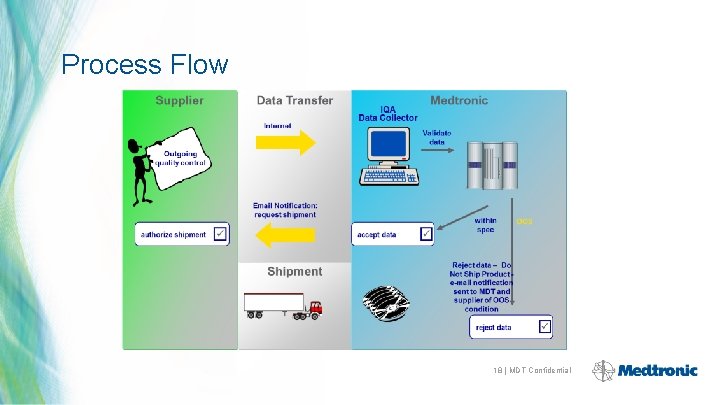
Process Flow 18 | MDT Confidential

USING SQM 19 | MDT Confidential
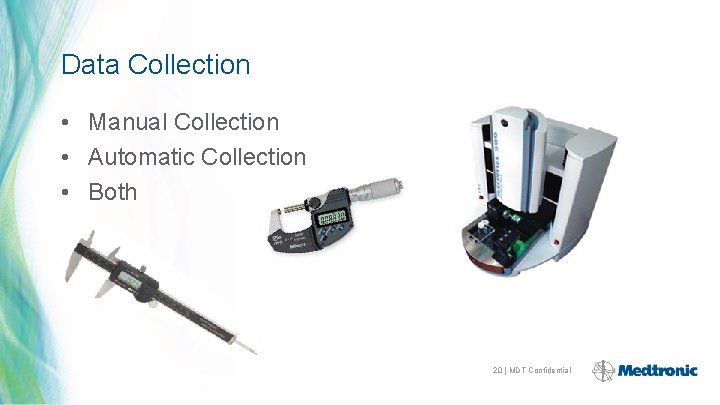
Data Collection • Manual Collection • Automatic Collection • Both 20 | MDT Confidential
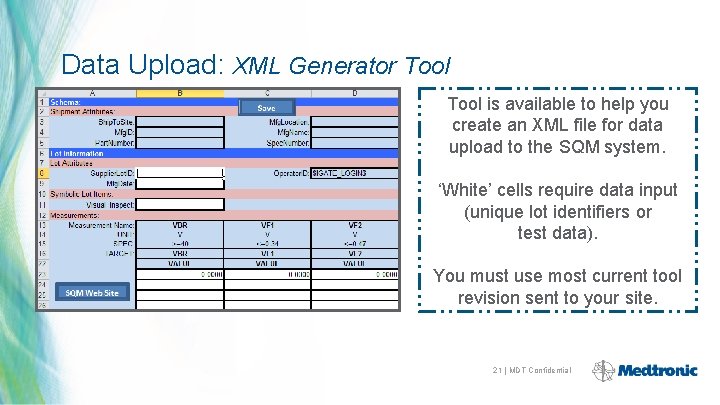
Data Upload: XML Generator Tool is available to help you create an XML file for data upload to the SQM system. ‘White’ cells require data input (unique lot identifiers or test data). You must use most current tool revision sent to your site. 21 | MDT Confidential
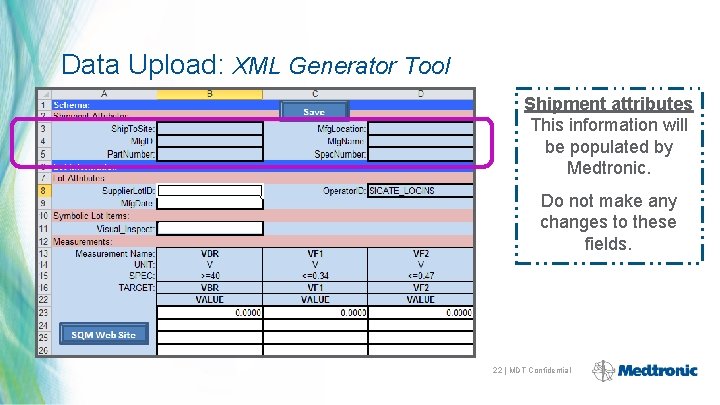
Data Upload: XML Generator Tool Shipment attributes This information will be populated by Medtronic. Do not make any changes to these fields. 22 | MDT Confidential
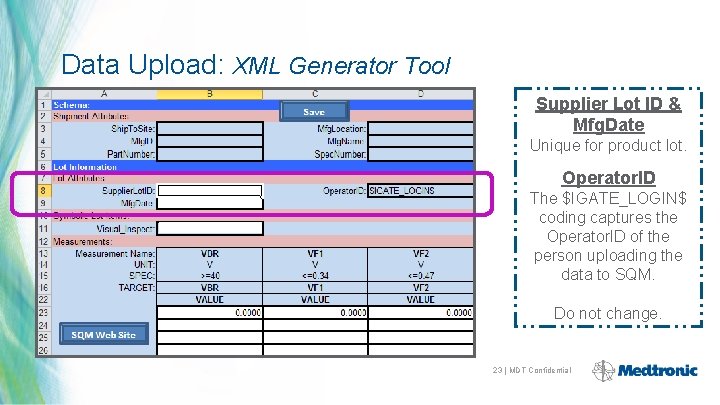
Data Upload: XML Generator Tool Supplier Lot ID & Mfg. Date Unique for product lot. Operator. ID The $IGATE_LOGIN$ coding captures the Operator. ID of the person uploading the data to SQM. Do not change. 23 | MDT Confidential
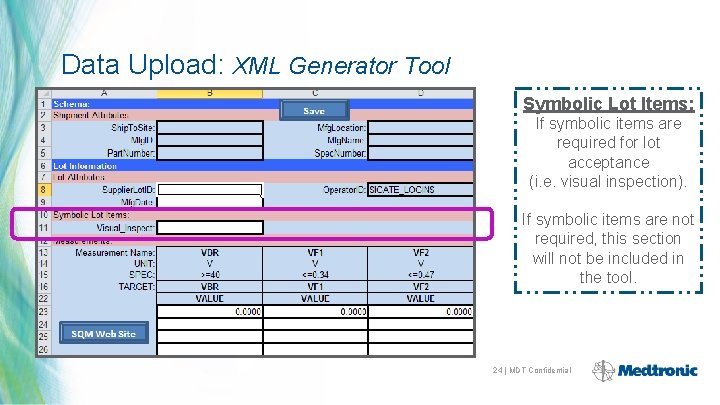
Data Upload: XML Generator Tool Symbolic Lot Items: If symbolic items are required for lot acceptance (i. e. visual inspection). If symbolic items are not required, this section will not be included in the tool. 24 | MDT Confidential
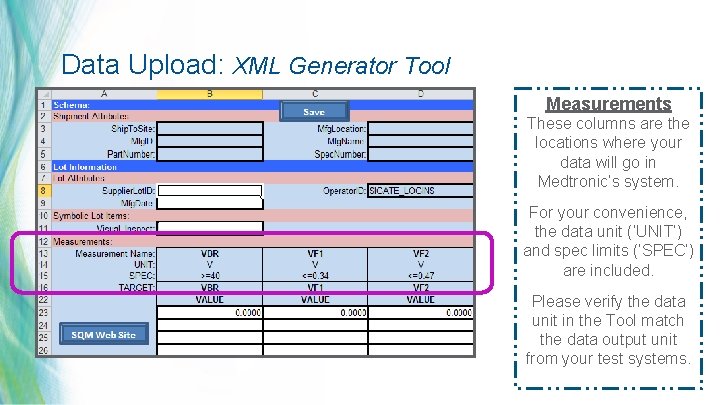
Data Upload: XML Generator Tool Measurements These columns are the locations where your data will go in Medtronic’s system. For your convenience, the data unit (‘UNIT’) and spec limits (‘SPEC’) are included. Please verify the data unit in the Tool match the data output unit from your test systems. 25 | MDT Confidential
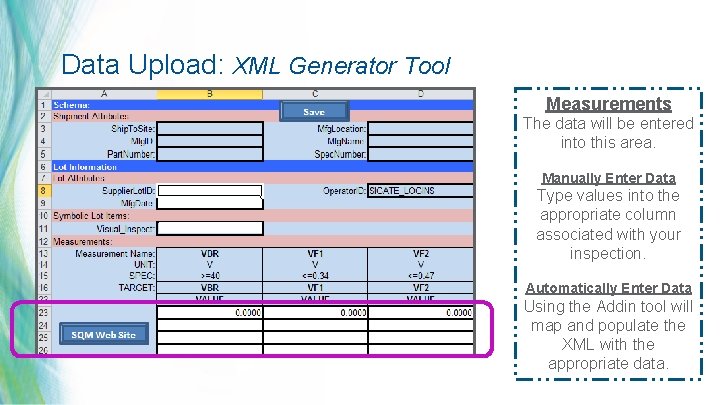
Data Upload: XML Generator Tool Measurements The data will be entered into this area. Manually Enter Data Type values into the appropriate column associated with your inspection. Automatically Enter Data Using the Addin tool will map and populate the XML with the appropriate data. 26 | MDT Confidential
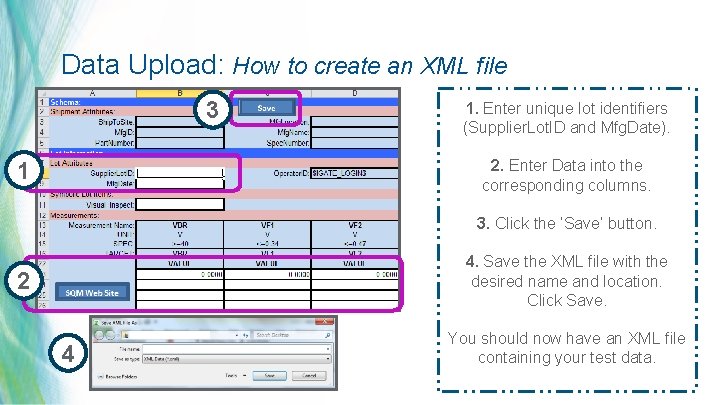
Data Upload: How to create an XML file 3 1. Enter unique lot identifiers (Supplier. Lot. ID and Mfg. Date). 2. Enter Data into the corresponding columns. 1 3. Click the ‘Save’ button. 4. Save the XML file with the desired name and location. Click Save. 2 4 You should now have an XML file containing your test data. 27 | MDT Confidential
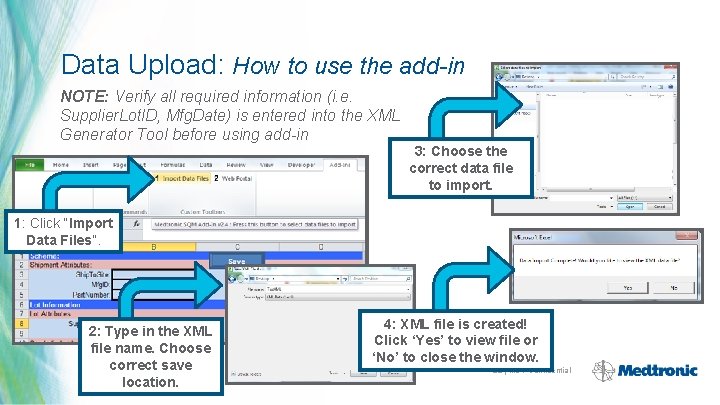
Data Upload: How to use the add-in NOTE: Verify all required information (i. e. Supplier. Lot. ID, Mfg. Date) is entered into the XML Generator Tool before using add-in 3: Choose the correct data file to import. 1: Click “Import Data Files”. 2: Type in the XML file name. Choose correct save location. 4: XML file is created! Click ‘Yes’ to view file or ‘No’ to close the window. 28 | MDT Confidential
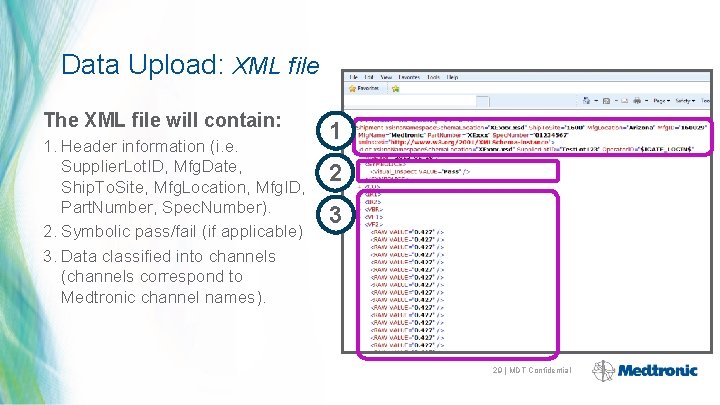
Data Upload: XML file The XML file will contain: 1. Header information (i. e. Supplier. Lot. ID, Mfg. Date, Ship. To. Site, Mfg. Location, Mfg. ID, Part. Number, Spec. Number). 2. Symbolic pass/fail (if applicable) 3. Data classified into channels (channels correspond to Medtronic channel names). 1 2 3 29 | MDT Confidential
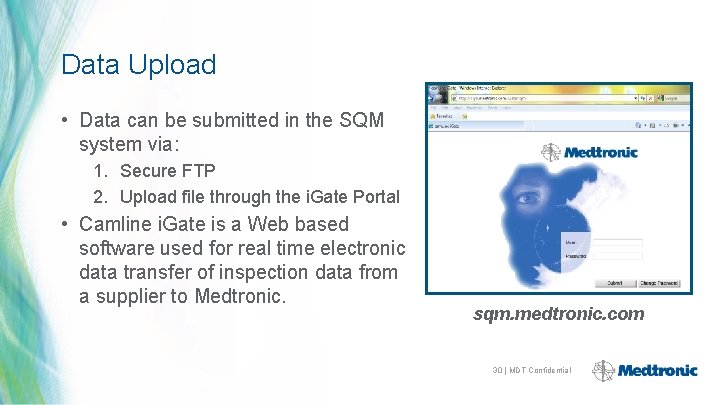
Data Upload • Data can be submitted in the SQM system via: 1. Secure FTP 2. Upload file through the i. Gate Portal • Camline i. Gate is a Web based software used for real time electronic data transfer of inspection data from a supplier to Medtronic. sqm. medtronic. com 30 | MDT Confidential
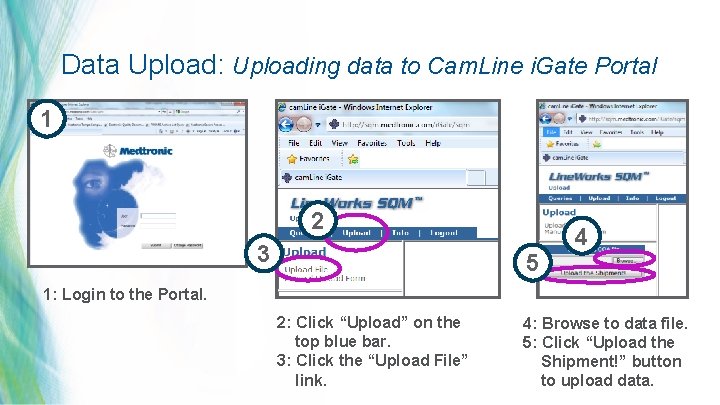
Data Upload: Uploading data to Cam. Line i. Gate Portal 1 2 3 4 5 1: Login to the Portal. 2: Click “Upload” on the top blue bar. 3: Click the “Upload File” link. 4: Browse to data file. 5: Click “Upload the Shipment!” button 31 | MDT Confidential to upload data.
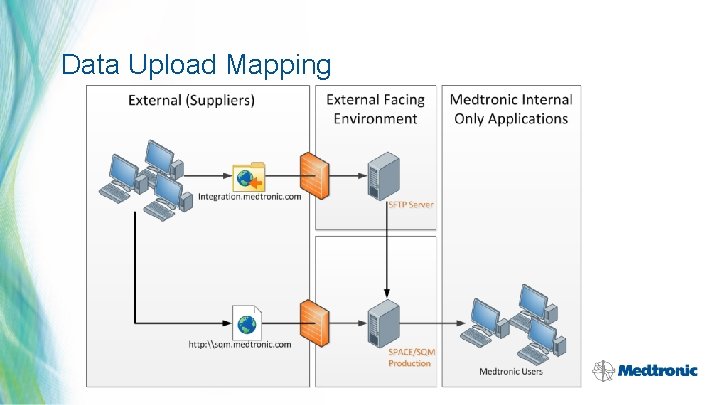
Data Upload Mapping 32 | MDT Confidential
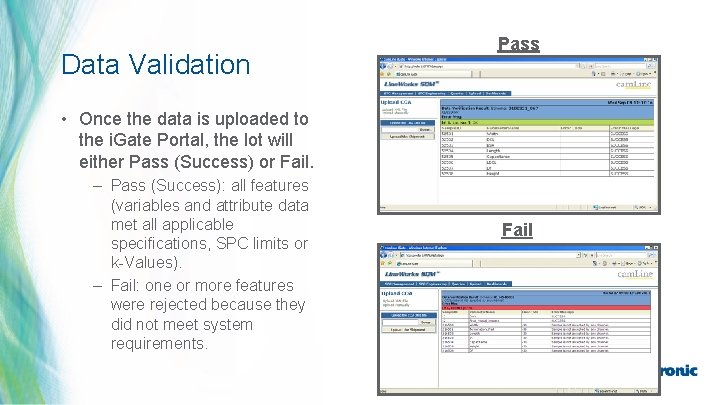
Data Validation Pass • Once the data is uploaded to the i. Gate Portal, the lot will either Pass (Success) or Fail. – Pass (Success): all features (variables and attribute data met all applicable specifications, SPC limits or k-Values). – Fail: one or more features were rejected because they did not meet system requirements. Fail 33 | MDT Confidential
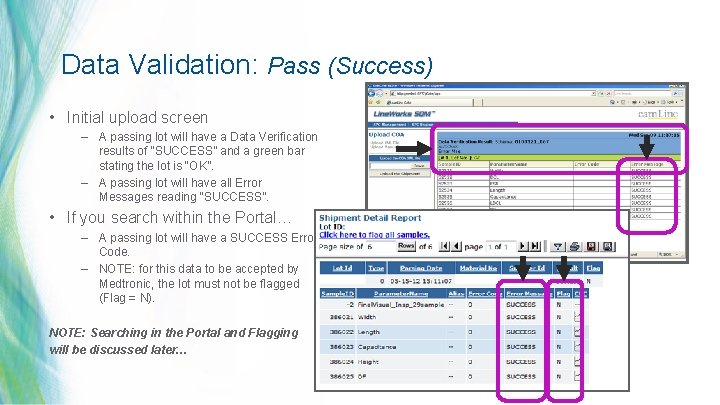
Data Validation: Pass (Success) • Initial upload screen – A passing lot will have a Data Verification results of “SUCCESS” and a green bar stating the lot is “OK”. – A passing lot will have all Error Messages reading “SUCCESS”. • If you search within the Portal… – A passing lot will have a SUCCESS Error Code. – NOTE: for this data to be accepted by Medtronic, the lot must not be flagged (Flag = N). NOTE: Searching in the Portal and Flagging will be discussed later… 34 | MDT Confidential
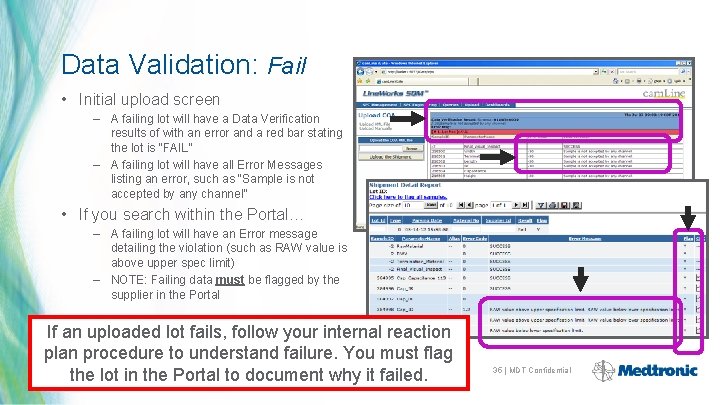
Data Validation: Fail • Initial upload screen – A failing lot will have a Data Verification results of with an error and a red bar stating the lot is “FAIL” – A failing lot will have all Error Messages listing an error, such as “Sample is not accepted by any channel” • If you search within the Portal… – A failing lot will have an Error message detailing the violation (such as RAW value is above upper spec limit) – NOTE: Failing data must be flagged by the supplier in the Portal If an uploaded lot fails, follow your internal reaction plan procedure to understand failure. You must flag the lot in the Portal to document why it failed. 35 | MDT Confidential
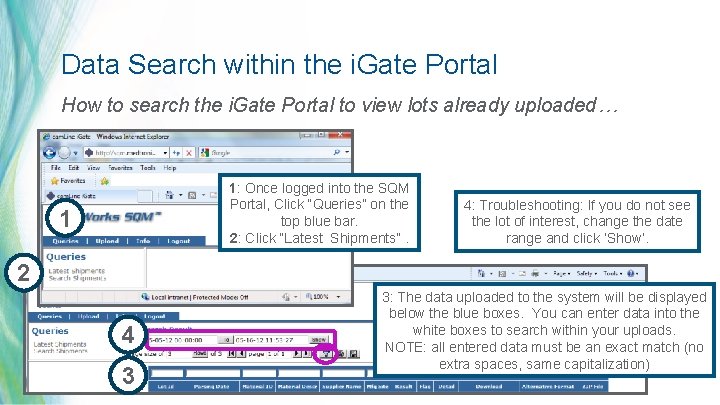
Data Search within the i. Gate Portal How to search the i. Gate Portal to view lots already uploaded… 1: Once logged into the SQM Portal, Click “Queries” on the top blue bar. 2: Click “Latest Shipments”. 1 4: Troubleshooting: If you do not see the lot of interest, change the date range and click ‘Show’. 2 4 3 3: The data uploaded to the system will be displayed below the blue boxes. You can enter data into the white boxes to search within your uploads. NOTE: all entered data must be an exact match (no extra spaces, same capitalization) 36 | MDT Confidential
Flagging • Flagging uploads in the Portal is required when the data cannot be used for product acceptance • Examples of when you may need to flag an upload… – Uploaded data lots fail requirements (such as specification limits, control limits, k-Value). – Duplicate uploads have been made for one Sample Lot ID. – All test uploads. – Corrections to incorrect information entered into the XML file. • Supplier Lot ID in the XML file must match the Lot ID on the Cof. C. – Incorrect XML Generator Tool was used to create the XML file. 37 | MDT Confidential
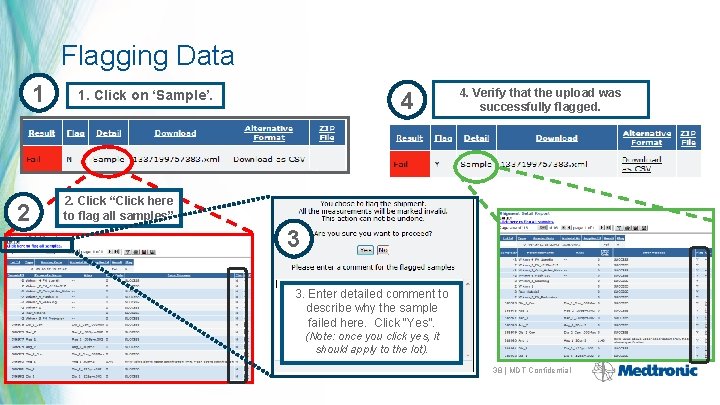
Flagging Data 1 2 4 1. Click on ‘Sample’. 4. Verify that the upload was successfully flagged. 2. Click “Click here to flag all samples” 3 3. Enter detailed comment to describe why the sample failed here. Click “Yes”. (Note: once you click yes, it should apply to the lot). 38 | MDT Confidential

Supplemental Slides
PASSWORD MANAGEMENT 40 | MDT Confidential
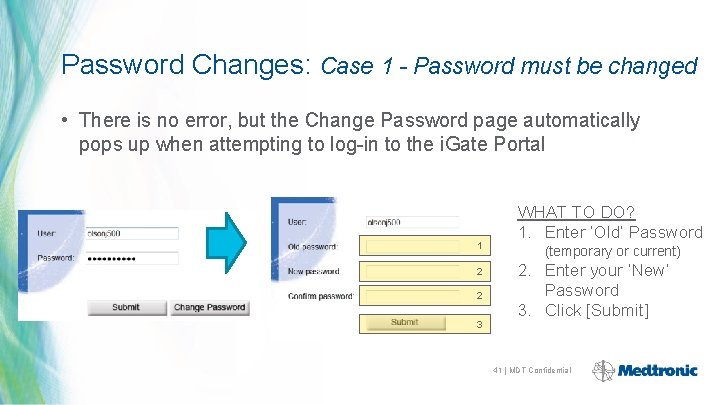
Password Changes: Case 1 - Password must be changed • There is no error, but the Change Password page automatically pops up when attempting to log-in to the i. Gate Portal 1 2 2 3 WHAT TO DO? 1. Enter ‘Old’ Password (temporary or current) 2. Enter your ‘New’ Password 3. Click [Submit] 41 | MDT Confidential
![Password Changes: Case 2 - ‘Password expired!’ WHAT TO DO? 1. Click [Change Password]](http://slidetodoc.com/presentation_image_h/a65660e7d8aaa5448811258f9a6df37e/image-42.jpg "Password Changes: Case 2 - ‘Password expired!’ WHAT TO DO? 1. Click [Change Password]")
Password Changes: Case 2 - ‘Password expired!’ WHAT TO DO? 1. Click [Change Password] to get the Change Password page 2. Enter current Password (one that recently expired) 3. Enter your ‘New’ Password 4. Click [Submit] 1 2 3 3 4 42 | MDT Confidential
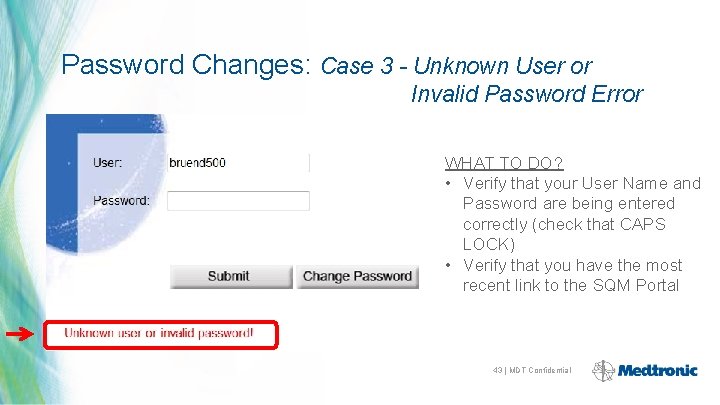
Password Changes: Case 3 - Unknown User or Invalid Password Error WHAT TO DO? • Verify that your User Name and Password are being entered correctly (check that CAPS LOCK) • Verify that you have the most recent link to the SQM Portal 43 | MDT Confidential
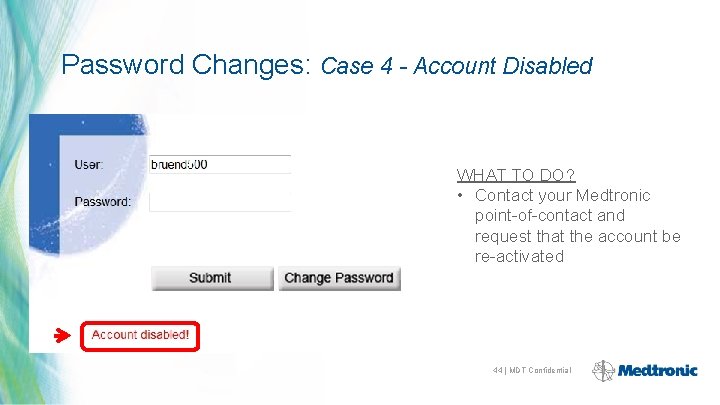
Password Changes: Case 4 - Account Disabled WHAT TO DO? • Contact your Medtronic point-of-contact and request that the account be re-activated 44 | MDT Confidential
EXCEL ADD-IN INSTALLATION 45 | MDT Confidential
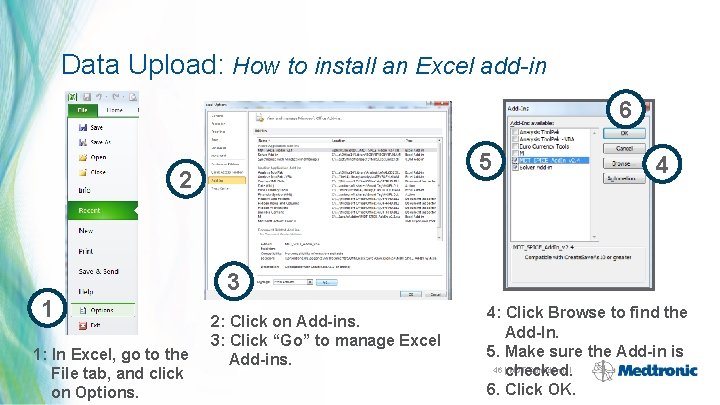
Data Upload: How to install an Excel add-in 6 5 2 1 1: In Excel, go to the File tab, and click on Options. 4 3 2: Click on Add-ins. 3: Click “Go” to manage Excel Add-ins. 4: Click Browse to find the Add-In. 5. Make sure the Add-in is 46 |checked. MDT Confidential 6. Click OK.
- Slides: 46