
Supplier Registration and Access 2015 Eaton All Rights

- Slides: 49
Supplier Registration and Access © 2015 Eaton. All Rights Reserved. .
WISPER Supplier Registration © 2015 Eaton. All Rights Reserved. . 2
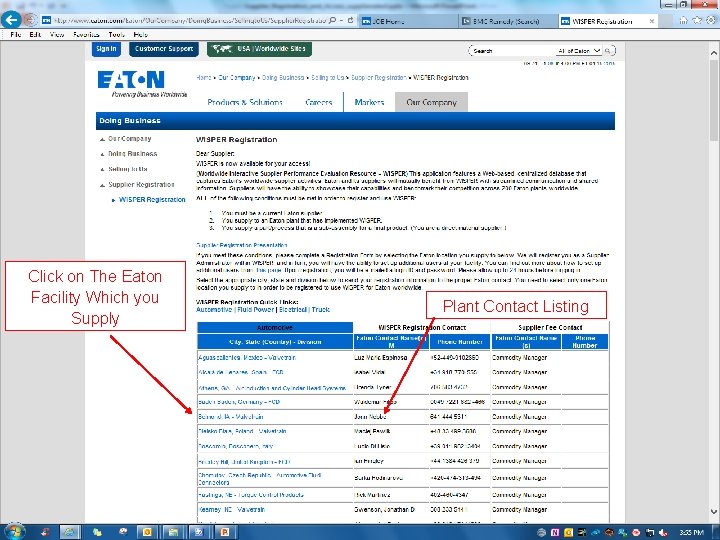
Online Registration • Suppliers need to go to www. eaton. com to register. • On-Line Registration lists each Eaton facility that has implemented WISPER. • Supplier selects the appropriate plant to submit registration to. • Registration is sent to the plant contact via e-mail. • Supplier will NOT have access until registration is processed by plant contact. © 2015 Eaton. All Rights Reserved. . 3
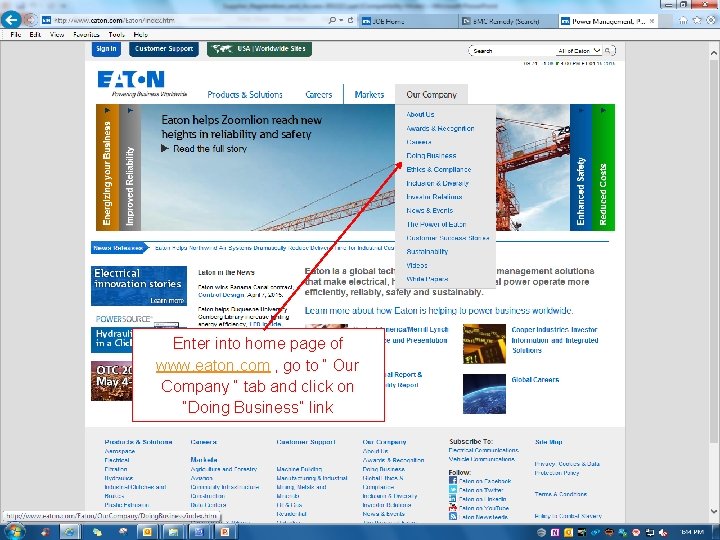
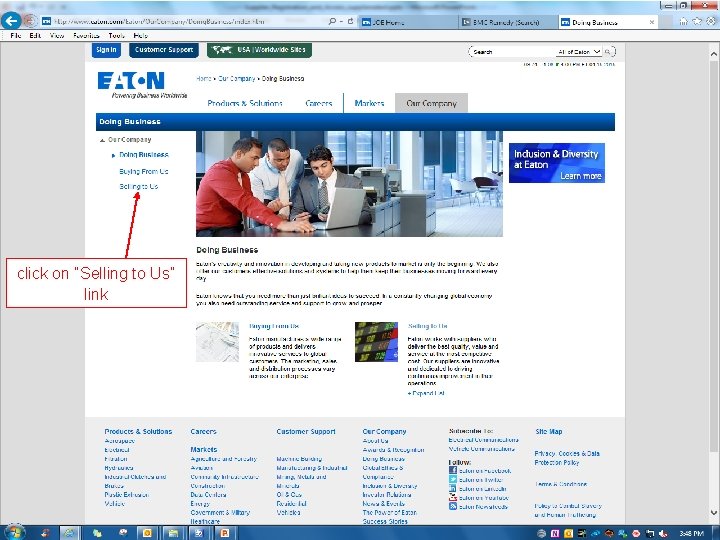
Enter into home page of www. eaton. com , go to “ Our Company “ tab and click on “Doing Business” link © 2015 Eaton. All Rights Reserved. . 4
click on “Selling to Us” link © 2015 Eaton. All Rights Reserved. . 5
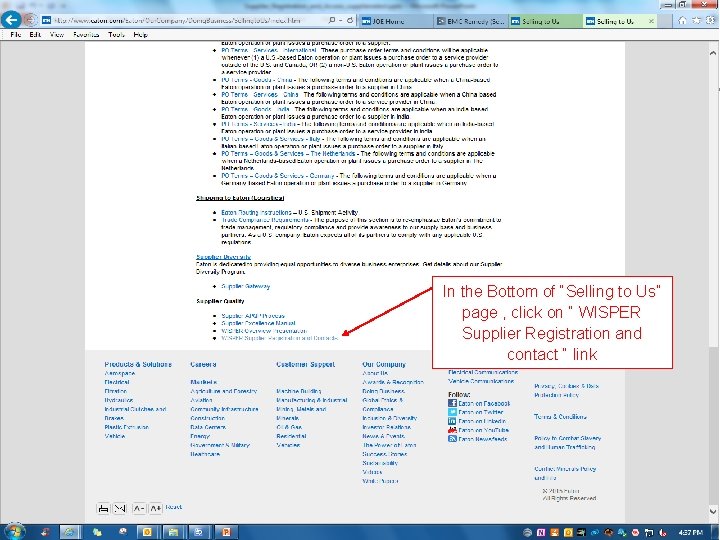
In the Bottom of “Selling to Us” page , click on “ WISPER Supplier Registration and contact “ link © 2015 Eaton. All Rights Reserved. . 6
Click on The Eaton Facility Which you Supply Plant Contact Listing © 2015 Eaton. All Rights Reserved. . 7
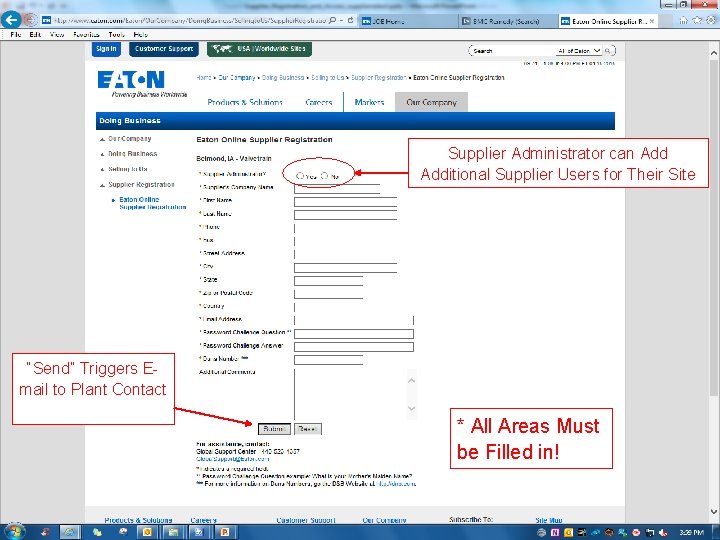
Supplier Administrator can Additional Supplier Users for Their Site “Send” Triggers Email to Plant Contact * All Areas Must be Filled in! © 2015 Eaton. All Rights Reserved. . 8
© 2015 Eaton. All Rights Reserved. . 9
Adding Additional Supplier Users • The Supplier Administrator can additional users independent of Eaton intervention. • Allows suppliers secure access to Eaton applications. • Each user is automatically populated into the Supplier Contact list. © 2015 Eaton. All Rights Reserved. . 10
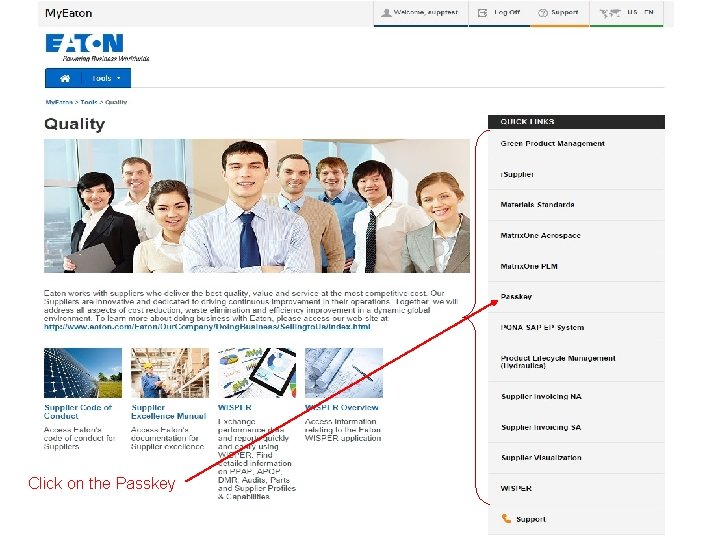
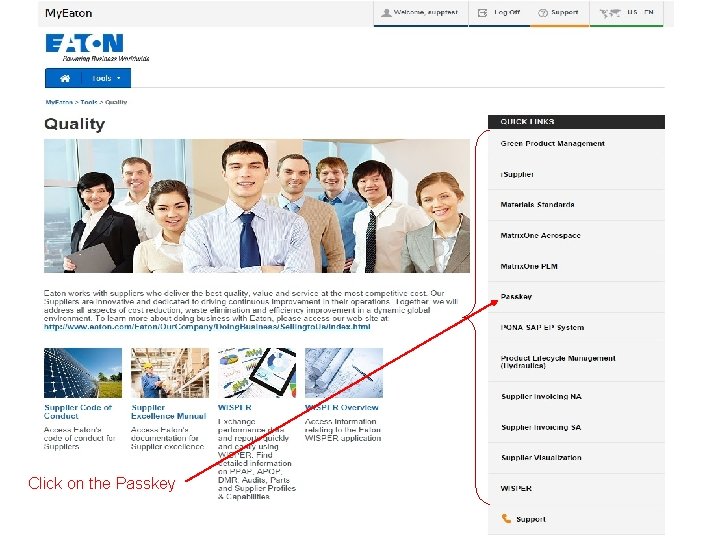
Click on the Passkey © 2015 Eaton. All Rights Reserved. . 11
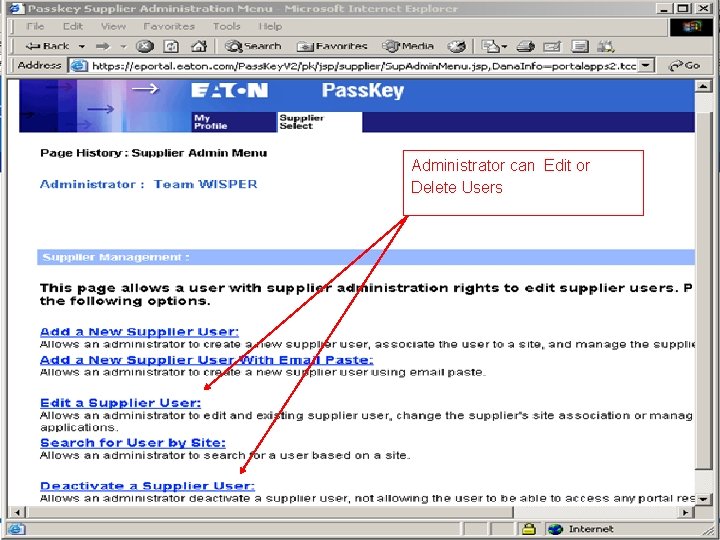
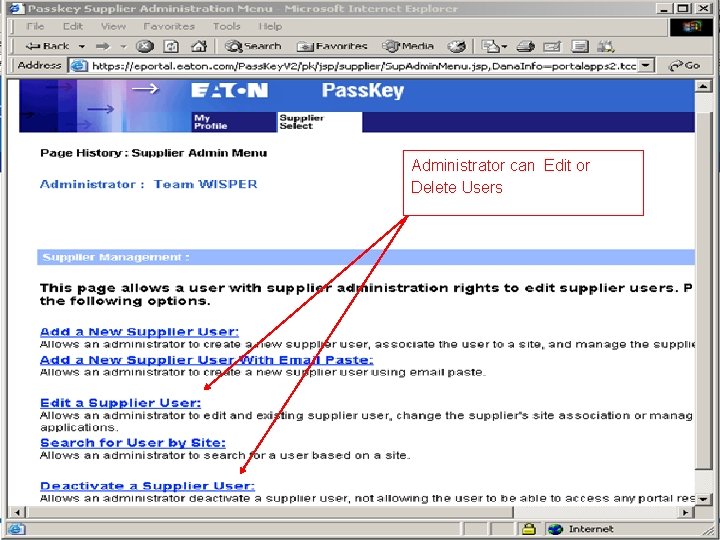
Administrator can Edit or Delete Users Are Added Through the Passkey Link Within Supplier Select © 2015 Eaton. All Rights Reserved. . 12
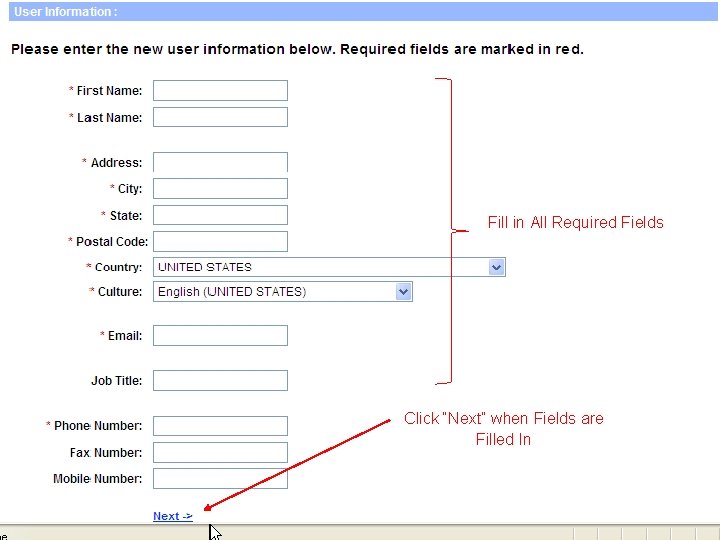
Fill in All Required Fields Click “Next” when Fields are Filled In © 2015 Eaton. All Rights Reserved. . 13
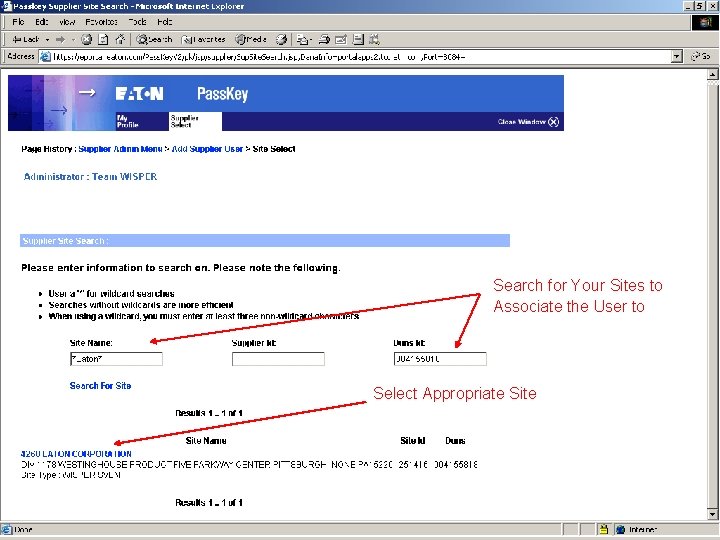
Search for Your Sites to Associate the User to Select Appropriate Site © 2015 Eaton. All Rights Reserved. . 14
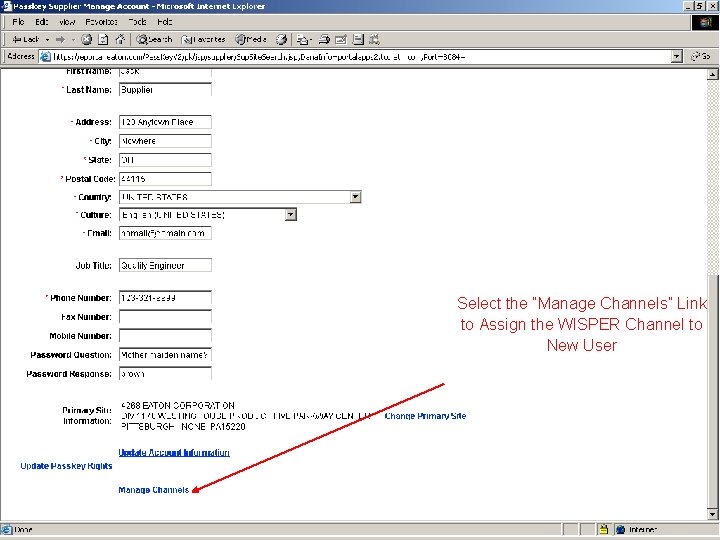
Select the “Manage Channels” Link to Assign the WISPER Channel to New User © 2015 Eaton. All Rights Reserved. . 15
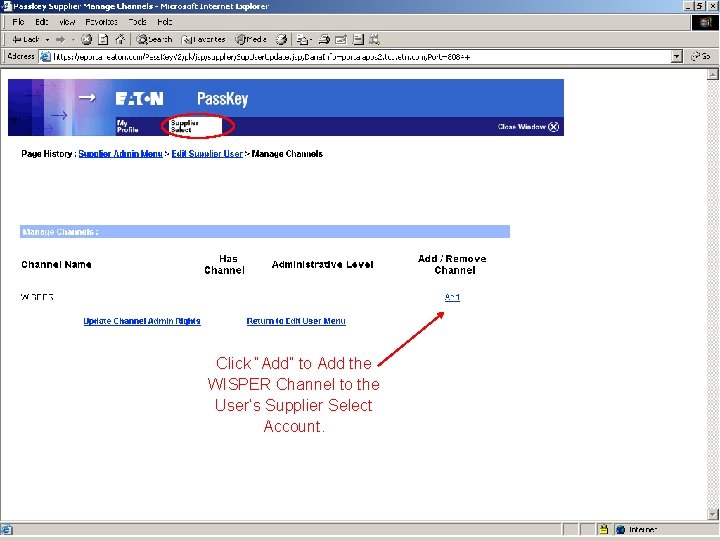
Click “Add” to Add the WISPER Channel to the User’s Supplier Select Account. © 2015 Eaton. All Rights Reserved. . 16
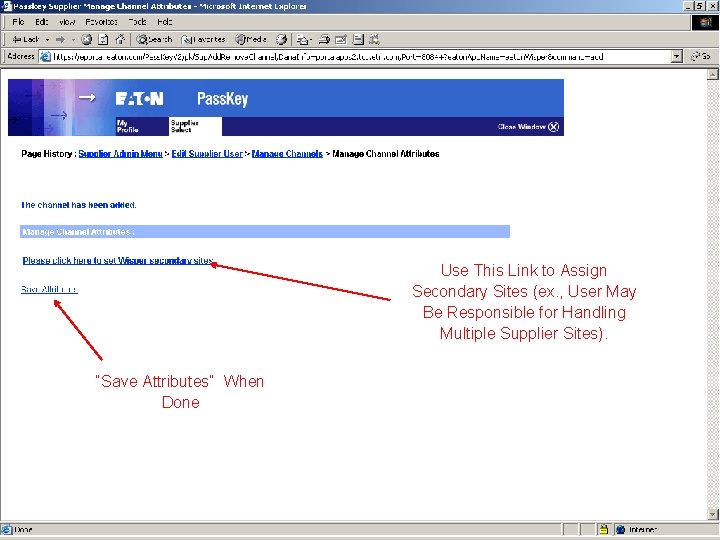
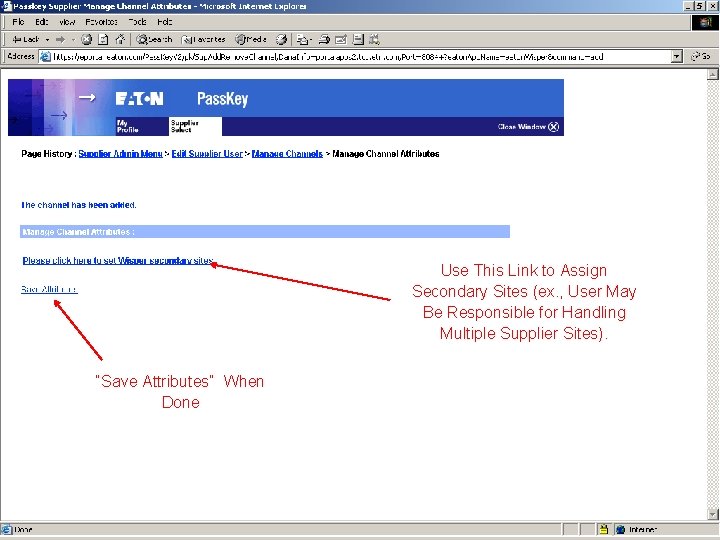
Use This Link to Assign Secondary Sites (ex. , User May Be Responsible for Handling Multiple Supplier Sites). “Save Attributes” When Done © 2015 Eaton. All Rights Reserved. . 17
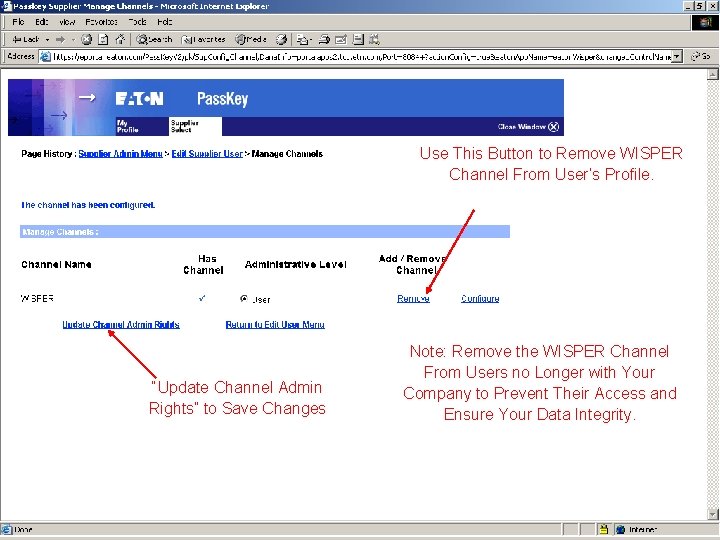
Use This Button to Remove WISPER Channel From User’s Profile. “Update Channel Admin Rights” to Save Changes Note: Remove the WISPER Channel From Users no Longer with Your Company to Prevent Their Access and Ensure Your Data Integrity. © 2015 Eaton. All Rights Reserved. . 18
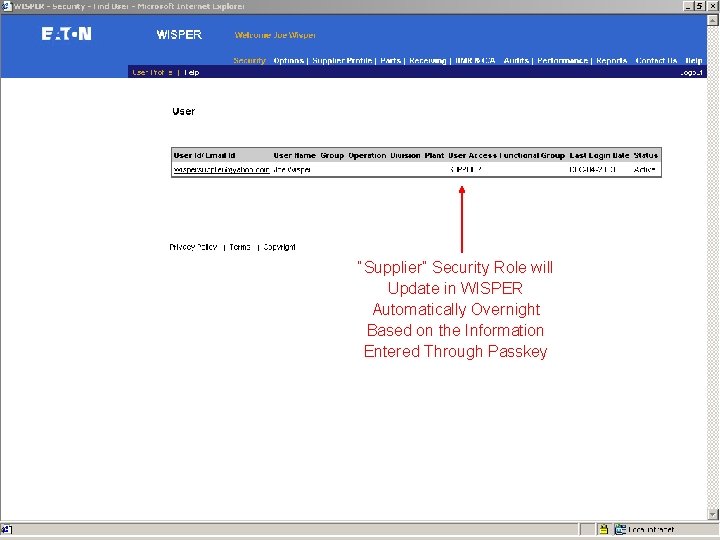
“Supplier” Security Role will Update in WISPER Automatically Overnight Based on the Information Entered Through Passkey © 2015 Eaton. All Rights Reserved. . 19
Supplier Set Up – Secondary Sites © 2015 Eaton. All Rights Reserved. . 20
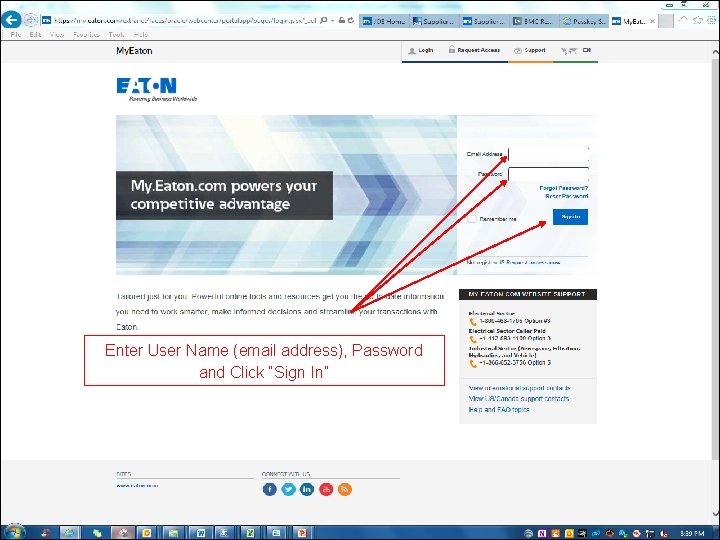
Enter User Name (email address), Password and Click “Sign In” © 2015 Eaton. All Rights Reserved. . 21
Click on the Passkey © 2015 Eaton. All Rights Reserved. . 22
Administrator can Edit or Delete Users Are Added Through the Passkey Link Within Supplier Select © 2015 Eaton. All Rights Reserved. . 23
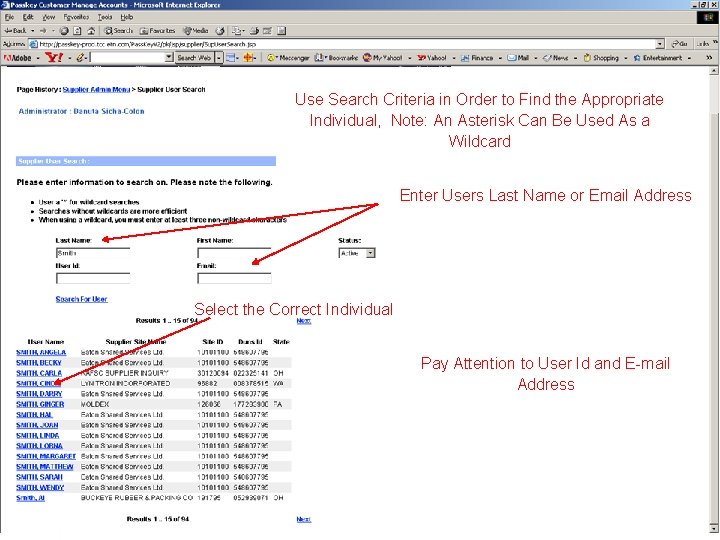
Use Search Criteria in Order to Find the Appropriate Individual, Note: An Asterisk Can Be Used As a Wildcard Enter Users Last Name or Email Address Select the Correct Individual Pay Attention to User Id and E-mail Address © 2015 Eaton. All Rights Reserved. . 24
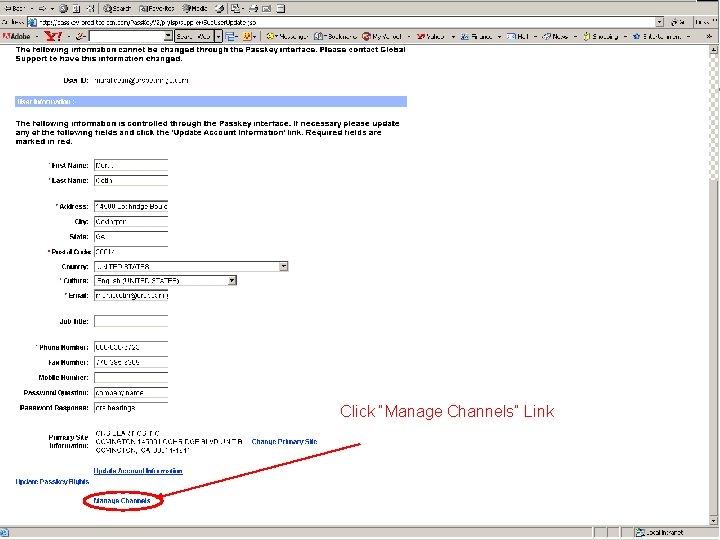
Click “Manage Channels” Link © 2015 Eaton. All Rights Reserved. . 25
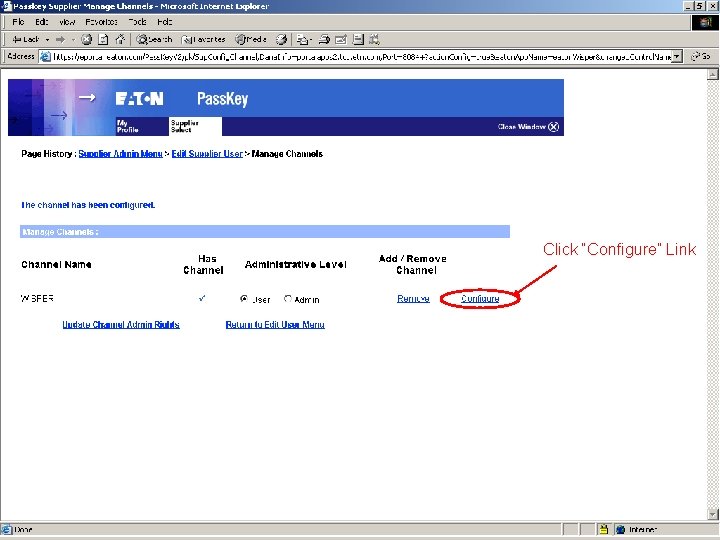
Click “Configure” Link © 2015 Eaton. All Rights Reserved. . 26
Use This Link to Assign Secondary Sites (ex. , User May Be Responsible for Handling Multiple Supplier Sites). “Save Attributes” When Done © 2015 Eaton. All Rights Reserved. . 27
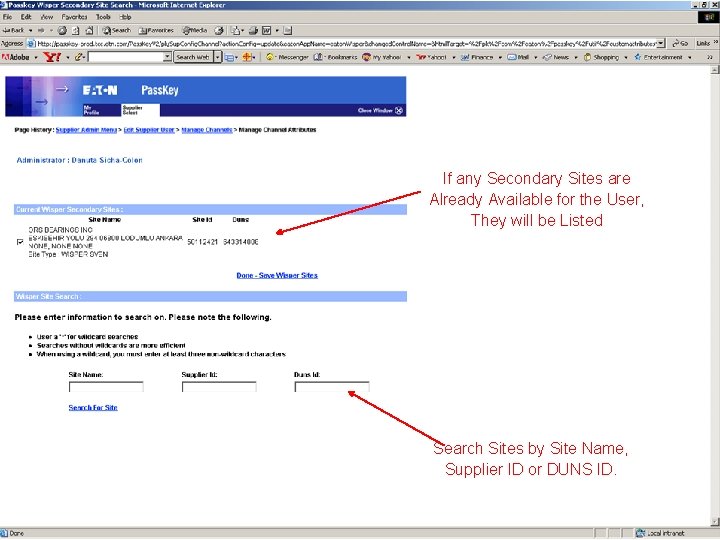
If any Secondary Sites are Already Available for the User, They will be Listed Search Sites by Site Name, Supplier ID or DUNS ID. © 2015 Eaton. All Rights Reserved. . 28
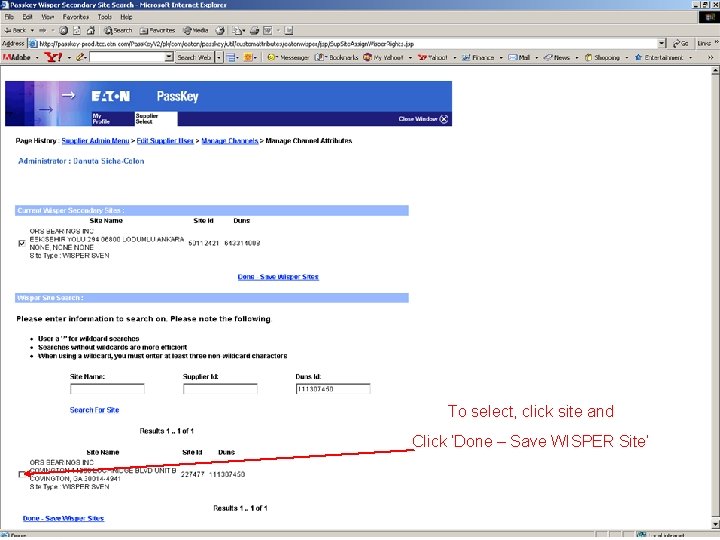
To select, click site and Click ‘Done – Save WISPER Site’ © 2015 Eaton. All Rights Reserved. . 29
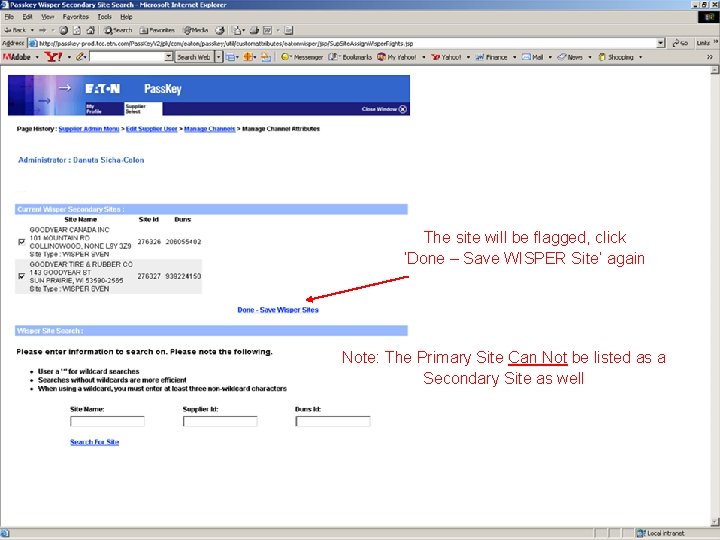
The site will be flagged, click ‘Done – Save WISPER Site’ again Note: The Primary Site Can Not be listed as a Secondary Site as well © 2015 Eaton. All Rights Reserved. . 30
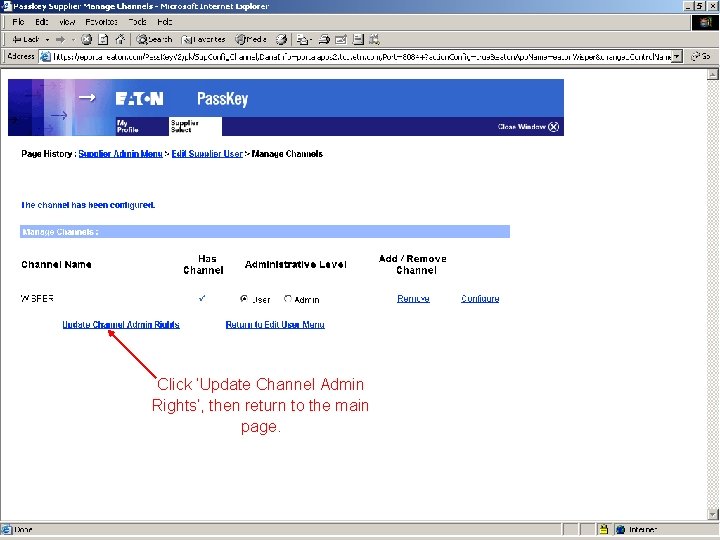
Click ‘Update Channel Admin Rights’, then return to the main page. © 2015 Eaton. All Rights Reserved. . 31
WISPER Supplier Access © 2015 Eaton. All Rights Reserved. . 32
Supplier Access • To Access WISPER a Valid Password & e-mail address is required • A supplier site can have as many accounts as there are unique email addresses • Access Path to WISPER Site Address is https: //my. eaton. com © 2015 Eaton. All Rights Reserved. . 33
Supplier Access • Supplier receives password via e-mail from Registration Process • The password will be an alpha-numeric string (I. e. a 1 b 2 g 3 n 4 b 7). This can be changed by the user through Passkey inside their Supplier Select screens • The user-id will be the user’s email address as entered into User Profile section © 2015 Eaton. All Rights Reserved. . 34
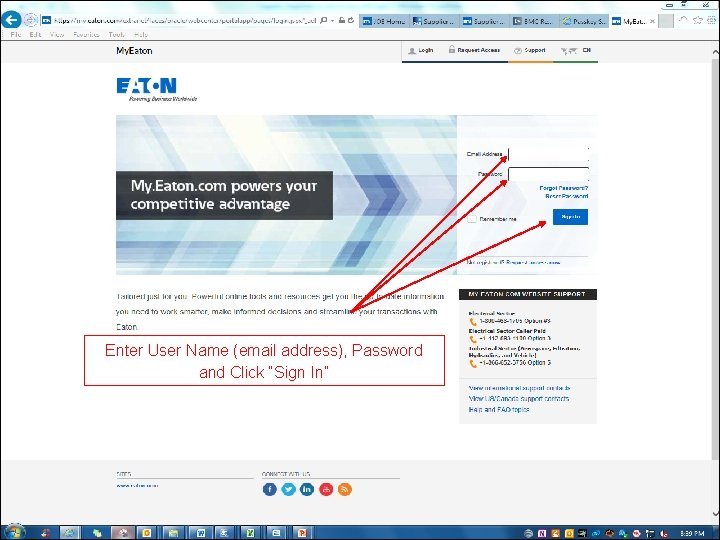
Enter User Name (email address), Password and Click “Sign In” © 2015 Eaton. All Rights Reserved. . 35
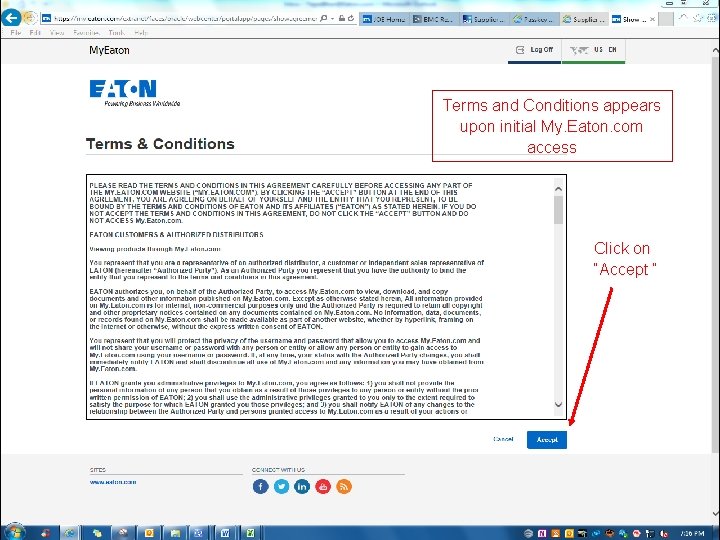
Terms and Conditions appears upon initial My. Eaton. com access Click on “Accept “ © 2015 Eaton. All Rights Reserved. . 36
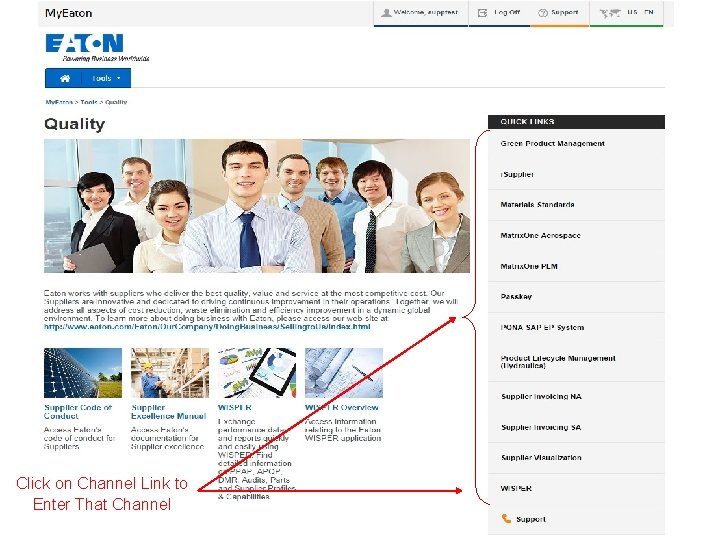
Click on Channel Link to Enter That Channel © 2015 Eaton. All Rights Reserved. . 37
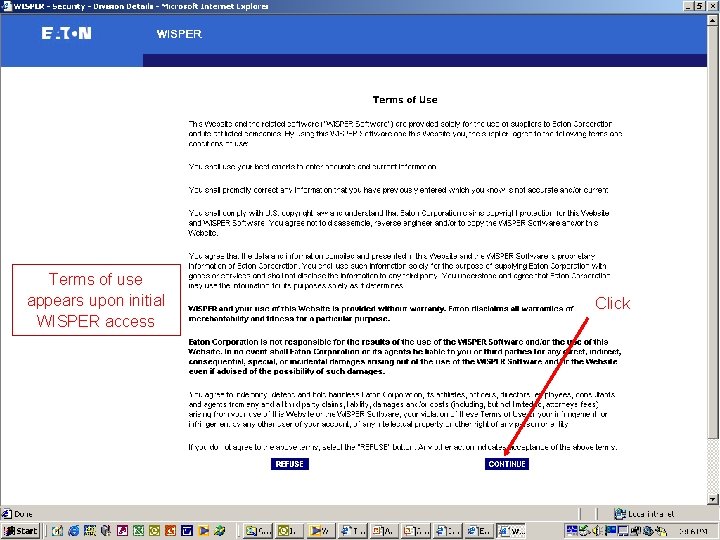
Terms of use appears upon initial WISPER access Click © 2015 Eaton. All Rights Reserved. . 38
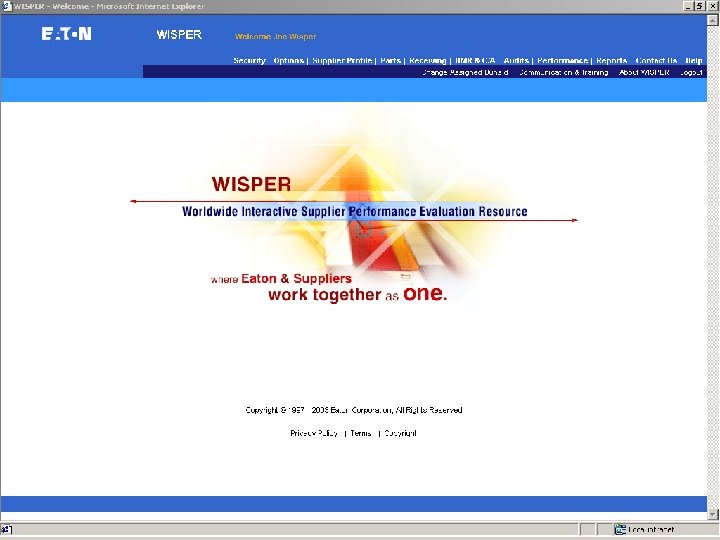
© 2015 Eaton. All Rights Reserved. . 39
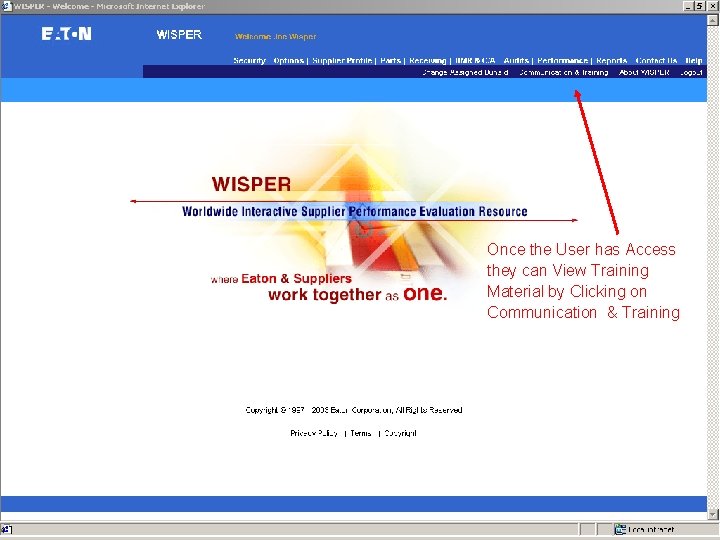
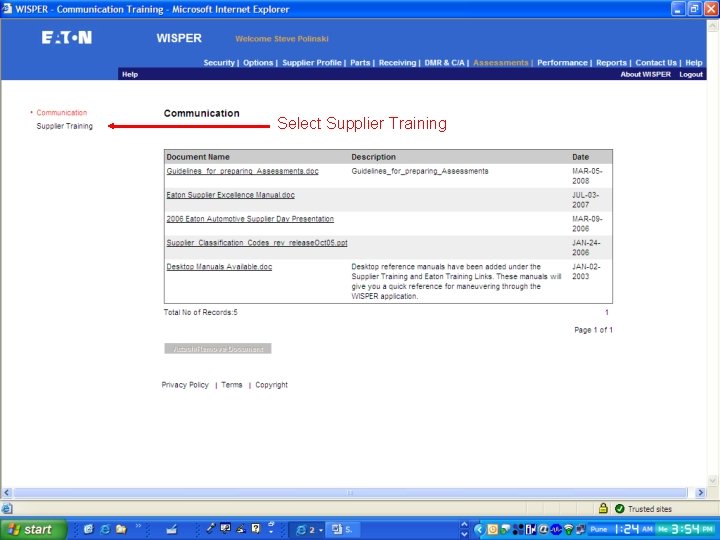
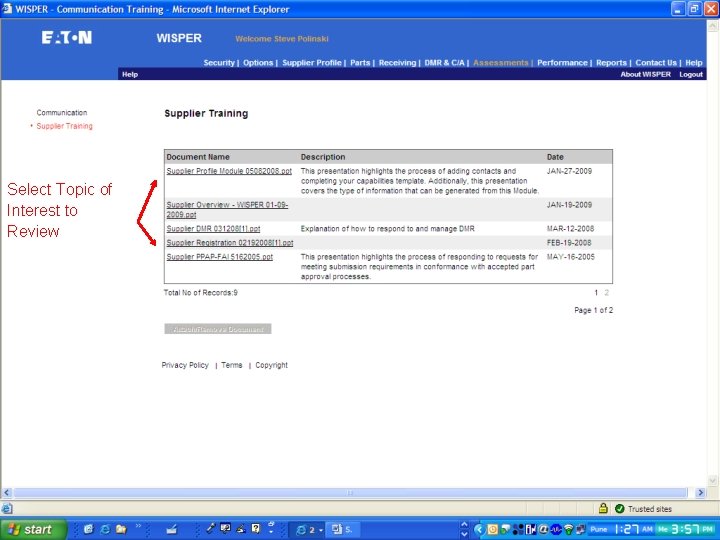
Once the User has Access they can View Training Material by Clicking on Communication & Training © 2015 Eaton. All Rights Reserved. . 40
Select Supplier Training Select © 2015 Eaton. All Rights Reserved. . 41
Select Topic of Interest to Review © 2015 Eaton. All Rights Reserved. . 42
Common Errors • Invalid User: • After the supplier administrator sets up a user, it may take up to 15 minutes before that new user can log into Supplier Select and up to 24 hours before they can access WISPER • WISPER user added to a supplier site that does not have a DUNS number • WISPER channel not checked “Available” by the supplier administrator © 2015 Eaton. All Rights Reserved. . 43
Supplier User Forgot Password © 2015 Eaton. All Rights Reserved. . 44
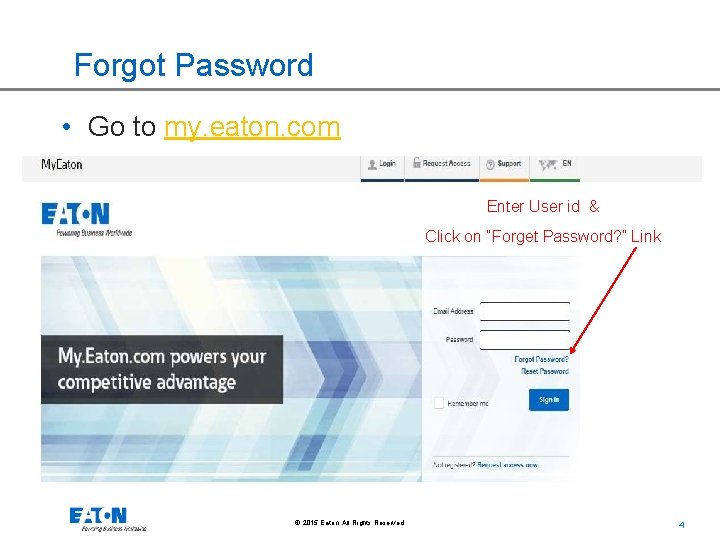
Forgot Password • Go to my. eaton. com Enter User id & Click on “Forget Password? ” Link © 2015 Eaton. All Rights Reserved. . 45
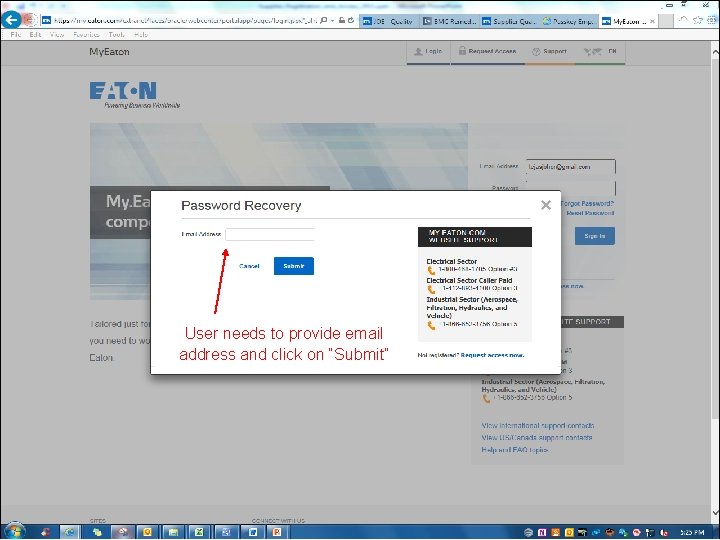
User needs to provide email address and click on “Submit” © 2015 Eaton. All Rights Reserved. . 46
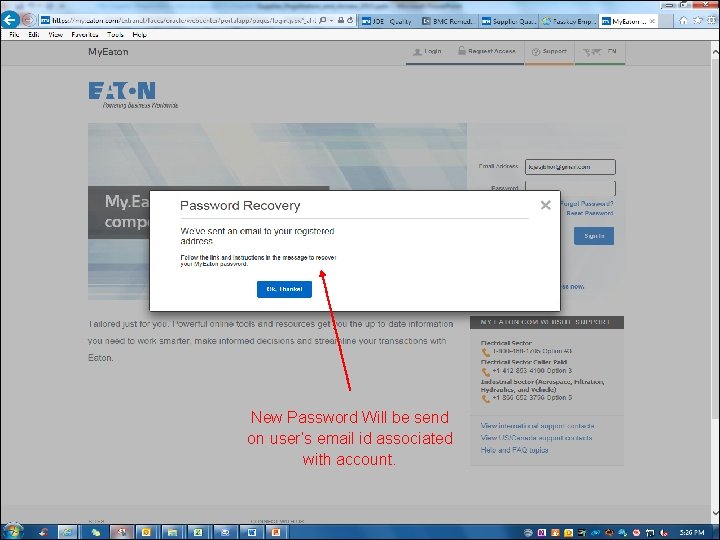
New Password Will be send on user’s email id associated with account. © 2015 Eaton. All Rights Reserved. . 47
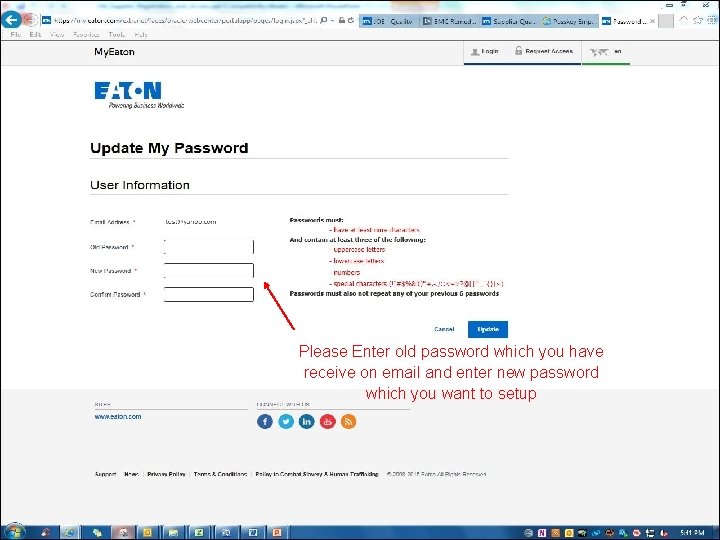
Please Enter old password which you have receive on email and enter new password which you want to setup © 2015 Eaton. All Rights Reserved. . 48
© 2015 Eaton. All Rights Reserved. . 49