
Successfully Virtualizing SQL Server on v Sphere Deji
- Slides: 46
Successfully Virtualizing SQL Server on v. Sphere Deji Akomolafe Staff Solutions Architect VMware CTO Ambassador Global Field and Partner Readiness @Dejify
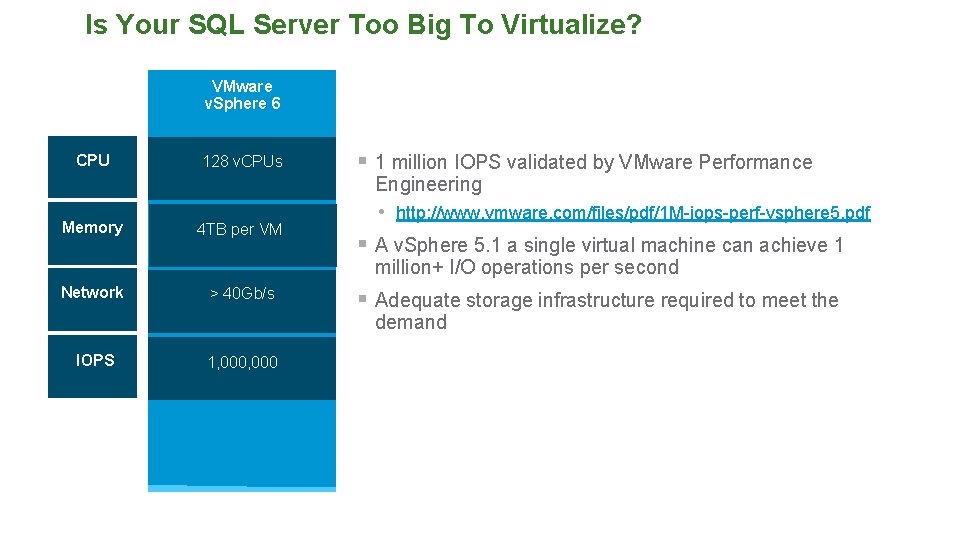
Is Your SQL Server Too Big To Virtualize? VMware v. Sphere 6 CPU Memory 128 v. CPUs 4 TB per VM § 1 million IOPS validated by VMware Performance Engineering • http: //www. vmware. com/files/pdf/1 M-iops-perf-vsphere 5. pdf § A v. Sphere 5. 1 a single virtual machine can achieve 1 million+ I/O operations per second Network > 40 Gb/s § Adequate storage infrastructure required to meet the demand IOPS 1, 000
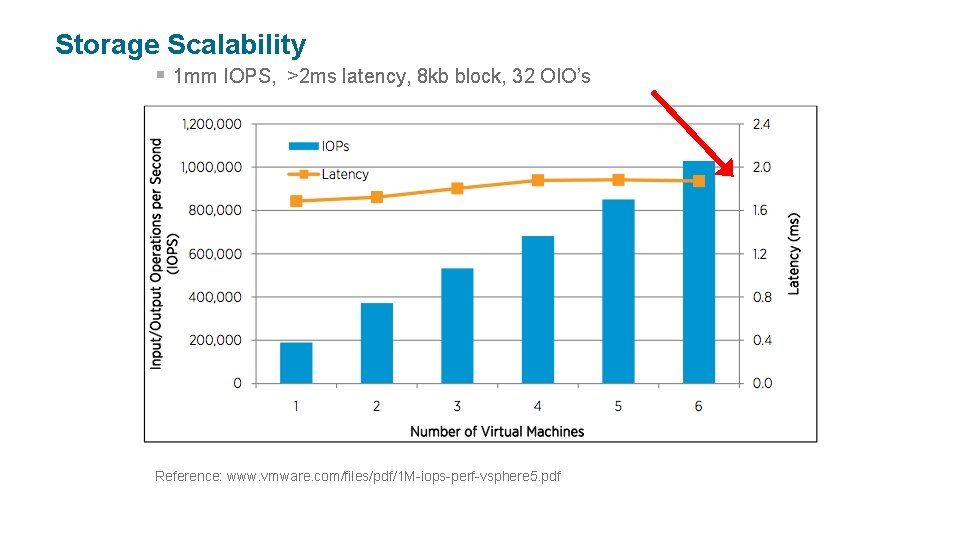
Storage Scalability § 1 mm IOPS, >2 ms latency, 8 kb block, 32 OIO’s Reference: www. vmware. com/files/pdf/1 M-iops-perf-vsphere 5. pdf
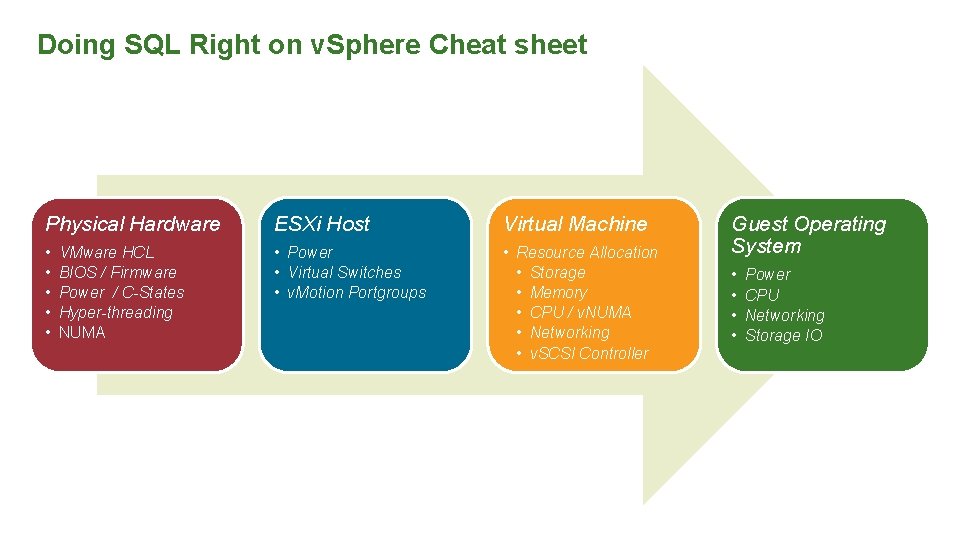
Doing SQL Right on v. Sphere Cheat sheet Physical Hardware ESXi Host Virtual Machine • • • Power • Virtual Switches • v. Motion Portgroups • Resource Allocation • Storage • Memory • CPU / v. NUMA • Networking • v. SCSI Controller VMware HCL BIOS / Firmware Power / C-States Hyper-threading NUMA Guest Operating System • • Power CPU Networking Storage IO
Architecting VMware v. Sphere for performance SQL Servers
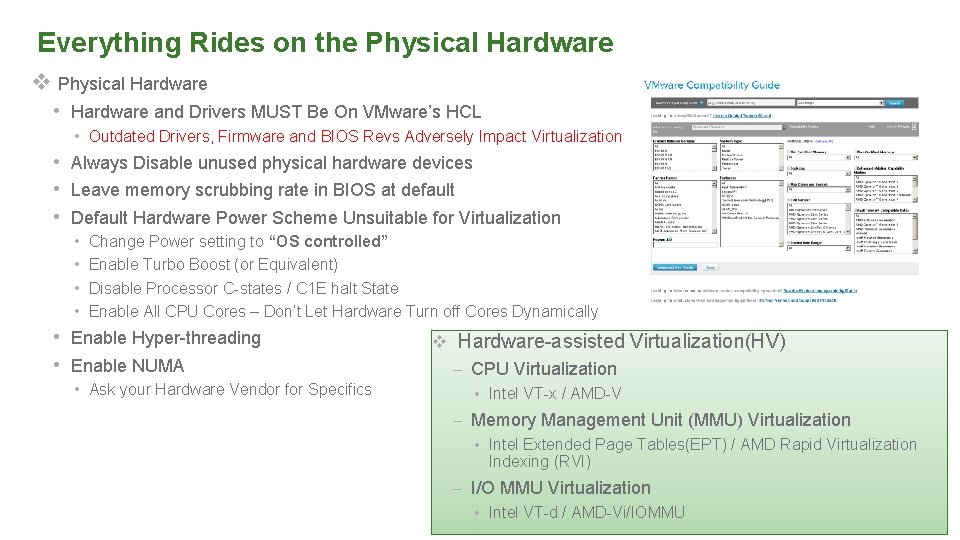
Everything Rides on the Physical Hardware v Physical Hardware • Hardware and Drivers MUST Be On VMware’s HCL • Outdated Drivers, Firmware and BIOS Revs Adversely Impact Virtualization • Always Disable unused physical hardware devices • Leave memory scrubbing rate in BIOS at default • Default Hardware Power Scheme Unsuitable for Virtualization • • Change Power setting to “OS controlled” Enable Turbo Boost (or Equivalent) Disable Processor C-states / C 1 E halt State Enable All CPU Cores – Don’t Let Hardware Turn off Cores Dynamically • Enable Hyper-threading • Enable NUMA • Ask your Hardware Vendor for Specifics v Hardware-assisted Virtualization(HV) – CPU Virtualization • Intel VT-x / AMD-V – Memory Management Unit (MMU) Virtualization • Intel Extended Page Tables(EPT) / AMD Rapid Virtualization Indexing (RVI) – I/O MMU Virtualization • Intel VT-d / AMD-Vi/IOMMU
Storage Optimization
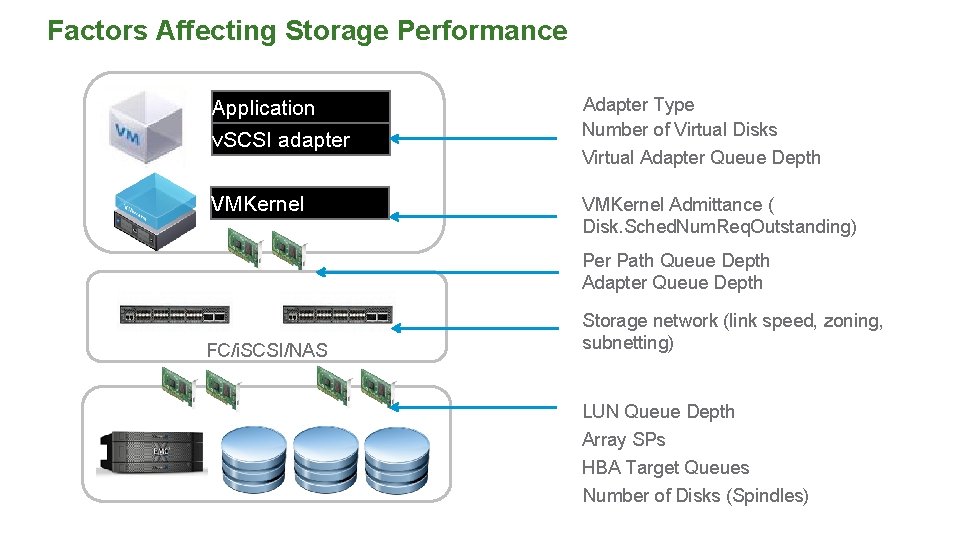
Factors Affecting Storage Performance Application v. SCSI adapter Adapter Type Number of Virtual Disks Virtual Adapter Queue Depth VMKernel Admittance ( Disk. Sched. Num. Req. Outstanding) Per Path Queue Depth Adapter Queue Depth FC/i. SCSI/NAS Storage network (link speed, zoning, subnetting) LUN Queue Depth Array SPs HBA Target Queues Number of Disks (Spindles)
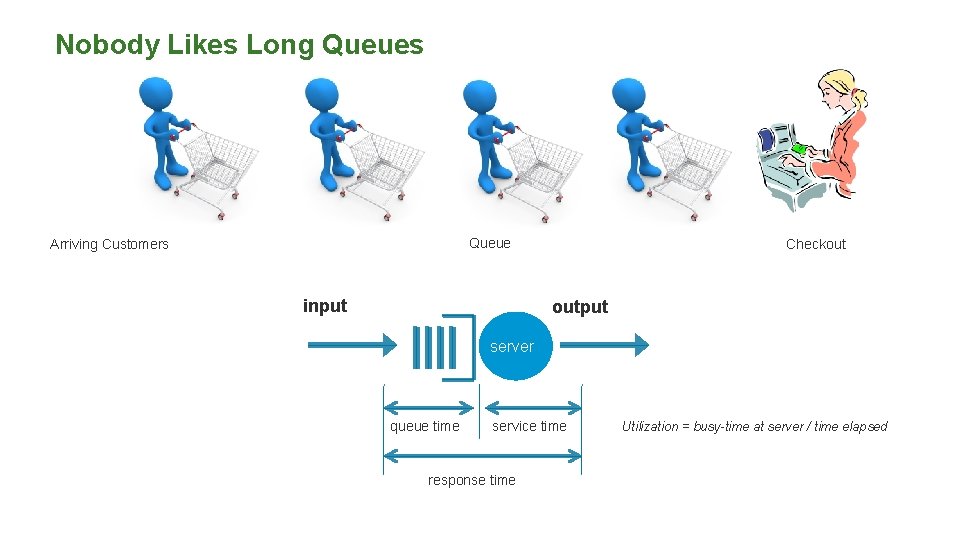
Nobody Likes Long Queues Queue Arriving Customers input Checkout output server queue time service time response time Utilization = busy-time at server / time elapsed
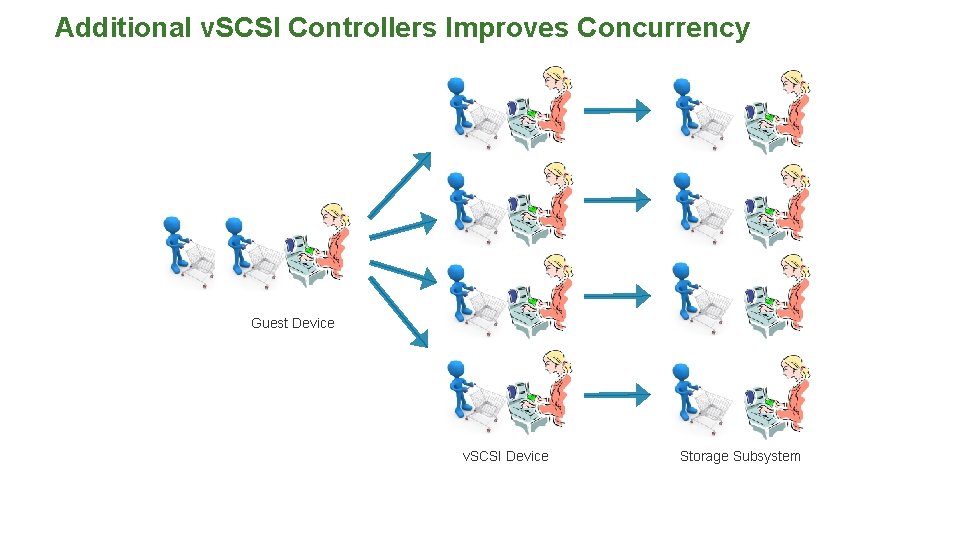
Additional v. SCSI Controllers Improves Concurrency Guest Device v. SCSI Device Storage Subsystem
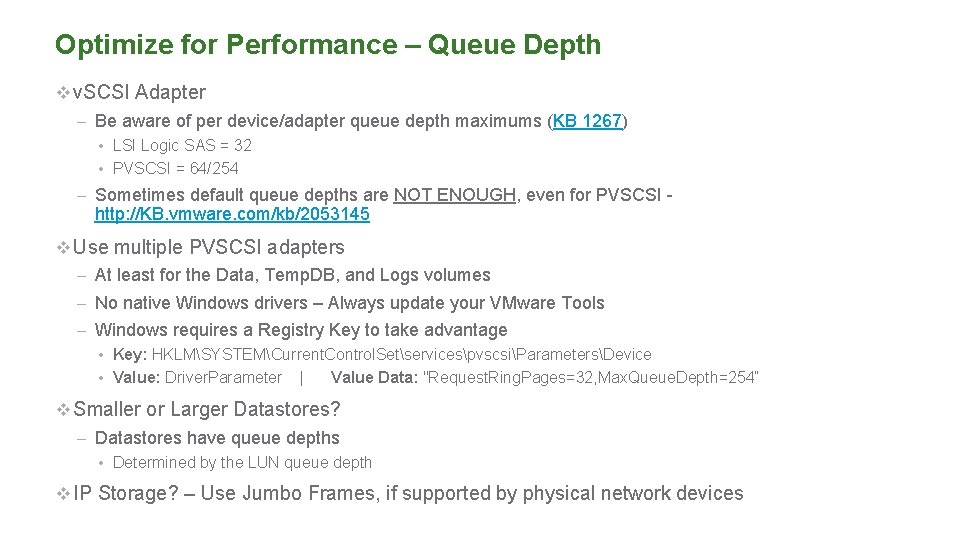
Optimize for Performance – Queue Depth v v. SCSI Adapter – Be aware of per device/adapter queue depth maximums (KB 1267) • LSI Logic SAS = 32 • PVSCSI = 64/254 – Sometimes default queue depths are NOT ENOUGH, even for PVSCSI - http: //KB. vmware. com/kb/2053145 v Use multiple PVSCSI adapters – At least for the Data, Temp. DB, and Logs volumes – No native Windows drivers – Always update your VMware Tools – Windows requires a Registry Key to take advantage • Key: HKLMSYSTEMCurrent. Control. SetservicespvscsiParametersDevice • Value: Driver. Parameter | Value Data: "Request. Ring. Pages=32, Max. Queue. Depth=254“ v Smaller or Larger Datastores? – Datastores have queue depths • Determined by the LUN queue depth v IP Storage? – Use Jumbo Frames, if supported by physical network devices
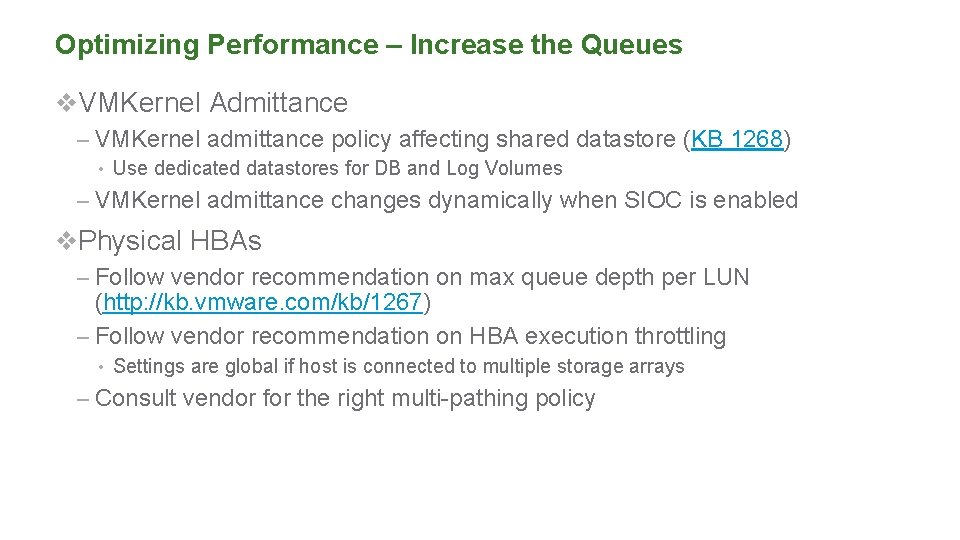
Optimizing Performance – Increase the Queues v. VMKernel Admittance – VMKernel admittance policy affecting shared datastore (KB 1268) • Use dedicated datastores for DB and Log Volumes – VMKernel admittance changes dynamically when SIOC is enabled v. Physical HBAs – Follow vendor recommendation on max queue depth per LUN (http: //kb. vmware. com/kb/1267) – Follow vendor recommendation on HBA execution throttling • Settings are global if host is connected to multiple storage arrays – Consult vendor for the right multi-pathing policy
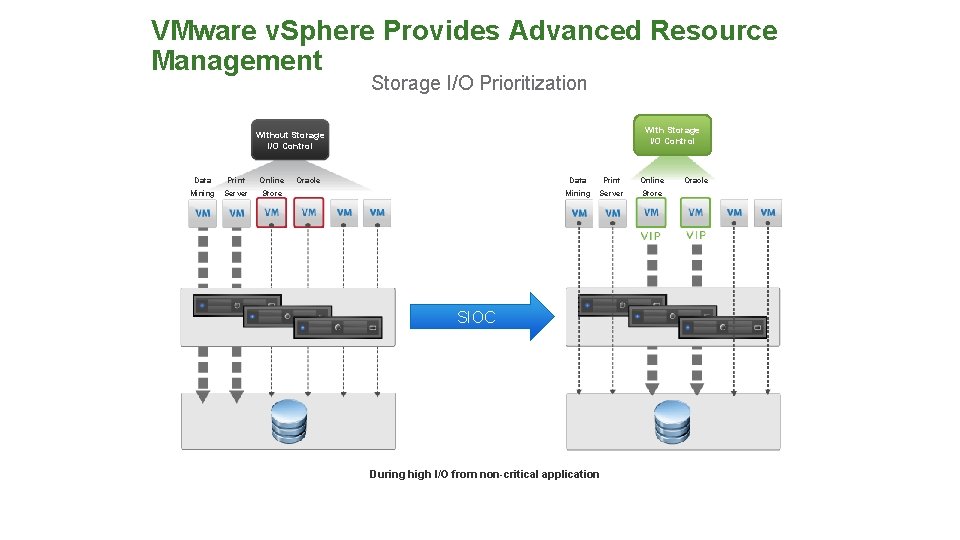
VMware v. Sphere Provides Advanced Resource Management Storage I/O Prioritization With Storage I/O Control Without Storage I/O Control Data Print Online Mining Server Store Oracle Data Print Online Mining Server Store SIOC During high I/O from non-critical application Oracle
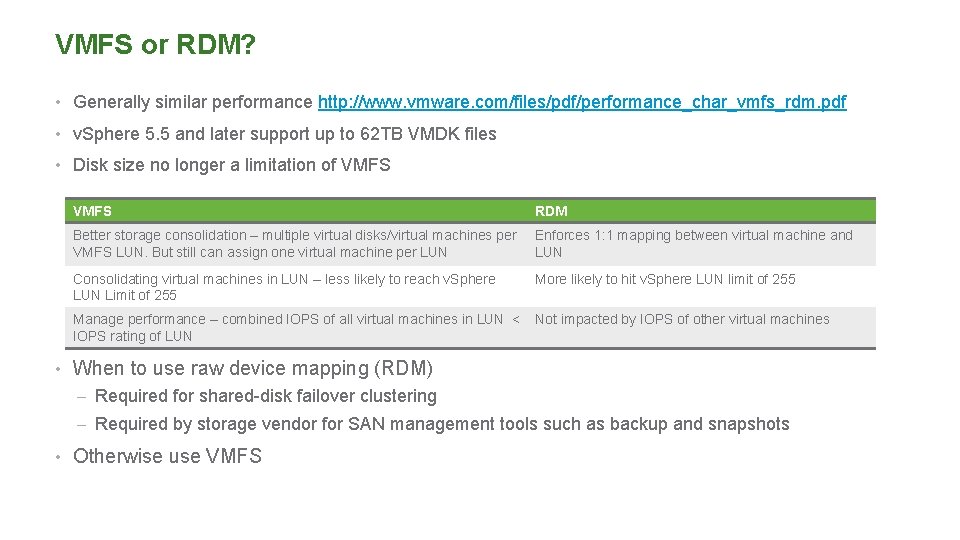
VMFS or RDM? • Generally similar performance http: //www. vmware. com/files/pdf/performance_char_vmfs_rdm. pdf • v. Sphere 5. 5 and later support up to 62 TB VMDK files • Disk size no longer a limitation of VMFS RDM Better storage consolidation – multiple virtual disks/virtual machines per VMFS LUN. But still can assign one virtual machine per LUN Enforces 1: 1 mapping between virtual machine and LUN Consolidating virtual machines in LUN – less likely to reach v. Sphere LUN Limit of 255 More likely to hit v. Sphere LUN limit of 255 Manage performance – combined IOPS of all virtual machines in LUN < IOPS rating of LUN Not impacted by IOPS of other virtual machines • When to use raw device mapping (RDM) – Required for shared-disk failover clustering – Required by storage vendor for SAN management tools such as backup and snapshots • Otherwise use VMFS
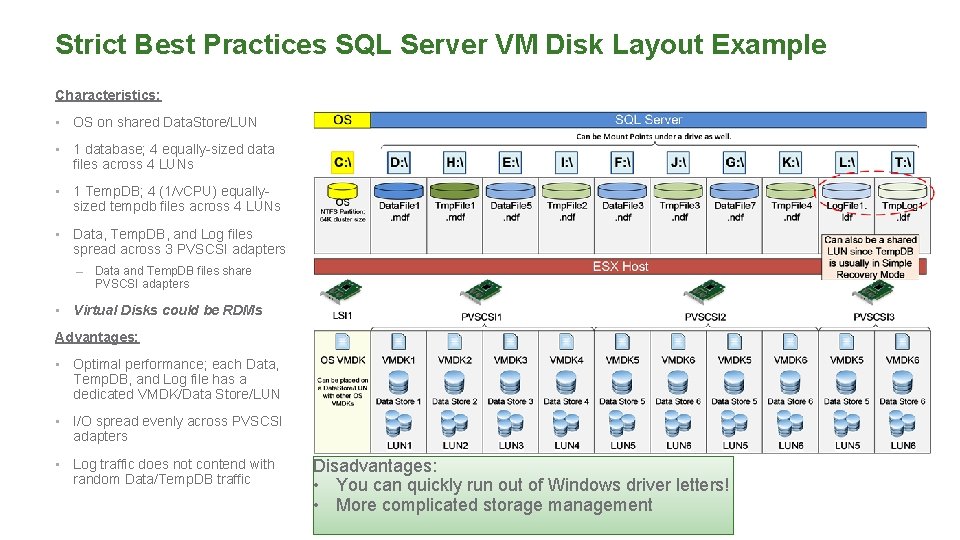
Strict Best Practices SQL Server VM Disk Layout Example Characteristics: • OS on shared Data. Store/LUN • 1 database; 4 equally-sized data files across 4 LUNs • 1 Temp. DB; 4 (1/v. CPU) equallysized tempdb files across 4 LUNs • Data, Temp. DB, and Log files spread across 3 PVSCSI adapters – • Data and Temp. DB files share PVSCSI adapters Virtual Disks could be RDMs Advantages: • Optimal performance; each Data, Temp. DB, and Log file has a dedicated VMDK/Data Store/LUN • I/O spread evenly across PVSCSI adapters • Log traffic does not contend with random Data/Temp. DB traffic Disadvantages: • You can quickly run out of Windows driver letters! • More complicated storage management
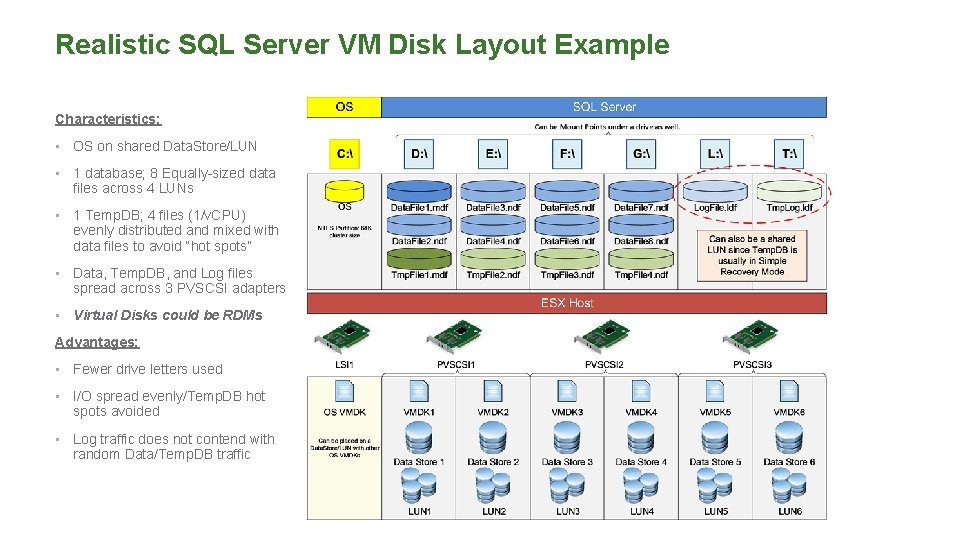
Realistic SQL Server VM Disk Layout Example Characteristics: • OS on shared Data. Store/LUN • 1 database; 8 Equally-sized data files across 4 LUNs • 1 Temp. DB; 4 files (1/v. CPU) evenly distributed and mixed with data files to avoid “hot spots” • Data, Temp. DB, and Log files spread across 3 PVSCSI adapters • Virtual Disks could be RDMs Advantages: • Fewer drive letters used • I/O spread evenly/Temp. DB hot spots avoided • Log traffic does not contend with random Data/Temp. DB traffic
Compute optimization
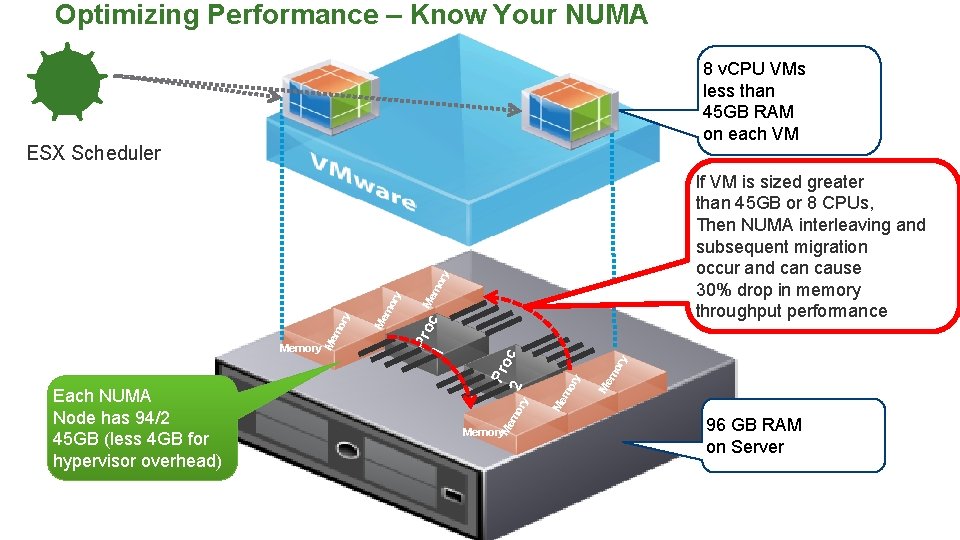
Optimizing Performance – Know Your NUMA 8 v. CPU VMs less than 45 GB RAM on each VM ESX Scheduler mo Me ry ry If VM is sized greater than 45 GB or 8 CPUs, Then NUMA interleaving and subsequent migration occur and can cause 30% drop in memory throughput performance c mo r Memory Me y mo r Me y 2 Memory Me Each NUMA Node has 94/2 45 GB (less 4 GB for hypervisor overhead) mo r y c mo Pro 1 Memory Pro Me mo Memory Memory 96 GB RAM on Server
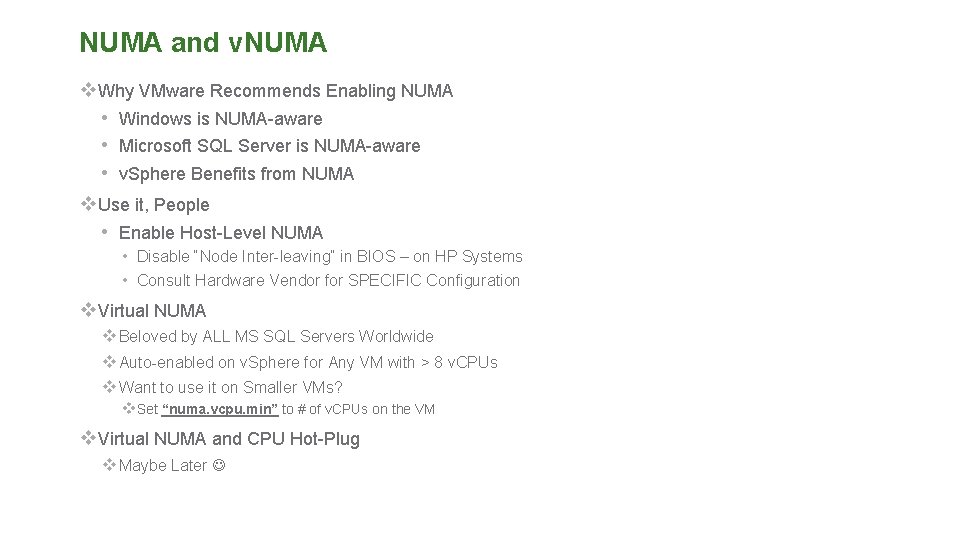
NUMA and v. NUMA v. Why VMware Recommends Enabling NUMA • Windows is NUMA-aware • Microsoft SQL Server is NUMA-aware • v. Sphere Benefits from NUMA v. Use it, People • Enable Host-Level NUMA • Disable “Node Inter-leaving” in BIOS – on HP Systems • Consult Hardware Vendor for SPECIFIC Configuration v. Virtual NUMA v Beloved by ALL MS SQL Servers Worldwide v Auto-enabled on v. Sphere for Any VM with > 8 v. CPUs v Want to use it on Smaller VMs? v. Set “numa. vcpu. min” to # of v. CPUs on the VM v. Virtual NUMA and CPU Hot-Plug v Maybe Later
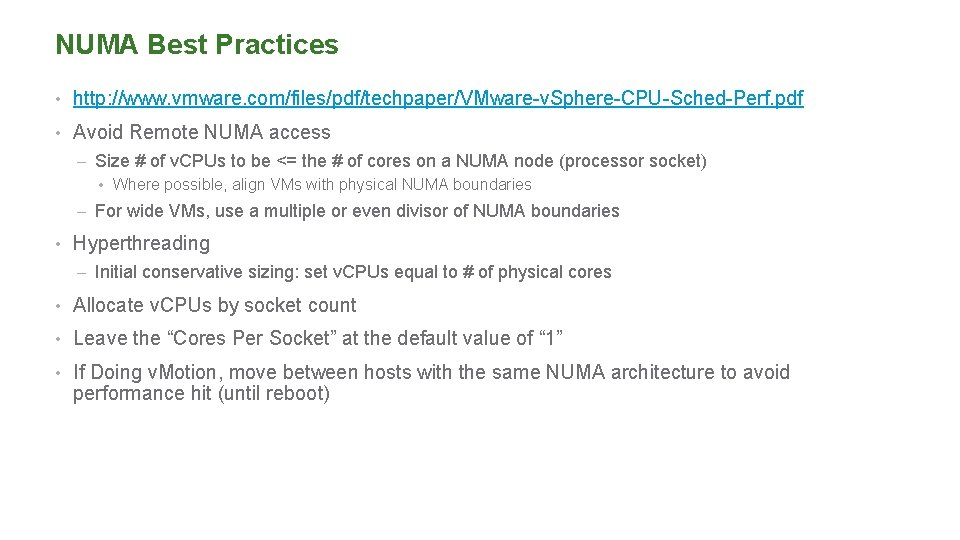
NUMA Best Practices • http: //www. vmware. com/files/pdf/techpaper/VMware-v. Sphere-CPU-Sched-Perf. pdf • Avoid Remote NUMA access – Size # of v. CPUs to be <= the # of cores on a NUMA node (processor socket) • Where possible, align VMs with physical NUMA boundaries – For wide VMs, use a multiple or even divisor of NUMA boundaries • Hyperthreading – Initial conservative sizing: set v. CPUs equal to # of physical cores • Allocate v. CPUs by socket count • Leave the “Cores Per Socket” at the default value of “ 1” • If Doing v. Motion, move between hosts with the same NUMA architecture to avoid performance hit (until reboot)
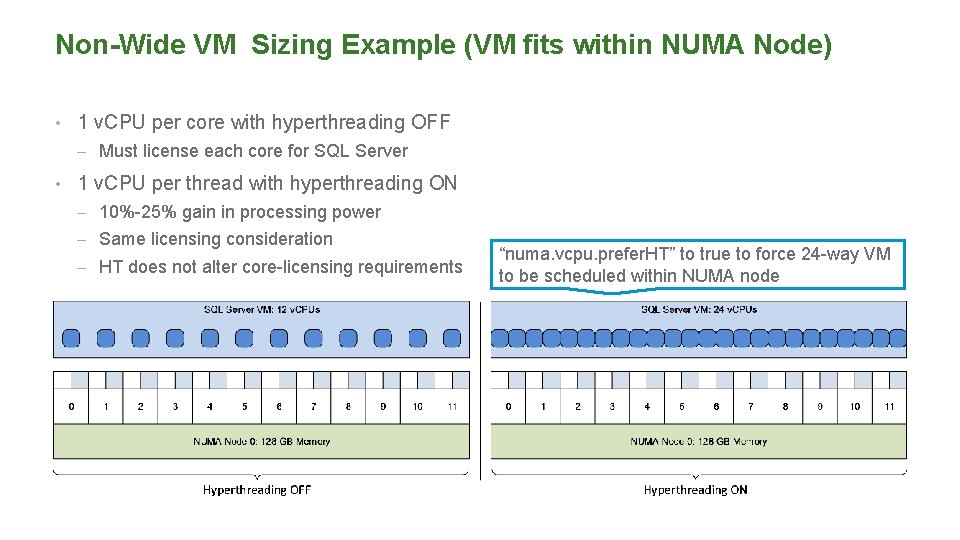
Non-Wide VM Sizing Example (VM fits within NUMA Node) • 1 v. CPU per core with hyperthreading OFF – Must license each core for SQL Server • 1 v. CPU per thread with hyperthreading ON – 10%-25% gain in processing power – Same licensing consideration – HT does not alter core-licensing requirements “numa. vcpu. prefer. HT” to true to force 24 -way VM to be scheduled within NUMA node
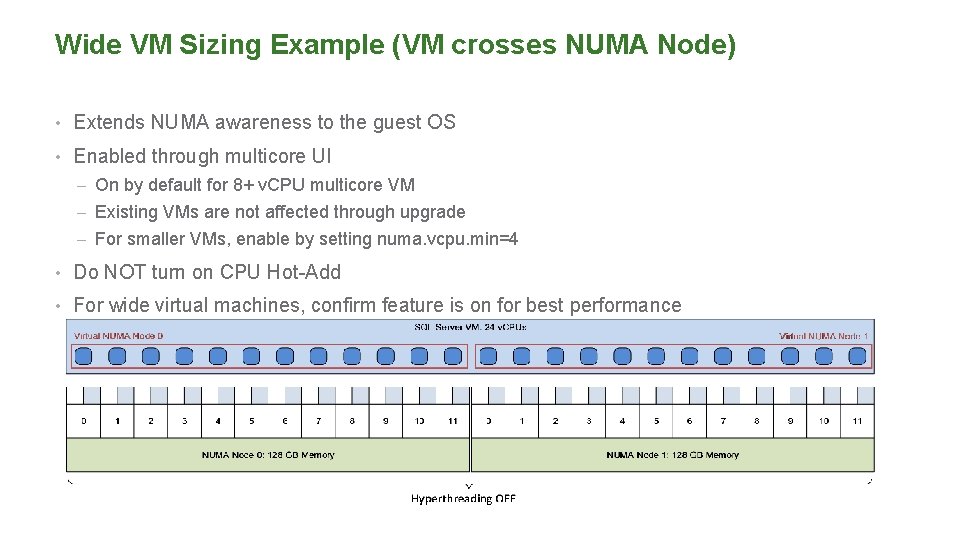
Wide VM Sizing Example (VM crosses NUMA Node) • Extends NUMA awareness to the guest OS • Enabled through multicore UI – On by default for 8+ v. CPU multicore VM – Existing VMs are not affected through upgrade – For smaller VMs, enable by setting numa. vcpu. min=4 • Do NOT turn on CPU Hot-Add • For wide virtual machines, confirm feature is on for best performance
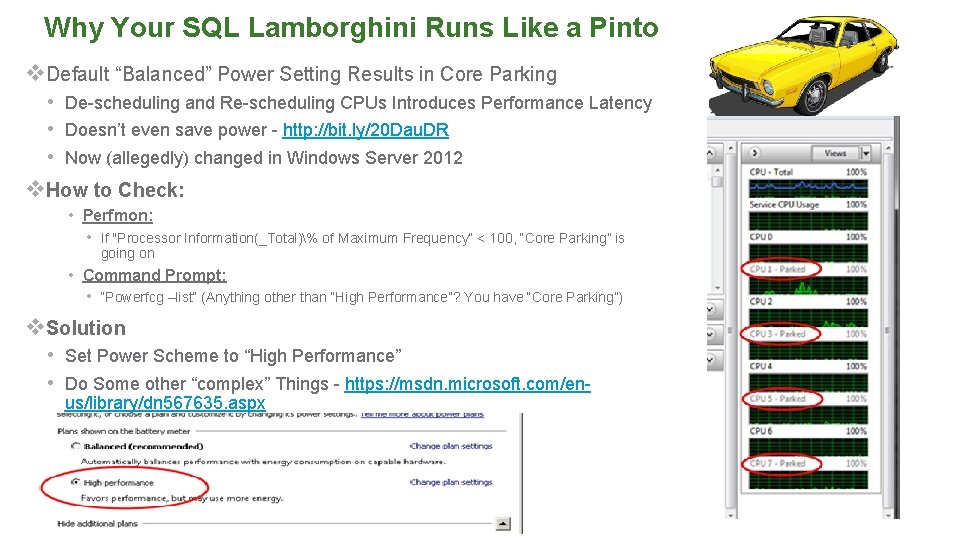
Why Your SQL Lamborghini Runs Like a Pinto v. Default “Balanced” Power Setting Results in Core Parking • De-scheduling and Re-scheduling CPUs Introduces Performance Latency • Doesn’t even save power - http: //bit. ly/20 Dau. DR • Now (allegedly) changed in Windows Server 2012 v. How to Check: • Perfmon: • If "Processor Information(_Total)% of Maximum Frequency“ < 100, “Core Parking” is going on • Command Prompt: • “Powerfcg –list” (Anything other than “High Performance”? You have “Core Parking”) v. Solution • Set Power Scheme to “High Performance” • Do Some other “complex” Things - https: //msdn. microsoft. com/enus/library/dn 567635. aspx
Designing for Performance • The VM Itself Matters – In-Guest Optimization – Windows CPU Core Parking = BAD • Set Power to “High Performance” to avoid core parking – Windows Receive Side Scaling Settings Impact CPU Utilization • Must be enabled at NIC and Windows Kernel Level – Use “netsh int tcp show global” to verify • Application-level tuning – Follow Vendor’s recommendation – Virtualization does not change the consideration
Memory Optimization
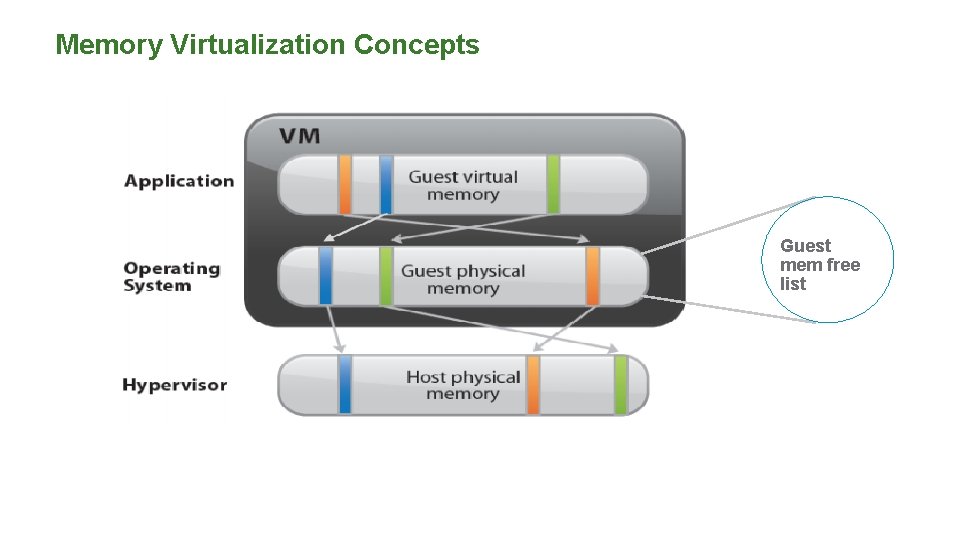
Memory Virtualization Concepts Guest mem free list
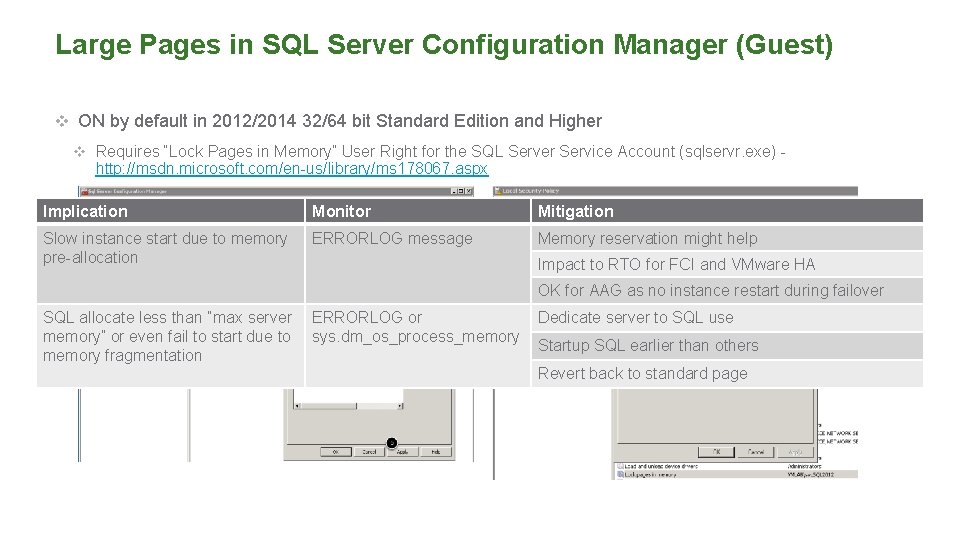
Large Pages in SQL Server Configuration Manager (Guest) v ON by default in 2012/2014 32/64 bit Standard Edition and Higher v Requires “Lock Pages in Memory” User Right for the SQL Server Service Account (sqlservr. exe) - http: //msdn. microsoft. com/en-us/library/ms 178067. aspx Implication Monitor Mitigation Slow instance start due to memory pre-allocation ERRORLOG message Memory reservation might help Impact to RTO for FCI and VMware HA OK for AAG as no instance restart during failover SQL allocate less than “max server memory” or even fail to start due to memory fragmentation ERRORLOG or sys. dm_os_process_memory Dedicate server to SQL use Startup SQL earlier than others Revert back to standard page
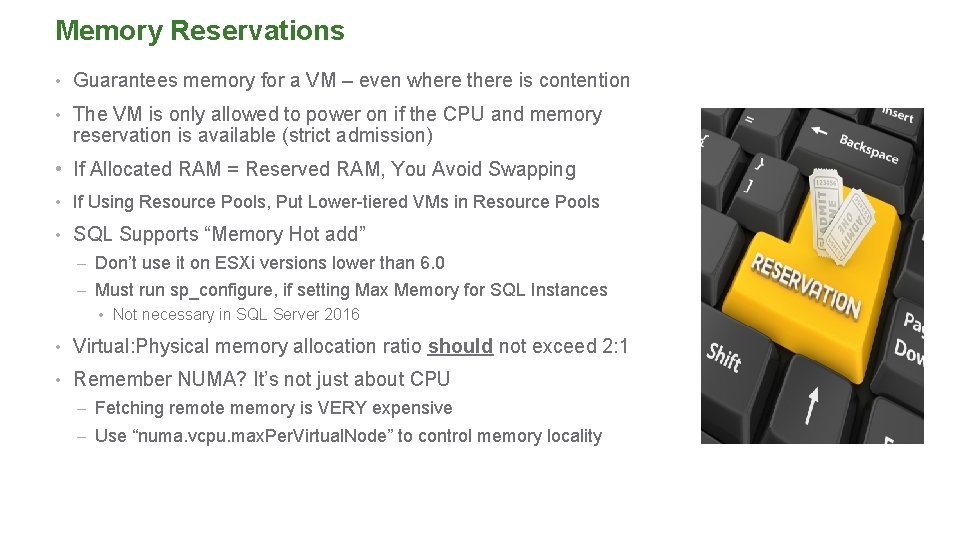
Memory Reservations • Guarantees memory for a VM – even where there is contention • The VM is only allowed to power on if the CPU and memory reservation is available (strict admission) • If Allocated RAM = Reserved RAM, You Avoid Swapping • If Using Resource Pools, Put Lower-tiered VMs in Resource Pools • SQL Supports “Memory Hot add” – Don’t use it on ESXi versions lower than 6. 0 – Must run sp_configure, if setting Max Memory for SQL Instances • Not necessary in SQL Server 2016 • Virtual: Physical memory allocation ratio should not exceed 2: 1 • Remember NUMA? It’s not just about CPU – Fetching remote memory is VERY expensive – Use “numa. vcpu. max. Per. Virtual. Node” to control memory locality
Network Optimization
Network Best Practices • Allocate separate NICs for different traffic type if possible – Can be connected to same uplink/physical NIC on 10 GB network • v. Sphere versions 5. 0 and newer support multi-NIC, concurrent v. Motion operations • Use NIC load-based teaming (route based on physical NIC load) • Recommend the use of NICs that support: – Checksum offload , TCP segmentation offload (TSO) – Jumbo frames (JF), Large receive offload (LRO) – Ability to handle high-memory DMA (i. e. 64 -bit DMA addresses) – Ability to handle multiple Scatter Gather elements per Tx frame – NICs should support offload of encapsulated packets (with VXLAN) • Check and Update Physical NIC Drivers • Keep VMware Tools Up-to-Date - ALWAYS
Network Best Practices (continued) • Use Virtual Distributed Switches for cross-ESX network convenience • Optimize IP-based storage (i. SCSI and NFS) – Enable Jumbo Frames – Use dedicated VLAN for ESXi host's vmknic & i. SCSI/NFS server to minimize network interference from other packet sources – Exclude in-Guest i. SCSI NICs from WSFC use – Be mindful of converged networks; storage load can affect network and vice versa as they use the same physical hardware; ensure no bottlenecks in the network between the source and destination • Use VMXNET 3 Paravirtualized adapter drivers to increase performance – NEVER use any other v. NIC type, unless for legacy OSes and applications – Reduces overhead versus vlance or E 1000 emulation – Must have VMware Tools to enable VMXNET 3 • Tune Guest OS network buffers, maximum ports
A Word on Windows RSS v. Windows Default Behaviors • Default RSS Behavior Result in Unbalanced CPU Usage • Saturates CPU 0, Service Network IOs • Problem Manifested in In-Guest Packet Drops • Problems Not Seen in v. Sphere Kernel, Making Problem Difficult to Detect • Solution • Enable RSS in 2 Places in Windows • At the NIC Properties • Get-Net. Adapter. Rss |fl name, enabled • Enable-Net. Adapter. Rss -name <Adaptername> • At the Windows Kernel • Netsh int tcp show global • Netsh int tcp set global rss=enabled • Please See http: //kb. vmware. com/kb/2008925 and http: //kb. vmware. com/kb/2061598
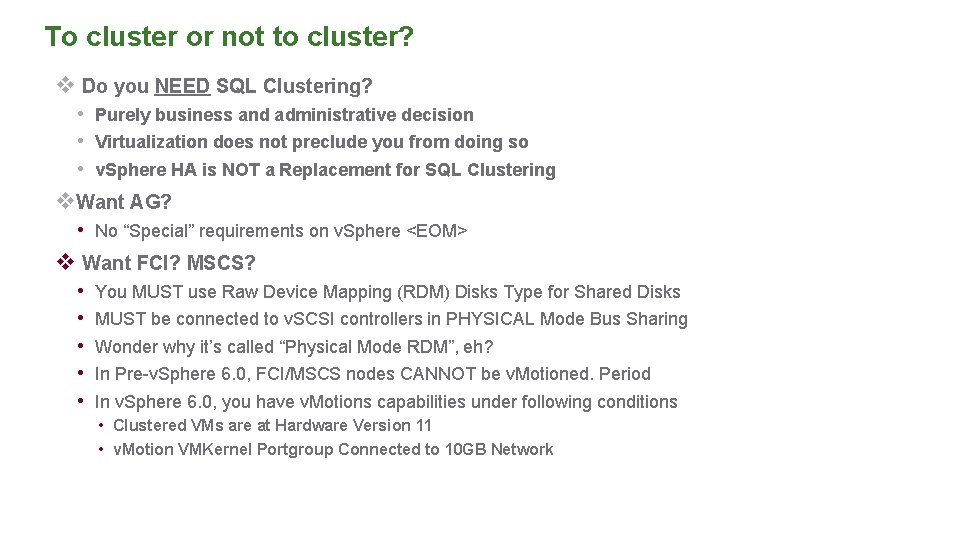
To cluster or not to cluster? v Do you NEED SQL Clustering? • Purely business and administrative decision • Virtualization does not preclude you from doing so • v. Sphere HA is NOT a Replacement for SQL Clustering v. Want AG? • No “Special” requirements on v. Sphere <EOM> v Want FCI? MSCS? • • • You MUST use Raw Device Mapping (RDM) Disks Type for Shared Disks MUST be connected to v. SCSI controllers in PHYSICAL Mode Bus Sharing Wonder why it’s called “Physical Mode RDM”, eh? In Pre-v. Sphere 6. 0, FCI/MSCS nodes CANNOT be v. Motioned. Period In v. Sphere 6. 0, you have v. Motions capabilities under following conditions • Clustered VMs are at Hardware Version 11 • v. Motion VMKernel Portgroup Connected to 10 GB Network
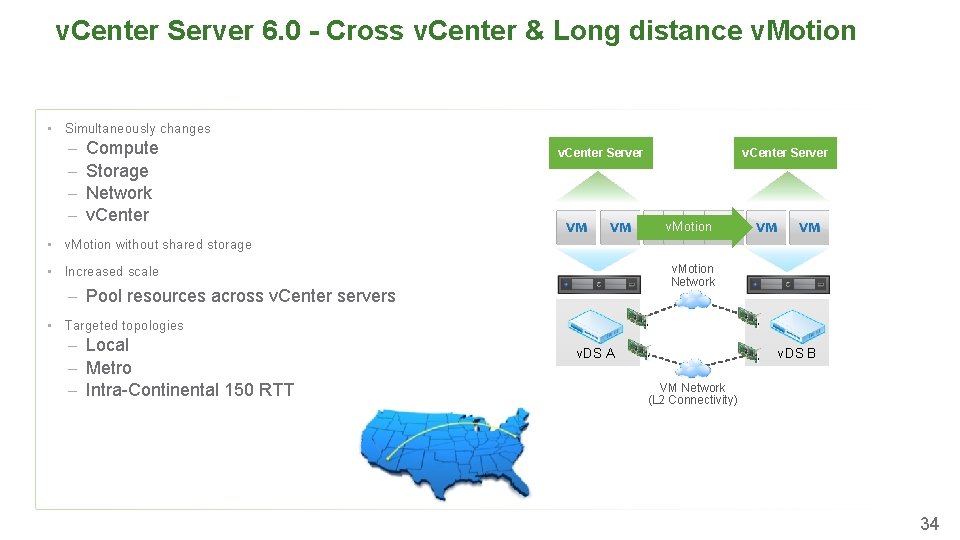
v. Center Server 6. 0 - Cross v. Center & Long distance v. Motion • Simultaneously changes – – Compute Storage Network v. Center • v. Motion without shared storage • Increased scale v. Center Server v. Motion Network – Pool resources across v. Center servers • v. Center Server Targeted topologies – Local – Metro – Intra-Continental 150 RTT v. DS A v. DS B VM Network (L 2 Connectivity) 34
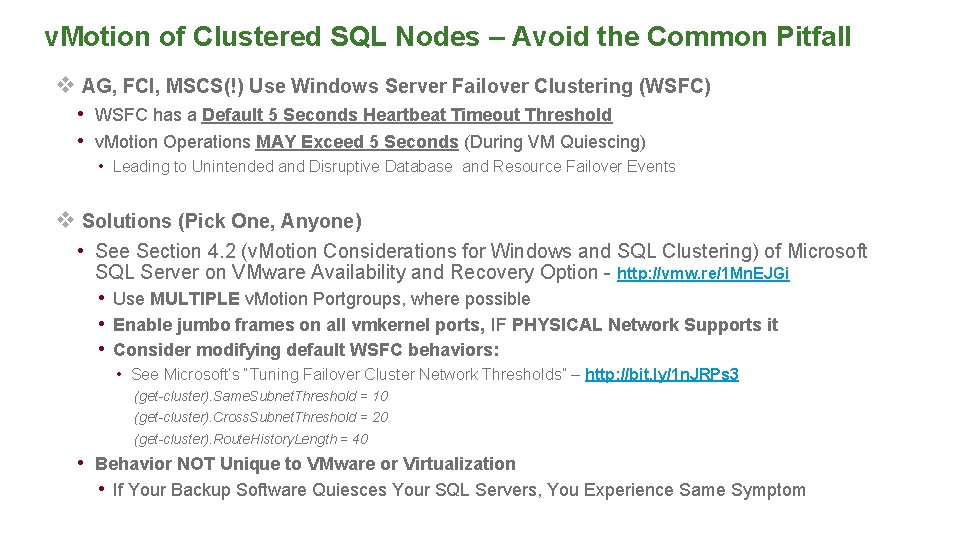
v. Motion of Clustered SQL Nodes – Avoid the Common Pitfall v AG, FCI, MSCS(!) Use Windows Server Failover Clustering (WSFC) • WSFC has a Default 5 Seconds Heartbeat Timeout Threshold • v. Motion Operations MAY Exceed 5 Seconds (During VM Quiescing) • Leading to Unintended and Disruptive Database and Resource Failover Events v Solutions (Pick One, Anyone) • See Section 4. 2 (v. Motion Considerations for Windows and SQL Clustering) of Microsoft SQL Server on VMware Availability and Recovery Option - http: //vmw. re/1 Mn. EJGi • Use MULTIPLE v. Motion Portgroups, where possible • Enable jumbo frames on all vmkernel ports, IF PHYSICAL Network Supports it • Consider modifying default WSFC behaviors: • See Microsoft’s “Tuning Failover Cluster Network Thresholds” – http: //bit. ly/1 n. JRPs 3 (get-cluster). Same. Subnet. Threshold = 10 (get-cluster). Cross. Subnet. Threshold = 20 (get-cluster). Route. History. Length = 40 • Behavior NOT Unique to VMware or Virtualization • If Your Backup Software Quiesces Your SQL Servers, You Experience Same Symptom
When Things Go Sideways
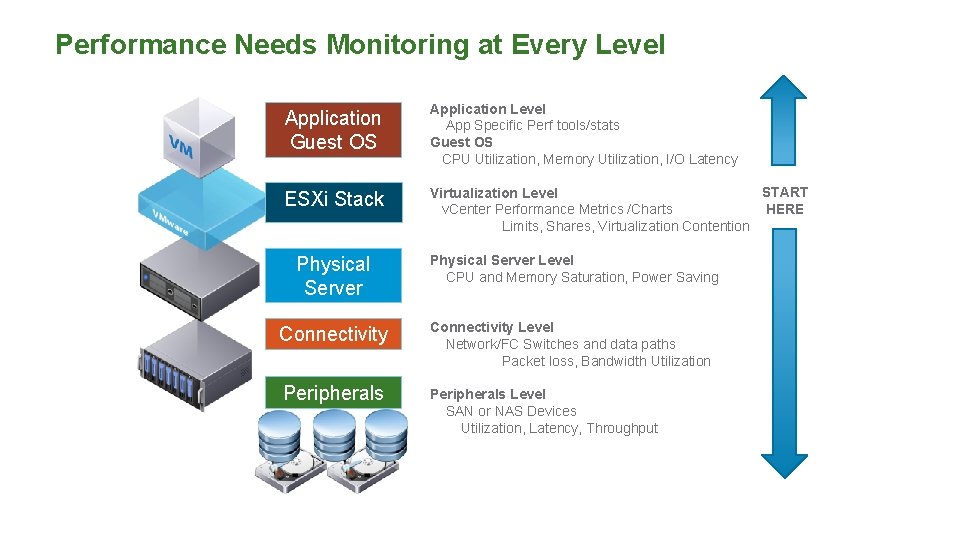
Performance Needs Monitoring at Every Level Application Guest OS Application Level App Specific Perf tools/stats Guest OS CPU Utilization, Memory Utilization, I/O Latency ESXi Stack START Virtualization Level HERE v. Center Performance Metrics /Charts Limits, Shares, Virtualization Contention Physical Server Level CPU and Memory Saturation, Power Saving Connectivity Level Network/FC Switches and data paths Packet loss, Bandwidth Utilization Peripherals Level SAN or NAS Devices Utilization, Latency, Throughput
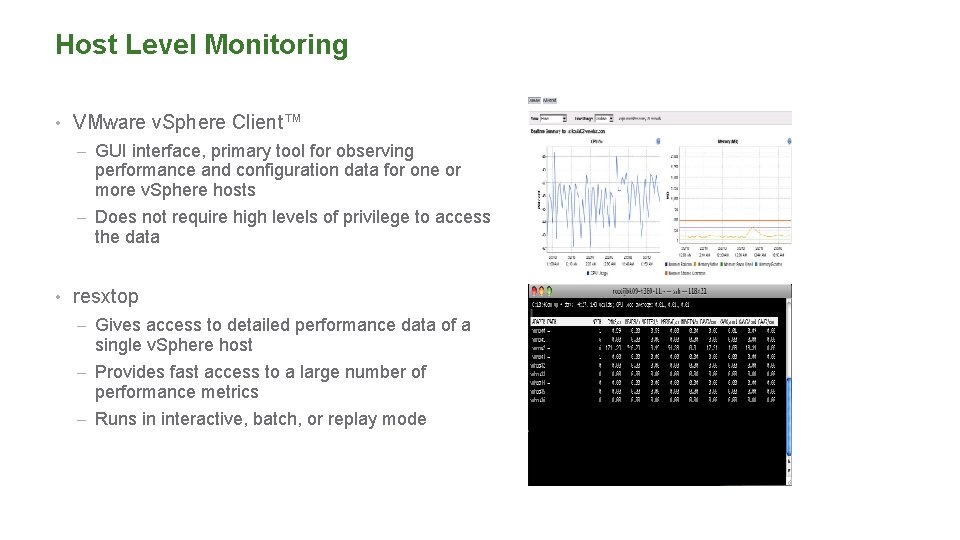
Host Level Monitoring • VMware v. Sphere Client™ – GUI interface, primary tool for observing performance and configuration data for one or more v. Sphere hosts – Does not require high levels of privilege to access the data • resxtop – Gives access to detailed performance data of a single v. Sphere host – Provides fast access to a large number of performance metrics – Runs in interactive, batch, or replay mode
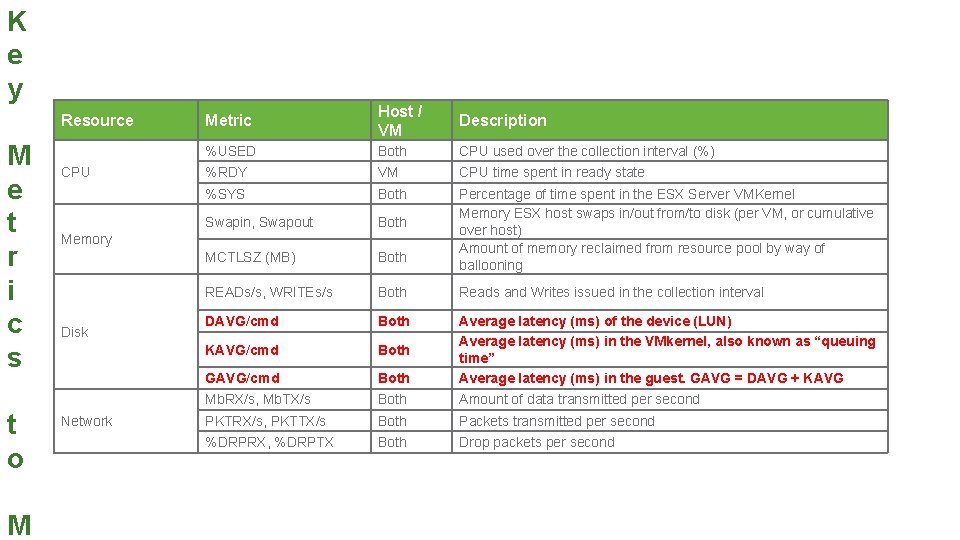
K e y Resource M e t r i c s t o M CPU Metric Host / VM Description %USED Both CPU used over the collection interval (%) %RDY VM CPU time spent in ready state %SYS Both Swapin, Swapout Both MCTLSZ (MB) Both Percentage of time spent in the ESX Server VMKernel Memory ESX host swaps in/out from/to disk (per VM, or cumulative over host) Amount of memory reclaimed from resource pool by way of ballooning READs/s, WRITEs/s Both Reads and Writes issued in the collection interval DAVG/cmd Both KAVG/cmd Both GAVG/cmd Both Average latency (ms) of the device (LUN) Average latency (ms) in the VMkernel, also known as “queuing time” Average latency (ms) in the guest. GAVG = DAVG + KAVG Mb. RX/s, Mb. TX/s Both Amount of data transmitted per second PKTRX/s, PKTTX/s Both Packets transmitted per second %DRPRX, %DRPTX Both Drop packets per second Memory Disk Network
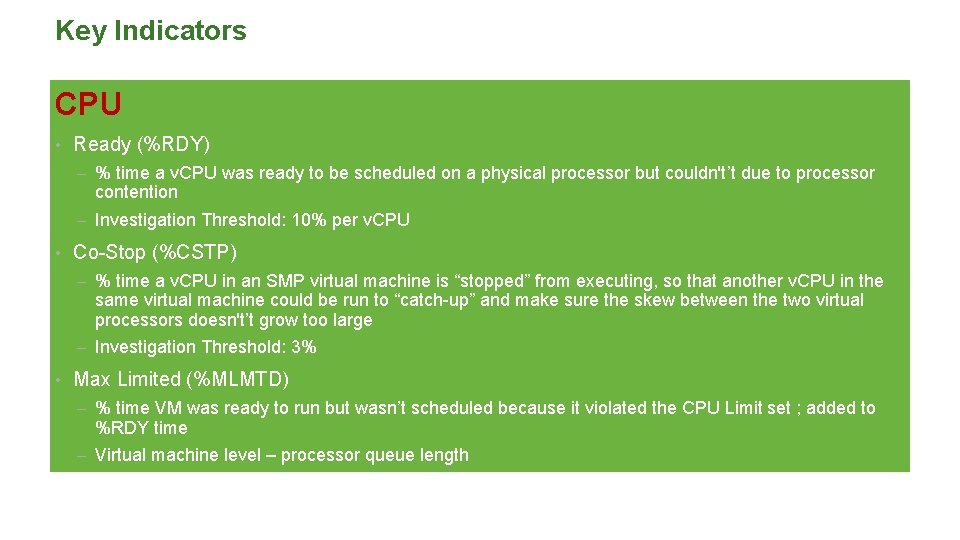
Key Indicators CPU • Ready (%RDY) – % time a v. CPU was ready to be scheduled on a physical processor but couldn't’t due to processor contention – Investigation Threshold: 10% per v. CPU • Co-Stop (%CSTP) – % time a v. CPU in an SMP virtual machine is “stopped” from executing, so that another v. CPU in the same virtual machine could be run to “catch-up” and make sure the skew between the two virtual processors doesn't’t grow too large – Investigation Threshold: 3% • Max Limited (%MLMTD) – % time VM was ready to run but wasn’t scheduled because it violated the CPU Limit set ; added to %RDY time – Virtual machine level – processor queue length
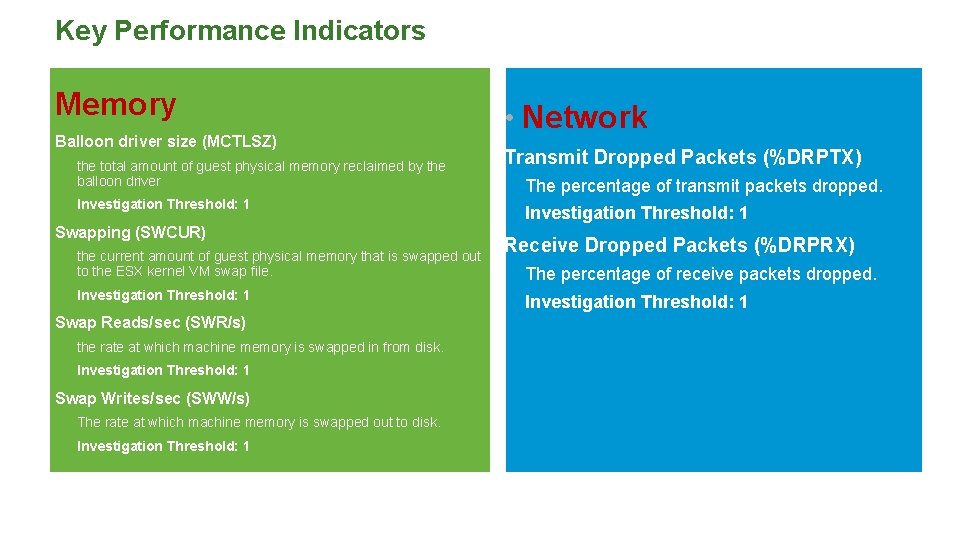
Key Performance Indicators Memory Balloon driver size (MCTLSZ) the total amount of guest physical memory reclaimed by the balloon driver Investigation Threshold: 1 Swapping (SWCUR) the current amount of guest physical memory that is swapped out to the ESX kernel VM swap file. Investigation Threshold: 1 Swap Reads/sec (SWR/s) the rate at which machine memory is swapped in from disk. Investigation Threshold: 1 Swap Writes/sec (SWW/s) The rate at which machine memory is swapped out to disk. Investigation Threshold: 1 • Network Transmit Dropped Packets (%DRPTX) The percentage of transmit packets dropped. Investigation Threshold: 1 Receive Dropped Packets (%DRPRX) The percentage of receive packets dropped. Investigation Threshold: 1
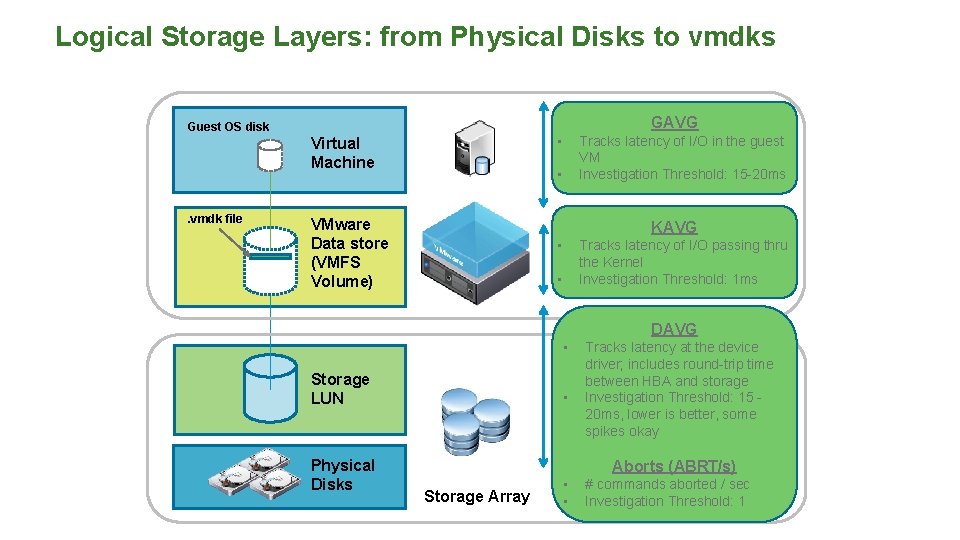
Logical Storage Layers: from Physical Disks to vmdks GAVG Guest OS disk • Virtual Machine . vmdk file Tracks latency of I/O in the guest VM Investigation Threshold: 15 -20 ms • VMware Data store (VMFS Volume) KAVG • Tracks latency of I/O passing thru the Kernel Investigation Threshold: 1 ms • DAVG • Storage LUN Physical Disks • Tracks latency at the device driver; includes round-trip time between HBA and storage Investigation Threshold: 15 20 ms, lower is better, some spikes okay Aborts (ABRT/s) Storage Array • • # commands aborted / sec Investigation Threshold: 1
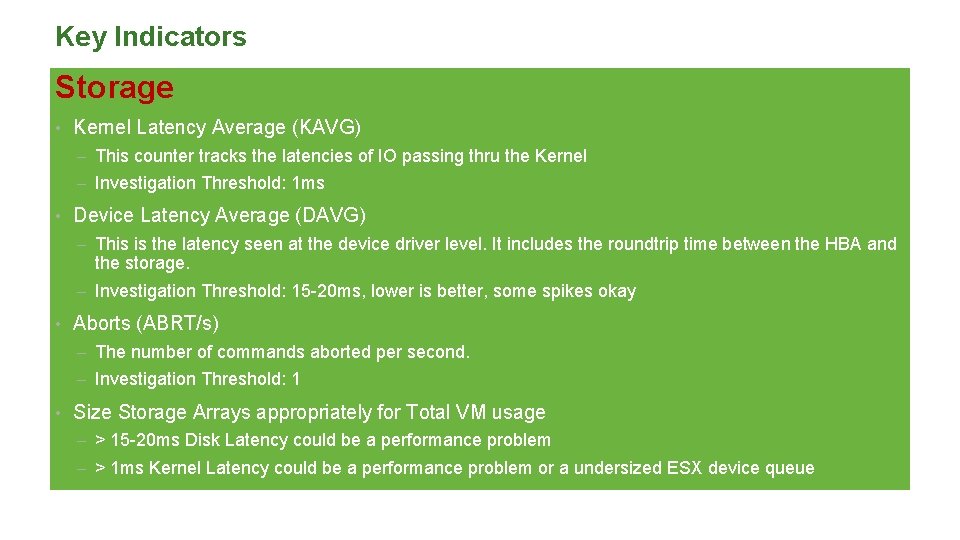
Key Indicators Storage • Kernel Latency Average (KAVG) – This counter tracks the latencies of IO passing thru the Kernel – Investigation Threshold: 1 ms • Device Latency Average (DAVG) – This is the latency seen at the device driver level. It includes the roundtrip time between the HBA and the storage. – Investigation Threshold: 15 -20 ms, lower is better, some spikes okay • Aborts (ABRT/s) – The number of commands aborted per second. – Investigation Threshold: 1 • Size Storage Arrays appropriately for Total VM usage – > 15 -20 ms Disk Latency could be a performance problem – > 1 ms Kernel Latency could be a performance problem or a undersized ESX device queue
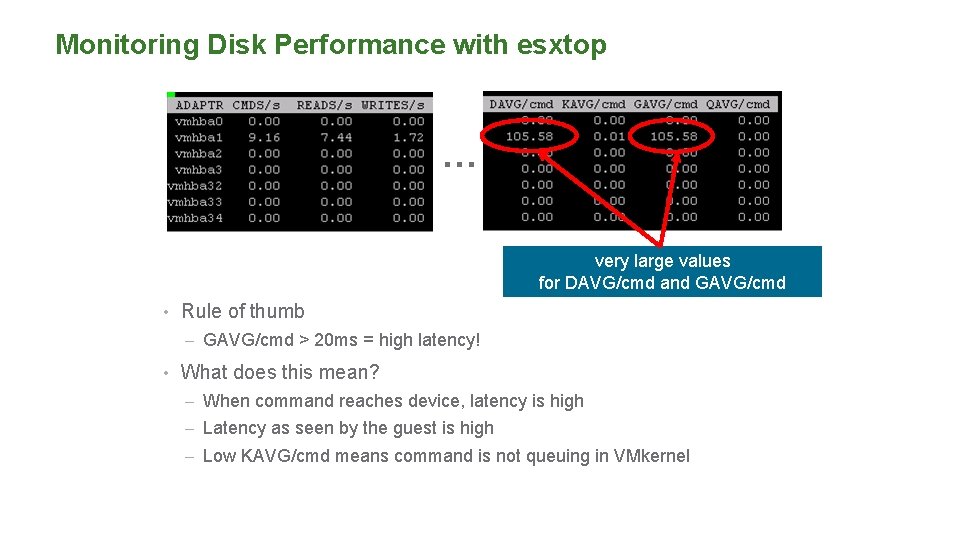
Monitoring Disk Performance with esxtop … very large values for DAVG/cmd and GAVG/cmd • Rule of thumb – GAVG/cmd > 20 ms = high latency! • What does this mean? – When command reaches device, latency is high – Latency as seen by the guest is high – Low KAVG/cmd means command is not queuing in VMkernel
Resources
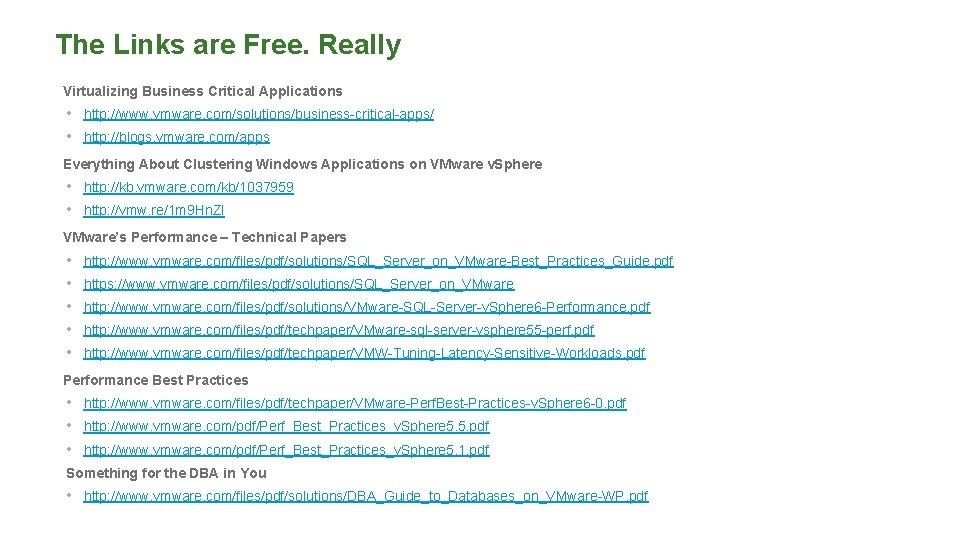
The Links are Free. Really Virtualizing Business Critical Applications • http: //www. vmware. com/solutions/business-critical-apps/ • http: //blogs. vmware. com/apps Everything About Clustering Windows Applications on VMware v. Sphere • http: //kb. vmware. com/kb/1037959 • http: //vmw. re/1 m 9 Hn. Zl VMware’s Performance – Technical Papers • • • http: //www. vmware. com/files/pdf/solutions/SQL_Server_on_VMware-Best_Practices_Guide. pdf https: //www. vmware. com/files/pdf/solutions/SQL_Server_on_VMware http: //www. vmware. com/files/pdf/solutions/VMware-SQL-Server-v. Sphere 6 -Performance. pdf http: //www. vmware. com/files/pdf/techpaper/VMware-sql-server-vsphere 55 -perf. pdf http: //www. vmware. com/files/pdf/techpaper/VMW-Tuning-Latency-Sensitive-Workloads. pdf Performance Best Practices • http: //www. vmware. com/files/pdf/techpaper/VMware-Perf. Best-Practices-v. Sphere 6 -0. pdf • http: //www. vmware. com/pdf/Perf_Best_Practices_v. Sphere 5. 5. pdf • http: //www. vmware. com/pdf/Perf_Best_Practices_v. Sphere 5. 1. pdf Something for the DBA in You • http: //www. vmware. com/files/pdf/solutions/DBA_Guide_to_Databases_on_VMware-WP. pdf