
Submission of Statement of Financial Transactions SFT in
Submission of Statement of Financial Transactions (SFT) in Form 61 A Directorate of Income Tax (Intelligence and Criminal Investigation), New Delhi May, 2017
Scheme of Presentation Background Registration by Filer Guidelines for Preparation of SFT Report Preparation Report Submission/Upload 2

Background
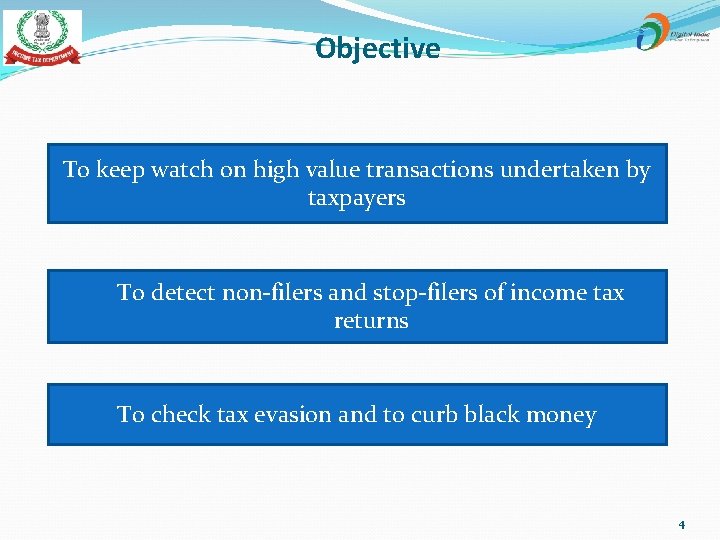
Objective To keep watch on high value transactions undertaken by taxpayers To detect non-filers and stop-filers of income tax returns To check tax evasion and to curb black money 4
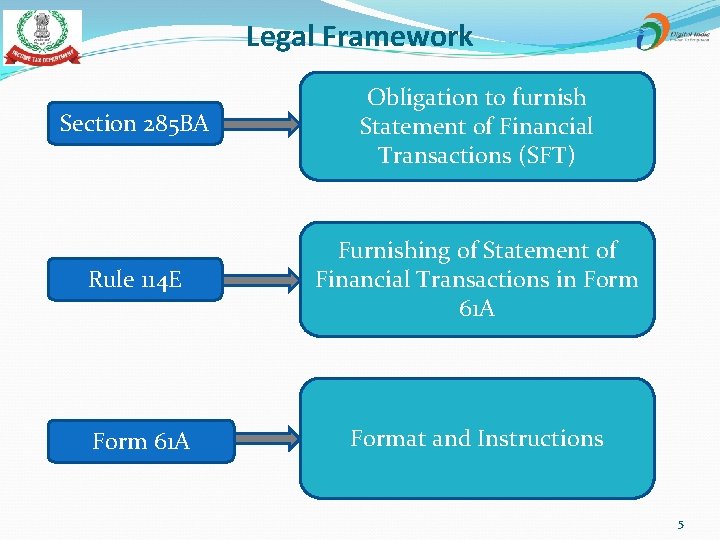
Legal Framework Section 285 BA Obligation to furnish Statement of Financial Transactions (SFT) Rule 114 E Furnishing of Statement of Financial Transactions in Form 61 A Format and Instructions 5
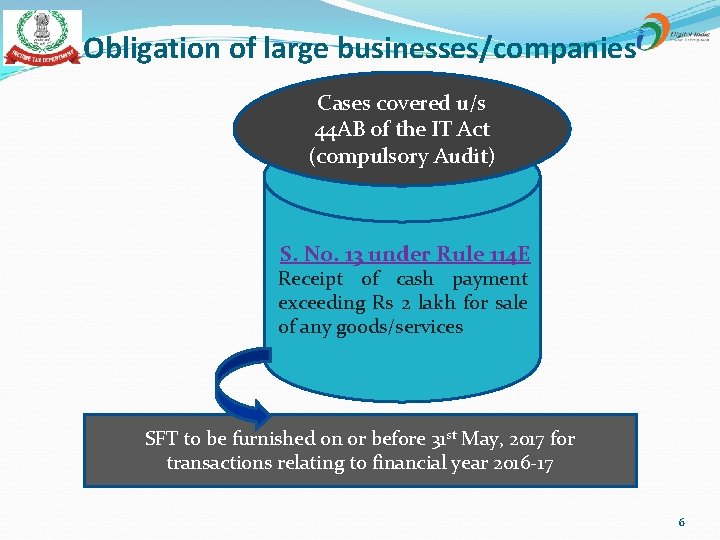
Obligation of large businesses/companies Cases covered u/s 44 AB of the IT Act (compulsory Audit) S. No. 13 under Rule 114 E Receipt of cash payment exceeding Rs 2 lakh for sale of any goods/services SFT to be furnished on or before 31 st May, 2017 for transactions relating to financial year 2016 -17 6
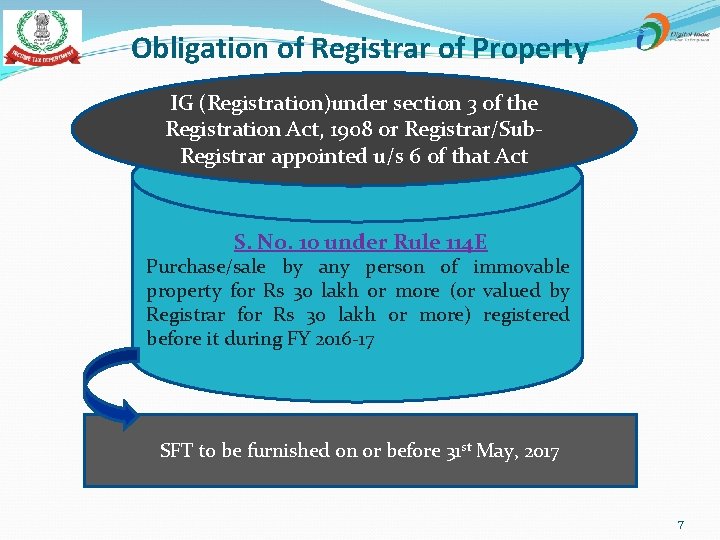
Obligation of Registrar of Property IG (Registration)under section 3 of the Registration Act, 1908 or Registrar/Sub. Registrar appointed u/s 6 of that Act S. No. 10 under Rule 114 E Purchase/sale by any person of immovable property for Rs 30 lakh or more (or valued by Registrar for Rs 30 lakh or more) registered before it during FY 2016 -17 SFT to be furnished on or before 31 st May, 2017 7
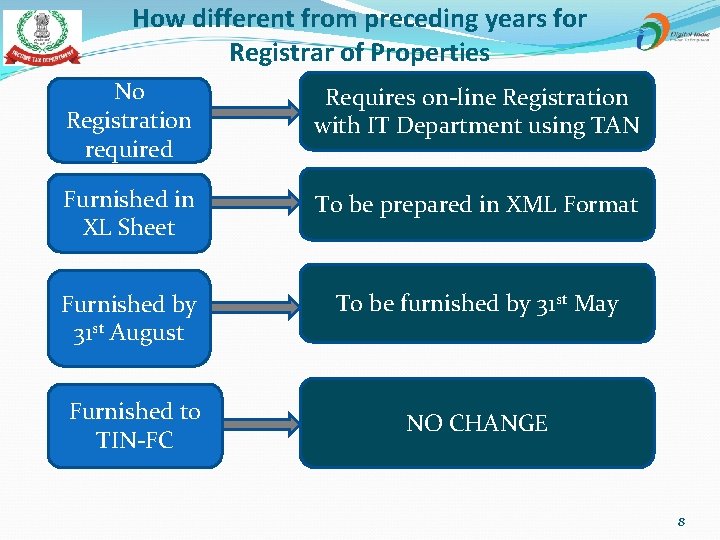
How different from preceding years for Registrar of Properties No Registration required Requires on-line Registration with IT Department using TAN Furnished in XL Sheet To be prepared in XML Format Furnished by 31 st August To be furnished by 31 st May Furnished to TIN-FC NO CHANGE 8
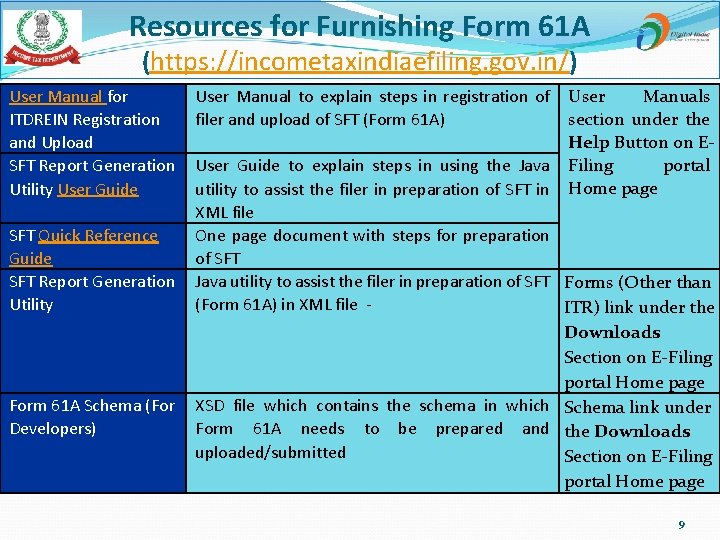
Resources for Furnishing Form 61 A (https: //incometaxindiaefiling. gov. in/) User Manual for ITDREIN Registration and Upload SFT Report Generation Utility User Guide SFT Quick Reference Guide SFT Report Generation Utility Form 61 A Schema (For Developers) User Manual to explain steps in registration of filer and upload of SFT (Form 61 A) User Manuals section under the Help Button on EFiling portal Home page User Guide to explain steps in using the Java utility to assist the filer in preparation of SFT in XML file One page document with steps for preparation of SFT Java utility to assist the filer in preparation of SFT Forms (Other than (Form 61 A) in XML file ITR) link under the Downloads Section on E-Filing portal Home page XSD file which contains the schema in which Schema link under Form 61 A needs to be prepared and the Downloads uploaded/submitted Section on E-Filing portal Home page 9
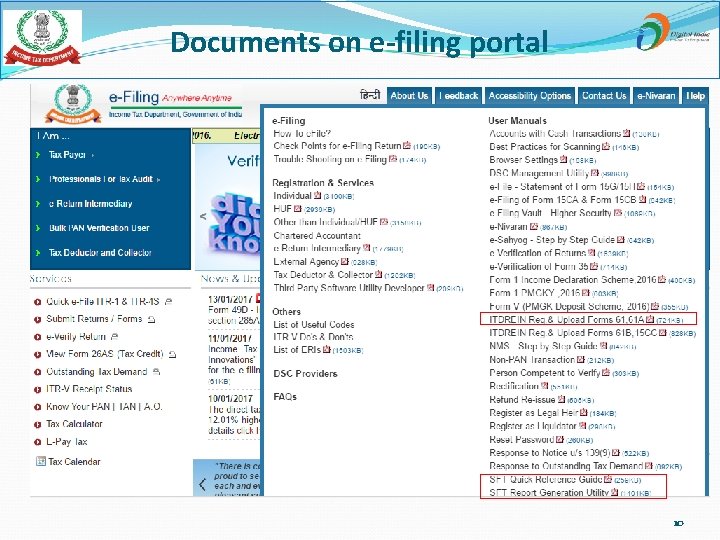
Documents on e-filing portal 10
Registration
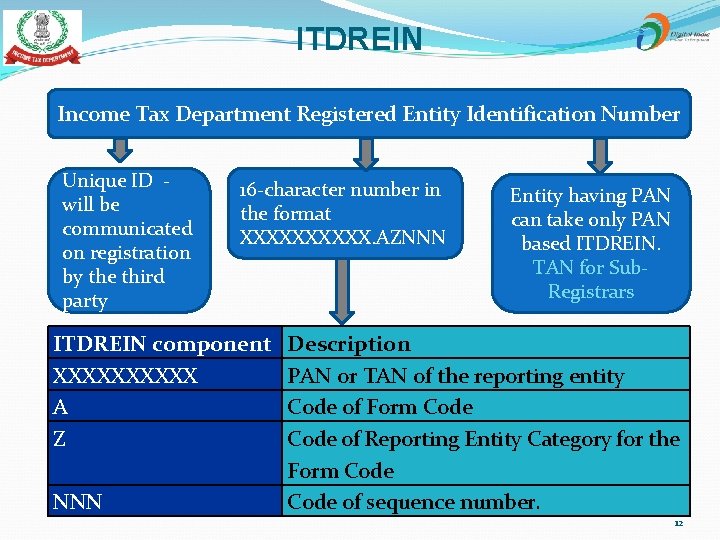
ITDREIN Income Tax Department Registered Entity Identification Number Unique ID - will be communicated on registration by the third party 16 -character number in the format XXXXX. AZNNN ITDREIN component XXXXX A Z NNN Entity having PAN can take only PAN based ITDREIN. TAN for Sub. Registrars Description PAN or TAN of the reporting entity Code of Form Code of Reporting Entity Category for the Form Code of sequence number. 12
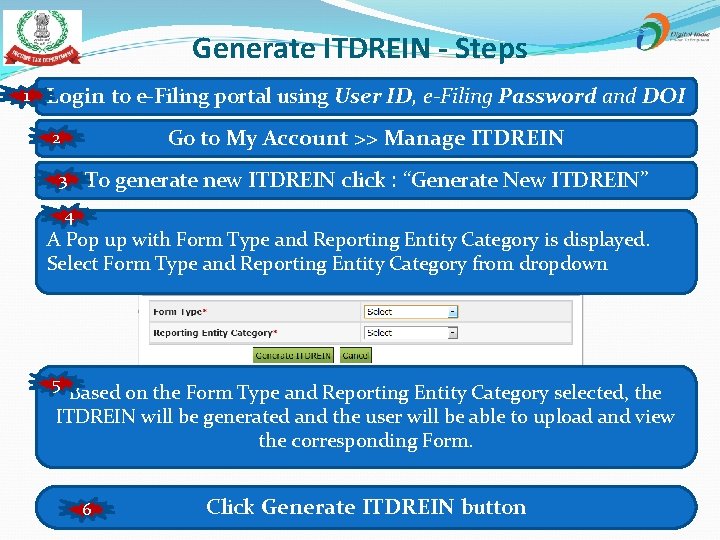
Generate ITDREIN - Steps 1 Login to e-Filing portal using User ID, e-Filing Password and DOI Go to My Account >> Manage ITDREIN 2 3 To generate new ITDREIN click : “Generate New ITDREIN” 4 A Pop up with Form Type and Reporting Entity Category is displayed. Select Form Type and Reporting Entity Category from dropdown 5 Based on the Form Type and Reporting Entity Category selected, the ITDREIN will be generated and the user will be able to upload and view the corresponding Form. 6 Click Generate ITDREIN button 13
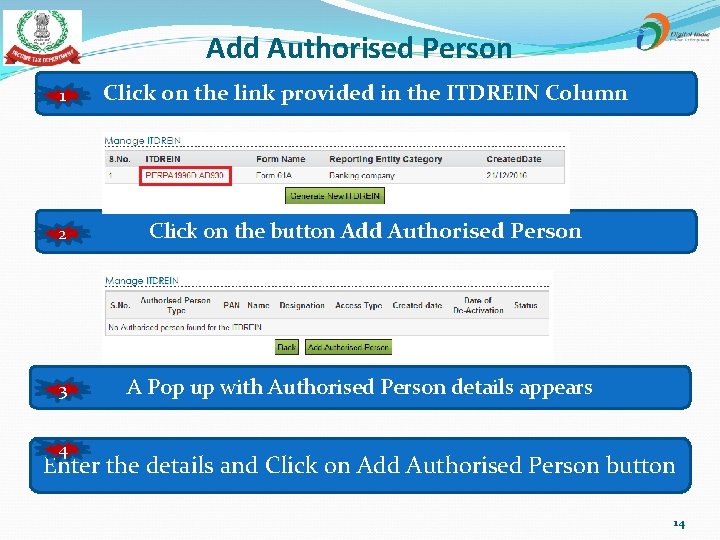
Add Authorised Person 1 Click on the link provided in the ITDREIN Column 2 Click on the button Add Authorised Person 3 A Pop up with Authorised Person details appears 4 Enter the details and Click on Add Authorised Person button 14
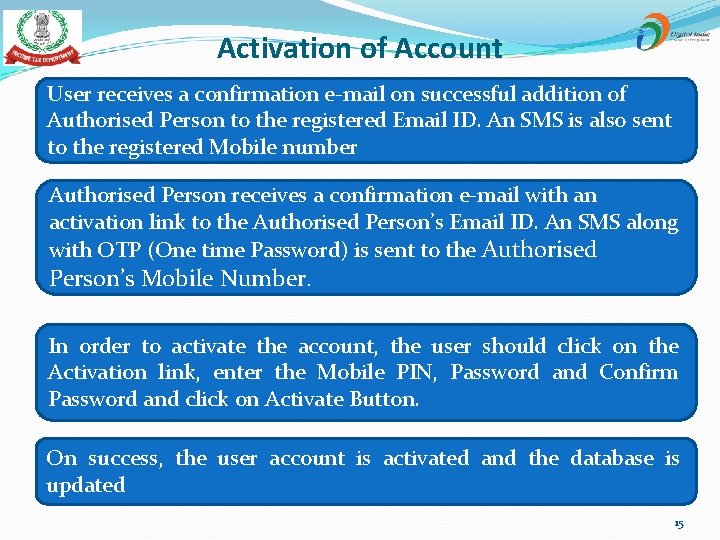
Activation of Account User receives a confirmation e-mail on successful addition of Authorised Person to the registered Email ID. An SMS is also sent to the registered Mobile number Authorised Person receives a confirmation e-mail with an activation link to the Authorised Person’s Email ID. An SMS along with OTP (One time Password) is sent to the Authorised Person’s Mobile Number. In order to activate the account, the user should click on the Activation link, enter the Mobile PIN, Password and Confirm Password and click on Activate Button. On success, the user account is activated and the database is updated 15
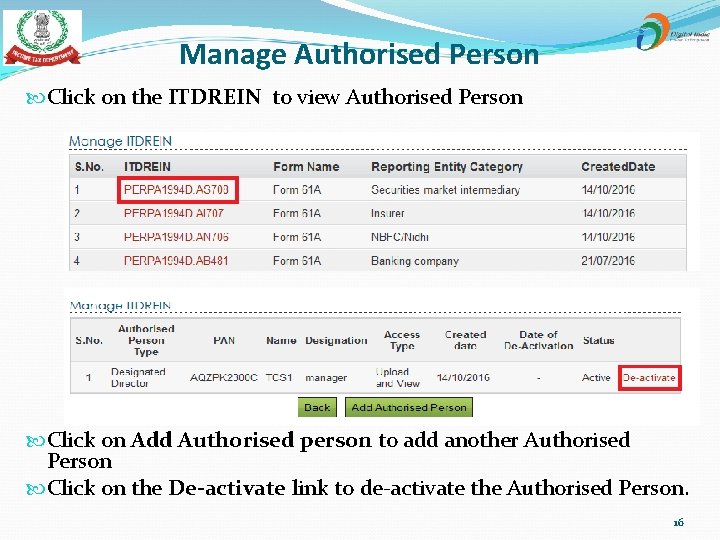
Manage Authorised Person Click on the ITDREIN to view Authorised Person Click on Add Authorised person to add another Authorised Person Click on the De-activate link to de-activate the Authorised Person. 16
Guidelines for Preparation of SFT
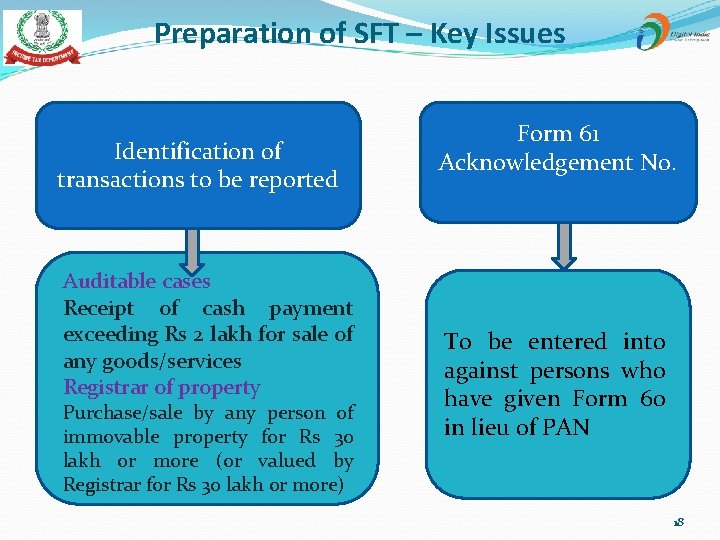
Preparation of SFT – Key Issues Identification of transactions to be reported Auditable cases Receipt of cash payment exceeding Rs 2 lakh for sale of any goods/services Registrar of property Purchase/sale by any person of immovable property for Rs 30 lakh or more (or valued by Registrar for Rs 30 lakh or more) Form 61 Acknowledgement No. To be entered into against persons who have given Form 60 in lieu of PAN 18
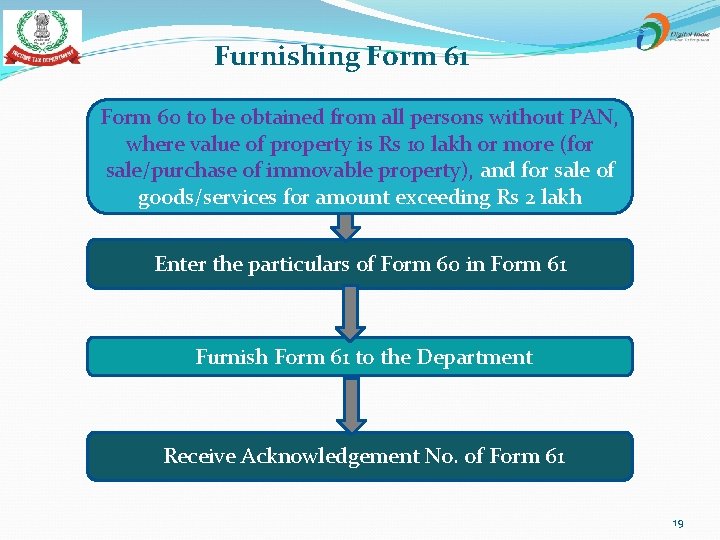
Furnishing Form 61 Form 60 to be obtained from all persons without PAN, where value of property is Rs 10 lakh or more (for sale/purchase of immovable property), and for sale of goods/services for amount exceeding Rs 2 lakh Enter the particulars of Form 60 in Form 61 Furnish Form 61 to the Department Receive Acknowledgement No. of Form 61 19
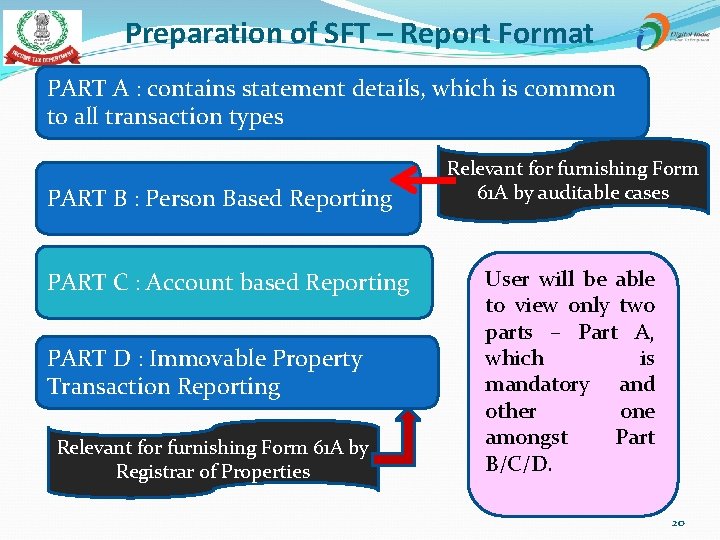
Preparation of SFT – Report Format PART A : contains statement details, which is common to all transaction types PART B : Person Based Reporting PART C : Account based Reporting PART D : Immovable Property Transaction Reporting Relevant for furnishing Form 61 A by Registrar of Properties Relevant for furnishing Form 61 A by auditable cases User will be able to view only two parts – Part A, which is mandatory and other one amongst Part B/C/D. 20
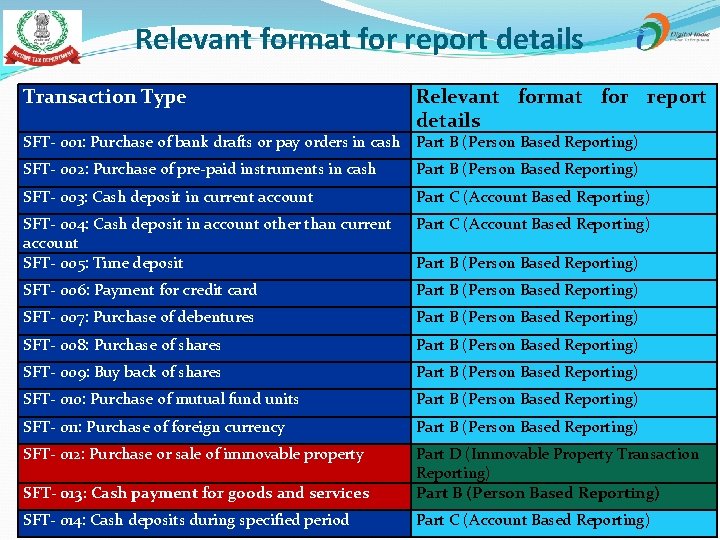
Relevant format for report details Transaction Type Relevant format for report details SFT- 001: Purchase of bank drafts or pay orders in cash Part B (Person Based Reporting) SFT- 002: Purchase of pre-paid instruments in cash Part B (Person Based Reporting) SFT- 003: Cash deposit in current account Part C (Account Based Reporting) SFT- 004: Cash deposit in account other than current account SFT- 005: Time deposit Part C (Account Based Reporting) SFT- 006: Payment for credit card Part B (Person Based Reporting) SFT- 007: Purchase of debentures Part B (Person Based Reporting) SFT- 008: Purchase of shares Part B (Person Based Reporting) SFT- 009: Buy back of shares Part B (Person Based Reporting) SFT- 010: Purchase of mutual fund units Part B (Person Based Reporting) SFT- 011: Purchase of foreign currency Part B (Person Based Reporting) SFT- 012: Purchase or sale of immovable property SFT- 013: Cash payment for goods and services Part D (Immovable Property Transaction Reporting) Part B (Person Based Reporting) SFT- 014: Cash deposits during specified period Part C (Account Based Reporting) Part B (Person Based Reporting) 21

Report Preparation
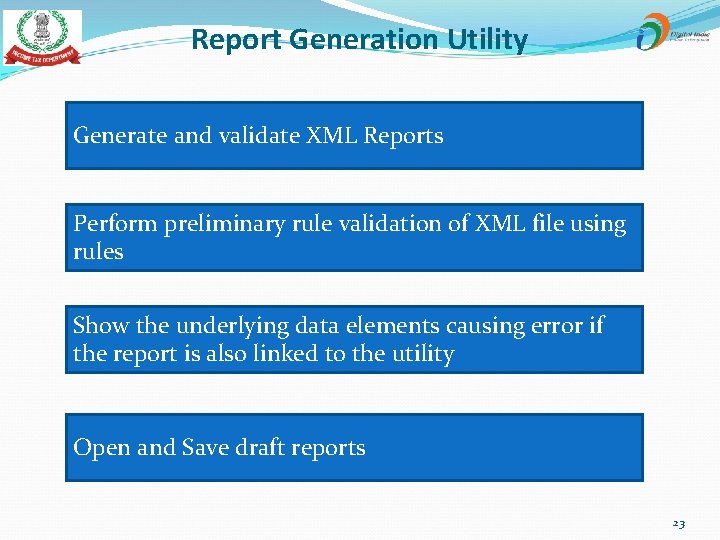
Report Generation Utility Generate and validate XML Reports Perform preliminary rule validation of XML file using rules Show the underlying data elements causing error if the report is also linked to the utility Open and Save draft reports 23
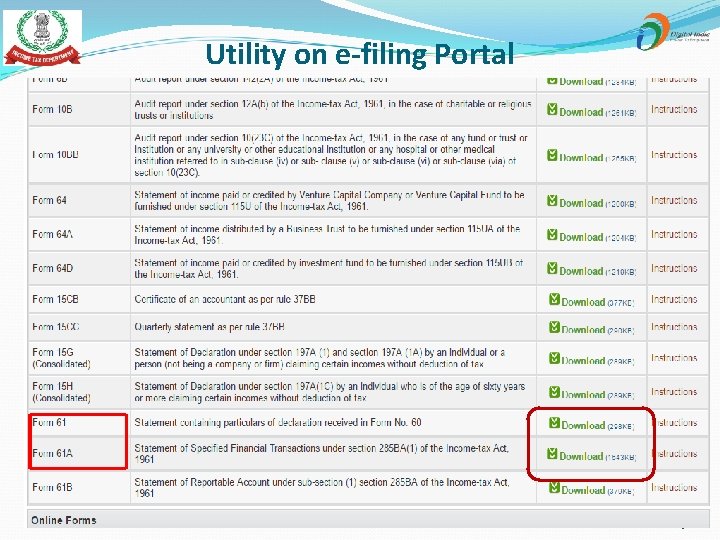
Utility on e-filing Portal 24
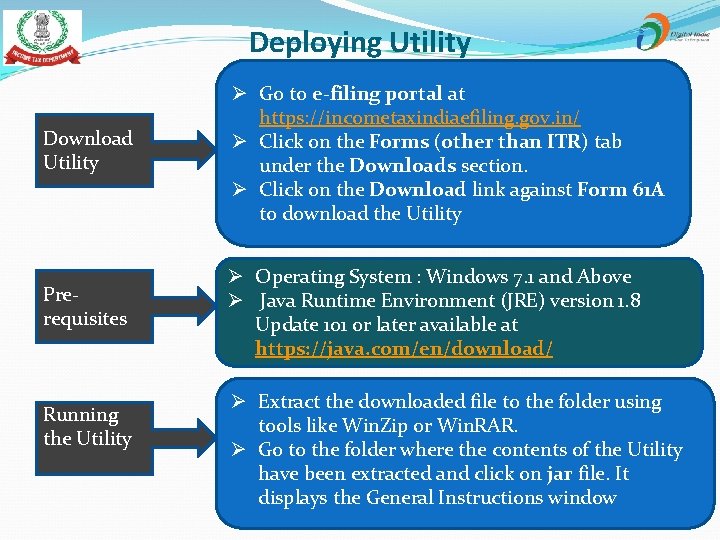
Deploying Utility Ø Go to e-filing portal at https: //incometaxindiaefiling. gov. in/ Ø Click on the Forms (other than ITR) tab under the Downloads section. Ø Click on the Download link against Form 61 A to download the Utility Prerequisites Ø Operating System : Windows 7. 1 and Above Ø Java Runtime Environment (JRE) version 1. 8 Update 101 or later available at https: //java. com/en/download/ Download Running the Utility Ø Extract the downloaded file to the folder using tools like Win. Zip or Win. RAR. Ø Go to the folder where the contents of the Utility have been extracted and click on jar file. It displays the General Instructions window 25

Preparation of SFT Select the Transaction Type on General Instructions window 1 2 3 Capture Statement Details Click on Export CSV button to download CSV Template 4 Save the CSV at desired location 5 Open the CSV file and fill the details by data entry or pasting values 6 Click on Import CSV button Select the pre saved CSV from file system and then click on Open 7 button to upload 26

Select SFT Code 27
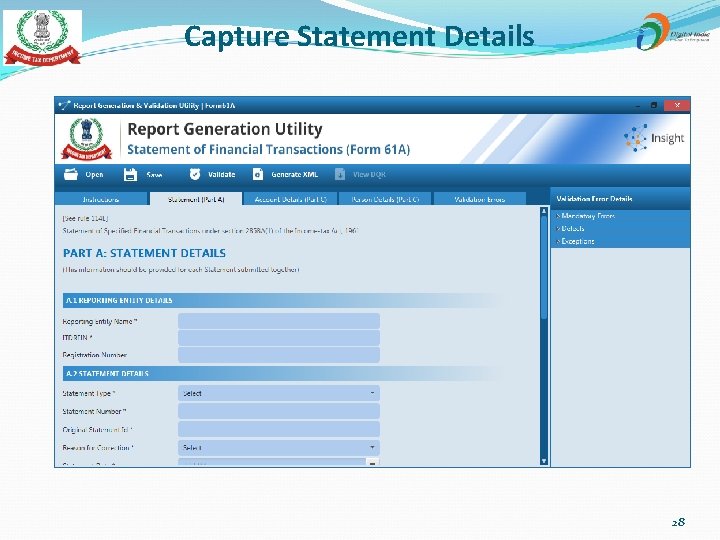
Capture Statement Details 28
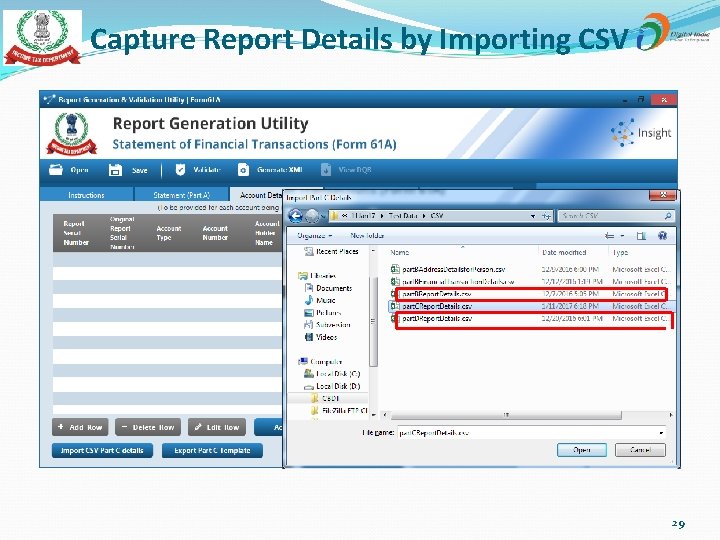
Capture Report Details by Importing CSV 29
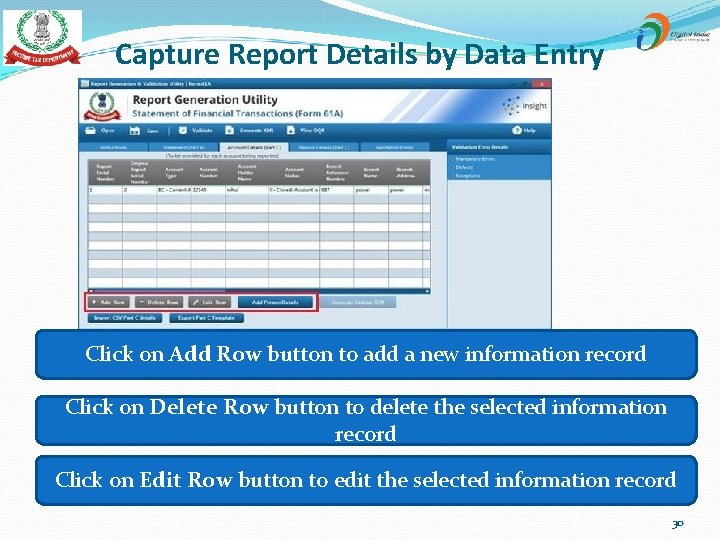
Capture Report Details by Data Entry Click on Add Row button to add a new information record Click on Delete Row button to delete the selected information record Click on Edit Row button to edit the selected information record 30

Validation of SFT Click on Validation button on the toolbar 1 2 Utility will display validation errors on Validation Tab 3 Click on Validation row to see details of Validation errors on the right window pane of screen 31
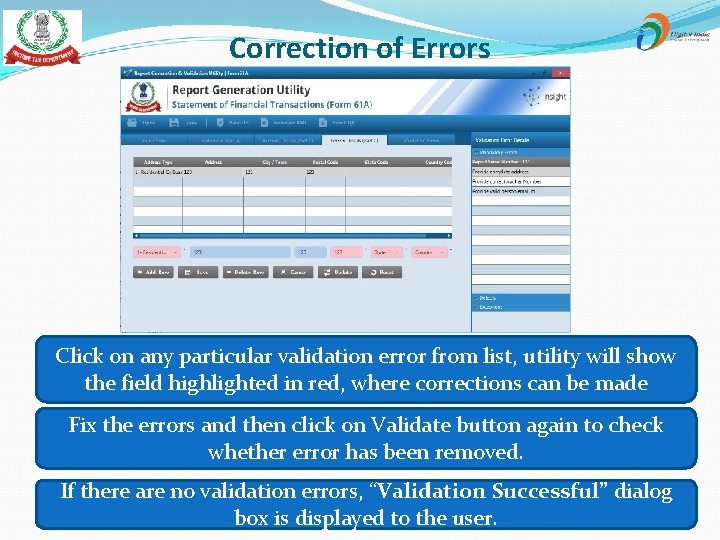
Correction of Errors Click on any particular validation error from list, utility will show the field highlighted in red, where corrections can be made Fix the errors and then click on Validate button again to check whether error has been removed. If there are no validation errors, “Validation Successful” dialog box is displayed to the user. 32
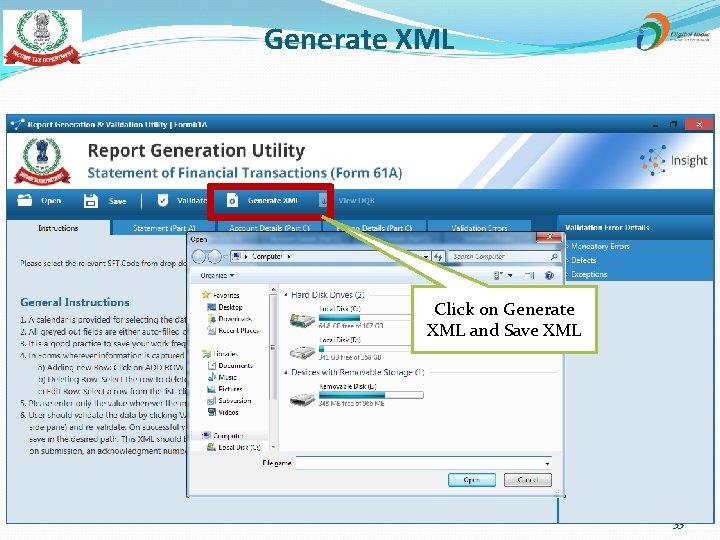
Generate XML Click on Generate XML and Save XML 33

Report Upload/Submission
Report Submission by Registrar of Property 1. Go the nearest TIN-FC 2. List of TIN-FC can be downloaded from the website https: //www. tin-nsdl. com/ 3. Submit Part A and Part D (XML file in CD/DVD format to the TIN-FC) 4. Obtain Acknowledgement 35
Report Upload (for auditable cases) Ø Upload on e-filing Portal (https: //incometaxindiaefiling. gov. in/) Ø User Manual for ITDREIN Registration and Upload of Forms 36
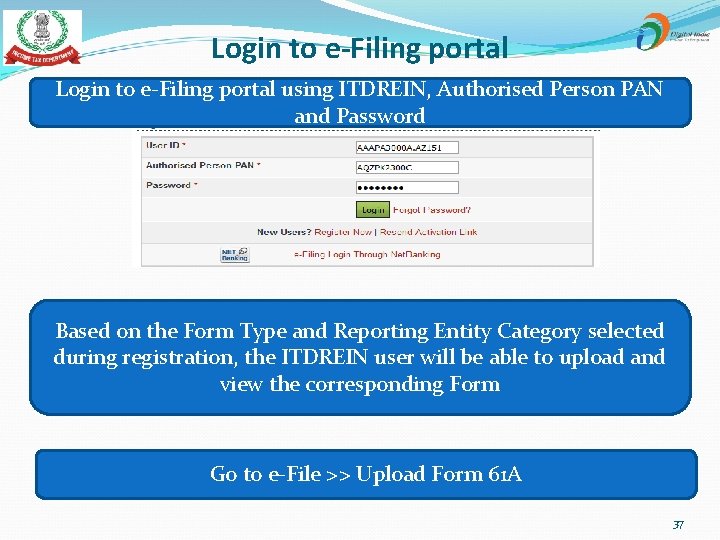
Login to e-Filing portal using ITDREIN, Authorised Person PAN and Password Based on the Form Type and Reporting Entity Category selected during registration, the ITDREIN user will be able to upload and view the corresponding Form Go to e-File >> Upload Form 61 A 37
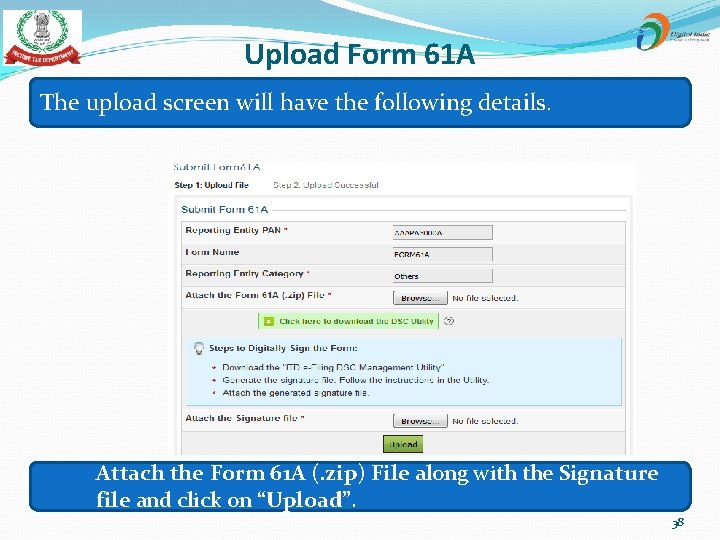
Upload Form 61 A The upload screen will have the following details. Attach the Form 61 A (. zip) File along with the Signature file and click on “Upload”. 38
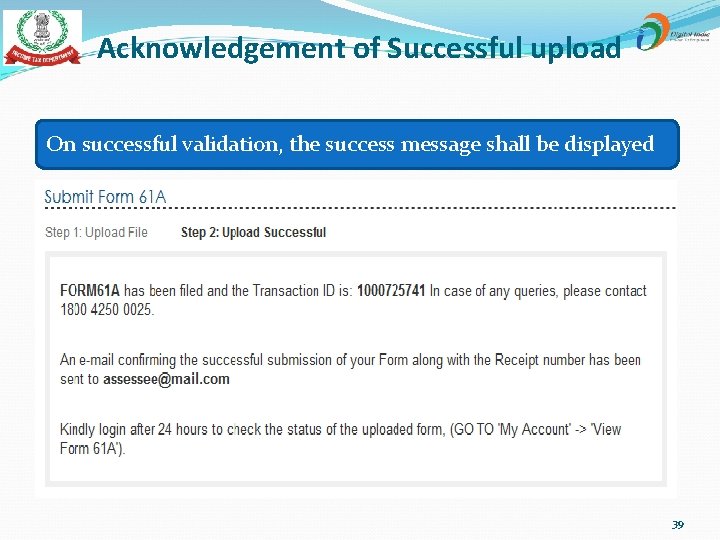
Acknowledgement of Successful upload On successful validation, the success message shall be displayed 39
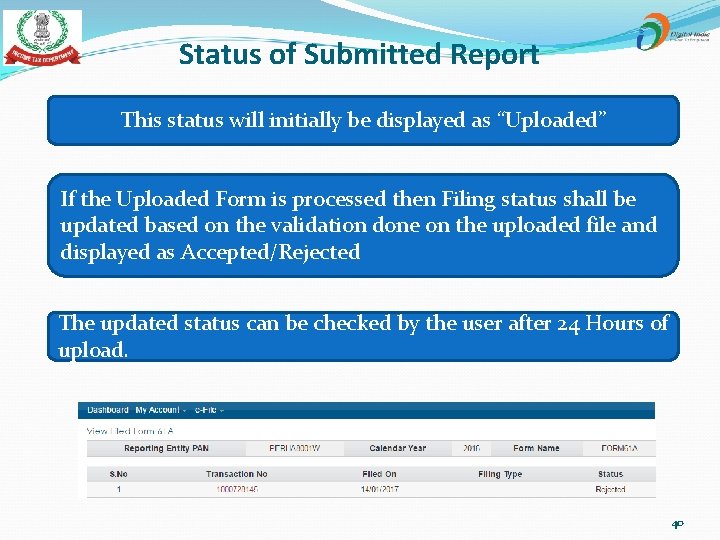
Status of Submitted Report This status will initially be displayed as “Uploaded” If the Uploaded Form is processed then Filing status shall be updated based on the validation done on the uploaded file and displayed as Accepted/Rejected The updated status can be checked by the user after 24 Hours of upload. 40
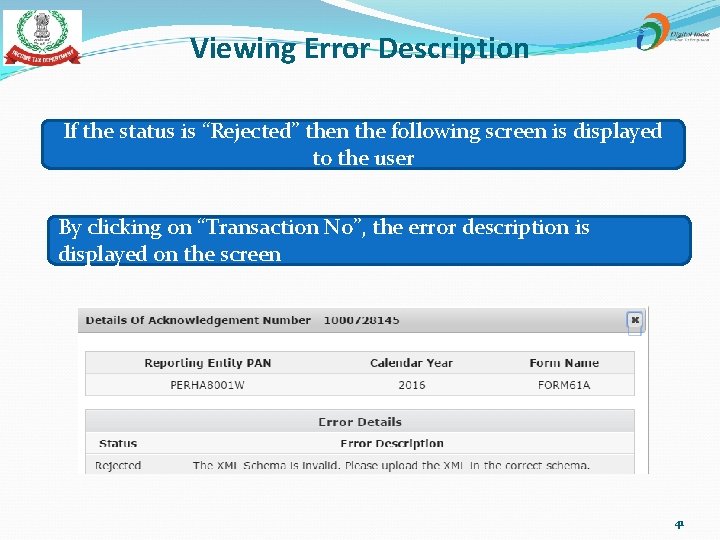
Viewing Error Description If the status is “Rejected” then the following screen is displayed to the user By clicking on “Transaction No”, the error description is displayed on the screen 41
Thank You Contact us : varun. batra@incometax. gov. in (mobile : 9968301014)
- Slides: 42