
Styling Your Web Pages with Cascading Style Sheets
Styling Your Web Pages with Cascading Style Sheets Patrick H. Lauke / WWW Editor / External Relations Division Date or reference EDU Session - 13/02/2006
Introduction and aims for the day Who am I? • WWW Editor, External Relations Division • Responsible for core University site • Guidelines and Strategy and enforcing consistency / compliance • Support for web authors • Using CSS for last 5 years 13/10/2006 2
Aims for the day CSS a complex subject • • Easy to start with, difficult to master Browser issues and incompatibilities Sometimes style rules interact in unexpected ways Difficulty shedding old habits What this session is not about: • • comprehensive guide to HTML/CSS how to use Dreamweaver, etc Give an overview of: • • • 13/10/2006 basic principles of web standards Introduction to CSS A few advanced examples What do you want to get out of it? 3
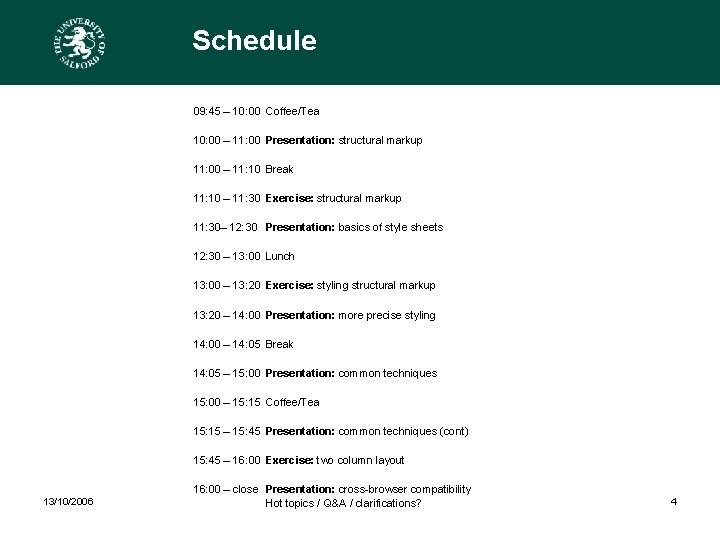
Schedule 09: 45 – 10: 00 Coffee/Tea 10: 00 – 11: 00 Presentation: structural markup 11: 00 – 11: 10 Break 11: 10 – 11: 30 Exercise: structural markup 11: 30– 12: 30 Presentation: basics of style sheets 12: 30 – 13: 00 Lunch 13: 00 – 13: 20 Exercise: styling structural markup 13: 20 – 14: 00 Presentation: more precise styling 14: 00 – 14: 05 Break 14: 05 – 15: 00 Presentation: common techniques 15: 00 – 15: 15 Coffee/Tea 15: 15 – 15: 45 Presentation: common techniques (cont) 15: 45 – 16: 00 Exercise: two column layout 13/10/2006 16: 00 – close Presentation: cross-browser compatibility Hot topics / Q&A / clarifications? 4
Web standards? University pages designed with “web standards”. • Using correct syntax • Following accepted “grammar rules” • Ethos of separating content from presentation 13/10/2006 5
Using correct syntax / grammar Who defines what HTML, CSS and all other technologies are? World Wide Web Consortium (W 3 C) – over 350 organisations www. w 3. org Defined protocols for interoperability – how do you write a proper webpage… 13/10/2006 6
Standards? Who cares… HTML itself only meant to “mark up” content. Dot. com boom, browser wars – Microsoft vs. Netscape: raft of new, “funky” tags (font, colours, embed, …) Designers got interested in the web as purely visual medium: abuse / perversion of the original idea, tables for layout, blockquotes for indentation, … 13/10/2006 7
Problems: • Markup got more and more complex (content and presentation) • Need for WYSIWYG tools • Incompatibility between browsers (separate versions, “best viewed with…”) • Pages don’t degrade nicely (PDAs, print, etc) • Mixed markup difficult to maintain and change 13/10/2006 8
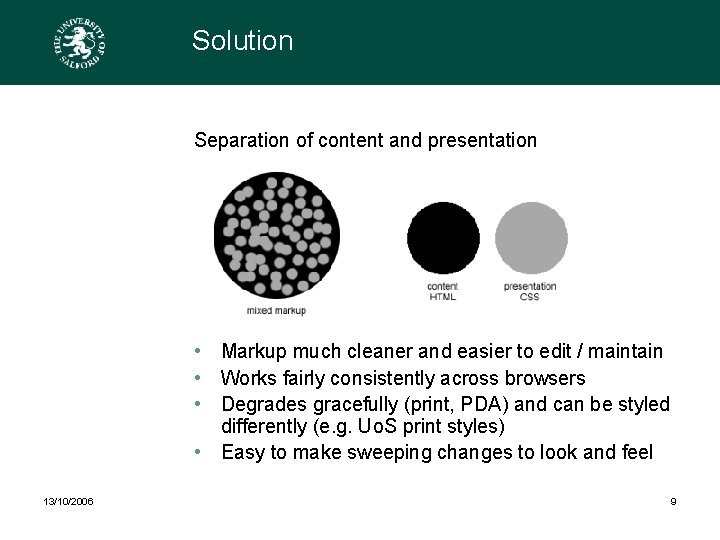
Solution Separation of content and presentation • Markup much cleaner and easier to edit / maintain • Works fairly consistently across browsers • Degrades gracefully (print, PDA) and can be styled differently (e. g. Uo. S print styles) • Easy to make sweeping changes to look and feel 13/10/2006 9
What can be achieved with CSS http: //www. csszengarden. com/ Perfect example of what can be achieved by separating content and presentation: • HTML always remains the same • Selecting different CSS changes entire look Note: most designs use very advanced CSS techniques, but this gives an idea of what’s achievable. 13/10/2006 10
Stop worrying about the layout Once you have your content, first step is to “mark it up”: • Not interested in how it looks / displays • Step back and think: what is this? • Structure the content, don’t use structure for visual effect The following may seem patronisingly basic, but it’s best to reiterate (meaning got obfuscated over years of bad practice HTML and WYSIWYG abuse) 13/10/2006 11
HTML – bare bones At its core, HTML is a way to tell machines / programmes how content is structured. Defines a few rules and the basic structure for a document: <html> <head> Information about the document (meta information) </head> <body> Actual content of the document </body> </html> 13/10/2006 12
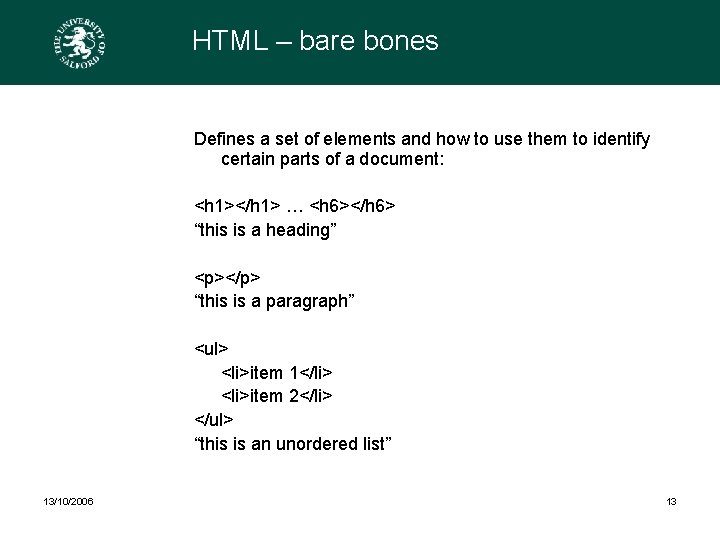
HTML – bare bones Defines a set of elements and how to use them to identify certain parts of a document: <h 1></h 1> … <h 6></h 6> “this is a heading” <p></p> “this is a paragraph” <ul> <li>item 1</li> <li>item 2</li> </ul> “this is an unordered list” 13/10/2006 13
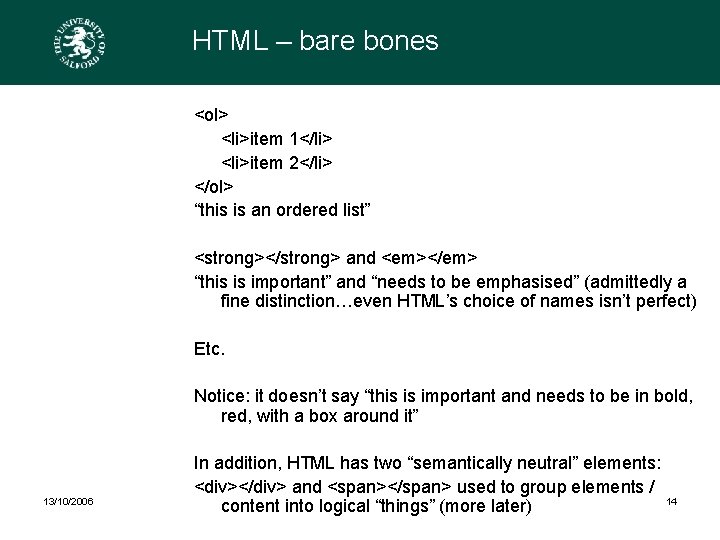
HTML – bare bones <ol> <li>item 1</li> <li>item 2</li> </ol> “this is an ordered list” <strong></strong> and <em></em> “this is important” and “needs to be emphasised” (admittedly a fine distinction…even HTML’s choice of names isn’t perfect) Etc. Notice: it doesn’t say “this is important and needs to be in bold, red, with a box around it” 13/10/2006 In addition, HTML has two “semantically neutral” elements: <div></div> and <span></span> used to group elements / 14 content into logical “things” (more later)
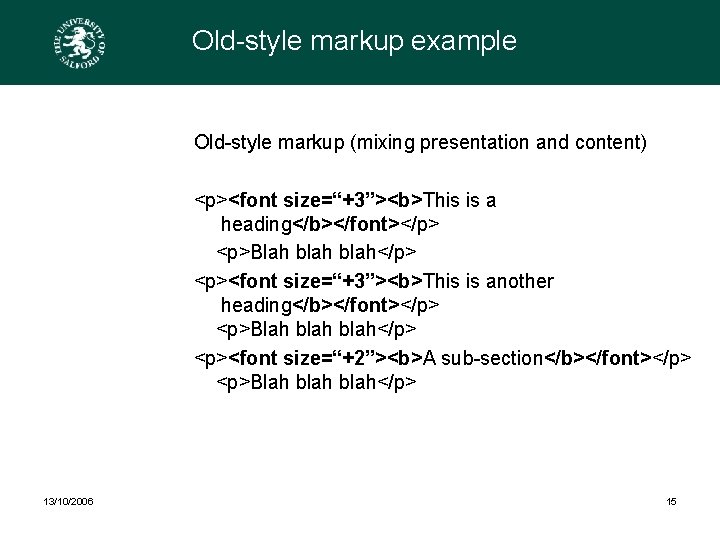
Old-style markup example Old-style markup (mixing presentation and content) <p><font size=“+3”><b>This is a heading</b></font></p> <p>Blah blah</p> <p><font size=“+3”><b>This is another heading</b></font></p> <p>Blah blah</p> <p><font size=“+2”><b>A sub-section</b></font></p> <p>Blah blah</p> 13/10/2006 15
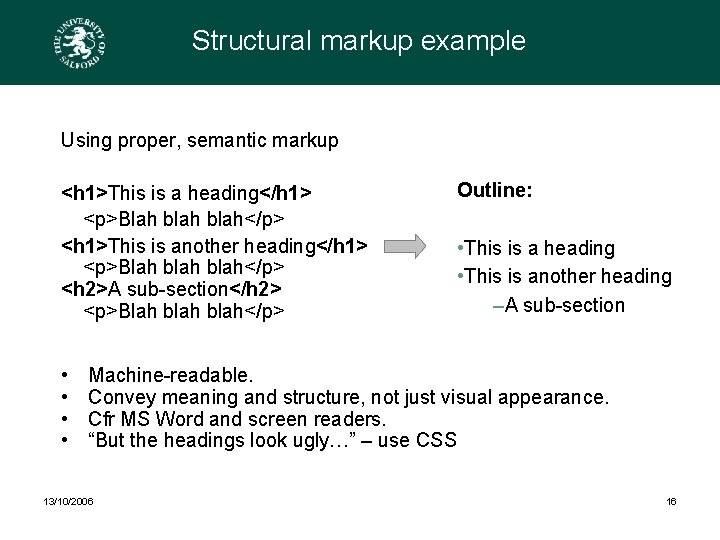
Structural markup example Using proper, semantic markup <h 1>This is a heading</h 1> <p>Blah blah</p> <h 1>This is another heading</h 1> <p>Blah blah</p> <h 2>A sub-section</h 2> <p>Blah blah</p> • • Outline: • This is a heading • This is another heading –A sub-section Machine-readable. Convey meaning and structure, not just visual appearance. Cfr MS Word and screen readers. “But the headings look ugly…” – use CSS 13/10/2006 16
HTML – bare bones applied So, simply need to take your raw, naked content in pure text and define what everything is. Why does the browser need to know if something is a heading or a paragraph? “semantically / structurally correct” markup has many advantages: • It’s the right thing to do (yeah right…) • Should display properly, regardless of styling / device capabilities • Accessibility • Search engines 13/10/2006 17
Exercise • Take the old-style piece of markup (mixing up content and presentation, lacking proper structure), strip it of its visual aspects, and mark it up properly. 13/10/2006 18
Structural markup looks boring… Pure, unstyled markup looks very 1980 s Without any style information, browser reverts to most basic defaults: size of headings, typeface, etc Remember: separation of content and presentation. We’ve done the first part, now let’s think about the look… 13/10/2006 19
Cascading Style Sheets In order to tell browsers how we want content displayed, we use Cascading Style Sheets (CSS): • New language, completely separate from HTML • More powerful (further control) • Works by defining rules, and where these rules are applied in the document 13/10/2006 20
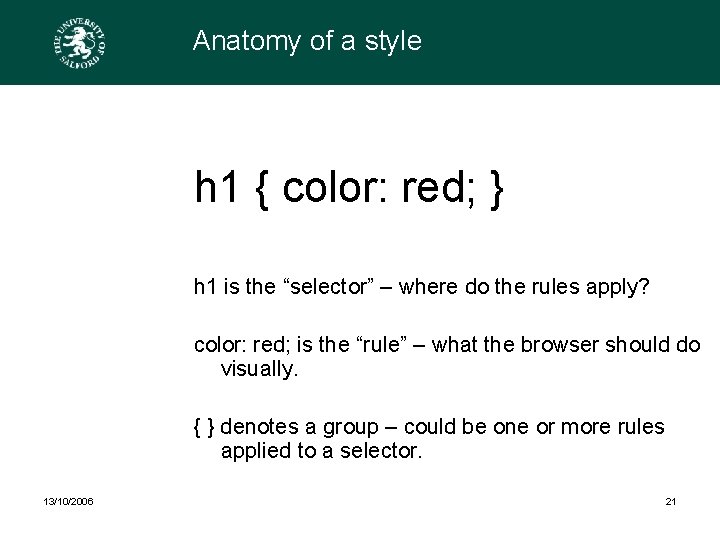
Anatomy of a style h 1 { color: red; } h 1 is the “selector” – where do the rules apply? color: red; is the “rule” – what the browser should do visually. { } denotes a group – could be one or more rules applied to a selector. 13/10/2006 21
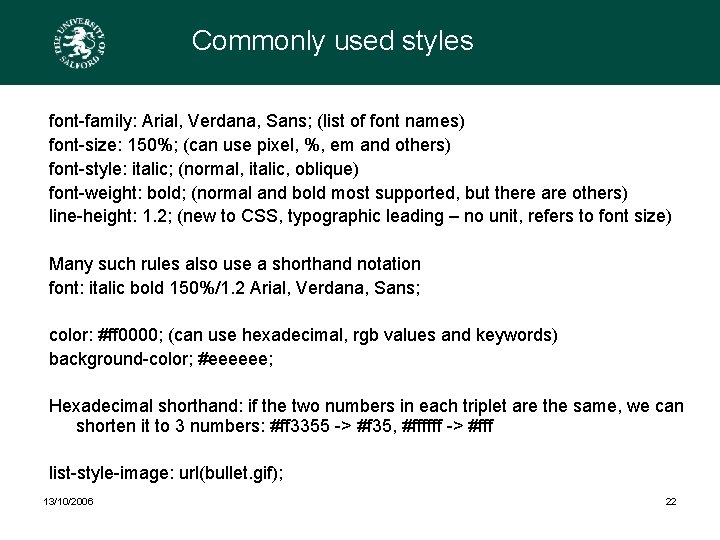
Commonly used styles font-family: Arial, Verdana, Sans; (list of font names) font-size: 150%; (can use pixel, %, em and others) font-style: italic; (normal, italic, oblique) font-weight: bold; (normal and bold most supported, but there are others) line-height: 1. 2; (new to CSS, typographic leading – no unit, refers to font size) Many such rules also use a shorthand notation font: italic bold 150%/1. 2 Arial, Verdana, Sans; color: #ff 0000; (can use hexadecimal, rgb values and keywords) background-color; #eeeeee; Hexadecimal shorthand: if the two numbers in each triplet are the same, we can shorten it to 3 numbers: #ff 3355 -> #f 35, #ffffff -> #fff list-style-image: url(bullet. gif); 13/10/2006 22
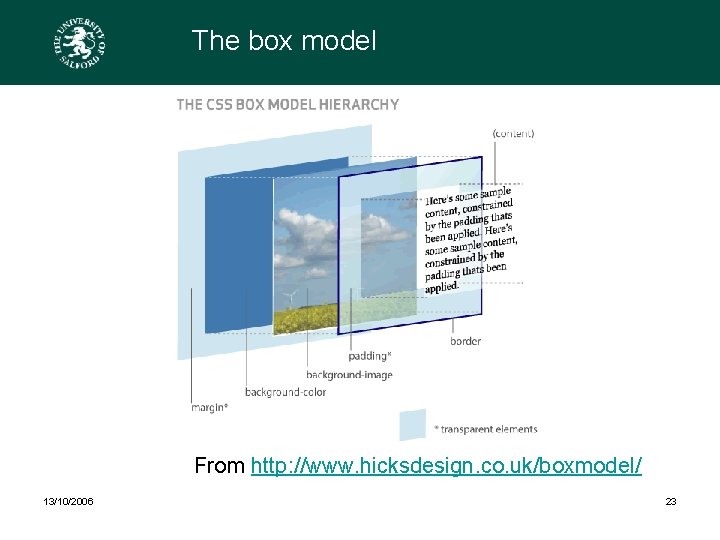
The box model From http: //www. hicksdesign. co. uk/boxmodel/ 13/10/2006 23
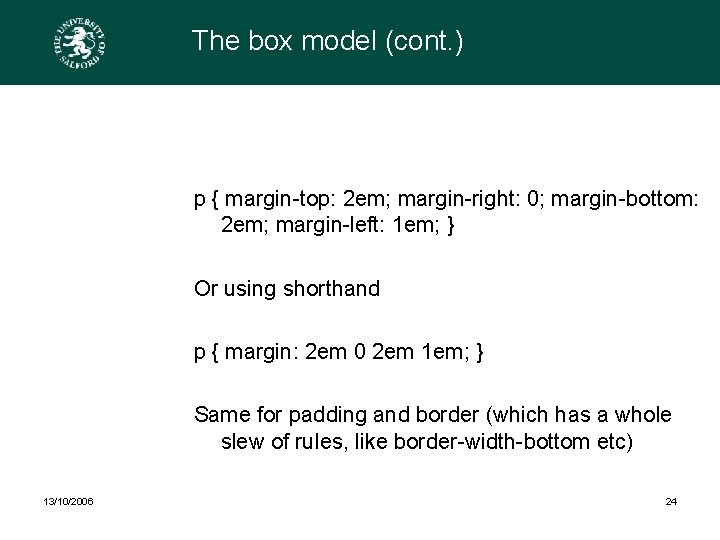
The box model (cont. ) p { margin-top: 2 em; margin-right: 0; margin-bottom: 2 em; margin-left: 1 em; } Or using shorthand p { margin: 2 em 0 2 em 1 em; } Same for padding and border (which has a whole slew of rules, like border-width-bottom etc) 13/10/2006 24
How to marry content with style 3 different ways to add style to content: 1) Inline styles in HTML <p style=“color: red”>blah</p> No real separation; should never need to be used. 2) Style definitions in HTML’s HEAD <head> … <style type=“text/css”> p { color: red; } </style> </head> Still not separated, but slightly better; can be useful for quick “one off” styles on a single page. 13/10/2006 25
How to marry content with style 3) External style sheets (with reference in HEAD) <link rel=“stylesheet” href=“/common/style. css” /> Complete separation; many pages can refer back to this single style – easy to make sweeping changes in look / feel; styles can be cached (improved speed, bandwidth saving) 13/10/2006 26
Different types of selectors Many different ways of defining where a set of rules applies, from the general to the specific: p{…} Generic: all paragraphs div p { … } All paragraphs contained within a div You can make the same rules apply to more than one type of element by putting multiple selectors, separated by a comma: ul, ol { … } 13/10/2006 27
Exercise • Using an external style sheet, try to match at least part of the look of the original document with simple CSS rules. 13/10/2006 28
Getting specific What if we don’t want to apply styles to all types of an element, but only a single one or a specific type of them? p. comment { … } All paragraphs with a class of “comment” There can be one or more elements with a class in the same page. You can also apply a class to different elements To style “anything” with a given class, you can leave the selector very general: . comment { … } 13/10/2006 29
Getting specific (cont. ) p#introduction { … } Only the paragraph with the unique ID “introduction” There can be only a single occurrence of an ID in the same page. To make the rule apply to anything with that particular ID, generic rule: #introduction { … } 13/10/2006 30
The cascade “Cascading” refers to the way multiple styles which apply to the same elements interact: p { border: 1 px blue solid; } p. comment { color: red; } The paragraph with class “comment” will be red, but also have a border. p { color: red; } p. comment { color: blue; } The second rule overrides the first for paragraphs with class “comment” Additional, complex rules of “specificity”: the more specific the selector, the higher the precedence its rules take (important when overriding rules) 13/10/2006 31
The inheritance “Inheritance” refers to the way certain styles defined on a parent element are passed on to its children: body { color: #000; } Applies to the body, but is also inherited by all of the body’s children. Not all styles are inherited (e. g. margin, padding, border) 13/10/2006 32
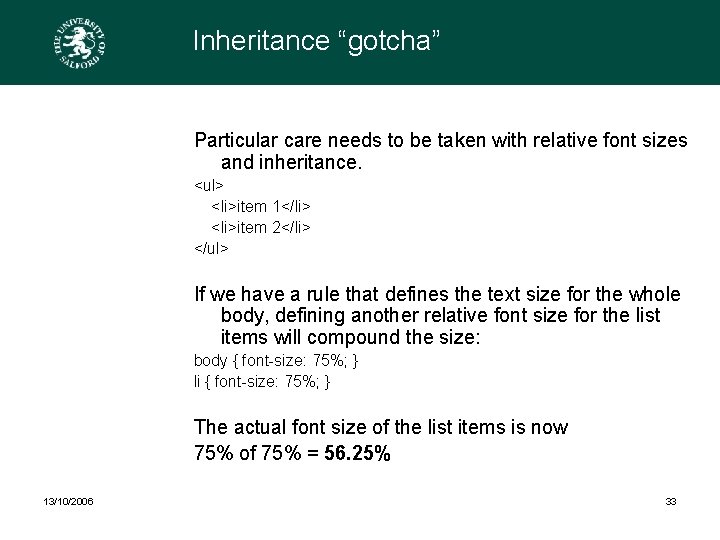
Inheritance “gotcha” Particular care needs to be taken with relative font sizes and inheritance. <ul> <li>item 1</li> <li>item 2</li> </ul> If we have a rule that defines the text size for the whole body, defining another relative font size for the list items will compound the size: body { font-size: 75%; } li { font-size: 75%; } The actual font size of the list items is now 75% of 75% = 56. 25% 13/10/2006 33
Classitis, divitis, excessive IDs The temptation is great to start adding classes to everything you want to style. Taking advantage of selectors, cascade and inheritance you can write far more concise markup and style rules. 13/10/2006 34
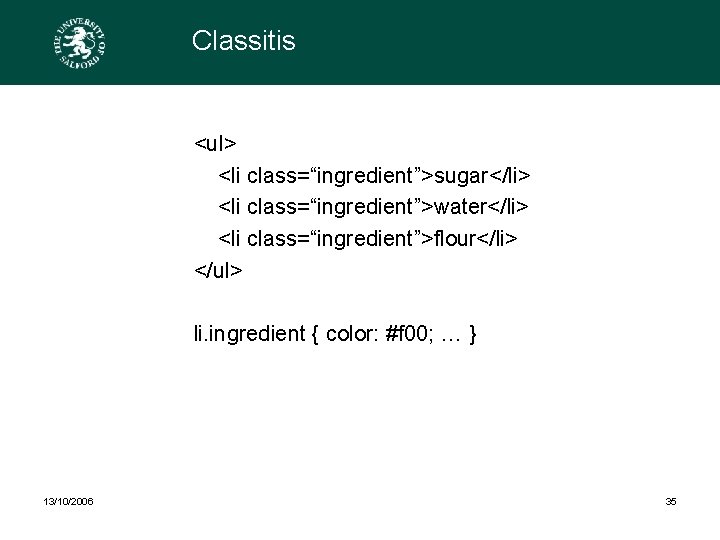
Classitis <ul> <li class=“ingredient”>sugar</li> <li class=“ingredient”>water</li> <li class=“ingredient”>flour</li> </ul> li. ingredient { color: #f 00; … } 13/10/2006 35
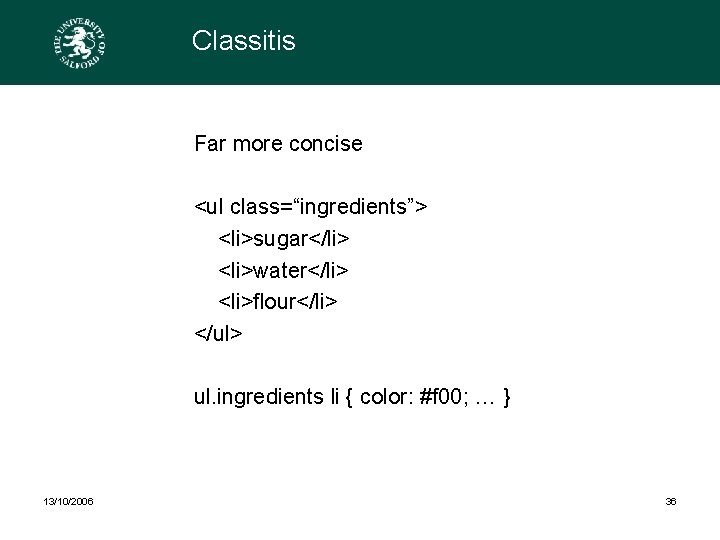
Classitis Far more concise <ul class=“ingredients”> <li>sugar</li> <li>water</li> <li>flour</li> </ul> ul. ingredients li { color: #f 00; … } 13/10/2006 36
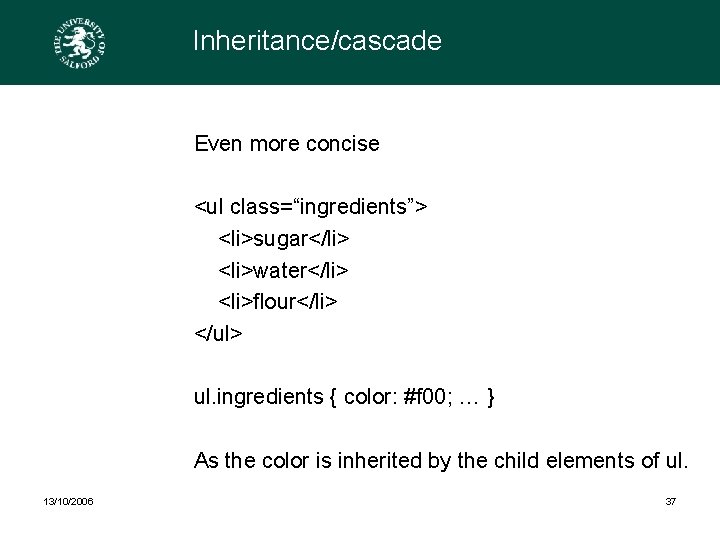
Inheritance/cascade Even more concise <ul class=“ingredients”> <li>sugar</li> <li>water</li> <li>flour</li> </ul> ul. ingredients { color: #f 00; … } As the color is inherited by the child elements of ul. 13/10/2006 37
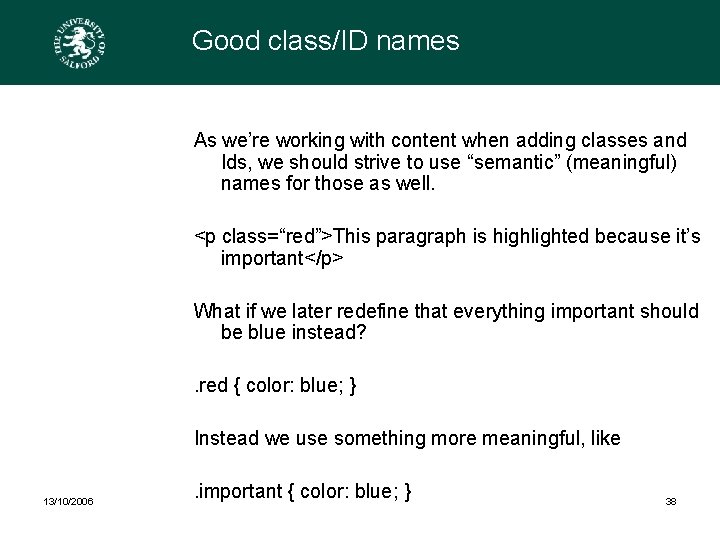
Good class/ID names As we’re working with content when adding classes and Ids, we should strive to use “semantic” (meaningful) names for those as well. <p class=“red”>This paragraph is highlighted because it’s important</p> What if we later redefine that everything important should be blue instead? . red { color: blue; } Instead we use something more meaningful, like 13/10/2006 . important { color: blue; } 38
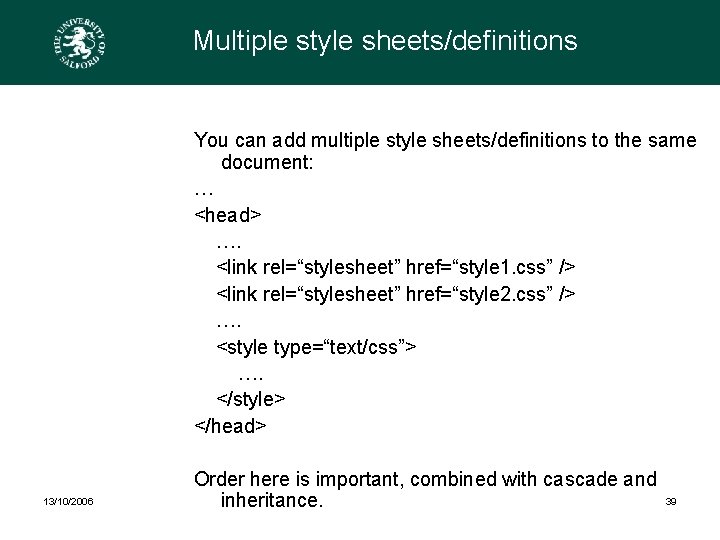
Multiple style sheets/definitions You can add multiple style sheets/definitions to the same document: … <head> …. <link rel=“stylesheet” href=“style 1. css” /> <link rel=“stylesheet” href=“style 2. css” /> …. <style type=“text/css”> …. </style> </head> 13/10/2006 Order here is important, combined with cascade and inheritance. 39
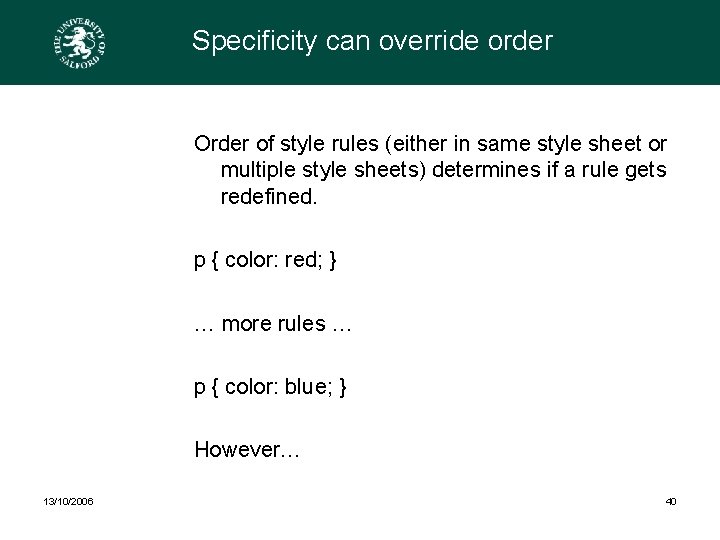
Specificity can override order Order of style rules (either in same style sheet or multiple style sheets) determines if a rule gets redefined. p { color: red; } … more rules … p { color: blue; } However… 13/10/2006 40
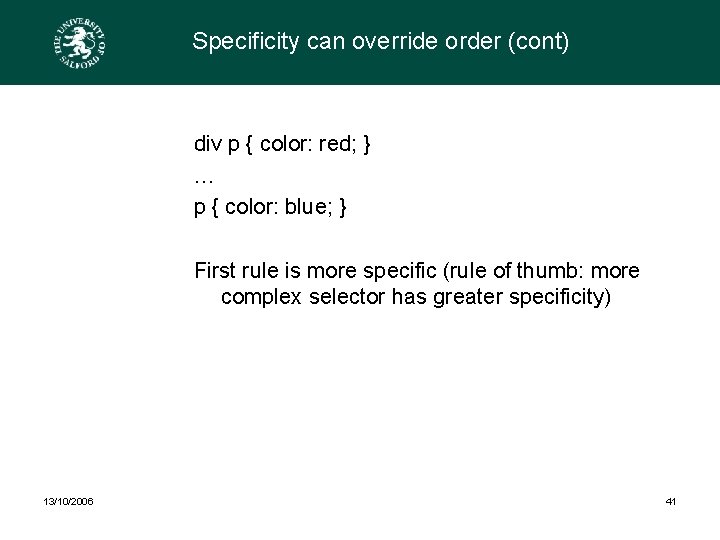
Specificity can override order (cont) div p { color: red; } … p { color: blue; } First rule is more specific (rule of thumb: more complex selector has greater specificity) 13/10/2006 41
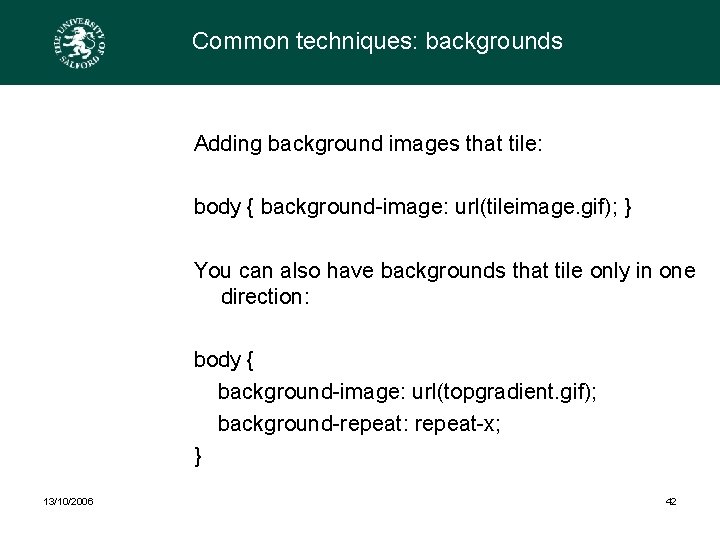
Common techniques: backgrounds Adding background images that tile: body { background-image: url(tileimage. gif); } You can also have backgrounds that tile only in one direction: body { background-image: url(topgradient. gif); background-repeat: repeat-x; } 13/10/2006 42
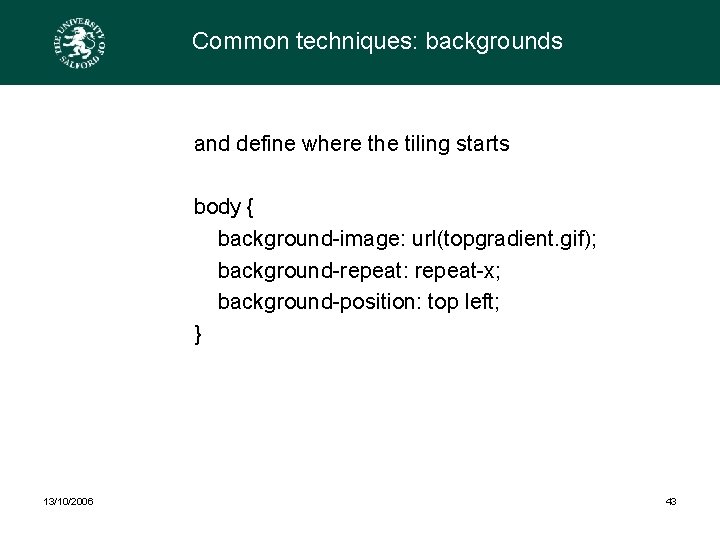
Common techniques: backgrounds and define where the tiling starts body { background-image: url(topgradient. gif); background-repeat: repeat-x; background-position: top left; } 13/10/2006 43
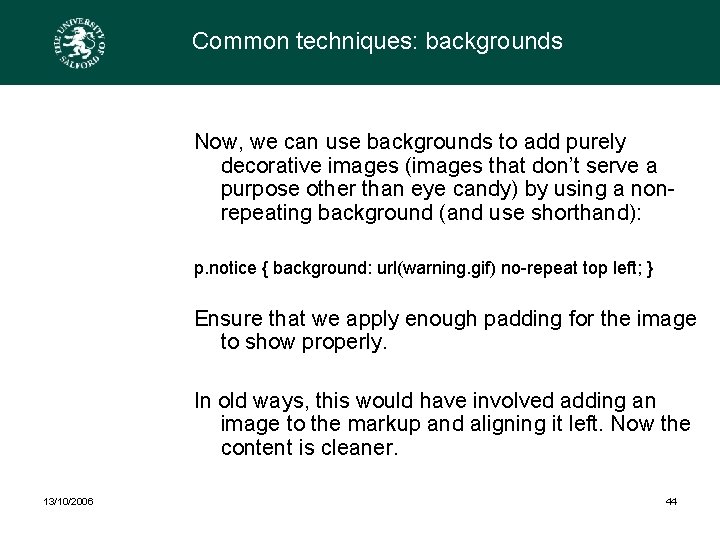
Common techniques: backgrounds Now, we can use backgrounds to add purely decorative images (images that don’t serve a purpose other than eye candy) by using a nonrepeating background (and use shorthand): p. notice { background: url(warning. gif) no-repeat top left; } Ensure that we apply enough padding for the image to show properly. In old ways, this would have involved adding an image to the markup and aligning it left. Now the content is cleaner. 13/10/2006 44
Entire layout via CSS Traditionally, designers used tables to create layouts. Grids are a familiar tool for designers. Table markup is meant for tabular data – think Excel spreadsheets. Layout is presentational, so should be handled via CSS. This way, layouts can also be adapted to different media (e. g. screen, print, etc) Most difficult part of CSS: producing solid, stable layouts that are “bullet proof” 13/10/2006 45
CSS layout: floating Blocks of content can be “floated” (see for instance http: //css. maxdesign. com. au/floatutorial/ for good tutorial) float: left; or float: right; Padding and margin still taken into account. 13/10/2006 46
CSS layout: floating (cont. ) Make sure you define a width for the floated content via the width rule. If you define a width in %, it refers to the parent element’s width. div { width: 80%; } div p { width: 50%; } The paragraph would get a width of 50% of 80% = 40% 13/10/2006 47
CSS layout: floating You can also define width based on size of font, making it an elastic box; p { width: 10 em; } 13/10/2006 48
CSS layout: floating With floating, “source order” (where something appears in the markup) is important and can affect the appearance of the float. Nonetheless, you should aim to ensure that the source order is logical, and try not to change your content markup to suit your presentational needs. Example of a two column layout and possible ways around it: float the right-hand column, float both. 13/10/2006 49
CSS layout: floating To add further content after all the floating, and make sure it’s below the floated blocks, we use a rule to “clear” any floats; p. notice { clear: both; } 13/10/2006 50
Exercise Turn our simple page into a two-column layout (main content plus notice off to the side) 13/10/2006 51
CSS layout: positioning Another method to create layouts is via absolute positioning of blocks of content. Most complex part of CSS, so we won’t touch on this here though. 13/10/2006 52
Cross-browser compatibility All these techniques are based on standards, defined by W 3 C. Some browsers (mainly Internet Explorer) don’t understand all rules, have quite serious bugs, or just different default browser styles. Methodology to follow: - write clean HTML/CSS - validate (to ensure no syntax errors are present) - test in as many browsers as possible 13/10/2006 53
Cross-browser compatibility (cont. ) W 3 C validation service: HTML: http: //validator. w 3. org/ CSS: http: //jigsaw. w 3. org/css-validator/ Similar to spell checkers: ensures that the words are spelt correctly…can’t ensure that they actually make sense though. Minimises weird display due to errors in your content/style though (e. g. multiple elements with same ID) which can be handled differently by different browsers. 13/10/2006 54
Links and references Web: http: //webstandards. org/ http: //webstandardsgroup. org/ http: //www. w 3. org/Mark. Up/ http: //www. w 3. org/TR/CSS 21/ http: //www. meyerweb. com/eric/css/ Books: • • • 13/10/2006 Eric Meyer - Eric Meyer on CSS: Mastering the Language of Web Design Dan Cederholm - Bulletproof Web Design : Improving flexibility and protecting against worst-case scenarios with XHTML and CSS Jeffrey Zeldman - Designing with Web Standards Dan Cederholm - Web Standards Solutions: The Markup and Style Handbook Dave Shea, Molly E. Holzschlag - The Zen of CSS Design : Visual Enlightenment for the Web 55
13/10/2006 56
- Slides: 56