
Style x KeyButton Style 1 Target TypeButton Setter
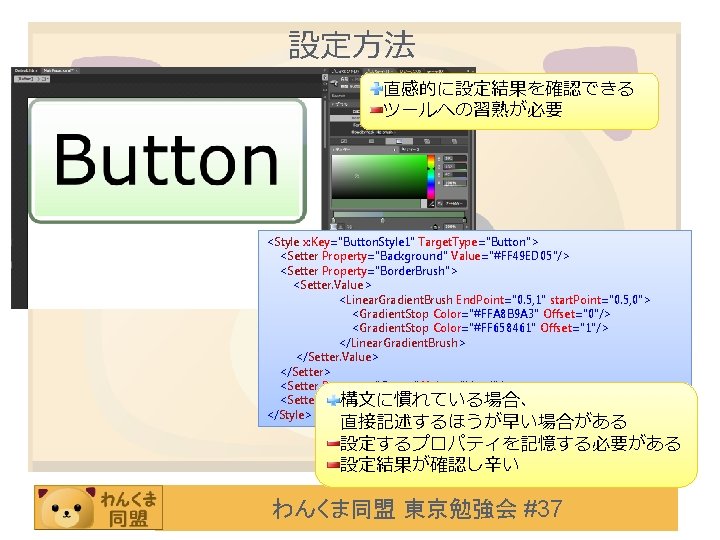
設定方法 直感的に設定結果を確認できる ツールへの習熟が必要 <Style x: Key="Button. Style 1" Target. Type="Button"> <Setter Property="Background" Value="#FF 49 ED 05"/> <Setter Property="Border. Brush"> <Setter. Value> <Linear. Gradient. Brush End. Point="0. 5, 1" start. Point="0. 5, 0"> <Gradient. Stop Color="#FFA 8 B 9 A 3" Offset="0"/> <Gradient. Stop Color="#FF 658461" Offset="1"/> </Linear. Gradient. Brush> </Setter. Value> </Setter> <Setter Property="Cursor" Value="Hand"/> <Setter Property="Font. Size" Value="18. 667"/> 構文に慣れている場合、 </Style> 直接記述するほうが早い場合がある 設定するプロパティを記憶する必要がある 設定結果が確認し辛い わんくま同盟 東京勉強会 #37
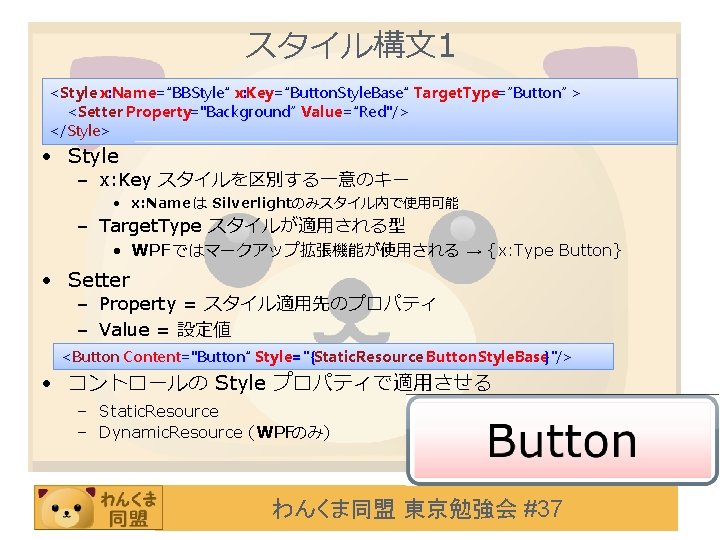
スタイル構文1 <Style x: Name=“BBStyle“ x: Key=“Button. Style. Base“ Target. Type=”Button” > <Setter Property="Background” Value=“Red"/> </Style> • Style – x: Key スタイルを区別する一意のキー • x: Name は Silverlightのみスタイル内で使用可能 – Target. Type スタイルが適用される型 • WPF ではマークアップ拡張機能が使用される → {x: Type Button} • Setter – Property = スタイル適用先のプロパティ – Value = 設定値 <Button Content="Button“ Style="{Static. Resource Button. Style. Base}"/> • コントロールの Style プロパティで適用させる – Static. Resource – Dynamic. Resource (WPFのみ) わんくま同盟 東京勉強会 #37
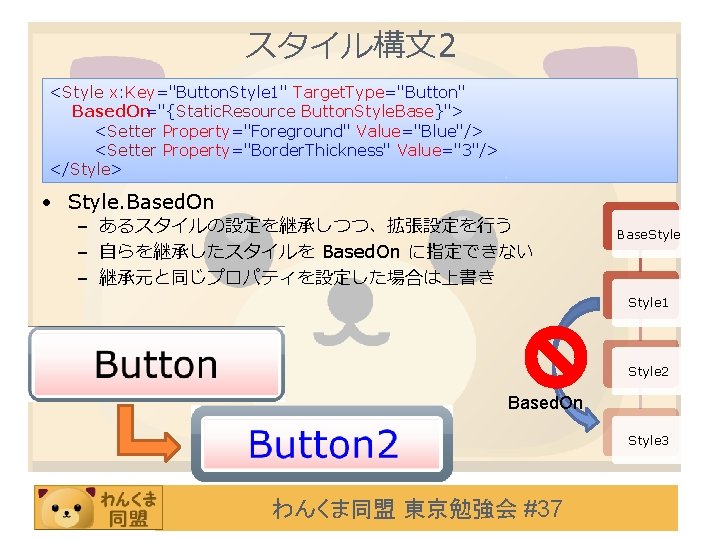
スタイル構文2 <Style x: Key="Button. Style 1" Target. Type="Button" Based. On="{Static. Resource Button. Style. Base}"> <Setter Property="Foreground" Value="Blue"/> <Setter Property="Border. Thickness" Value="3"/> </Style> • Style. Based. On – あるスタイルの設定を継承しつつ、拡張設定を行う – 自らを継承したスタイルを Based. On に指定できない – 継承元と同じプロパティを設定した場合は上書き Base. Style 1 Style 2 Based. On Style 3 わんくま同盟 東京勉強会 #37
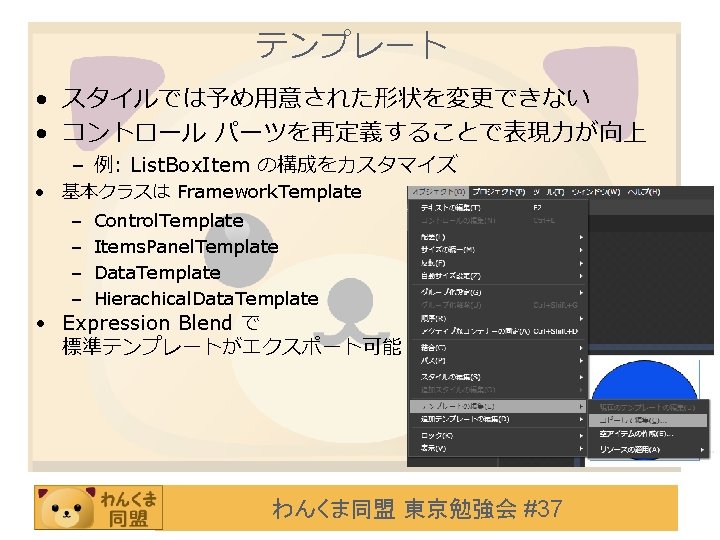
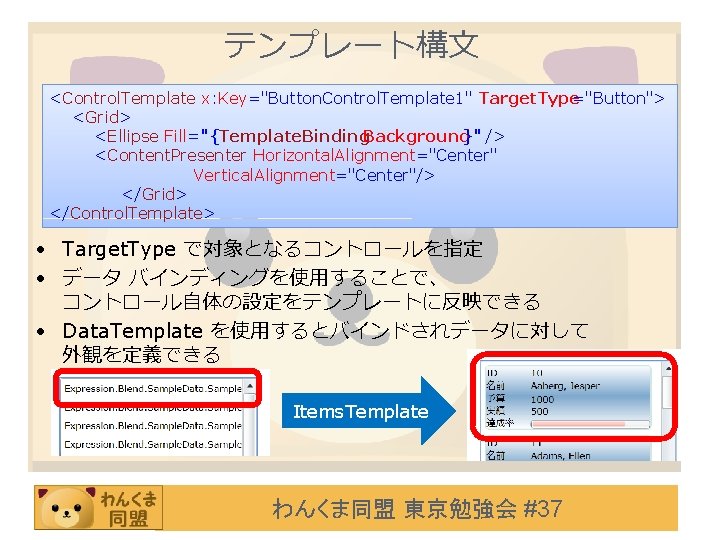
テンプレート構文 <Control. Template x: Key="Button. Control. Template 1" Target. Type="Button"> <Grid> <Ellipse Fill="{Template. Binding. Background }" /> <Content. Presenter Horizontal. Alignment="Center" Vertical. Alignment="Center"/> </Grid> </Control. Template> • Target. Type で対象となるコントロールを指定 • データ バインディングを使用することで、 コントロール自体の設定をテンプレートに反映できる • Data. Template を使用するとバインドされデータに対して 外観を定義できる Items. Template わんくま同盟 東京勉強会 #37

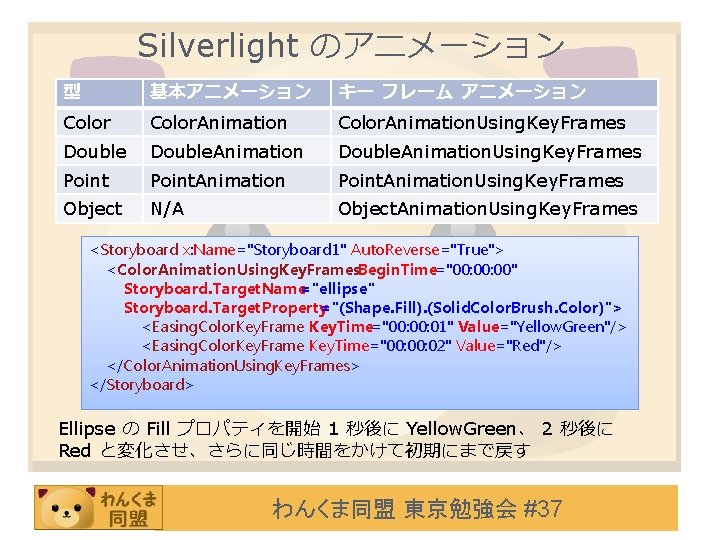
Silverlight のアニメーション 型 基本アニメーション キー フレーム アニメーション Color. Animation. Using. Key. Frames Double. Animation. Using. Key. Frames Point. Animation. Using. Key. Frames Object N/A Object. Animation. Using. Key. Frames <Storyboard x: Name="Storyboard 1" Auto. Reverse="True"> <Color. Animation. Using. Key. Frames. Begin. Time="00: 00" Storyboard. Target. Name="ellipse" Storyboard. Target. Property="(Shape. Fill). (Solid. Color. Brush. Color)"> <Easing. Color. Key. Frame Key. Time="00: 01" Value="Yellow. Green"/> <Easing. Color. Key. Frame Key. Time="00: 02" Value="Red"/> </Color. Animation. Using. Key. Frames> </Storyboard> Ellipse の Fill プロパティを開始 1 秒後に Yellow. Green、 2 秒後に Red と変化させ、さらに同じ時間をかけて初期にまで戻す わんくま同盟 東京勉強会 #37
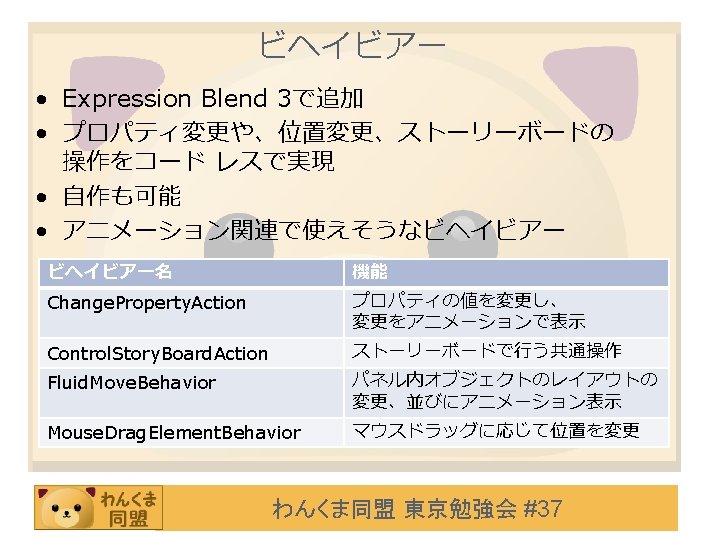
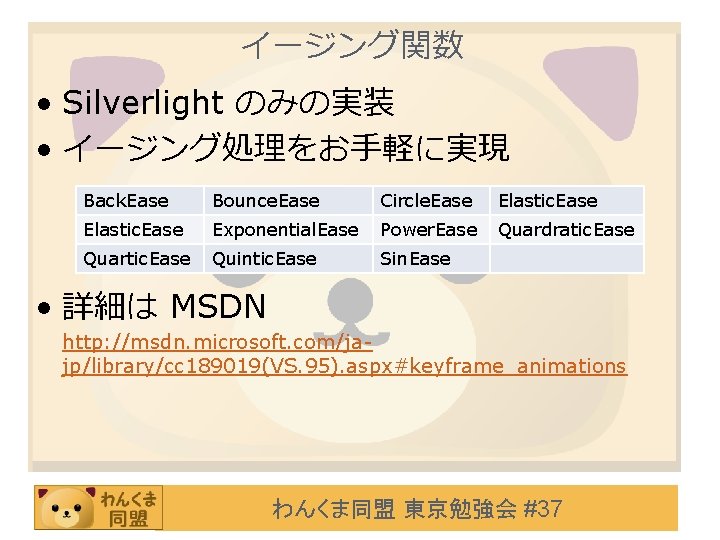
イージング関数 • Silverlight のみの実装 • イージング処理をお手軽に実現 Back. Ease Bounce. Ease Circle. Ease Elastic. Ease Exponential. Ease Power. Ease Quardratic. Ease Quartic. Ease Quintic. Ease Sin. Ease • 詳細は MSDN http: //msdn. microsoft. com/jajp/library/cc 189019(VS. 95). aspx#keyframe_animations わんくま同盟 東京勉強会 #37
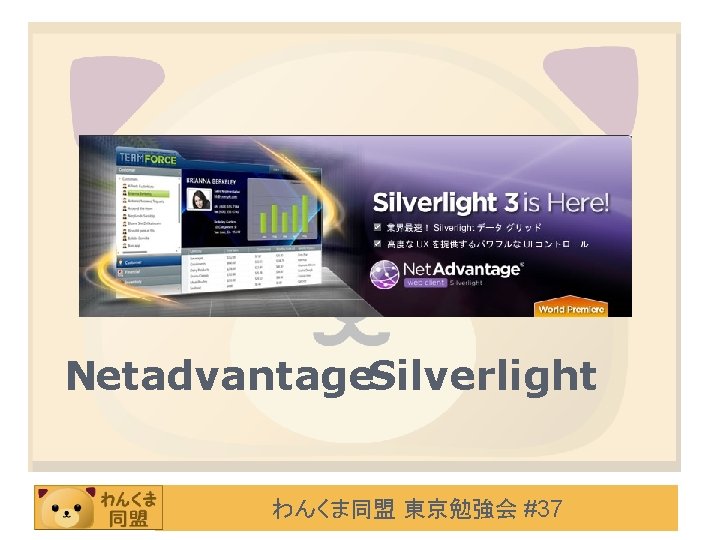
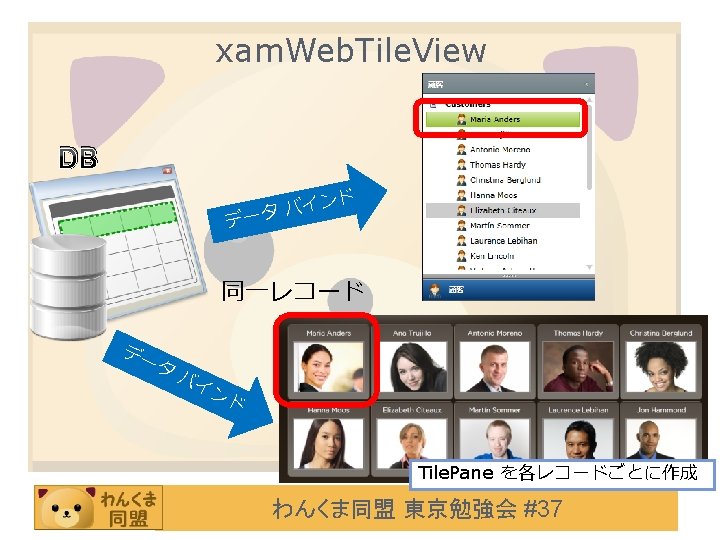
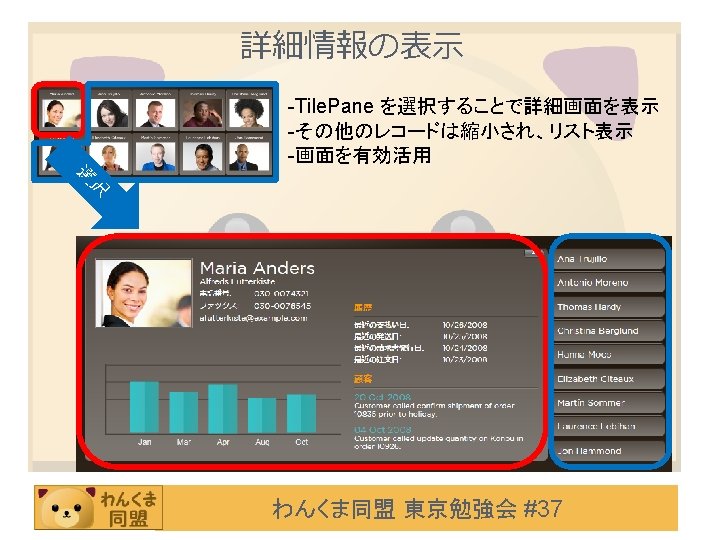
Netadvantage. Silverlight わんくま同盟 東京勉強会 #37
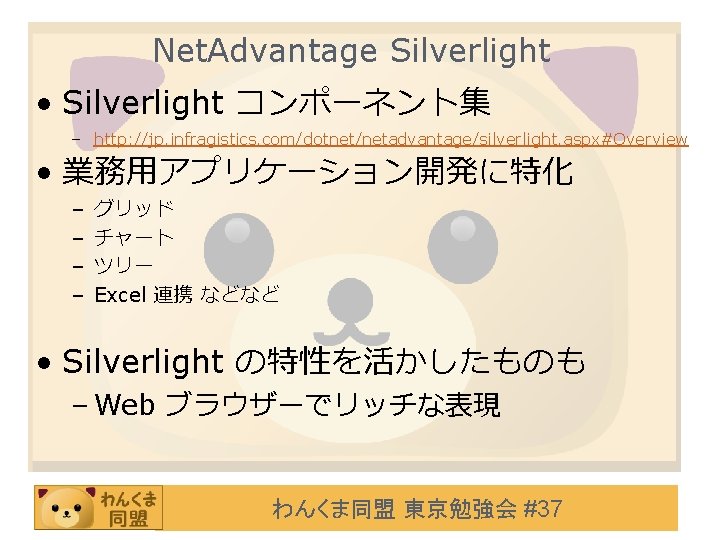
リソース • MSDN Silverlight デベロッパー センター http: //msdn. microsoft. com/ja-jp/silverlight/default. aspx • Microsoft Expression http: //www. microsoft. com/japan/products/expression/ • Net. Advantage Silverlight http: //jp. infragistics. com/dotnet/netadvantage/silverlight. aspx • 本日使用したデモ http: //blogs. jp. infragistics. com/blogs/dikehara/ わんくま同盟 東京勉強会 #37

- Slides: 34