
Students Guide to College Board and Khan Academy
Student’s Guide to College Board and Khan Academy
PART ONE: Linking Student Khan Academy and College Board Accounts
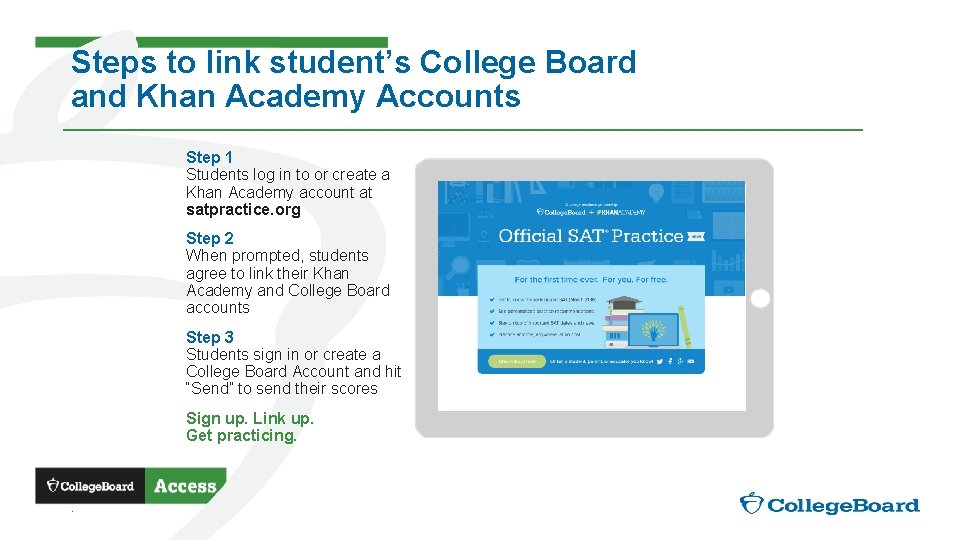
Steps to link student’s College Board and Khan Academy Accounts Step 1 Students log in to or create a Khan Academy account at satpractice. org Step 2 When prompted, students agree to link their Khan Academy and College Board accounts Step 3 Students sign in or create a College Board Account and hit “Send” to send their scores Sign up. Link up. Get practicing. .
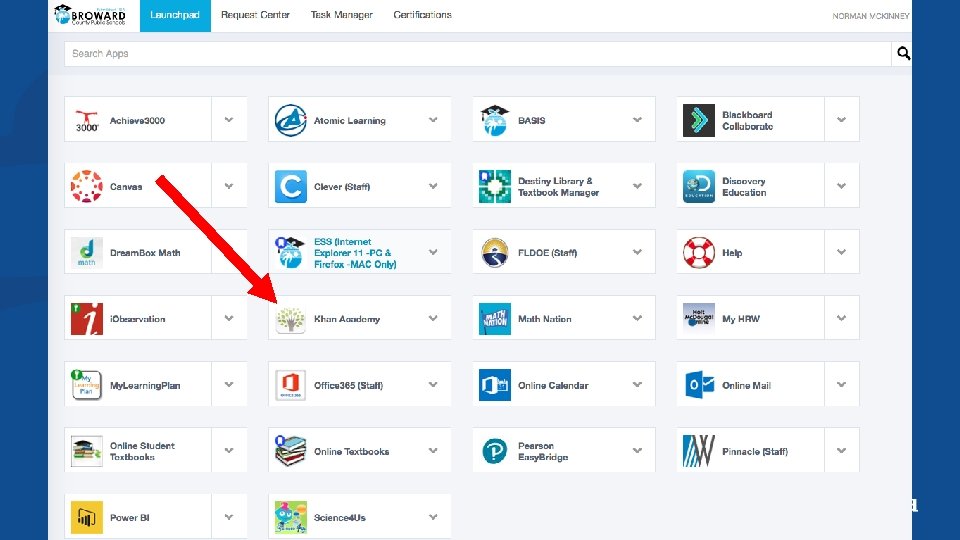
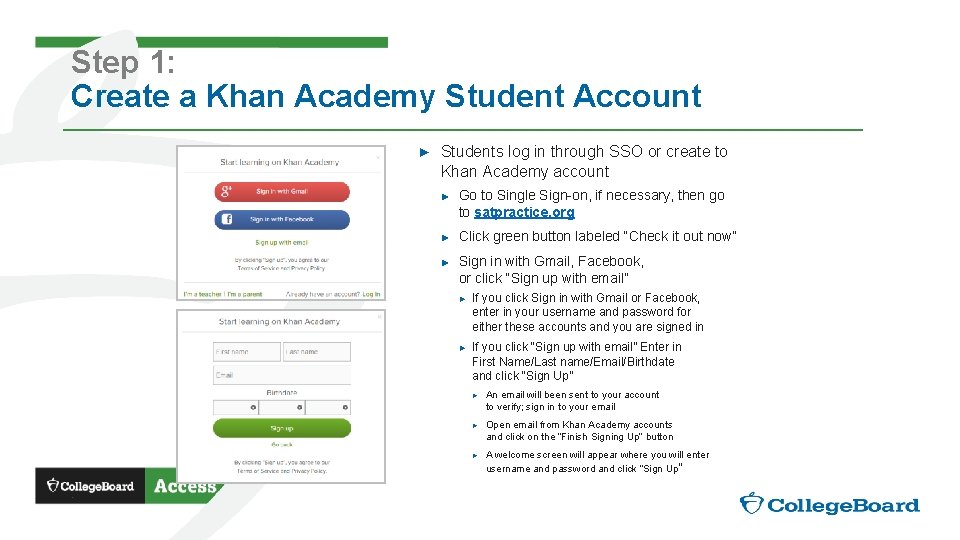
Step 1: Create a Khan Academy Student Account ► Students log in through SSO or create to Khan Academy account ► ► ► Go to Single Sign-on, if necessary, then go to satpractice. org Click green button labeled “Check it out now” Sign in with Gmail, Facebook, or click “Sign up with email” ► ► . If you click Sign in with Gmail or Facebook, enter in your username and password for either these accounts and you are signed in If you click “Sign up with email” Enter in First Name/Last name/Email/Birthdate and click “Sign Up” ► An email will been sent to your account to verify; sign in to your email ► Open email from Khan Academy accounts and click on the “Finish Signing Up” button ► A welcome screen will appear where you will enter username and password and click “Sign Up”
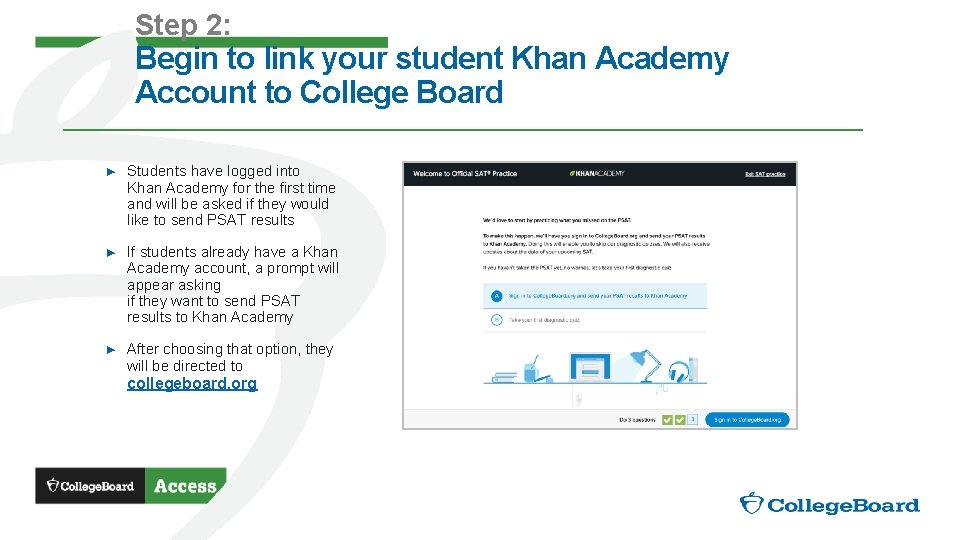
Step 2: Begin to link your student Khan Academy Account to College Board ► Students have logged into Khan Academy for the first time and will be asked if they would like to send PSAT results ► If students already have a Khan Academy account, a prompt will appear asking if they want to send PSAT results to Khan Academy ► After choosing that option, they will be directed to collegeboard. org
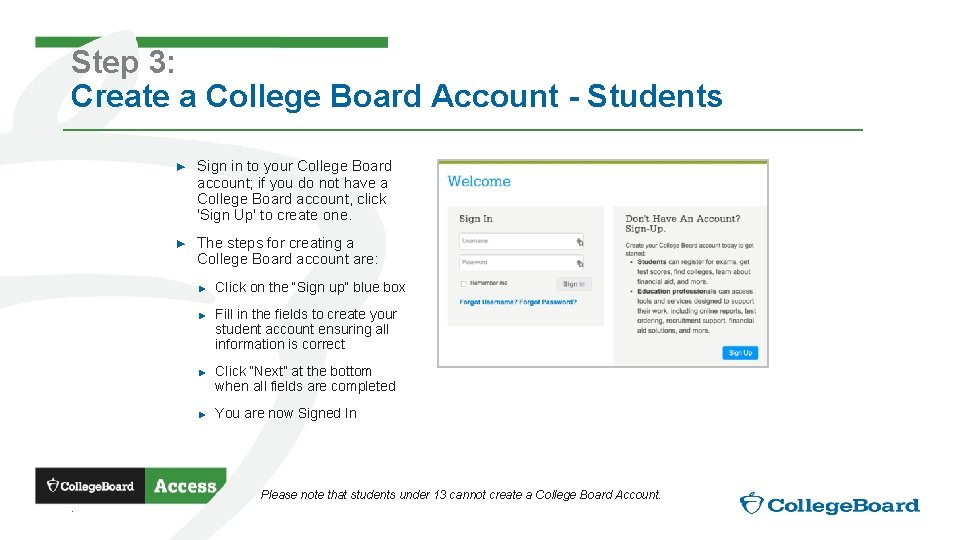
Step 3: Create a College Board Account - Students ► Sign in to your College Board account; if you do not have a College Board account, click 'Sign Up' to create one. ► The steps for creating a College Board account are: ► ► . Click on the “Sign up” blue box Fill in the fields to create your student account ensuring all information is correct Click “Next” at the bottom when all fields are completed You are now Signed In Please note that students under 13 cannot create a College Board Account.
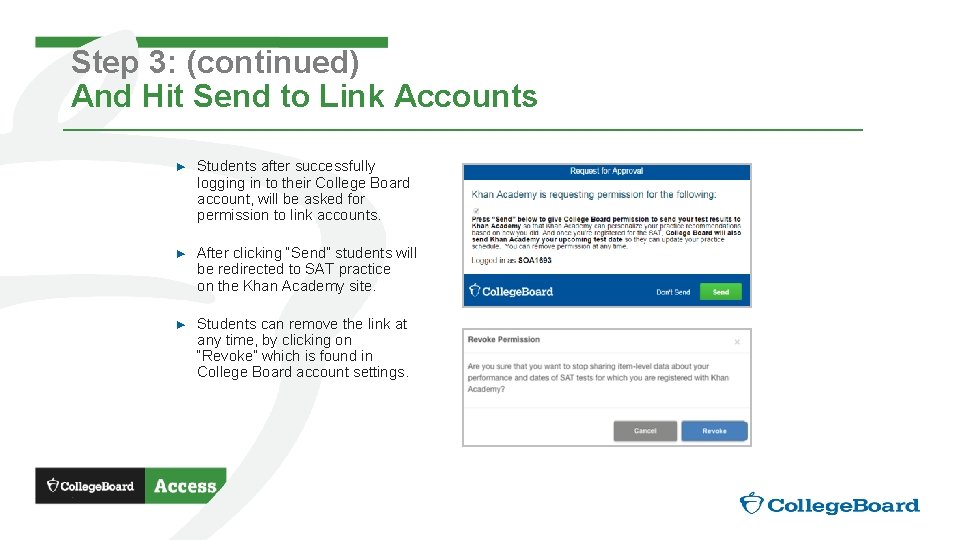
Step 3: (continued) And Hit Send to Link Accounts . ► Students after successfully logging in to their College Board account, will be asked for permission to link accounts. ► After clicking “Send” students will be redirected to SAT practice on the Khan Academy site. ► Students can remove the link at any time, by clicking on “Revoke” which is found in College Board account settings.
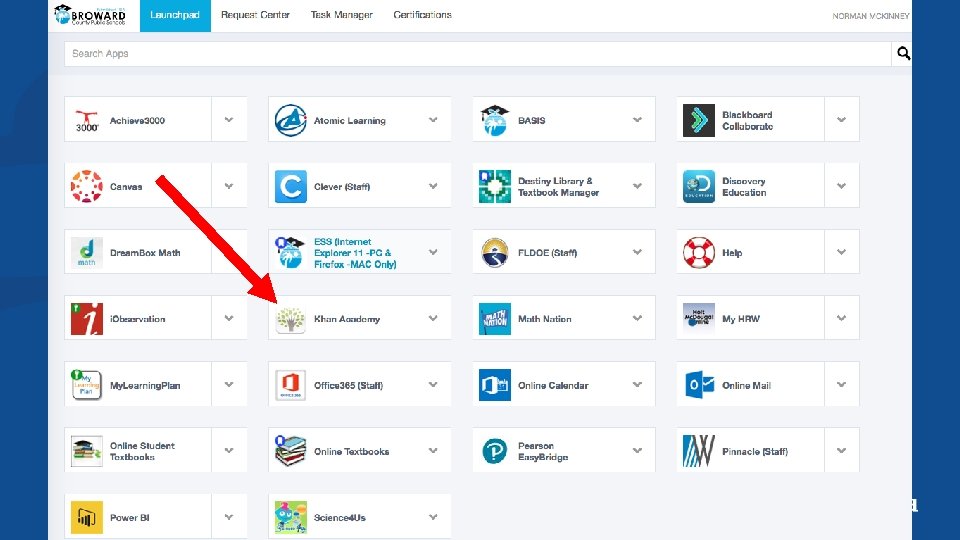
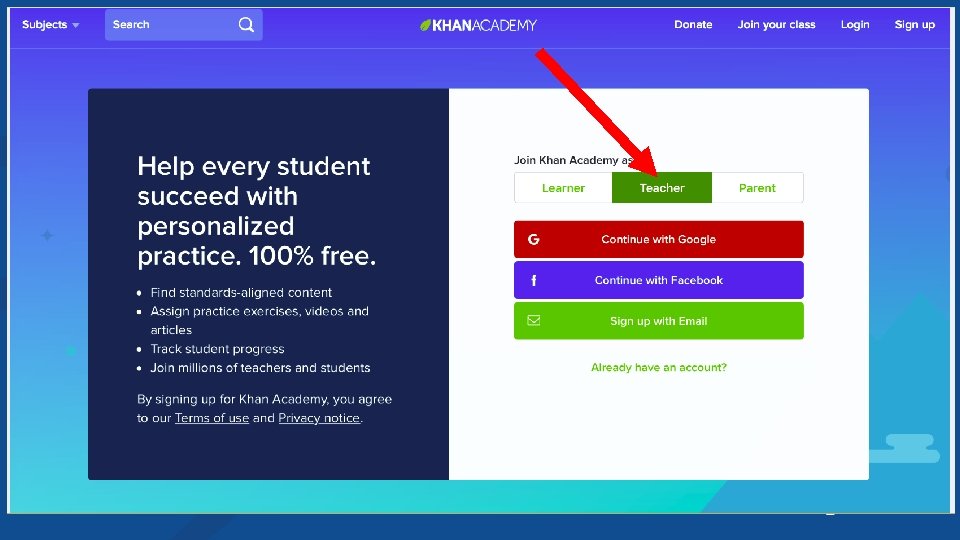
PART TWO: Teachers create rosters of their classes in Khan Academy
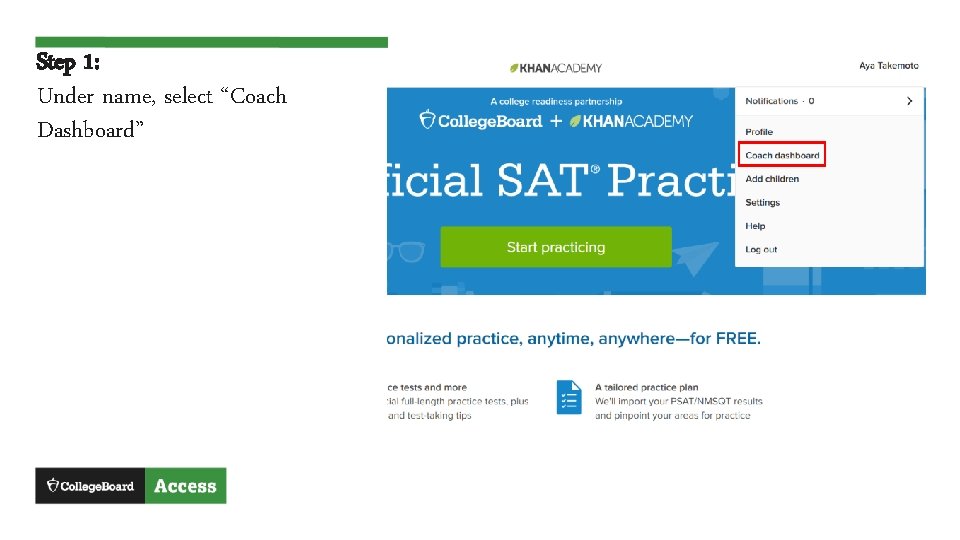
Step 1: Under name, select “Coach Dashboard”
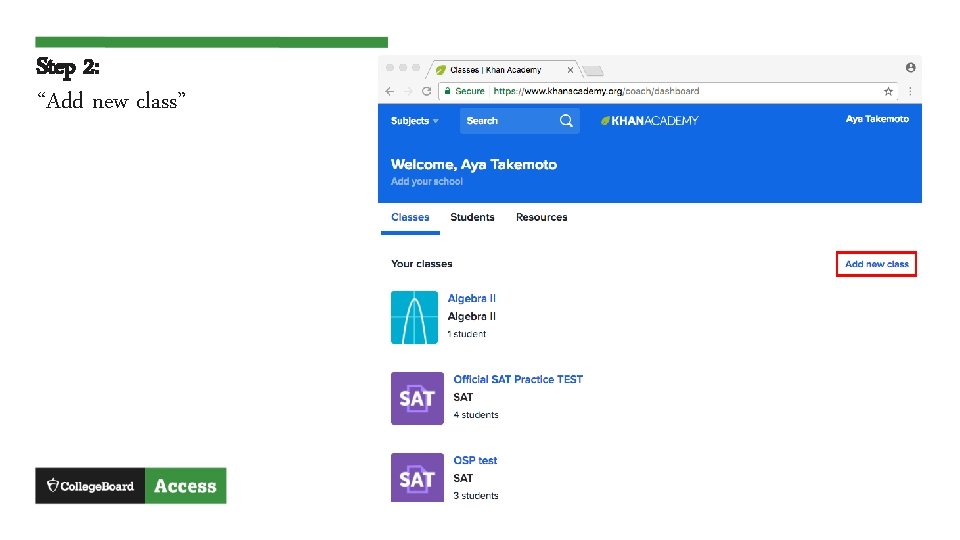
Step 2: “Add new class”
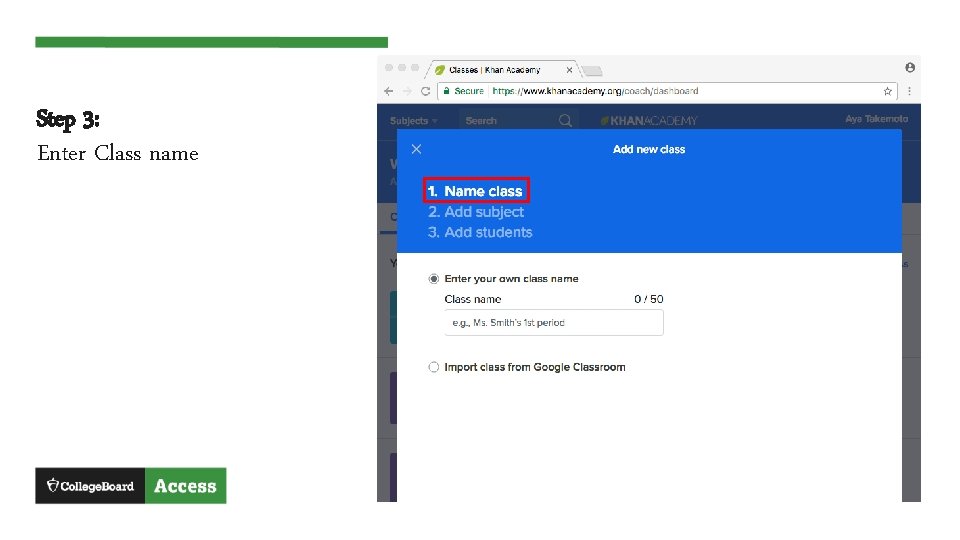
Step 3: Enter Class name
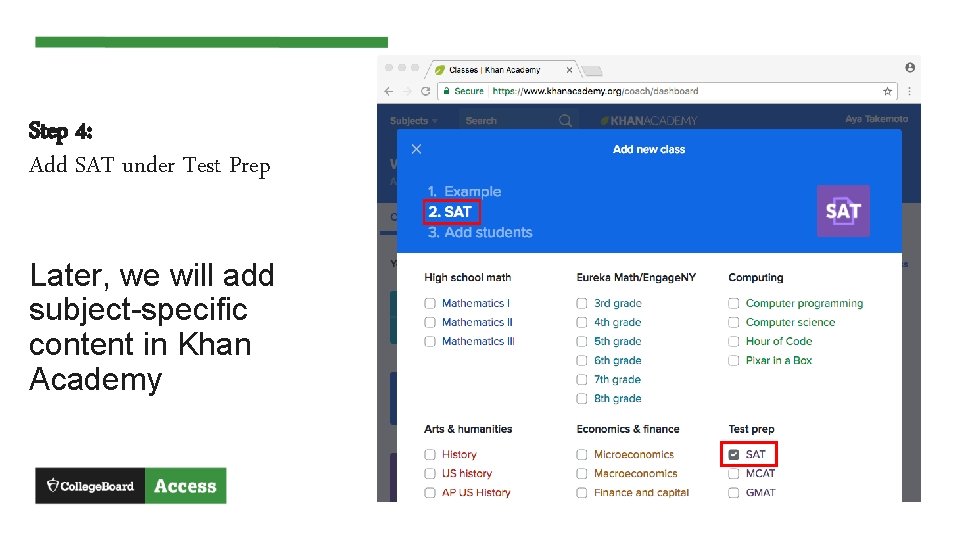
Step 4: Add SAT under Test Prep Later, we will add subject-specific content in Khan Academy
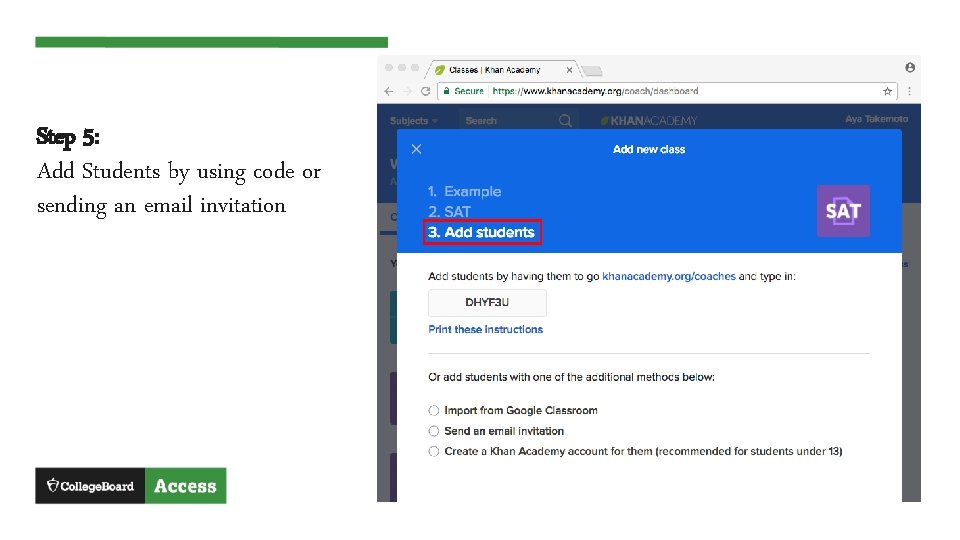
Step 5: Add Students by using code or sending an email invitation
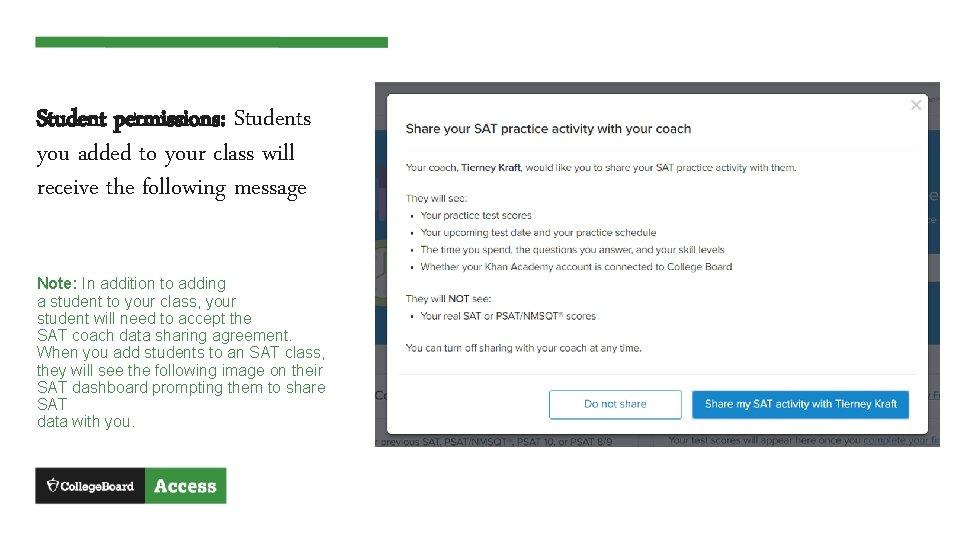
Student permissions: Students you added to your class will receive the following message Note: In addition to adding a student to your class, your student will need to accept the SAT coach data sharing agreement. When you add students to an SAT class, they will see the following image on their SAT dashboard prompting them to share SAT data with you.
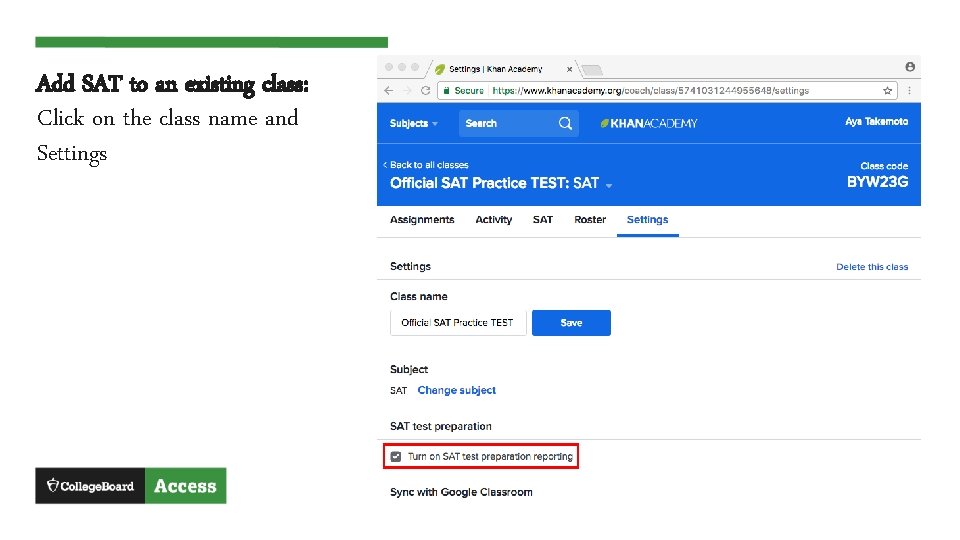
Add SAT to an existing class: Click on the class name and Settings
19
PART THREE: SAT Practice and Data Review in Khan Academy
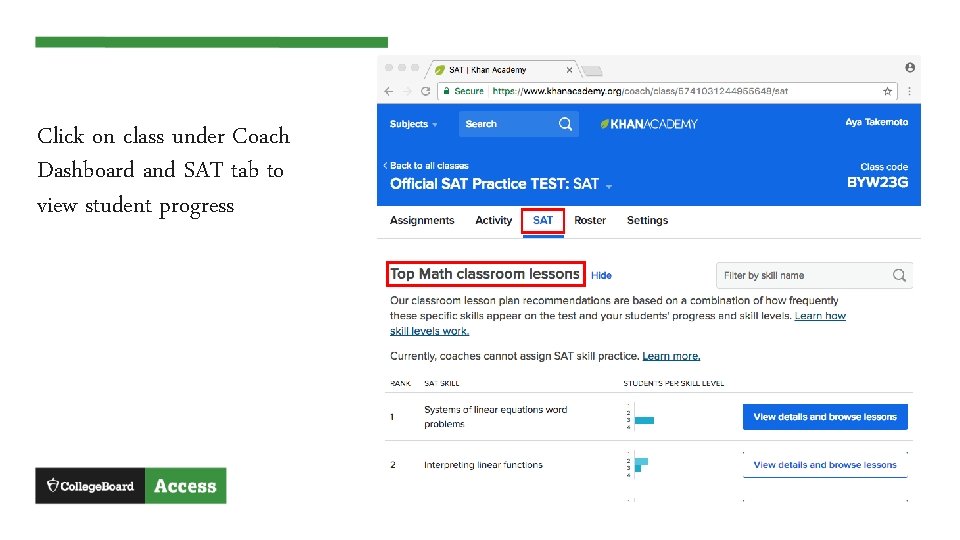
Click on class under Coach Dashboard and SAT tab to view student progress
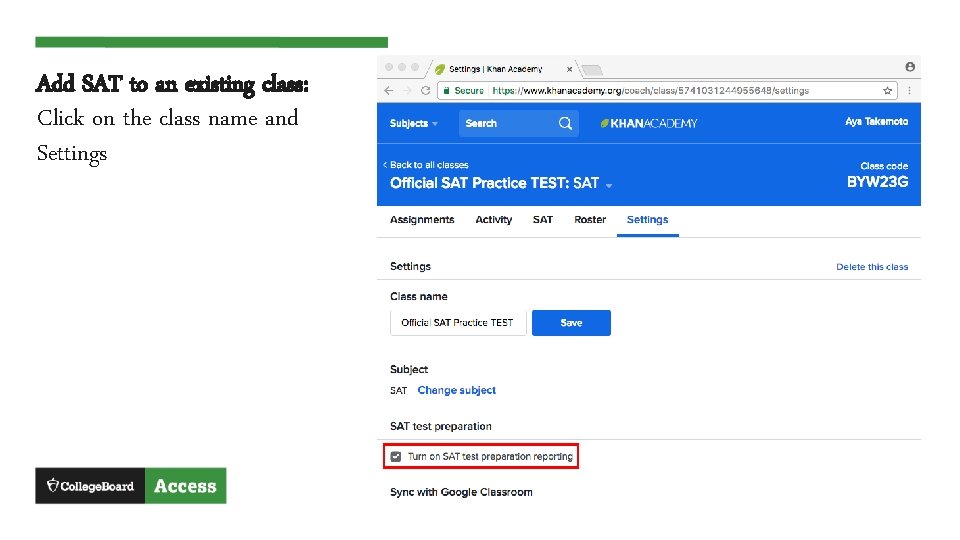
Add SAT to an existing class: Click on the class name and Settings
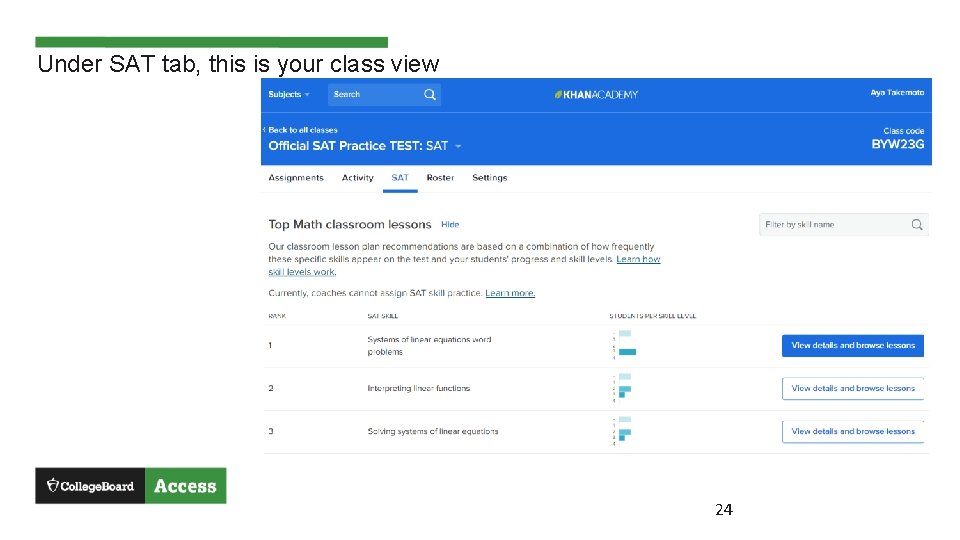
Under SAT tab, this is your class view 24
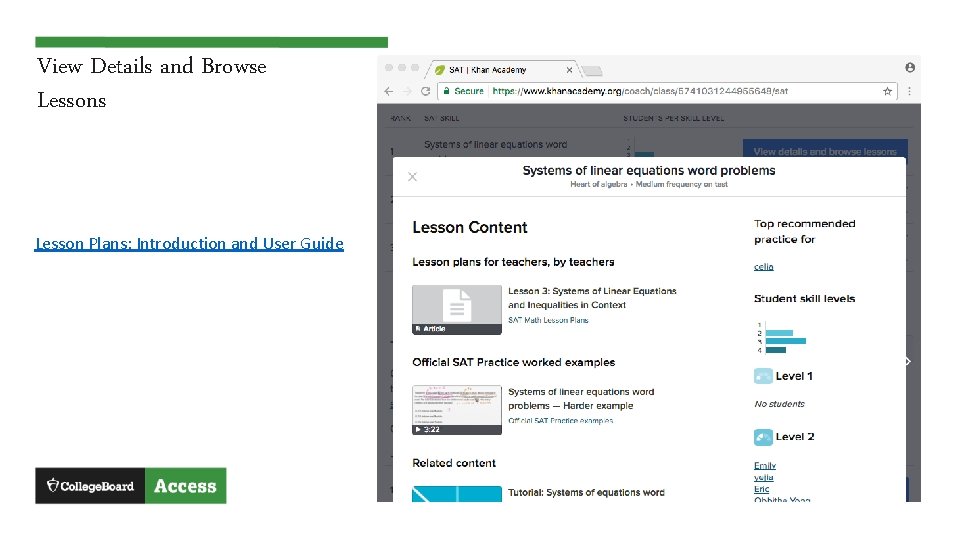
View Details and Browse Lessons Lesson Plans: Introduction and User Guide
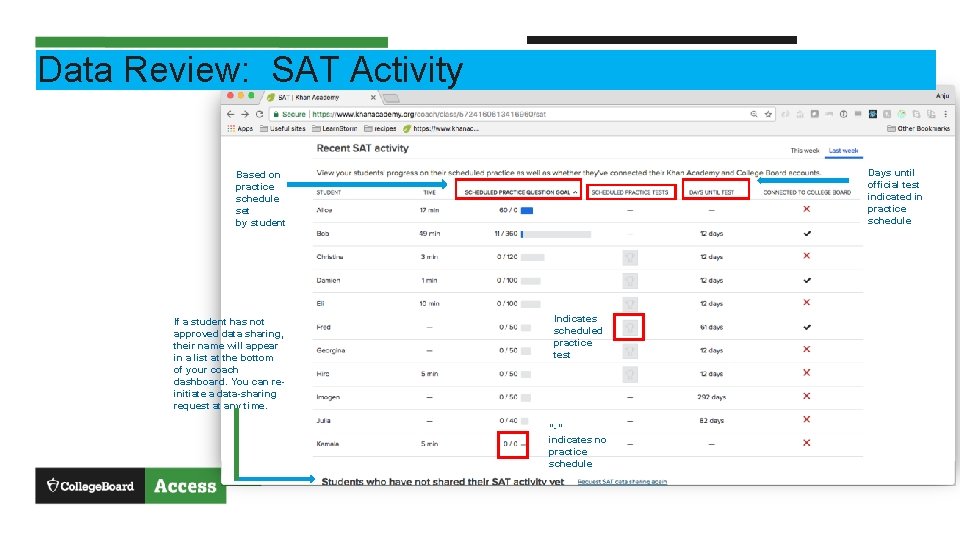
Data Review: SAT Activity Days until official test indicated in practice schedule Based on practice schedule set by student If a student has not approved data sharing, their name will appear in a list at the bottom of your coach dashboard. You can reinitiate a data-sharing request at any time. Indicates scheduled practice test “-” indicates no practice schedule
PART FOUR: Teacher Subject Classes and Data Review in Khan Academy
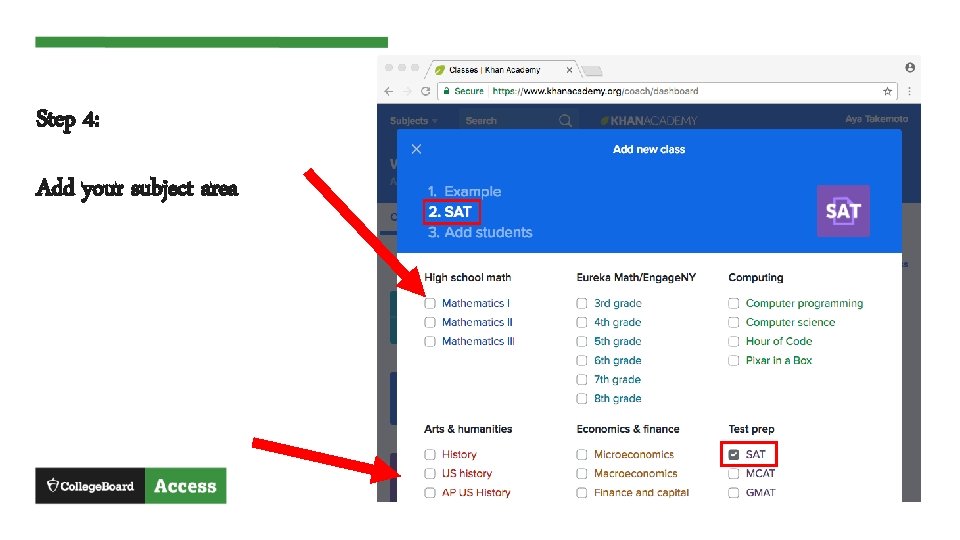
Step 4: Add your subject area
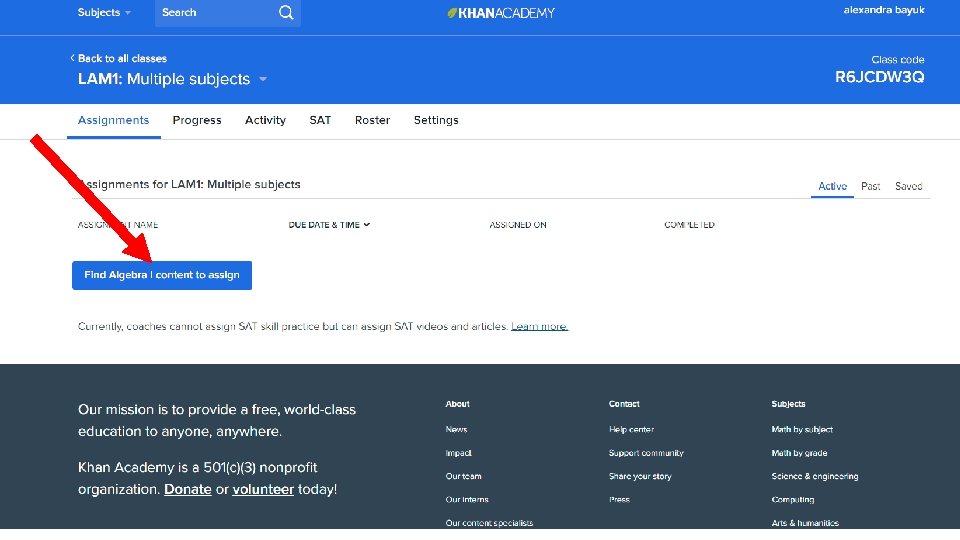
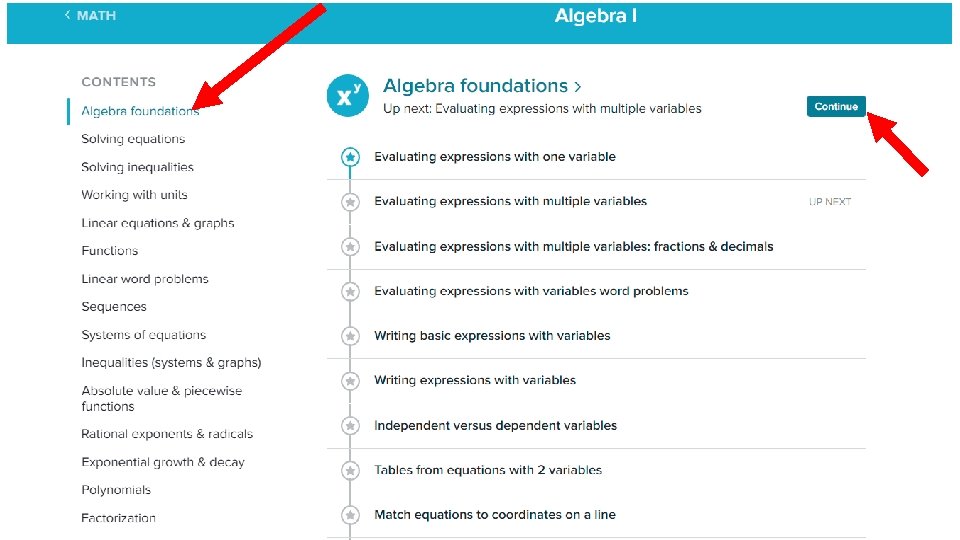
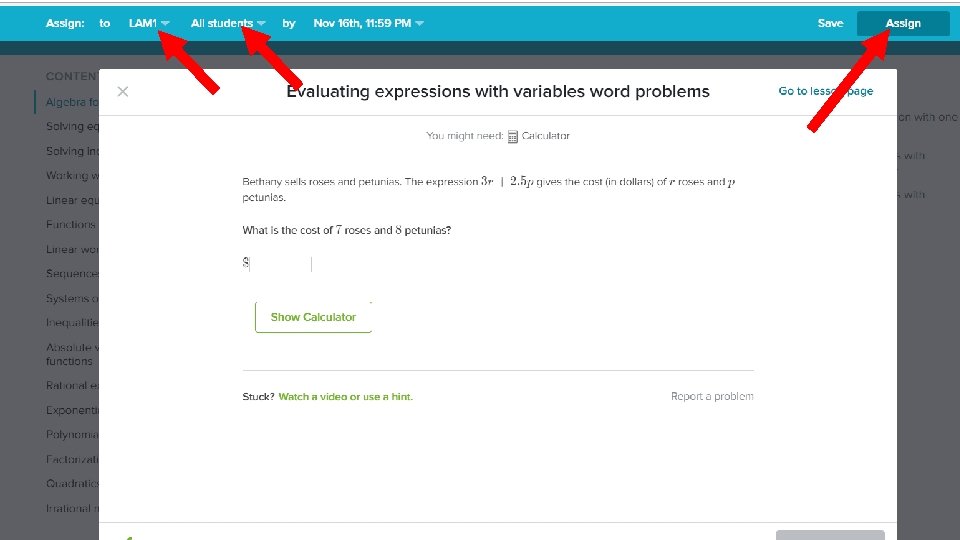
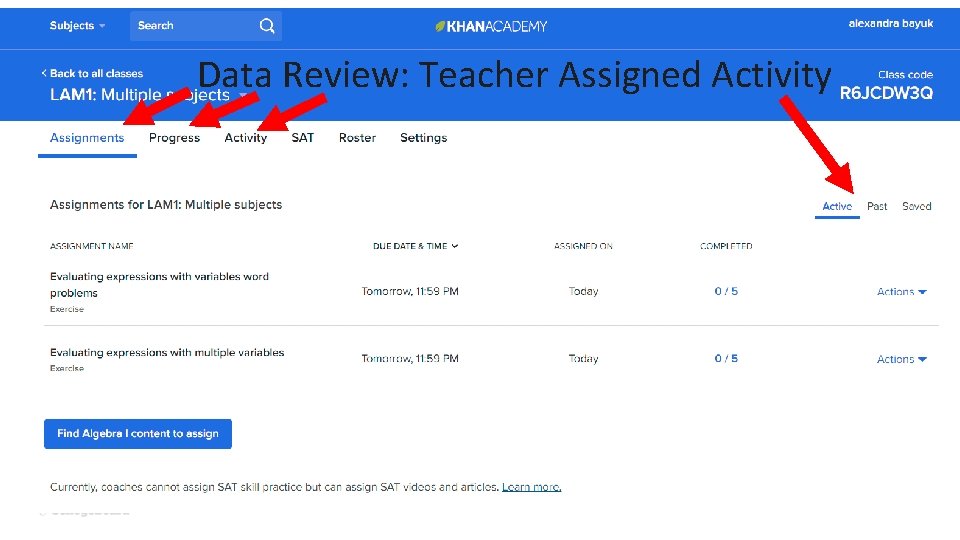
Data Review: Teacher Assigned Activity
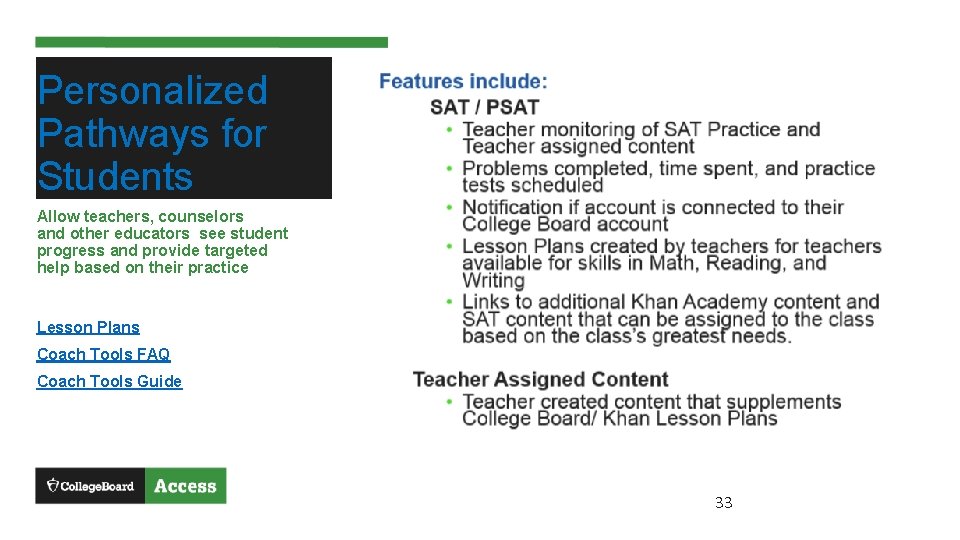
Personalized Pathways for Students Allow teachers, counselors and other educators see student progress and provide targeted help based on their practice Lesson Plans Coach Tools FAQ Coach Tools Guide 33

Thank You.
- Slides: 34