
Student Quick Start Guide Oxford Learning Link Direct

- Slides: 10
Student Quick Start Guide: Oxford Learning Link Direct for Jacobs/Townsley’s, Living Sociologically: Concepts & Connections What’s Inside: Introduction Student FAQ Register for Your Course Getting Acquainted with Your Resources Where to Go for More Help Oxford University Press Not for profit. All for education.
Introduction Welcome to Oxford University Press’s digital resources! To help you get off to a smooth start this term, this Student Quick Start Guide will cover the need-to-know information about using and accessing Oxford’s digital resources that you can use in place of or in addition to you’re Living Sociologically: Concepts & Connections textbook via Oxford Learning Link Drect. Who We Are At Oxford University Press, content comes first. We create high-quality, engaging, and affordable digital material in a variety of formats to meet your unique course needs. What We Offer All new print and digital copies of Living Sociologically come with an access code that allows you to unlock a full suite of engaging and effective digital learning tools with Learning Link Direct. Oxford University Press takes your learning to the next level with our digital resources that allow you to engage first-hand with Oxford’s content, access study guides and other study tools, and check your knowledge and skill application with various assessments. 2
Student FAQ Welcome to Oxford University Press’s Digital Resources! To help you get off to a smooth start this term, this Student FAQ will address some frequently asked questions about accessing and using the digital resources for Living Sociologically by Ronald N. Jacobs and Eleanor Townsley! Q: How do I register for my Living Sociologically course? A: Follow the three simple steps listed in the Register for Your Course section to begin using Oxford’s digital learning resources. Q: What technical support resources are available to me? A: Our dedicated Digital Support Team is available by phone and email to assist students with technical questions. For support regarding Oxford content or gaining access to Oxford content, contact our Digital Support Team at: • Email: Learning. Link. Direct. Support@oup. com • Phone: 855 -281 -8749 • Website: https: //oup. softwareassist. com/ • Digital Support Team Hours: • Monday–Friday: between 9: 00 am– 11: 00 pm (EST) • Saturday: between 11: 30 am– 8: 00 pm (EST) • Sunday: between 11: 30 am– 11: 00 pm (EST) Q: Is it really worth accessing OUP’s digital learning resources for this course? A: Yes! OUP’s premium digital assets takes your learning to the next level and will help you succeed in your course. These digital learning solutions provide a variety of resources, exercises, and activities that drive and promote student success. 3
Student FAQ Q: How long will I have access to Oxford University Press’s digital learning tools for my book? A: You will have access to OUP’s digital content for the duration of your course. Q: Is access to the digital learning resources for Living Sociologically included if I purchase a new book? A: Yes! All new print and digital copies of the text automatically include a one-time-use access code that allows students to unlock our premium digital content for no additional cost. Q: What if I purchased a used or old edition of the book? A: If you purchased a used book, OUP provides you with the option to purchase stand-alone access to our digital content. Q: What if I’m not prepared to purchase the text or stand-alone access at the start of the term? A: Students who are not prepared to redeem their access code or purchase access at the start of the term will have the option to activate a 14 -day free trial. Additional details can be found in the Student Registration section of this guide. This free trial option ensures that you’ll have access to an e. Book and all of the material that you’ll need for your class on day one. Q: Which internet browsers best supports the use of OUP’s digital learning resources? A: OUP’s digital learning resources work best with Chrome and Firefox. Use of Internet Explorer is strongly discouraged. Q: What do I do if I am having problems logging into my course? A: If you can’t login to your school’s learning management system (LMS), contact your local IT department. If you’re having trouble accessing Oxford content within your LMS, contact the OUP Digital Support team referenced previously.
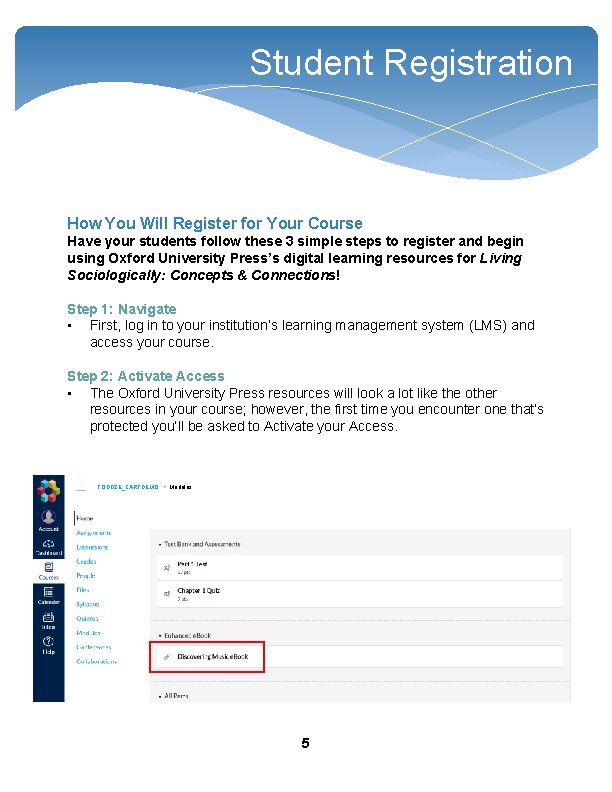
Student Registration How You Will Register for Your Course Have your students follow these 3 simple steps to register and begin using Oxford University Press’s digital learning resources for Living Sociologically: Concepts & Connections! Step 1: Navigate • First, log in to your institution’s learning management system (LMS) and access your course. Step 2: Activate Access • The Oxford University Press resources will look a lot like the other resources in your course; however, the first time you encounter one that’s protected you’ll be asked to Activate your Access. TODD 2 E_CARTDEMO > Modules 5
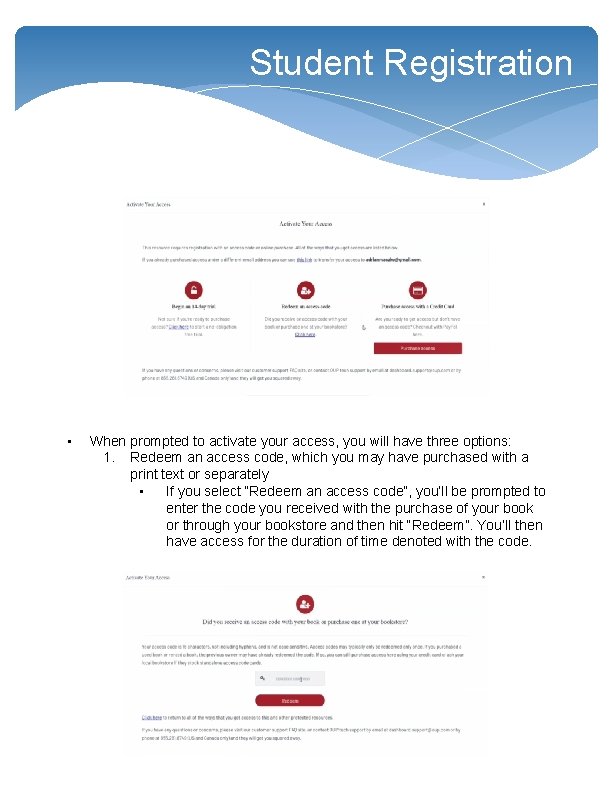
Student Registration • When prompted to activate your access, you will have three options: 1. Redeem an access code, which you may have purchased with a print text or separately • If you select “Redeem an access code”, you’ll be prompted to enter the code you received with the purchase of your book or through your bookstore and then hit “Redeem”. You’ll then have access for the duration of time denoted with the code.
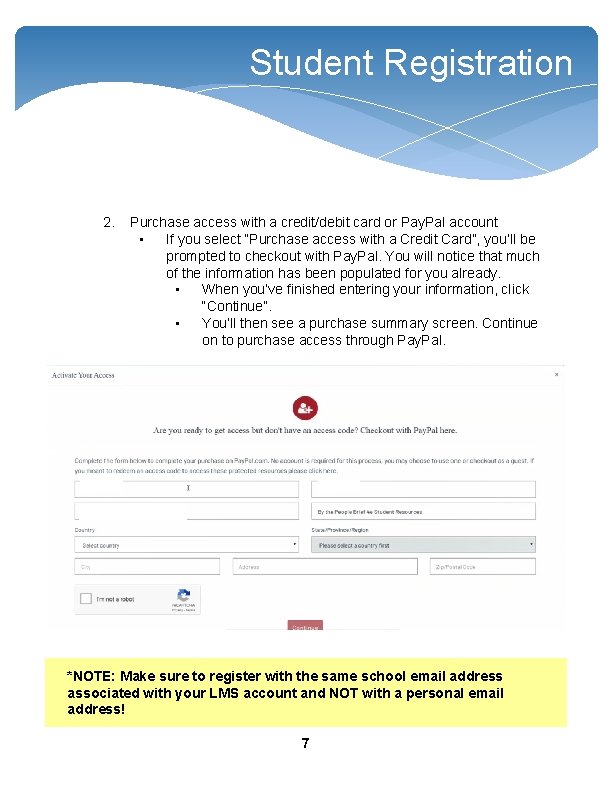
Student Registration 2. Purchase access with a credit/debit card or Pay. Pal account • If you select “Purchase access with a Credit Card”, you’ll be prompted to checkout with Pay. Pal. You will notice that much of the information has been populated for you already. • When you’ve finished entering your information, click “Continue”. • You’ll then see a purchase summary screen. Continue on to purchase access through Pay. Pal. *NOTE: Make sure to register with the same school email address associated with your LMS account and NOT with a personal email address! 7
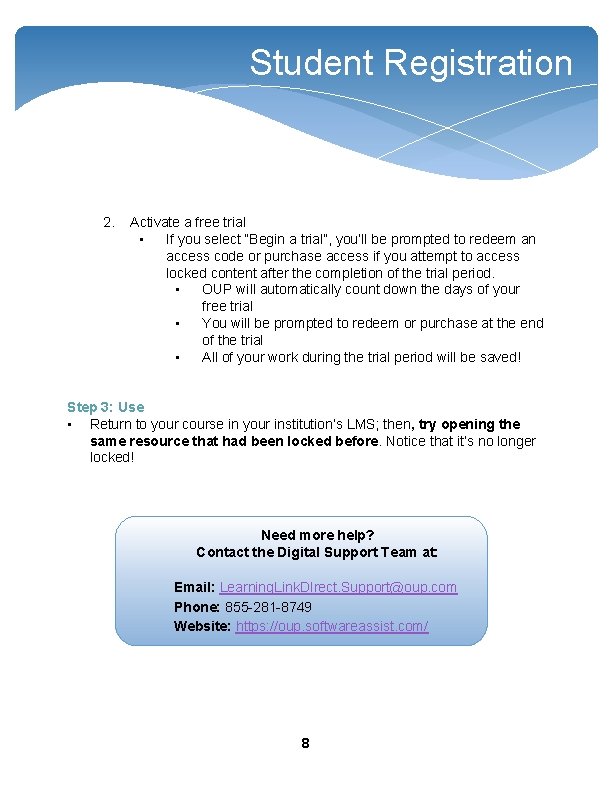
Student Registration 2. Activate a free trial • If you select “Begin a trial”, you’ll be prompted to redeem an access code or purchase access if you attempt to access locked content after the completion of the trial period. • OUP will automatically count down the days of your free trial • You will be prompted to redeem or purchase at the end of the trial • All of your work during the trial period will be saved! Step 3: Use • Return to your course in your institution’s LMS; then, try opening the same resource that had been locked before. Notice that it’s no longer locked! Need more help? Contact the Digital Support Team at: Email: Learning. Link. DIrect. Support@oup. com Phone: 855 -281 -8749 Website: https: //oup. softwareassist. com/ 8
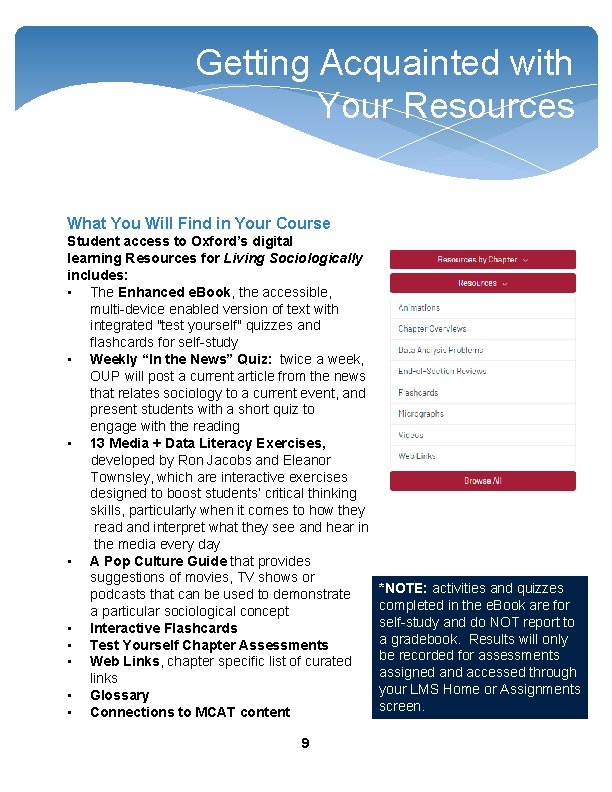
Getting Acquainted with Your Resources What You Will Find in Your Course Student access to Oxford’s digital learning Resources for Living Sociologically includes: • The Enhanced e. Book, the accessible, multi-device enabled version of text with integrated "test yourself" quizzes and flashcards for self-study • Weekly “In the News” Quiz: twice a week, OUP will post a current article from the news that relates sociology to a current event, and present students with a short quiz to engage with the reading • 13 Media + Data Literacy Exercises, developed by Ron Jacobs and Eleanor Townsley, which are interactive exercises designed to boost students’ critical thinking skills, particularly when it comes to how they read and interpret what they see and hear in the media every day • A Pop Culture Guide that provides suggestions of movies, TV shows or podcasts that can be used to demonstrate a particular sociological concept • Interactive Flashcards • Test Yourself Chapter Assessments • Web Links, chapter specific list of curated links • Glossary • Connections to MCAT content 9 *NOTE: activities and quizzes completed in the e. Book are for self-study and do NOT report to a gradebook. Results will only be recorded for assessments assigned and accessed through your LMS Home or Assignments screen.
Where to Go for More Help Having trouble logging into your school’s learning management system (LMS)? Contact your local IT department. Having trouble accessing Oxford content within your LMS? Contact Digital Support at: Email: Learming. Link. Direct. Support@oup. com Phone: 855 -281 -8749 Website: https: //oup. softwareassist. com/ Digital Support Hours: • • • Monday–Friday: 9: 00 am– 11: 00 pm (EST) Saturday: 11: 30 am– 8: 00 pm (EST) Sunday: 11: 30 am– 11: 00 pm (EST) 10