
Student Guide Google Classroom User Manual Office of
![[Student Guide] Google Classroom User Manual Office of Academic Affairs](https://slidetodoc.com/presentation_image_h2/f27be64444a8ed678bd3a7c5d390d9db/image-1.jpg "[Student Guide] Google Classroom User Manual Office of Academic Affairs")

- Slides: 18
[Student Guide] Google Classroom User Manual Office of Academic Affairs
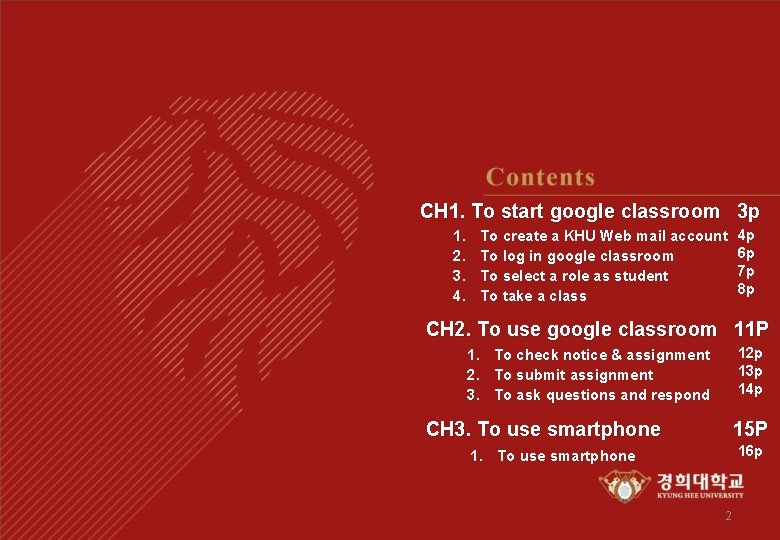
CH 1. To start google classroom 3 p 1. 2. 3. 4. To create a KHU Web mail account To log in google classroom To select a role as student To take a class 4 p 6 p 7 p 8 p CH 2. To use google classroom 11 P 12 p 13 p 14 p 1. To check notice & assignment 2. To submit assignment 3. To ask questions and respond CH 3. To use smartphone 15 P 16 p 1. To use smartphone 2
CH 1. To start google classroom - To create a KHU web mail account - To take a class 3
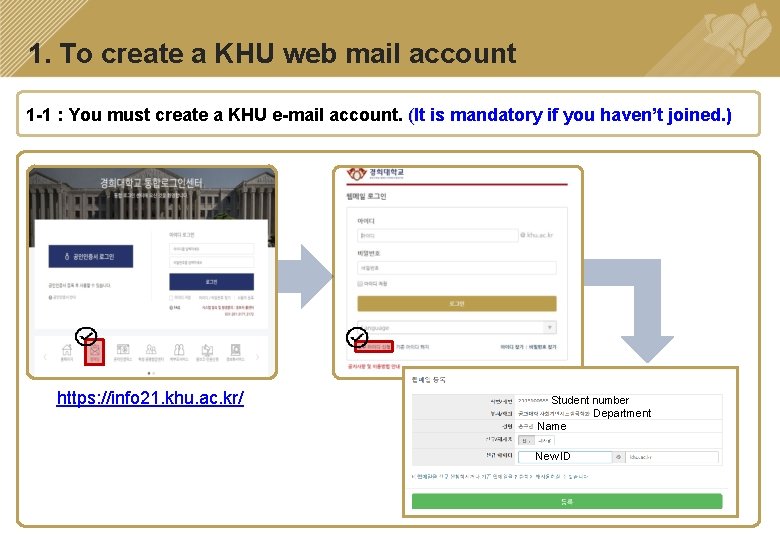
1. To create a KHU web mail account 1 -1 : You must create a KHU e-mail account. (It is mandatory if you haven’t joined. ) ㅍ https: //info 21. khu. ac. kr/ Student number Department Name New ID 4
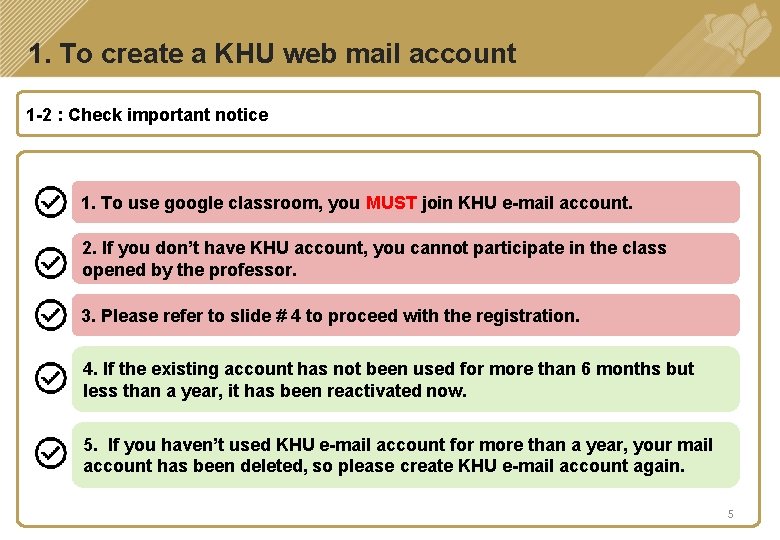
1. To create a KHU web mail account 1 -2 : Check important notice 1. To use google classroom, you MUST join KHU e-mail account. 2. If you don’t have KHU account, you cannot participate in the class opened by the professor. 3. Please refer to slide # 4 to proceed with the registration. 4. If the existing account has not been used for more than 6 months but less than a year, it has been reactivated now. 5. If you haven’t used KHU e-mail account for more than a year, your mail account has been deleted, so please create KHU e-mail account again. 5
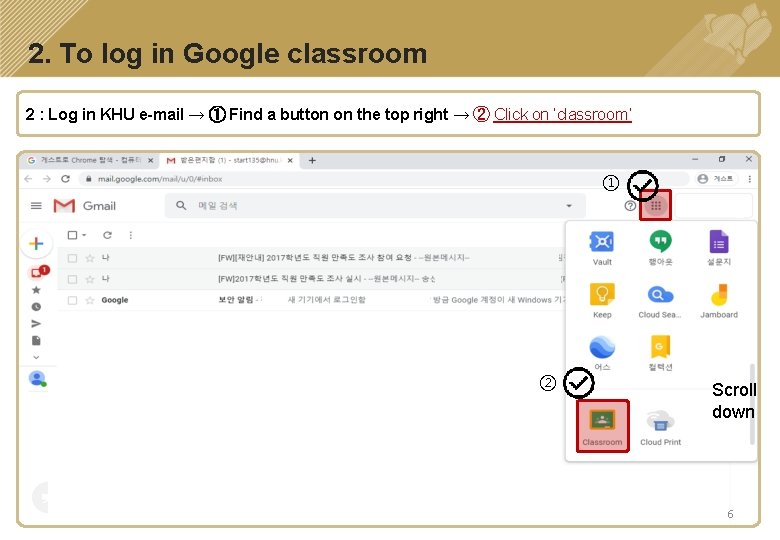
2. To log in Google classroom 2 : Log in KHU e-mail → ① Find a button on the top right → ② Click on ‘classroom’ ① ② Scroll down 6
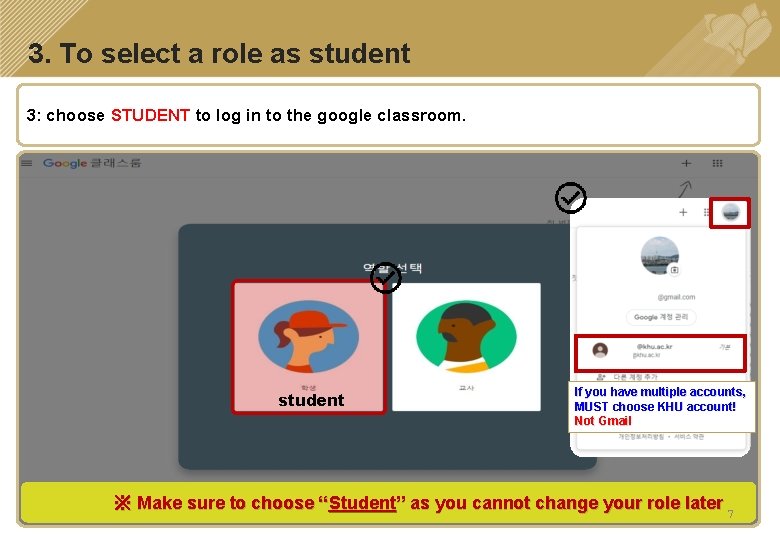
3. To select a role as student 3: choose STUDENT to log in to the google classroom. student If you have multiple accounts, MUST choose KHU account! Not Gmail ※ Make sure to choose “Student” as you cannot change your role later 7
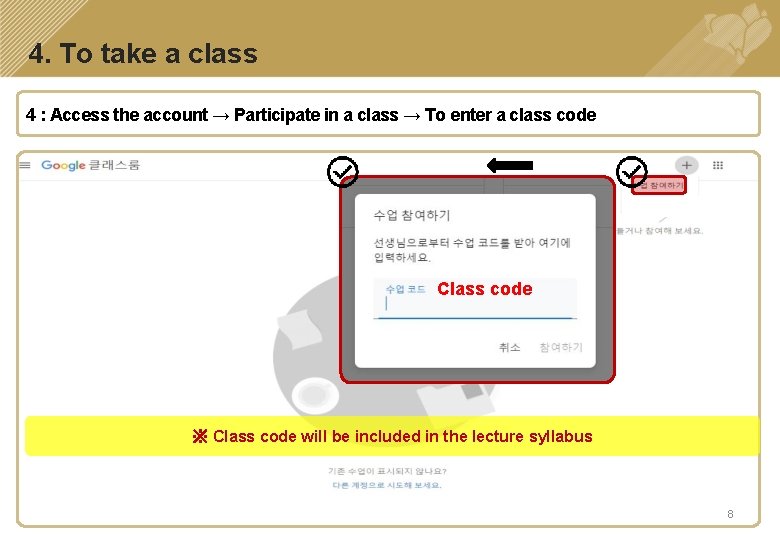
4. To take a class 4 : Access the account → Participate in a class → To enter a class code Class code ※ Class code will be included in the lecture syllabus 8
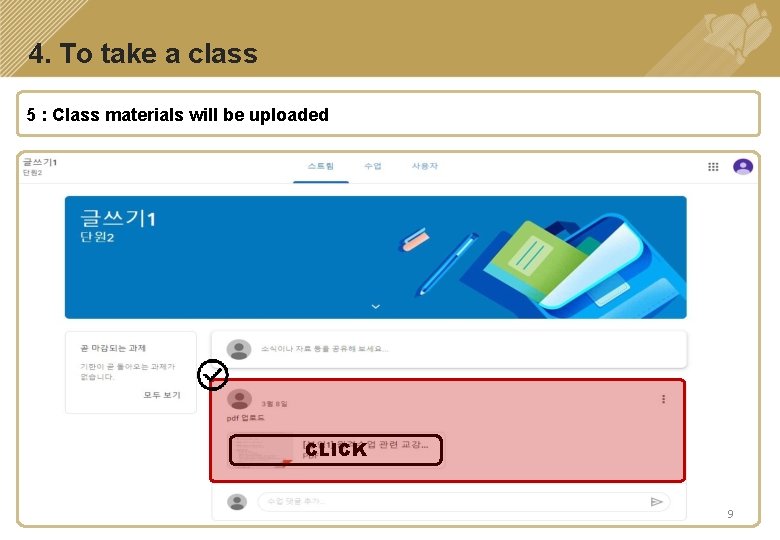
4. To take a class 5 : Class materials will be uploaded CLICK 9
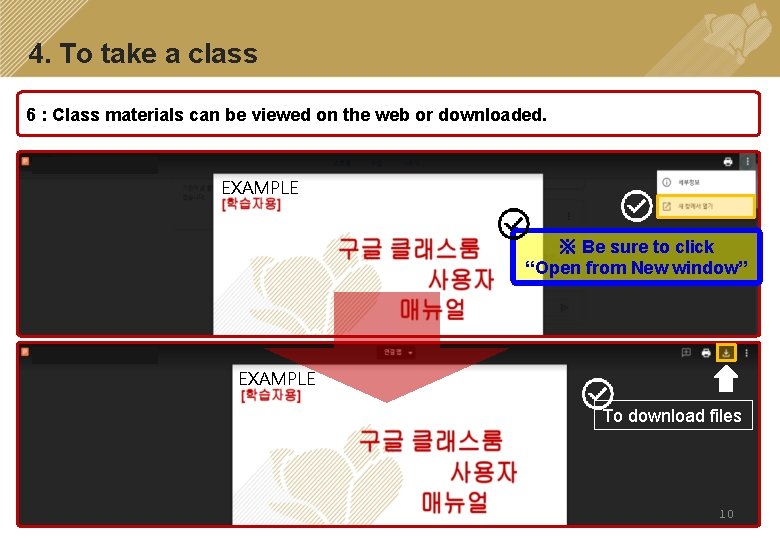
4. To take a class 6 : Class materials can be viewed on the web or downloaded. EXAMPLE ※ Be sure to click “Open from New window” EXAMPLE To download files 10
CH 2. To use Google classroom - To check notice, assignment and ask questions 11
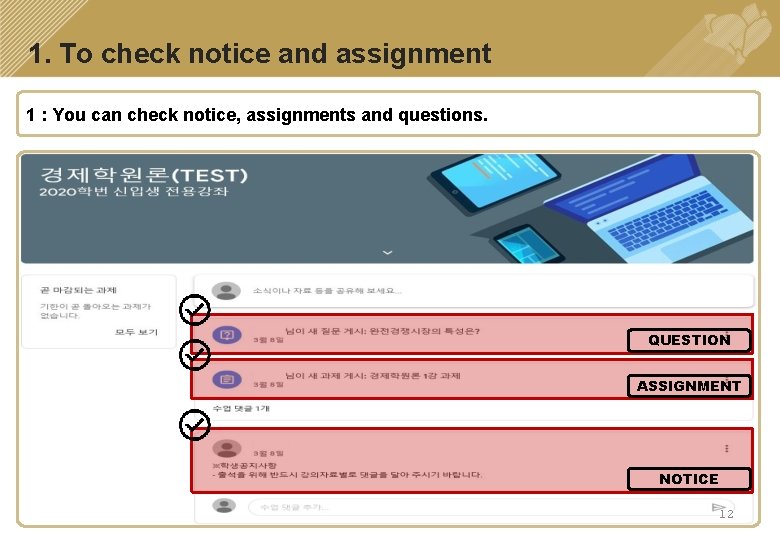
1. To check notice and assignment 1 : You can check notice, assignments and questions. QUESTION ASSIGNMENT NOTICE 12
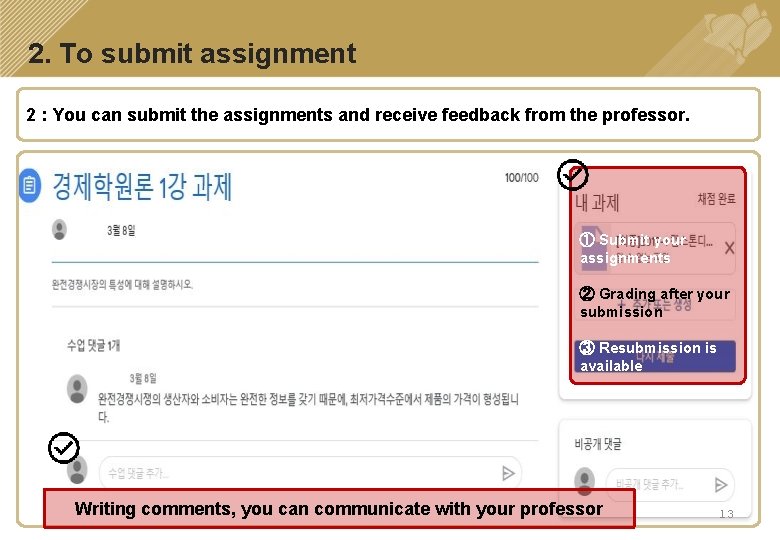
2. To submit assignment 2 : You can submit the assignments and receive feedback from the professor. ① Submit your assignments ② Grading after your submission ③ Resubmission is available Writing comments, you can communicate with your professor 13
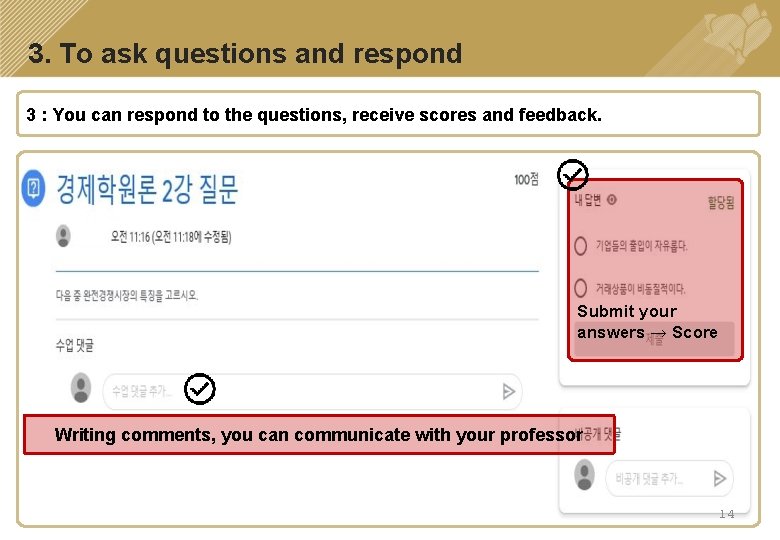
3. To ask questions and respond 3 : You can respond to the questions, receive scores and feedback. Submit your answers → Score Writing comments, you can communicate with your professor 14
CH 3. To use smartphone 15
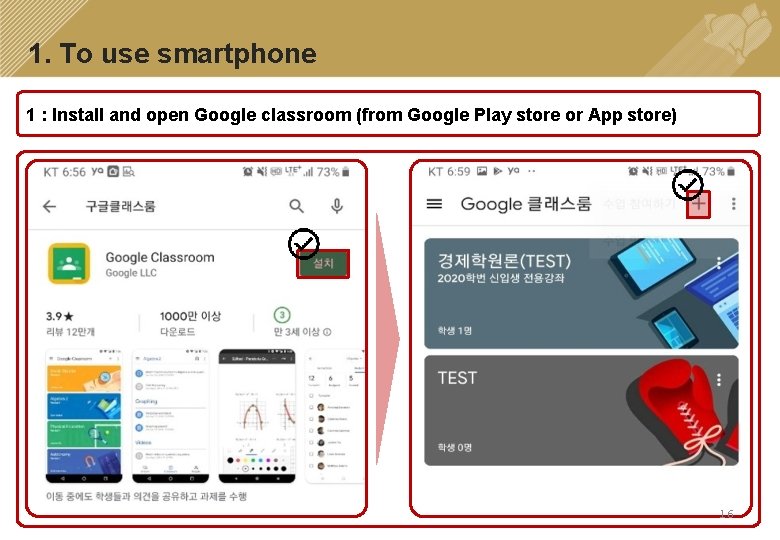
1. To use smartphone 1 : Install and open Google classroom (from Google Play store or App store) 16
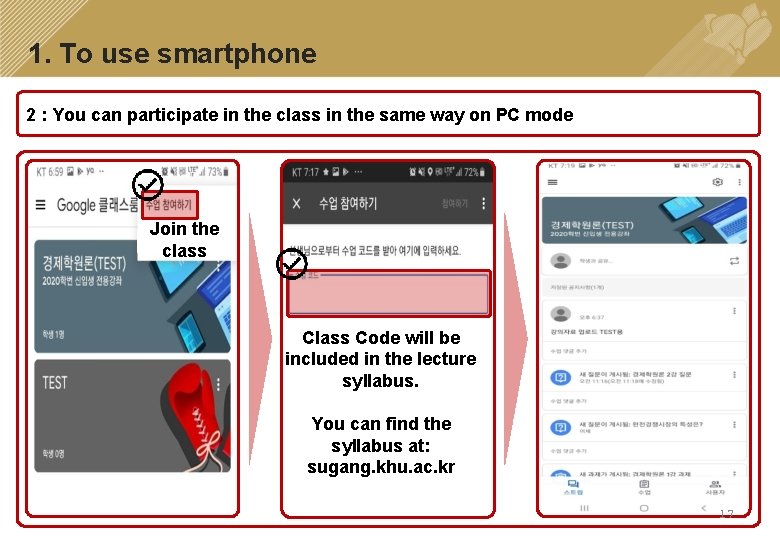
1. To use smartphone 2 : You can participate in the class in the same way on PC mode Join the class Code will be included in the lecture syllabus. You can find the syllabus at: sugang. khu. ac. kr 17
18