
Student Expectations 1 2 3 4 5 6

- Slides: 10
Student Expectations 1. 2. 3. 4. 5. 6. Turn off your camera. Mute your microphone (unless your teacher asks you to unmute). Engage in the lesson and only use the chat facility to ask or answer questions related to the lesson. All chat is recorded and is sent to Mrs Wilson and your Head of Year at the end of each session. Inappropriate behaviour will result in a phone call or a home visit during the lesson and you will be removed from the lesson by the teacher. You should now be working in Class Notebook or on the One. Note app Please note: if you fail to follow these expectations, you will not be able to access Dearne Home Learning and will attend school for face to face teaching. Tip 1: Typing your answers in the ‘chat’ feature is the best way to receive feedback on your work Info: Forms will be used to ask questions in Polls and Retrieval.
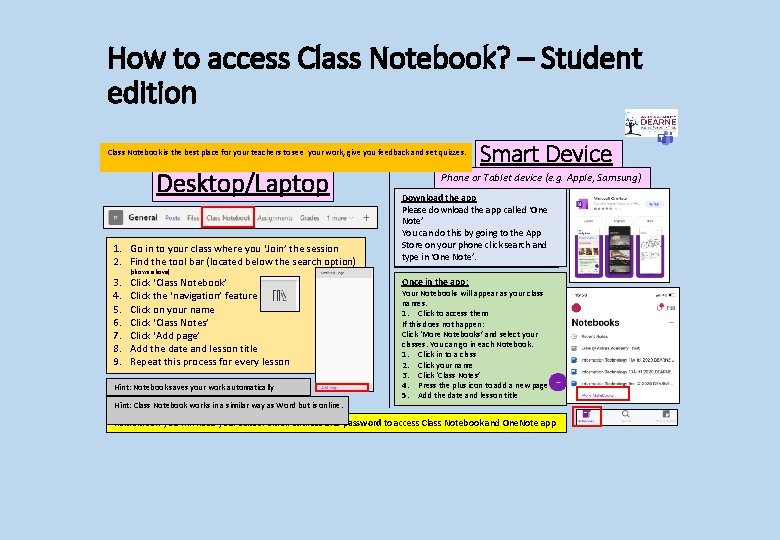
How to access Class Notebook? – Student edition Class Notebook is the best place for your teachers to see your work, give you feedback and set quizzes. Desktop/Laptop 1. Go in to your class where you ‘Join’ the session 2. Find the tool bar (located below the search option) 3. 4. 5. 6. 7. 8. 9. (shown above) Click ‘Class Notebook’ Click the ‘navigation’ feature Click on your name Click ‘Class Notes’ Click ‘Add page’ Add the date and lesson title Repeat this process for every lesson Hint: Notebook saves your work automatically Hint: Class Notebook works in a similar way as Word but is online. Smart Device Phone or Tablet device (e. g. Apple, Samsung) Download the app Please download the app called ‘One Note’ You can do this by going to the App Store on your phone click search and type in ‘One Note’. Once in the app: Your Notebooks will appear as your class names. 1. Click to access them If this does not happen: Click ‘More Notebooks’ and select your classes. You can go in each Notebook. 1. Click in to a class 2. Click your name 3. Click ‘Class Notes’ 4. Press the plus icon to add a new page 5. Add the date and lesson title Remember: you will need your school email address and password to access Class Notebook and One. Note app
Recap – Y 7 1. Make a list of the different types of data visualisation 2. Explain the best way to visualise data? 3. Explain why it is the best way
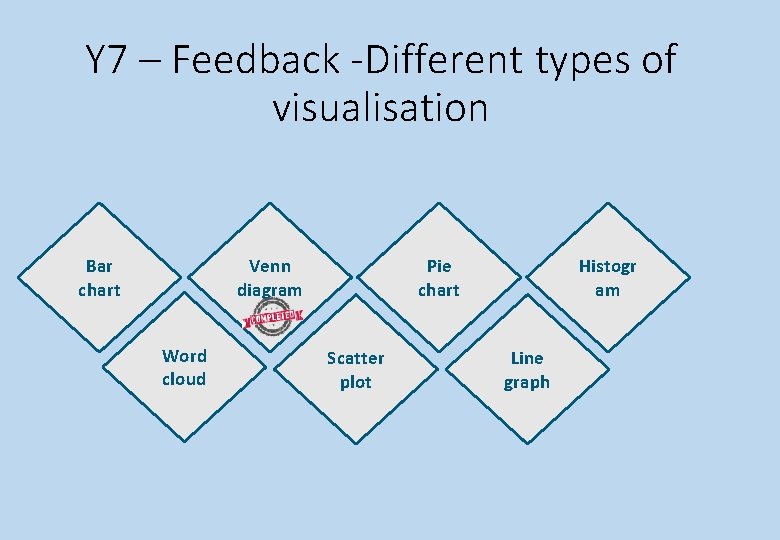
Y 7 – Feedback -Different types of visualisation Bar chart Venn diagram Word cloud Pie chart Scatter plot Histogr am Line graph
KS 3 – February Assessment
Objectives By the end of the lesson you prepared and completed an assessment
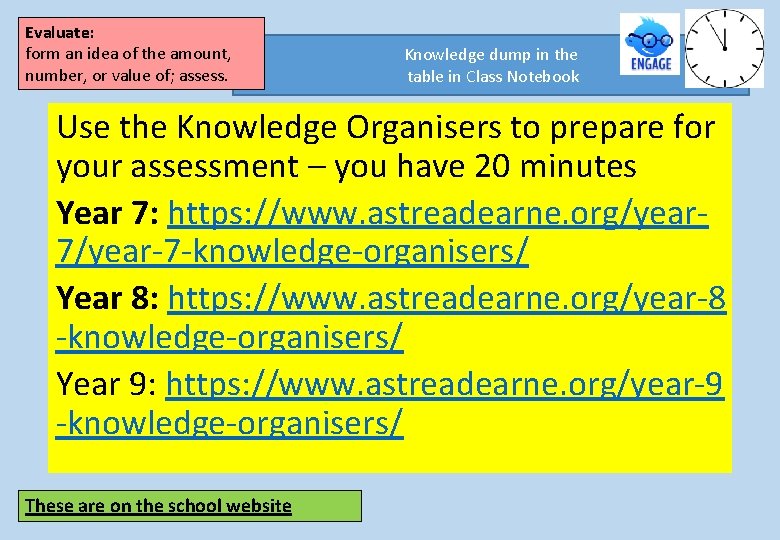
Evaluate: form an idea of the amount, number, or value of; assess. Knowledge dump in the table in Class Notebook Use the Knowledge Organisers to prepare for your assessment – you have 20 minutes Year 7: https: //www. astreadearne. org/year 7/year-7 -knowledge-organisers/ Year 8: https: //www. astreadearne. org/year-8 -knowledge-organisers/ Year 9: https: //www. astreadearne. org/year-9 -knowledge-organisers/ These are on the school website
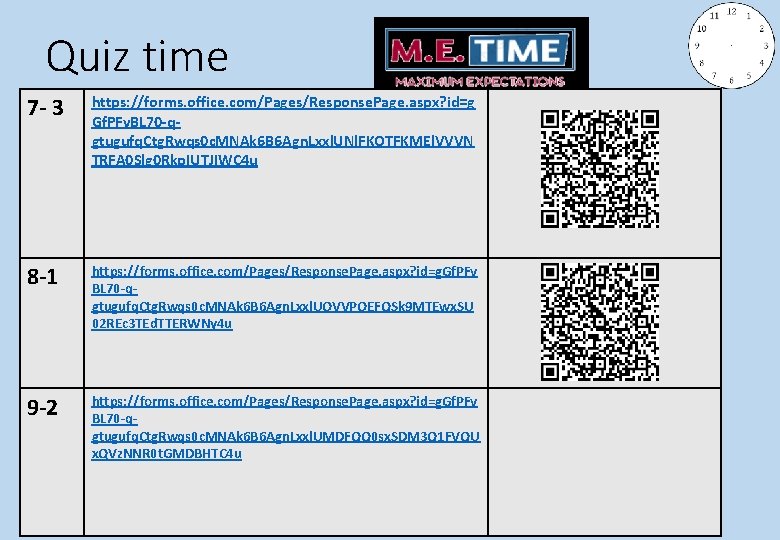
Quiz time 7 - 3 https: //forms. office. com/Pages/Response. Page. aspx? id=g Gf. PFv. BL 70 -qgtugufq. Ctg. Rwqs 0 c. MNAk 6 B 6 Agn. Lxxl. UNl. FKOTFKMEl. VVVN TRFA 0 Slg 0 Rkp. IUTJIWC 4 u 8 -1 https: //forms. office. com/Pages/Response. Page. aspx? id=g. Gf. PFv BL 70 -qgtugufq. Ctg. Rwqs 0 c. MNAk 6 B 6 Agn. Lxxl. UOVVPOEFQSk 9 MTEwx. SU 02 REc 3 TEd. TTERWNy 4 u 9 -2 https: //forms. office. com/Pages/Response. Page. aspx? id=g. Gf. PFv BL 70 -qgtugufq. Ctg. Rwqs 0 c. MNAk 6 B 6 Agn. Lxxl. UMDFQQ 0 sx. SDM 3 Q 1 FVQU x. QVz. NNR 0 t. GMDBHTC 4 u
1. What was the easiest question? 2. What did you find difficult? 3. What would you do differently next time?