
Student Activity Inspiration Lite Objective TLW use a
Student Activity Inspiration Lite Objective: TLW use a graphic organizer to categorize previously learned information. Standards: CCSS. ELA-LITERACY. RI. 3. 4 Determine the meaning of general academic and domain-specific words and phrases in a text relevant to a grade 3 topic or subject area. CCSS. ELA-LITERACY. RI. 3. 7 Use information gained from illustrations (e. g. , maps, photographs) and the words in a text to demonstrate understanding of the text (e. g. , where, when, why, and how key events occur). CCSS. ELA-LITERACY. W. 3. 8 Recall information from experiences or gather information from print and digital sources; take brief notes on sources and sort evidence into provided categories. Technology Standard F Conceptualize, guide, and manage individual or group learning projects using digital tools with teacher support. How to Use Inspiration Lite: 1. Touch the icon pictured above. 2. The app will open to a page with multiple graphic organizers. Choose the templates folder to view more. 3. The graphic organizers are listed in alphabetical order. Go down to the “s” section and choose “Science. Classification. ” 4. A box will pop up, touch “use template” in the corner.
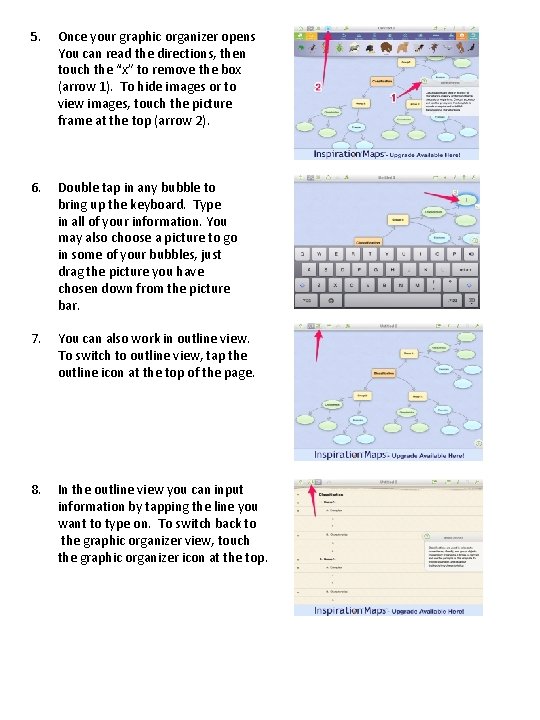
5. Once your graphic organizer opens You can read the directions, then touch the “x” to remove the box (arrow 1). To hide images or to view images, touch the picture frame at the top (arrow 2). 6. Double tap in any bubble to bring up the keyboard. Type in all of your information. You may also choose a picture to go in some of your bubbles, just drag the picture you have chosen down from the picture bar. 7. You can also work in outline view. To switch to outline view, tap the outline icon at the top of the page. 8. In the outline view you can input information by tapping the line you want to type on. To switch back to the graphic organizer view, touch the graphic organizer icon at the top.
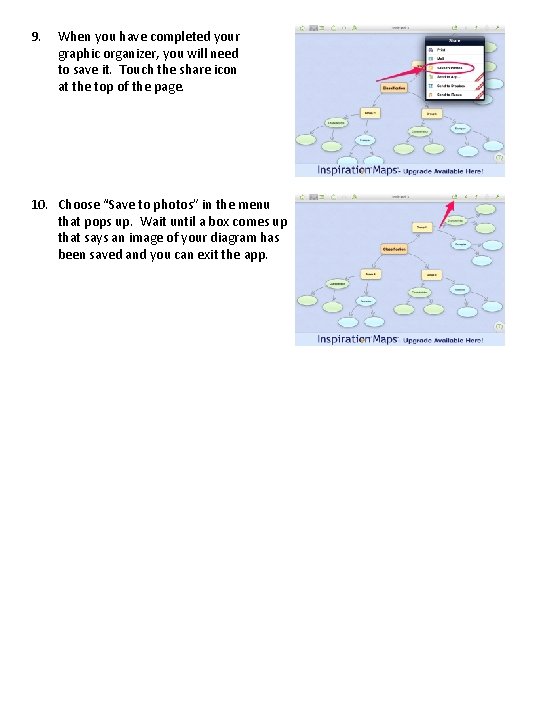
9. When you have completed your graphic organizer, you will need to save it. Touch the share icon at the top of the page. 10. Choose “Save to photos” in the menu that pops up. Wait until a box comes up that says an image of your diagram has been saved and you can exit the app.
- Slides: 3