
Stream Tracing Using the National Hydrography Dataset NHD


- Slides: 25
Stream Tracing Using the National Hydrography Dataset (NHD) James Stapel
NHD vs NHD Plus • NHD managed by the USGS • 1: 24, 000 • Updates and maintenance coordinated through state data stewards • https: //nhd. usgs. gov/stewardship. html • NHD Plus managed by Horizon Systems • • 1: 100, 000 Built by EPA and USGS Value-added attributes Currently working with USGS to produce High Resolution NHDPlus at 1: 24, 000 (Finally!!!)
NHDPlus Value Added Information • • • • Greatly improved 1: 100 K National Hydrography Dataset (NHD) Greatly improved 1 arc-second (approximately 30 meter ground spacing) National Elevation Dataset (NED) Nationally complete Watershed Boundary Dataset (WBD) A set of value added attributes to enhance stream network navigation, analysis and display An elevation-based catchment for each flowline in the stream network Catchment characteristics Headwater node areas Cumulative drainage area characteristics Flow direction, flow accumulation and elevation grids Flowline min/max elevations and slopes Flow volume & velocity estimates for each flowline in the stream network Catchment attributes and network accumulated attributes Various grids from the hydro-enforcement process including the hydro-enforced DEM
Downloading the NHD Data for Texas • https: //nhd. usgs. gov/ • Click on Get Data • Click on state boundaries • • • ftp: //rockyftp. cr. usgs. gov/vdelivery/Datasets/Staged/Hydrography/NHD/State/ Click on the High. Resolution folder Click on the GDB folder States are assigned by FIPS Code – Texas is 48 Download NHD_H_48_gdb. zip Extract the zip file
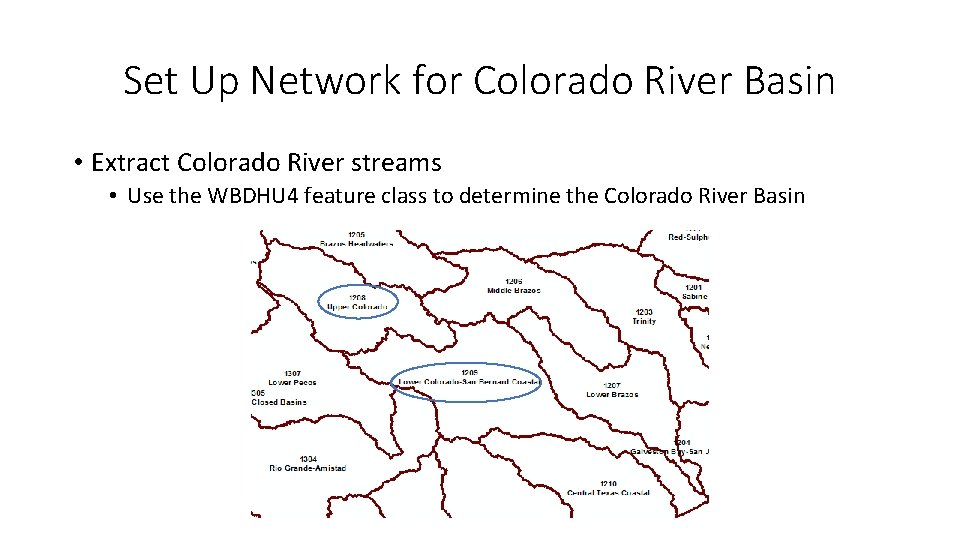
Set Up Network for Colorado River Basin • Extract Colorado River streams • Use the WBDHU 4 feature class to determine the Colorado River Basin
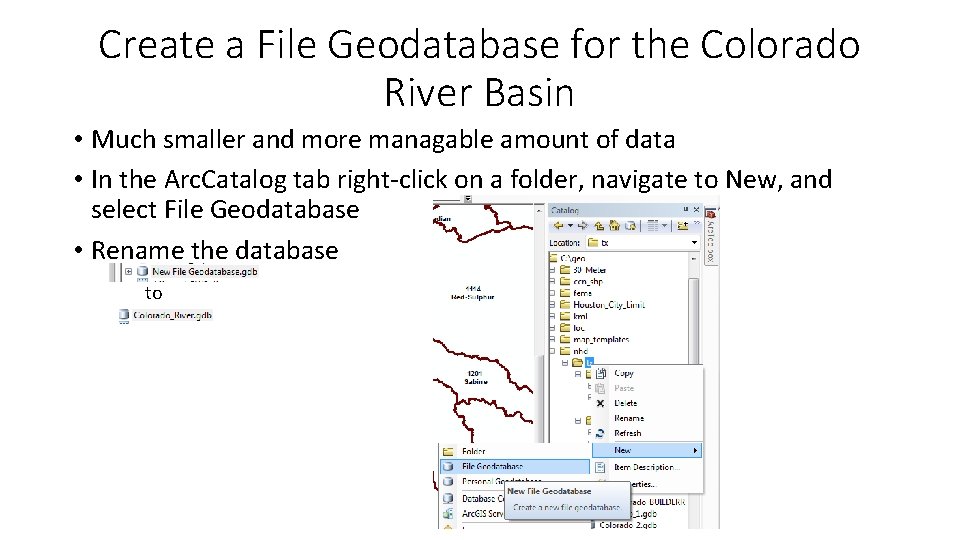
Create a File Geodatabase for the Colorado River Basin • Much smaller and more managable amount of data • In the Arc. Catalog tab right-click on a folder, navigate to New, and select File Geodatabase • Rename the database to
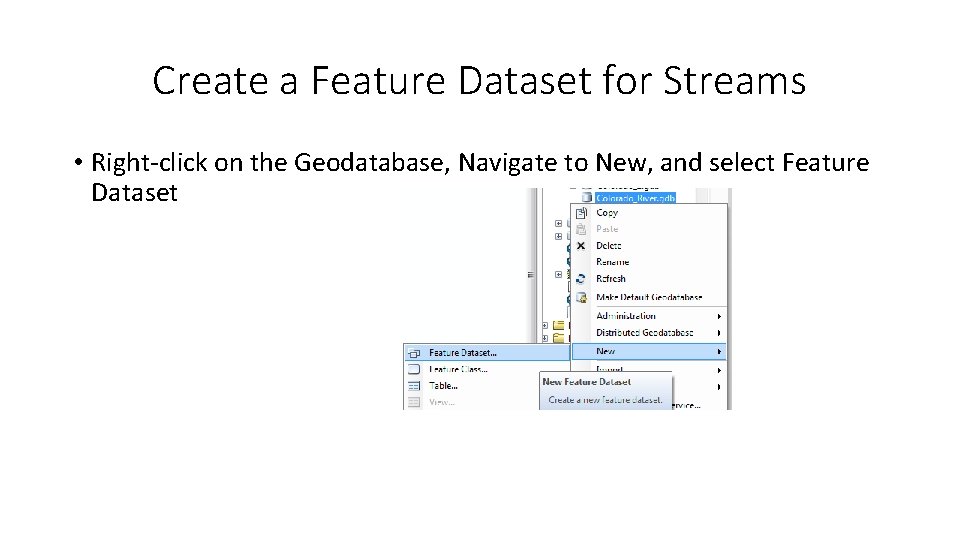
Create a Feature Dataset for Streams • Right-click on the Geodatabase, Navigate to New, and select Feature Dataset
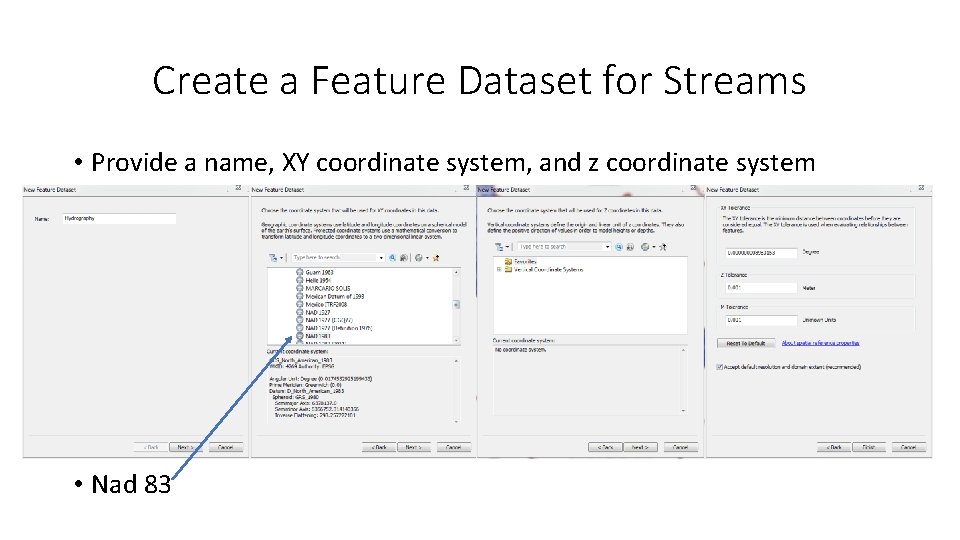
Create a Feature Dataset for Streams • Provide a name, XY coordinate system, and z coordinate system • Nad 83
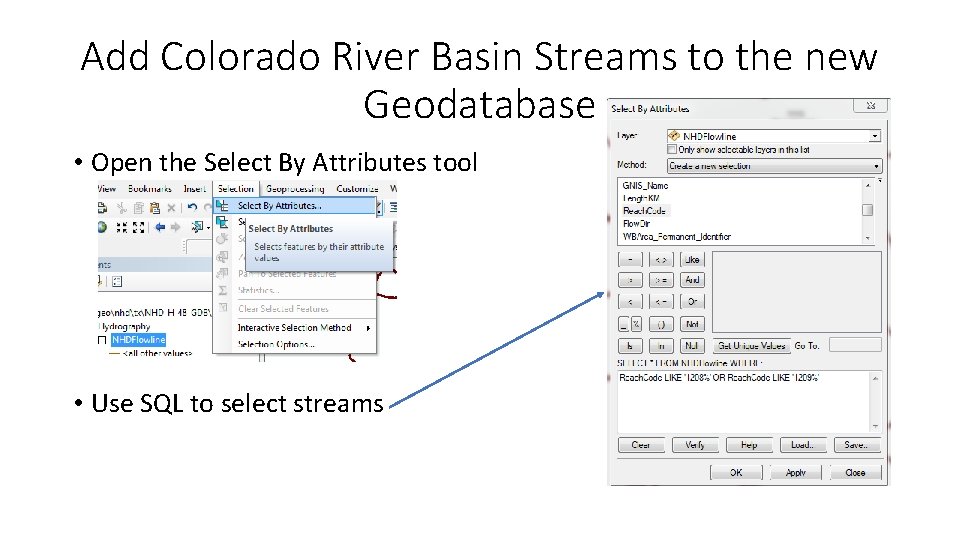
Add Colorado River Basin Streams to the new Geodatabase • Open the Select By Attributes tool • Use SQL to select streams
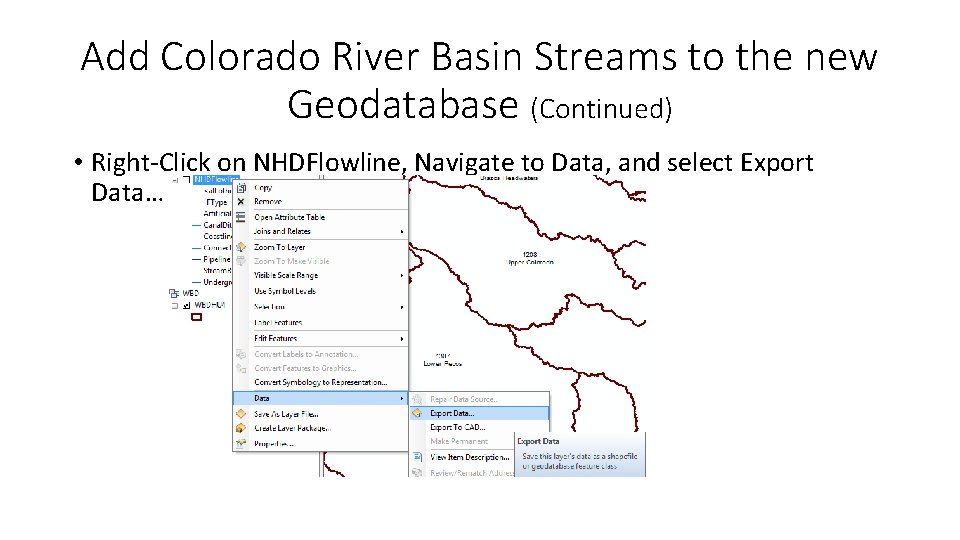
Add Colorado River Basin Streams to the new Geodatabase (Continued) • Right-Click on NHDFlowline, Navigate to Data, and select Export Data…
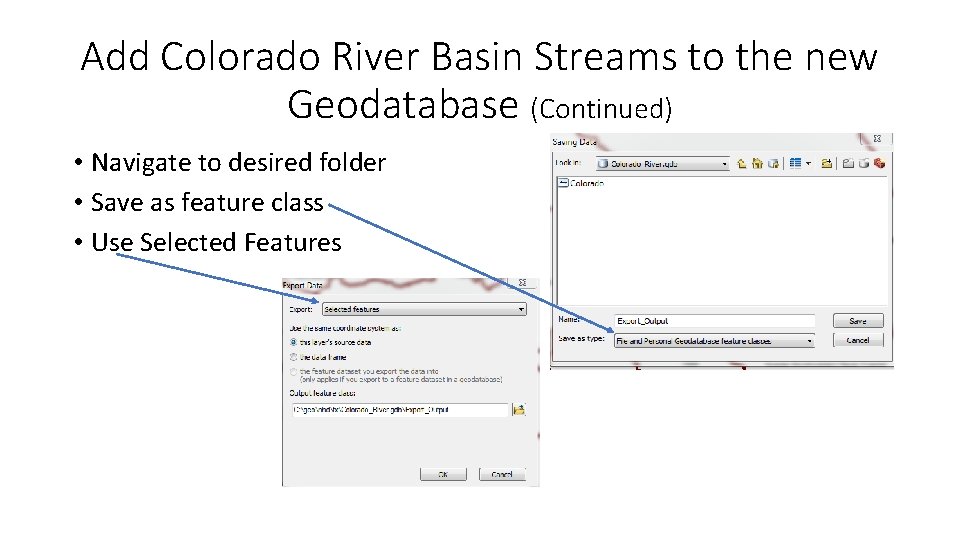
Add Colorado River Basin Streams to the new Geodatabase (Continued) • Navigate to desired folder • Save as feature class • Use Selected Features
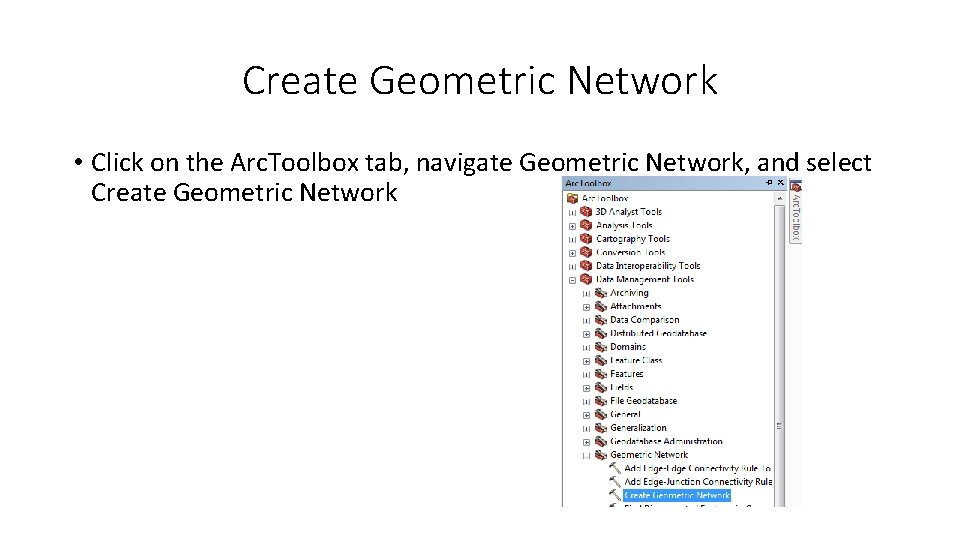
Create Geometric Network • Click on the Arc. Toolbox tab, navigate Geometric Network, and select Create Geometric Network
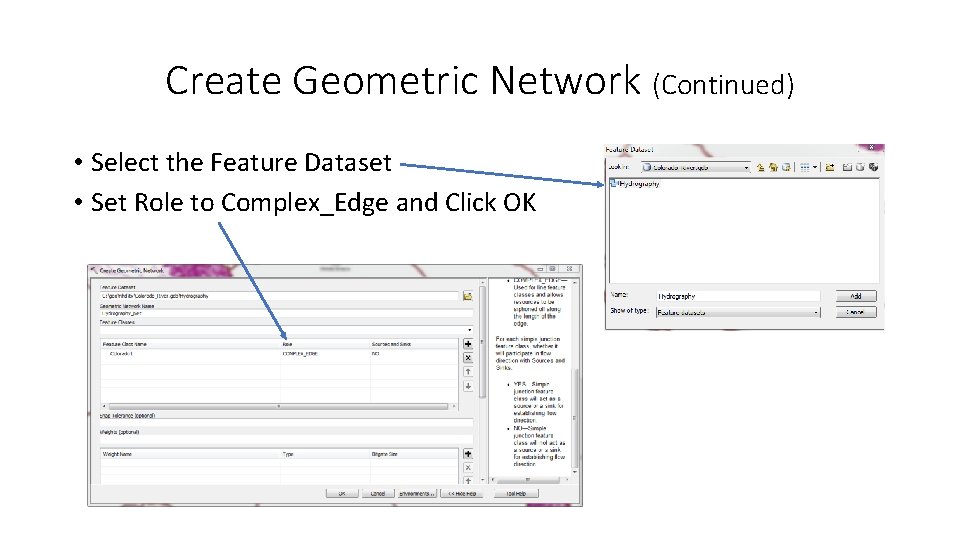
Create Geometric Network (Continued) • Select the Feature Dataset • Set Role to Complex_Edge and Click OK
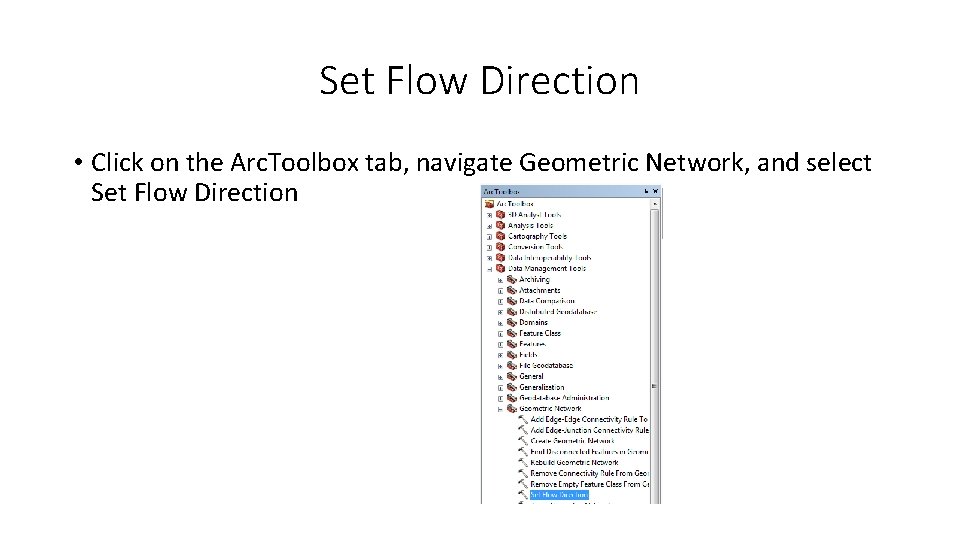
Set Flow Direction • Click on the Arc. Toolbox tab, navigate Geometric Network, and select Set Flow Direction
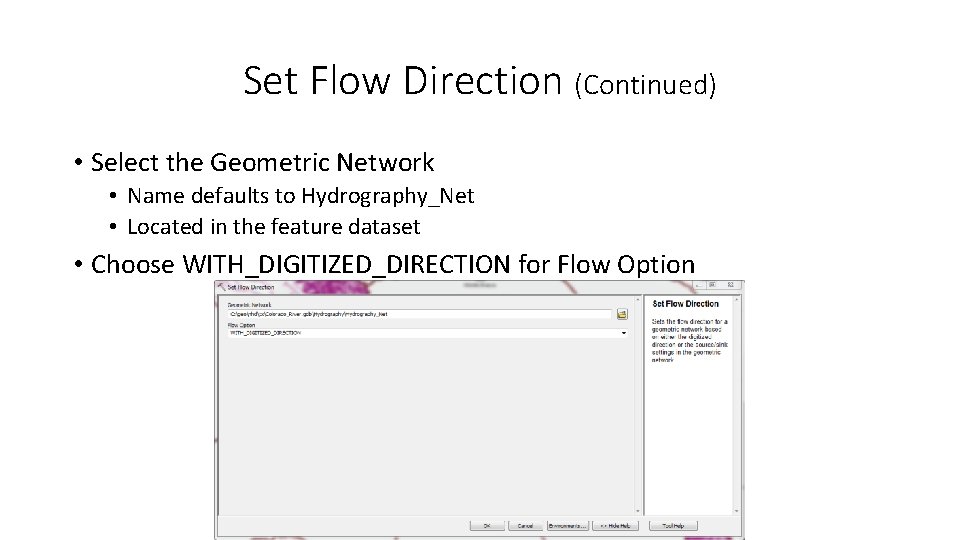
Set Flow Direction (Continued) • Select the Geometric Network • Name defaults to Hydrography_Net • Located in the feature dataset • Choose WITH_DIGITIZED_DIRECTION for Flow Option
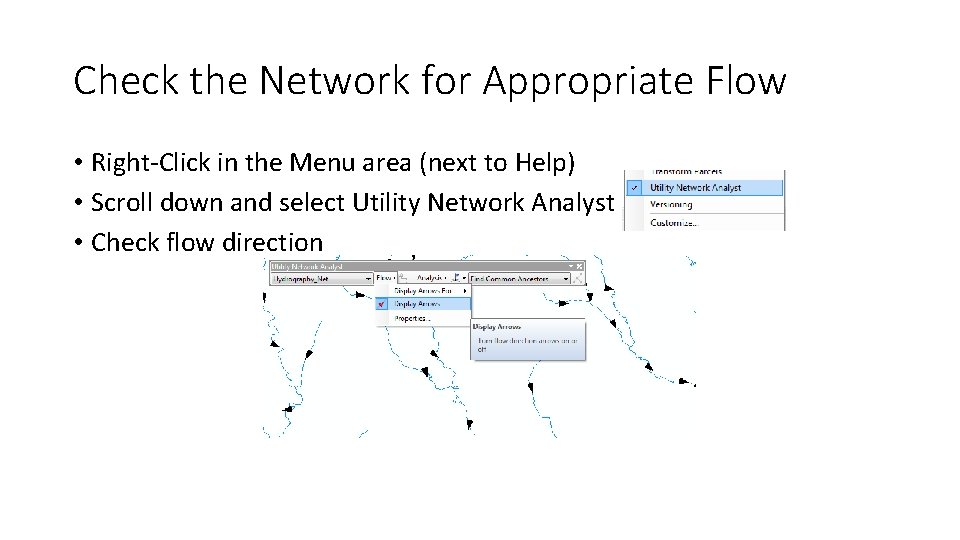
Check the Network for Appropriate Flow • Right-Click in the Menu area (next to Help) • Scroll down and select Utility Network Analyst • Check flow direction
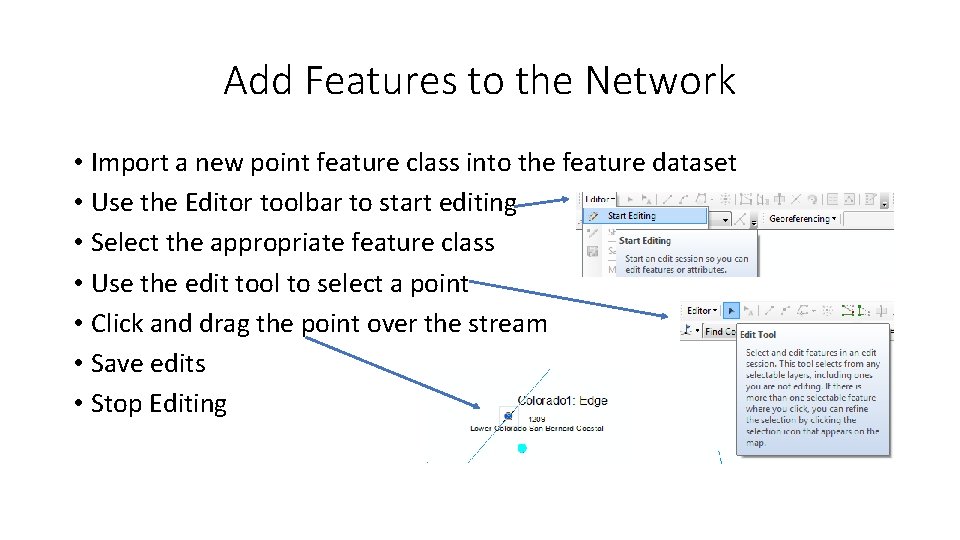
Add Features to the Network • Import a new point feature class into the feature dataset • Use the Editor toolbar to start editing • Select the appropriate feature class • Use the edit tool to select a point • Click and drag the point over the stream • Save edits • Stop Editing
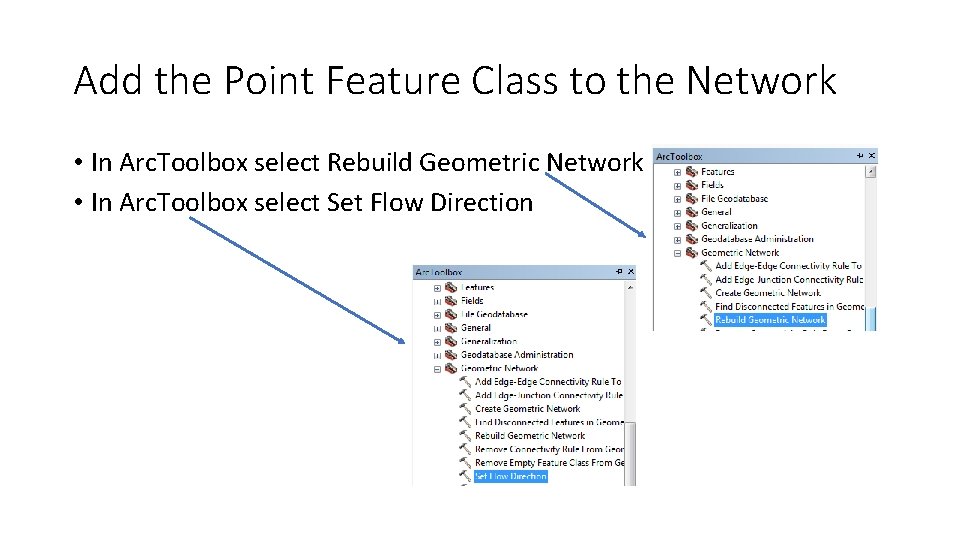
Add the Point Feature Class to the Network • In Arc. Toolbox select Rebuild Geometric Network • In Arc. Toolbox select Set Flow Direction
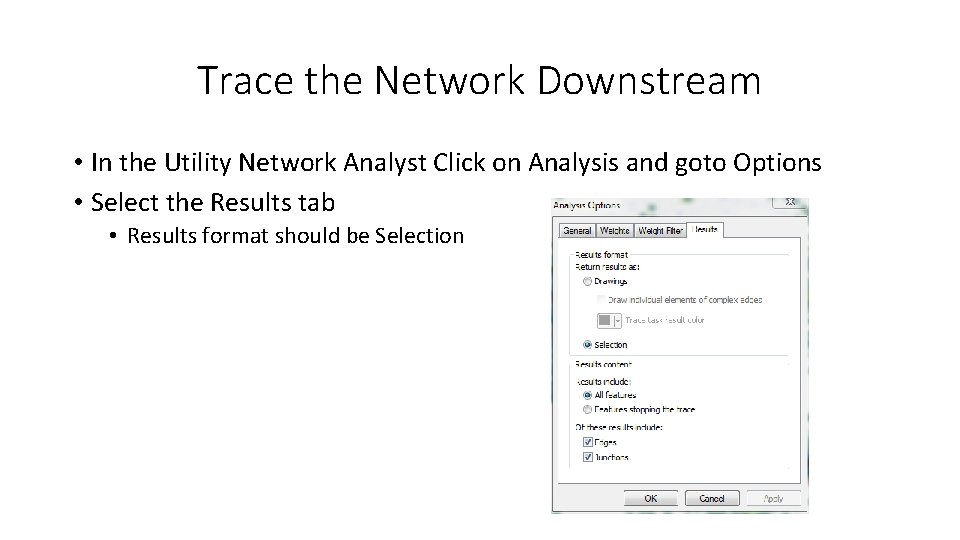
Trace the Network Downstream • In the Utility Network Analyst Click on Analysis and goto Options • Select the Results tab • Results format should be Selection
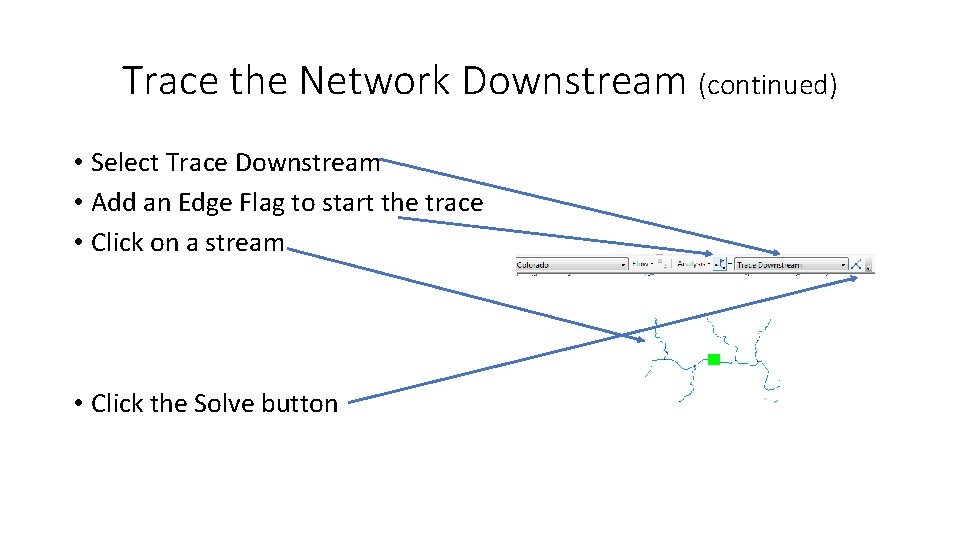
Trace the Network Downstream (continued) • Select Trace Downstream • Add an Edge Flag to start the trace • Click on a stream • Click the Solve button
Using the NHD to Query the Safe Drinking Water Information System (SDWIS) • SDWIS maintains Inventory, Compliance, Monitoring, and Enforcement information regarding Public Water Systems (PWS) • SDWIS is an Oracle-based relational database • We can access the tables using the ‘Add Database Connection’ tool in Arc. Catalog • Using location (Lat/Lon) data we in SDWIS we can map sources (intakes and wells) • Using SQL we can write code to retrieve location, source, PWS and contact information from SDWIS and add the data to Arc. Map
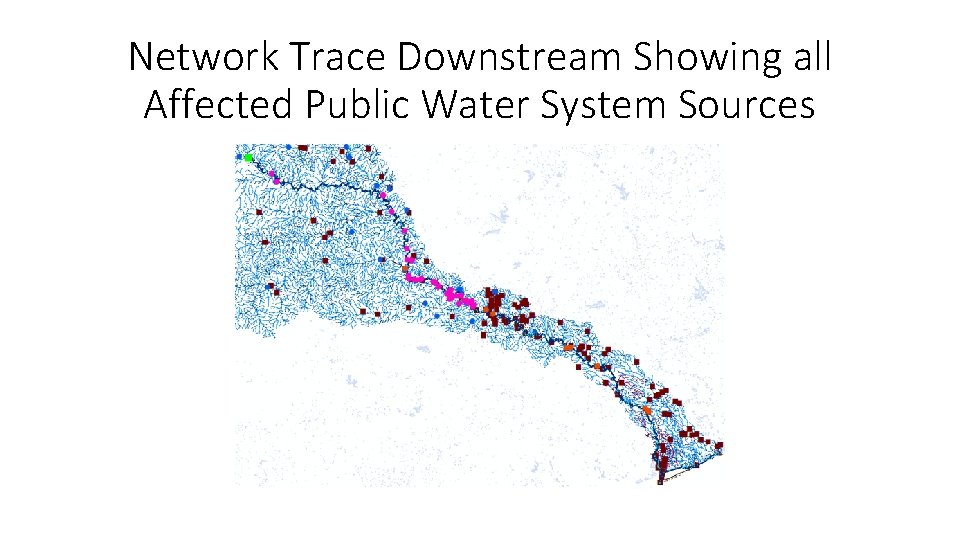
Network Trace Downstream Showing all Affected Public Water System Sources
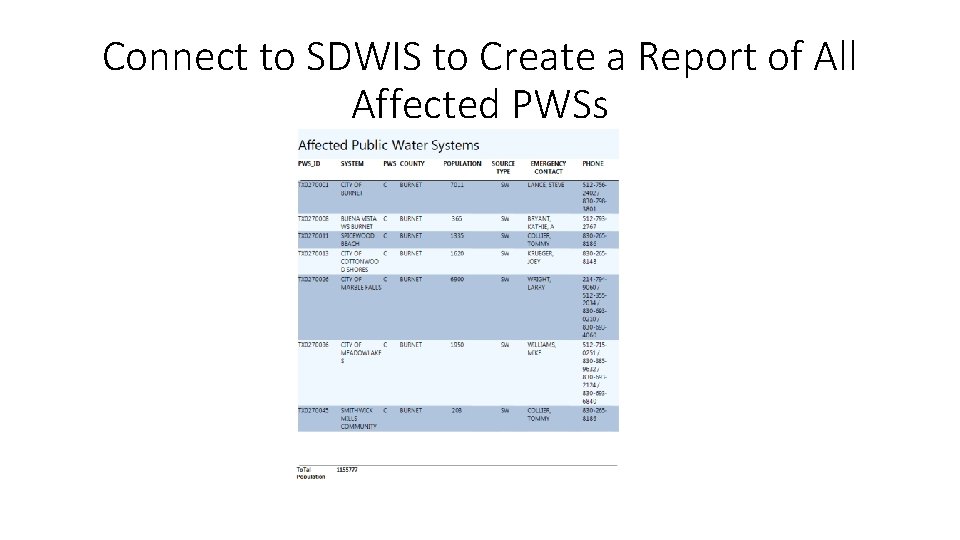
Connect to SDWIS to Create a Report of All Affected PWSs
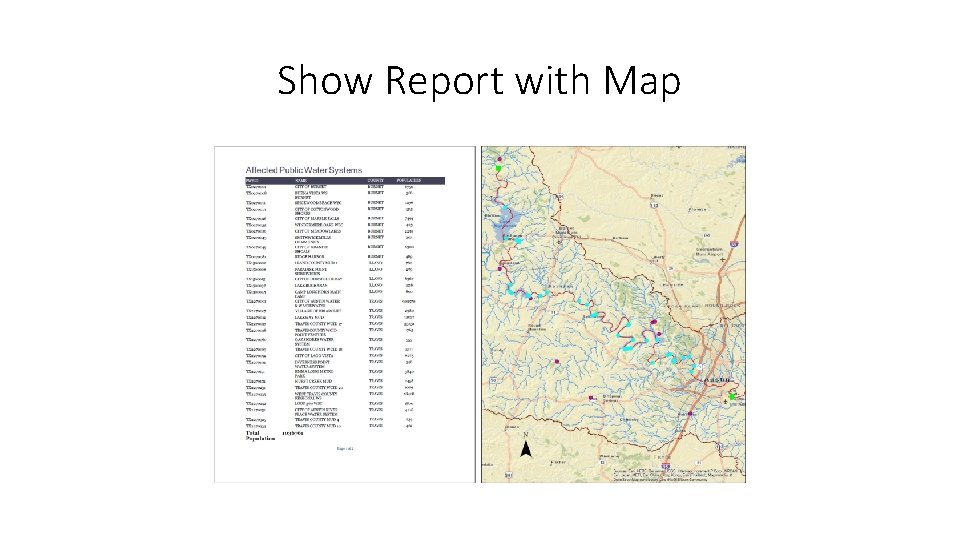
Show Report with Map
Questions • James. stapel@tceq. texas. gov