
Steps to creating 2 D drawings of assemblies
Steps to creating 2 D drawings of assemblies Solidworks Procedures JEM-171: Intro to CAD
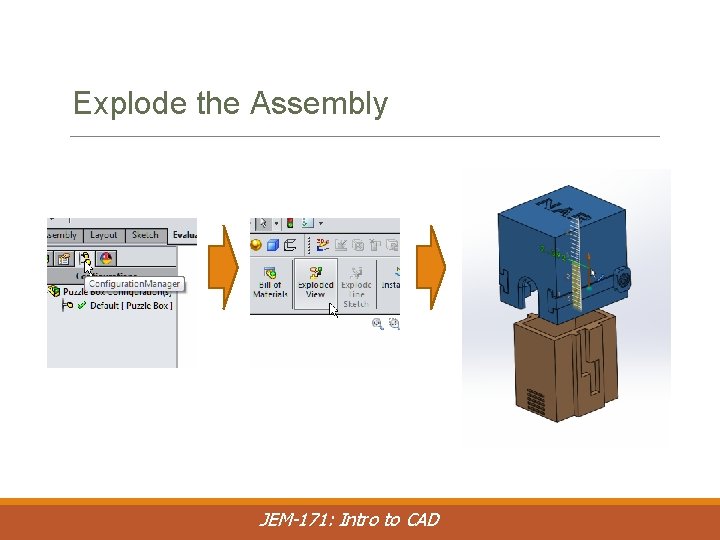
Explode the Assembly JEM-171: Intro to CAD
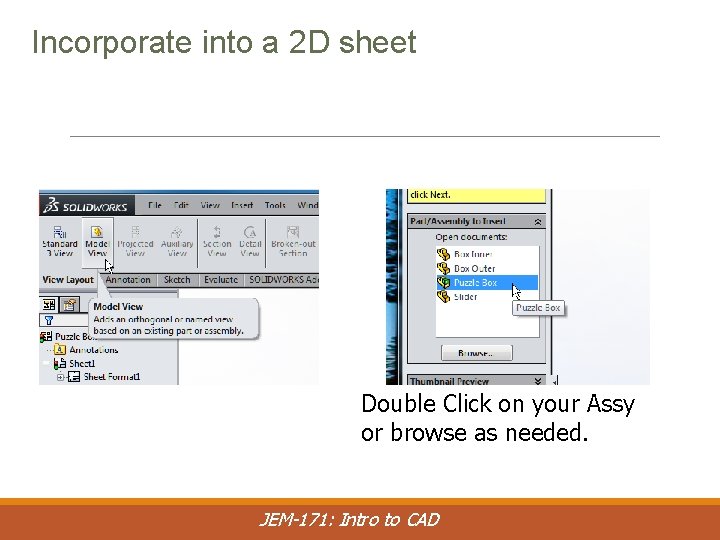
Incorporate into a 2 D sheet Double Click on your Assy or browse as needed. JEM-171: Intro to CAD
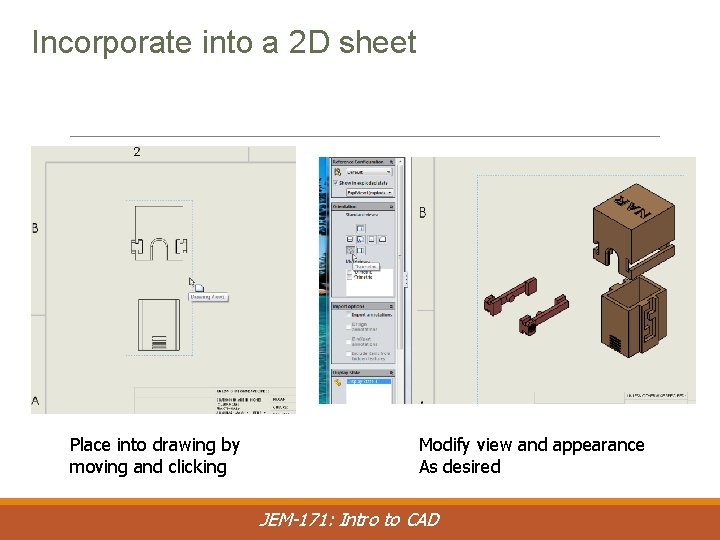
Incorporate into a 2 D sheet Place into drawing by moving and clicking Modify view and appearance As desired JEM-171: Intro to CAD

If your assembly comes in un-exploded. . . Right click on view and Select “Show in Exploded State” It will then appear exploded. You can reverse the process. . . JEM-171: Intro to CAD

Add a BOM (Bill of Materials) Click on a view and then select Insert-Tables-Bill of Materials JEM-171: Intro to CAD You can modify how the BOM will appear, then click OK
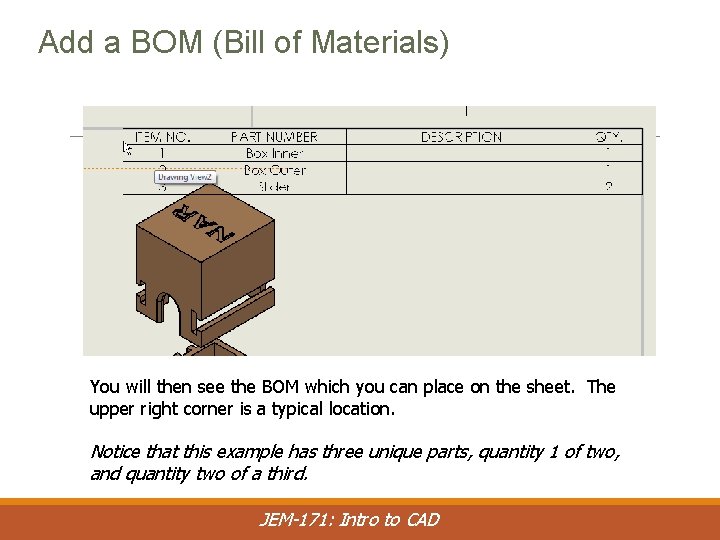
Add a BOM (Bill of Materials) You will then see the BOM which you can place on the sheet. The upper right corner is a typical location. Notice that this example has three unique parts, quantity 1 of two, and quantity two of a third. JEM-171: Intro to CAD
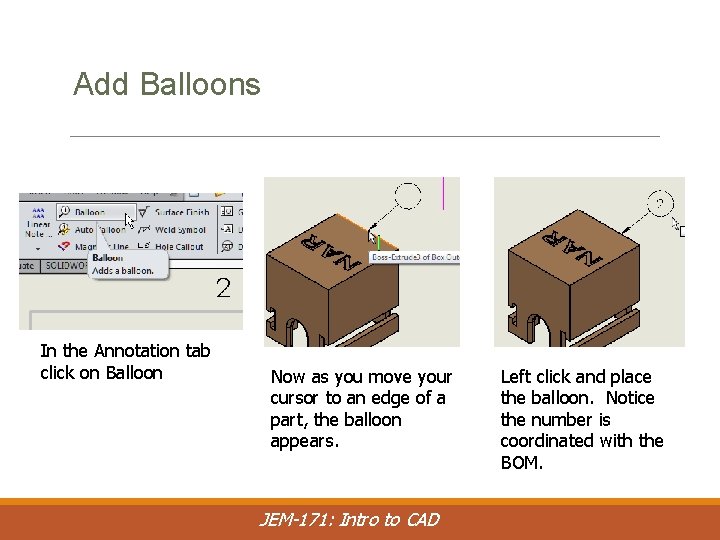
Add Balloons In the Annotation tab click on Balloon Now as you move your cursor to an edge of a part, the balloon appears. JEM-171: Intro to CAD Left click and place the balloon. Notice the number is coordinated with the BOM.
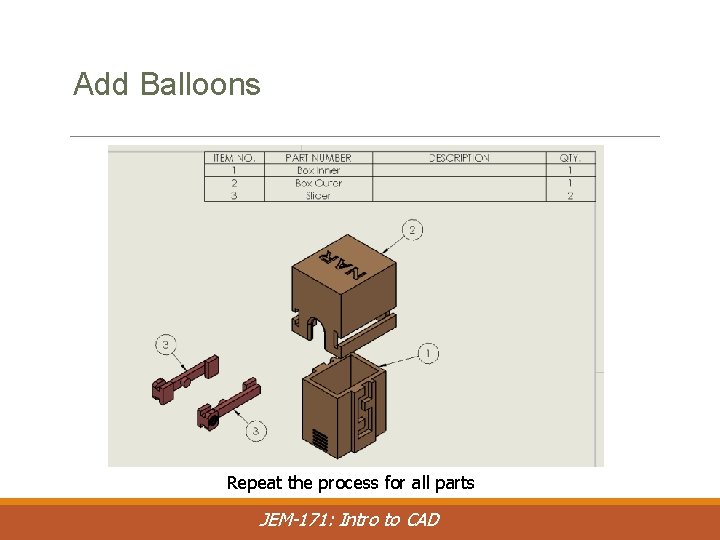
Add Balloons Repeat the process for all parts JEM-171: Intro to CAD
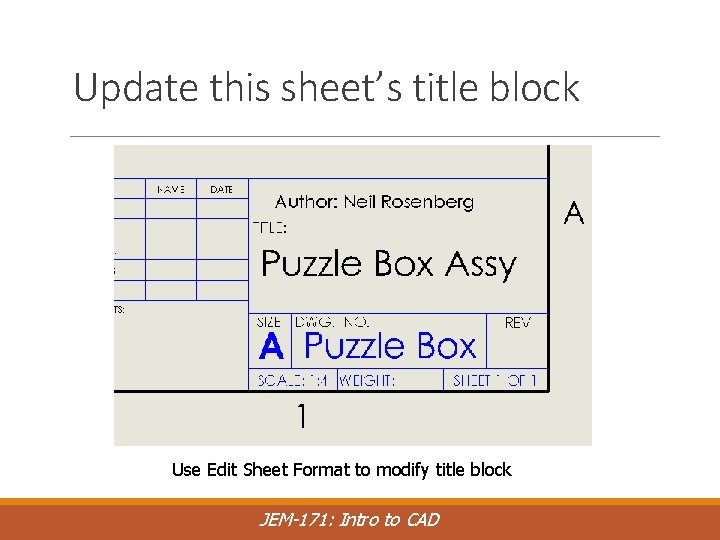
Update this sheet’s title block Use Edit Sheet Format to modify title block JEM-171: Intro to CAD
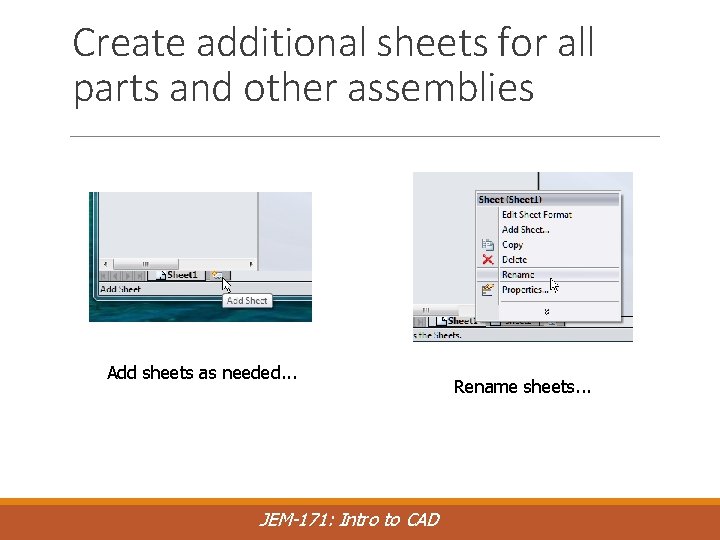
Create additional sheets for all parts and other assemblies Add sheets as needed. . . JEM-171: Intro to CAD Rename sheets. . .
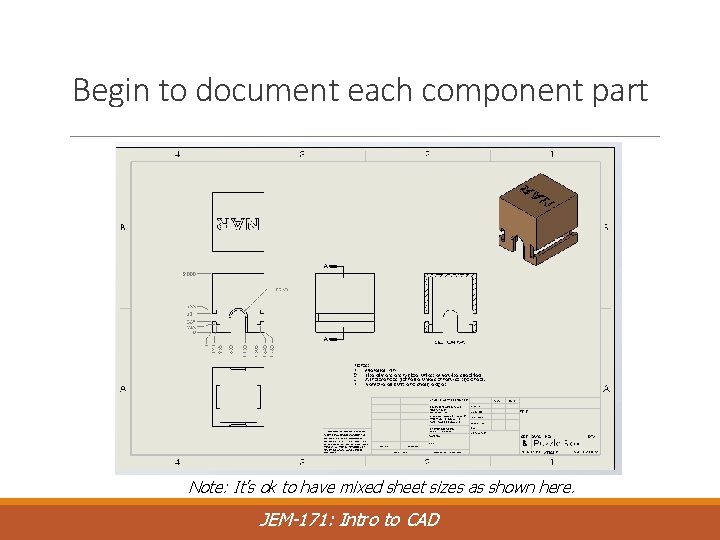
Begin to document each component part Note: It’s ok to have mixed sheet sizes as shown here. JEM-171: Intro to CAD
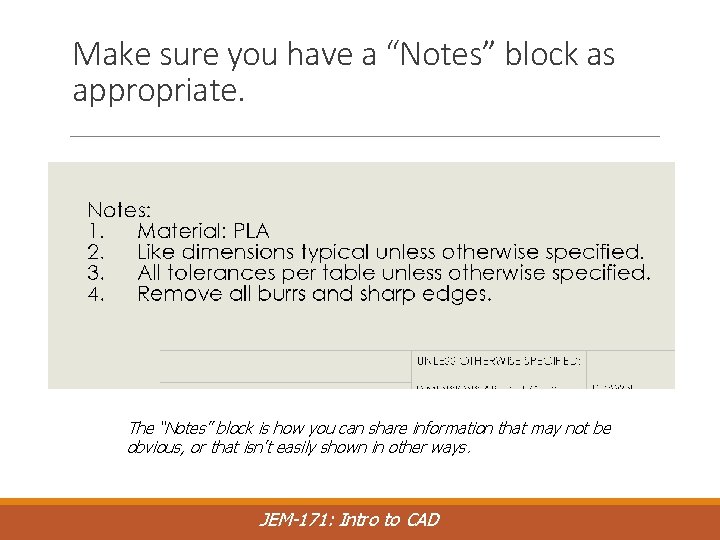
Make sure you have a “Notes” block as appropriate. The “Notes” block is how you can share information that may not be obvious, or that isn’t easily shown in other ways. JEM-171: Intro to CAD
- Slides: 13