
Steps to create CCO ID APAC Commercial Operations
- Slides: 11
Steps to create CCO ID APAC Commercial Operations 21 June 2011 © 2010 Cisco and/or its affiliates. All rights reserved. Cisco Confidential 1
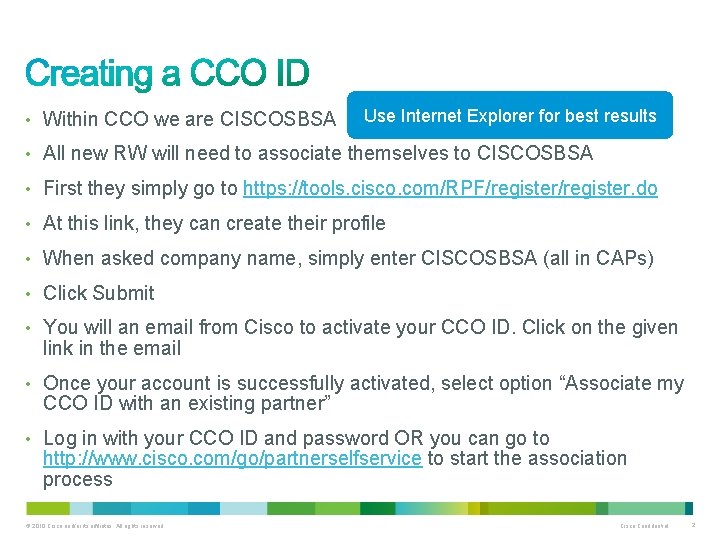
• Within CCO we are CISCOSBSA Use Internet Explorer for best results • All new RW will need to associate themselves to CISCOSBSA • First they simply go to https: //tools. cisco. com/RPF/register. do • At this link, they can create their profile • When asked company name, simply enter CISCOSBSA (all in CAPs) • Click Submit • You will an email from Cisco to activate your CCO ID. Click on the given link in the email • Once your account is successfully activated, select option “Associate my CCO ID with an existing partner” • Log in with your CCO ID and password OR you can go to http: //www. cisco. com/go/partnerselfservice to start the association process © 2010 Cisco and/or its affiliates. All rights reserved. Cisco Confidential 2
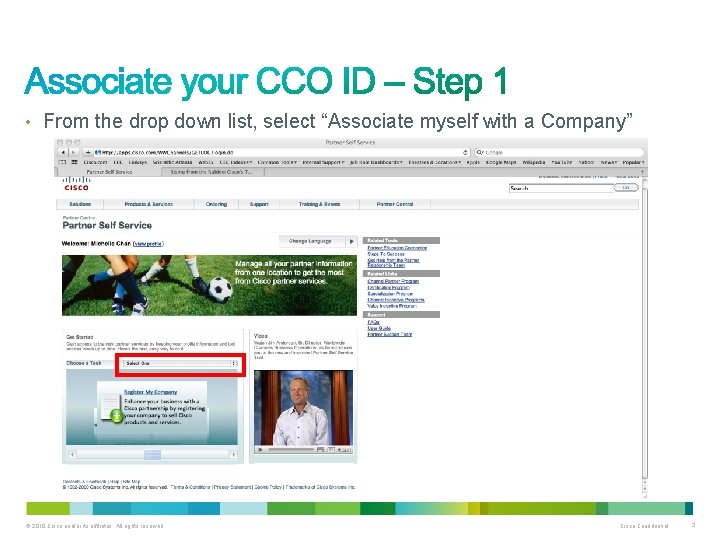
• From the drop down list, select “Associate myself with a Company” © 2010 Cisco and/or its affiliates. All rights reserved. Cisco Confidential 3
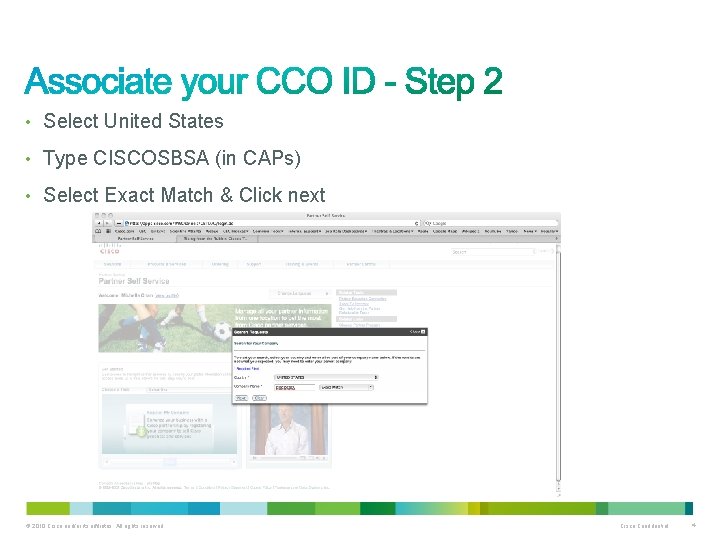
• Select United States • Type CISCOSBSA (in CAPs) • Select Exact Match & Click next © 2010 Cisco and/or its affiliates. All rights reserved. Cisco Confidential 4
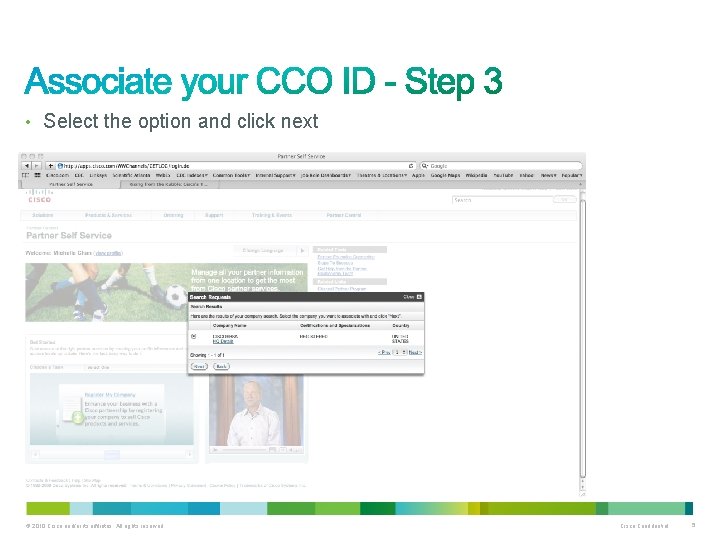
• Select the option and click next © 2010 Cisco and/or its affiliates. All rights reserved. Cisco Confidential 5
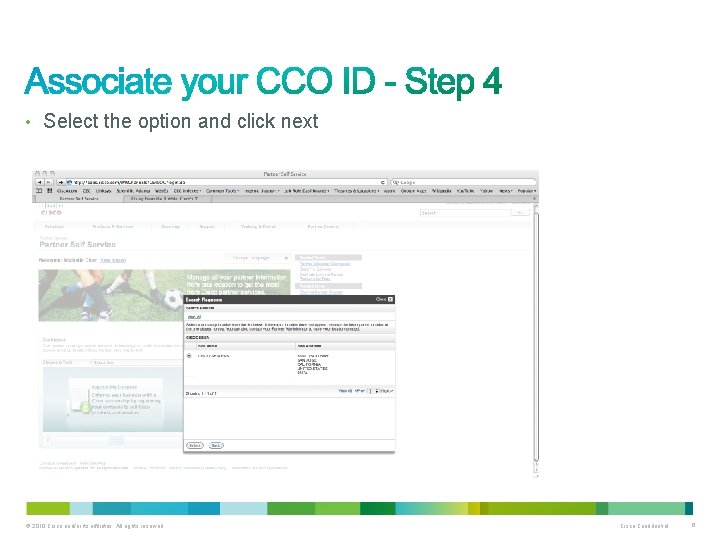
• Select the option and click next © 2010 Cisco and/or its affiliates. All rights reserved. Cisco Confidential 6
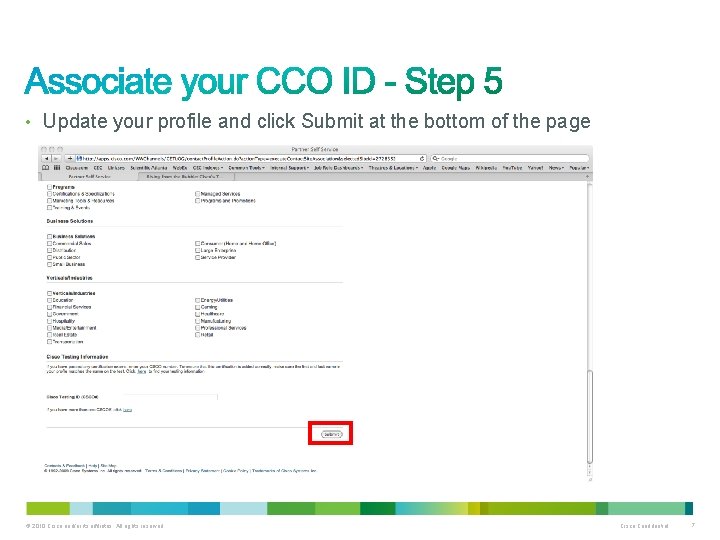
• Update your profile and click Submit at the bottom of the page © 2010 Cisco and/or its affiliates. All rights reserved. Cisco Confidential 7
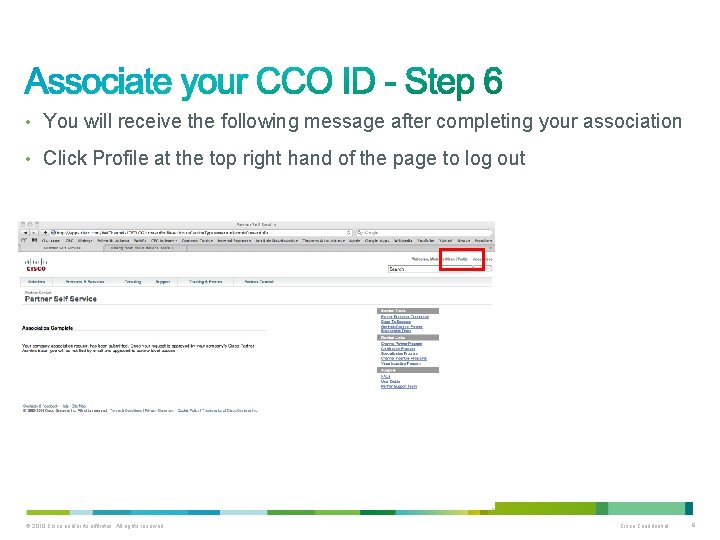
• You will receive the following message after completing your association • Click Profile at the top right hand of the page to log out © 2010 Cisco and/or its affiliates. All rights reserved. Cisco Confidential 8
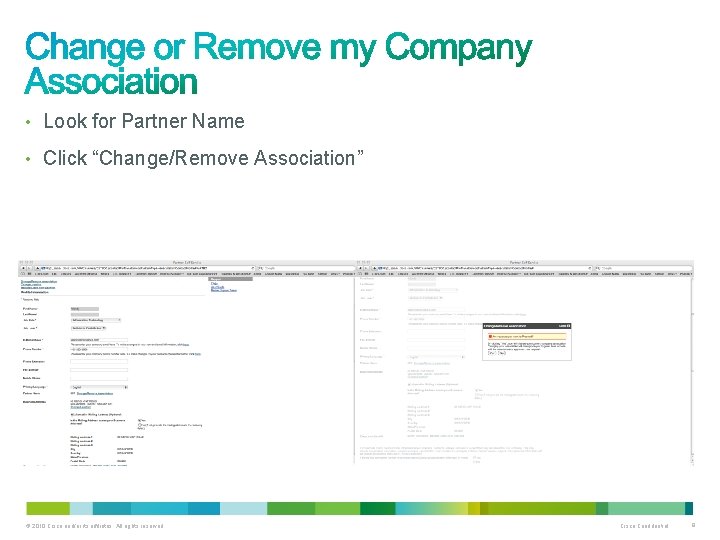
• Look for Partner Name • Click “Change/Remove Association” © 2010 Cisco and/or its affiliates. All rights reserved. Cisco Confidential 9
• https: //cisco. webex. com/ciscosales/lsr. php? AT=pb&SP=MC&r. ID=52564 332&r. Key=5352853185 ae 7 fc 8 CCO ID Association Walk Thru-20110621 0040 -1 Tuesday, June 21, 2011 8: 40 am Singapore Time 55 Minutes © 2010 Cisco and/or its affiliates. All rights reserved. Cisco Confidential 10
Thank you.