
Steps For Removal Of Red Eye In A
- Slides: 12
Steps For Removal Of Red Eye In A Photo Using Photoshop CS 4 Randy White ETAD 803 June 2015
Step 1: • Start Photoshop.
Step 2: • Open your photo with the redeye.
Step 3: • Choose the magnifying glass icon from the tool bar on the left side. • Hold your mouse button down and draw a box around the affected eye with red eye. This will zoom in on the red eye.
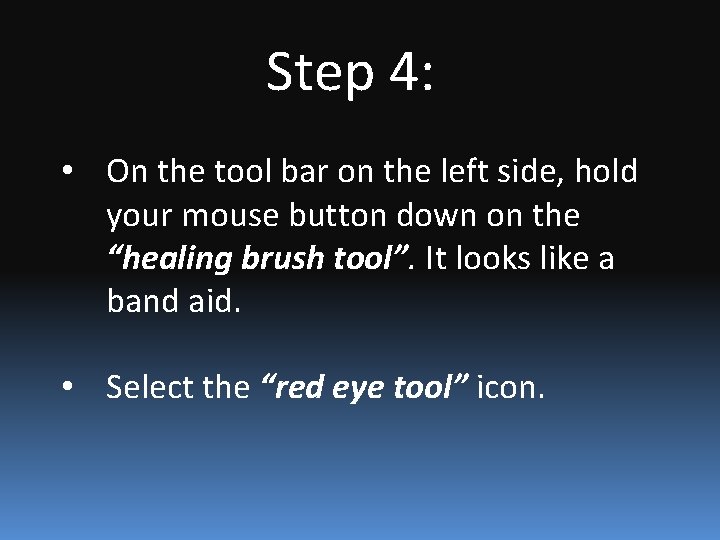
Step 4: • On the tool bar on the left side, hold your mouse button down on the “healing brush tool”. It looks like a band aid. • Select the “red eye tool” icon.
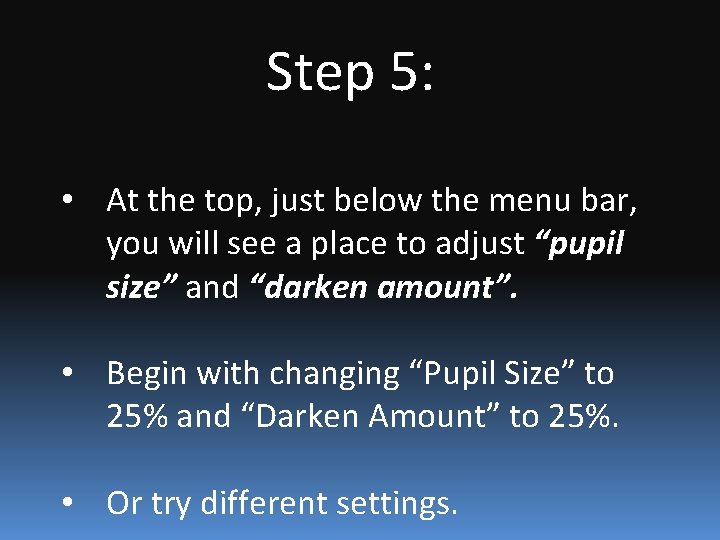
Step 5: • At the top, just below the menu bar, you will see a place to adjust “pupil size” and “darken amount”. • Begin with changing “Pupil Size” to 25% and “Darken Amount” to 25%. • Or try different settings.
Step 6: • Click your mouse on the affected eye.
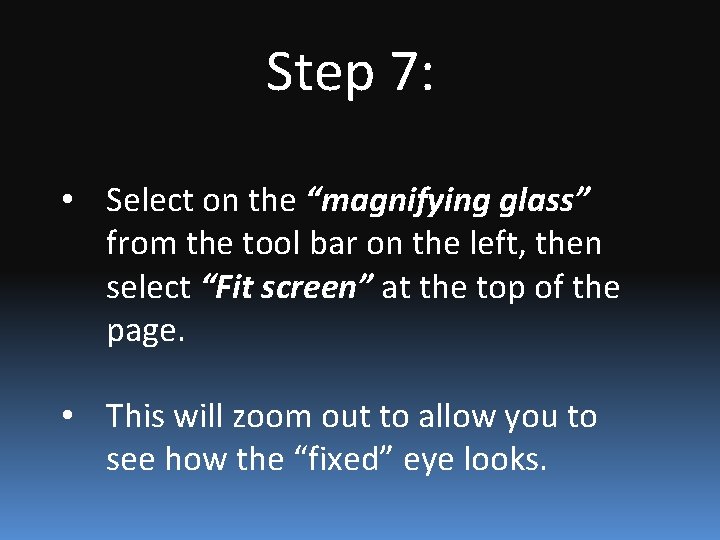
Step 7: • Select on the “magnifying glass” from the tool bar on the left, then select “Fit screen” at the top of the page. • This will zoom out to allow you to see how the “fixed” eye looks.
Step 8: • If you are unhappy with how the eye now looks, click on “Edit” on the top menu bar and then select “Undo”. • Return to step 3. • If happy, continue on to next step.
Step 9: • If you are happy with how the eye now looks, use the magnifying glass tool again and draw a box around the remaining red eye.
Step 10: • Select the “red eye tool” again from the tool bar on the left and click on the remaining affected eye. • Finally, click “File” and then “Save” to save your photo without red eye.
Congratulations • You have successfully eliminated red eye. • Please refer to this presentation any time you need to remove red eye.