
Step6 Select the Proper Interaction Devices Lecture9 Computer
- Slides: 21
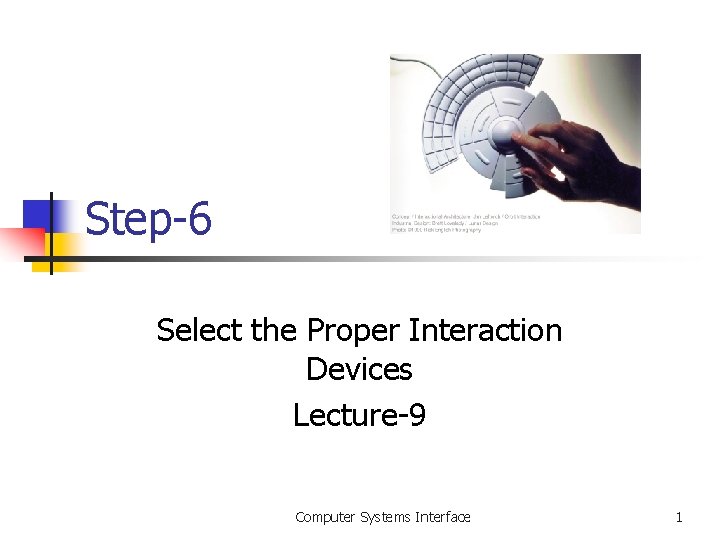
Step-6 Select the Proper Interaction Devices Lecture-9 Computer Systems Interface 1
Why is it important? n n n Selecting the proper device-based control to do the required job is critical to system success. A good fit b/w user & control will lead to fast, accurate performance. A poor fit will result in lower productivity, produce more errors, & increase user fatigue. Computer Systems Interface 2
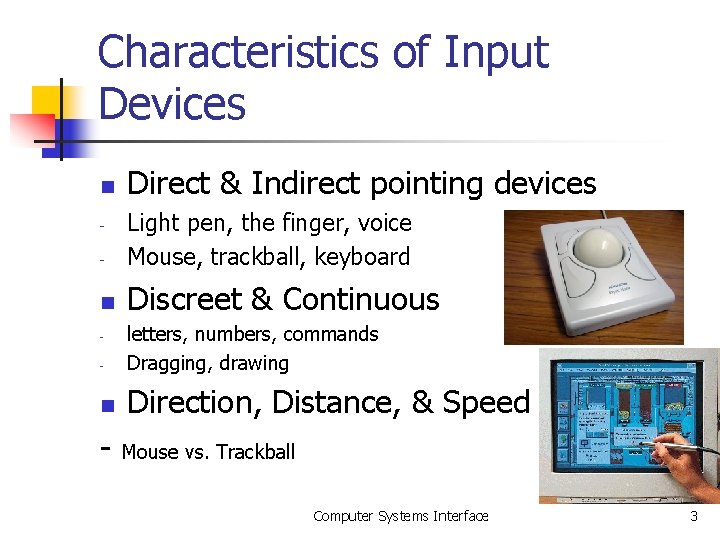
Characteristics of Input Devices n Direct & Indirect pointing devices - Light pen, the finger, voice Mouse, trackball, keyboard n Discreet & Continuous - - letters, numbers, commands Dragging, drawing n Direction, Distance, & Speed - Mouse vs. Trackball - Computer Systems Interface 3
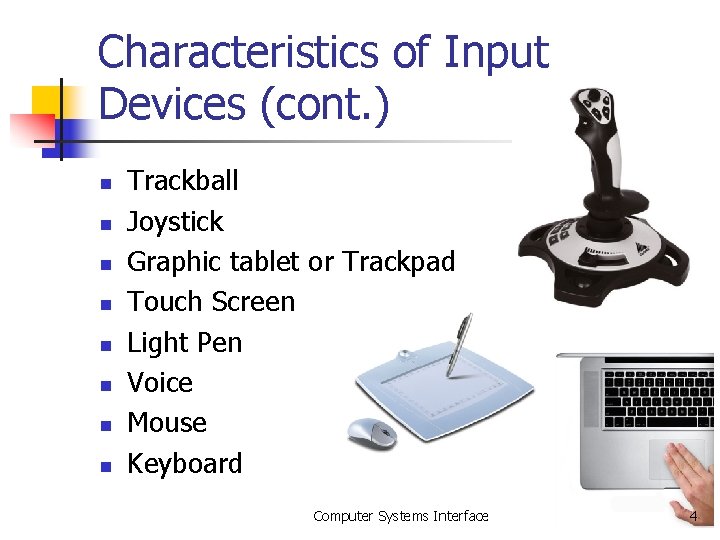
Characteristics of Input Devices (cont. ) n n n n Trackball Joystick Graphic tablet or Trackpad Touch Screen Light Pen Voice Mouse Keyboard Computer Systems Interface 4
Design Guidelines n Touch Screen - Screen objects >= 1. 9 x 1. 9 cm Object separation >= 0. 3 cm Visual, auditory feedback Instructional invitation n Mouse - - “hot zone” for small items Double-clicks as only means Computer Systems Interface 5
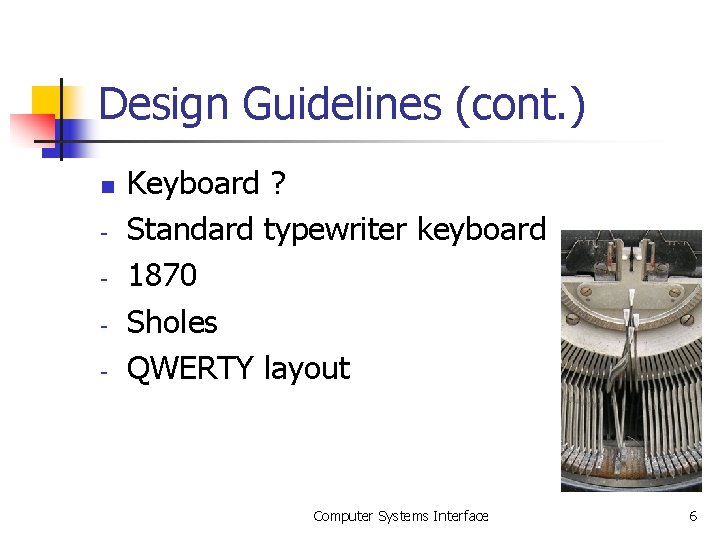
Design Guidelines (cont. ) n - Keyboard ? Standard typewriter keyboard 1870 Sholes QWERTY layout Computer Systems Interface 6
Design Guidelines (cont. ) n Provide keyboard accelerators (p. 435) - Single keys Standard platform (p. 337) Shift + key Ctrl + key n Provide keyboard equivalents - - n Standard platform (p. 335) First letter Provide window navigation through use of keyboard keys Computer Systems Interface 7
MAXIM n The greater the effort to accomplish a task, the less likely that the task will be accomplished successfully. Computer Systems Interface 8
Other Input Devices n n n Gesture Facial expression Eye tracking Iris & fingerprint recognition Handwriting Computer Systems Interface 9
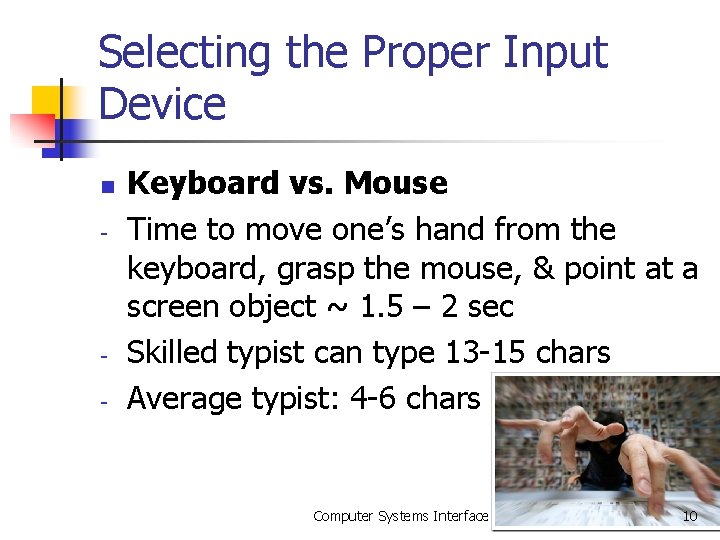
Selecting the Proper Input Device n - - Keyboard vs. Mouse Time to move one’s hand from the keyboard, grasp the mouse, & point at a screen object ~ 1. 5 – 2 sec Skilled typist can type 13 -15 chars Average typist: 4 -6 chars Computer Systems Interface 10
Selecting the Proper Input Device (cont. ) Control Research (p. 436) n n Direct pointing devices fastest for pointing at stationary targets Mouse, trackball, graphic tablet – same in positioning speed & accuracy. Joystick – slowest. Tracking small, slowly moving targets? Pointing & dragging: graphic tablet, mouse, trackball? Computer Systems Interface 11
Guidelines for Selecting the Proper Input Device n - Consider the characteristics of the task Provide keyboard for tasks involving - heavy text entry & manipulation - movement through structured arrays - Provide an alternative pointing device for graphical or drawing tasks. Computer Systems Interface 12
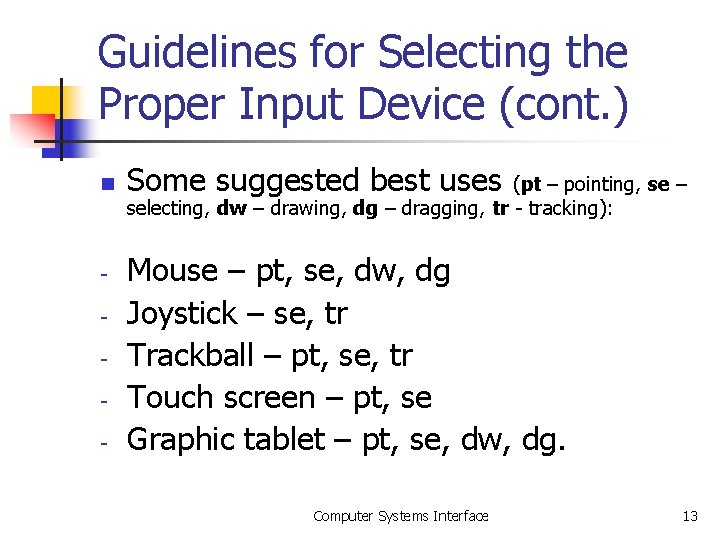
Guidelines for Selecting the Proper Input Device (cont. ) n - Some suggested best uses (pt – pointing, se – selecting, dw – drawing, dg – dragging, tr - tracking): Mouse – pt, se, dw, dg Joystick – se, tr Trackball – pt, se, tr Touch screen – pt, se Graphic tablet – pt, se, dw, dg. Computer Systems Interface 13
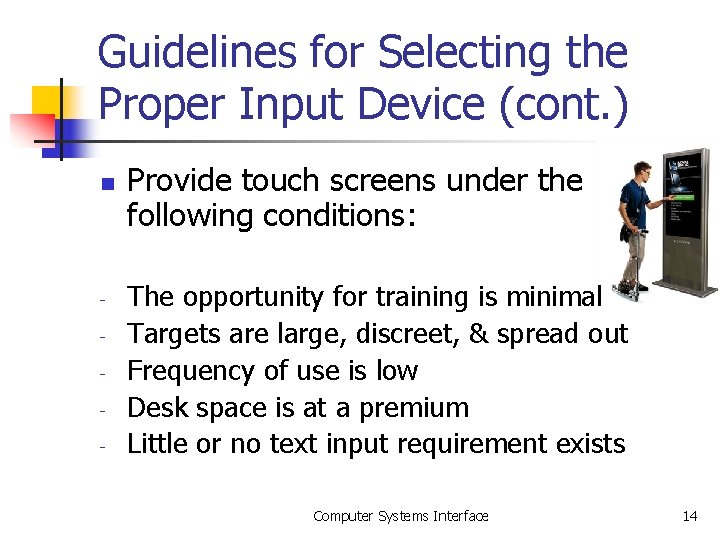
Guidelines for Selecting the Proper Input Device (cont. ) n - Provide touch screens under the following conditions: The opportunity for training is minimal Targets are large, discreet, & spread out Frequency of use is low Desk space is at a premium Little or no text input requirement exists Computer Systems Interface 14
Guidelines for Selecting the Proper Input Device (cont. ) Consider the characteristics of the: n Users & their preferences - n n n Provide keyboards for touch typists Environment Hardware Device in relation to the application Provide flexibility Minimize eye & hand movements bw devices Computer Systems Interface 15
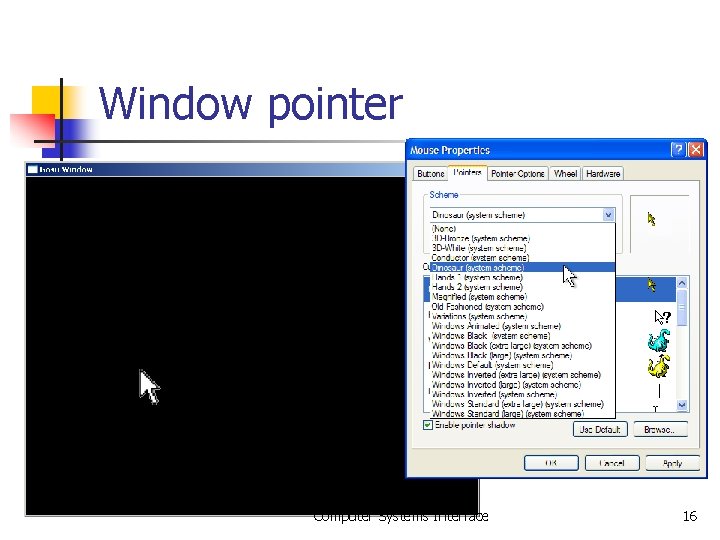
Window pointer Computer Systems Interface 16
Pointer Guidelines n - - The pointer Should be visible at all times Should contrast well with its background Should maintain its size across all screen locations & during movement The hotspot should be easy to locate & see Location should not warp (change position) Computer Systems Interface 17
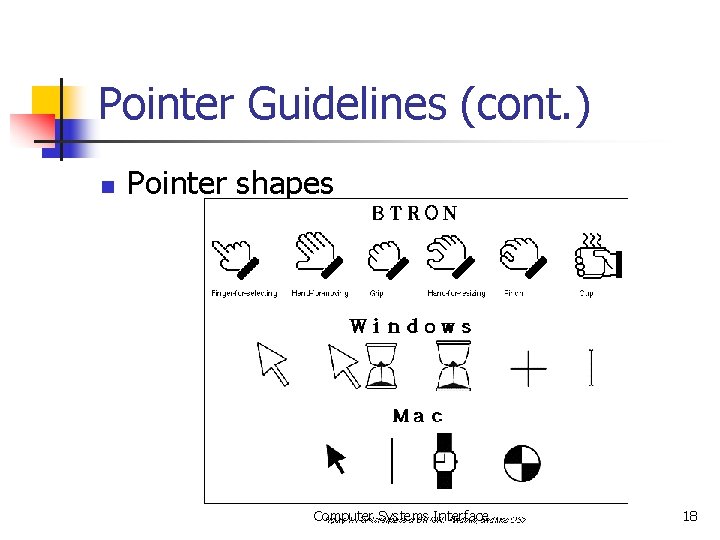
Pointer Guidelines (cont. ) n Pointer shapes Computer Systems Interface 18
Pointer Guidelines (cont. ) n - - The shape of a pointer Should clearly indicate its purpose & meaning Should be constructed of already defined shapes Should not be used for any purpose other than its already defined meaning Do not create new shapes for already defined standard functions Computer Systems Interface 19
Output Devices Screens - image, colors, size, portability, usage n Speakers n Computer Systems Interface 20
Q/A n Why proper device selection is so important? Computer Systems Interface 21