
Step by step settings to build a MOHID
Step by step settings to build a MOHID project
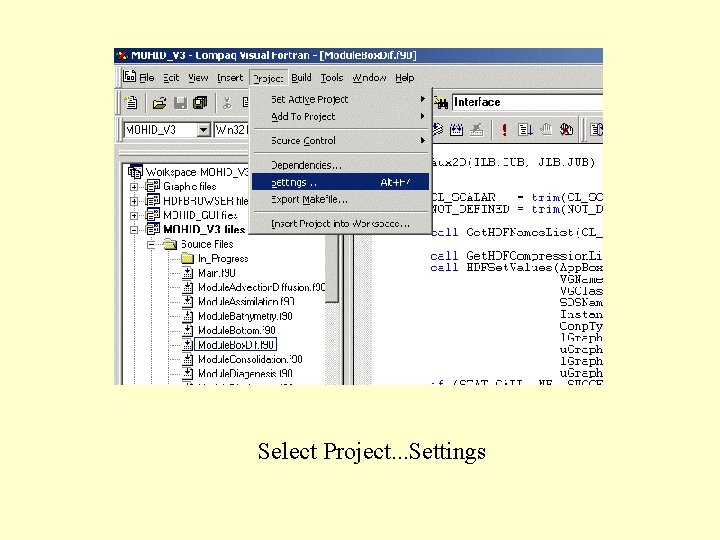
Select Project. . . Settings
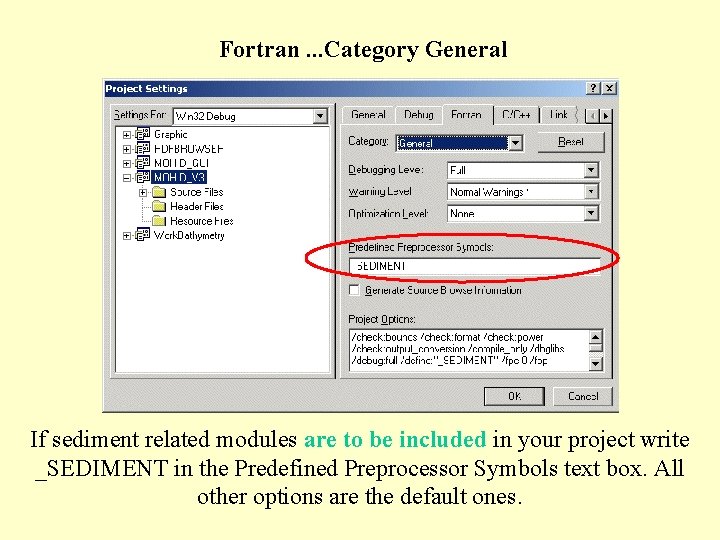
Fortran. . . Category General If sediment related modules are to be included in your project write _SEDIMENT in the Predefined Preprocessor Symbols text box. All other options are the default ones.
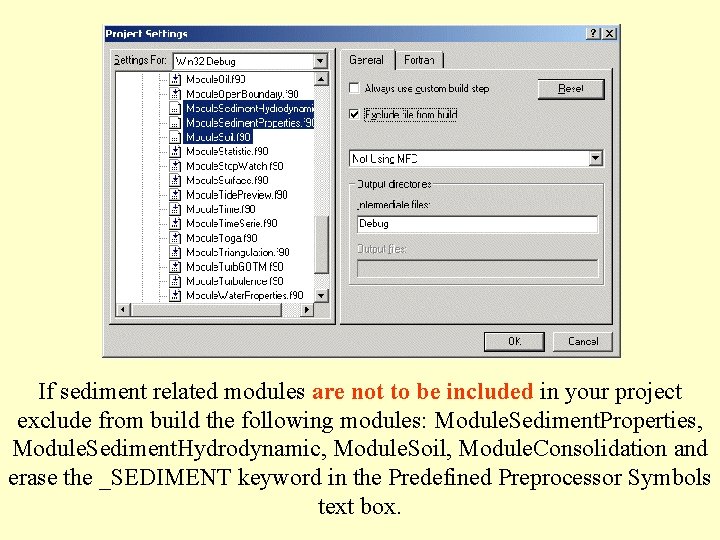
If sediment related modules are not to be included in your project exclude from build the following modules: Module. Sediment. Properties, Module. Sediment. Hydrodynamic, Module. Soil, Module. Consolidation and erase the _SEDIMENT keyword in the Predefined Preprocessor Symbols text box.

Fortran. . . Category Compilation Diagnostics Select all check boxes (Argument Mismatch, Data Alignment, . . . ) Select in Fortran Standard Checking: Fortran 95
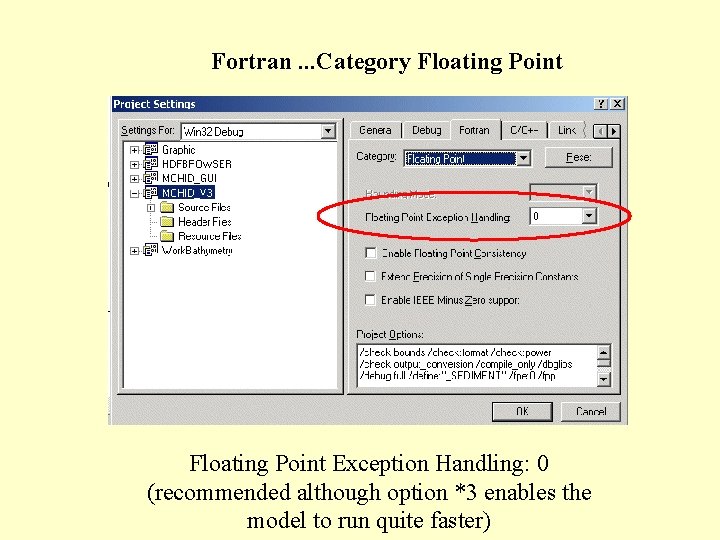
Fortran. . . Category Floating Point Exception Handling: 0 (recommended although option *3 enables the model to run quite faster)
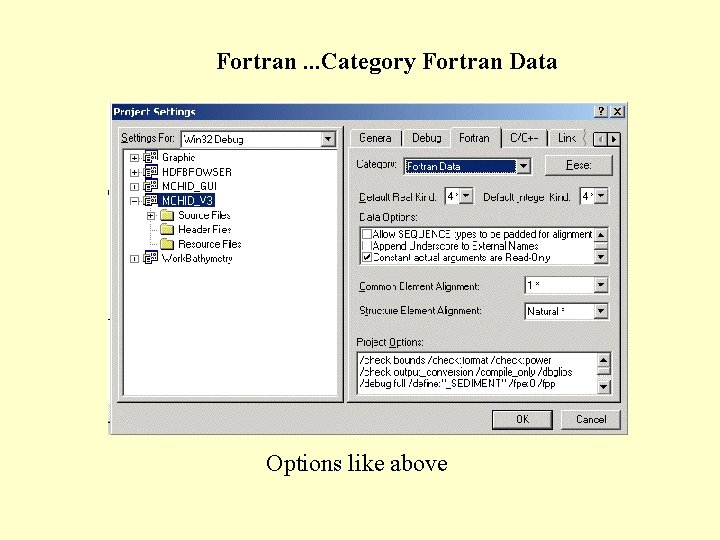
Fortran. . . Category Fortran Data Options like above
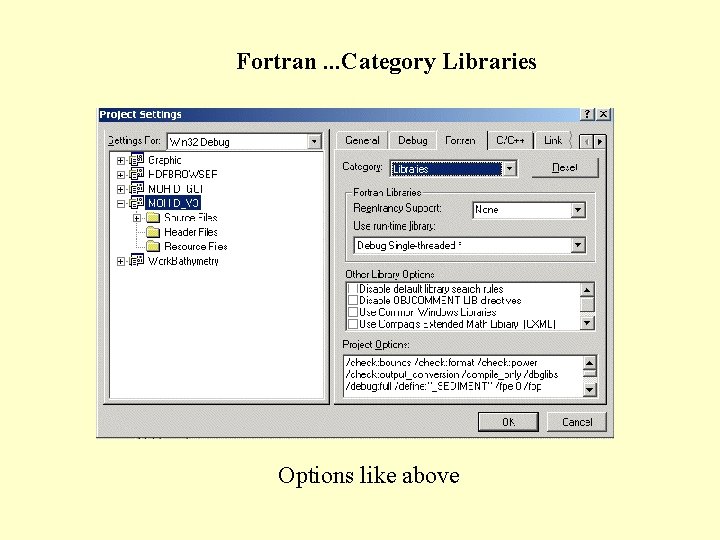
Fortran. . . Category Libraries Options like above
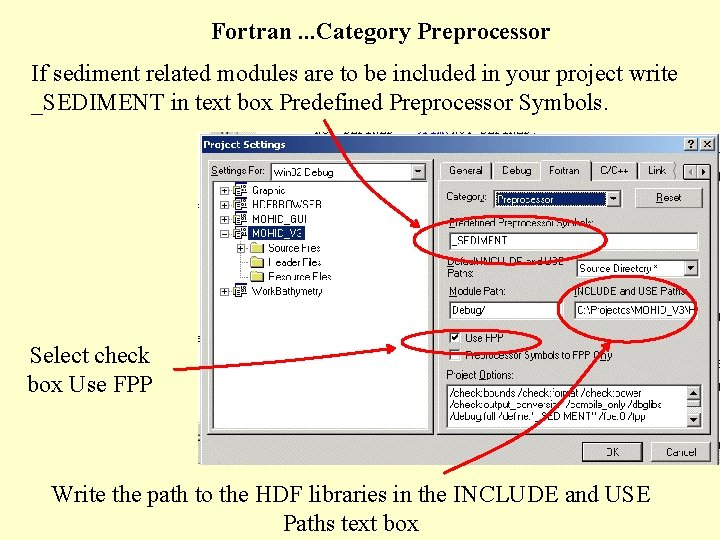
Fortran. . . Category Preprocessor If sediment related modules are to be included in your project write _SEDIMENT in text box Predefined Preprocessor Symbols. Select check box Use FPP Write the path to the HDF libraries in the INCLUDE and USE Paths text box
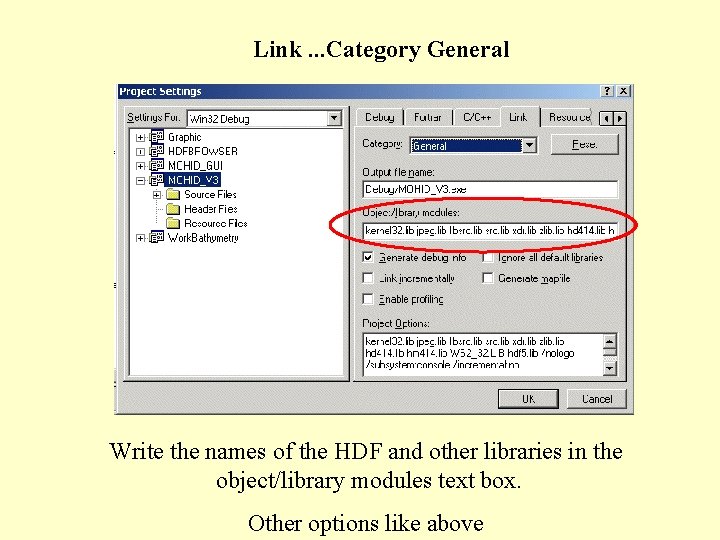
Link. . . Category General Write the names of the HDF and other libraries in the object/library modules text box. Other options like above
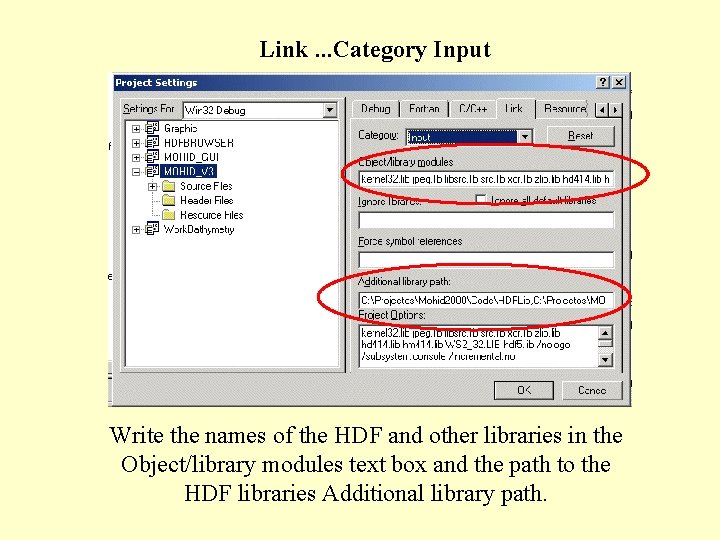
Link. . . Category Input Write the names of the HDF and other libraries in the Object/library modules text box and the path to the HDF libraries Additional library path.
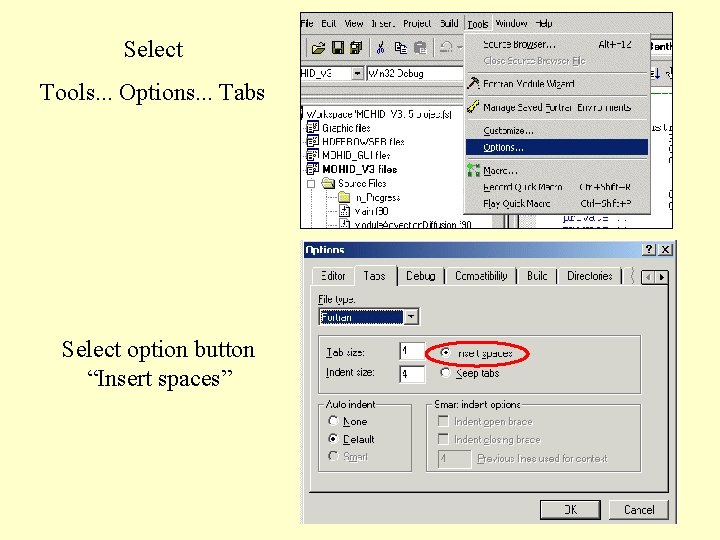
Select Tools. . . Options. . . Tabs Select option button “Insert spaces”
- Slides: 12