
Step by step guide for using the EPC
Step by step guide for using the EPC Tool e. Central / North-West Croatia Regional Energy Agency – REGEA / Hrvoje Maras & Milka Hrbud
HOW THE TOOL WORKS AND FOR WHOM n. ZEB calculation tool is based on seasonal method of 13790 which is currently in use in some EU countries • Predefined values are used to simplify the process of data input and NZEB estimation • Primary target group are public authorities as potential users of the tool …. Although not a primary target group- architects/engineers can use this tool as well • Beside in English, tutorials are available in SLO, HUN, IT, CRO • TAKING COOPERATION FORWARD 2
Introduction Data input Data output TAKING COOPERATION FORWARD 3
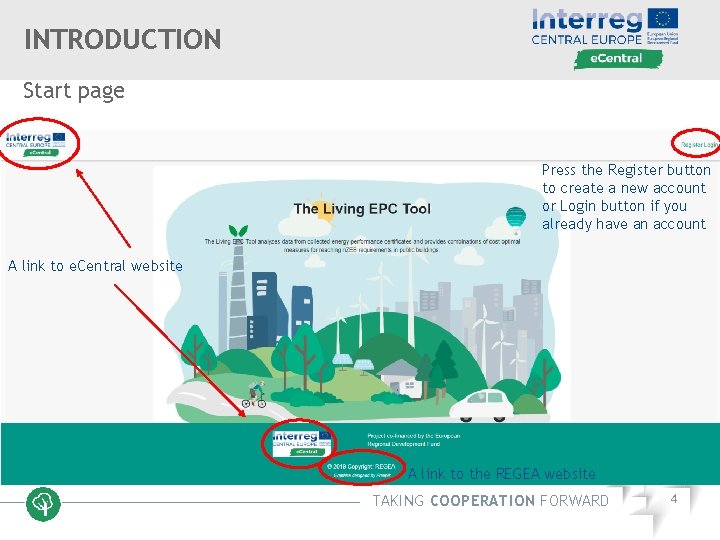
INTRODUCTION Start page Press the Register button to create a new account or Login button if you already have an account A link to e. Central website A link to the REGEA website TAKING COOPERATION FORWARD 4
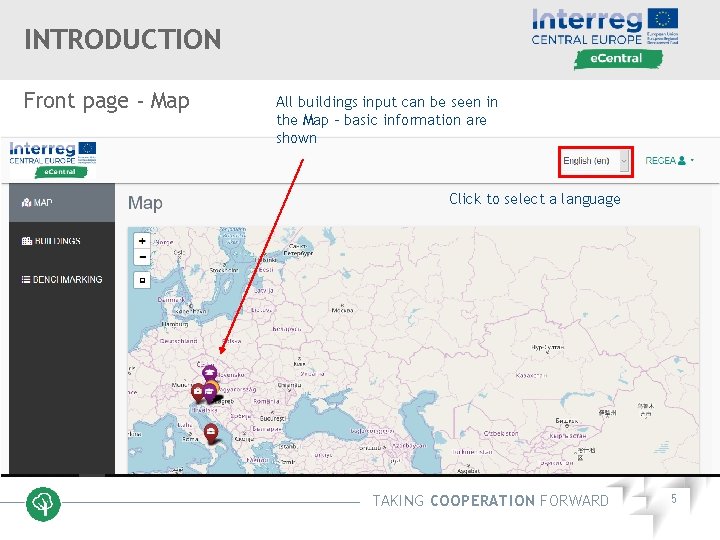
INTRODUCTION Front page - Map All buildings input can be seen in the Map – basic information are shown Click to select a language TAKING COOPERATION FORWARD 5
Introduction Data input Data output TAKING COOPERATION FORWARD 6
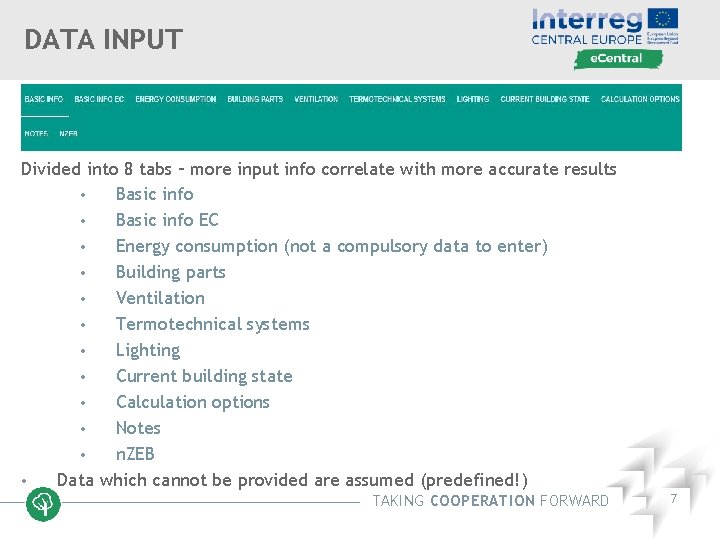
DATA INPUT Divided into 8 tabs – more input info correlate with more accurate results • Basic info EC • Energy consumption (not a compulsory data to enter) • Building parts • Ventilation • Termotechnical systems • Lighting • Current building state • Calculation options • Notes • n. ZEB • Data which cannot be provided are assumed (predefined!) TAKING COOPERATION FORWARD 7
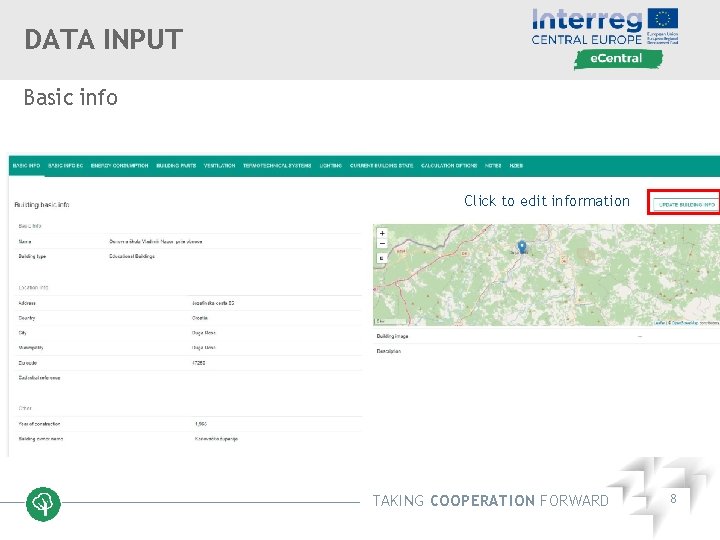
DATA INPUT Basic info Click to edit information TAKING COOPERATION FORWARD 8
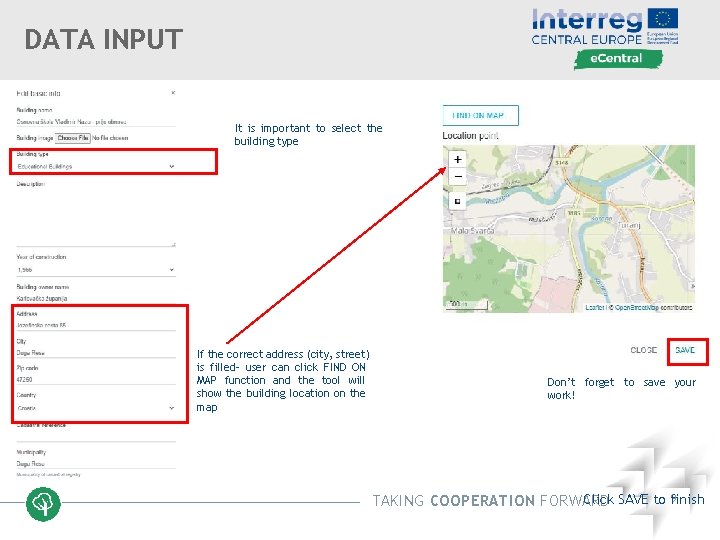
DATA INPUT It is important to select the building type If the correct address (city, street) is filled- user can click FIND ON MAP function and the tool will show the building location on the map Don’t forget to save your work! 9 Click SAVE to finish TAKING COOPERATION FORWARD
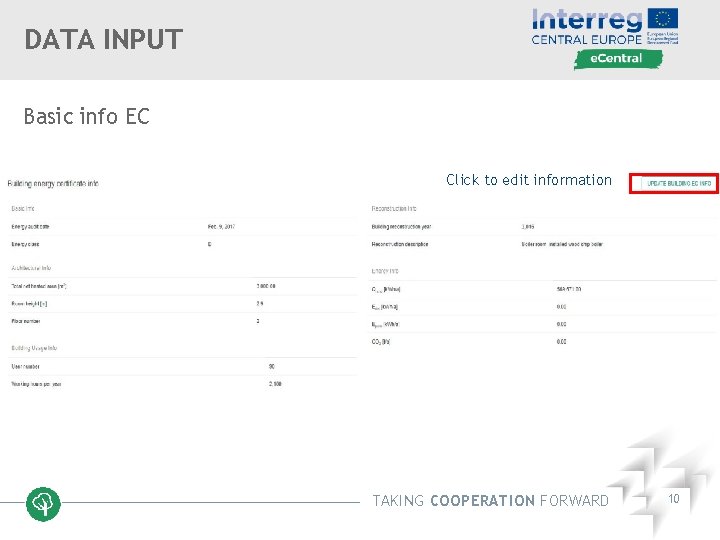
DATA INPUT Basic info EC Click to edit information TAKING COOPERATION FORWARD 10
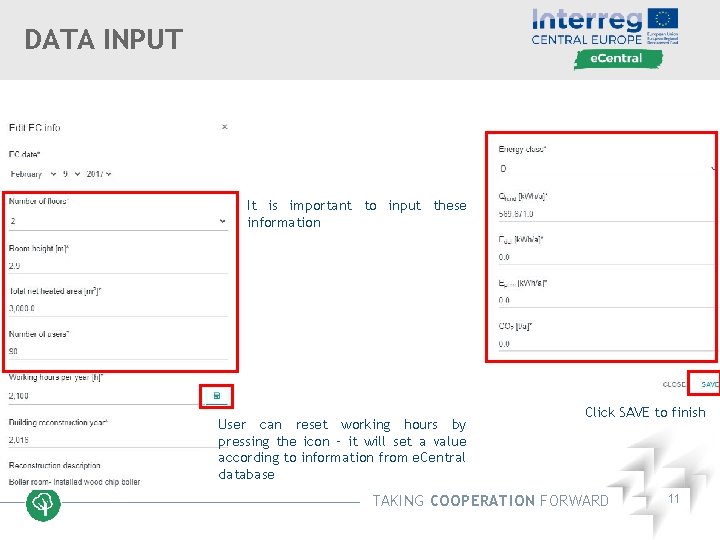
DATA INPUT It is important to input these information User can reset working hours by pressing the icon – it will set a value according to information from e. Central database Click SAVE to finish TAKING COOPERATION FORWARD 11
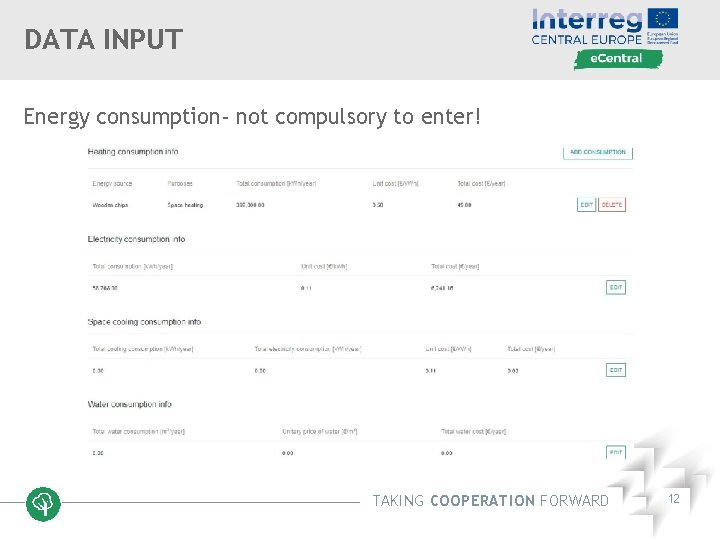
DATA INPUT Energy consumption- not compulsory to enter! TAKING COOPERATION FORWARD 12
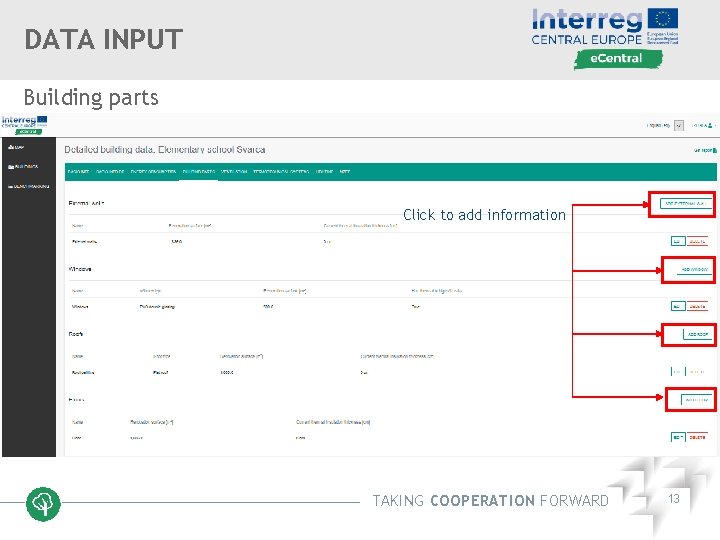
DATA INPUT Building parts Click to add information TAKING COOPERATION FORWARD 13
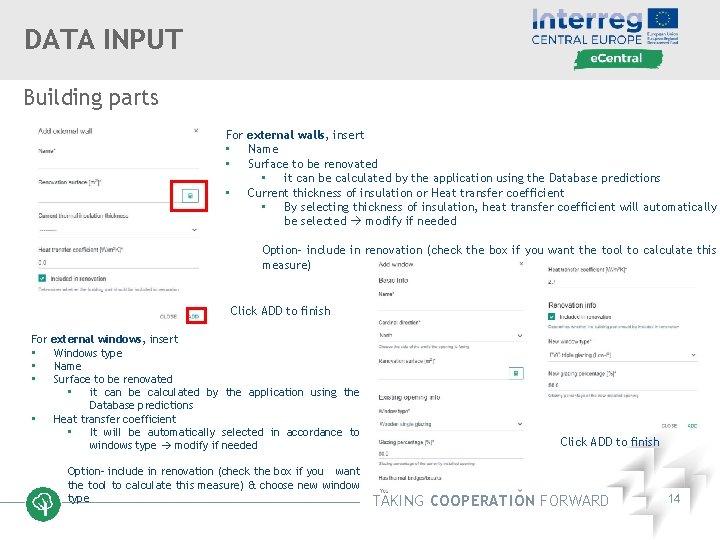
DATA INPUT Building parts For external walls, insert • Name • Surface to be renovated • it can be calculated by the application using the Database predictions • Current thickness of insulation or Heat transfer coefficient • By selecting thickness of insulation, heat transfer coefficient will automatically be selected modify if needed Option- include in renovation (check the box if you want the tool to calculate this measure) Click ADD to finish For • • external windows, insert Windows type Name Surface to be renovated • it can be calculated by the application using the Database predictions Heat transfer coefficient • It will be automatically selected in accordance to windows type modify if needed Option- include in renovation (check the box if you want the tool to calculate this measure) & choose new window type Click ADD to finish TAKING COOPERATION FORWARD 14
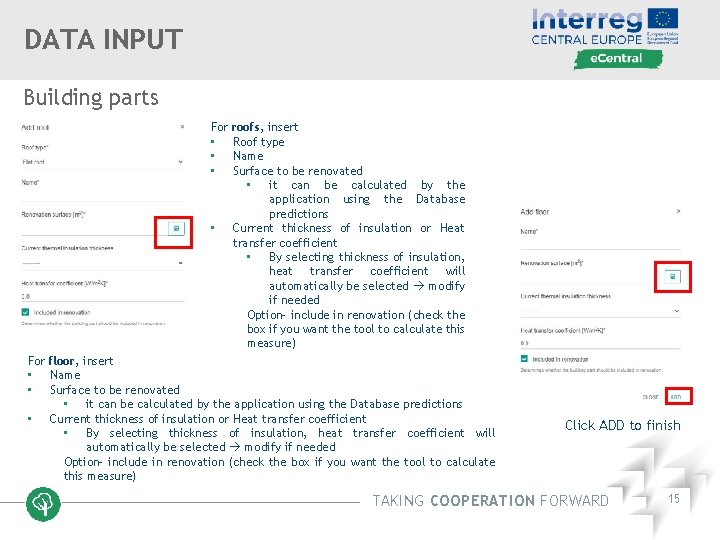
DATA INPUT Building parts For • • roofs, insert Roof type Name Surface to be renovated • it can be calculated by the application using the Database predictions Current thickness of insulation or Heat transfer coefficient • By selecting thickness of insulation, heat transfer coefficient will automatically be selected modify if needed Option- include in renovation (check the box if you want the tool to calculate this measure) For floor, insert • Name • Surface to be renovated • it can be calculated by the application using the Database predictions • Current thickness of insulation or Heat transfer coefficient • By selecting thickness of insulation, heat transfer coefficient will automatically be selected modify if needed Option- include in renovation (check the box if you want the tool to calculate this measure) Click ADD to finish TAKING COOPERATION FORWARD 15
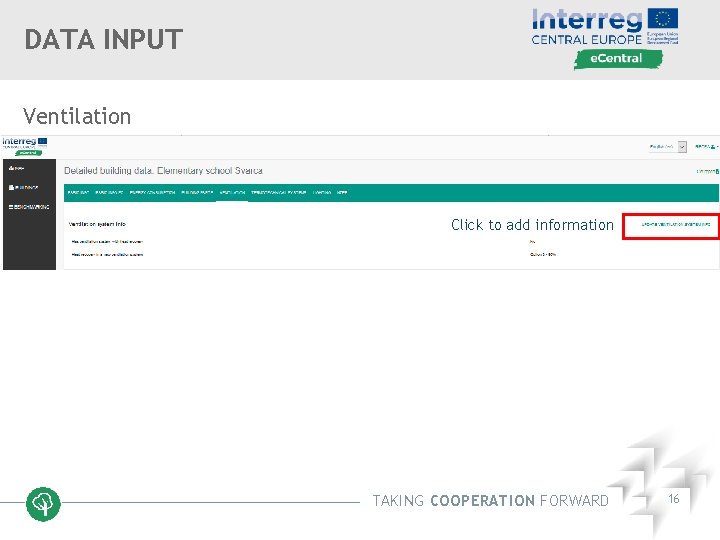
DATA INPUT Ventilation Click to add information TAKING COOPERATION FORWARD 16
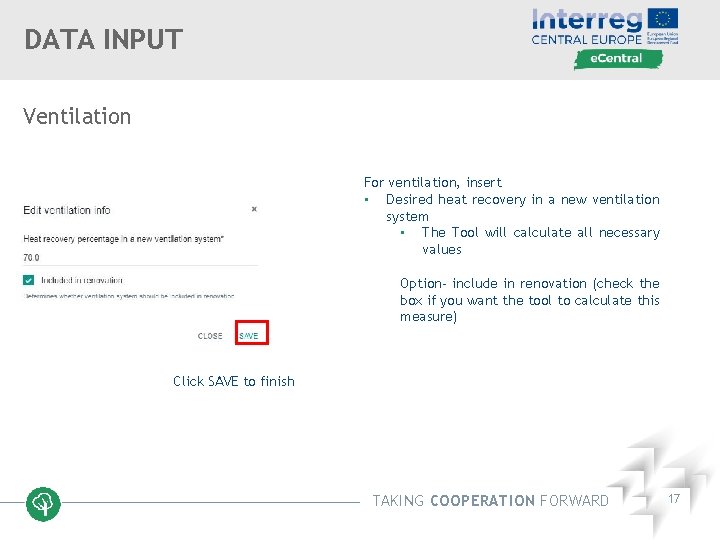
DATA INPUT Ventilation For ventilation, insert • Desired heat recovery in a new ventilation system • The Tool will calculate all necessary values Option- include in renovation (check the box if you want the tool to calculate this measure) Click SAVE to finish TAKING COOPERATION FORWARD 17
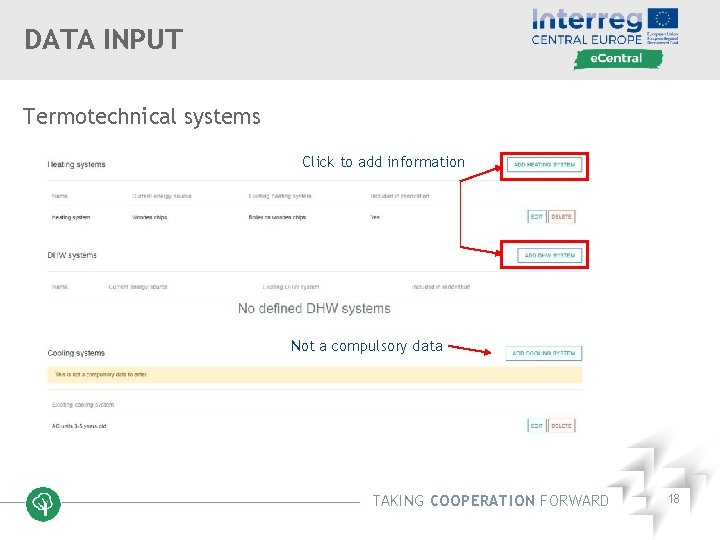
DATA INPUT Termotechnical systems Click to add information Not a compulsory data TAKING COOPERATION FORWARD 18
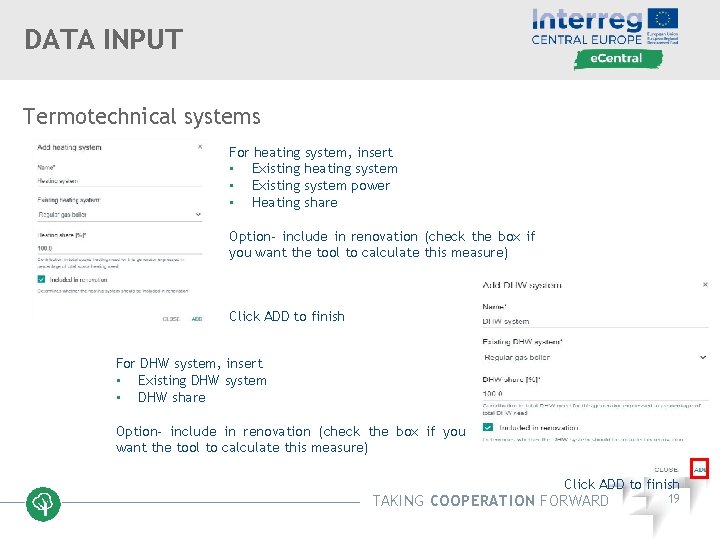
DATA INPUT Termotechnical systems For heating system, insert • Existing heating system • Existing system power • Heating share Option- include in renovation (check the box if you want the tool to calculate this measure) Click ADD to finish For DHW system, insert • Existing DHW system • DHW share Option- include in renovation (check the box if you want the tool to calculate this measure) Click ADD to finish TAKING COOPERATION FORWARD 19
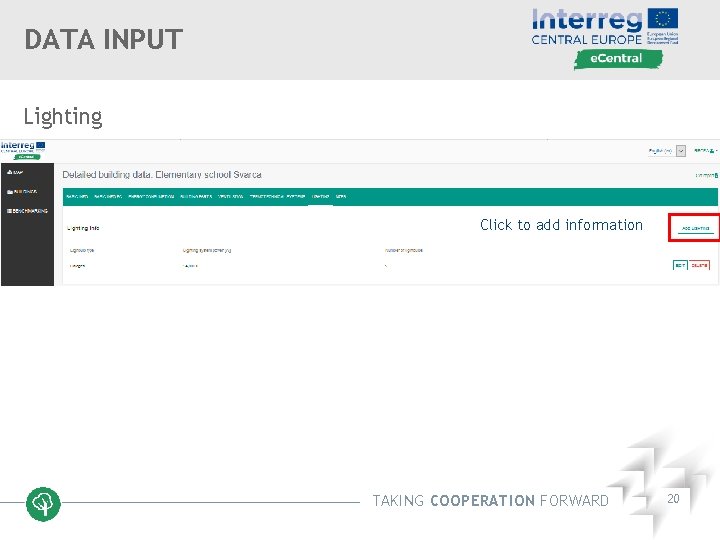
DATA INPUT Lighting Click to add information TAKING COOPERATION FORWARD 20
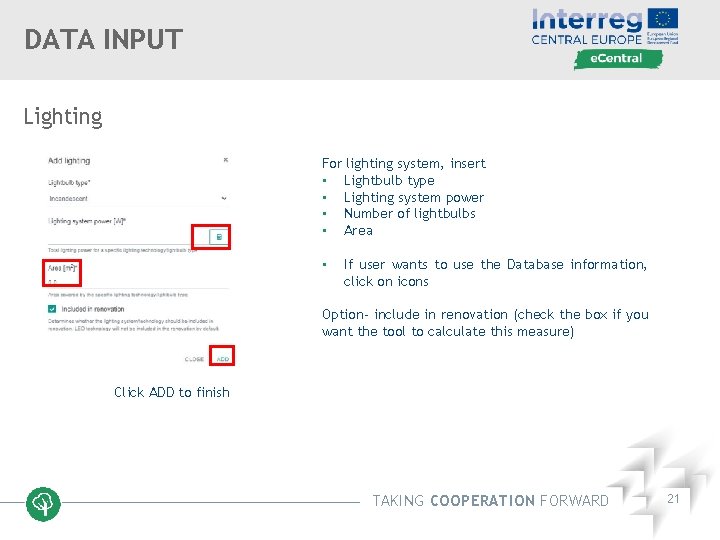
DATA INPUT Lighting For lighting system, insert • Lightbulb type • Lighting system power • Number of lightbulbs • Area • If user wants to use the Database information, click on icons Option- include in renovation (check the box if you want the tool to calculate this measure) Click ADD to finish TAKING COOPERATION FORWARD 21
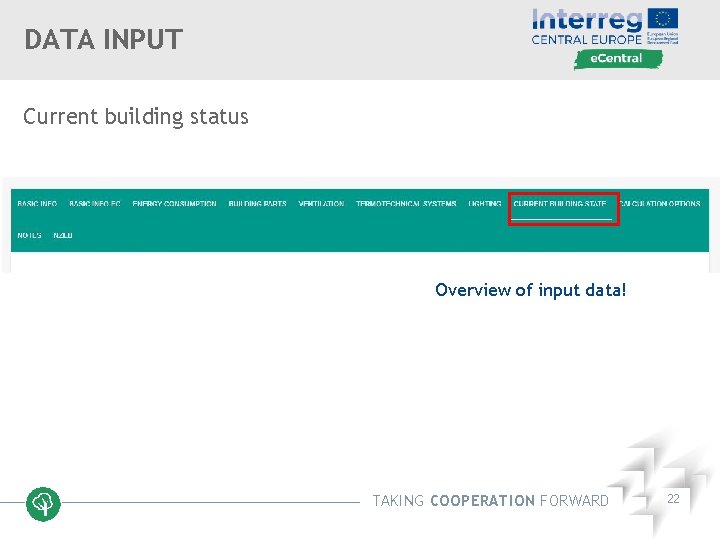
DATA INPUT Current building status Overview of input data! TAKING COOPERATION FORWARD 22
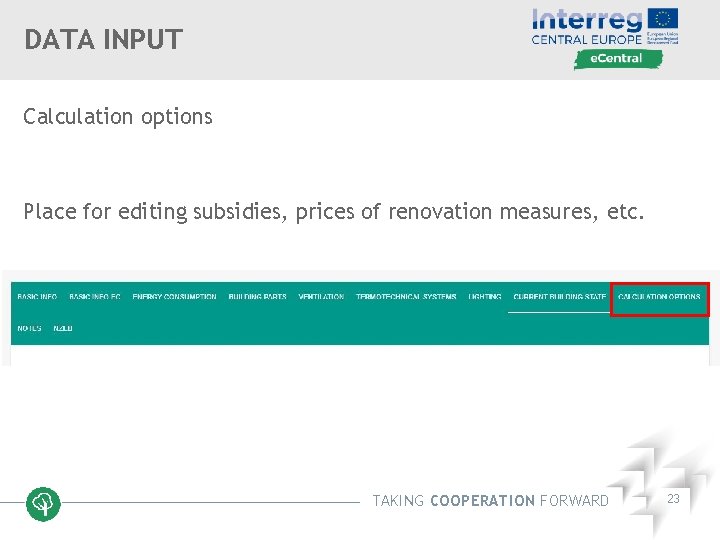
DATA INPUT Calculation options Place for editing subsidies, prices of renovation measures, etc. TAKING COOPERATION FORWARD 23
Introduction Data input Data output TAKING COOPERATION FORWARD 24
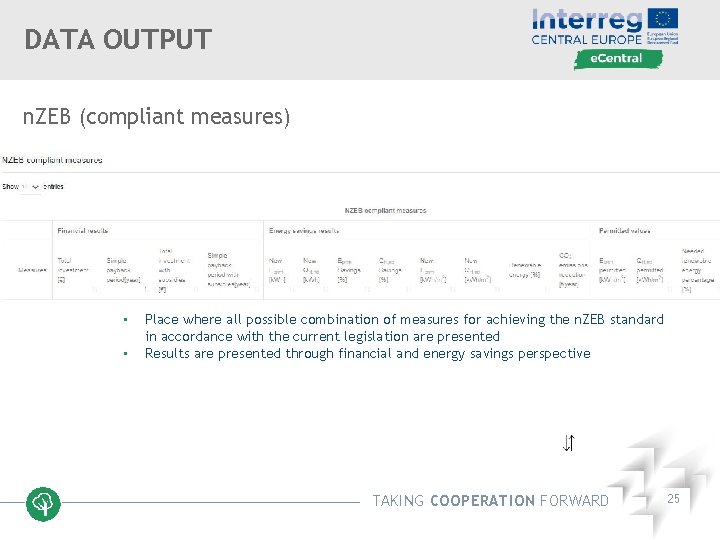
DATA OUTPUT n. ZEB (compliant measures) • • Place where all possible combination of measures for achieving the n. ZEB standard in accordance with the current legislation are presented Results are presented through financial and energy savings perspective TAKING COOPERATION FORWARD 25
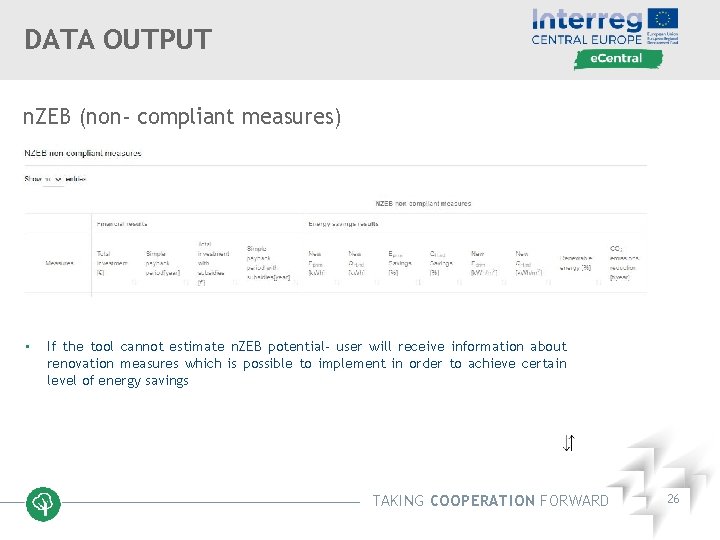
DATA OUTPUT n. ZEB (non- compliant measures) • If the tool cannot estimate n. ZEB potential- user will receive information about renovation measures which is possible to implement in order to achieve certain level of energy savings TAKING COOPERATION FORWARD 26
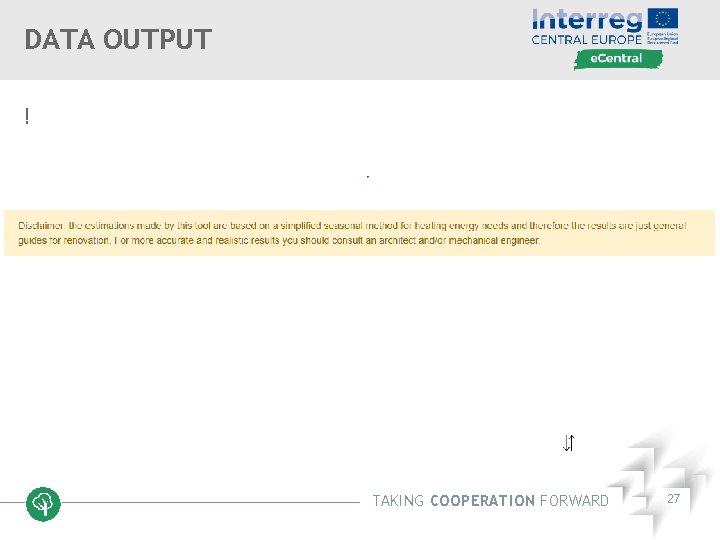
DATA OUTPUT ! TAKING COOPERATION FORWARD 27
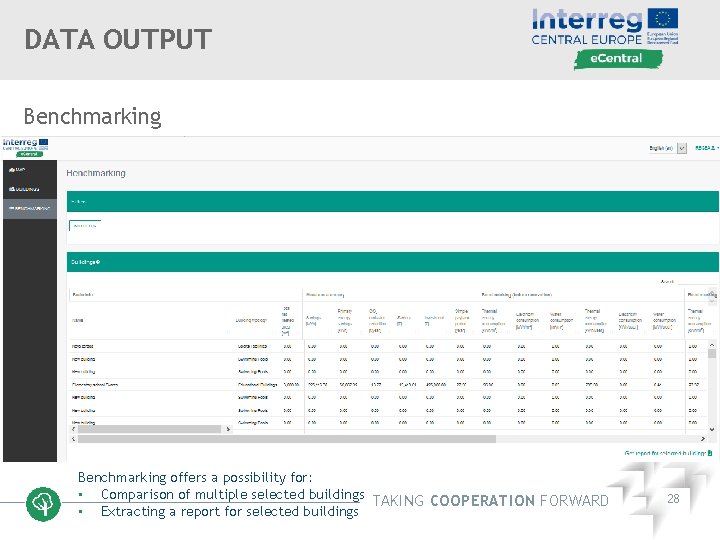
DATA OUTPUT Benchmarking offers a possibility for: • Comparison of multiple selected buildings TAKING COOPERATION FORWARD • Extracting a report for selected buildings 28
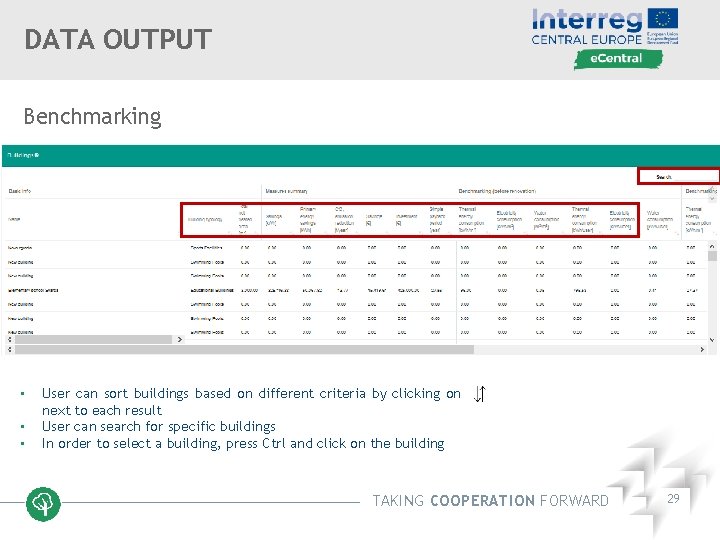
DATA OUTPUT Benchmarking • • • User can sort buildings based on different criteria by clicking on next to each result User can search for specific buildings In order to select a building, press Ctrl and click on the building TAKING COOPERATION FORWARD 29
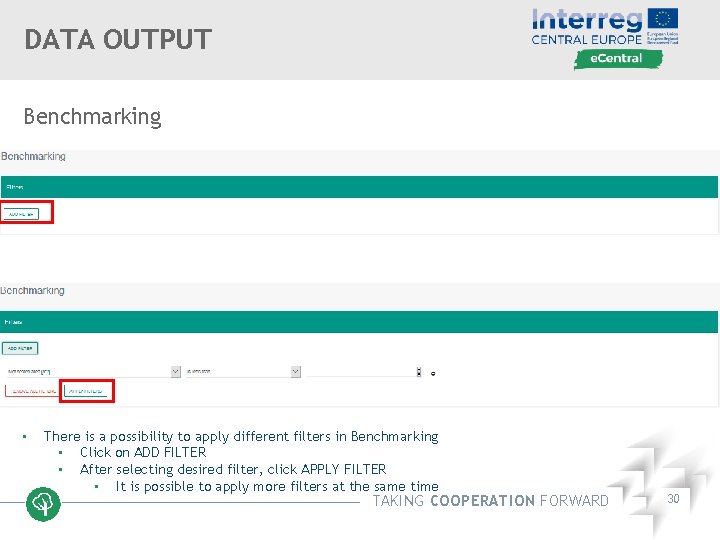
DATA OUTPUT Benchmarking • There is a possibility to apply different filters in Benchmarking • Click on ADD FILTER • After selecting desired filter, click APPLY FILTER • It is possible to apply more filters at the same time TAKING COOPERATION FORWARD 30
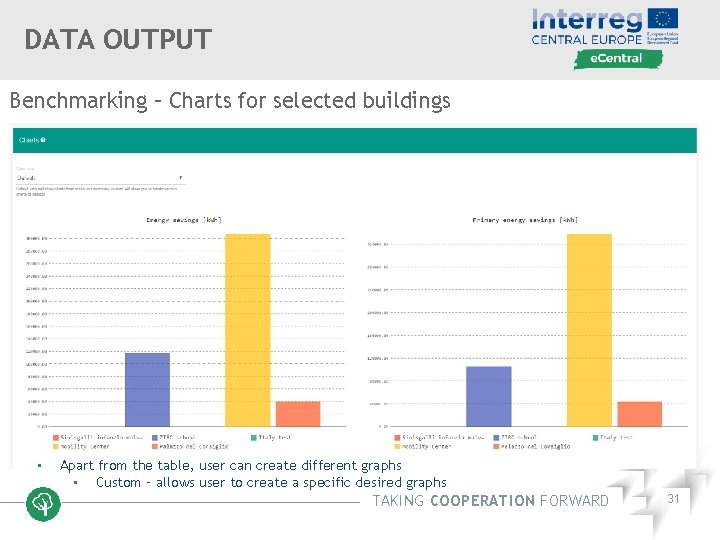
DATA OUTPUT Benchmarking – Charts for selected buildings • Apart from the table, user can create different graphs • Custom – allows user to create a specific desired graphs TAKING COOPERATION FORWARD 31
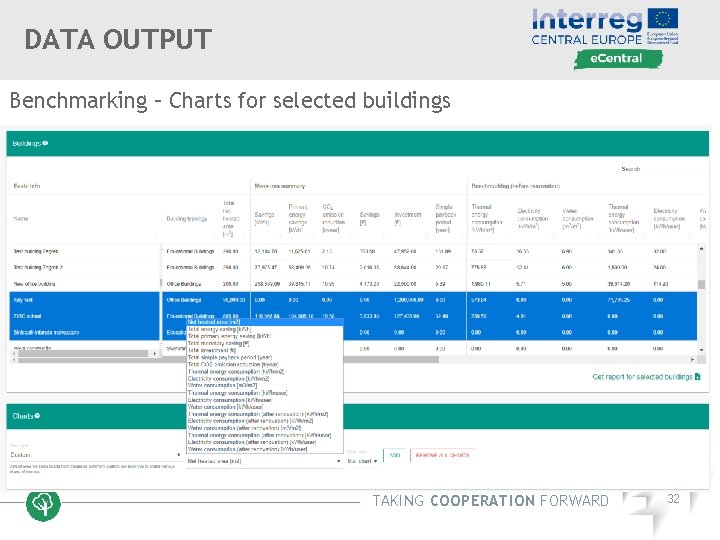
DATA OUTPUT Benchmarking – Charts for selected buildings TAKING COOPERATION FORWARD 32
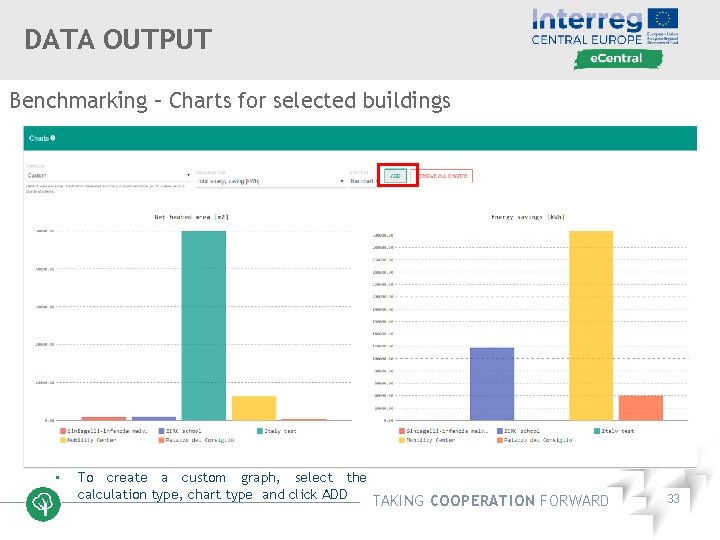
DATA OUTPUT Benchmarking – Charts for selected buildings • To create a custom graph, select the calculation type, chart type and click ADD TAKING COOPERATION FORWARD 33
- Slides: 33