
Step 3 Understand the Principles of Good Interface


- Slides: 36
Step 3 Understand the Principles of Good Interface and Screen Design
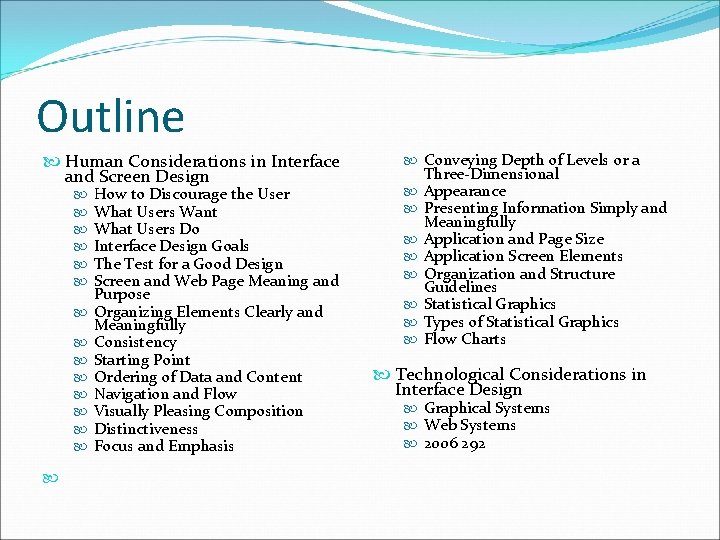
Outline Human Considerations in Interface and Screen Design How to Discourage the User What Users Want What Users Do Interface Design Goals The Test for a Good Design Screen and Web Page Meaning and Purpose Organizing Elements Clearly and Meaningfully Consistency Starting Point Ordering of Data and Content Navigation and Flow Visually Pleasing Composition Distinctiveness Focus and Emphasis Conveying Depth of Levels or a Three-Dimensional Appearance Presenting Information Simply and Meaningfully Application and Page Size Application Screen Elements Organization and Structure Guidelines Statistical Graphics Types of Statistical Graphics Flow Charts Technological Considerations in Interface Design Graphical Systems Web Systems 2006 292
A well-designed interface and screen �Reflects the capabilities, needs, and tasks of its users. �Is developed within the physical constraints imposed by the hardware on which it is displayed. �Utilizes the capabilities of its controlling software effectively. �Achieves the business objectives of the system for which it is designed.
Human Considerations in Interface and Screen Design �How to Discourage the User � All distractions and discouragements must be eliminated in design. �What Users Want � The desired direction is toward simplicity, clarity, and understandability �What Users Do When interacting with a computer, user: � Identifies a task to be performed or a need to be fulfilled � Decides how the task will be completed or the need fulfilled. � Manipulates the computer’s controls. � Gathers the necessary data or content while filtering out meaningless data or content. � Forms judgments resulting in decisions relevant to the task or need.
Interface Design Goals �Reduce visual work. �Reduce intellectual work. �Reduce memory work. �Reduce motor work. �Minimize or eliminate any burdens or instructions imposed by technology.
The Test for a Good Design A simple test for good design �Can all screen or Web page elements be identified by cues other than by reading the words that make them up? �The best interfaces make everything on the screen obvious.
Screen and Web Page Meaning and Purpose �All interface elements must have meaning to users and serve a purpose in performing tasks or fulfilling needs. �If an element does not have meaning for the user, do not include it in the interface because it is noise. �Noise is useless information. Signals are useful information �Noise reduces clarity of a screen or Web page �The objective in design is to minimize noise and maximize signals
Starting Point �Provide an obvious starting point in the screen’s upper-left corner. �Focus user attention on the most important parts of a screen or page. � Textual Displays � Looking at displays of textual information, usually one’s eyes move first to the upper-left center of the display, and then quickly move through the display in a clockwise direction � Graphical and Web Displays � people do take advantage of visual details such as white space or components that stand out conspicuously from other components. � People tend to look at text first, not images. � Larger type dominates over smaller type. � Changing information is looked at before non-changing information.
Ordering of Data and Content � Divide information into units that are logical, meaningful, and sensible. � Organize by the degree of interrelationship between data or information. � Provide an ordering of screen units of information and elements that is prioritized according to the user’s expectations and needs. � Possible ordering schemes include � � � Conventional. Sequence of use. Frequency of use. Function. Importance. General to specific. � Form groups that cover all possibilities. � Ensure that information that must be compared is visible at the same time. � Ensure that only information relative to the users’ tasks or needs is presented on the screen.
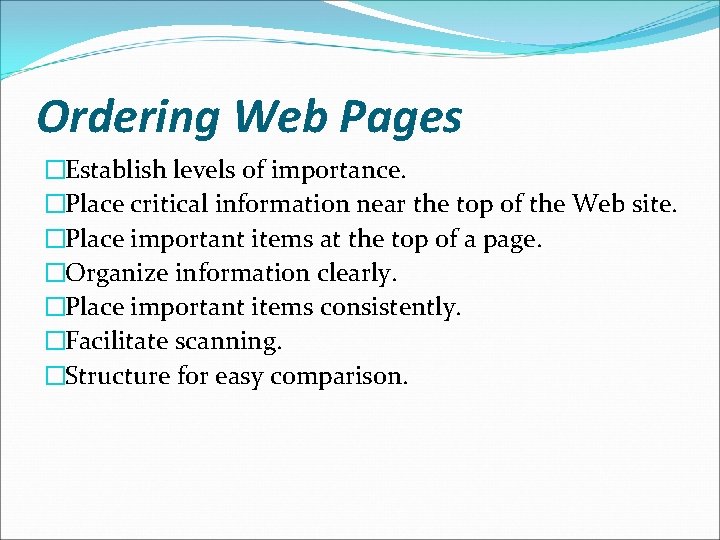
Ordering Web Pages �Establish levels of importance. �Place critical information near the top of the Web site. �Place important items at the top of a page. �Organize information clearly. �Place important items consistently. �Facilitate scanning. �Structure for easy comparison.
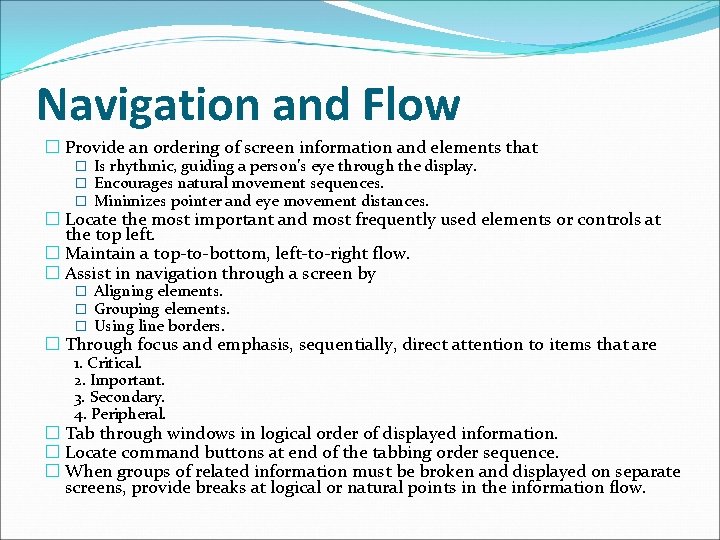
Navigation and Flow � Provide an ordering of screen information and elements that � Is rhythmic, guiding a person’s eye through the display. � Encourages natural movement sequences. � Minimizes pointer and eye movement distances. � Locate the most important and most frequently used elements or controls at the top left. � Maintain a top-to-bottom, left-to-right flow. � Assist in navigation through a screen by � Aligning elements. � Grouping elements. � Using line borders. � Through focus and emphasis, sequentially, direct attention to items that are 1. Critical. 2. Important. 3. Secondary. 4. Peripheral. � Tab through windows in logical order of displayed information. � Locate command buttons at end of the tabbing order sequence. � When groups of related information must be broken and displayed on separate screens, provide breaks at logical or natural points in the information flow.
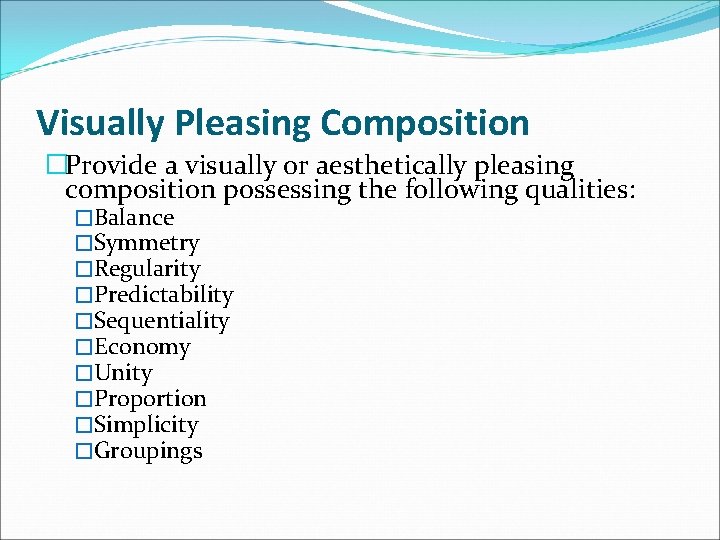
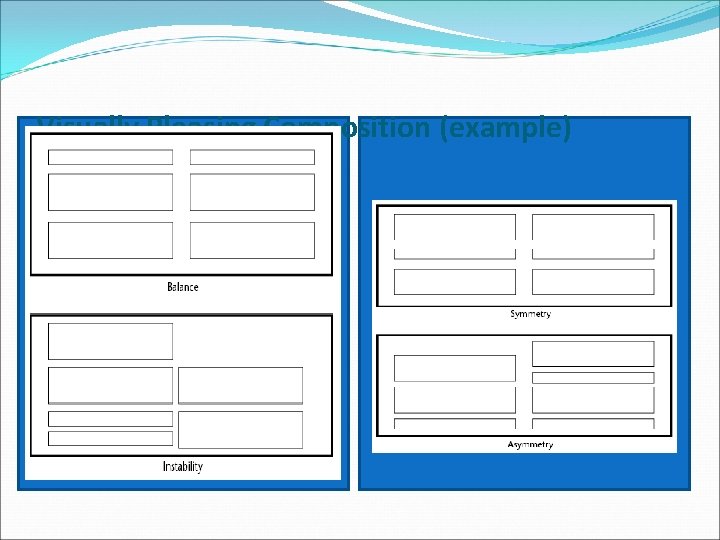
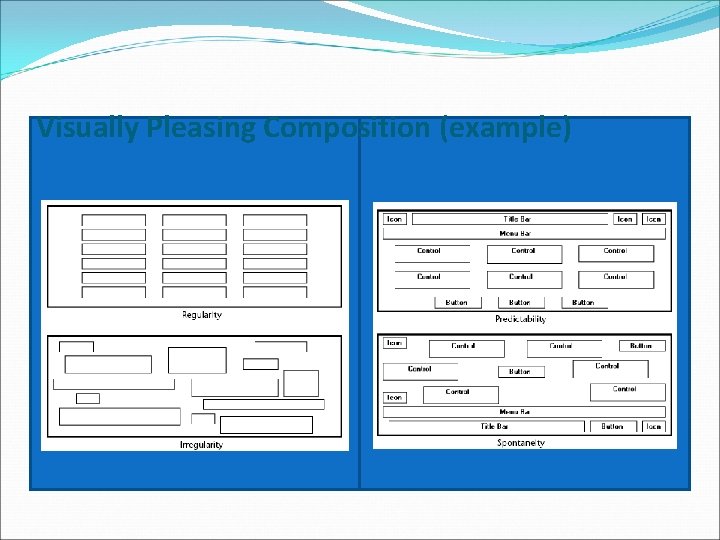
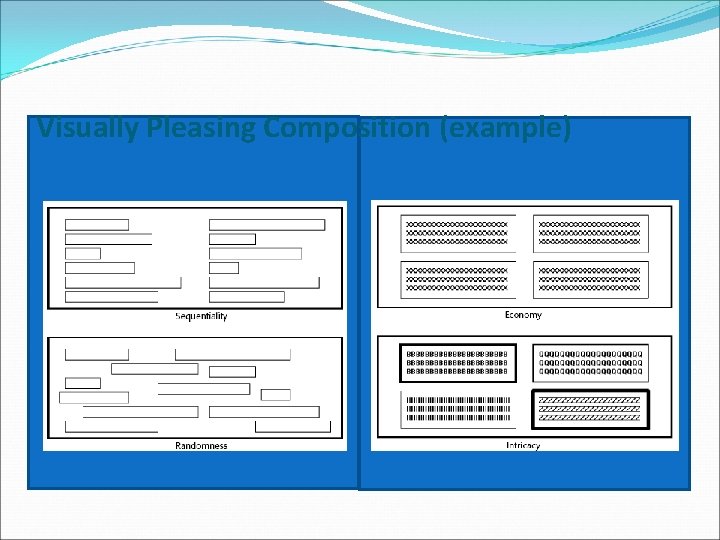
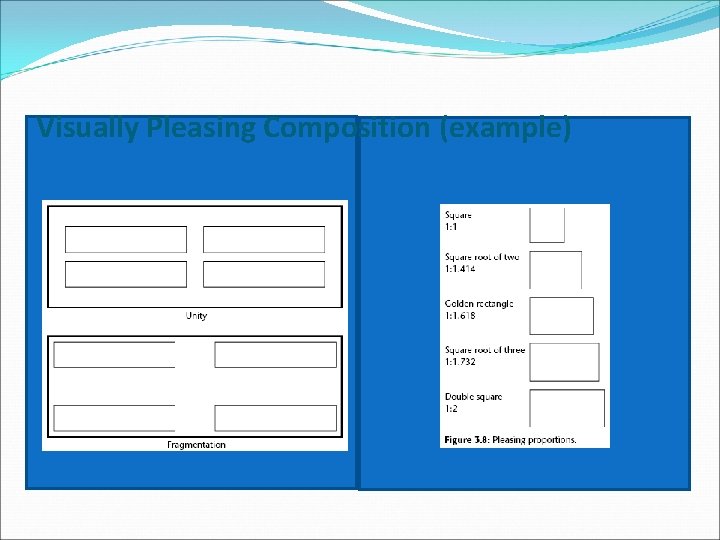
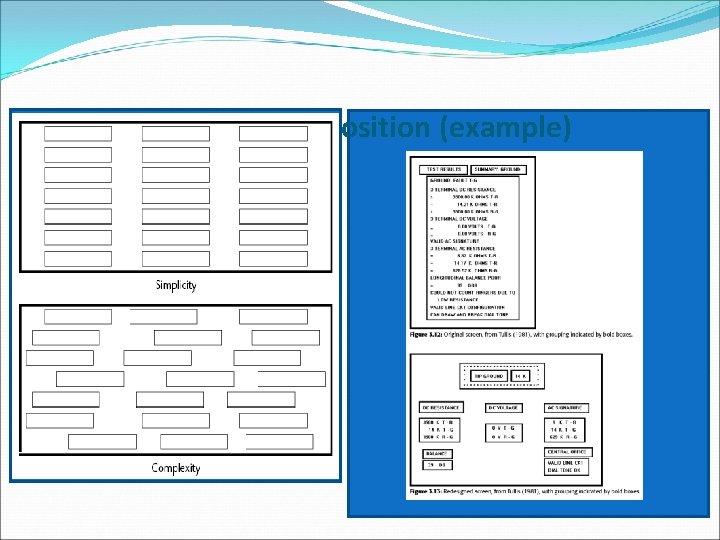
Visually Pleasing Composition �Provide a visually or aesthetically pleasing composition possessing the following qualities: �Balance �Symmetry �Regularity �Predictability �Sequentiality �Economy �Unity �Proportion �Simplicity �Groupings
Visually Pleasing Composition (example)
Visually Pleasing Composition (example)
Visually Pleasing Composition (example)
Visually Pleasing Composition (example)
Visually Pleasing Composition (example)
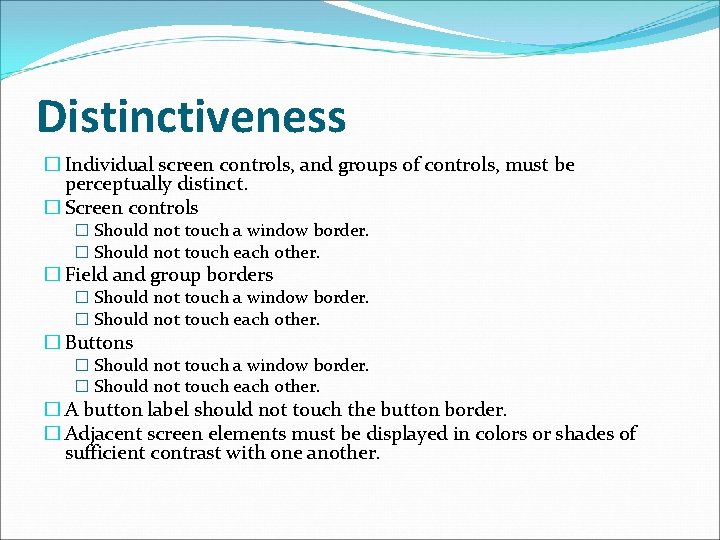
Distinctiveness � Individual screen controls, and groups of controls, must be perceptually distinct. � Screen controls � Should not touch a window border. � Should not touch each other. � Field and group borders � Should not touch a window border. � Should not touch each other. � Buttons � Should not touch a window border. � Should not touch each other. � A button label should not touch the button border. � Adjacent screen elements must be displayed in colors or shades of sufficient contrast with one another.
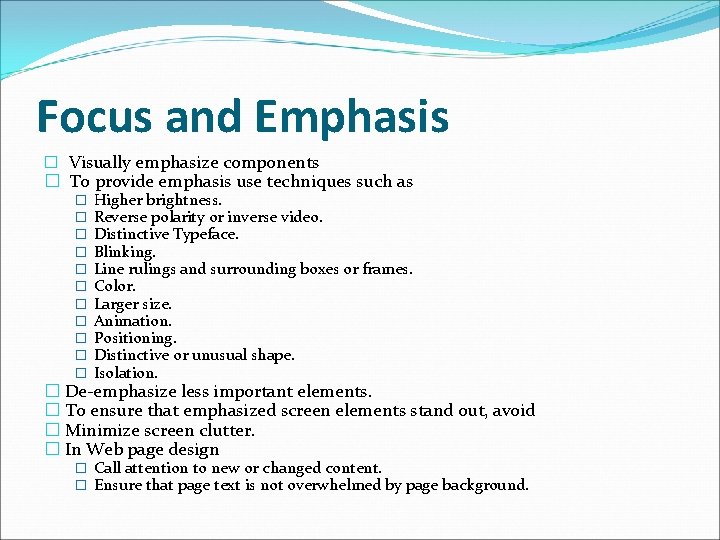
Focus and Emphasis � Visually emphasize components � To provide emphasis use techniques such as � � � Higher brightness. Reverse polarity or inverse video. Distinctive Typeface. Blinking. Line rulings and surrounding boxes or frames. Color. Larger size. Animation. Positioning. Distinctive or unusual shape. Isolation. � De-emphasize less important elements. � To ensure that emphasized screen elements stand out, avoid � Minimize screen clutter. � In Web page design � Call attention to new or changed content. � Ensure that page text is not overwhelmed by page background.
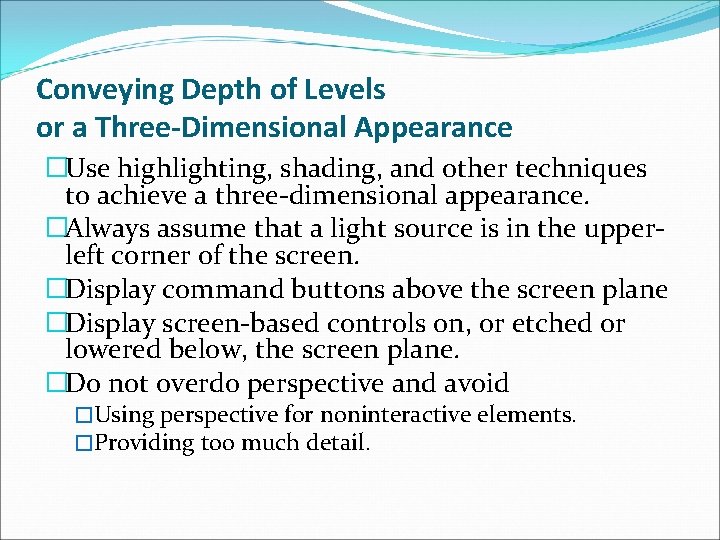
Conveying Depth of Levels or a Three-Dimensional Appearance �Use highlighting, shading, and other techniques to achieve a three-dimensional appearance. �Always assume that a light source is in the upperleft corner of the screen. �Display command buttons above the screen plane �Display screen-based controls on, or etched or lowered below, the screen plane. �Do not overdo perspective and avoid �Using perspective for noninteractive elements. �Providing too much detail.
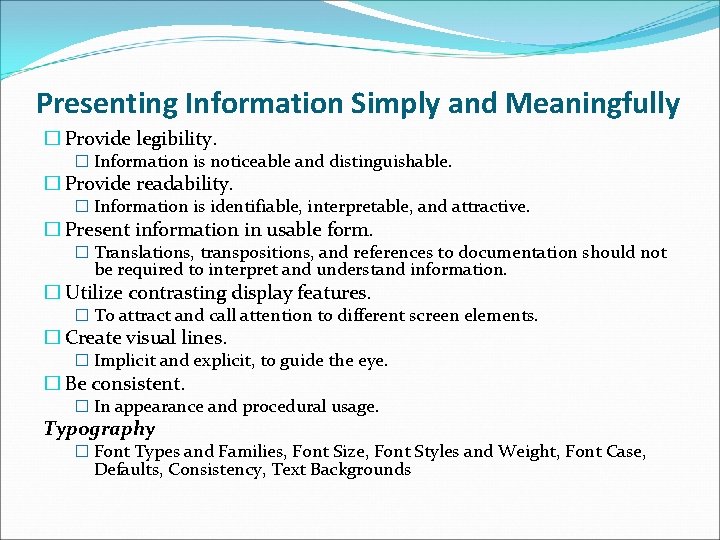
Presenting Information Simply and Meaningfully � Provide legibility. � Information is noticeable and distinguishable. � Provide readability. � Information is identifiable, interpretable, and attractive. � Present information in usable form. � Translations, transpositions, and references to documentation should not be required to interpret and understand information. � Utilize contrasting display features. � To attract and call attention to different screen elements. � Create visual lines. � Implicit and explicit, to guide the eye. � Be consistent. � In appearance and procedural usage. Typography � Font Types and Families, Font Size, Font Styles and Weight, Font Case, Defaults, Consistency, Text Backgrounds
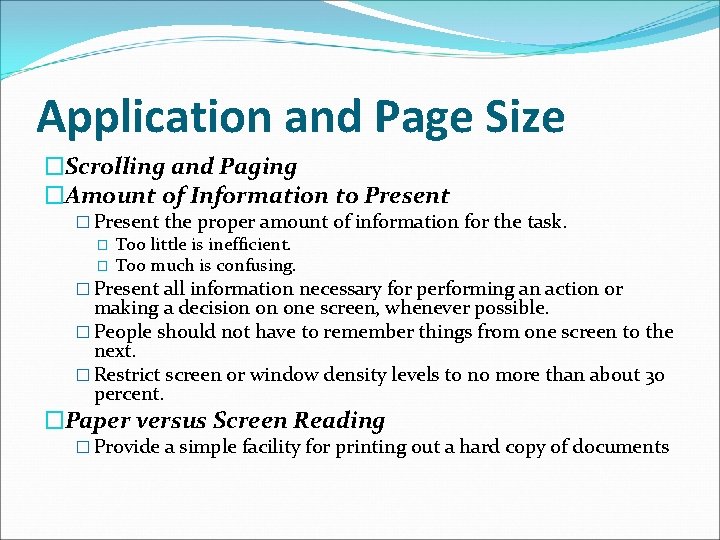
Application and Page Size �Scrolling and Paging �Amount of Information to Present � Present the proper amount of information for the task. � Too little is inefficient. � Too much is confusing. � Present all information necessary for performing an action or making a decision on one screen, whenever possible. � People should not have to remember things from one screen to the next. � Restrict screen or window density levels to no more than about 30 percent. �Paper versus Screen Reading � Provide a simple facility for printing out a hard copy of documents
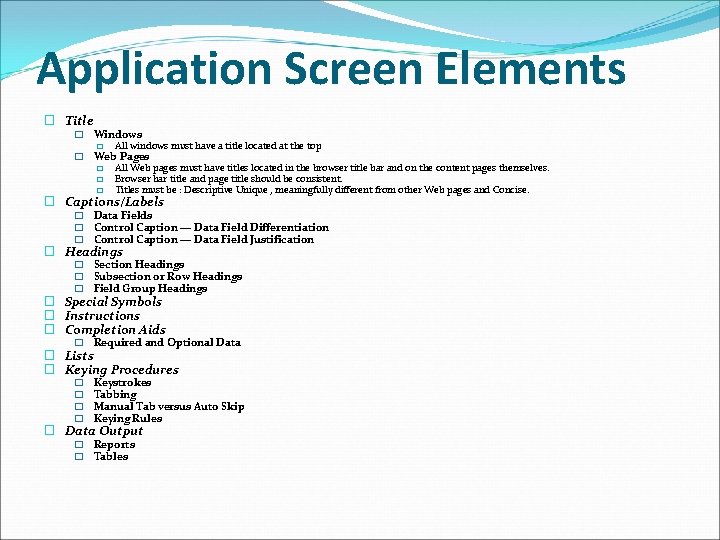
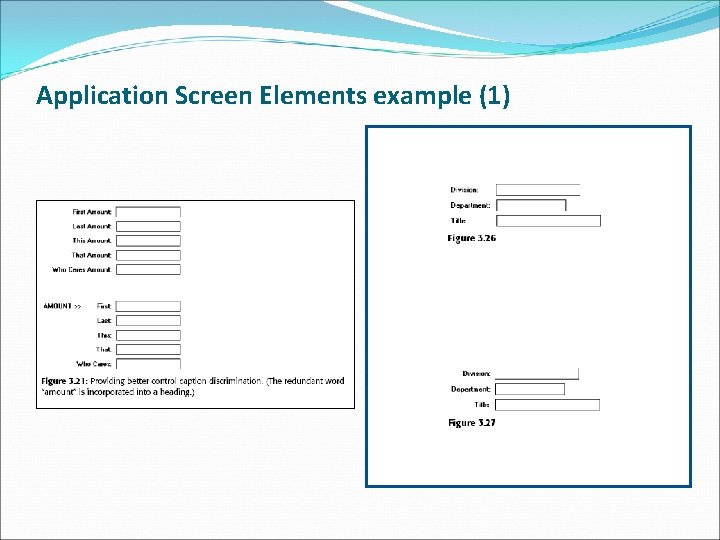
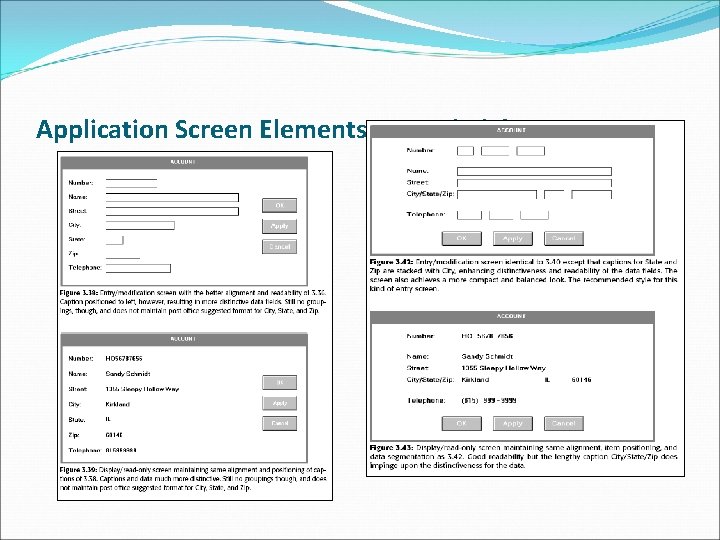
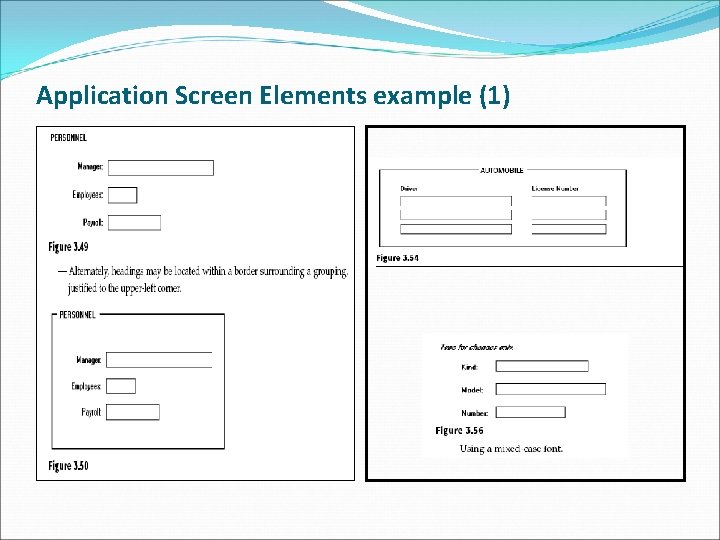
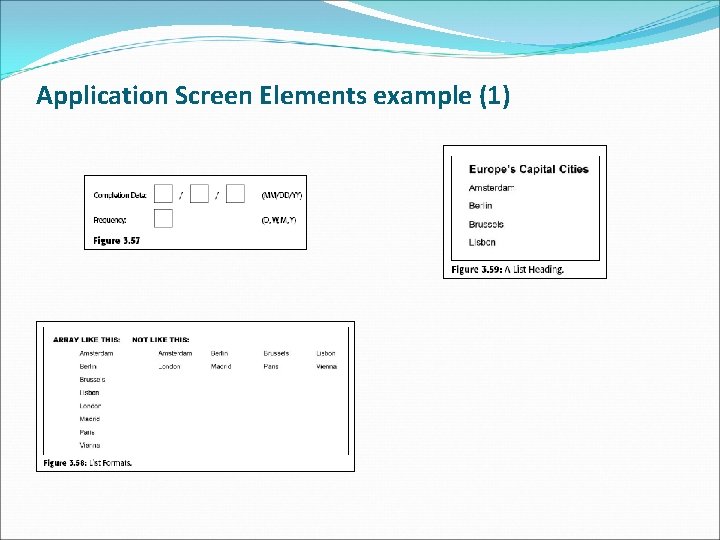
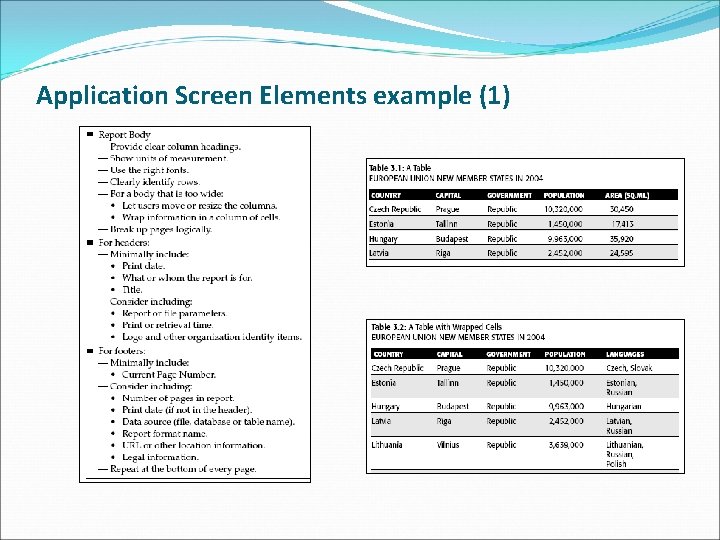
Application Screen Elements � Title � Windows � All windows must have a title located at the top � Web Pages � All Web pages must have titles located in the browser title bar and on the content pages themselves. � Browser bar title and page title should be consistent. � Titles must be : Descriptive Unique , meaningfully different from other Web pages and Concise. � Captions/Labels � Data Fields � Control Caption — Data Field Differentiation � Control Caption — Data Field Justification � Headings � Section Headings � Subsection or Row Headings � Field Group Headings � Special Symbols � Instructions � Completion Aids � Required and Optional Data � Lists � Keying Procedures � � Keystrokes Tabbing Manual Tab versus Auto Skip Keying Rules � Data Output � Reports � Tables
Application Screen Elements example (1)
Application Screen Elements example (1)
Application Screen Elements example (1)
Application Screen Elements example (1)
Application Screen Elements example (1)
Application Screen Elements example (1)
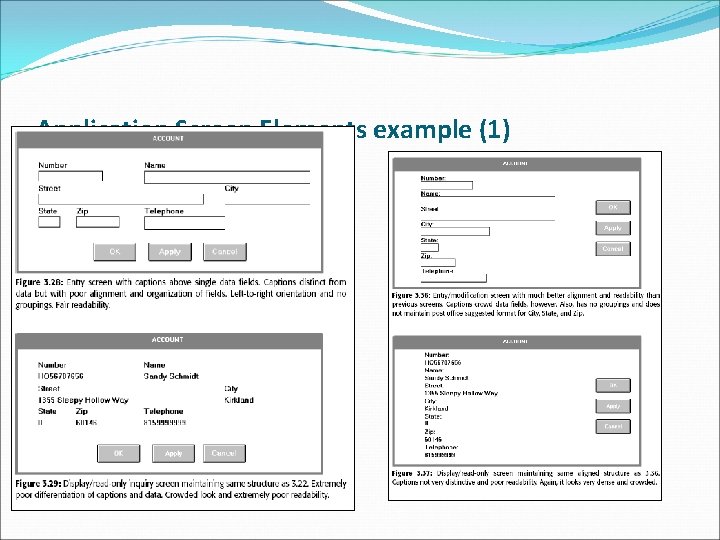
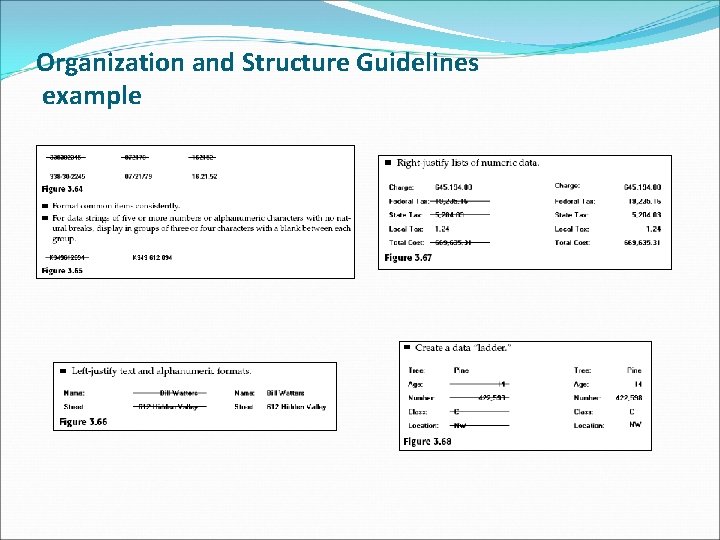
Organization and Structure Guidelines �Information Entry and Modification (Conversational) Screens �Grids �Text Entry from a Source Document �Dedicated Source Document Screens �Display/Read-Only Screens �Organization �Data Presentation �Data Arrangement �Data Justification �Data Display
Organization and Structure Guidelines example
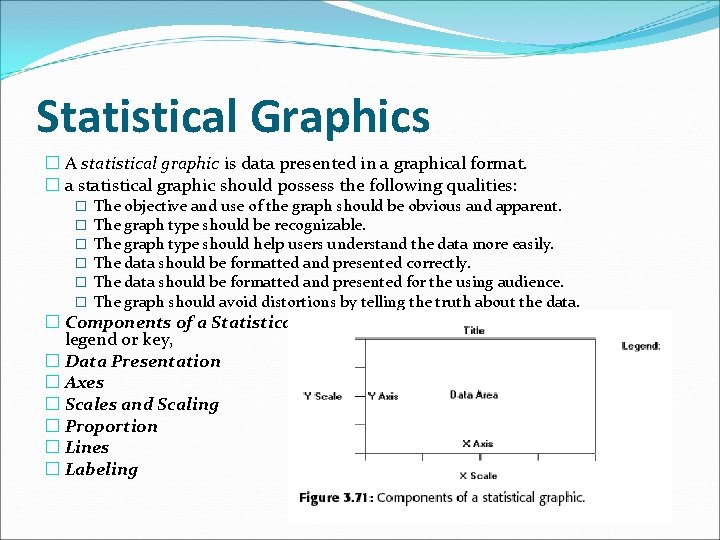
Statistical Graphics � A statistical graphic is data presented in a graphical format. � a statistical graphic should possess the following qualities: � � � The objective and use of the graph should be obvious and apparent. The graph type should be recognizable. The graph type should help users understand the data more easily. The data should be formatted and presented correctly. The data should be formatted and presented for the using audience. The graph should avoid distortions by telling the truth about the data. � Components of a Statistical Graphic : axes, scales, an area, a title and a legend or key, � Data Presentation � Axes � Scales and Scaling � Proportion � Lines � Labeling
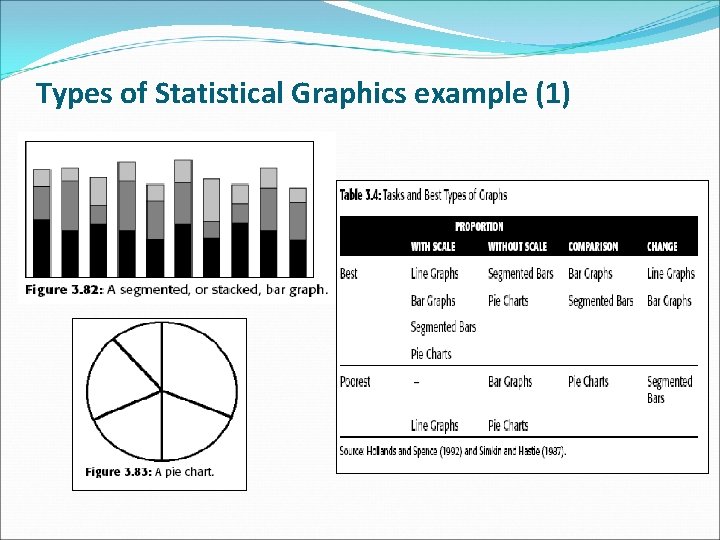
Types of Statistical Graphics �Curve and Line Graphs : can be used to show relationships between sets of data defined by two continuous variables. �Surface Charts : If the data being depicted by a curve or line represents all the parts of a whole, consider developing a surface or area chart, �Scatterplots : can be used to show relationships among individual data points in a two-dimensional array. �Bar Charts : can be used to show a few differences between separate entities or to show differences in a variable at a few discrete intervals. �Segmented or Stacked Bars : If both the total measure of a value and its component portions are of interest, consider using segmented or stacked bars. �Pie Charts : can be used to show an apportionment of a total into its component parts
Types of Statistical Graphics example (1)
Types of Statistical Graphics example (1)
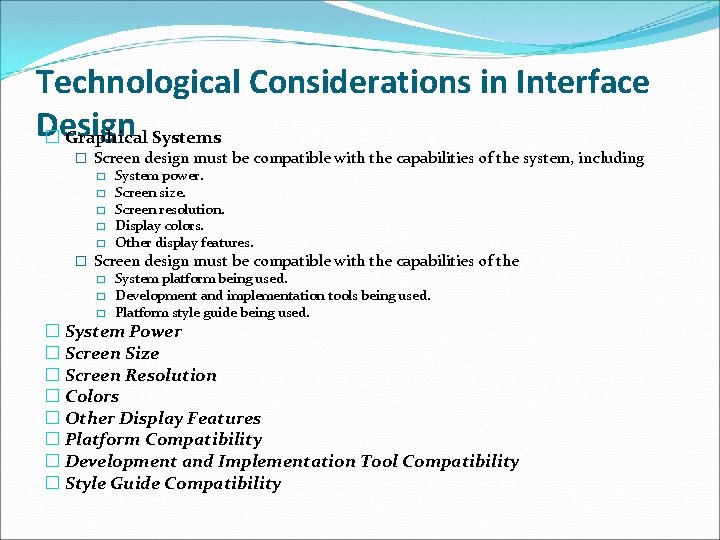
Technological Considerations in Interface Design � Graphical Systems � Screen design must be compatible with the capabilities of the system, including � System power. � Screen size. � Screen resolution. � Display colors. � Other display features. � Screen design must be compatible with the capabilities of the � System platform being used. � Development and implementation tools being used. � Platform style guide being used. � System Power � Screen Size � Screen Resolution � Colors � Other Display Features � Platform Compatibility � Development and Implementation Tool Compatibility � Style Guide Compatibility