
State of Michigan Learning Management System LMS Browsing
State of Michigan Learning Management System (LMS) Browsing for Training Updated: 03/27/2017
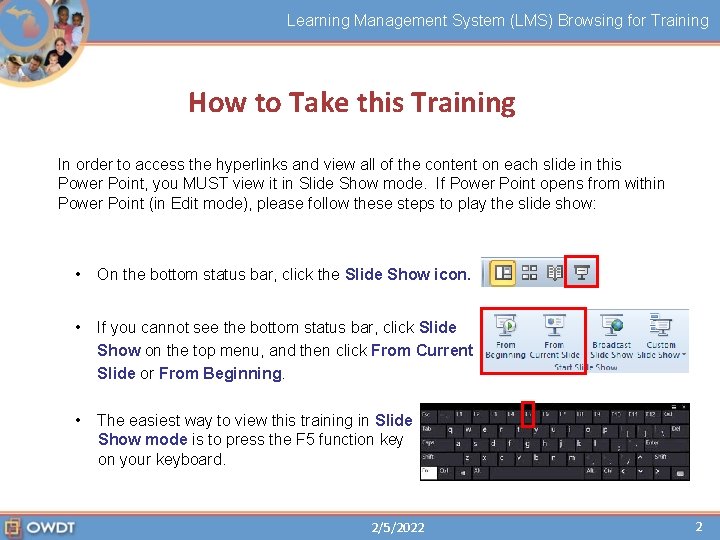
Learning Management System (LMS) Browsing for Training How to Take this Training In order to access the hyperlinks and view all of the content on each slide in this Power Point, you MUST view it in Slide Show mode. If Power Point opens from within Power Point (in Edit mode), please follow these steps to play the slide show: • On the bottom status bar, click the Slide Show icon. • If you cannot see the bottom status bar, click Slide Show on the top menu, and then click From Current Slide or From Beginning. • The easiest way to view this training in Slide Show mode is to press the F 5 function key on your keyboard. 2/5/2022 2
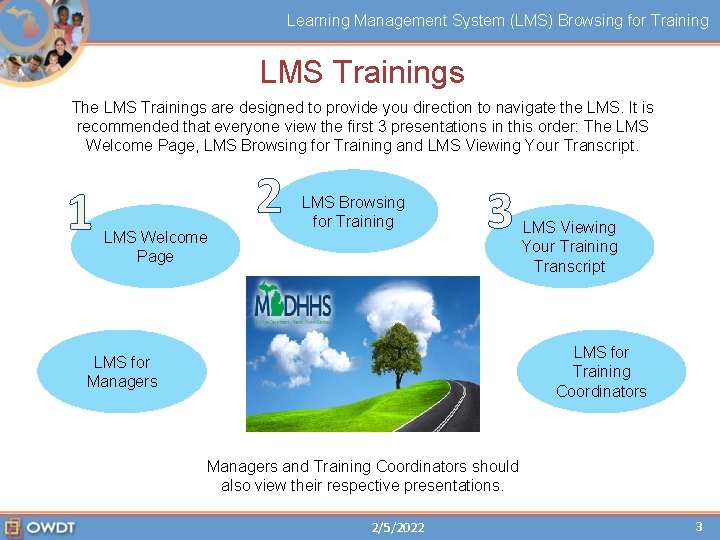
Learning Management System (LMS) Browsing for Training LMS Trainings The LMS Trainings are designed to provide you direction to navigate the LMS. It is recommended that everyone view the first 3 presentations in this order: The LMS Welcome Page, LMS Browsing for Training and LMS Viewing Your Transcript. 1 2 LMS Welcome Page LMS Browsing for Training 3 LMS Viewing Your Training Transcript LMS for Training Coordinators LMS for Managers and Training Coordinators should also view their respective presentations. 2/5/2022 3
Learning Management System (LMS) Browsing for Training Topics Browsing for Training Access Filtering your Training Searches Registering for a Learning Object (LO) Using the Events Calendar 2/5/2022 4
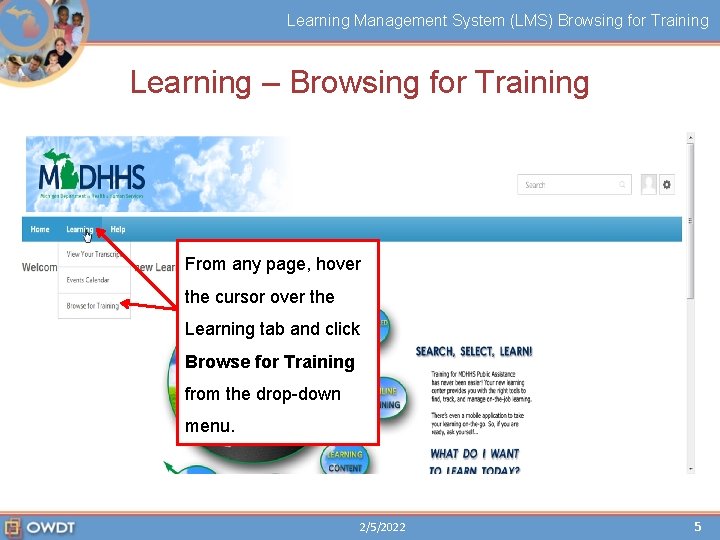
Learning Management System (LMS) Browsing for Training Learning – Browsing for Training From any page, hover the cursor over the Learning tab and click Browse for Training from the drop-down menu. 2/5/2022 5
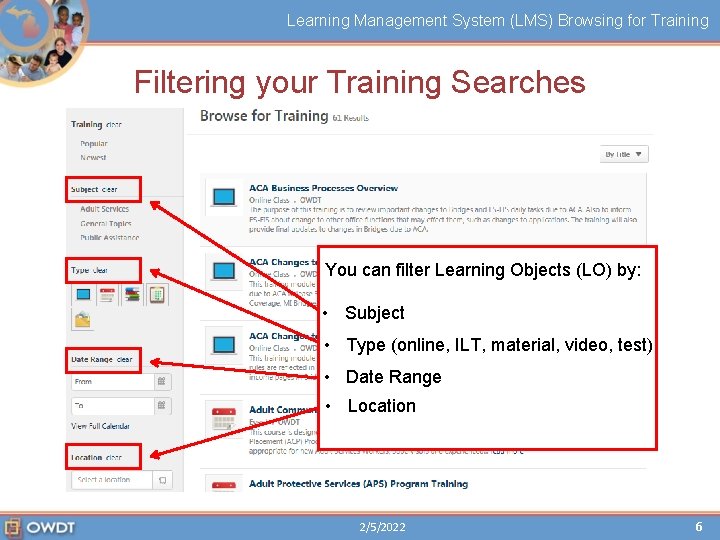
Learning Management System (LMS) Browsing for Training Filtering your Training Searches You can filter Learning Objects (LO) by: • Subject • Type (online, ILT, material, video, test) • Date Range • Location 2/5/2022 6
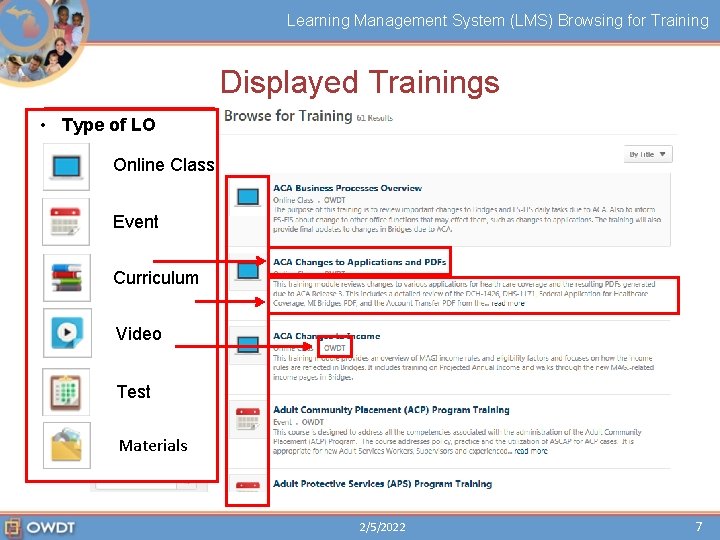
Learning Management System (LMS) Browsing for Training Displayed Trainings • The Type of LO following information is Class Online displayed for each Event Learning Object: • Title Curriculum • Description Video • Provider Test Materials 2/5/2022 7
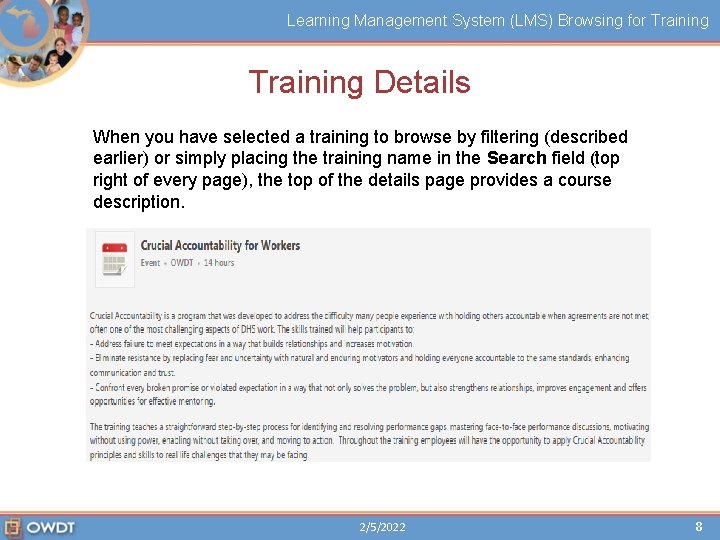
Learning Management System (LMS) Browsing for Training Details When you have selected a training to browse by filtering (described earlier) or simply placing the training name in the Search field (top right of every page), the top of the details page provides a course description. 2/5/2022 8
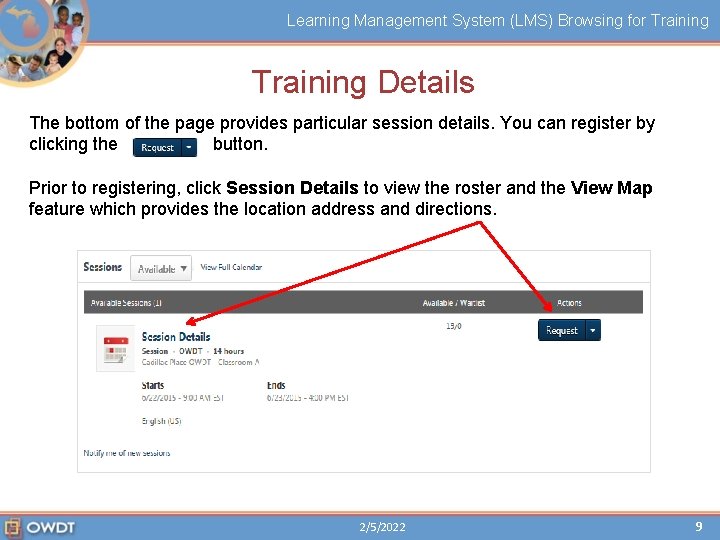
Learning Management System (LMS) Browsing for Training Details The bottom of the page provides particular session details. You can register by clicking the button. Prior to registering, click Session Details to view the roster and the View Map feature which provides the location address and directions. 2/5/2022 9

Learning Management System (LMS) Welcome Page Scroll down to view roster information and click View Map to get location address and directions. 05/29/2012 10
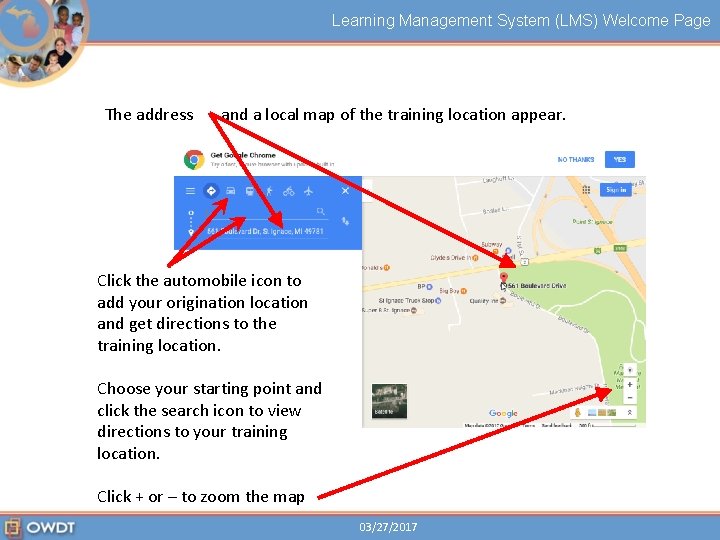
Learning Management System (LMS) Welcome Page The address and a local map of the training location appear. Click the automobile icon to add your origination location and get directions to the training location. Choose your starting point and click the search icon to view directions to your training location. Click + or – to zoom the map 03/27/2017
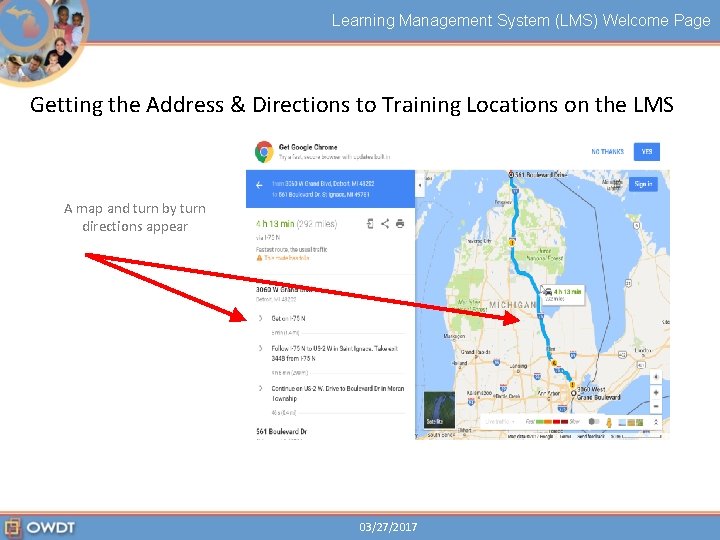
Learning Management System (LMS) Welcome Page Getting the Address & Directions to Training Locations on the LMS A map and turn by turn directions appear 03/27/2017
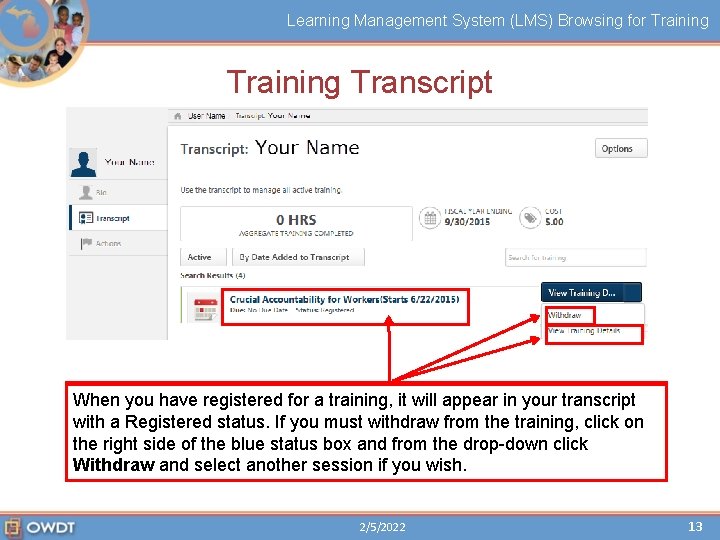
Learning Management System (LMS) Browsing for Training Transcript When registered a training, it will appear in your transcript To you see have the details of thefor training, the View Map feature (described with a registered, Registered status. If youormust withdraw from theled training, click on Once transcript displays all instructor trainings with a earlier) related to your the training attachments that may be associated with the right side of the blue status box and the click date to training, attend, as well alltraining Online Trainings in drop-down progress completed. the click onas the titlefrom or “View Trainingor. Details”. Withdraw and select another session if you wish. 2/5/2022 13
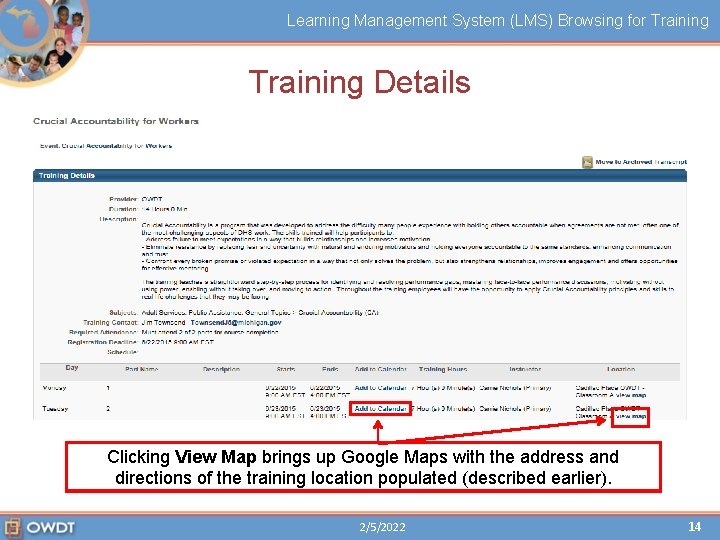
Learning Management System (LMS) Browsing for Training Details Clickingthe View brings upopen Google Maps withfrom thescreen address Clicking Add training to Map Calendar title orwill View Training an appointment Details your Training on and your directions of the training (described earlier). Outlook calendar, Transcript so displays youlocation can add the populated full thetraining details. to your calendar. 2/5/2022 14
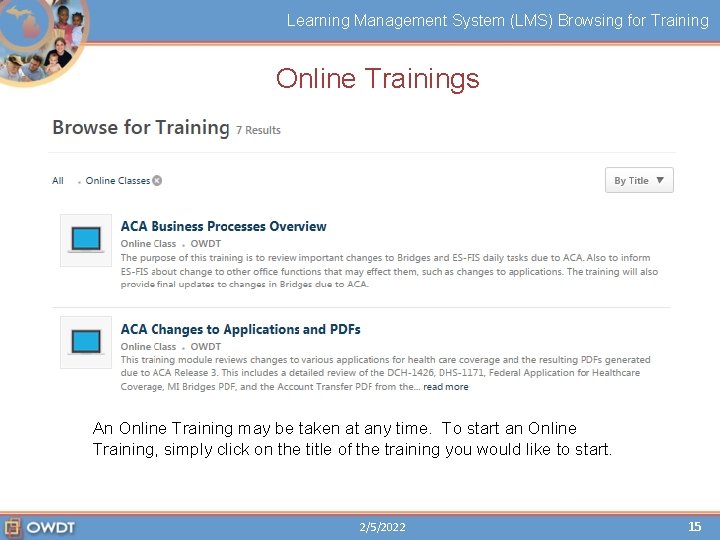
Learning Management System (LMS) Browsing for Training Online Trainings An Online Training may be taken at any time. To start an Online Training, simply click on the title of the training you would like to start. 2/5/2022 15
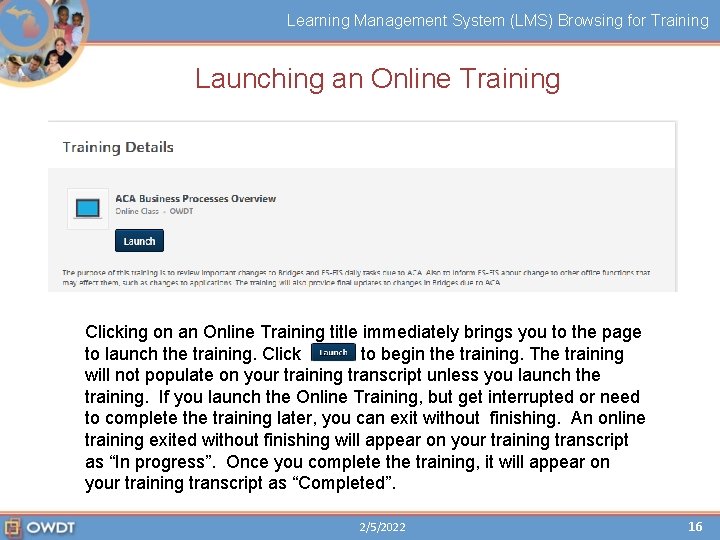
Learning Management System (LMS) Browsing for Training Launching an Online Training Clicking on an Online Training title immediately brings you to the page to launch the training. Click to begin the training. The training will not populate on your training transcript unless you launch the training. If you launch the Online Training, but get interrupted or need to complete the training later, you can exit without finishing. An online training exited without finishing will appear on your training transcript as “In progress”. Once you complete the training, it will appear on your training transcript as “Completed”. 2/5/2022 16
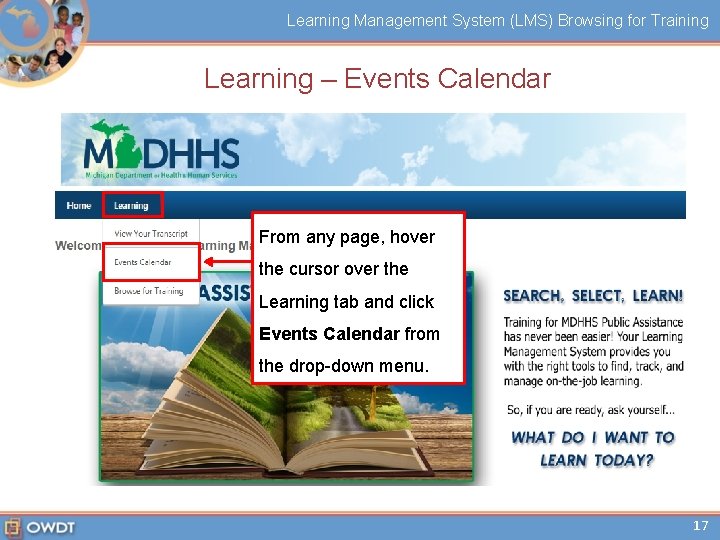
Learning Management System (LMS) Browsing for Training Learning – Events Calendar From any page, hover the cursor over the Learning tab and click Events Calendar from the drop-down menu. 17

Learning Management System (LMS) Browsing for Training Using the Events Calendar Across. My When the. Events top of is your is selected, Eventsyou the Calendar filters on youthe can All have several left choose of the view and/or yourchange calendar to allow by Day, you Week to filter or options to calendar filter display every event based Month. The the. Agenda status of feature themay event. isdefault displayed My Events is offered. on Your “Location” to a on the selected next slide. for thelocation. remainder of this training. predetermined If you would like to see all locations, simply click the “X” and the location will default to “All”. 2/5/2022 18

Learning Management System (LMS) Browsing for Training Events Calendar Agenda The Events Calendar Agenda displays all events for the month you choose to view. Clicking the event title either from your Events Calendar or the Agenda will take you to the Training Details screen. 19
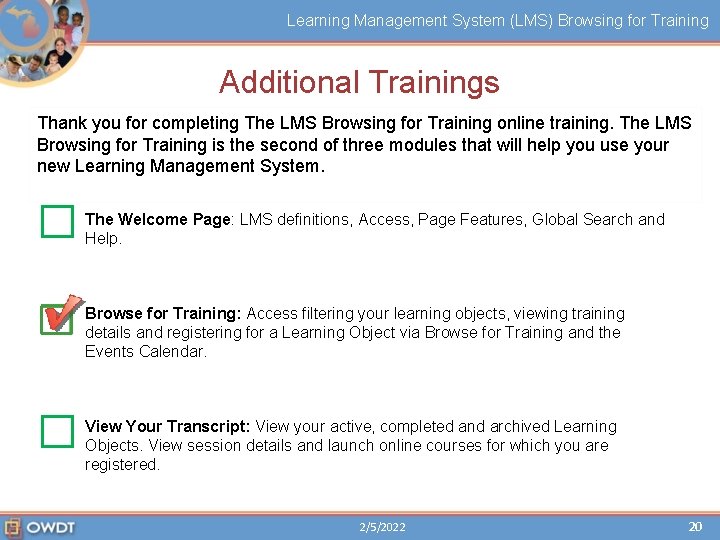
Learning Management System (LMS) Browsing for Training Additional Trainings Thank you for completing The LMS Browsing for Training online training. The LMS Browsing for Training is the second of three modules that will help you use your new Learning Management System. The Welcome Page: LMS definitions, Access, Page Features, Global Search and Help. Browse for Training: Access filtering your learning objects, viewing training details and registering for a Learning Object via Browse for Training and the Events Calendar. View Your Transcript: View your active, completed and archived Learning Objects. View session details and launch online courses for which you are registered. 2/5/2022 20
Learning Management System (LMS) Browsing for Training Thank-you… for completing this training! Please click the OWDT logo below to access and complete the course evaluation. 21
- Slides: 21