
State CAD FPGA Design Workshop Objectives After completing

State. CAD FPGA Design Workshop
Objectives After completing this module, you will be able to: u u u 2 Describe how to add states and transitions to a state diagram design List the four wizards available in State. CAD Access the Configuration GUI to change compiler options For Academic Use Only
Outline u u u 3 Overview Beginning a Diagram States and Transitions Wizards Compilation Summary For Academic Use Only
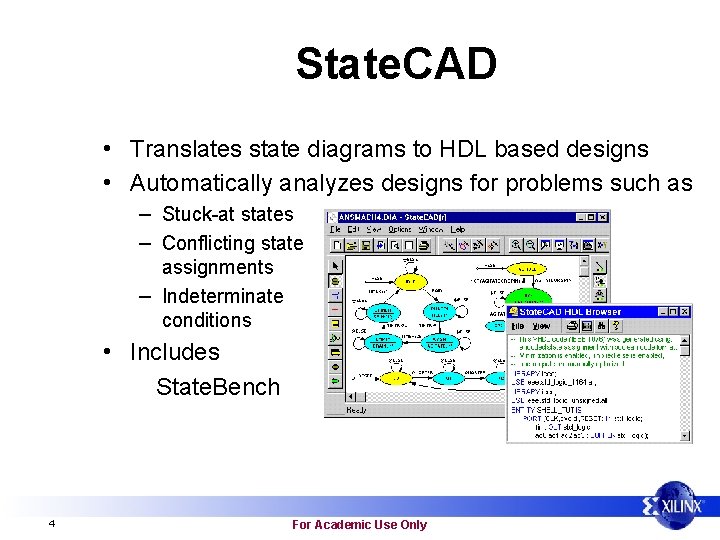
State. CAD • Translates state diagrams to HDL based designs • Automatically analyzes designs for problems such as – Stuck-at states – Conflicting state assignments – Indeterminate conditions • Includes State. Bench 4 For Academic Use Only
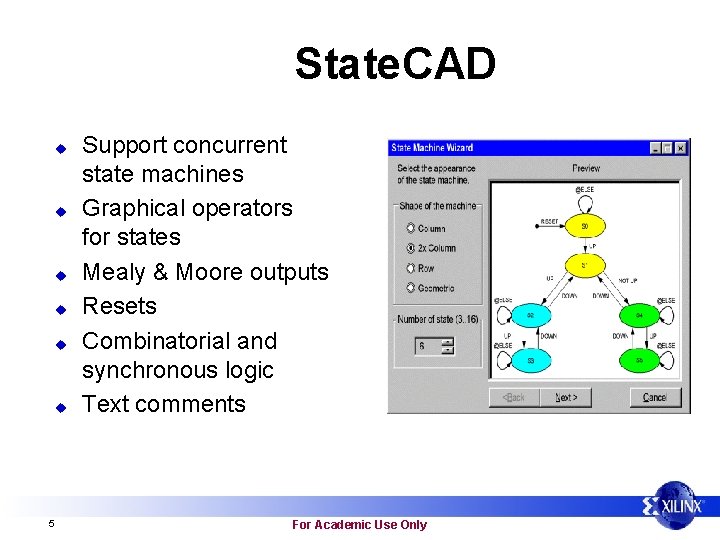
State. CAD u u u 5 Support concurrent state machines Graphical operators for states Mealy & Moore outputs Resets Combinatorial and synchronous logic Text comments For Academic Use Only
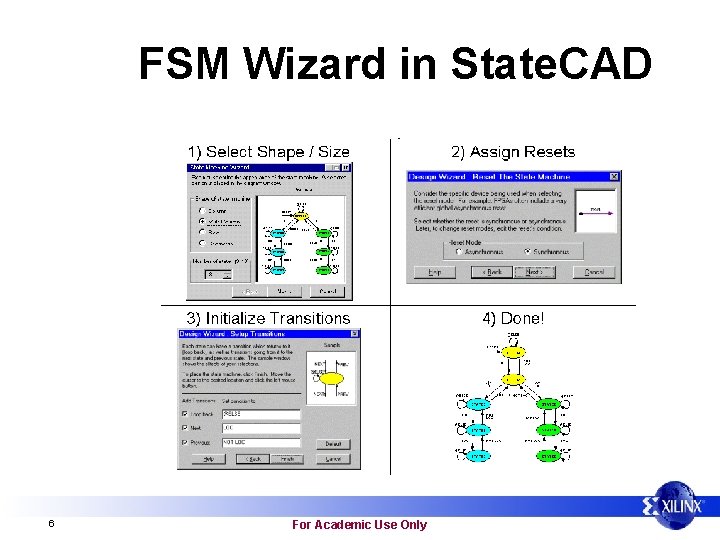
FSM Wizard in State. CAD 6 For Academic Use Only
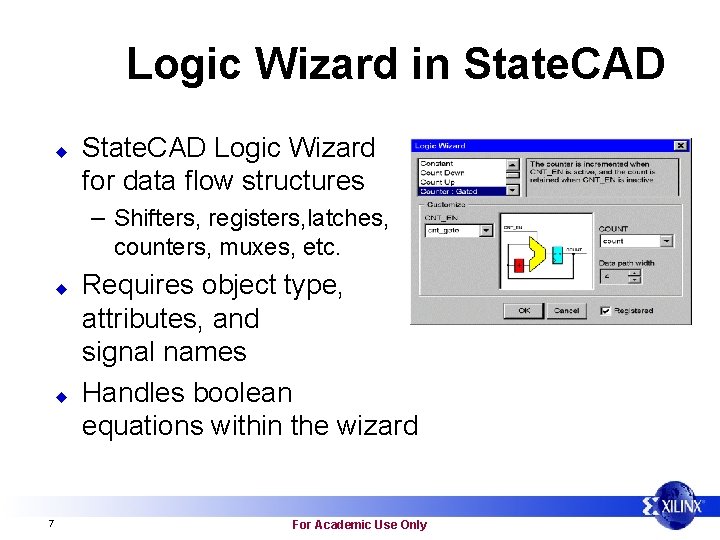
Logic Wizard in State. CAD u State. CAD Logic Wizard for data flow structures – Shifters, registers, latches, counters, muxes, etc. u u 7 Requires object type, attributes, and signal names Handles boolean equations within the wizard For Academic Use Only
Overview u State. CAD diagrams have. dia extensions – File names have an eight character limit u State. CAD output – Language specific files • VHDL, Verilog, or ABEL • VHDL and Verilog output files can be compiled using various tools 8 – Exemplar – Synopsys For Academic Use Only
Outline u u u 9 Overview Beginning a Diagram States and Transitions Wizards Compilation Summary For Academic Use Only
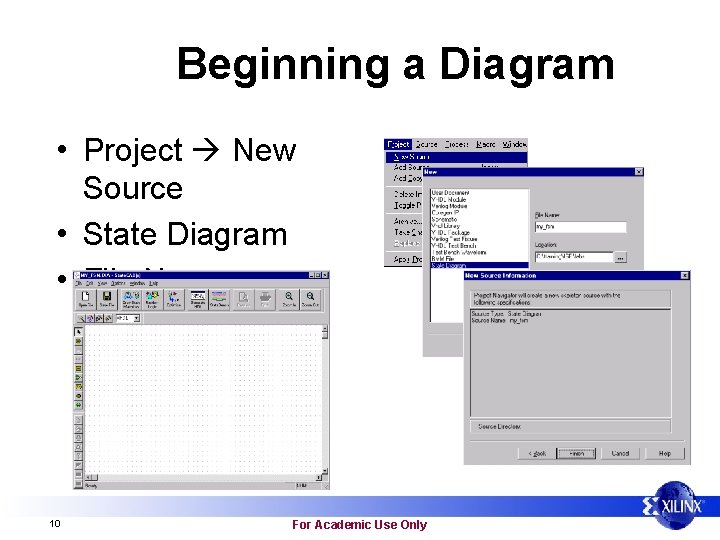
Beginning a Diagram • Project New Source • State Diagram • File Name 10 For Academic Use Only
Outline u u u 11 Overview Beginning a Diagram States and Transitions Wizards Compilation Summary For Academic Use Only
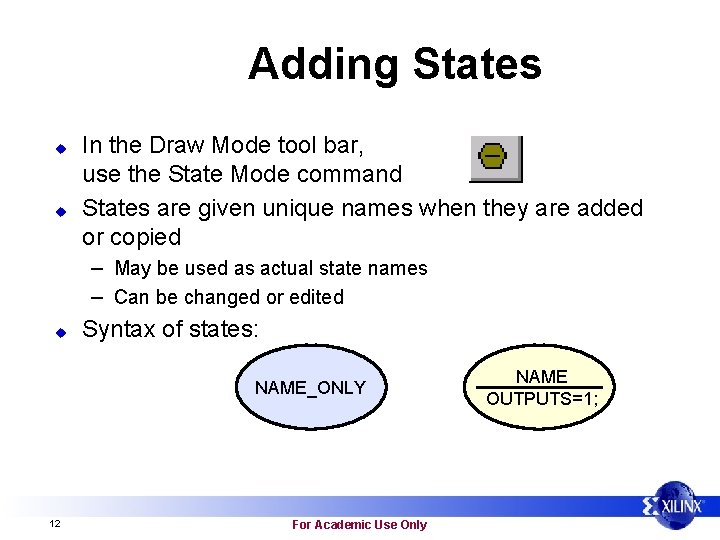
Adding States u u In the Draw Mode tool bar, use the State Mode command States are given unique names when they are added or copied – May be used as actual state names – Can be changed or edited u Syntax of states: NAME_ONLY 12 For Academic Use Only NAME OUTPUTS=1;
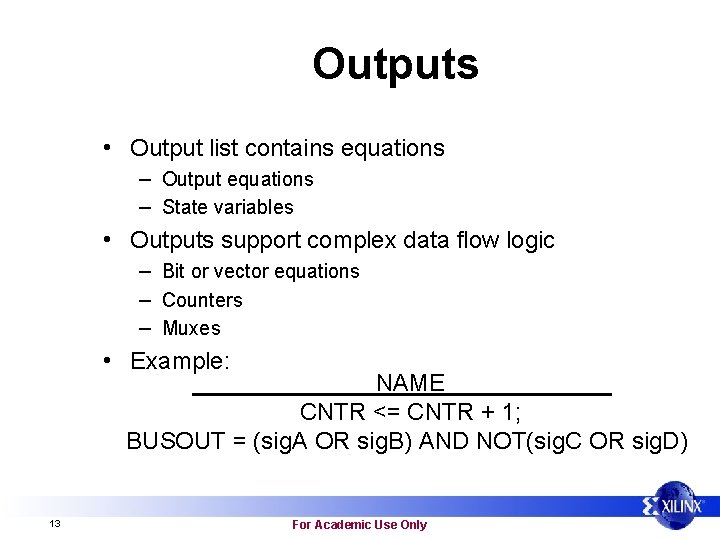
Outputs • Output list contains equations – Output equations – State variables • Outputs support complex data flow logic – Bit or vector equations – Counters – Muxes • Example: NAME CNTR <= CNTR + 1; BUSOUT = (sig. A OR sig. B) AND NOT(sig. C OR sig. D) 13 For Academic Use Only
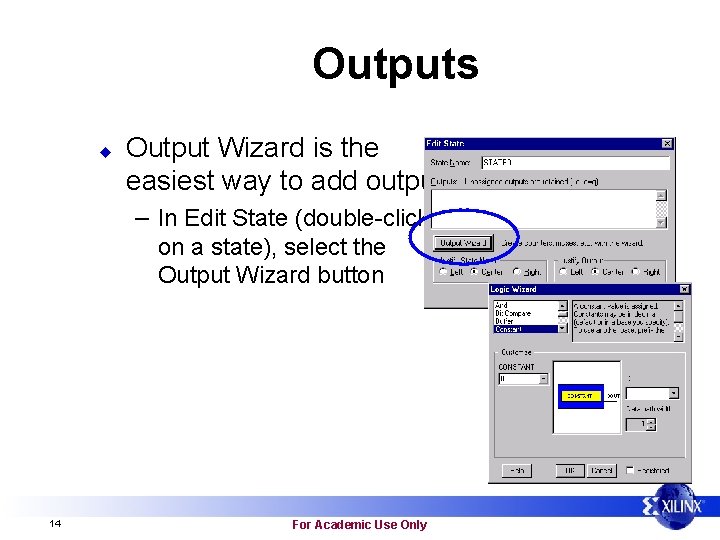
Outputs u Output Wizard is the easiest way to add outputs – In Edit State (double-click on a state), select the Output Wizard button 14 For Academic Use Only
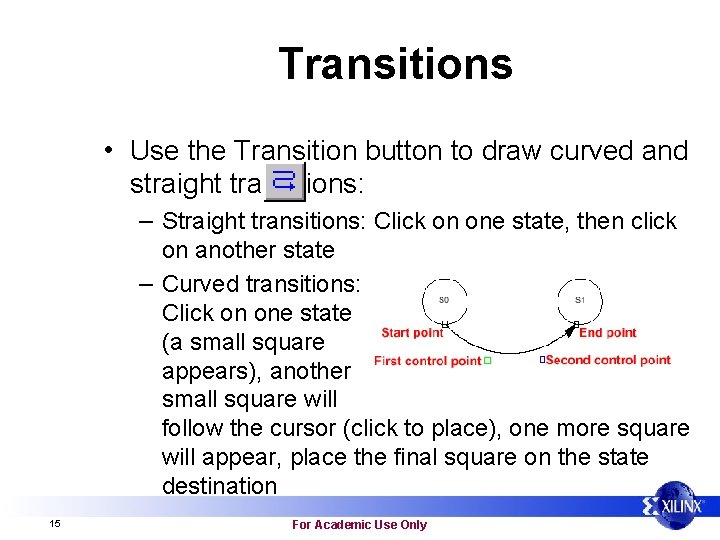
Transitions • Use the Transition button to draw curved and straight transitions: – Straight transitions: Click on one state, then click on another state – Curved transitions: Click on one state (a small square appears), another small square will follow the cursor (click to place), one more square will appear, place the final square on the state destination 15 For Academic Use Only
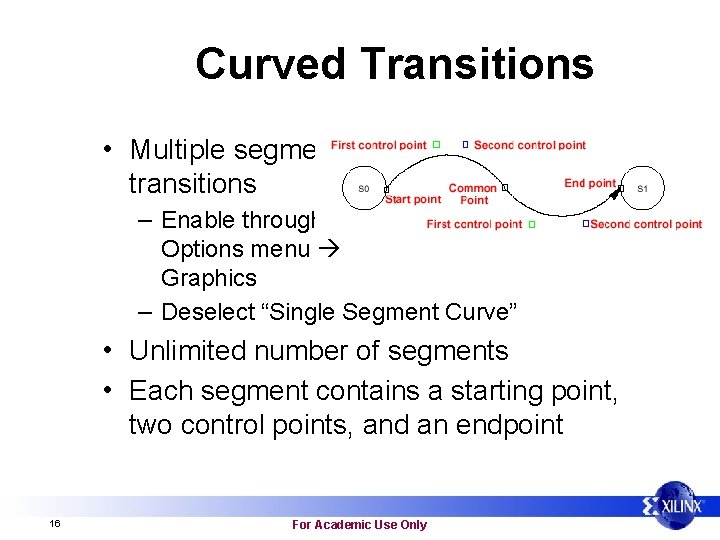
Curved Transitions • Multiple segment transitions – Enable through Options menu Graphics – Deselect “Single Segment Curve” • Unlimited number of segments • Each segment contains a starting point, two control points, and an endpoint 16 For Academic Use Only
Transition Conditions • To add a transition condition, double-click on the transition for the Edit Condition dialog box • Conditions are Boolean equations – Syntax errors and indeterminate conditions are checked during compilation • Conditions may use inputs, outputs, and logic variables – State names and variables from one machine may 17 be used in the condition of another machine. This allows communication between state machines For Academic Use Only
Reset u u u Reset is taken from any state, when its condition is true One synchronous and one asynchronous reset are allowed per state machine Reset condition should not contain variables used in any other transition of the state machine – Reset overrides the state transition 18 For Academic Use Only
Reset u u u 19 Use the Reset Mode command: Click on an empty region for your start point Click on the desired reset state You will automatically be asked to select the mode (asynchronous or synchronous) The condition is automatically added (Reset) For Academic Use Only
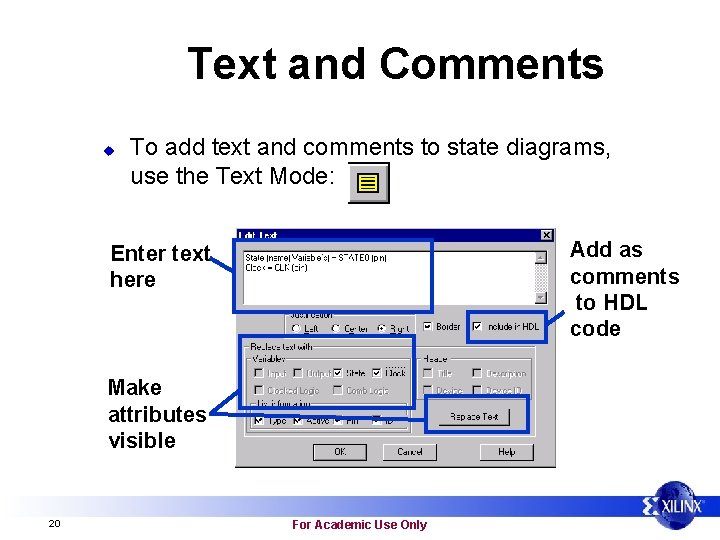
Text and Comments u To add text and comments to state diagrams, use the Text Mode: Add as comments to HDL code Enter text here Make attributes visible 20 For Academic Use Only
Text and Comments u u u 21 Test vectors added into the HDL and included files can be referenced by including text in HDL Language specific logic not supported by State. CAD may be implemented Caution: When adding comments in HDL, text lines may be broken by State. CAD, and the new line will begin without a comment marker in HDL For Academic Use Only
Outline • Overview • Beginning a Diagram • States and Transitions • Wizards • Compilation • Summary 22 For Academic Use Only
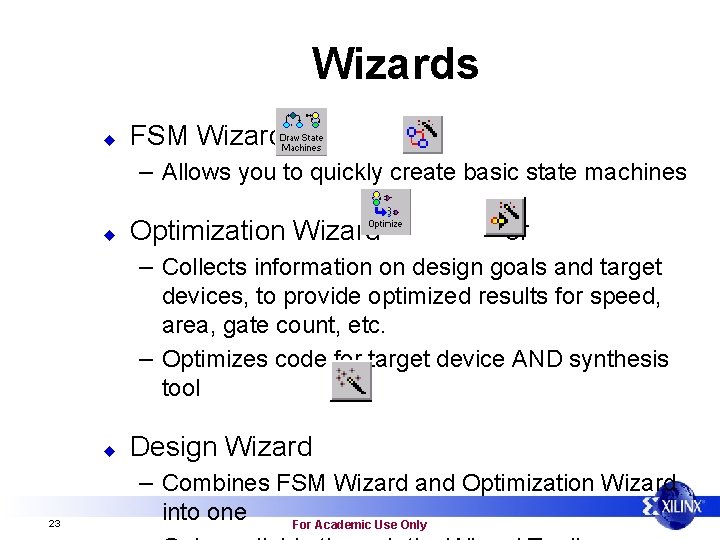
Wizards u FSM Wizard or – Allows you to quickly create basic state machines u Optimization Wizard or – Collects information on design goals and target devices, to provide optimized results for speed, area, gate count, etc. – Optimizes code for target device AND synthesis tool u Design Wizard – Combines FSM Wizard and Optimization Wizard 23 into one For Academic Use Only
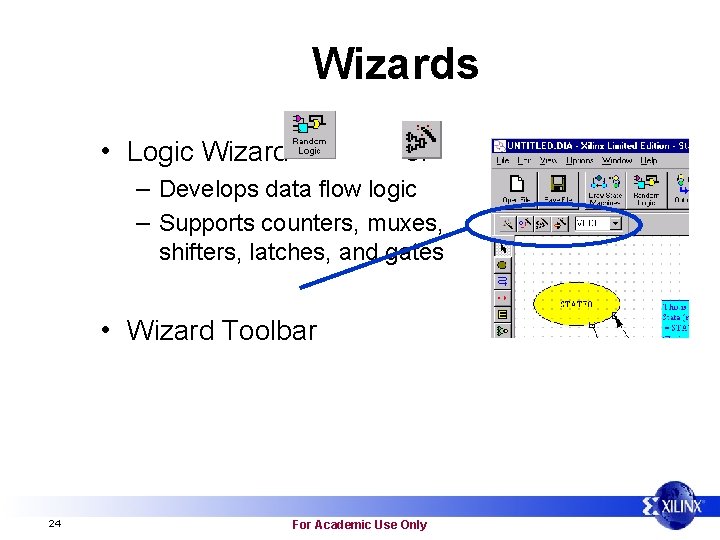
Wizards • Logic Wizard or – Develops data flow logic – Supports counters, muxes, shifters, latches, and gates • Wizard Toolbar 24 For Academic Use Only
Outline • Overview • Beginning a • • 25 Diagram States and Transitions Wizards Compilation Summary For Academic Use Only
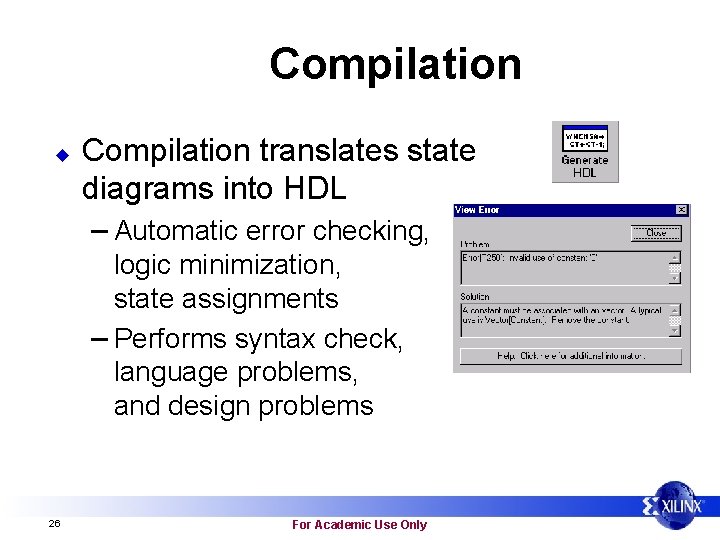
Compilation u Compilation translates state diagrams into HDL – Automatic error checking, logic minimization, state assignments – Performs syntax check, language problems, and design problems 26 For Academic Use Only
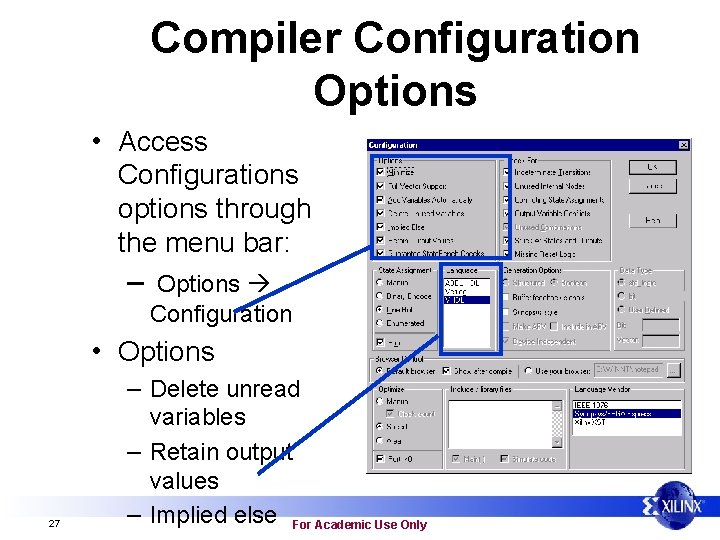
Compiler Configuration Options • Access Configurations options through the menu bar: – Options Configuration • Options – Delete unread 27 variables – Retain output values – Implied else For Academic Use Only
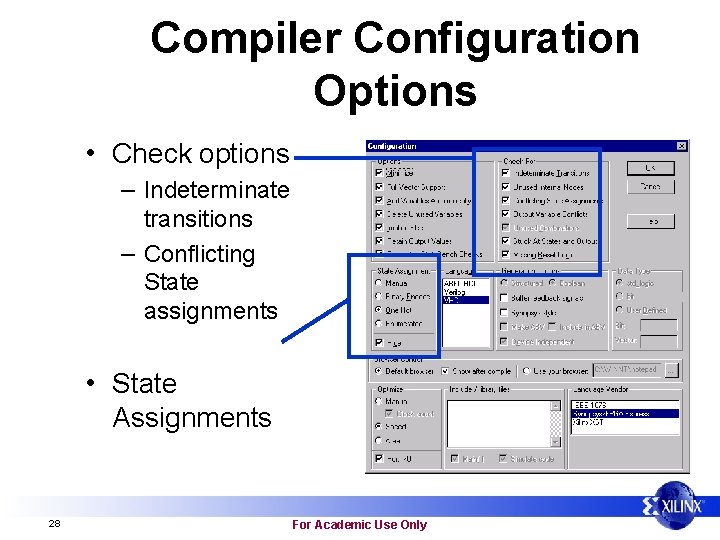
Compiler Configuration Options • Check options – Indeterminate transitions – Conflicting State assignments • State Assignments 28 For Academic Use Only
Outline • Overview • Beginning a • • 29 Diagram States and Transitions Wizards Compilation Summary For Academic Use Only
Summary u u u 30 State diagrams can be translated into VHDL, Verilog, or ABEL Numerous toolbars are available to aid in your diagram design States and state transitions are easily added through buttons in the Draw Mode Toolbar The Output Wizard gives access to the Logic Wizard, so you can easily add output equations or conditions to any state or transition Designs are compiled and translated with a simple push button For Academic Use Only
Outline • Overview • Beginning a • • 31 Diagram States and Transitions Wizards Compilation Summary For Academic Use Only
- Slides: 31