
STARTING OUT WITH Visual Basic 2008 FOURTH EDITION
STARTING OUT WITH Visual Basic 2008 FOURTH EDITION Tony Gaddis Haywood Community College Kip Irvine Florida International University Copyright © 2007 Pearson Education, Inc. Publishing as Pearson Addison-Wesley Slide 9 - 1
Chapter 9 Files, Printing, and Structures Copyright © 2007 Pearson Education, Inc. Publishing as Pearson Addison-Wesley
Introduction n n Saving data to sequential text files Reading the data back into an application Using the Open. File. Dialog, Save. File. Dialog, Color. Dialog, and Font. Dialog controls Using the Print. Document control to print reports from your application Packaging units of data together into structures Copyright © 2007 Pearson Education, Inc. Publishing as Pearson Addison-Wesley Slide 9 - 3
9. 1 Using Files A File Is a Collection of Data Stored on a Computer Disk Information Can Be Saved to Files and Later Reused Copyright © 2007 Pearson Education, Inc. Publishing as Pearson Addison-Wesley
The Life Span of Data n n n Thus far, all of our data has been stored in controls and variables existing in RAM This data disappears once the program stops running If data is stored in a file on a computer disk, it can be retrieved and used at a later time Copyright © 2007 Pearson Education, Inc. Publishing as Pearson Addison-Wesley Slide 9 - 5
Three Steps in Using a File 1. The file must be opened If it does not yet exist, it will be created 2. Data is read from or written to the file 3. The program closes the file Copyright © 2007 Pearson Education, Inc. Publishing as Pearson Addison-Wesley Slide 9 - 6
Reading and Writing to a File n n Data must be retrieved from disk and put in memory for an application to work with it Data is transferred from disk to memory by: n Reading it from an input file n Placing it in variables or control properties Data is transferred from memory to disk by: n Writing it to an output file n Getting it from variables or control properties Data is frequently placed in the text property of a control Copyright © 2007 Pearson Education, Inc. Publishing as Pearson Addison-Wesley Slide 9 - 7
File Types/Access Methods n Text file type n n n Binary file type n n n Character based text Contents can be viewed by Notepad Pure binary form Contents cannot be viewed with a text editor Access Methods n n n Sequential access – a continuous stream of data written and read as a whole from beginning to end Random access – access in any order with data written to or read from specific places in the file Like the difference between a casette tape and a CD Copyright © 2007 Pearson Education, Inc. Publishing as Pearson Addison-Wesley Slide 9 - 8
Creating Files with Stream. Writer Objects n n Add Imports System. IO before class declared n Makes Stream. Writer classes available in code A Stream. Writer object is used to create a sequential text file in the following way: n Declare an object variable of type Stream. Writer Dim phone. File As Stream. Writer n Call Create. Text method passing the filename phone. File = File. Create. Text(“phonelist. txt”) Method returns a Stream. Writer object n Object is assigned to a Stream. Writer variable Variable phone. File now defines a stream of data that can be written to phonelist. txt n n Copyright © 2007 Pearson Education, Inc. Publishing as Pearson Addison-Wesley Slide 9 - 9
Appending Text with Stream. Writer n A Stream. Writer object is used to append data to a sequential text file in the following way: n Declare an object variable of type Stream. Writer Dim phone. File As Stream. Writer n Call Append. Text method passing the filename phone. File = File. Append. Text(“phonelist. txt”) Method returns a Stream. Writer object n Object is assigned to a Stream. Writer variable Variable phone. File now defines a stream of data that can be added to the end of phonelist. txt n n Copyright © 2007 Pearson Education, Inc. Publishing as Pearson Addison-Wesley Slide 9 - 10
File Paths n Filename can include the file path n Can be a complete file path with drive letter “C: Word. Procmemo. txt" n Refer to a file in the default drive root directory "pricelist. txt" n Or include no path information at all "mytext. txt“ n If no path information specified, the bin folder of the current project is used Copyright © 2007 Pearson Education, Inc. Publishing as Pearson Addison-Wesley Slide 9 - 11
Writing Data to a File n The Write. Line method of a Stream. Writer object actually writes data to the file Object. Var. Write. Line(Data) Streamwriter object identified by Object. Var n The method’s Data argument consists of constants or variables with data to be written Write. Line appends an invisible newline character to the end of the data Omit argument to write a blank line to a file n n n Object. Var. Write. Line() Copyright © 2007 Pearson Education, Inc. Publishing as Pearson Addison-Wesley Slide 9 - 12
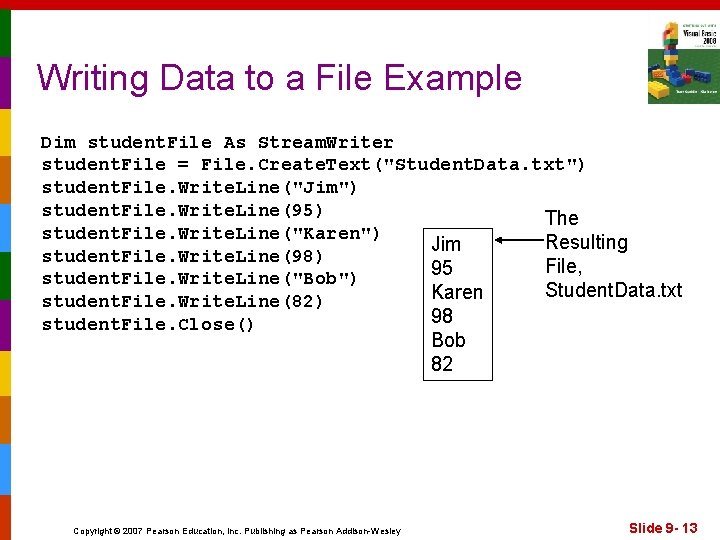
Writing Data to a File Example Dim student. File As Stream. Writer student. File = File. Create. Text("Student. Data. txt") student. File. Write. Line("Jim") student. File. Write. Line(95) The student. File. Write. Line("Karen") Resulting Jim student. File. Write. Line(98) File, 95 student. File. Write. Line("Bob") Student. Data. txt Karen student. File. Write. Line(82) 98 student. File. Close() Bob 82 Copyright © 2007 Pearson Education, Inc. Publishing as Pearson Addison-Wesley Slide 9 - 13
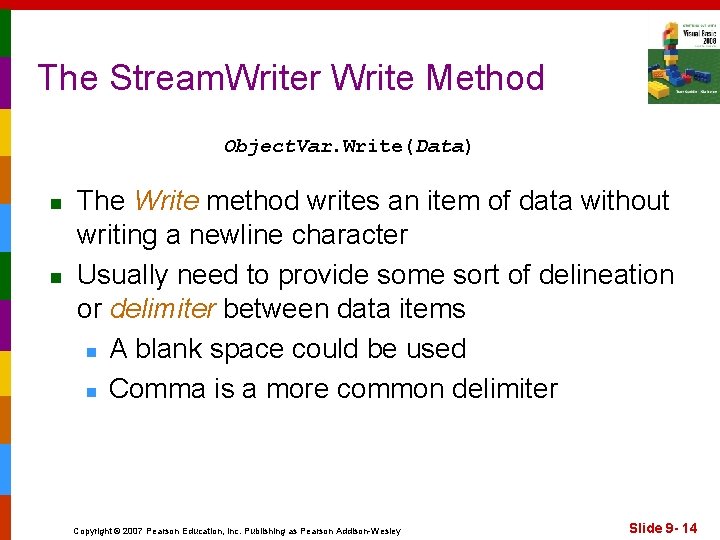
The Stream. Writer Write Method Object. Var. Write(Data) n n The Write method writes an item of data without writing a newline character Usually need to provide some sort of delineation or delimiter between data items n A blank space could be used n Comma is a more common delimiter Copyright © 2007 Pearson Education, Inc. Publishing as Pearson Addison-Wesley Slide 9 - 14
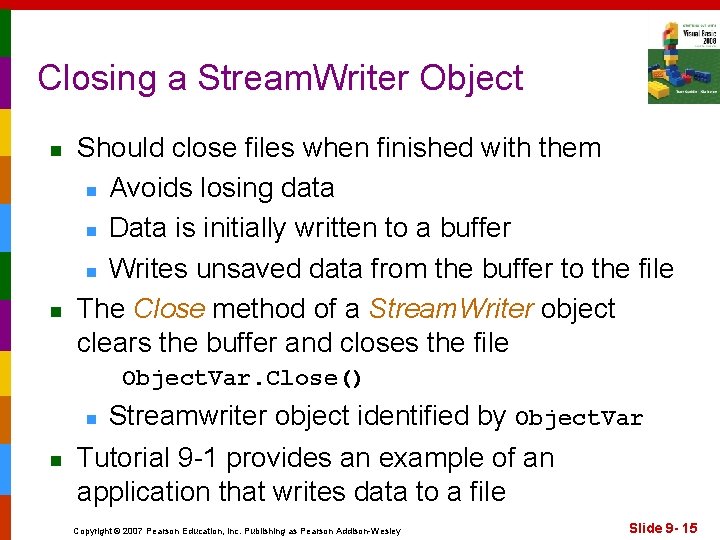
Closing a Stream. Writer Object n n Should close files when finished with them n Avoids losing data n Data is initially written to a buffer n Writes unsaved data from the buffer to the file The Close method of a Stream. Writer object clears the buffer and closes the file Object. Var. Close() Streamwriter object identified by Object. Var Tutorial 9 -1 provides an example of an application that writes data to a file n n Copyright © 2007 Pearson Education, Inc. Publishing as Pearson Addison-Wesley Slide 9 - 15
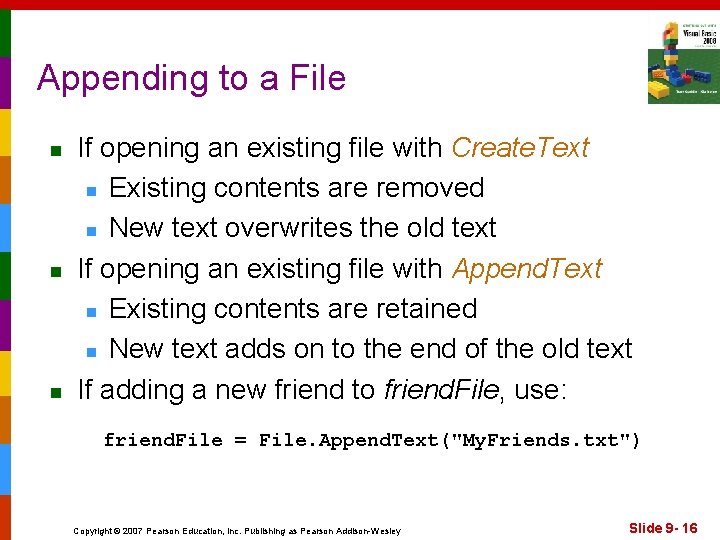
Appending to a File n n n If opening an existing file with Create. Text n Existing contents are removed n New text overwrites the old text If opening an existing file with Append. Text n Existing contents are retained n New text adds on to the end of the old text If adding a new friend to friend. File, use: friend. File = File. Append. Text("My. Friends. txt") Copyright © 2007 Pearson Education, Inc. Publishing as Pearson Addison-Wesley Slide 9 - 16
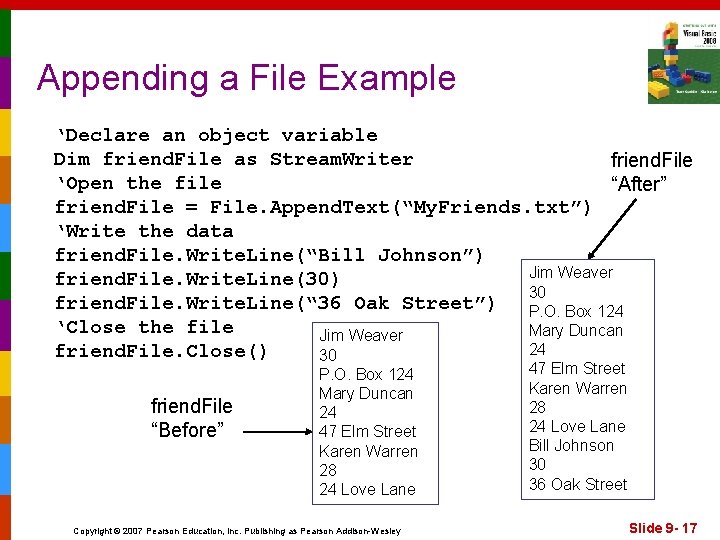
Appending a File Example ‘Declare an object variable Dim friend. File as Stream. Writer friend. File ‘Open the file “After” friend. File = File. Append. Text(“My. Friends. txt”) ‘Write the data friend. File. Write. Line(“Bill Johnson”) Jim Weaver friend. File. Write. Line(30) 30 friend. File. Write. Line(“ 36 Oak Street”) P. O. Box 124 ‘Close the file Mary Duncan Jim Weaver 24 friend. File. Close() 30 friend. File “Before” P. O. Box 124 Mary Duncan 24 47 Elm Street Karen Warren 28 24 Love Lane Copyright © 2007 Pearson Education, Inc. Publishing as Pearson Addison-Wesley 47 Elm Street Karen Warren 28 24 Love Lane Bill Johnson 30 36 Oak Street Slide 9 - 17
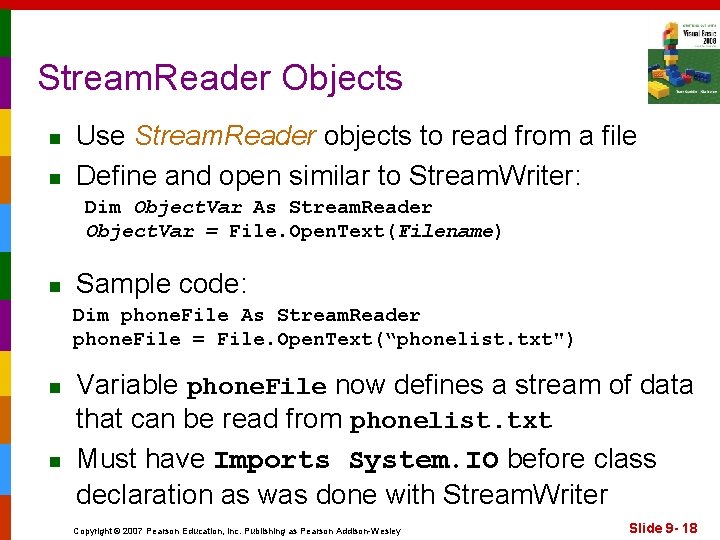
Stream. Reader Objects n n Use Stream. Reader objects to read from a file Define and open similar to Stream. Writer: Dim Object. Var As Stream. Reader Object. Var = File. Open. Text(Filename) n Sample code: Dim phone. File As Stream. Reader phone. File = File. Open. Text(“phonelist. txt") n n Variable phone. File now defines a stream of data that can be read from phonelist. txt Must have Imports System. IO before class declaration as was done with Stream. Writer Copyright © 2007 Pearson Education, Inc. Publishing as Pearson Addison-Wesley Slide 9 - 18
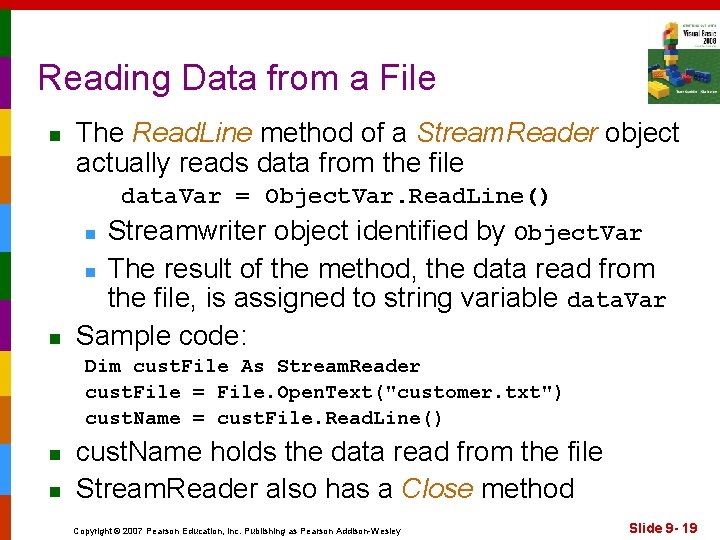
Reading Data from a File n The Read. Line method of a Stream. Reader object actually reads data from the file data. Var = Object. Var. Read. Line() Streamwriter object identified by Object. Var n The result of the method, the data read from the file, is assigned to string variable data. Var Sample code: n n Dim cust. File As Stream. Reader cust. File = File. Open. Text("customer. txt") cust. Name = cust. File. Read. Line() n n cust. Name holds the data read from the file Stream. Reader also has a Close method Copyright © 2007 Pearson Education, Inc. Publishing as Pearson Addison-Wesley Slide 9 - 19
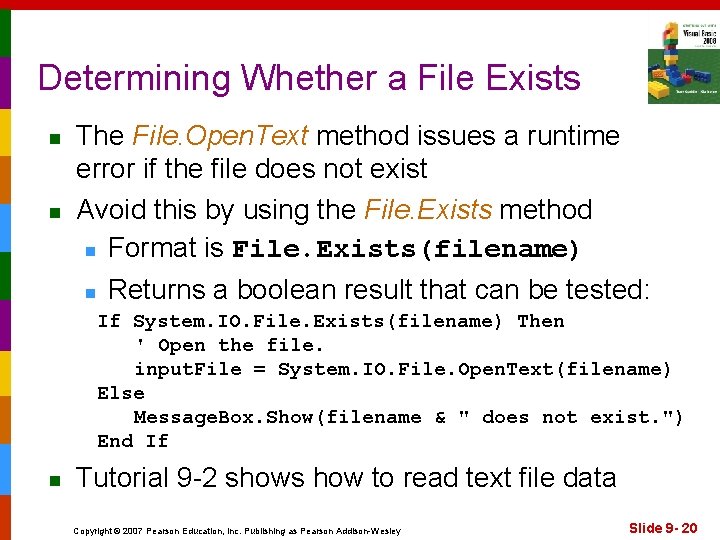
Determining Whether a File Exists n n The File. Open. Text method issues a runtime error if the file does not exist Avoid this by using the File. Exists method n Format is File. Exists(filename) n Returns a boolean result that can be tested: If System. IO. File. Exists(filename) Then ' Open the file. input. File = System. IO. File. Open. Text(filename) Else Message. Box. Show(filename & " does not exist. ") End If n Tutorial 9 -2 shows how to read text file data Copyright © 2007 Pearson Education, Inc. Publishing as Pearson Addison-Wesley Slide 9 - 20
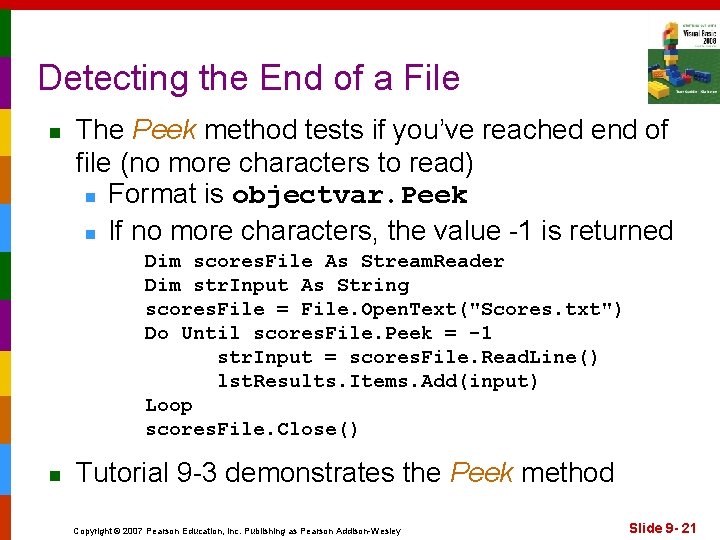
Detecting the End of a File n The Peek method tests if you’ve reached end of file (no more characters to read) n Format is objectvar. Peek n If no more characters, the value -1 is returned Dim scores. File As Stream. Reader Dim str. Input As String scores. File = File. Open. Text("Scores. txt") Do Until scores. File. Peek = -1 str. Input = scores. File. Read. Line() lst. Results. Items. Add(input) Loop scores. File. Close() n Tutorial 9 -3 demonstrates the Peek method Copyright © 2007 Pearson Education, Inc. Publishing as Pearson Addison-Wesley Slide 9 - 21
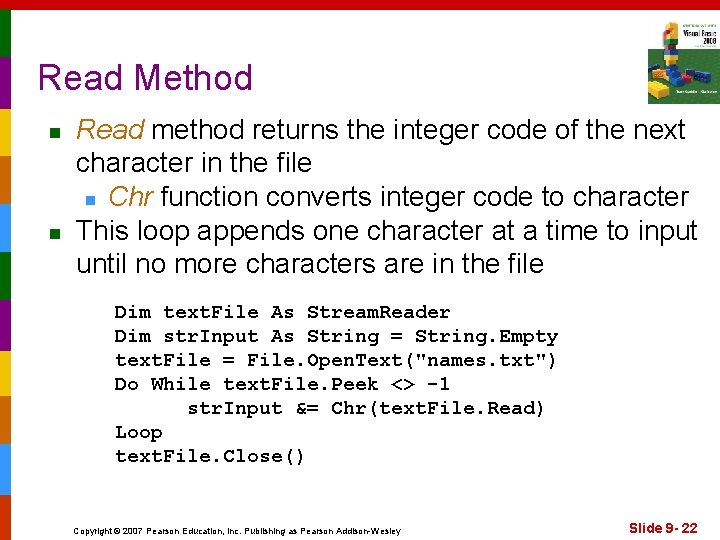
Read Method n n Read method returns the integer code of the next character in the file n Chr function converts integer code to character This loop appends one character at a time to input until no more characters are in the file Dim text. File As Stream. Reader Dim str. Input As String = String. Empty text. File = File. Open. Text("names. txt") Do While text. File. Peek <> -1 str. Input &= Chr(text. File. Read) Loop text. File. Close() Copyright © 2007 Pearson Education, Inc. Publishing as Pearson Addison-Wesley Slide 9 - 22
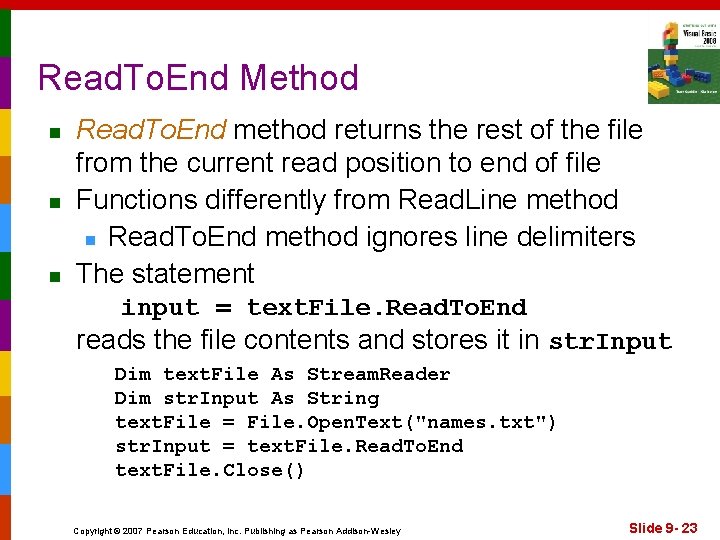
Read. To. End Method n n n Read. To. End method returns the rest of the file from the current read position to end of file Functions differently from Read. Line method n Read. To. End method ignores line delimiters The statement input = text. File. Read. To. End reads the file contents and stores it in str. Input Dim text. File As Stream. Reader Dim str. Input As String text. File = File. Open. Text("names. txt") str. Input = text. File. Read. To. End text. File. Close() Copyright © 2007 Pearson Education, Inc. Publishing as Pearson Addison-Wesley Slide 9 - 23
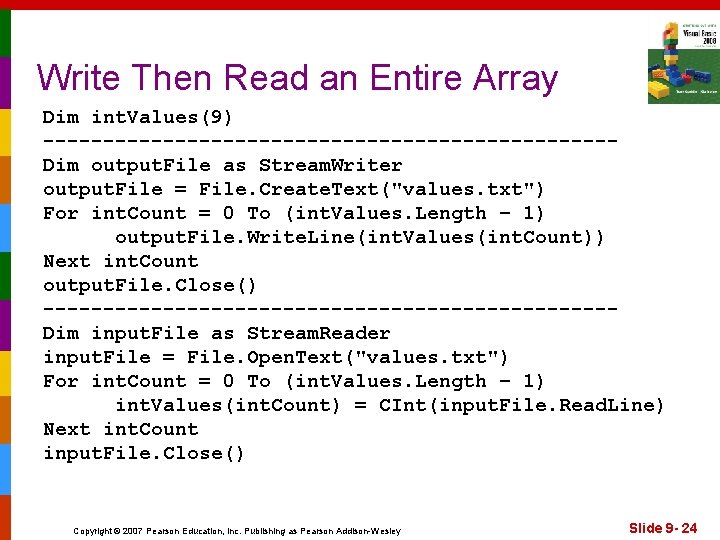
Write Then Read an Entire Array Dim int. Values(9) ------------------------Dim output. File as Stream. Writer output. File = File. Create. Text("values. txt") For int. Count = 0 To (int. Values. Length – 1) output. File. Write. Line(int. Values(int. Count)) Next int. Count output. File. Close() ------------------------Dim input. File as Stream. Reader input. File = File. Open. Text("values. txt") For int. Count = 0 To (int. Values. Length – 1) int. Values(int. Count) = CInt(input. File. Read. Line) Next int. Count input. File. Close() Copyright © 2007 Pearson Education, Inc. Publishing as Pearson Addison-Wesley Slide 9 - 24
9. 2 The Open. File. Dialog, Save. File. Dialog, Font. Dialog, and Color. Dialog Controls Visual Basic Provides Dialog Controls That Equip Your Applications With Standard Windows Dialog Boxes for Operations Such As Opening Files, Saving Files, and Selecting Fonts and Colors Copyright © 2007 Pearson Education, Inc. Publishing as Pearson Addison-Wesley
Open. File. Dialog and Save. File. Dialog n n Windows has a standard method of allowing a user to choose a file to open or save n These methods let users browse for a file The Open. File. Dialog and Save. File. Dialog controls provide this capability in VB To use the Open. File. Dialog control n Double click on this tool in the Toolbox n Appears in component tray n Use ofd as standard prefix when naming Save. File. Dialog is used in a similar way Copyright © 2007 Pearson Education, Inc. Publishing as Pearson Addison-Wesley Slide 9 - 26
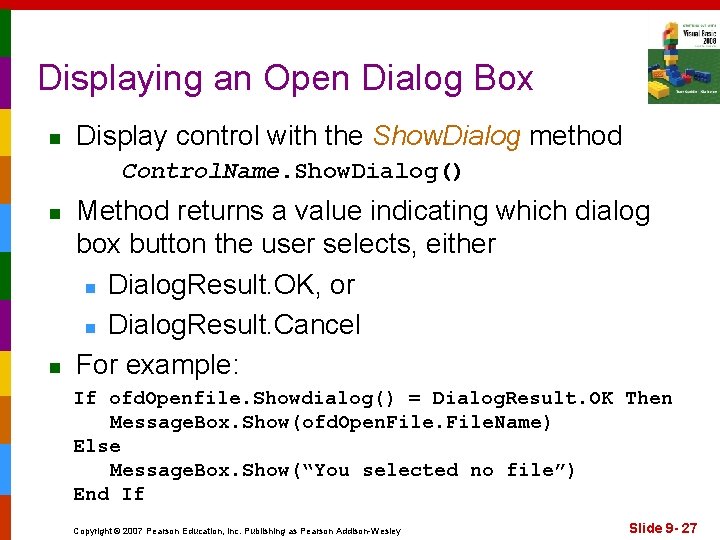
Displaying an Open Dialog Box n Display control with the Show. Dialog method Control. Name. Show. Dialog() n n Method returns a value indicating which dialog box button the user selects, either n Dialog. Result. OK, or n Dialog. Result. Cancel For example: If ofd. Openfile. Showdialog() = Dialog. Result. OK Then Message. Box. Show(ofd. Open. File. Name) Else Message. Box. Show(“You selected no file”) End If Copyright © 2007 Pearson Education, Inc. Publishing as Pearson Addison-Wesley Slide 9 - 27
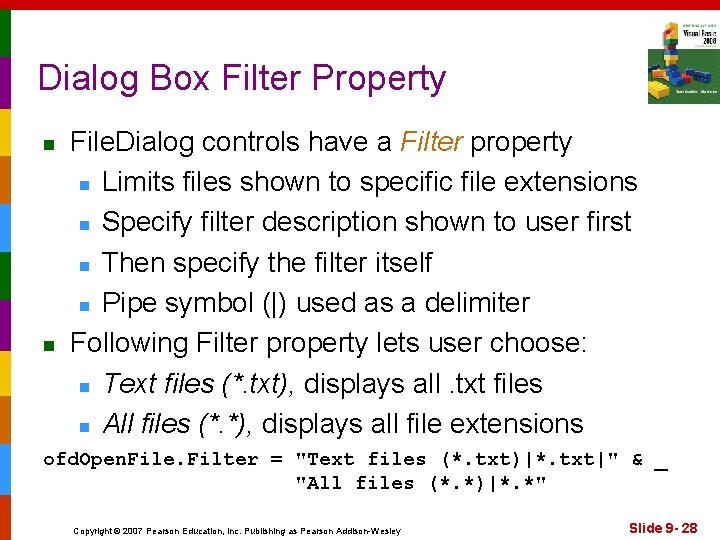
Dialog Box Filter Property n n File. Dialog controls have a Filter property n Limits files shown to specific file extensions n Specify filter description shown to user first n Then specify the filter itself n Pipe symbol (|) used as a delimiter Following Filter property lets user choose: n Text files (*. txt), displays all. txt files n All files (*. *), displays all file extensions ofd. Open. File. Filter = "Text files (*. txt)|*. txt|" & _ "All files (*. *)|*. *" Copyright © 2007 Pearson Education, Inc. Publishing as Pearson Addison-Wesley Slide 9 - 28
Other Open. File. Dialog Properties n Initial. Directory property specifies folder to use n Default if not specified is current folder n To set dialog box initial directory to C: Data: ofd. Open. File. Initial. Directory = “C: Data” n Title property specifies the text on the title bar n Default title is Open if not specified ofd. Open. File. Title = “Select a File to Open” n Filename property returns file selected from dialog box by user, in this case to selected. File = ofd. Open. Filename Copyright © 2007 Pearson Education, Inc. Publishing as Pearson Addison-Wesley Slide 9 - 29
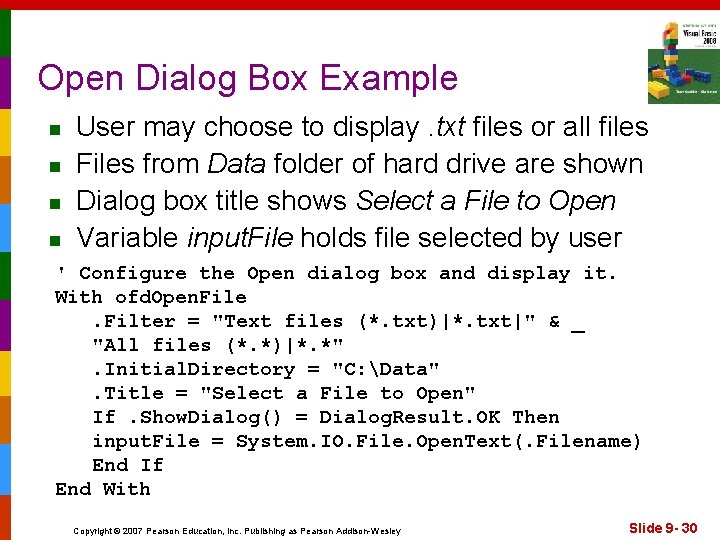
Open Dialog Box Example n n User may choose to display. txt files or all files Files from Data folder of hard drive are shown Dialog box title shows Select a File to Open Variable input. File holds file selected by user ' Configure the Open dialog box and display it. With ofd. Open. File. Filter = "Text files (*. txt)|*. txt|" & _ "All files (*. *)|*. *". Initial. Directory = "C: Data". Title = "Select a File to Open" If. Show. Dialog() = Dialog. Result. OK Then input. File = System. IO. File. Open. Text(. Filename) End If End With Copyright © 2007 Pearson Education, Inc. Publishing as Pearson Addison-Wesley Slide 9 - 30
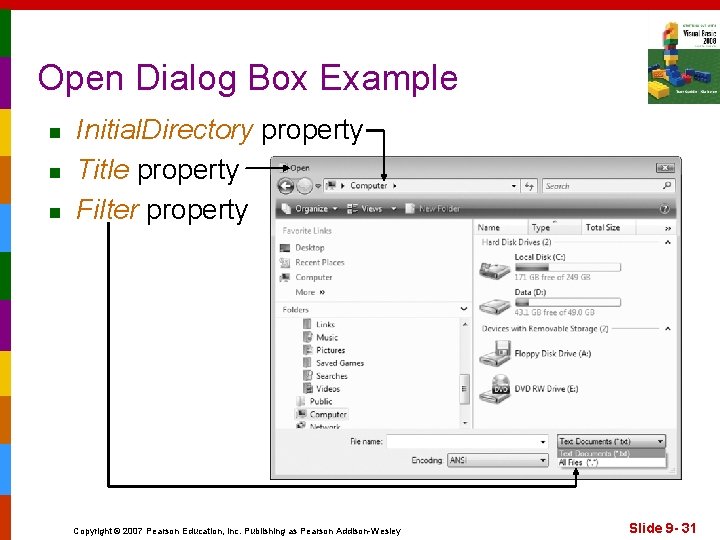
Open Dialog Box Example n n n Initial. Directory property Title property Filter property Copyright © 2007 Pearson Education, Inc. Publishing as Pearson Addison-Wesley Slide 9 - 31
Save. File. Dialog Control n n Save. File. Dialog uses the same methods: n Show. Dialog() The same properties: n Filter n Initial. Directory n Title n Filename And the same result constants: n Dialog. Result. OK n Dialog. Result. Cancel Tutorial 9 -4 uses these controls in a text editor Copyright © 2007 Pearson Education, Inc. Publishing as Pearson Addison-Wesley Slide 9 - 32
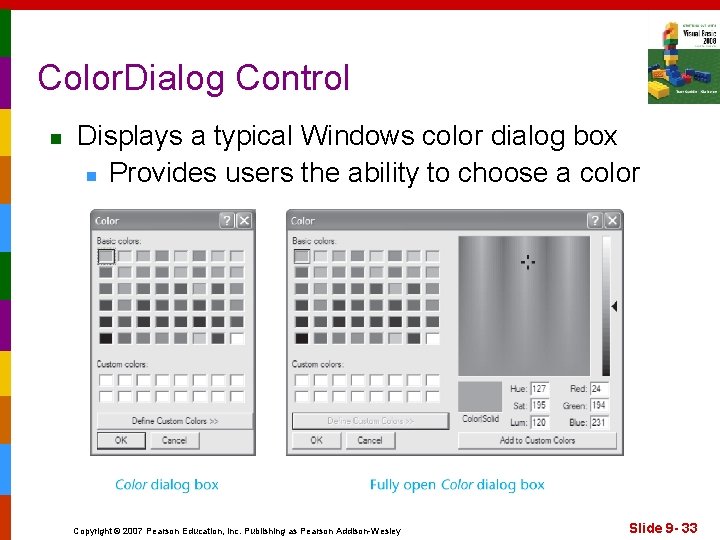
Color. Dialog Control n Displays a typical Windows color dialog box n Provides users the ability to choose a color Copyright © 2007 Pearson Education, Inc. Publishing as Pearson Addison-Wesley Slide 9 - 33
Color. Dialog Control n n To use the Color. Dialog control n Double click the tool in the Toolbox n Appears in component tray n Use cd as standard prefix when naming The following code sets the text in control lbl. Message to the color selected by the user cd. Color. Show. Dialog() If cd. Color. Show. Dialog() = Dialog. Result. OK Then lbl. Message. Fore. Color = cd. Color End If Copyright © 2007 Pearson Education, Inc. Publishing as Pearson Addison-Wesley Slide 9 - 34
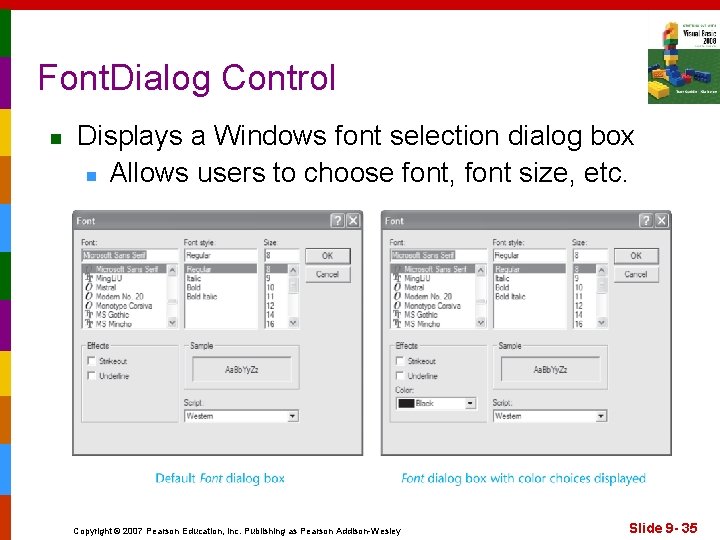
Font. Dialog Control n Displays a Windows font selection dialog box n Allows users to choose font, font size, etc. Copyright © 2007 Pearson Education, Inc. Publishing as Pearson Addison-Wesley Slide 9 - 35
Font. Dialog Control n n To use the Font. Dialog control n Double click the tool in the Toolbox n Appears in component tray n Use fd as standard prefix when naming The following code sets the text in control lbl. Message to the font selected by the user fd. Font. Show. Dialog() If fd. Font. Show. Dialog() = Dialog. Result. OK Then lbl. Message. Font = fd. Font End If Copyright © 2007 Pearson Education, Inc. Publishing as Pearson Addison-Wesley Slide 9 - 36
9. 3 The Print. Document Control Allows You to Print Data to the Printer Copyright © 2007 Pearson Education, Inc. Publishing as Pearson Addison-Wesley
Print. Document Control n n n Allows you to send output to the printer To use the Print. Document control n Double click the tool in the Toolbox n Appears in component tray n Use pd as standard prefix when naming Print. Document control has a Print method n This method starts the printing process n Format is: Print. Document. Control. Print() n This triggers a Print. Page event Copyright © 2007 Pearson Education, Inc. Publishing as Pearson Addison-Wesley Slide 9 - 38
Print. Page Event Handler n The code in the Print. Page event handler performs the actual printing n Double click Print. Document control in tray n This creates the Print. Page event handler n Insert your print code inside the event handler n Basic format of event handler shown below: Private Sub pd. Print_Print. Page(By. Val sender As System. Object, _ By. Val e As System. Drawing. Print. Page. Event. Args) _ Handles pd. Print. Page ‘Your print code inserted here End Sub Copyright © 2007 Pearson Education, Inc. Publishing as Pearson Addison-Wesley Slide 9 - 39
Draw. String Method n n The Draw. String method is used inside the Print. Page event to: n Specify data to send to the printer in string n Set font, font size, and font style n Determine horizontal position (HPos) of text n Determine vertical position (VPos) of text n Brushes. Black specifies output in black Draw. String method is formatted as follows: e. Graphics. Draw. String(String, _ New Font(Font. Name, Size, Style), _ Brushes. Black, HPos, VPos) Copyright © 2007 Pearson Education, Inc. Publishing as Pearson Addison-Wesley Slide 9 - 40
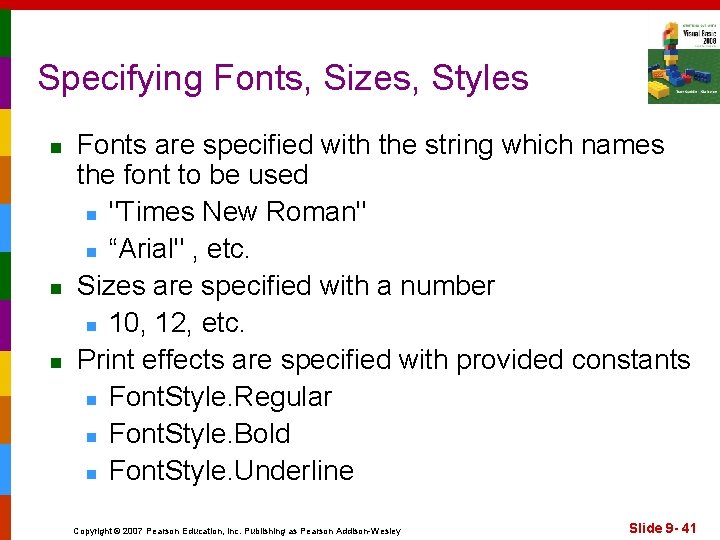
Specifying Fonts, Sizes, Styles n n n Fonts are specified with the string which names the font to be used n "Times New Roman" n “Arial" , etc. Sizes are specified with a number n 10, 12, etc. Print effects are specified with provided constants n Font. Style. Regular n Font. Style. Bold n Font. Style. Underline Copyright © 2007 Pearson Education, Inc. Publishing as Pearson Addison-Wesley Slide 9 - 41
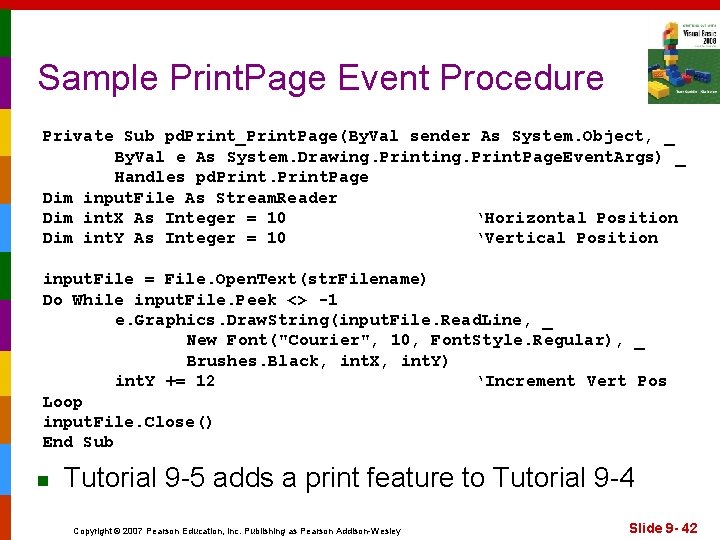
Sample Print. Page Event Procedure Private Sub pd. Print_Print. Page(By. Val sender As System. Object, _ By. Val e As System. Drawing. Print. Page. Event. Args) _ Handles pd. Print. Page Dim input. File As Stream. Reader Dim int. X As Integer = 10 ‘Horizontal Position Dim int. Y As Integer = 10 ‘Vertical Position input. File = File. Open. Text(str. Filename) Do While input. File. Peek <> -1 e. Graphics. Draw. String(input. File. Read. Line, _ New Font("Courier", 10, Font. Style. Regular), _ Brushes. Black, int. X, int. Y) int. Y += 12 ‘Increment Vert Pos Loop input. File. Close() End Sub n Tutorial 9 -5 adds a print feature to Tutorial 9 -4 Copyright © 2007 Pearson Education, Inc. Publishing as Pearson Addison-Wesley Slide 9 - 42
Printing Column Based Reports n n Business reports typically contain a: n Report header printed at the top of the page n Report body with the data, usually in columns n Optional footer, often totalling certain columns Report header usually has column headings Monospaced font used for column reports n Each character takes same amount of space n This allows columns to be aligned String. Format used to align data along column boundaries Copyright © 2007 Pearson Education, Inc. Publishing as Pearson Addison-Wesley Slide 9 - 43
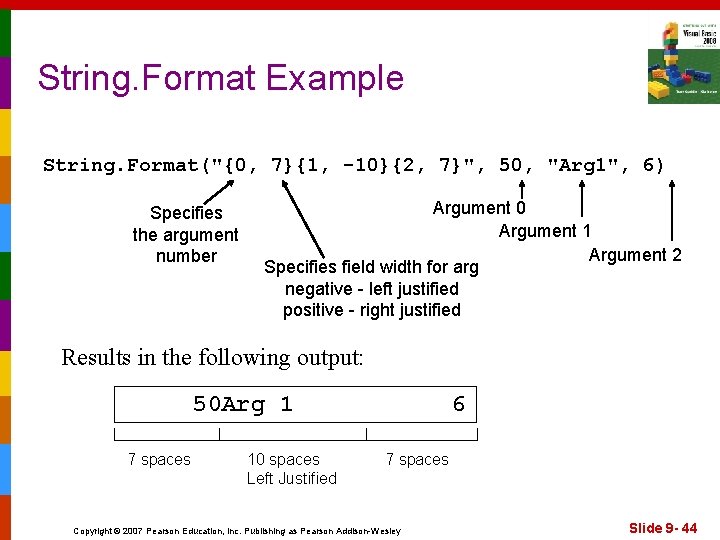
String. Format Example String. Format("{0, 7}{1, -10}{2, 7}", 50, "Arg 1", 6) Specifies the argument number Argument 0 Argument 1 Argument 2 Specifies field width for arg negative - left justified positive - right justified Results in the following output: 50 Arg 1 7 spaces 10 spaces Left Justified 6 7 spaces Copyright © 2007 Pearson Education, Inc. Publishing as Pearson Addison-Wesley Slide 9 - 44
9. 4 Structures Visual Basic Allows You to Create Your Own Data Types, in Which You May Group Multiple Data Fields Copyright © 2007 Pearson Education, Inc. Publishing as Pearson Addison-Wesley
Structures vs. Arrays n n Arrays: n Multiple fields in one array n All of the same data type n Distinguished by a numerical index Structures n Multiple fields in one structure n Can be of differing data types n Distinguished by a field name Copyright © 2007 Pearson Education, Inc. Publishing as Pearson Addison-Wesley Slide 9 - 46
![Syntax for Declaring a Structure [Access. Specifier] Structure. Name Field. Declarations End Structure n](http://slidetodoc.com/presentation_image_h2/0aeefb8881d201d07a3c847ed736c94b/image-47.jpg "Syntax for Declaring a Structure [Access. Specifier] Structure. Name Field. Declarations End Structure n")
Syntax for Declaring a Structure [Access. Specifier] Structure. Name Field. Declarations End Structure n n Structure. Name is a name that identifies the structure itself Field. Declarations are the declarations of the individual fields within the structure Copyright © 2007 Pearson Education, Inc. Publishing as Pearson Addison-Wesley Slide 9 - 47
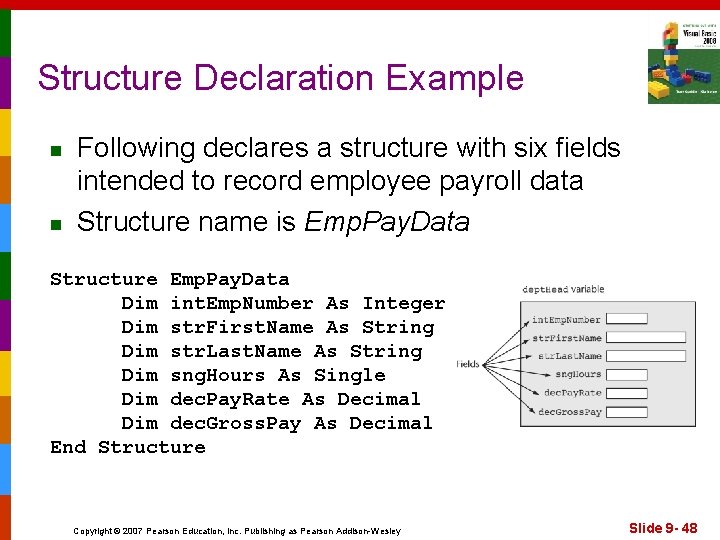
Structure Declaration Example n n Following declares a structure with six fields intended to record employee payroll data Structure name is Emp. Pay. Data Structure Emp. Pay. Data Dim int. Emp. Number As Integer Dim str. First. Name As String Dim str. Last. Name As String Dim sng. Hours As Single Dim dec. Pay. Rate As Decimal Dim dec. Gross. Pay As Decimal End Structure Copyright © 2007 Pearson Education, Inc. Publishing as Pearson Addison-Wesley Slide 9 - 48
Creating and Initializing a Structure n Using the Emp. Pay. Data structure just defined n Define variable dept. Head of type Emp. Pay. Data n dept. Head contains the six fields in the structure n Access each field using var. Name. field. Name Dim dept. Head As Emp. Pay. Data dept. Head. str. Emp. Number = 1101 dept. Head. str. First. Name = "Joanne" dept. Head. str. Last. Name = "Smith" dept. Head. sng. Hours = 40 dept. Head. dec. Pay. Rate = 25 dept. Head. dec. Gross. Pay = CDec(dept. Head. sng. Hours) * _ dept. Head. dec. Pay. Rate Copyright © 2007 Pearson Education, Inc. Publishing as Pearson Addison-Wesley Slide 9 - 49
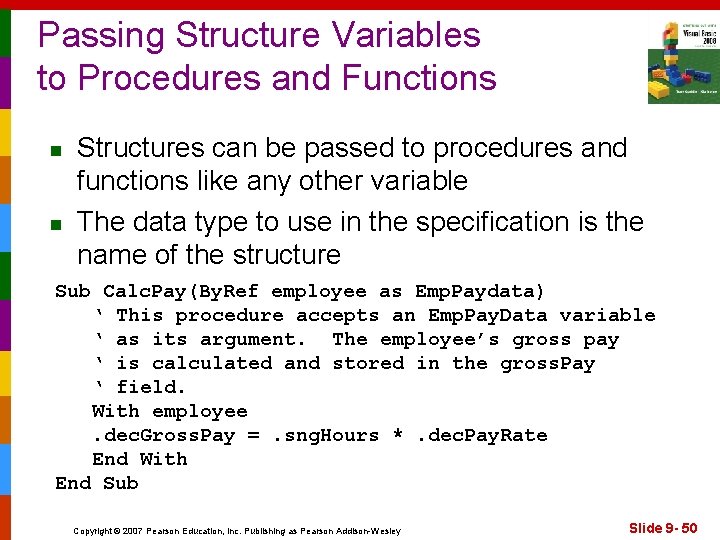
Passing Structure Variables to Procedures and Functions n n Structures can be passed to procedures and functions like any other variable The data type to use in the specification is the name of the structure Sub Calc. Pay(By. Ref employee as Emp. Paydata) ‘ This procedure accepts an Emp. Pay. Data variable ‘ as its argument. The employee’s gross pay ‘ is calculated and stored in the gross. Pay ‘ field. With employee. dec. Gross. Pay =. sng. Hours *. dec. Pay. Rate End With End Sub Copyright © 2007 Pearson Education, Inc. Publishing as Pearson Addison-Wesley Slide 9 - 50
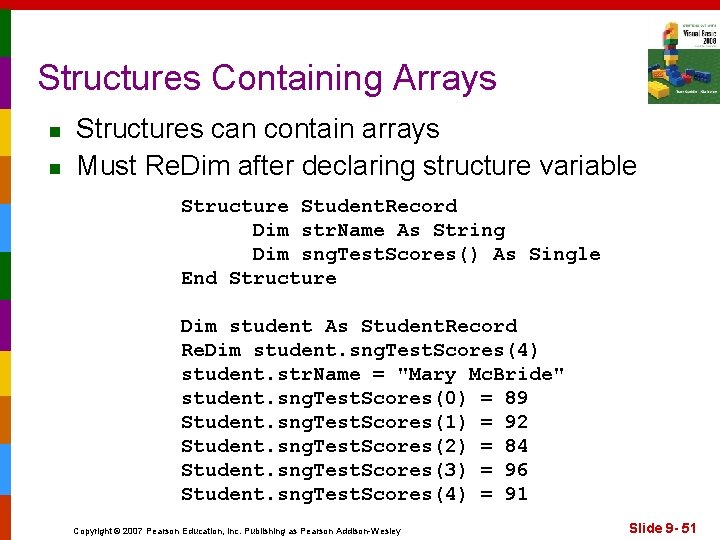
Structures Containing Arrays n n Structures can contain arrays Must Re. Dim after declaring structure variable Structure Student. Record Dim str. Name As String Dim sng. Test. Scores() As Single End Structure Dim student As Student. Record Re. Dim student. sng. Test. Scores(4) student. str. Name = "Mary Mc. Bride" student. sng. Test. Scores(0) = 89 Student. sng. Test. Scores(1) = 92 Student. sng. Test. Scores(2) = 84 Student. sng. Test. Scores(3) = 96 Student. sng. Test. Scores(4) = 91 Copyright © 2007 Pearson Education, Inc. Publishing as Pearson Addison-Wesley Slide 9 - 51
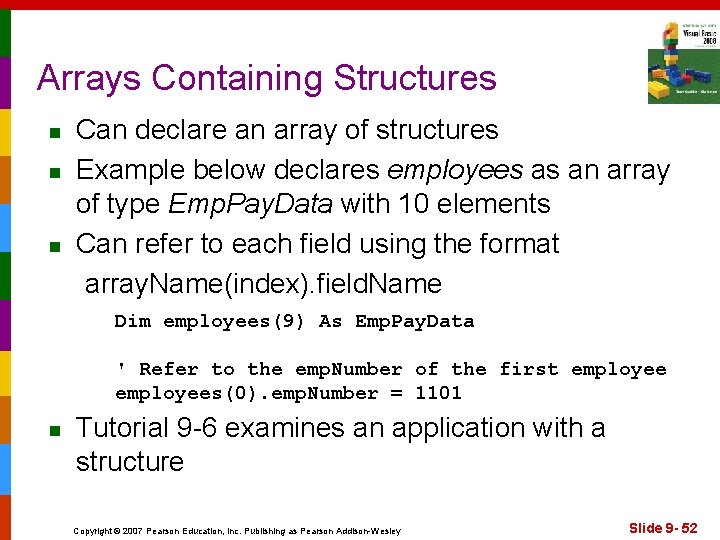
Arrays Containing Structures n n n Can declare an array of structures Example below declares employees as an array of type Emp. Pay. Data with 10 elements Can refer to each field using the format array. Name(index). field. Name Dim employees(9) As Emp. Pay. Data ' Refer to the emp. Number of the first employees(0). emp. Number = 1101 n Tutorial 9 -6 examines an application with a structure Copyright © 2007 Pearson Education, Inc. Publishing as Pearson Addison-Wesley Slide 9 - 52
9. 5 Modifying the Demetris Leadership Center Application Modify this application to include the ability to save and retrieve data, use an array of structure variables instead of parallel arrays, print the sales report Copyright © 2007 Pearson Education, Inc. Publishing as Pearson Addison-Wesley
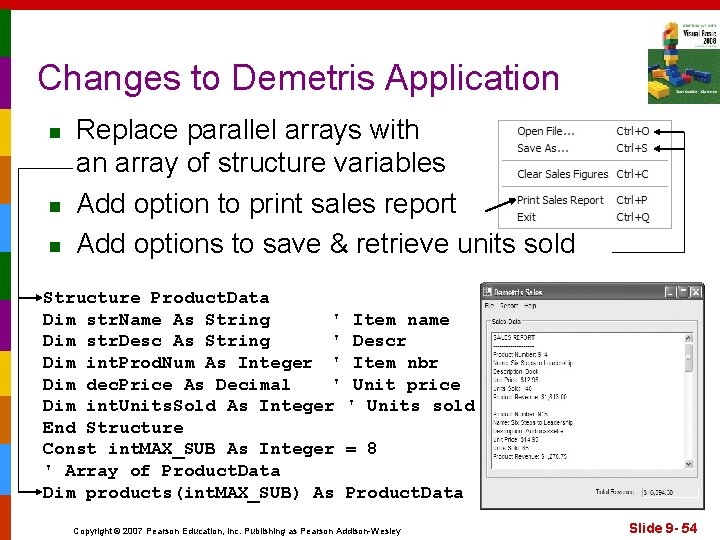
Changes to Demetris Application n Replace parallel arrays with an array of structure variables Add option to print sales report Add options to save & retrieve units sold Structure Product. Data Dim str. Name As String ' Item name Dim str. Desc As String ' Descr Dim int. Prod. Num As Integer ' Item nbr Dim dec. Price As Decimal ' Unit price Dim int. Units. Sold As Integer ' Units sold End Structure Const int. MAX_SUB As Integer = 8 ' Array of Product. Data Dim products(int. MAX_SUB) As Product. Data Copyright © 2007 Pearson Education, Inc. Publishing as Pearson Addison-Wesley Slide 9 - 54
- Slides: 54