
START Control Technology What is control technology What
- Slides: 14
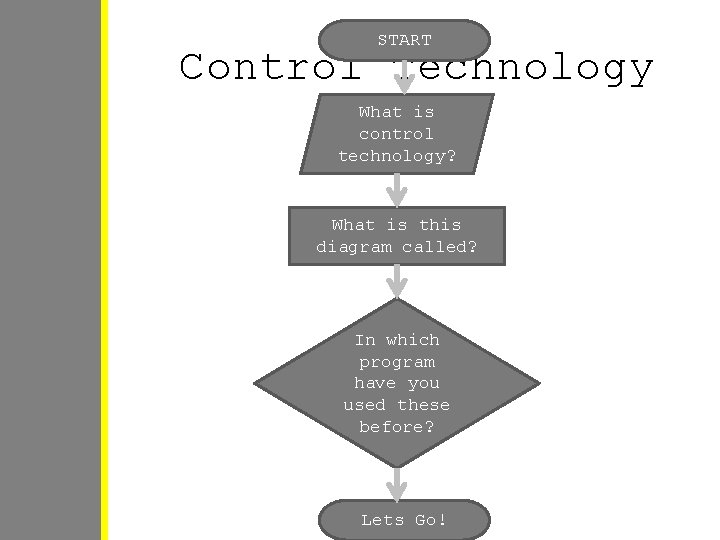
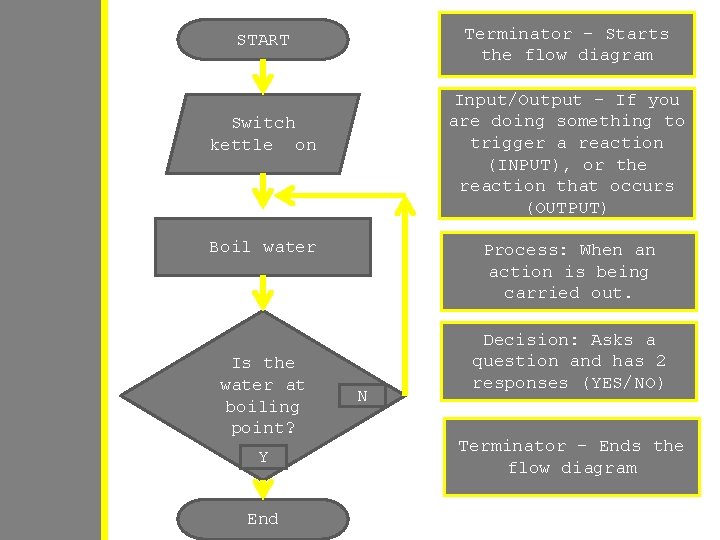
START Control Technology What is control technology? What is this diagram called? In which program have you used these before? Lets Go!
Lesson Objectives • To understand – what control technology is – What flow charts are, including their individual components – How flow diagrams are used everyday in control technology systems
Control Technology • Control technology is allows devices to be programmed to respond to different circumstances • A good example of this is a kettle. A sensor will record the temperature of the water. When the water is boiling, the kettle automatically turns itself off. • Can you think of any other examples?
Prior Learning • You have already studied Control Technology in year 7 using Crocodile • You should already know how to use flow charts
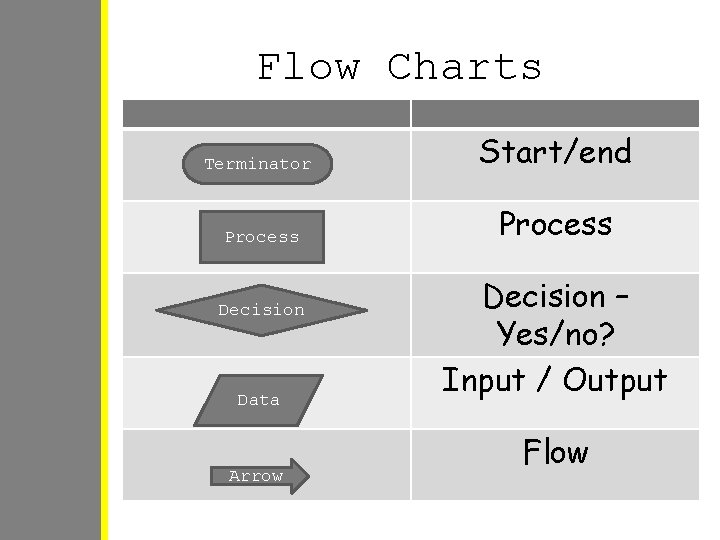
Flow Charts Terminator Start/end Process Decision Data Arrow Decision – Yes/no? Input / Output Flow
Terminator – Starts the flow diagram START Input/Output – If you are doing something to trigger a reaction (INPUT), or the reaction that occurs (OUTPUT) Switch kettle on Boil water Is the water at boiling point? Y End Process: When an action is being carried out. N Decision: Asks a question and has 2 responses (YES/NO) Terminator – Ends the flow diagram
Task 1: • Flow Chart Symbols • Go to Common K>ICT>Year 8>FLOWOL> Lesson 1 • Open and Save the file called “Flow Chart Symbols”
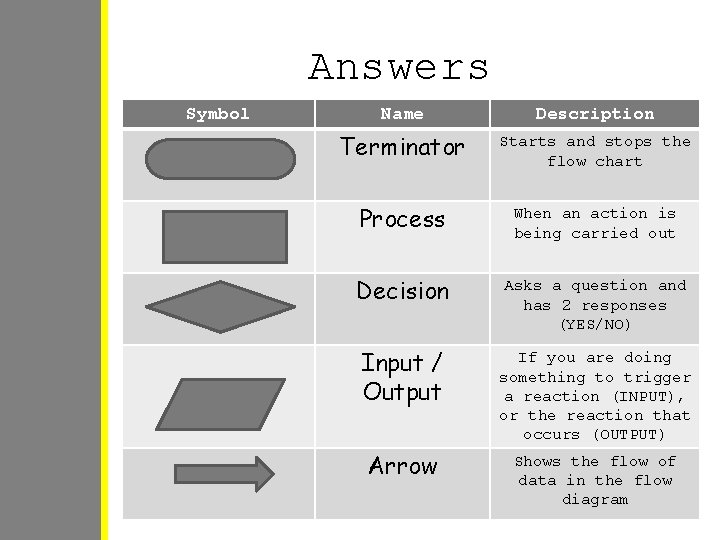
Answers Symbol Name Description Terminator Starts and stops the flow chart Process When an action is being carried out Decision Asks a question and has 2 responses (YES/NO) Input / Output If you are doing something to trigger a reaction (INPUT), or the reaction that occurs (OUTPUT) Arrow Shows the flow of data in the flow diagram
Flowol • Go to Start>All Programs>Flowol • We will be using this program to simulate how control technology is used in everyday life
Mimics • In Flowol there are several mimics that you can use. These are simulations that we can control using flow diagrams. • Click USE MIMIC >Zebra Crossing
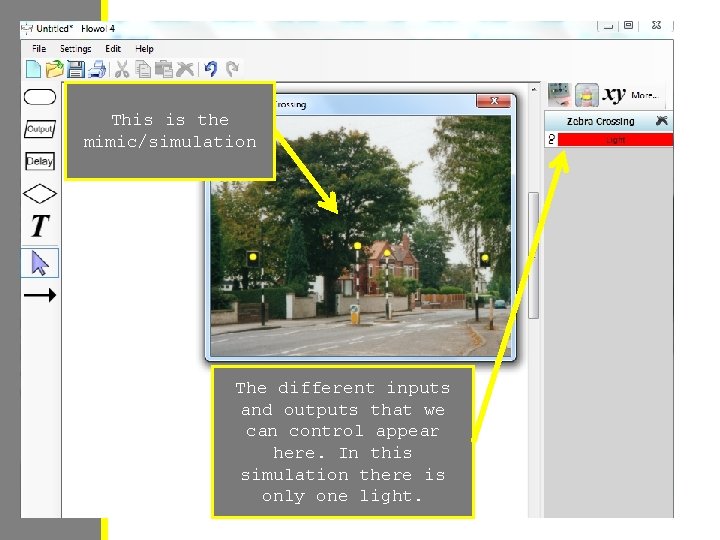
This is the mimic/simulation The different inputs and outputs that we can control appear here. In this simulation there is only one light.
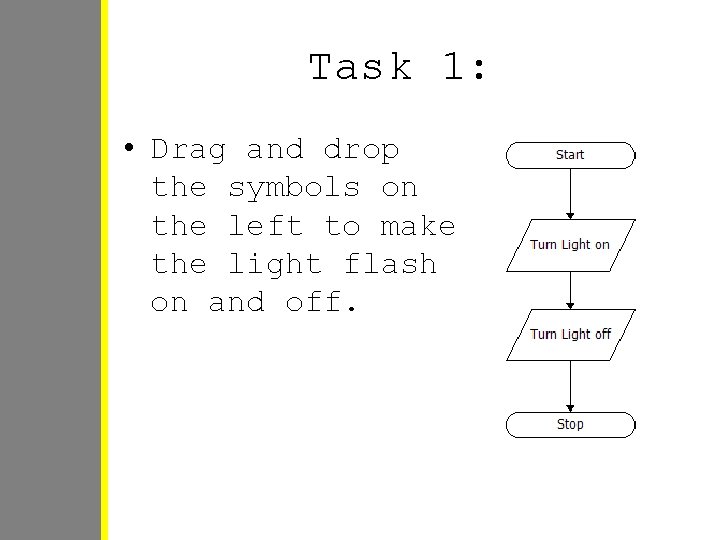
Task 1: • Drag and drop the symbols on the left to make the light flash on and off.
Task 2: • What is wrong with the simulation? • How can we make it better? 1. Add a delay between the flashes 2. Loop it around so it happens continuously.
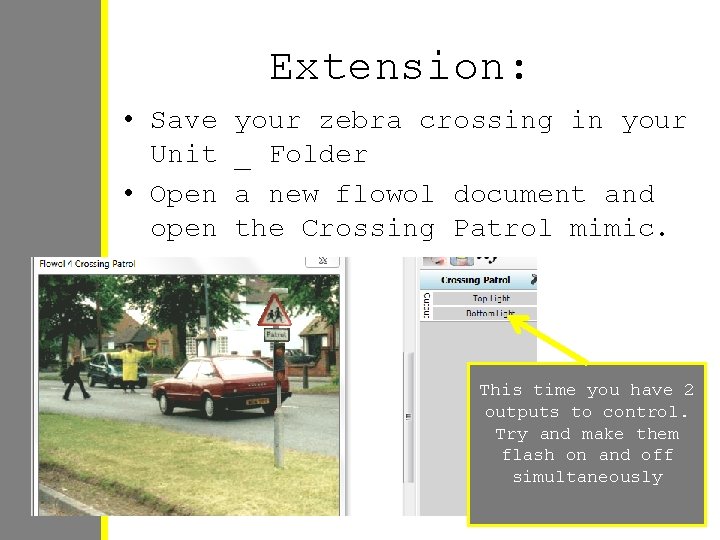
Extension: • Save Unit • Open open your zebra crossing in your _ Folder a new flowol document and the Crossing Patrol mimic. This time you have 2 outputs to control. Try and make them flash on and off simultaneously