
STAR 360 Testing Plan Agenda Why To gather

- Slides: 21
STAR 360 Testing Plan
Agenda • Why • To gather data to meet student academic needs. • How • Testing directions • troubleshooting • When • During WOW • Where • • • Live testing sessions in BBC and Zoom with 30 students 2 teachers— 1 test/1 trouble shoot Make up sessions Template for No-shows Template to invite students
Before the Test • Send Test Invite Template • Working camera and mic needed • Assigned date and time • Set up and invite students in a Bb. C session
Testing Session • Teachers will use a Direction Template PP • Directions • Meet students in Bb. C • Zoom link “clickable” in the main room. • All students should also stay in Bb. C. • One teacher is active in Bb. C to troubleshoot issues with Zoom access. • After all students are in Zoom, Bb. C teacher moves all students to individual BORs. • Go over testing directions (in Zoom). • Give students log-in information. • Actively monitor completion. • If Zoom monitoring raises concerns, check student BOR audio. • Confirm reading and math completion before excusing the student individually.
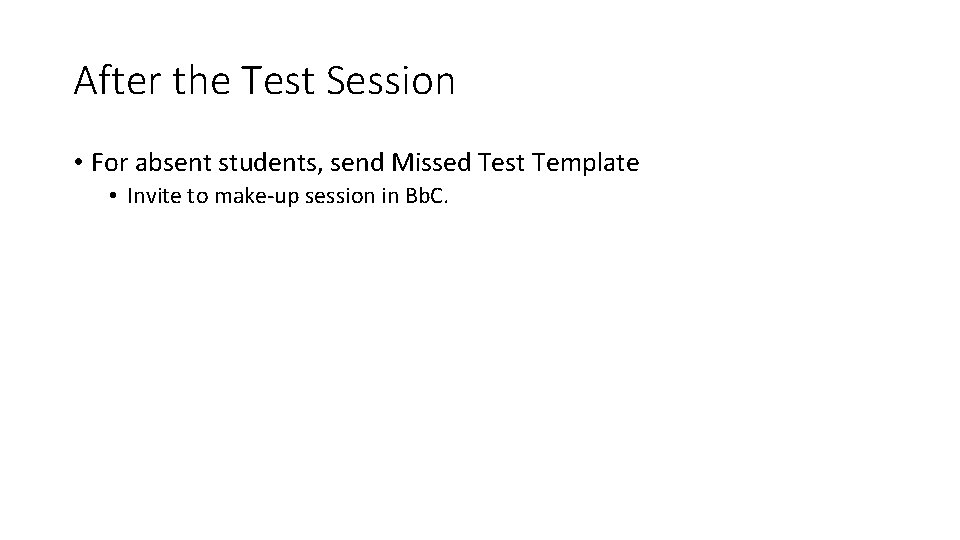
After the Test Session • For absent students, send Missed Test Template • Invite to make-up session in Bb. C.
Templates
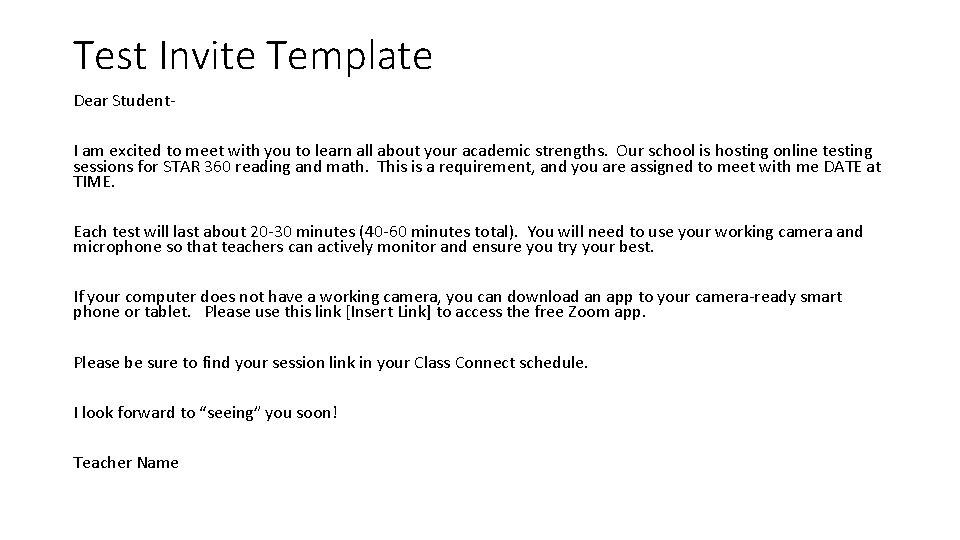
Test Invite Template Dear Student. I am excited to meet with you to learn all about your academic strengths. Our school is hosting online testing sessions for STAR 360 reading and math. This is a requirement, and you are assigned to meet with me DATE at TIME. Each test will last about 20 -30 minutes (40 -60 minutes total). You will need to use your working camera and microphone so that teachers can actively monitor and ensure you try your best. If your computer does not have a working camera, you can download an app to your camera-ready smart phone or tablet. Please use this link [Insert Link] to access the free Zoom app. Please be sure to find your session link in your Class Connect schedule. I look forward to “seeing” you soon! Teacher Name
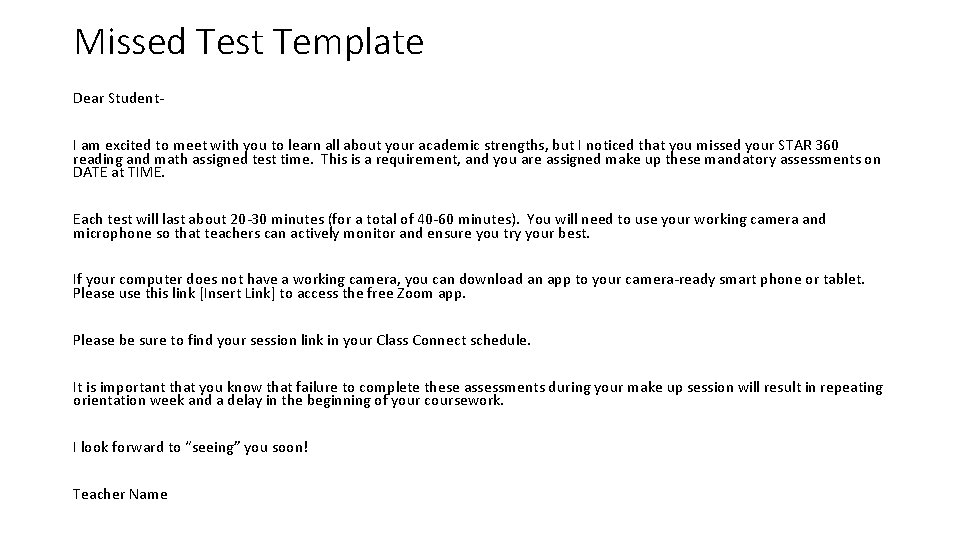
Missed Test Template Dear Student. I am excited to meet with you to learn all about your academic strengths, but I noticed that you missed your STAR 360 reading and math assigned test time. This is a requirement, and you are assigned make up these mandatory assessments on DATE at TIME. Each test will last about 20 -30 minutes (for a total of 40 -60 minutes). You will need to use your working camera and microphone so that teachers can actively monitor and ensure you try your best. If your computer does not have a working camera, you can download an app to your camera-ready smart phone or tablet. Please use this link [Insert Link] to access the free Zoom app. Please be sure to find your session link in your Class Connect schedule. It is important that you know that failure to complete these assessments during your make up session will result in repeating orientation week and a delay in the beginning of your coursework. I look forward to “seeing” you soon! Teacher Name
Test Direction Template
Welcome!
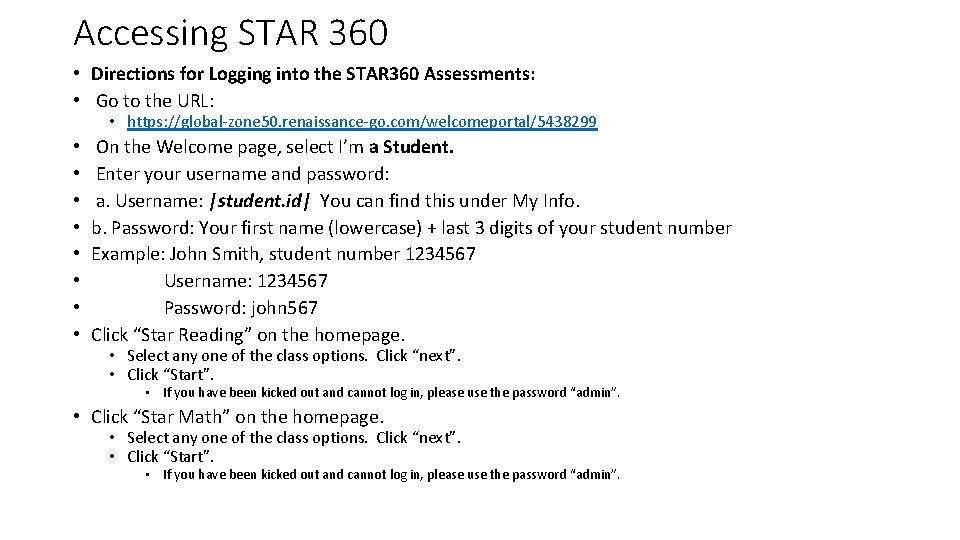
Accessing STAR 360 • Directions for Logging into the STAR 360 Assessments: • Go to the URL: • https: //global-zone 50. renaissance-go. com/welcomeportal/5438299 • • On the Welcome page, select I’m a Student. Enter your username and password: a. Username: |student. id| You can find this under My Info. b. Password: Your first name (lowercase) + last 3 digits of your student number Example: John Smith, student number 1234567 Username: 1234567 Password: john 567 Click “Star Reading” on the homepage. • Select any one of the class options. Click “next”. • Click “Start”. • If you have been kicked out and cannot log in, please use the password “admin”. • Click “Star Math” on the homepage. • Select any one of the class options. Click “next”. • Click “Start”. • If you have been kicked out and cannot log in, please use the password “admin”.
Troubleshooting Tips • Issue #1 – Students can’t log into the site or when they do log in, the site doesn’t load right. 1. Make sure the students are using Chrome or Firefox 2. Make sure the cache is cleared 3. Make sure they have the most recent version downloaded
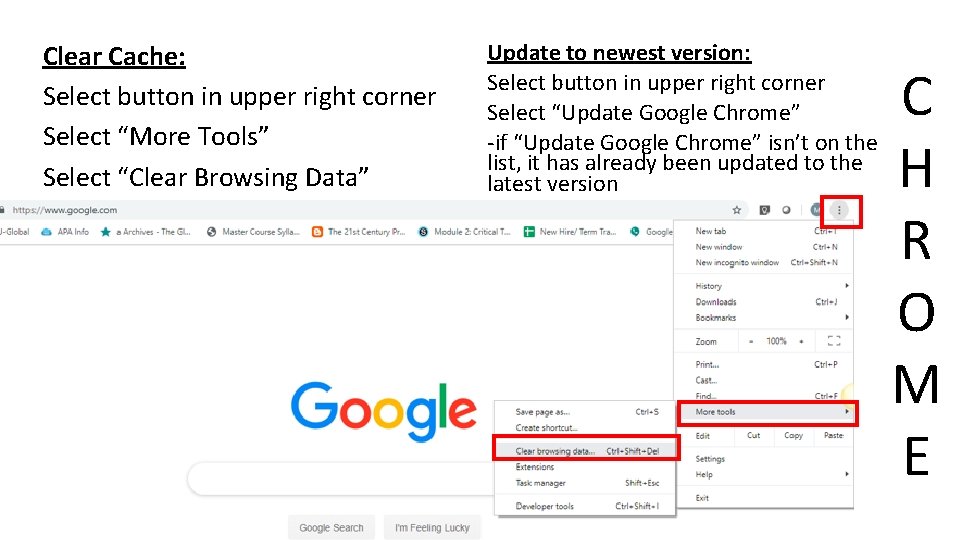
Clear Cache: Select button in upper right corner Select “More Tools” Select “Clear Browsing Data” Update to newest version: Select button in upper right corner Select “Update Google Chrome” -if “Update Google Chrome” isn’t on the list, it has already been updated to the latest version C H R O M E
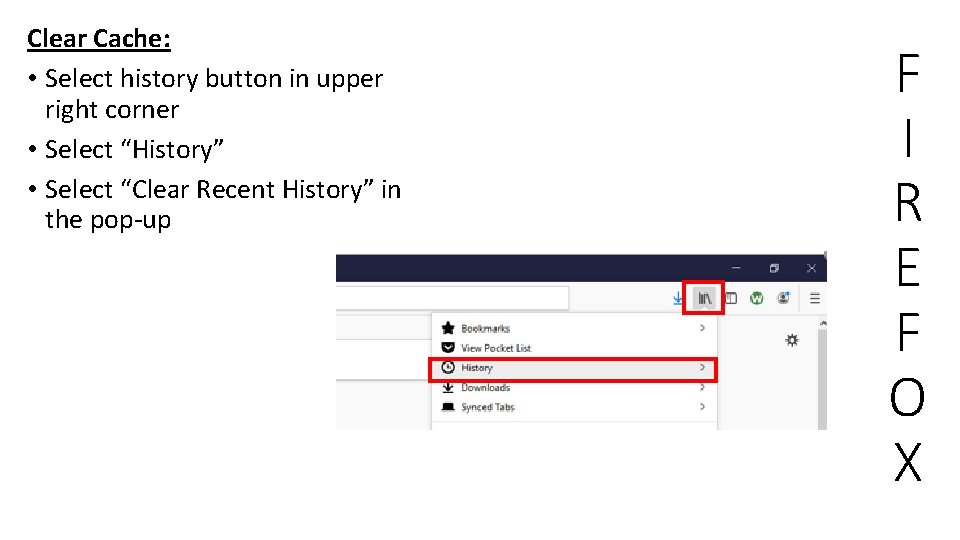
Clear Cache: • Select history button in upper right corner • Select “History” • Select “Clear Recent History” in the pop-up F I R E F O X
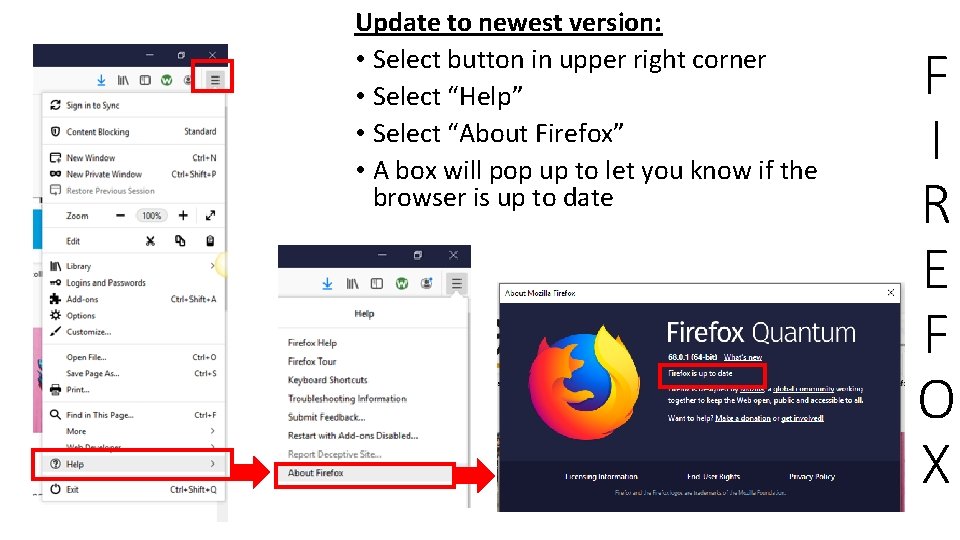
Update to newest version: • Select button in upper right corner • Select “Help” • Select “About Firefox” • A box will pop up to let you know if the browser is up to date F I R E F O X
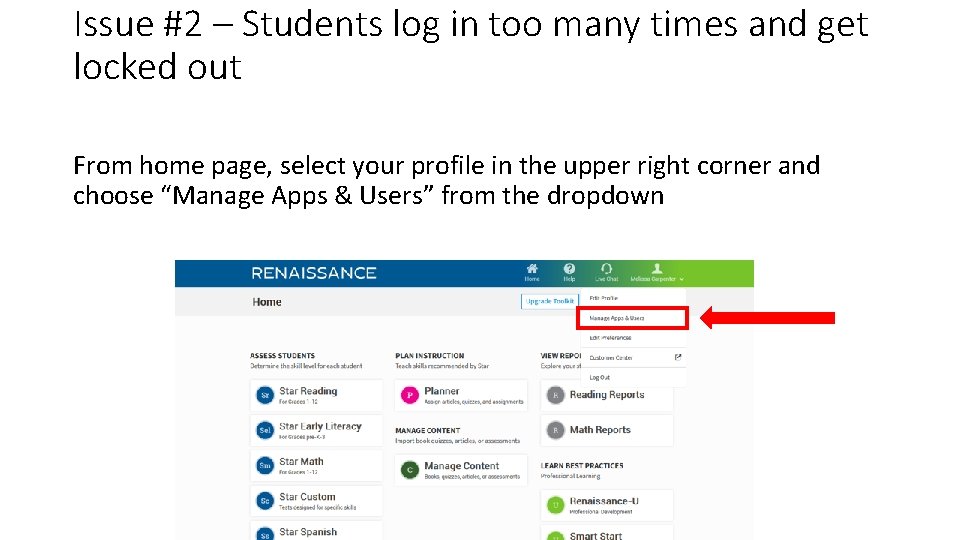
Issue #2 – Students log in too many times and get locked out From home page, select your profile in the upper right corner and choose “Manage Apps & Users” from the dropdown
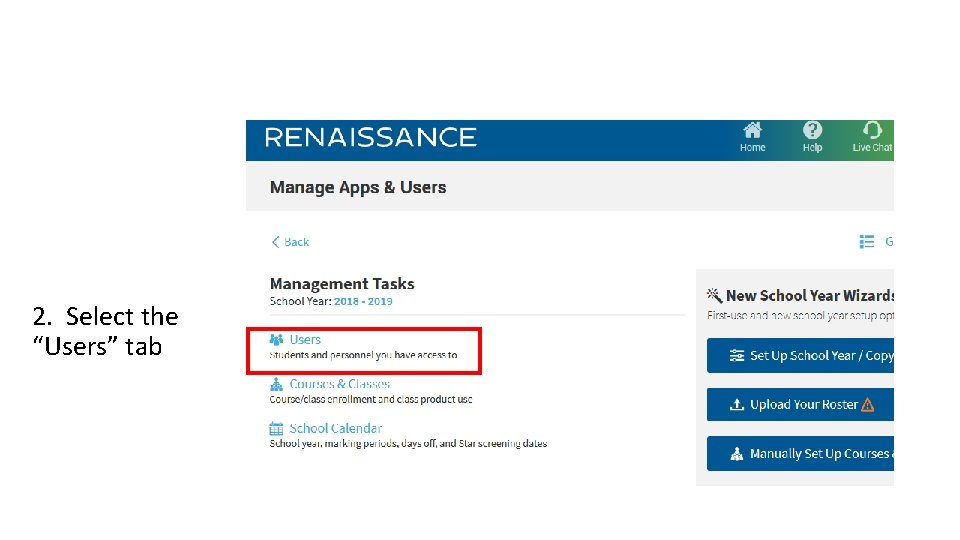
2. Select the “Users” tab
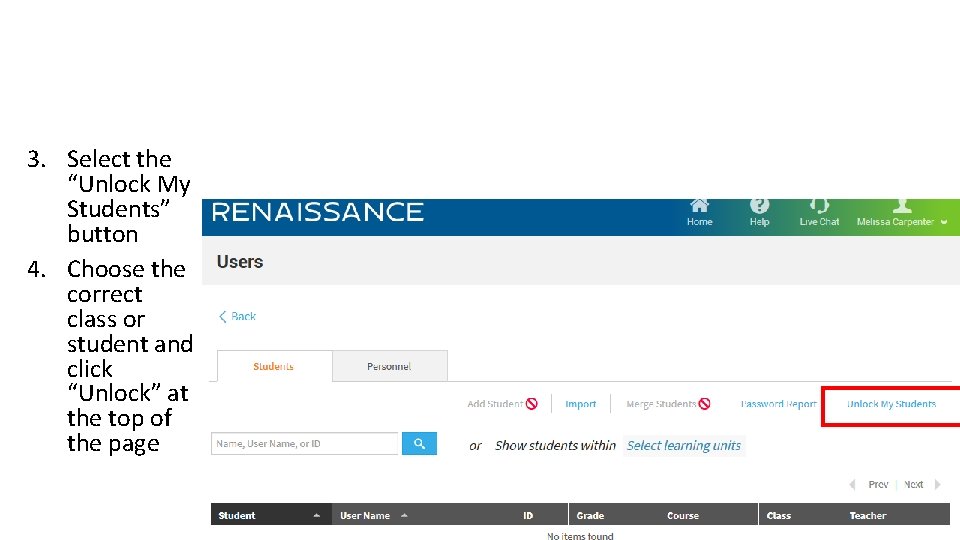
3. Select the “Unlock My Students” button 4. Choose the correct class or student and click “Unlock” at the top of the page
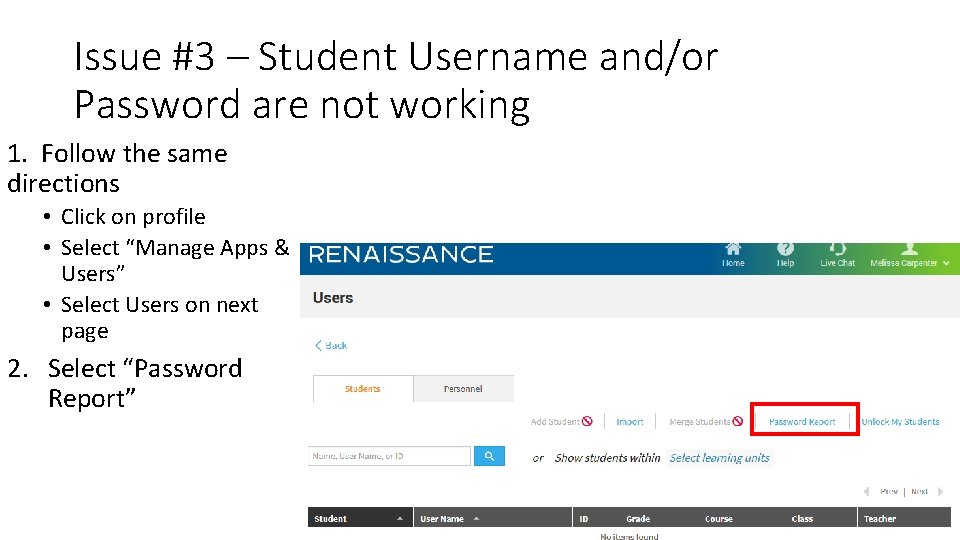
Issue #3 – Student Username and/or Password are not working 1. Follow the same directions • Click on profile • Select “Manage Apps & Users” • Select Users on next page 2. Select “Password Report”
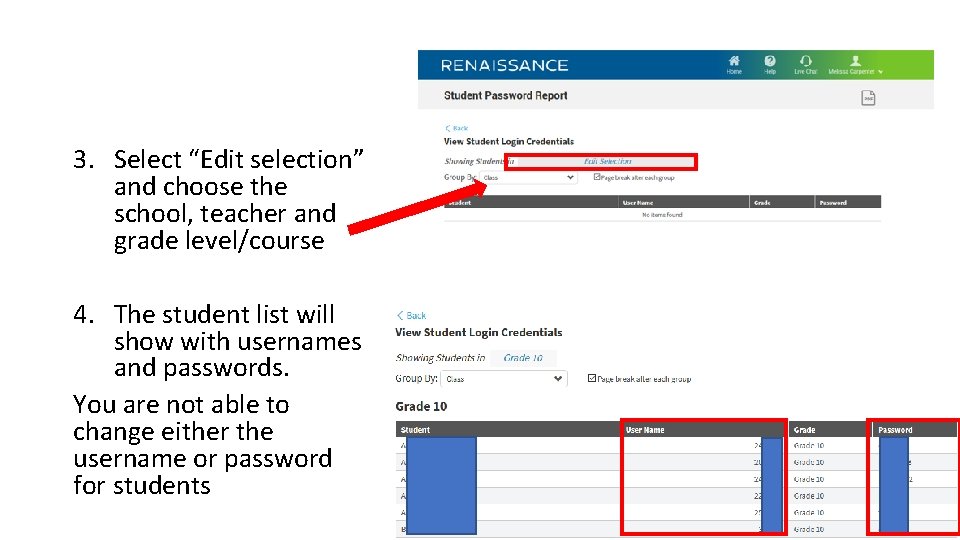
3. Select “Edit selection” and choose the school, teacher and grade level/course 4. The student list will show with usernames and passwords. You are not able to change either the username or password for students
Issue #4 – Student is asked for a password when they log in • The password is “admin”.