
STANDARD WORK INSTRUCTION Title Process Change Order Management
- Slides: 2
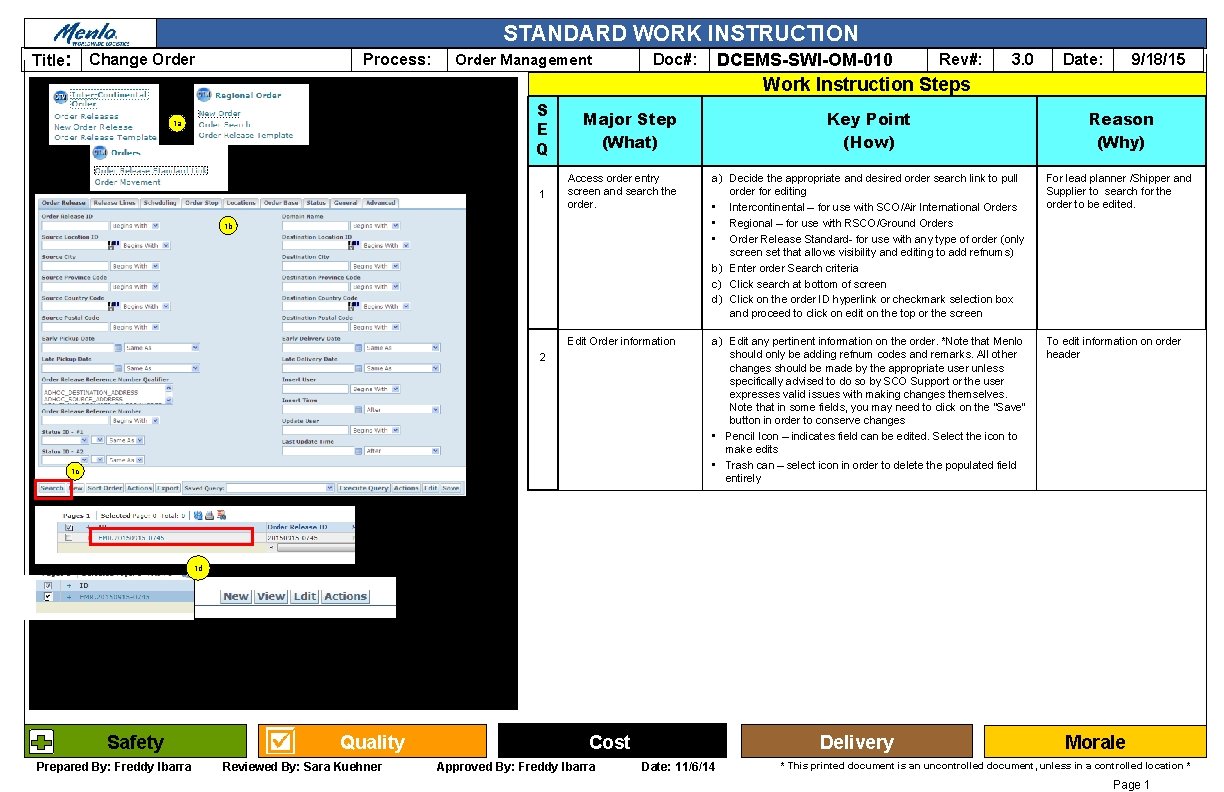
STANDARD WORK INSTRUCTION Title: Process: Change Order Management DCEMS-SWI-OM-010 Doc#: Rev#: 3. 0 Date: 9/18/15 Work Instruction Steps S E Q 1 a 1 Major Step (What) Key Point (How) Reason (Why) Access order entry screen and search the order. a) Decide the appropriate and desired order search link to pull order for editing • Intercontinental – for use with SCO/Air International Orders • Regional – for use with RSCO/Ground Orders • Order Release Standard- for use with any type of order (only screen set that allows visibility and editing to add refnums) b) Enter order Search criteria c) Click search at bottom of screen d) Click on the order ID hyperlink or checkmark selection box and proceed to click on edit on the top or the screen For lead planner /Shipper and Supplier to search for the order to be edited. Edit Order information a) Edit any pertinent information on the order. *Note that Menlo should only be adding refnum codes and remarks. All other changes should be made by the appropriate user unless specifically advised to do so by SCO Support or the user expresses valid issues with making changes themselves. Note that in some fields, you may need to click on the “Save” button in order to conserve changes • Pencil Icon – indicates field can be edited. Select the icon to make edits • Trash can – select icon in order to delete the populated field entirely To edit information on order header 1 b 2 1 c 1 d Safety Prepared By: Freddy Ibarra Quality Reviewed By: Sara Kuehner Cost Approved By: Freddy Ibarra Delivery Date: 11/6/14 Morale * This printed document is an uncontrolled document, unless in a controlled location * Page 1
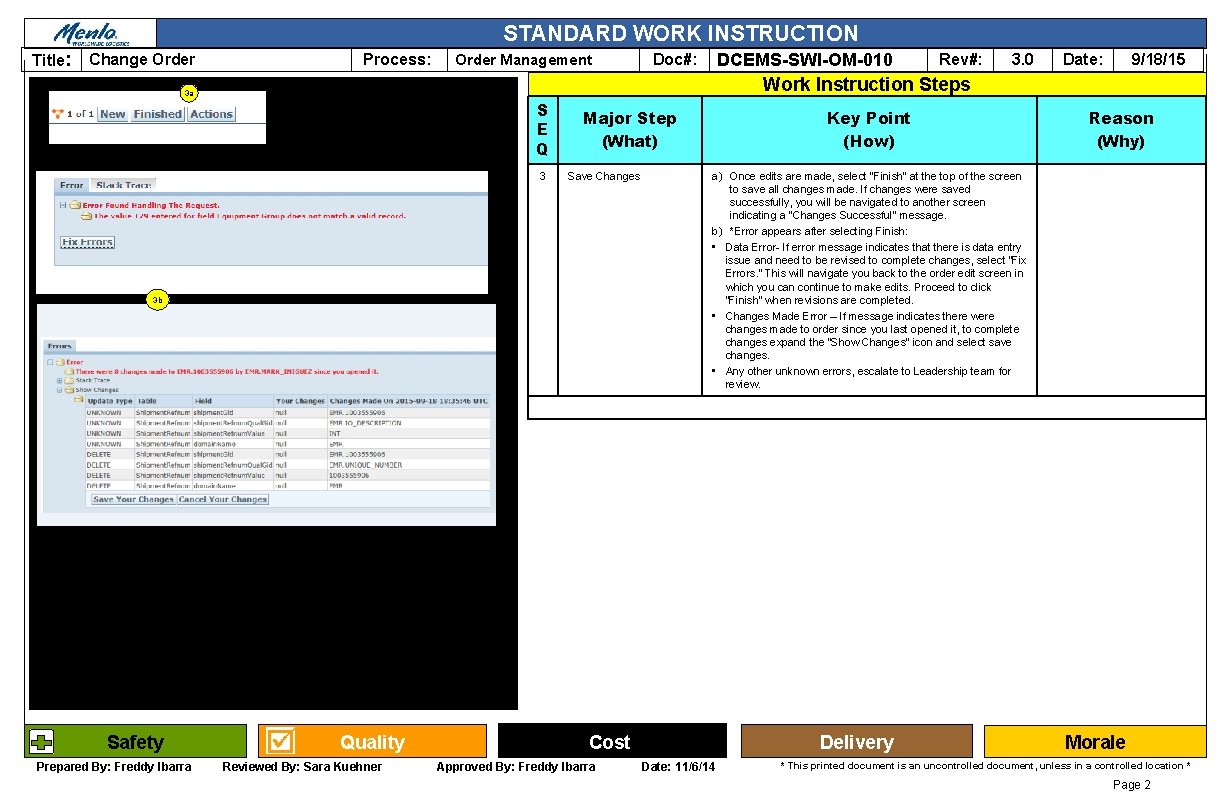
STANDARD WORK INSTRUCTION Title: Change Order Process: Order Management DCEMS-SWI-OM-010 Doc#: S E Q 3 Major Step (What) Save Changes 3 b Prepared By: Freddy Ibarra 3. 0 Date: 9/18/15 Work Instruction Steps 3 a Safety Rev#: Quality Reviewed By: Sara Kuehner Key Point (How) a) Once edits are made, select “Finish” at the top of the screen to save all changes made. If changes were saved successfully, you will be navigated to another screen indicating a “Changes Successful” message. b) *Error appears after selecting Finish: • Data Error- If error message indicates that there is data entry issue and need to be revised to complete changes, select “Fix Errors. ” This will navigate you back to the order edit screen in which you can continue to make edits. Proceed to click “Finish” when revisions are completed. • Changes Made Error – If message indicates there were changes made to order since you last opened it, to complete changes expand the “Show Changes” icon and select save changes. • Any other unknown errors, escalate to Leadership team for review. Cost Approved By: Freddy Ibarra Reason (Why) Delivery Date: 11/6/14 Morale * This printed document is an uncontrolled document, unless in a controlled location * Page 2