
STANDARD WORK INSTRUCTION Title Entering Reference Numbers 1
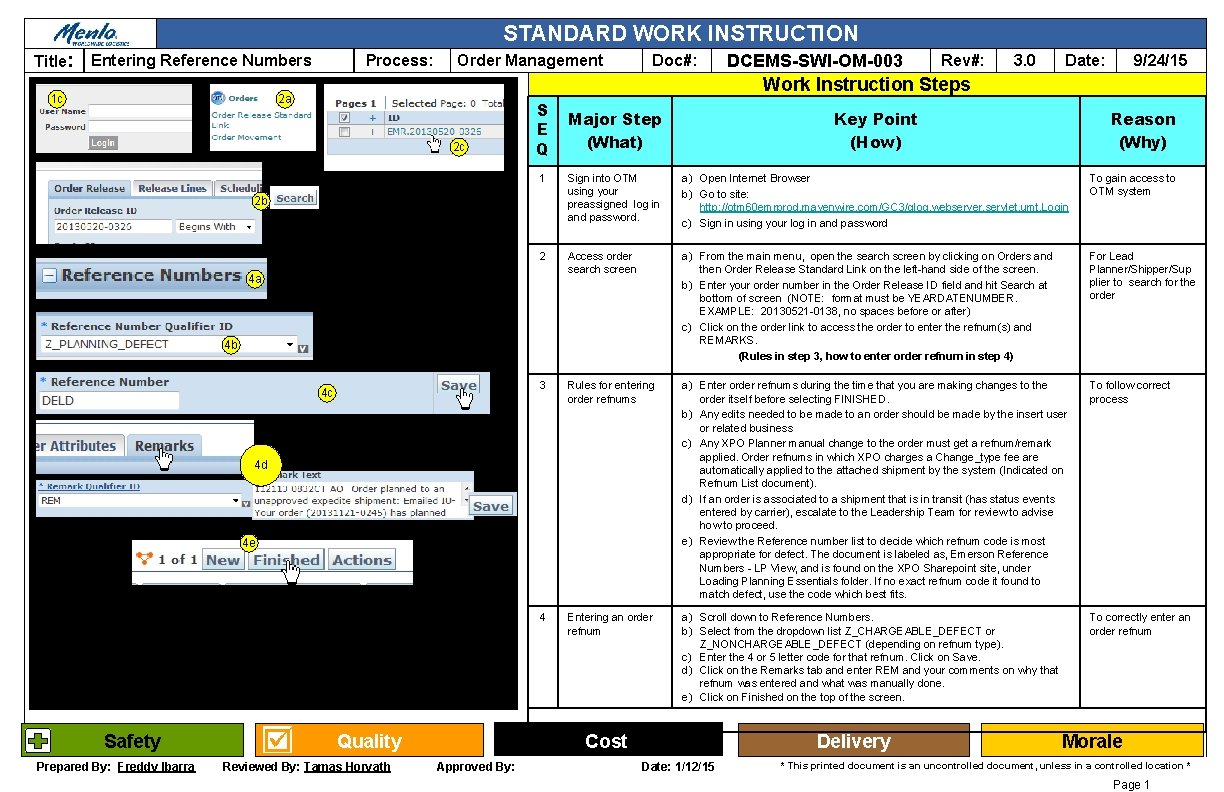
STANDARD WORK INSTRUCTION Title: Entering Reference Numbers 1 c Process: Order Management Doc#: 2 c S E Q 3. 0 9/24/15 Date: Major Step (What) Key Point (How) 1 Sign into OTM using your preassigned log in and password. a) Open Internet Browser b) Go to site: http: //otm 60 emrprod. mavenwire. com/GC 3/glog. webserver. servlet. umt. Login c) Sign in using your log in and password To gain access to OTM system 2 Access order search screen a) From the main menu, open the search screen by clicking on Orders and then Order Release Standard Link on the left-hand side of the screen. b) Enter your order number in the Order Release ID field and hit Search at bottom of screen (NOTE: format must be YEARDATENUMBER. EXAMPLE: 20130521 -0138, no spaces before or after) c) Click on the order link to access the order to enter the refnum(s) and REMARKS. (Rules in step 3, how to enter order refnum in step 4) For Lead Planner/Shipper/Sup plier to search for the order 3 Rules for entering order refnums a) Enter order refnums during the time that you are making changes to the order itself before selecting FINISHED. b) Any edits needed to be made to an order should be made by the insert user or related business c) Any XPO Planner manual change to the order must get a refnum/remark applied. Order refnums in which XPO charges a Change_type fee are automatically applied to the attached shipment by the system (Indicated on Refnum List document). d) If an order is associated to a shipment that is in transit (has status events entered by carrier), escalate to the Leadership Team for review to advise how to proceed. e) Review the Reference number list to decide which refnum code is most appropriate for defect. The document is labeled as, Emerson Reference Numbers - LP View, and is found on the XPO Sharepoint site, under Loading Planning Essentials folder. If no exact refnum code it found to match defect, use the code which best fits. To follow correct process 4 Entering an order refnum a) Scroll down to Reference Numbers. b) Select from the dropdown list Z_CHARGEABLE_DEFECT or Z_NONCHARGEABLE_DEFECT (depending on refnum type). c) Enter the 4 or 5 letter code for that refnum. Click on Save. d) Click on the Remarks tab and enter REM and your comments on why that refnum was entered and what was manually done. e) Click on Finished on the top of the screen. To correctly enter an order refnum 2 b 4 a 4 b 4 c 4 d 4 e Prepared By: Freddy Ibarra Rev#: Work Instruction Steps 2 a Safety DCEMS-SWI-OM-003 Quality Reviewed By: Tamas Horvath Cost Approved By: Delivery Date: 1/12/15 Reason (Why) Morale * This printed document is an uncontrolled document, unless in a controlled location * Page 1
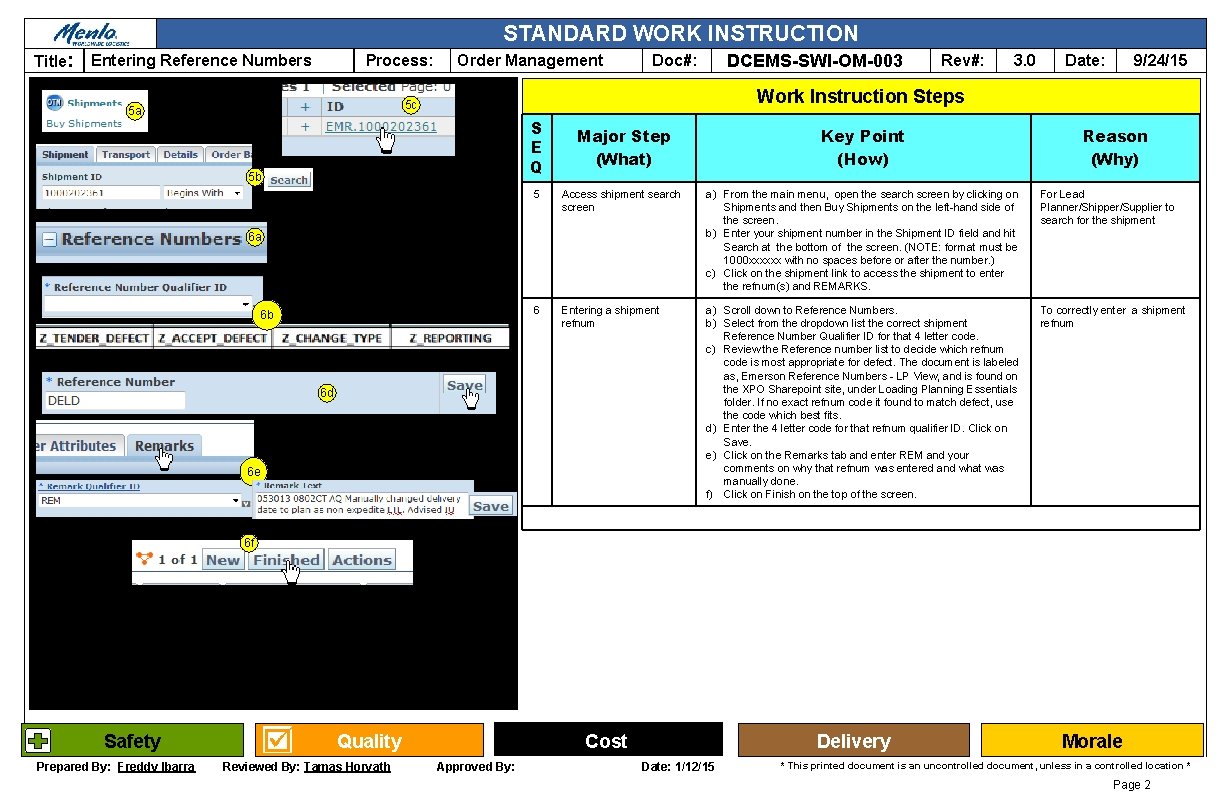
STANDARD WORK INSTRUCTION Title: Entering Reference Numbers Process: Order Management DCEMS-SWI-OM-003 Doc#: 3. 0 9/24/15 Date: Work Instruction Steps 5 c 5 a Rev#: S E Q 5 b Major Step (What) Key Point (How) 5 Access shipment search screen a) From the main menu, open the search screen by clicking on Shipments and then Buy Shipments on the left-hand side of the screen. b) Enter your shipment number in the Shipment ID field and hit Search at the bottom of the screen. (NOTE: format must be 1000 xxxxxx with no spaces before or after the number. ) c) Click on the shipment link to access the shipment to enter the refnum(s) and REMARKS. For Lead Planner/Shipper/Supplier to search for the shipment 6 Entering a shipment refnum a) Scroll down to Reference Numbers. b) Select from the dropdown list the correct shipment Reference Number Qualifier ID for that 4 letter code. c) Review the Reference number list to decide which refnum code is most appropriate for defect. The document is labeled as, Emerson Reference Numbers - LP View, and is found on the XPO Sharepoint site, under Loading Planning Essentials folder. If no exact refnum code it found to match defect, use the code which best fits. d) Enter the 4 letter code for that refnum qualifier ID. Click on Save. e) Click on the Remarks tab and enter REM and your comments on why that refnum was entered and what was manually done. f) Click on Finish on the top of the screen. To correctly enter a shipment refnum 6 a 6 b 6 d 6 e Reason (Why) 6 f Safety Prepared By: Freddy Ibarra Quality Reviewed By: Tamas Horvath Cost Approved By: Delivery Date: 1/12/15 Morale * This printed document is an uncontrolled document, unless in a controlled location * Page 2

STANDARD WORK INSTRUCTION Title: Entering Reference Numbers Process: Order Management Doc#: DCEMS-SWI-OM-003 Rev#: 3. 0 9/24/15 Date: Work Instruction Steps 7 SE Q Major Step (What) 7 Order/shipment refnum list and descriptions Key Point (How) Reason (Why) a) The list of refnums are listed on XPO Sharepoint site at the link below. It is located under the Load Planning Essentials linked and is titled: Emerson Reference Numbers - LP View What and when to use refnums https: //xpologistics. sharepoint. com/sites/125/Emerson/_layouts/15/Wopi. Fram e. aspx? sourcedoc=%7 BF 20060 C 8 -7745 -40 C 5 -AECD 316 DA 8 EBBEF 1%7 D&file=Emerson%20 Reference%20 Numbers%20%20 LP%20 View. xlsx&action=default NOTE: ALL REMARKS SHOULD SPECIFICALLY STATE THE ISSUE AND WHAT ACTION WAS TAKEN AND WHEN When entering remarks for a change requested by the insert user or Emerson, you MUST add the name who authorized the change. This is crucial to XPO getting paid by Emerson for change type refnums. • All remarks should start with: DATE =MO/DA/YR TIME=HR: MI TZ YOUR INITIALS EXAMPLE: 091813 12: 22 PM CT SLO • After your start remark as outlined above, please follow format below (IU below is whoever is making the request) • CLDR: IU requested calendar be changed from X to Y • DECO: XX requested deconsolidation of order #X and order #Y because of list reason. You will need to request reason for the deconsolidation so that Emerson can address issues that need fixing • DELD, PICK: IU requested or approved date be changed from X/XX to Y/YY DIMS, EQUC, HRFA, HZMT, INCO, INSU, LOCO, , MERG, PIEC, PORT, IU requested/approved change from X to Y • OOTH: who at BU approved and what carrier was awarded • PYMT, RESQ, SVCT, WGHT : who requested and why • RETE: who requested and why • RATE: must include what action was taken and when (if we escalated via email, it should list who we emailed Safety Prepared By: Freddy Ibarra Quality Reviewed By: Tamas Horvath Cost Approved By: Delivery Date: 1/12/15 Morale * This printed document is an uncontrolled document, unless in a controlled location * Page 3
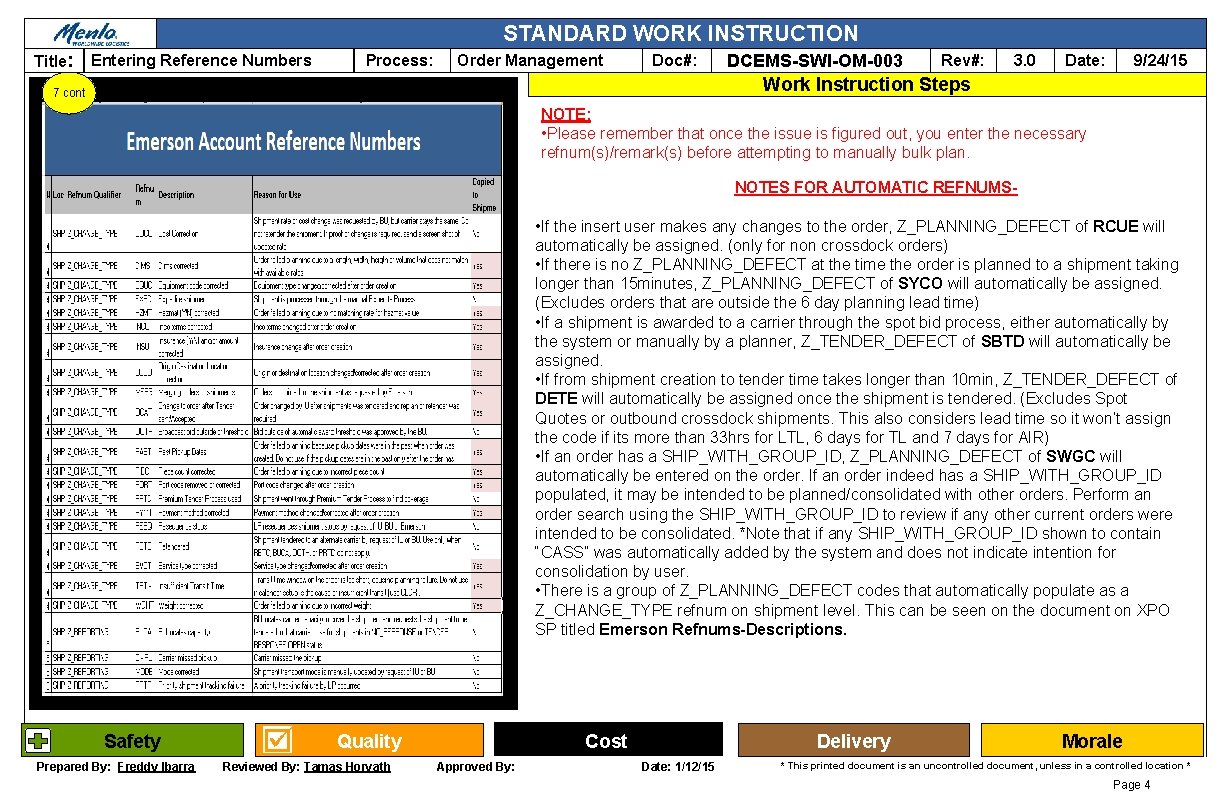
STANDARD WORK INSTRUCTION Title: Entering Reference Numbers Process: Order Management Doc#: DCEMS-SWI-OM-003 Rev#: 3. 0 9/24/15 Date: Work Instruction Steps 7 cont NOTE: • Please remember that once the issue is figured out, you enter the necessary refnum(s)/remark(s) before attempting to manually bulk plan. NOTES FOR AUTOMATIC REFNUMS- • If the insert user makes any changes to the order, Z_PLANNING_DEFECT of RCUE will automatically be assigned. (only for non crossdock orders) • If there is no Z_PLANNING_DEFECT at the time the order is planned to a shipment taking longer than 15 minutes, Z_PLANNING_DEFECT of SYCO will automatically be assigned. (Excludes orders that are outside the 6 day planning lead time) • If a shipment is awarded to a carrier through the spot bid process, either automatically by the system or manually by a planner, Z_TENDER_DEFECT of SBTD will automatically be assigned. • If from shipment creation to tender time takes longer than 10 min, Z_TENDER_DEFECT of DETE will automatically be assigned once the shipment is tendered. (Excludes Spot Quotes or outbound crossdock shipments. This also considers lead time so it won’t assign the code if its more than 33 hrs for LTL, 6 days for TL and 7 days for AIR) • If an order has a SHIP_WITH_GROUP_ID, Z_PLANNING_DEFECT of SWGC will automatically be entered on the order. If an order indeed has a SHIP_WITH_GROUP_ID populated, it may be intended to be planned/consolidated with other orders. Perform an order search using the SHIP_WITH_GROUP_ID to review if any other current orders were intended to be consolidated. *Note that if any SHIP_WITH_GROUP_ID shown to contain “CASS” was automatically added by the system and does not indicate intention for consolidation by user. • There is a group of Z_PLANNING_DEFECT codes that automatically populate as a Z_CHANGE_TYPE refnum on shipment level. This can be seen on the document on XPO SP titled Emerson Refnums-Descriptions. Safety Prepared By: Freddy Ibarra Quality Reviewed By: Tamas Horvath Cost Approved By: Delivery Date: 1/12/15 Morale * This printed document is an uncontrolled document, unless in a controlled location * Page 4
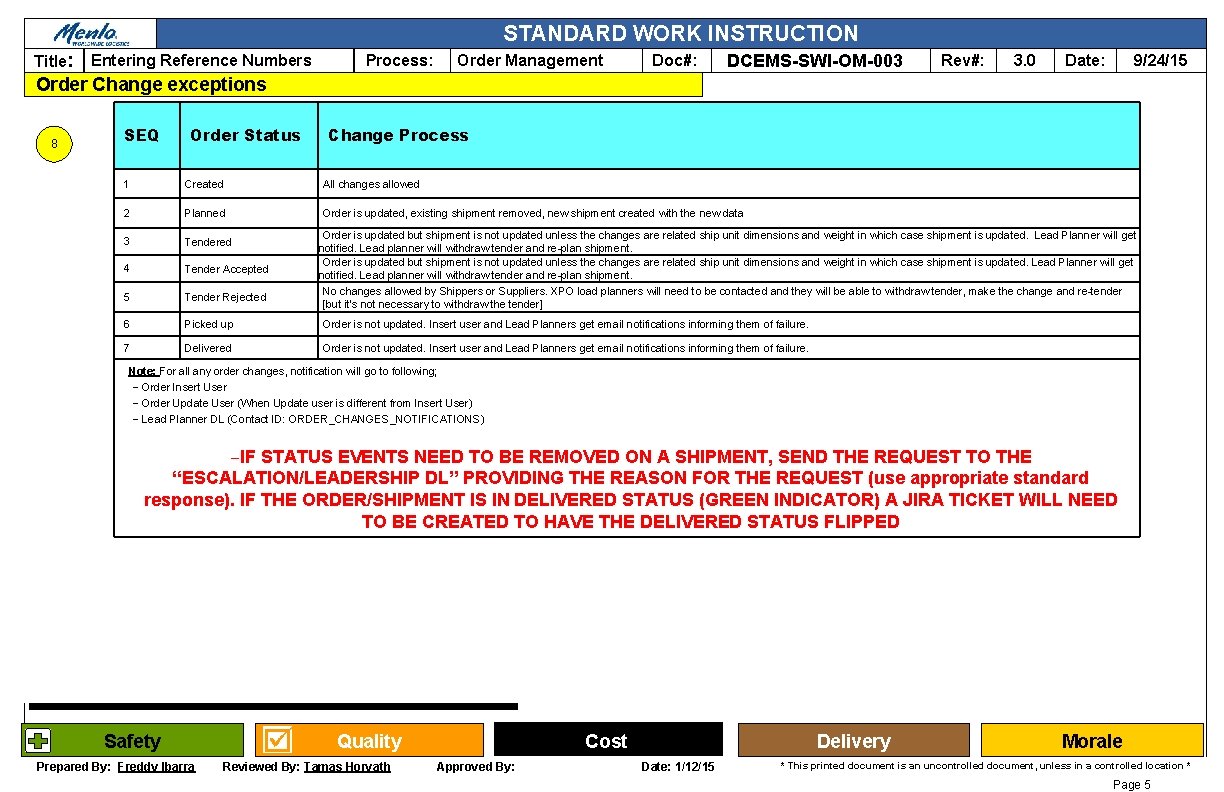
STANDARD WORK INSTRUCTION Title: Entering Reference Numbers Process: Order Management Doc#: DCEMS-SWI-OM-003 Rev#: 3. 0 9/24/15 Date: Order Change exceptions 8 SEQ Order Status Change Process 1 Created All changes allowed 2 Planned Order is updated, existing shipment removed, new shipment created with the new data 3 Tendered 4 Tender Accepted 5 Tender Rejected 6 Picked up Order is not updated. Insert user and Lead Planners get email notifications informing them of failure. 7 Delivered Order is not updated. Insert user and Lead Planners get email notifications informing them of failure. Order is updated but shipment is not updated unless the changes are related ship unit dimensions and weight in which case shipment is updated. Lead Planner will get notified. Lead planner will withdraw tender and re-plan shipment. No changes allowed by Shippers or Suppliers. XPO load planners will need to be contacted and they will be able to withdraw tender, make the change and re-tender [but it's not necessary to withdraw the tender] Note: For all any order changes, notification will go to following; − Order Insert User − Order Update User (When Update user is different from Insert User) − Lead Planner DL (Contact ID: ORDER_CHANGES_NOTIFICATIONS) −IF STATUS EVENTS NEED TO BE REMOVED ON A SHIPMENT, SEND THE REQUEST TO THE “ESCALATION/LEADERSHIP DL” PROVIDING THE REASON FOR THE REQUEST (use appropriate standard response). IF THE ORDER/SHIPMENT IS IN DELIVERED STATUS (GREEN INDICATOR) A JIRA TICKET WILL NEED TO BE CREATED TO HAVE THE DELIVERED STATUS FLIPPED Safety Prepared By: Freddy Ibarra Quality Reviewed By: Tamas Horvath Cost Approved By: Delivery Date: 1/12/15 Morale * This printed document is an uncontrolled document, unless in a controlled location * Page 5
- Slides: 5