
Standard NEM Web Portal Overview EFFECTIVE JULY 6
Standard NEM Web Portal Overview EFFECTIVE JULY 6, 2015
Agreement & Customer Authorization (79 -1151 A Form) 2
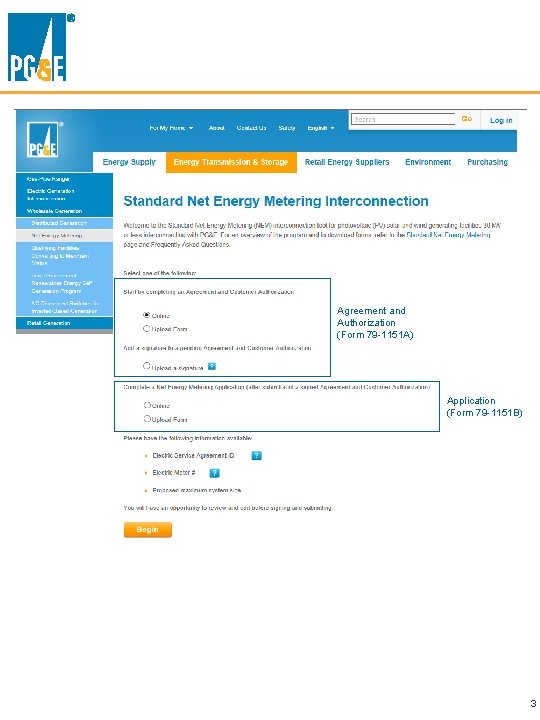
Agreement and Authorization (Form 79 -1151 A) Application (Form 79 -1151 B) 3
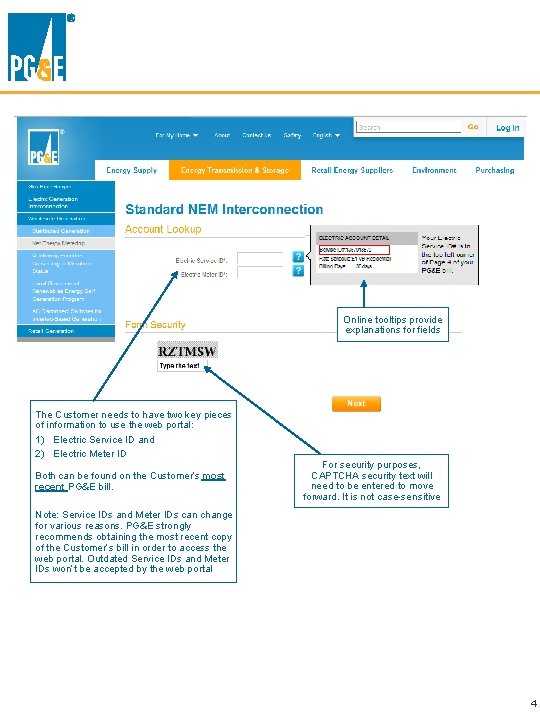
Online tooltips provide explanations for fields The Customer needs to have two key pieces of information to use the web portal: 1) Electric Service ID and 2) Electric Meter ID Both can be found on the Customer’s most recent PG&E bill. For security purposes, CAPTCHA security text will need to be entered to move forward. It is not case-sensitive Note: Service IDs and Meter IDs can change for various reasons. PG&E strongly recommends obtaining the most recent copy of the Customer’s bill in order to access the web portal. Outdated Service IDs and Meter IDs won’t be accepted by the web portal 4
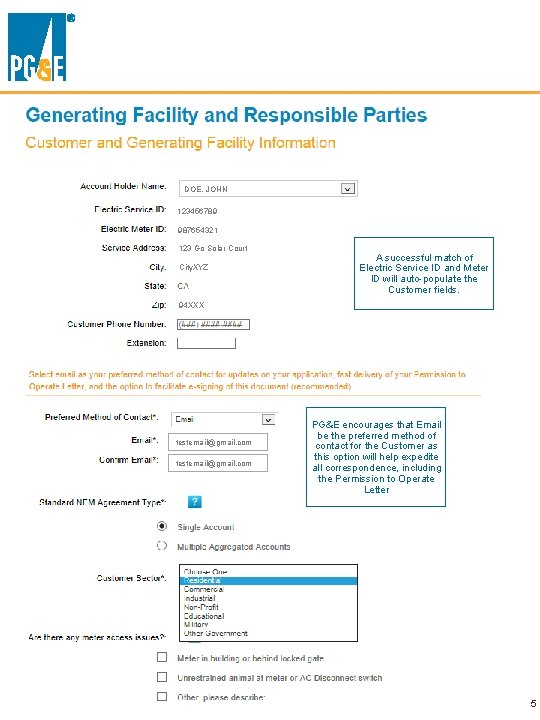
DOE, JOHN 123456789 987654321 123 Go Solar Court City. XYZ A successful match of Electric Service ID and Meter ID will auto-populate the Customer fields. 94 XXX testemail@gmail. com PG&E encourages that Email be the preferred method of contact for the Customer as this option will help expedite all correspondence, including the Permission to Operate Letter 5
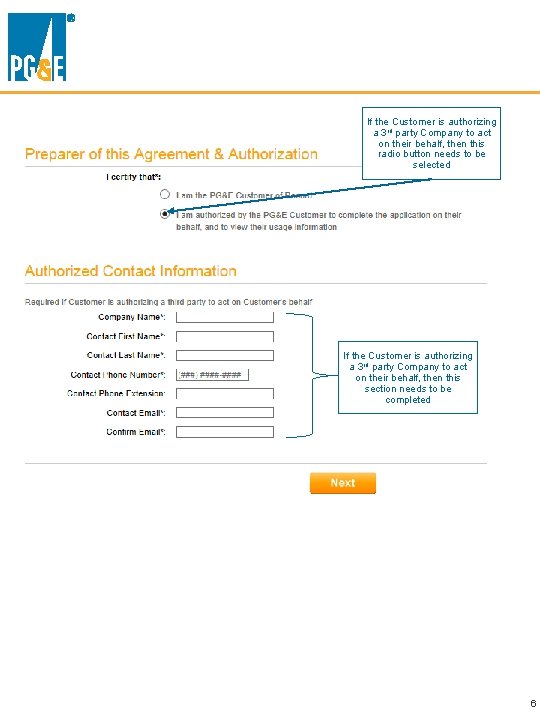
If the Customer is authorizing a 3 rd party Company to act on their behalf, then this radio button needs to be selected If the Customer is authorizing a 3 rd party Company to act on their behalf, then this section needs to be completed 6
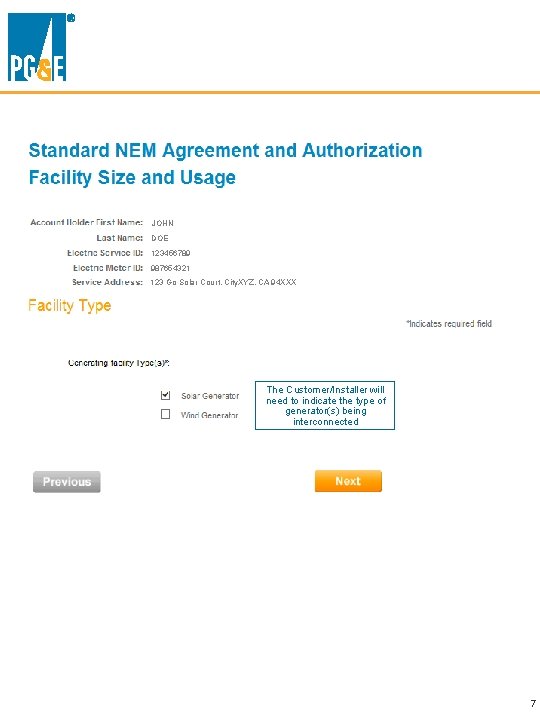
JOHN DOE 123456789 987654321 123 Go Solar Court, City. XYZ, CA 94 XXX The Customer/Installer will need to indicate the type of generator(s) being interconnected 7
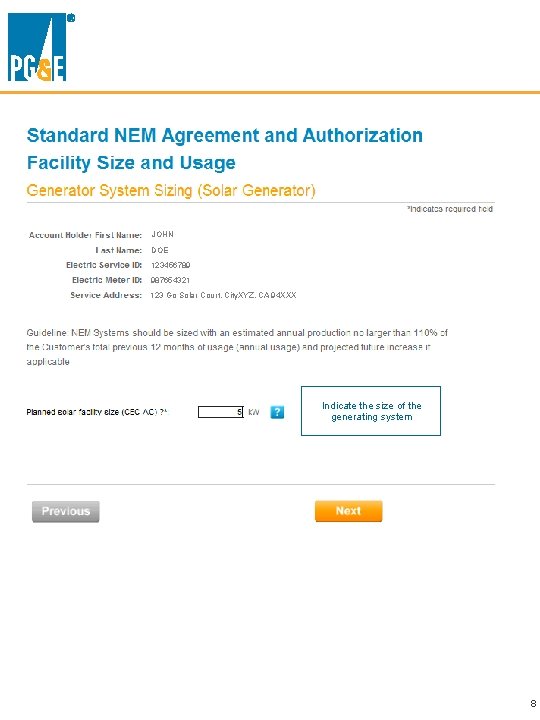
JOHN DOE 123456789 987654321 123 Go Solar Court, City. XYZ, CA 94 XXX Indicate the size of the generating system 8
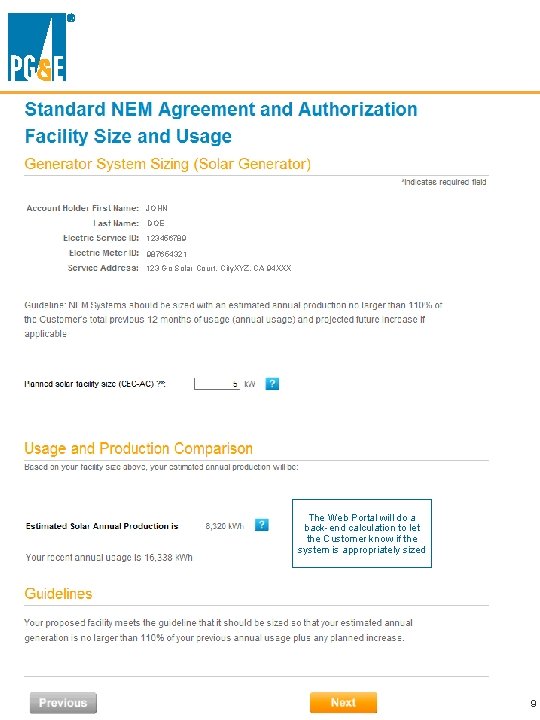
JOHN DOE 123456789 987654321 123 Go Solar Court, City. XYZ, CA 94 XXX The Web Portal will do a back-end calculation to let the Customer know if the system is appropriately sized 9
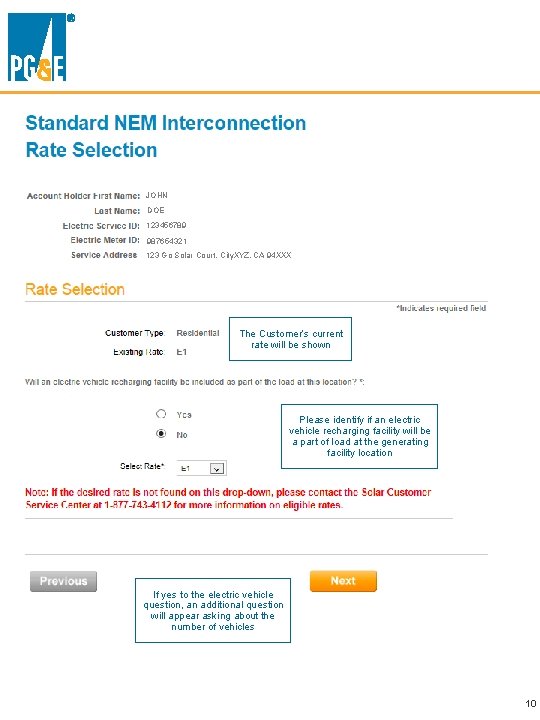
JOHN DOE 123456789 987654321 123 Go Solar Court, City. XYZ, CA 94 XXX The Customer’s current rate will be shown Please identify if an electric vehicle recharging facility will be a part of load at the generating facility location If yes to the electric vehicle question, an additional question will appear asking about the number of vehicles 10
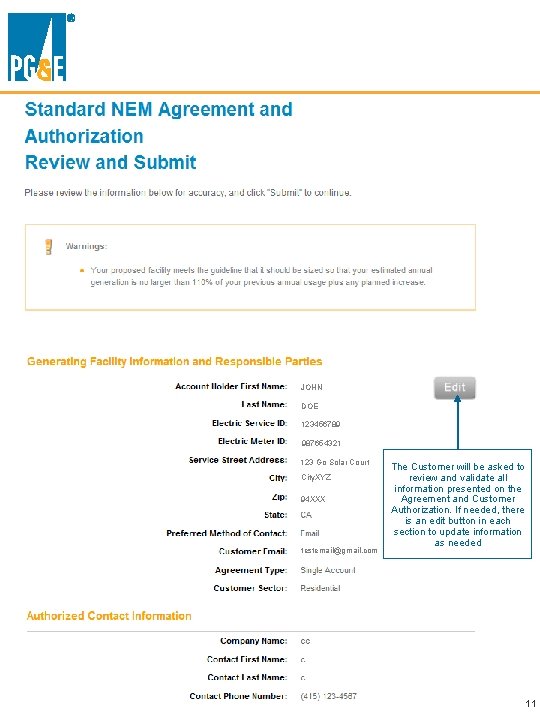
JOHN DOE 123456789 987654321 123 Go Solar Court City. XYZ 94 XXX testemail@gmail. com The Customer will be asked to review and validate all information presented on the Agreement and Customer Authorization. If needed, there is an edit button in each section to update information as needed 11
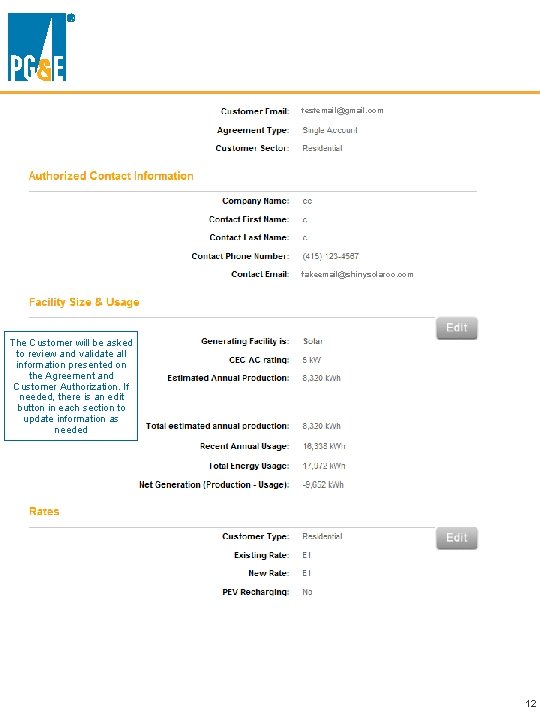
testemail@gmail. com fakeemail@shinysolarco. com The Customer will be asked to review and validate all information presented on the Agreement and Customer Authorization. If needed, there is an edit button in each section to update information as needed 12
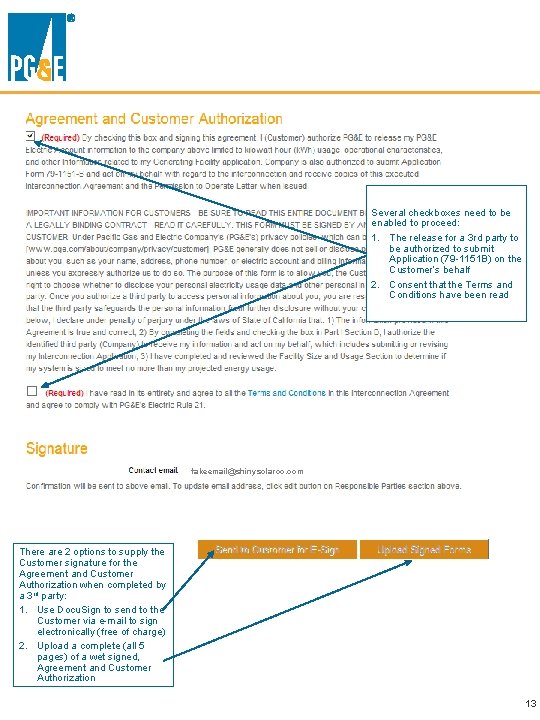
Several checkboxes need to be enabled to proceed: 1. The release for a 3 rd party to be authorized to submit Application (79 -1151 B) on the Customer’s behalf 2. Consent that the Terms and Conditions have been read fakeemail@shinysolarco. com There are 2 options to supply the Customer signature for the Agreement and Customer Authorization when completed by a 3 rd party: 1. Use Docu. Sign to send to the Customer via e-mail to sign electronically (free of charge) 2. Upload a complete (all 5 pages) of a wet signed, Agreement and Customer Authorization 13
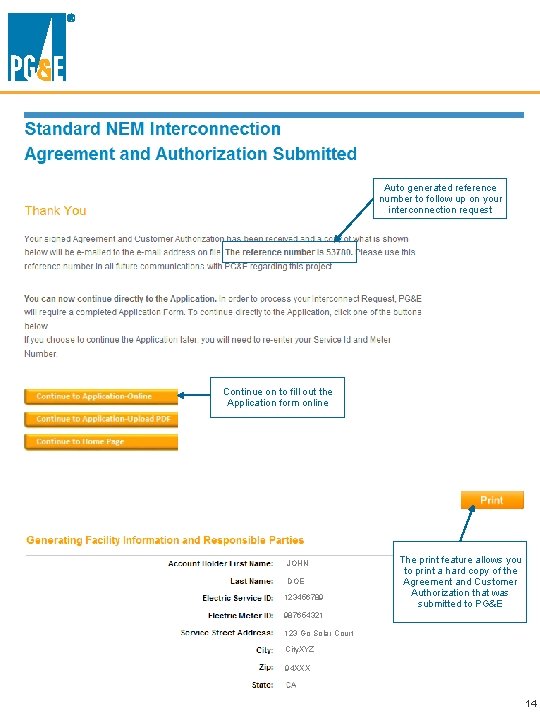
Auto generated reference number to follow up on your interconnection request Continue on to fill out the Application form online JOHN DOE 123456789 The print feature allows you to print a hard copy of the Agreement and Customer Authorization that was submitted to PG&E 987654321 123 Go Solar Court City. XYZ 94 XXX 14
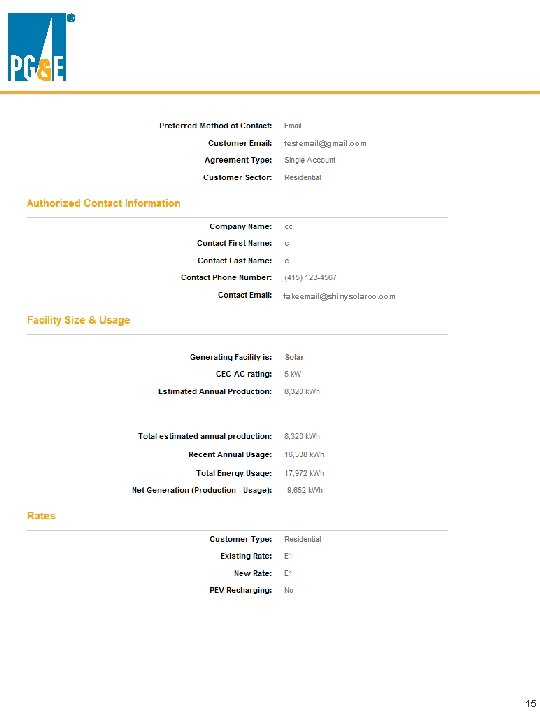
testemail@gmail. com fakeemail@shinysolarco. com 15
Application (79 -1151 B Form) 16
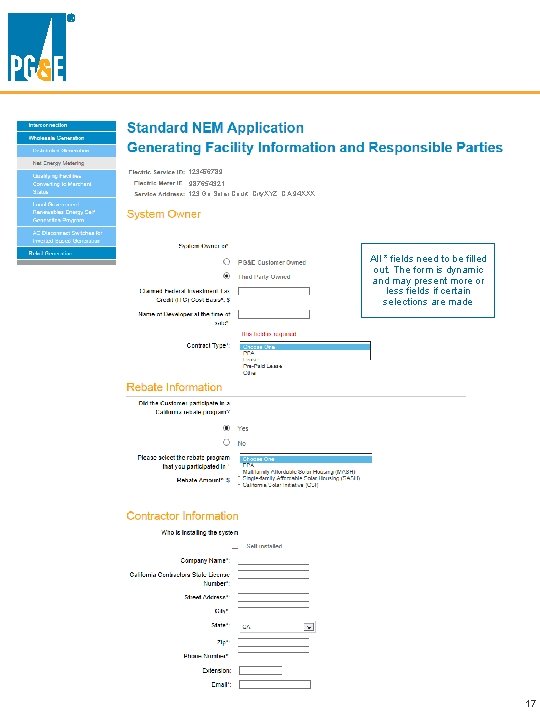
123456789 987654321 123 Go Solar Court, City. XYZ, CA 94 XXX All * fields need to be filled out. The form is dynamic and may present more or less fields if certain selections are made 17
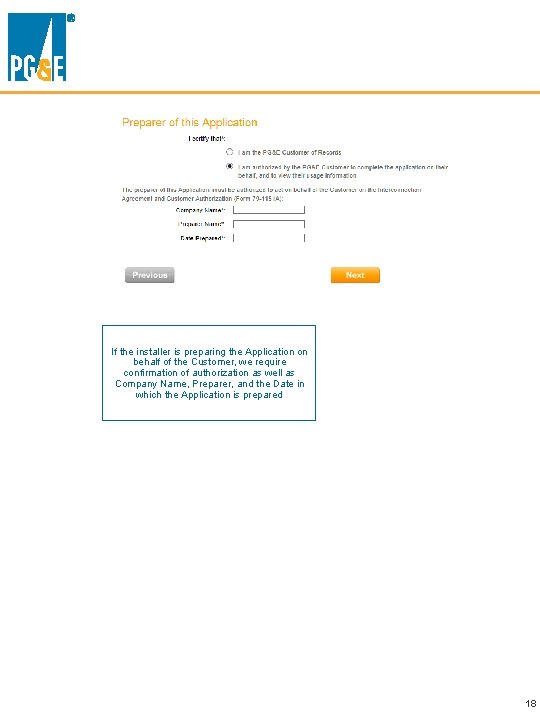
If the installer is preparing the Application on behalf of the Customer, we require confirmation of authorization as well as Company Name, Preparer, and the Date in which the Application is prepared 18
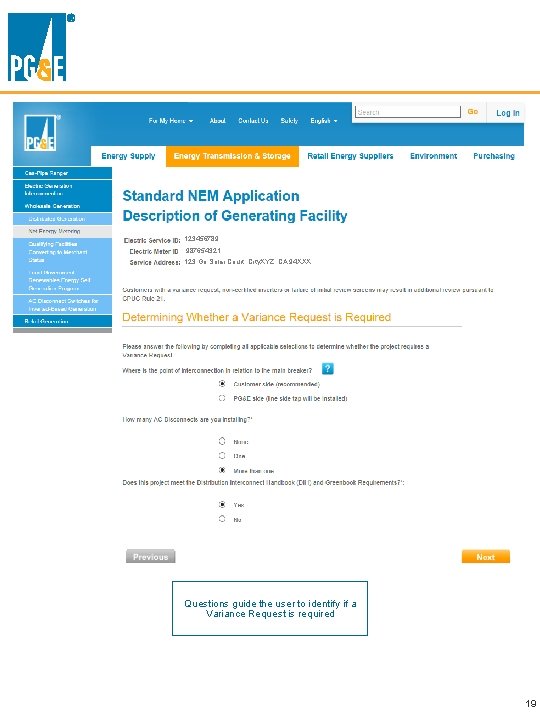
123456789 987654321 123 Go Solar Court, City. XYZ, CA 94 XXX Questions guide the user to identify if a Variance Request is required 19
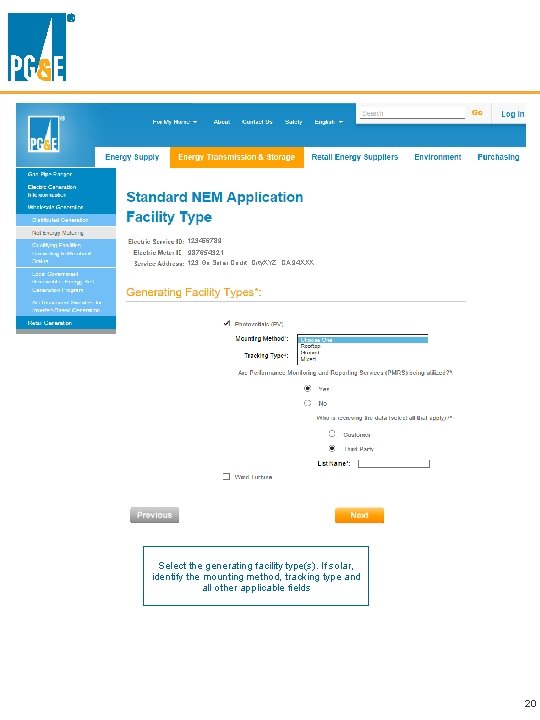
123456789 987654321 123 Go Solar Court, City. XYZ, CA 94 XXX Select the generating facility type(s). If solar, identify the mounting method, tracking type and all other applicable fields 20
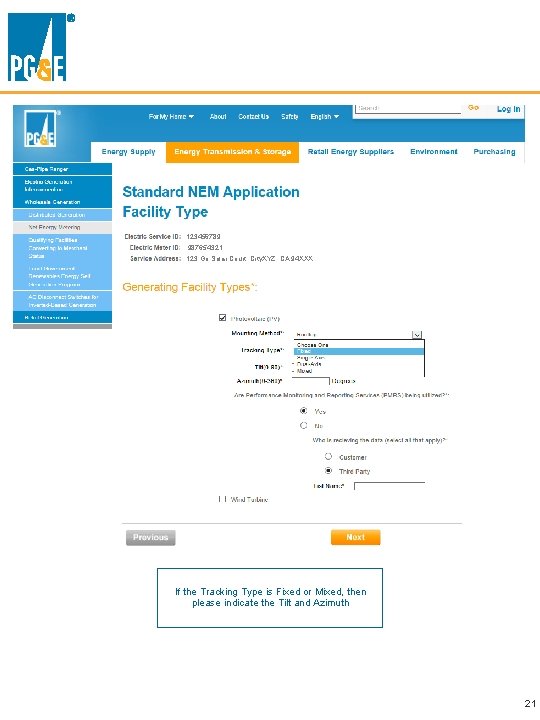
123456789 987654321 123 Go Solar Court, City. XYZ, CA 94 XXX If the Tracking Type is Fixed or Mixed, then please indicate the Tilt and Azimuth 21
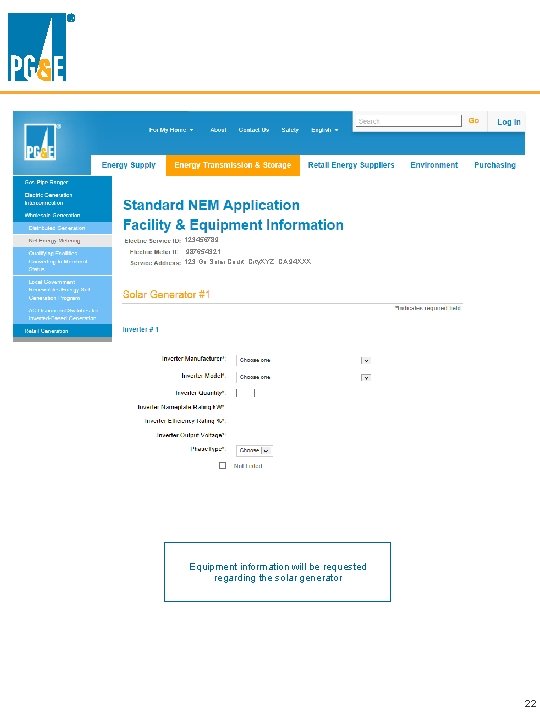
123456789 987654321 123 Go Solar Court, City. XYZ, CA 94 XXX Equipment information will be requested regarding the solar generator 22
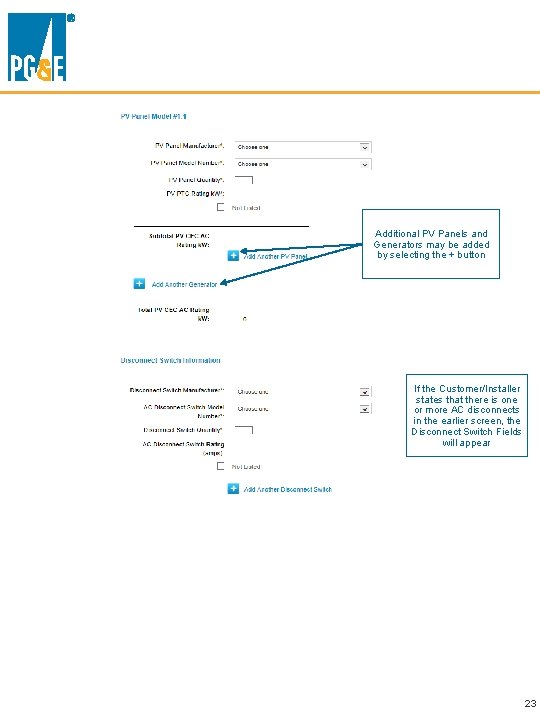
Additional PV Panels and Generators may be added by selecting the + button If the Customer/Installer states that there is one or more AC disconnects in the earlier screen, the Disconnect Switch Fields will appear 23
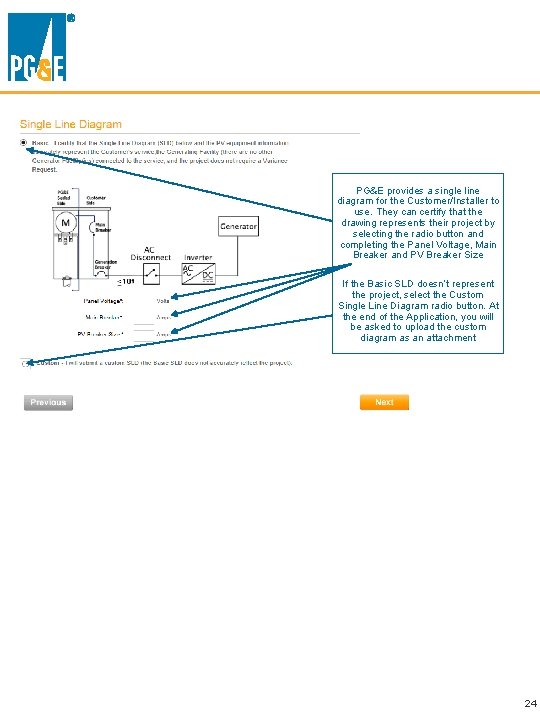
PG&E provides a single line diagram for the Customer/Installer to use. They can certify that the drawing represents their project by selecting the radio button and completing the Panel Voltage, Main Breaker and PV Breaker Size If the Basic SLD doesn’t represent the project, select the Custom Single Line Diagram radio button. At the end of the Application, you will be asked to upload the custom diagram as an attachment 24
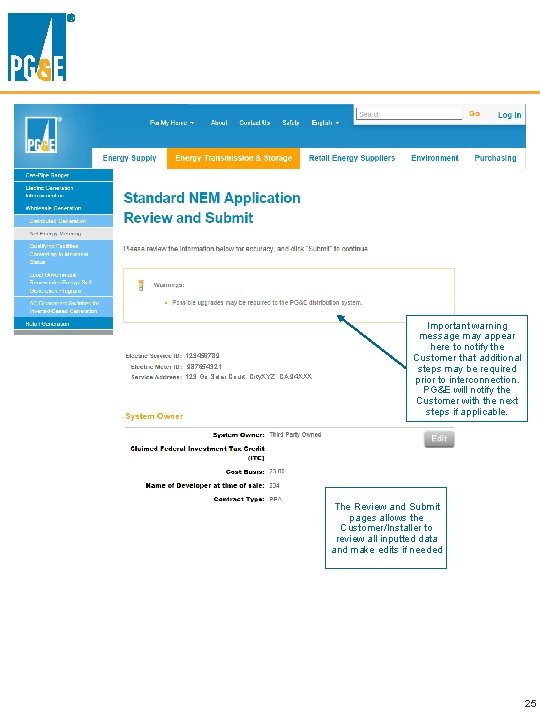
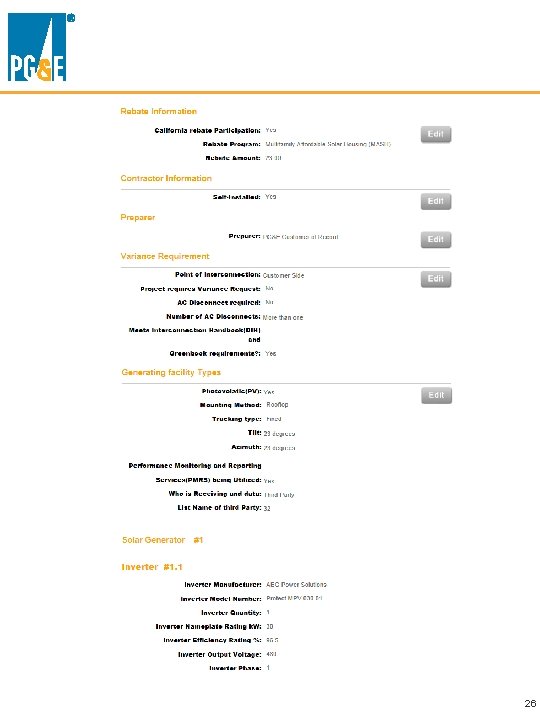
123456789 987654321 123 Go Solar Court, City. XYZ, CA 94 XXX Important warning message may appear here to notify the Customer that additional steps may be required prior to interconnection. PG&E will notify the Customer with the next steps if applicable. The Review and Submit pages allows the Customer/Installer to review all inputted data and make edits if needed 25
26
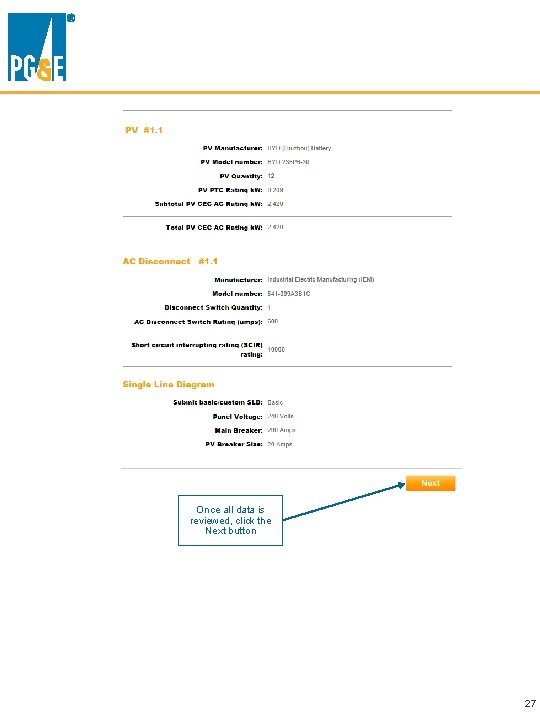
Once all data is reviewed, click the Next button 27
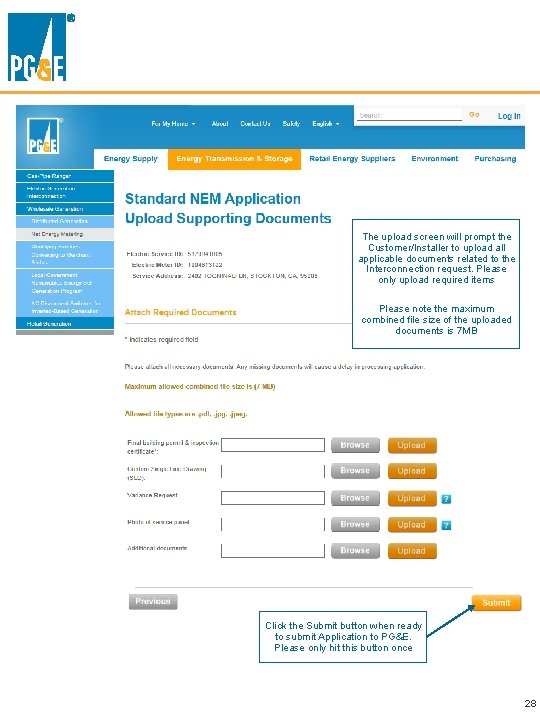
The upload screen will prompt the Customer/Installer to upload all applicable documents related to the Interconnection request. Please only upload required items Please note the maximum combined file size of the uploaded documents is 7 MB Click the Submit button when ready to submit Application to PG&E. Please only hit this button once 28
- Slides: 28