
STAGES OF TENDER 1 TENDER CREATION 2 TENDER



- Slides: 64
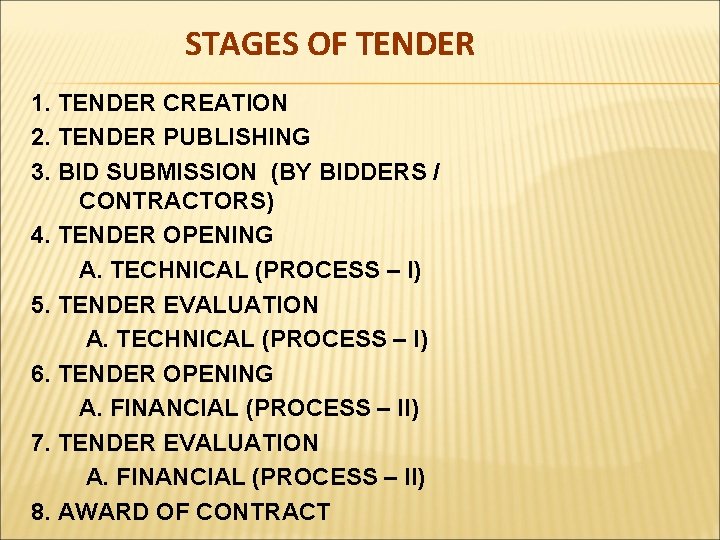
STAGES OF TENDER 1. TENDER CREATION 2. TENDER PUBLISHING 3. BID SUBMISSION (BY BIDDERS / CONTRACTORS) 4. TENDER OPENING A. TECHNICAL (PROCESS – I) 5. TENDER EVALUATION A. TECHNICAL (PROCESS – I) 6. TENDER OPENING A. FINANCIAL (PROCESS – II) 7. TENDER EVALUATION A. FINANCIAL (PROCESS – II) 8. AWARD OF CONTRACT
TENDER MANAGEMENT 1. TENDER CREATION 2. TENDER PUBLISH
TENDER CREATION
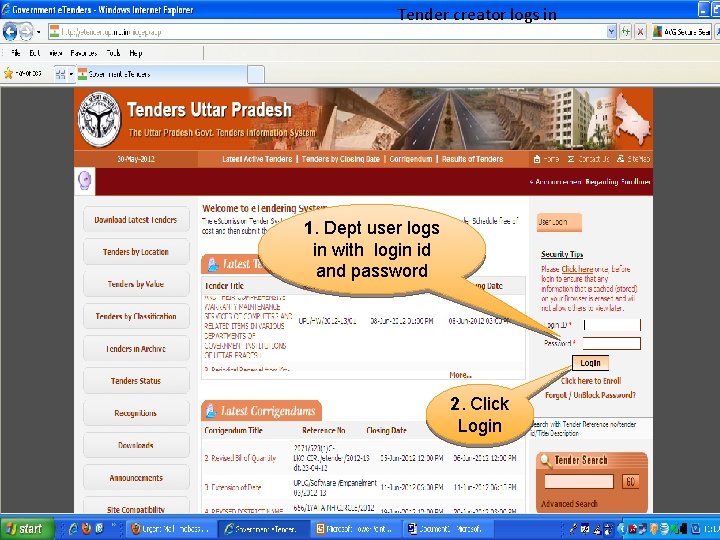
Tender creator logs in 1. Dept user logs in with login id and password 2. Click Login
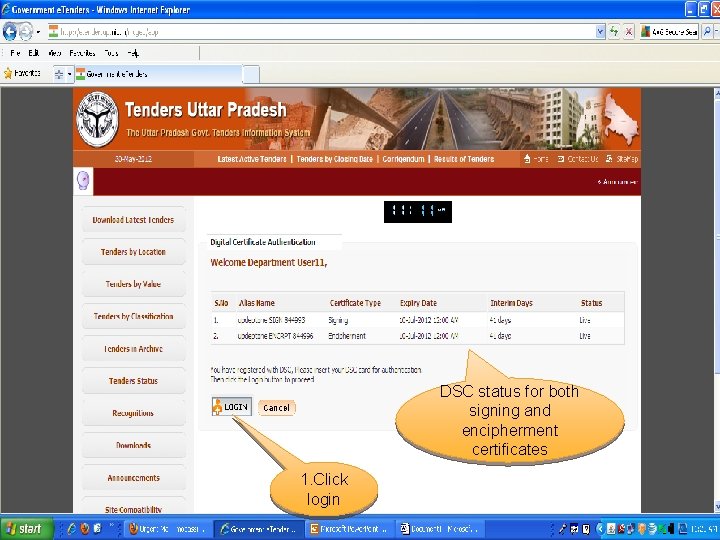
DSC status for both signing and encipherment certificates 1. Click login
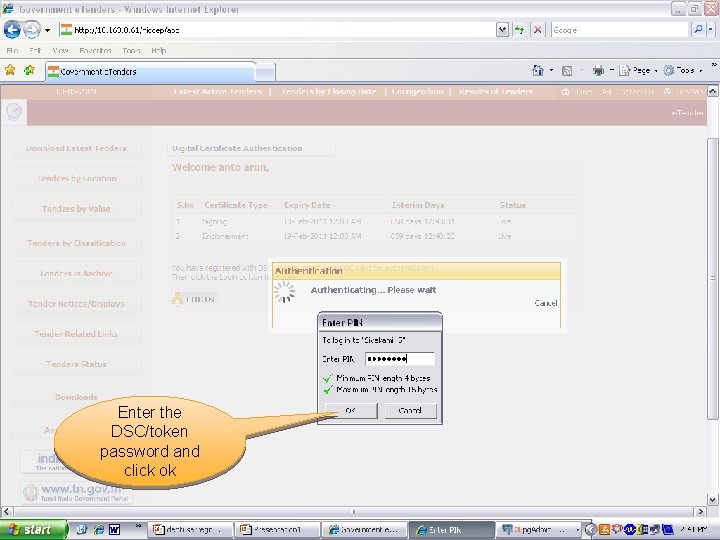
Enter the DSC/token password and click ok
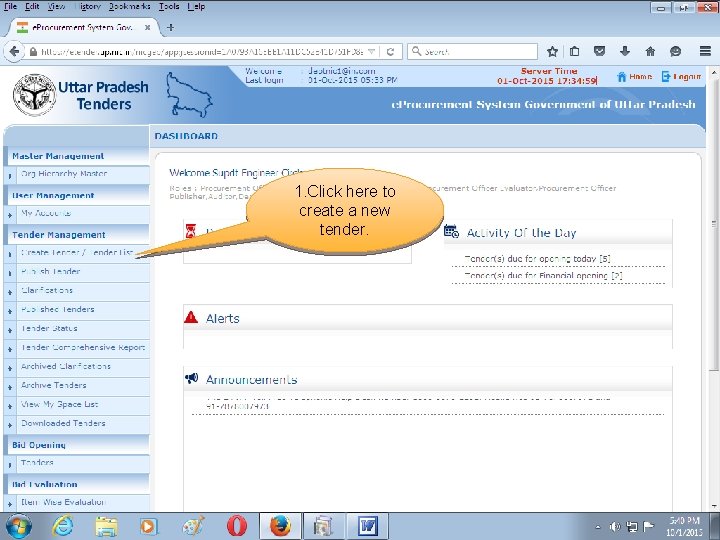
1. Click here to create a new tender.
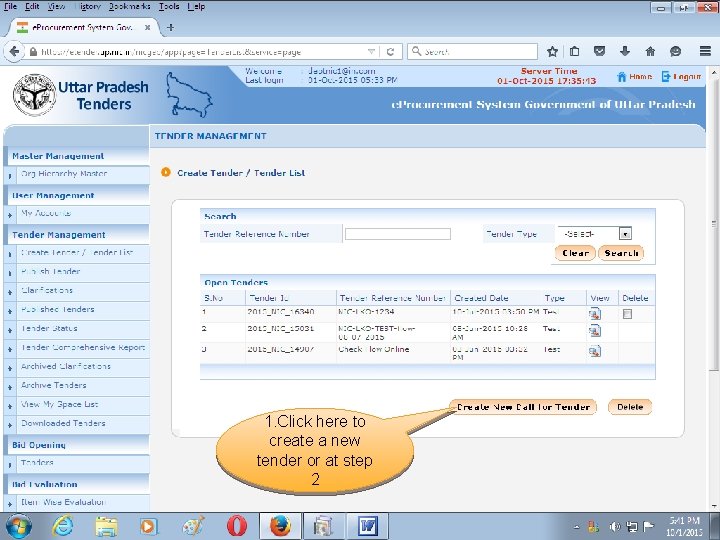
1. Click here to create a new tender or at step 2
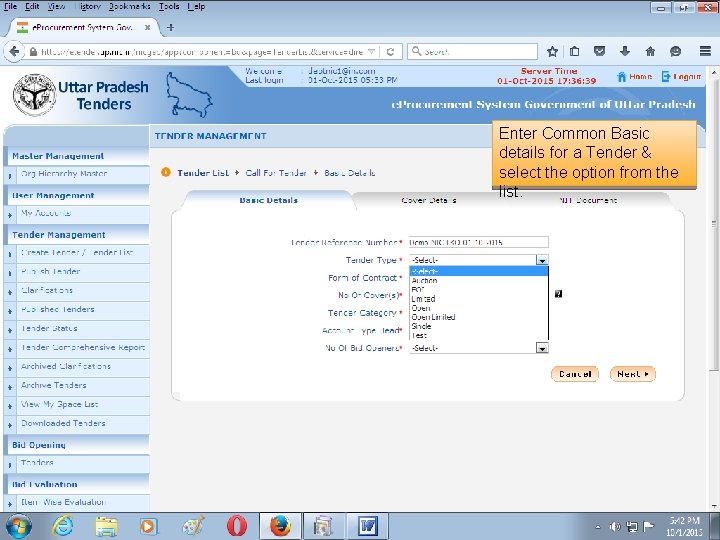
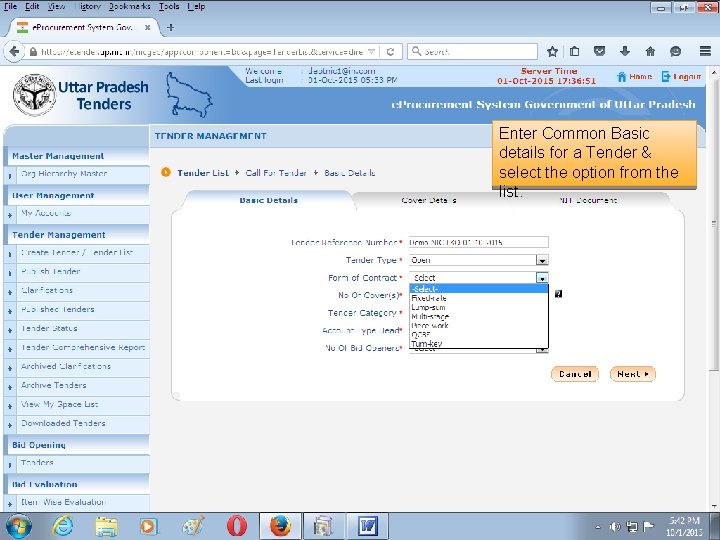
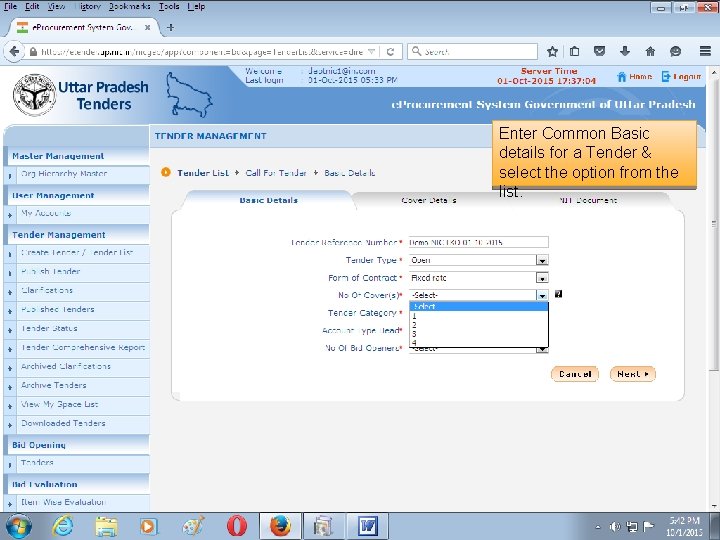
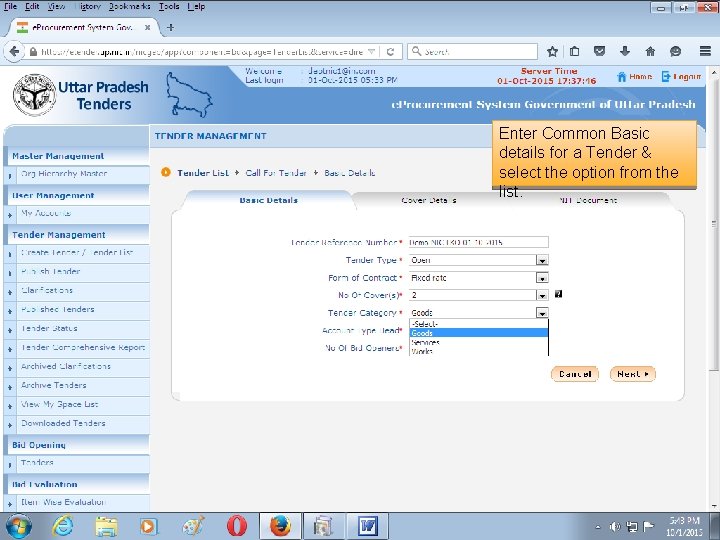
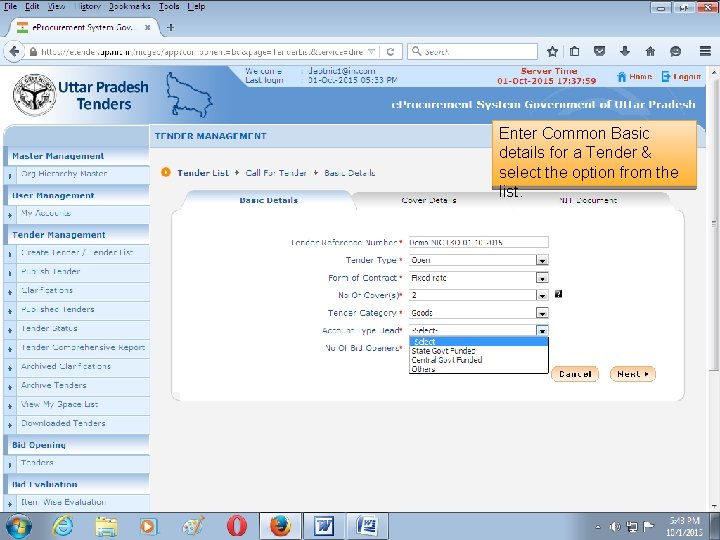
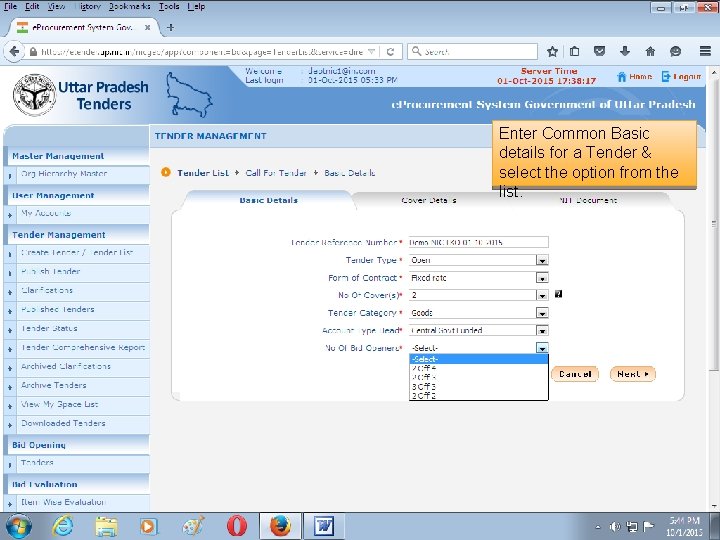
Enter Common Basic details for a Tender & select the option from the list.
Enter Common Basic details for a Tender & select the option from the list.
Enter Common Basic details for a Tender & select the option from the list.
Enter Common Basic details for a Tender & select the option from the list.
Enter Common Basic details for a Tender & select the option from the list.
Enter Common Basic details for a Tender & select the option from the list.
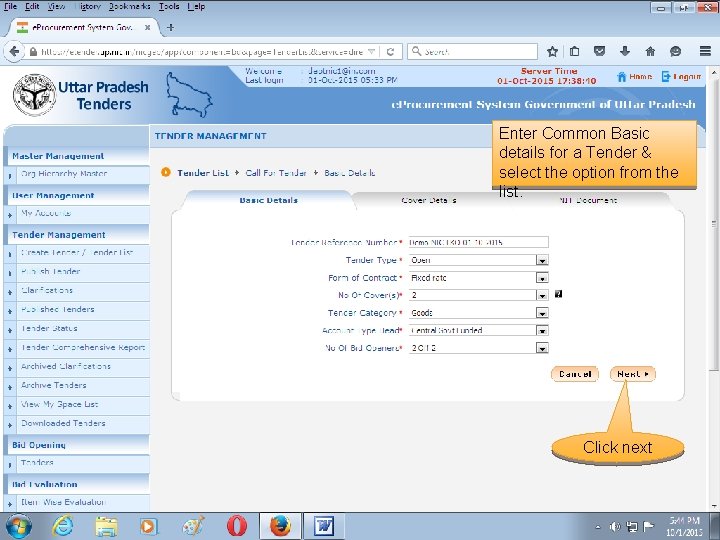
Enter Common Basic details for a Tender & select the option from the list. Click next
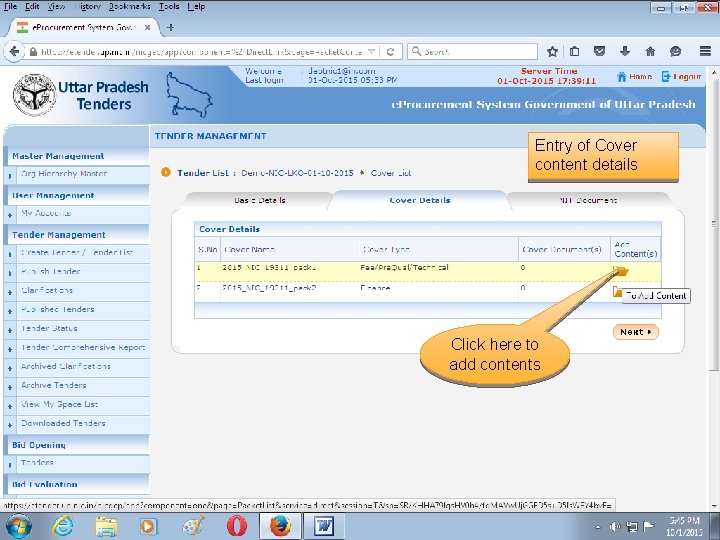
Entry of Cover content details Click here to add contents
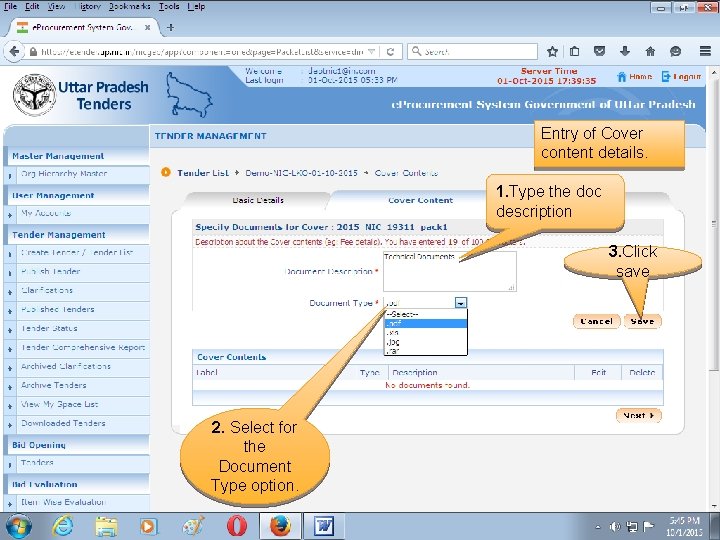
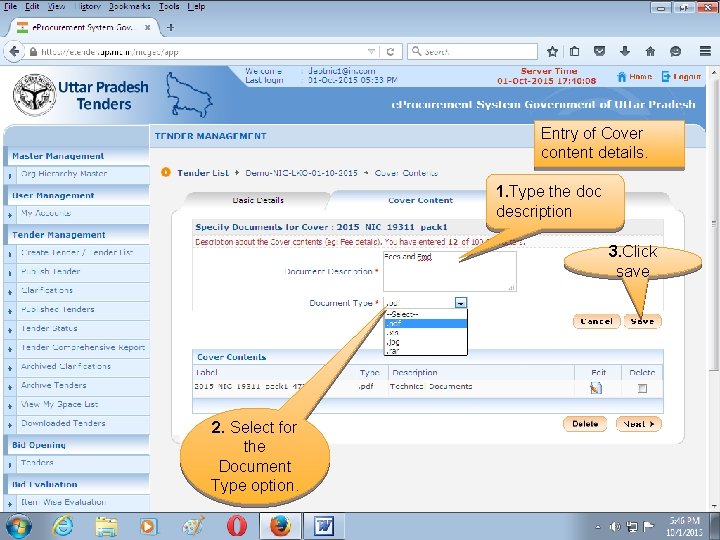
Entry of Cover content details. 1. Type the doc description 3. Click save 2. Select for the Document Type option.
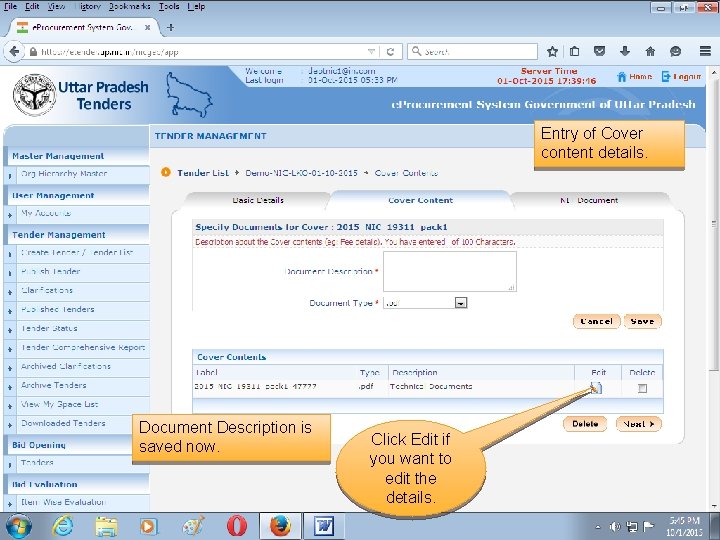
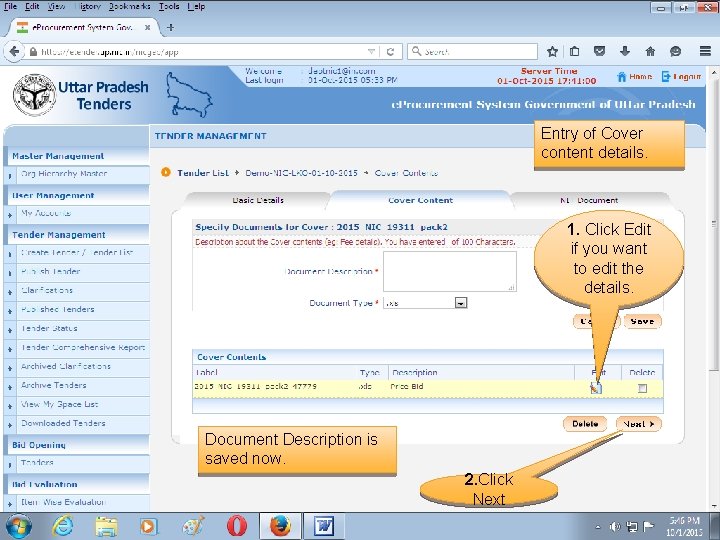
Entry of Cover content details. Document Description is saved now. Click Edit if you want to edit the details.
Entry of Cover content details. 1. Type the doc description 3. Click save 2. Select for the Document Type option.
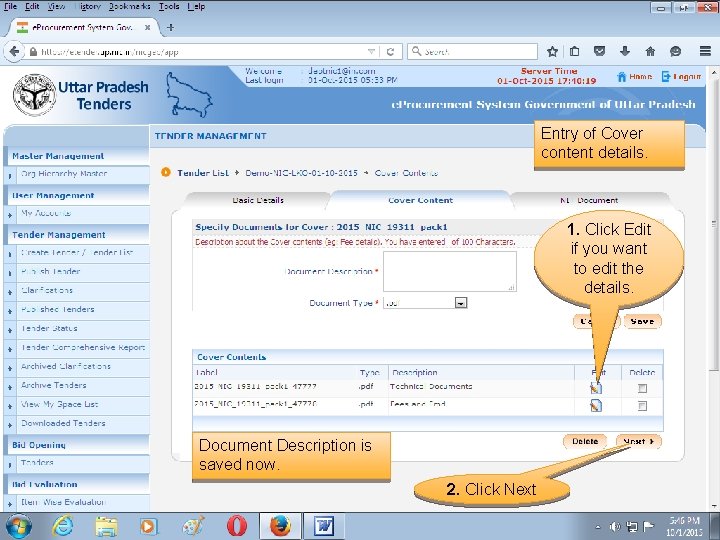
Entry of Cover content details. 1. Click Edit if you want to edit the details. Document Description is saved now. 2. Click Next
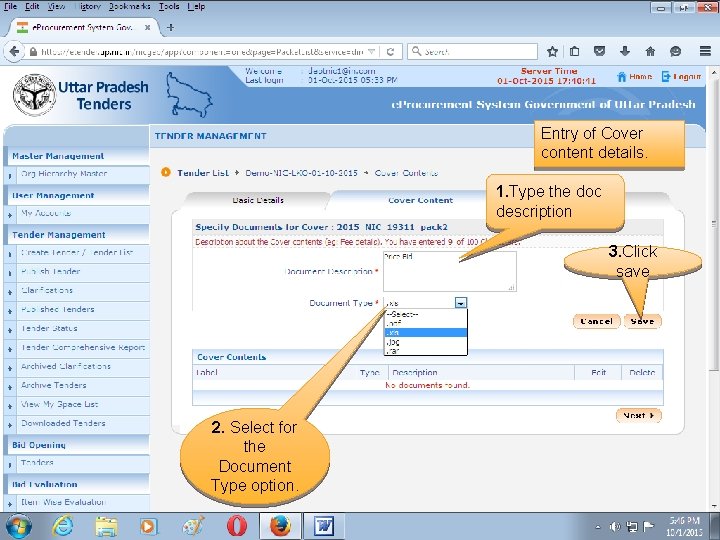
Entry of Cover content details. 1. Type the doc description 3. Click save 2. Select for the Document Type option.
Entry of Cover content details. 1. Click Edit if you want to edit the details. Document Description is saved now. 2. Click Next
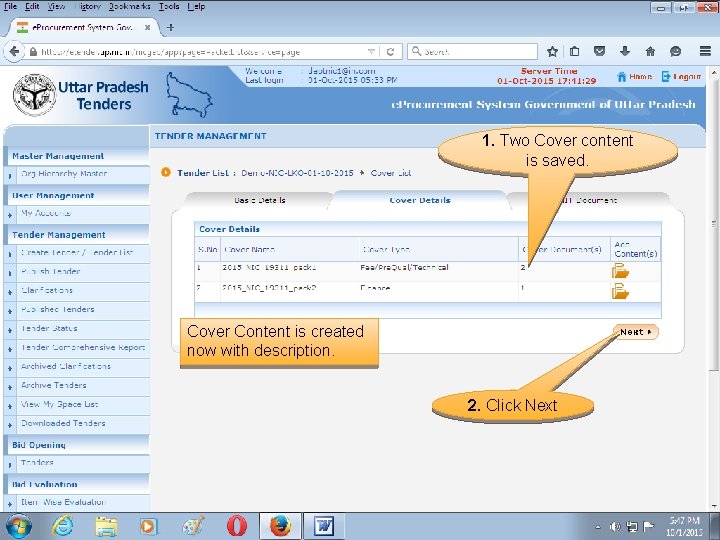
1. Two Cover content is saved. Cover Content is created now with description. 2. Click Next
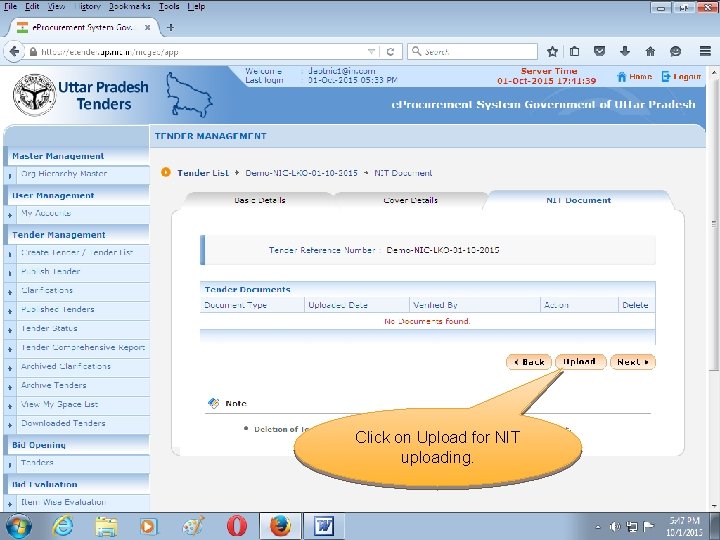
Click on Upload for NIT uploading.
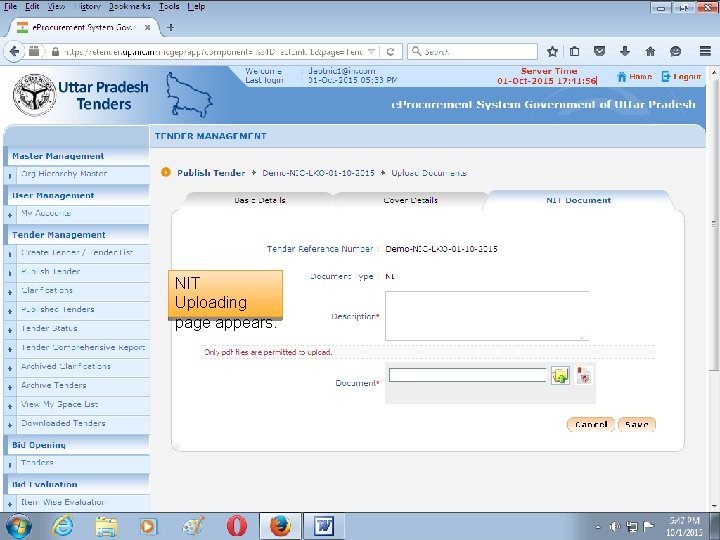
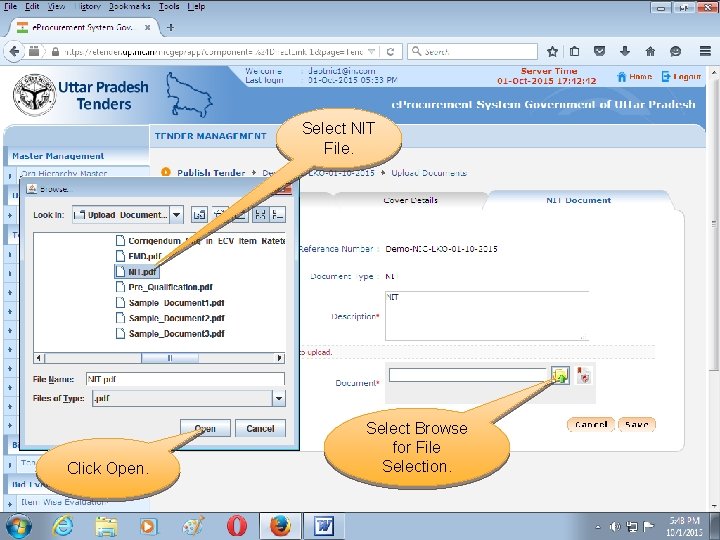
NIT Uploading page appears.
Select NIT File. Click Open. Select Browse for File Selection.
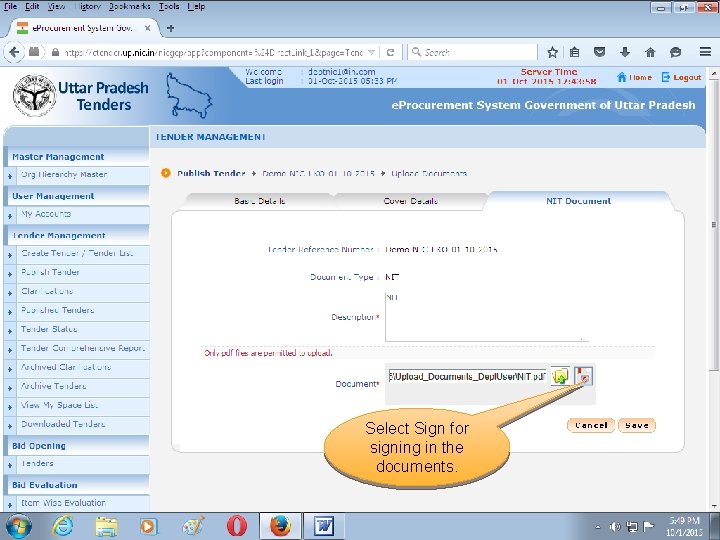
Select Sign for signing in the documents.
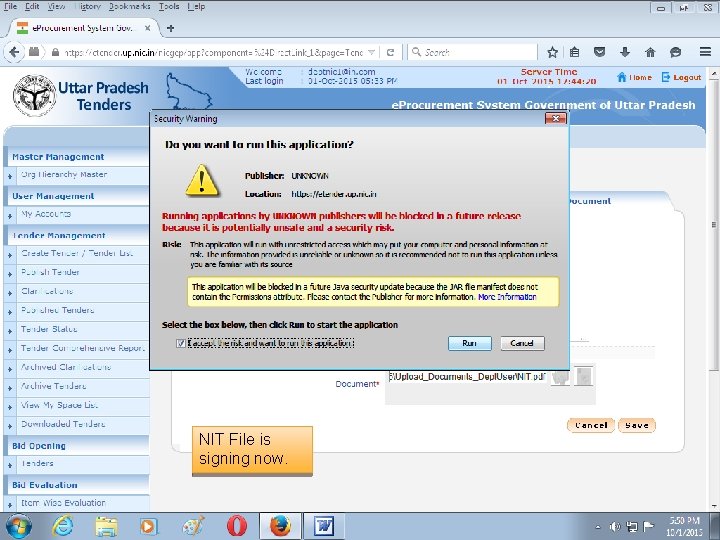
NIT File is signing now.
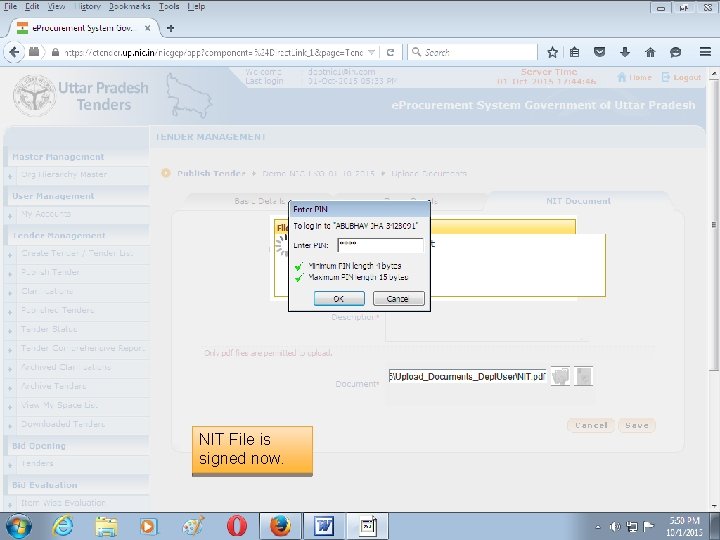
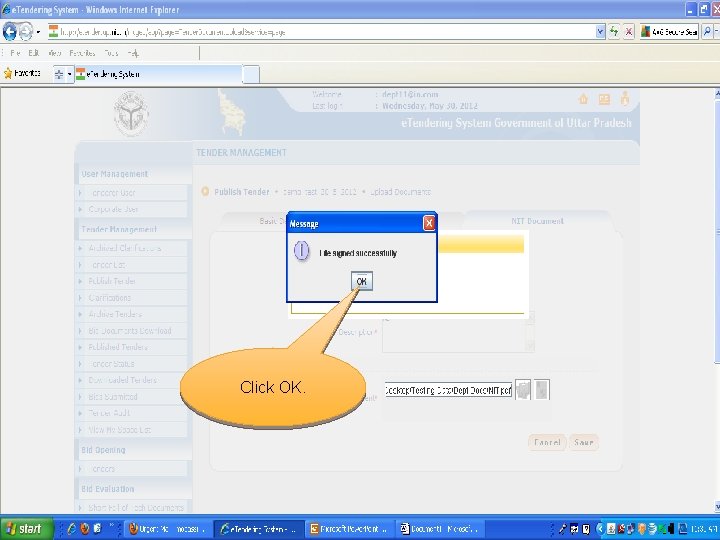
NIT File is signed now.
Click OK.
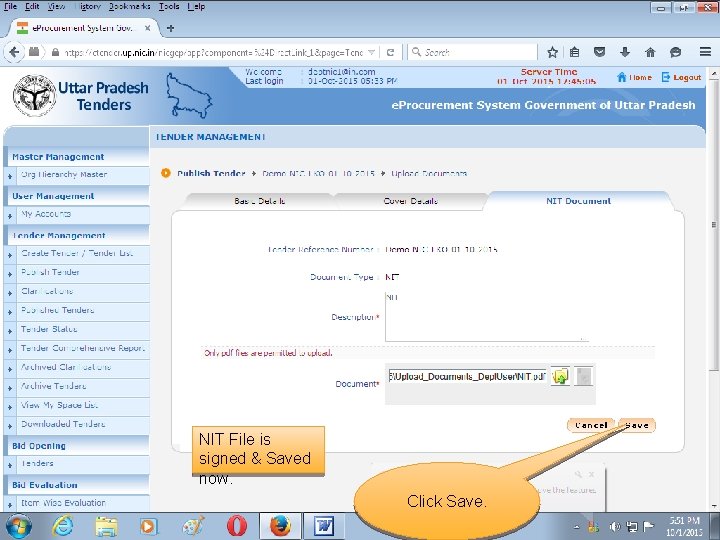
NIT File is signed & Saved now. Click Save.
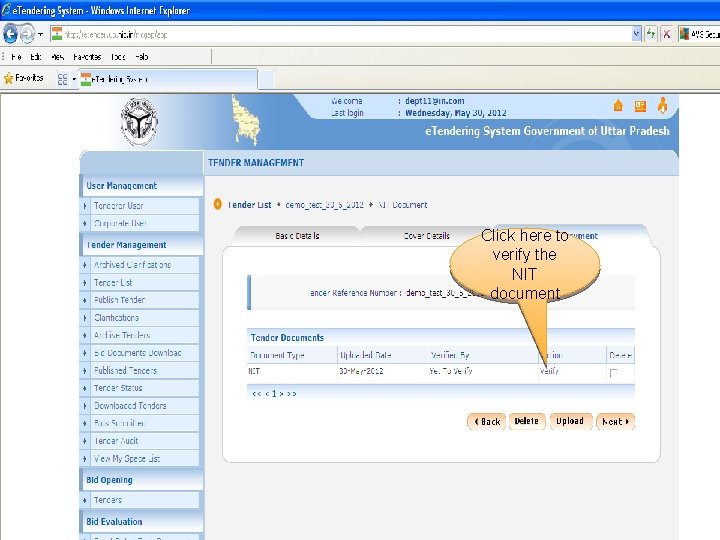
Click here to verify the NIT document
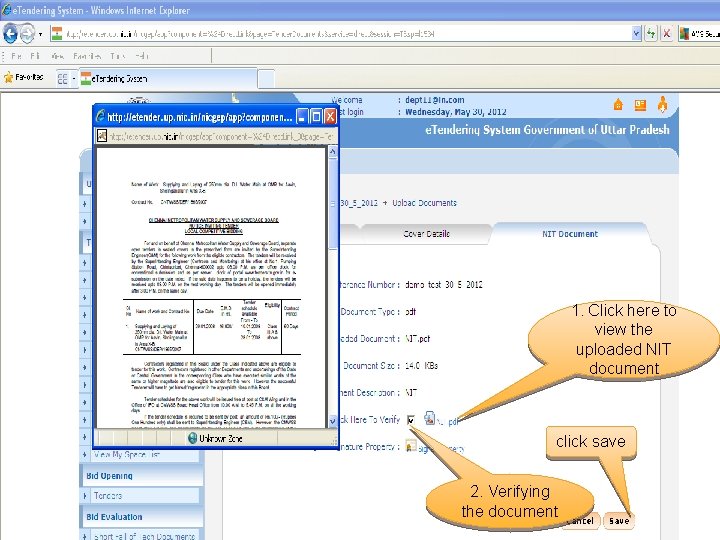
1. Click here to view the uploaded NIT document click save 2. Verifying the document
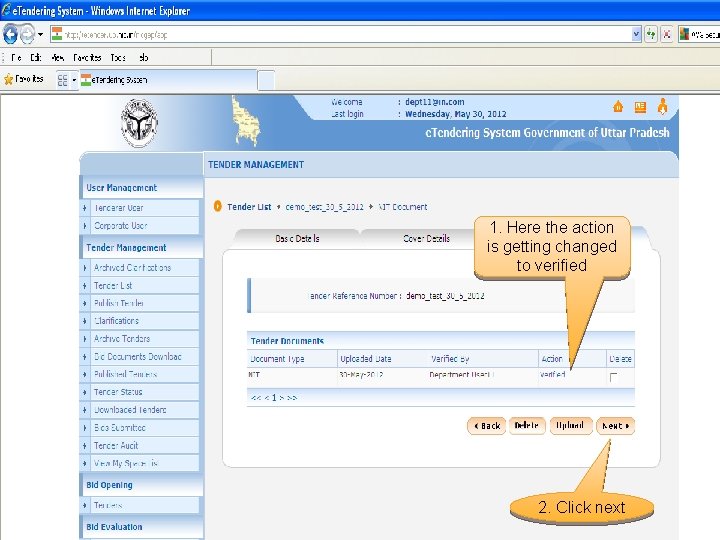
1. Here the action is getting changed to verified 2. Click next
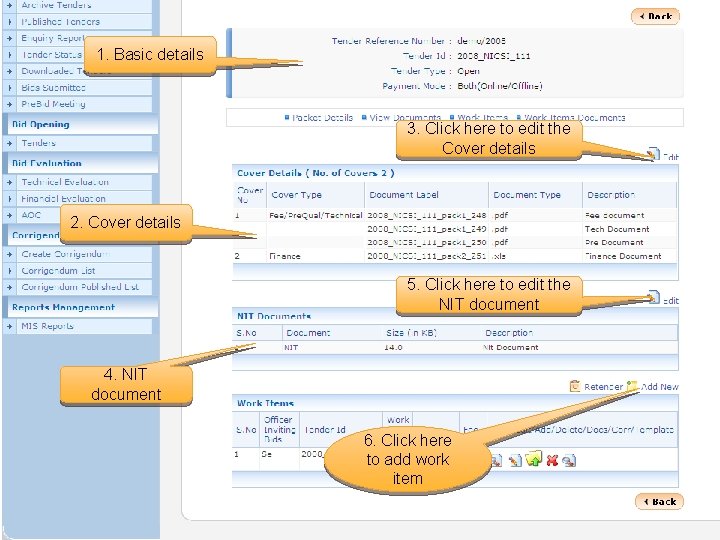
1. Basic details 3. Click here to edit the Cover details 2. Cover details 5. Click here to edit the NIT document 4. NIT document 6. Click here to add work item
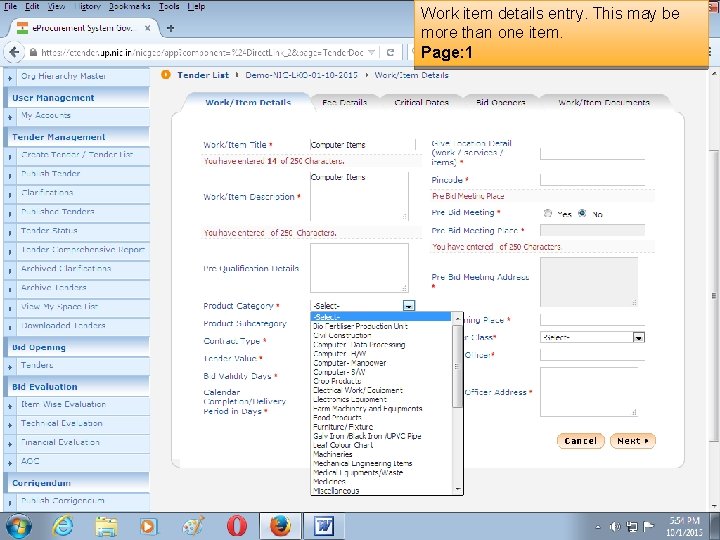
Work item details entry. This may be more than one item. Page: 1
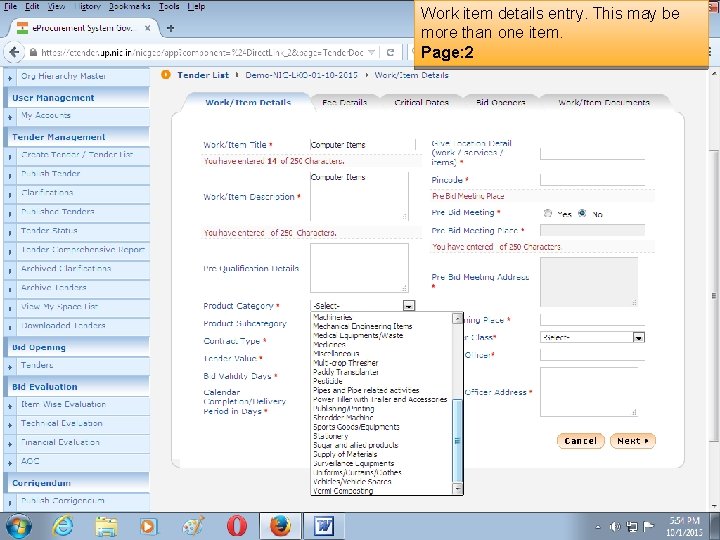
Work item details entry. This may be more than one item. Page: 2
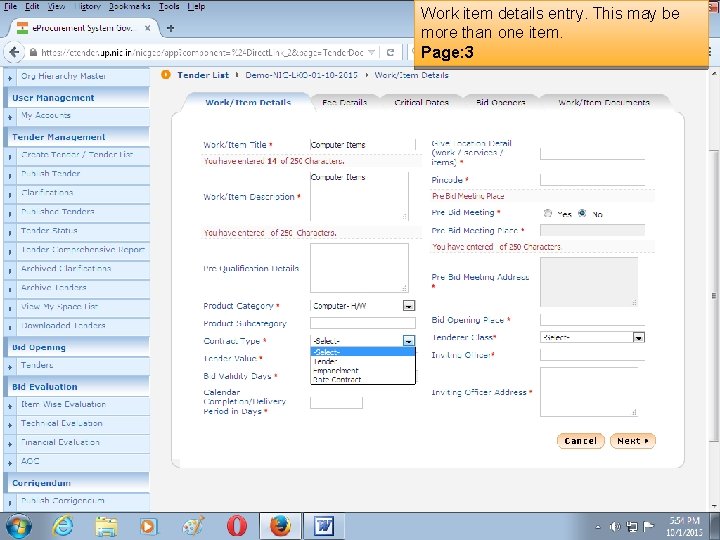
Work item details entry. This may be more than one item. Page: 3
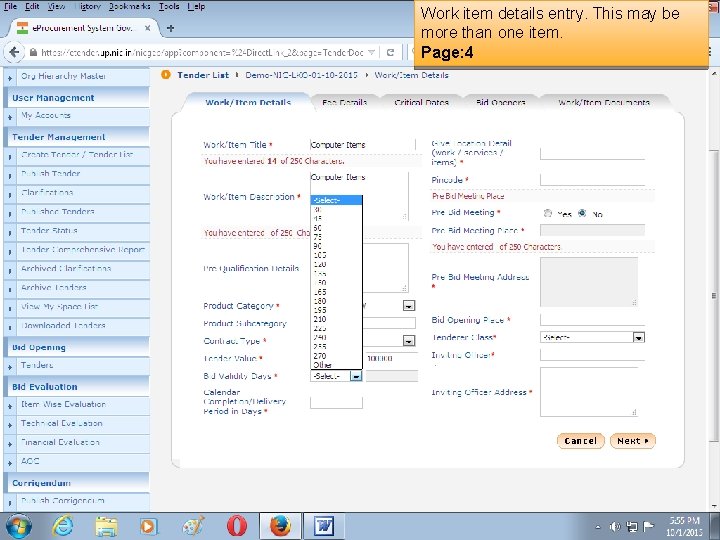
Work item details entry. This may be more than one item. Page: 4
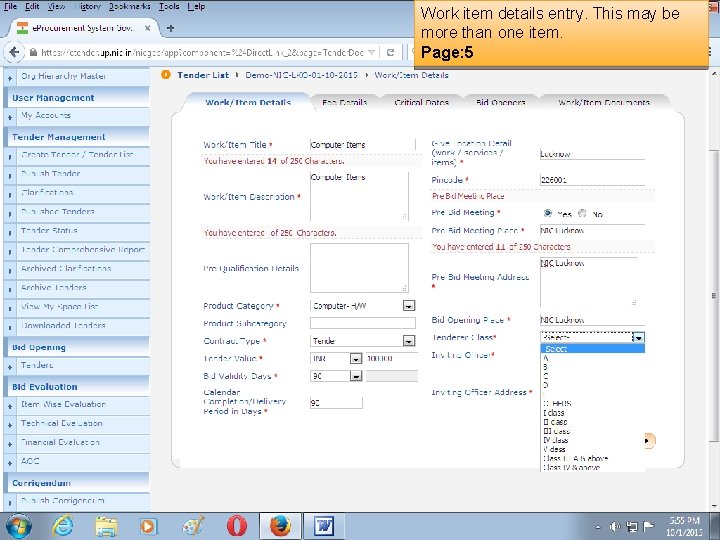
Work item details entry. This may be more than one item. Page: 5
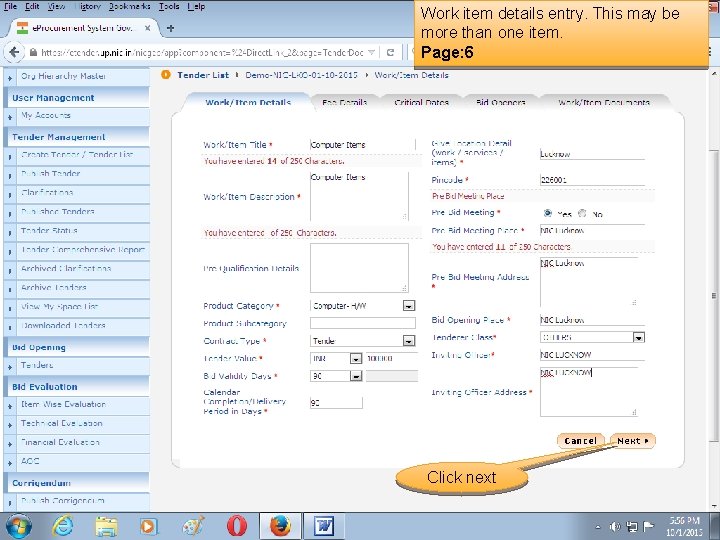
Work item details entry. This may be more than one item. Page: 6 Click next
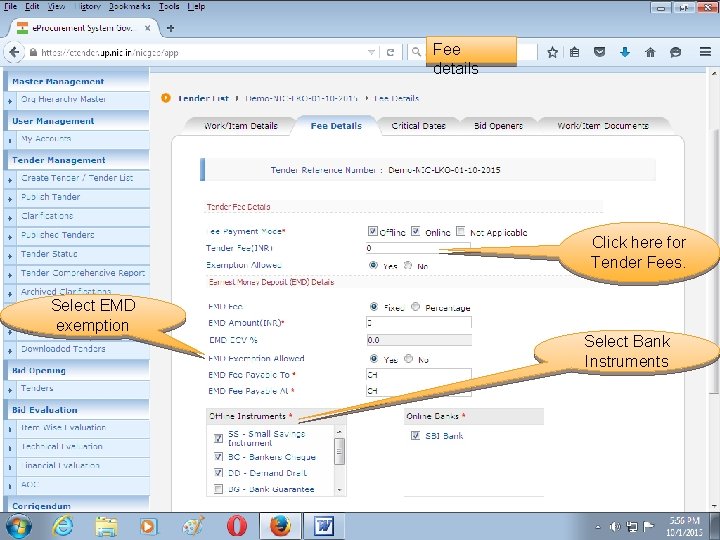
Fee details Click here for Tender Fees. Select EMD exemption Select Bank Instruments
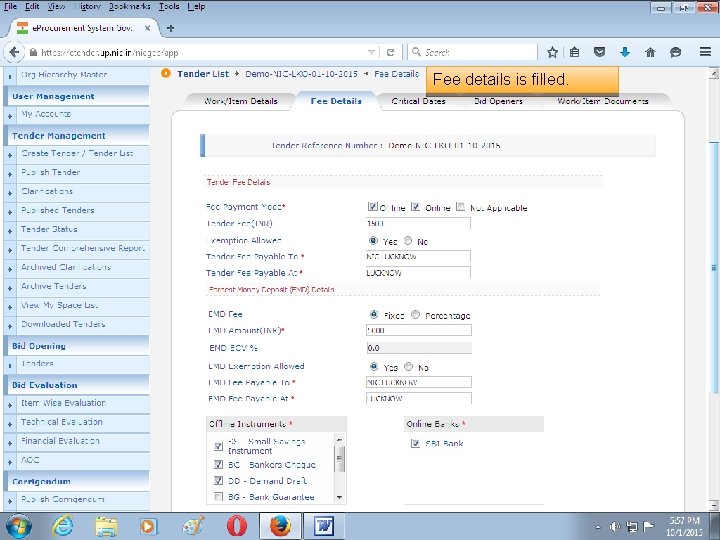
Fee details is filled.
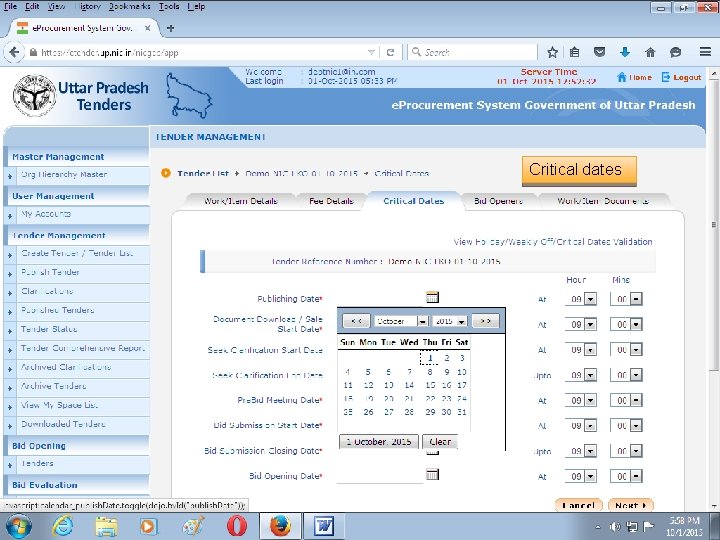
Critical dates
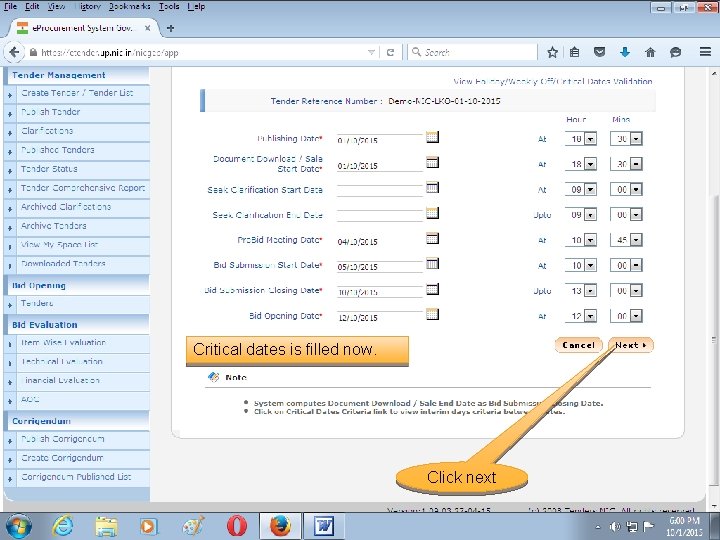
Critical dates is filled now. Click next
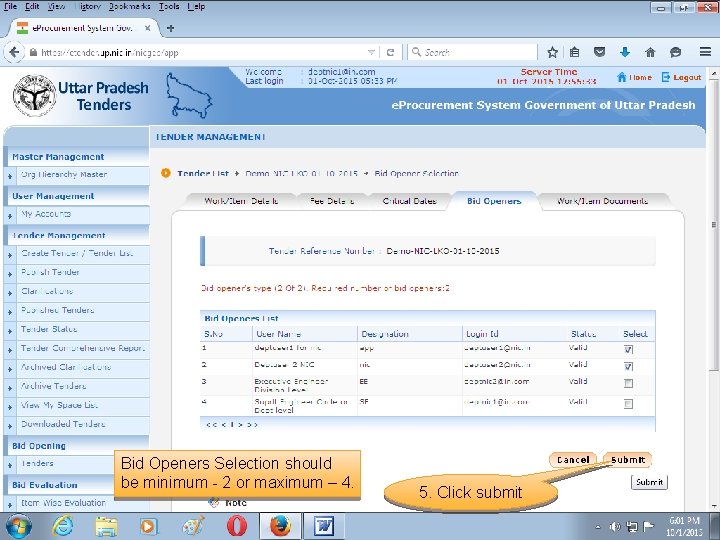
Bid Openers Selection should be minimum - 2 or maximum – 4. 5. Click submit
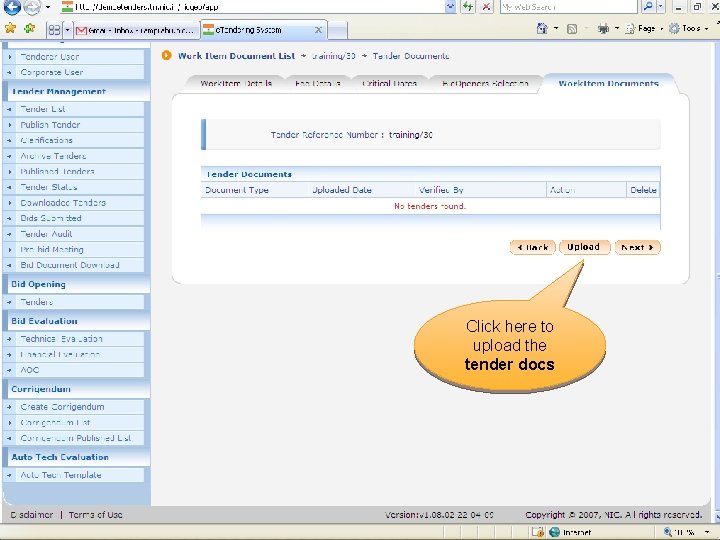
Click here to upload the tender docs
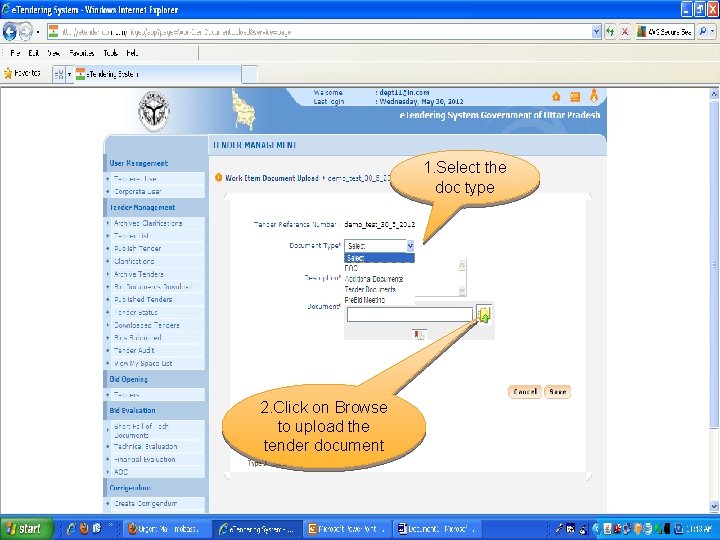
1. Select the doc type 2. Click on Browse to upload the tender document
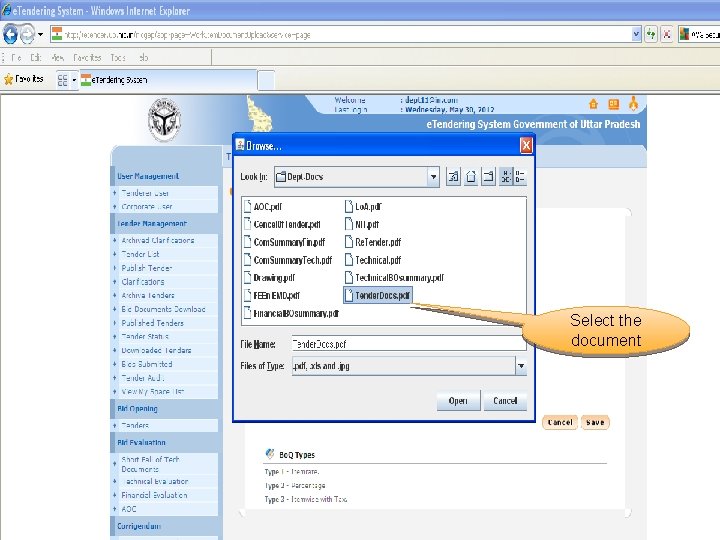
Select the document
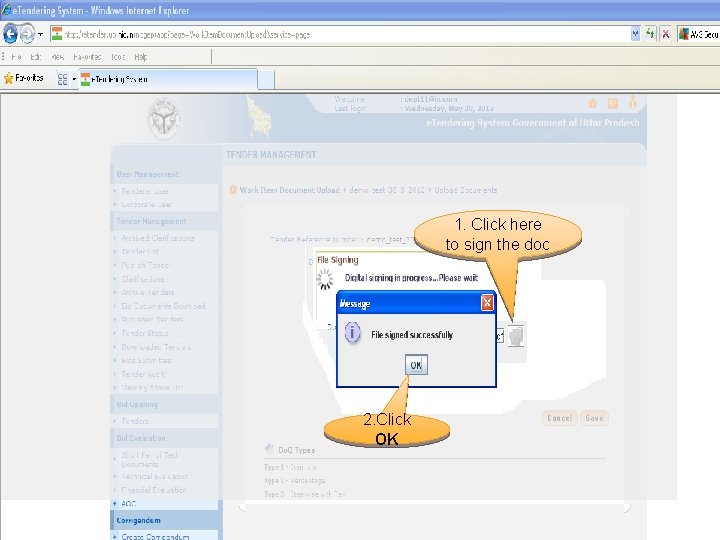
1. Click here to sign the doc 2. Click OK
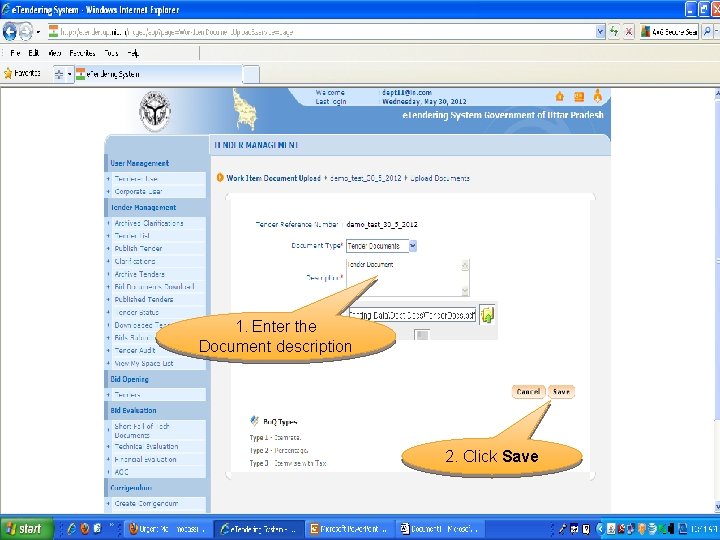
1. Enter the Document description 2. Click Save
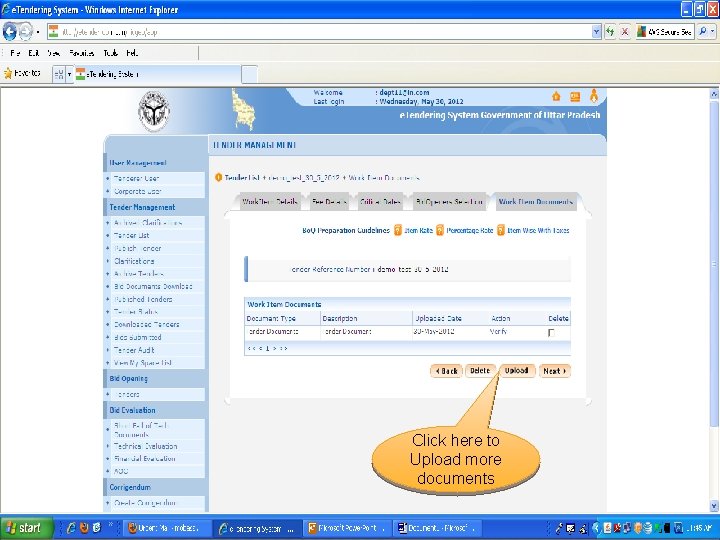
Click here to Upload more documents
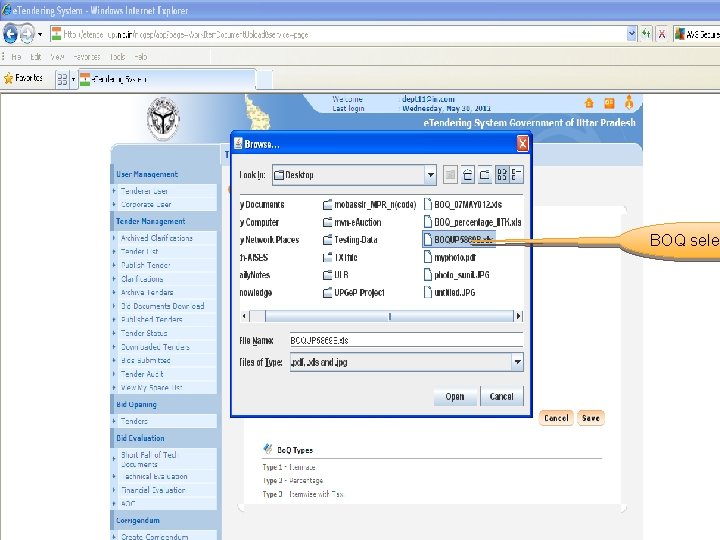
BOQ selec
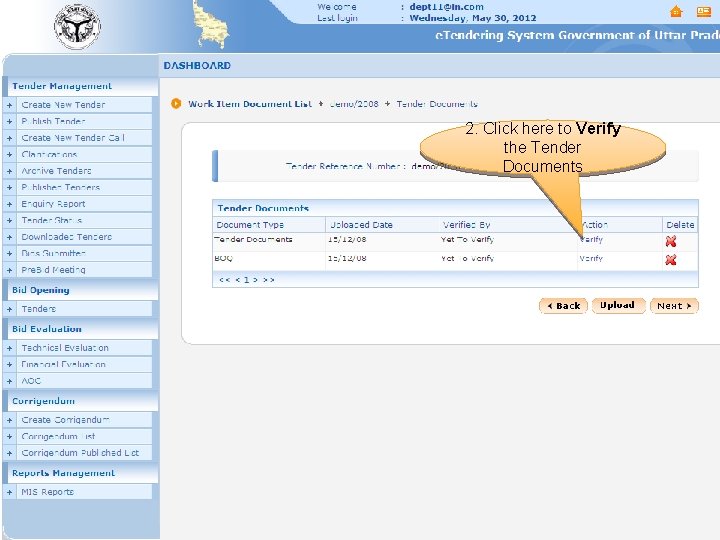
2. Click here to Verify the Tender Documents e. Tenders - Upload Work Item Documents
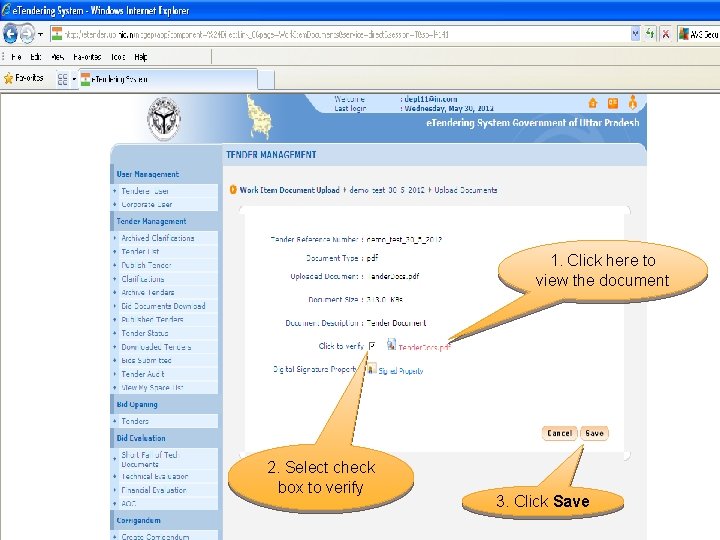
1. Click here to view the document 2. Select check box to verify 3. Click Save
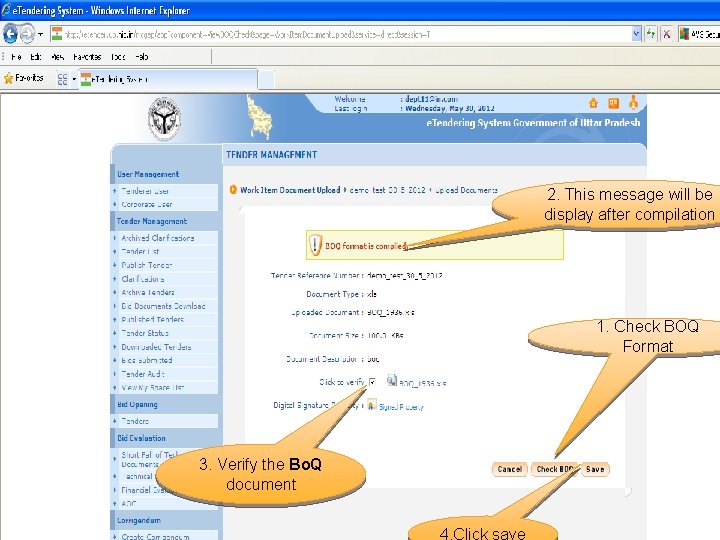
2. This message will be display after compilation 1. Check BOQ Format 3. Verify the Bo. Q document 4. Click save
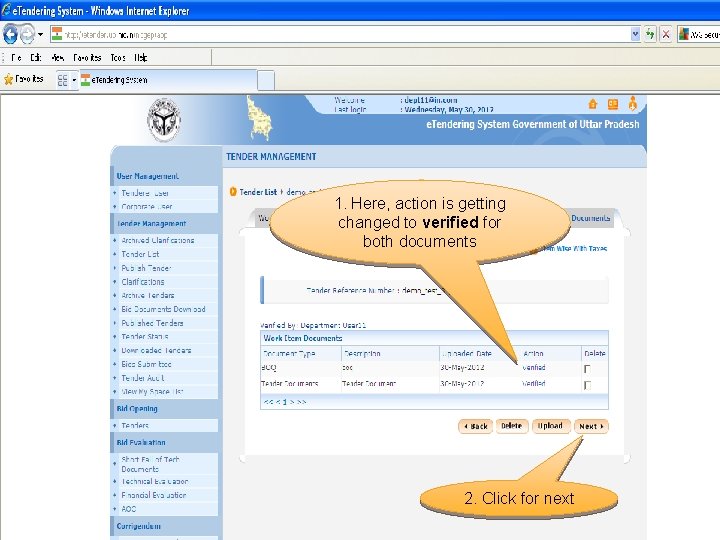
1. Here, action is getting changed to verified for both documents 2. Click for next
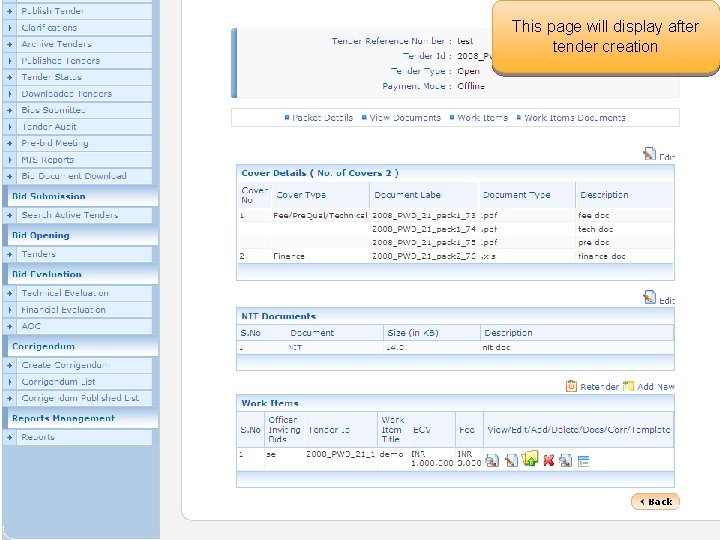
This page will display after tender creation
END OF TENDER CREATION
PUBLISH TENDER
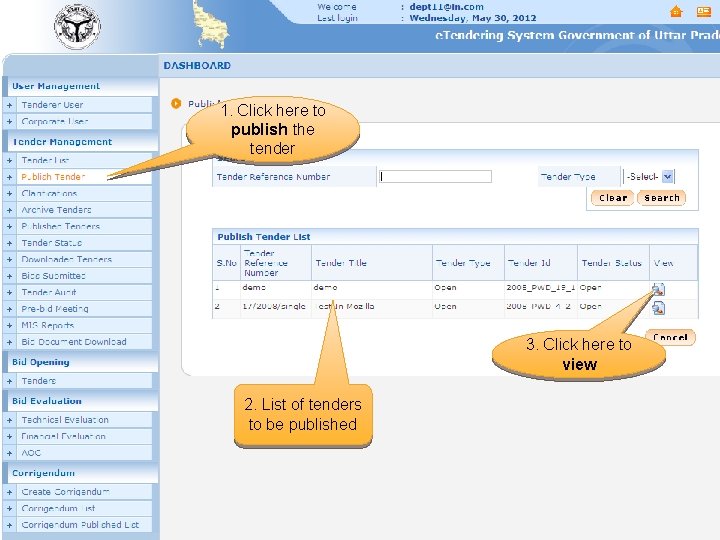
1. Click here to publish the tender 3. Click here to view 2. List of tenders to be published
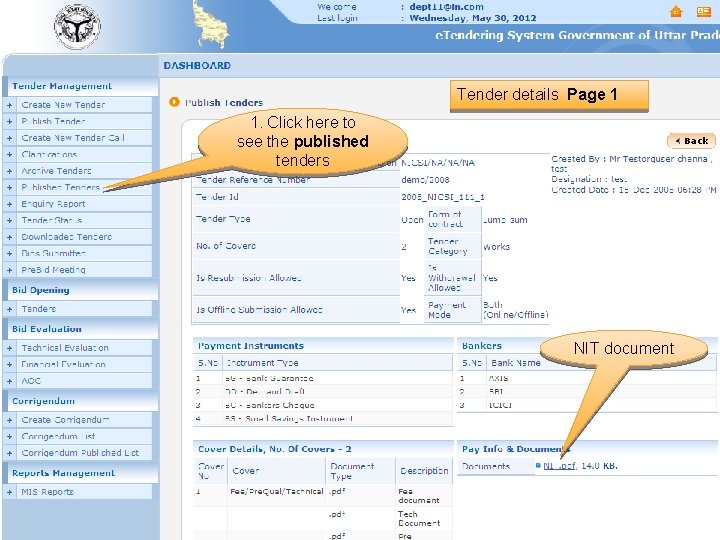
Tender details Page 1 1. Click here to see the published tenders NIT document
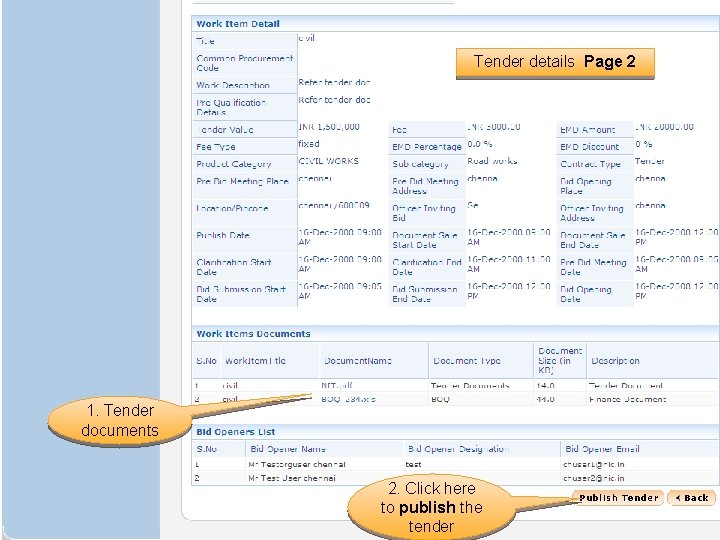
Tender details Page 2 1. Tender documents 2. Click here to publish the tender e. Tenders - Publish Tender
END OF TENDER PUBLISHING