
Staff Credential Data Entry A Quick Overview Set
- Slides: 9
Staff Credential Data Entry A Quick Overview
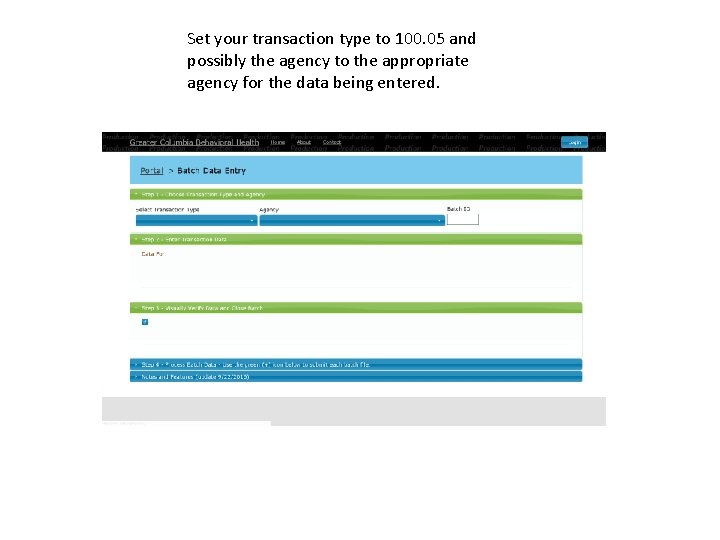
Set your transaction type to 100. 05 and possibly the agency to the appropriate agency for the data being entered.
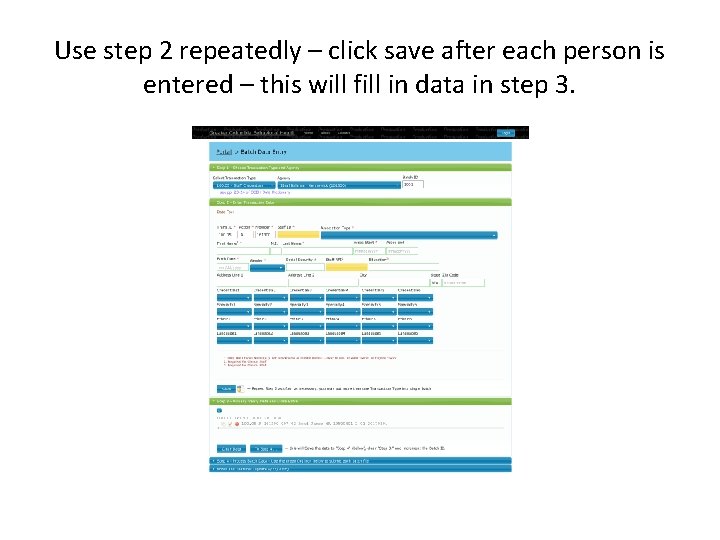
Use step 2 repeatedly – click save after each person is entered – this will fill in data in step 3.
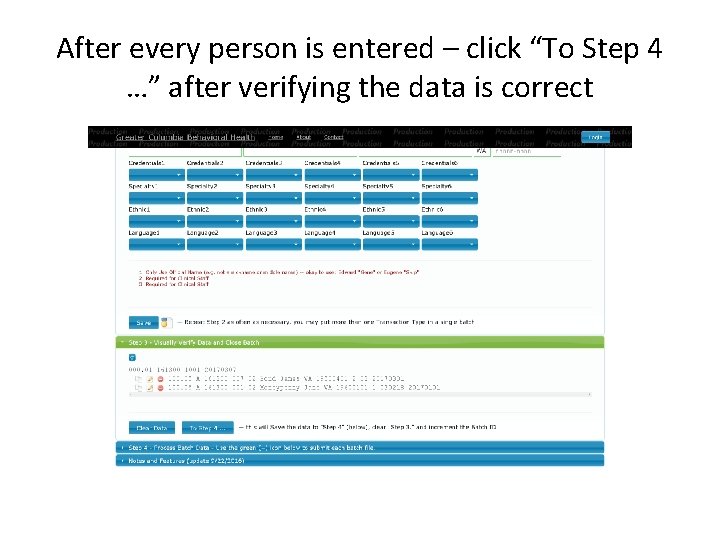
After every person is entered – click “To Step 4 …” after verifying the data is correct
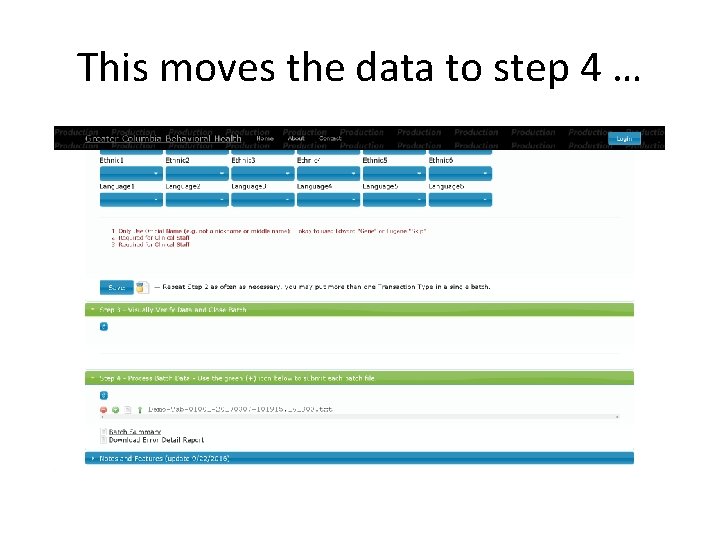
This moves the data to step 4 …
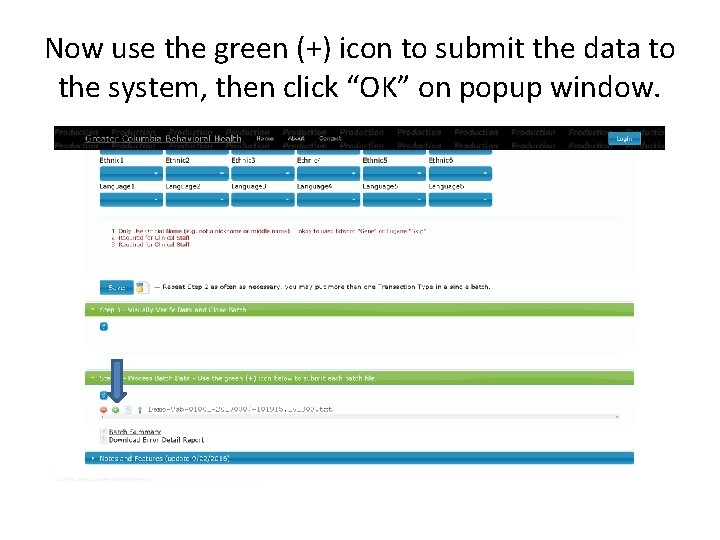
Now use the green (+) icon to submit the data to the system, then click “OK” on popup window.
• Once you click the submit (+) icon the icon will disappear and you will watch for the blank space to change to (hopefully) “S” for success. • Success means – The batch has processed through the system • Success does NOT mean – The batch is completely free of errors, please review your “Error Detail Report” to look for records that are in error. – Even a clean Error Detail Report can change after we submit the data to the State, they have errors that they also reject records back to us … so it may take up to 10 days to have a record not be “rejected. ” – Also, the HCA may also retroactively change the rules and call a previously clean record rejected; it doesn’t happen often, but it can happen.
• The red (-) icon deletes the batch from your view • The white “page” icon will allow you to download the batch for your records. • The green arrow icon (pointing up) will reload that batch into the edit area (step 3) for you to make corrections to the records. • Hovering over an icon or data element on the page should give you a clarifying hover window as to what it is for or what will happen (in the case of buttons and icons)