
SQL Server Performance Tuning Presenter Jim Steiner Company


- Slides: 48
SQL Server Performance Tuning
• • • Presenter: Jim Steiner Company: Rackspace Experience: 21 years in IT, 18 with SQL Server Versions: 6. 5 – 2016 President of SALSSA since Dec. 2005
• Information gathered from: a. Ten years at Rackspace b. 8 other DBAs with a total of over 100 years experience c. Nine datacenters in 4 countries d. Over 10, 000 SQL Instances • It still ‘depends’ on your environment
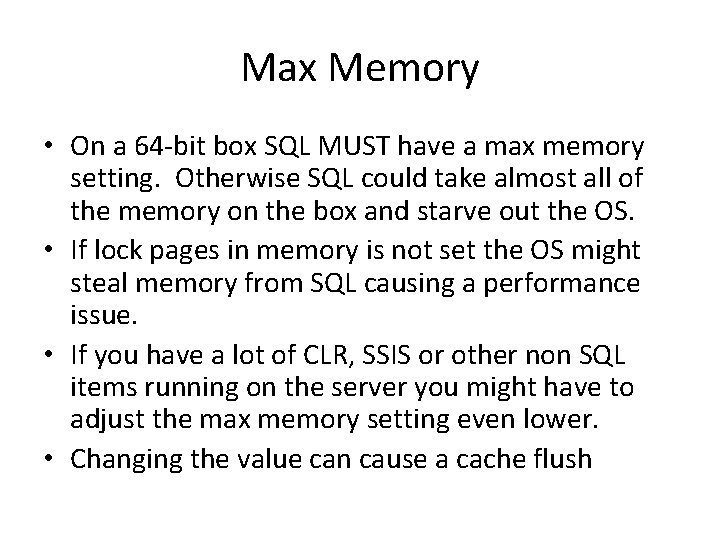
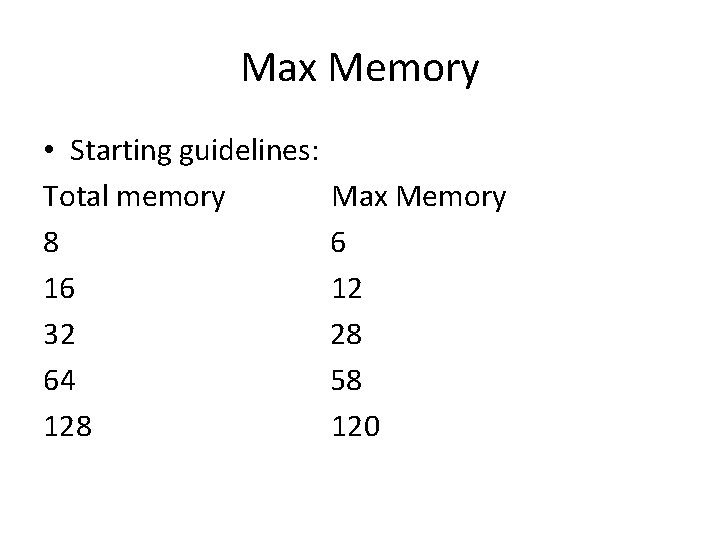
Max Memory • On a 64 -bit box SQL MUST have a max memory setting. Otherwise SQL could take almost all of the memory on the box and starve out the OS. • If lock pages in memory is not set the OS might steal memory from SQL causing a performance issue. • If you have a lot of CLR, SSIS or other non SQL items running on the server you might have to adjust the max memory setting even lower. • Changing the value can cause a cache flush
Max Memory • Starting guidelines: Total memory 8 16 32 64 128 Max Memory 6 12 28 58 120
Max Memory • Demo – GUI and sp_configure
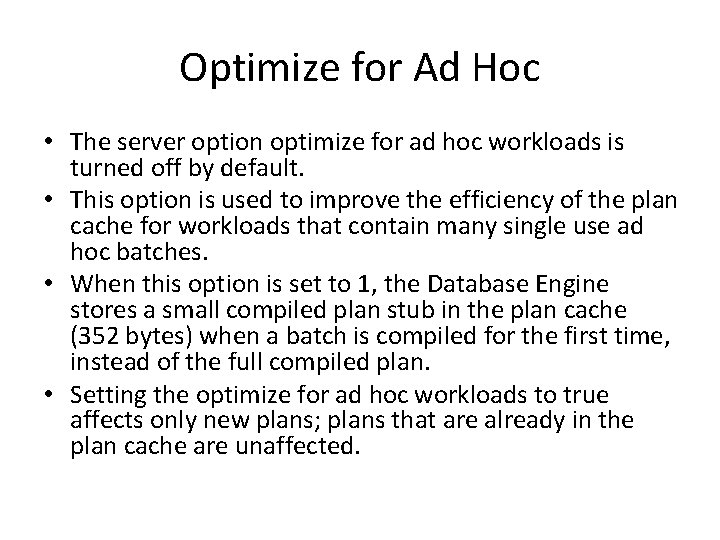
Optimize for Ad Hoc • The server option optimize for ad hoc workloads is turned off by default. • This option is used to improve the efficiency of the plan cache for workloads that contain many single use ad hoc batches. • When this option is set to 1, the Database Engine stores a small compiled plan stub in the plan cache (352 bytes) when a batch is compiled for the first time, instead of the full compiled plan. • Setting the optimize for ad hoc workloads to true affects only new plans; plans that are already in the plan cache are unaffected.
Optimize for Ad Hoc • Demo – sp_configure • Demo – query to see cache size
CLR Setting • If you’re not using it, you should turn this option off, as it consumes memory even if unused and is a possible attack vector. • By default it is off on install • It can be changed with sp_configure (0 off, 1 on)
Priority Boost Setting • This setting should be off; with it enabled, it’s possible for SQL server to consume all resources and not allow other processes time, including authentication. • The only time is should be on is if Microsoft directs it while running a trouble shooting case with them. I have opened at least 100 cases and they have never asked me to turn it on. • It can cause unexplainable performance issues. • This is one of the few system settings that still take a restart to take effect. • Can be turned on and off with GUI and sp_configure
Priority Boost Setting • Demo – GUI setting
Max Degree of Parallelism • Determines the number of cores to run queries against if the exceed the max threshold for parallelism • By default this value is 0 – use all cores • For multi proc boxes is should be set to the total number of cores per proc. • Further information: https: //support. microsoft. com/enus/kb/2806535
Max Degree of Parallelism • This value can be changed at any time • Demo – GUI (can be done with sp_configure)
SQL Server Version Check • Each new version ‘should’ bring a performance increase even on the same hardware. • Make sure the most recent SQL Server service pack is applied. I like to wait till about a month after it is released before applying to see if there any major issues reported. • My favorite site for patch releases: https: //buildnumbers. wordpress. com/sqlserver/
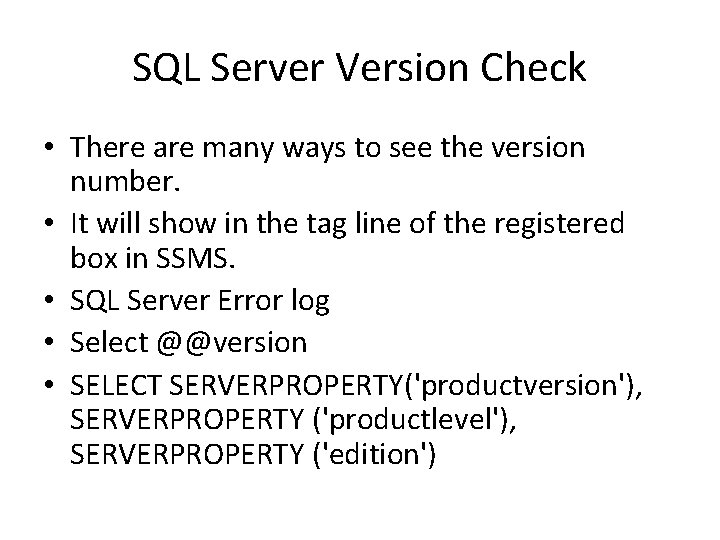
SQL Server Version Check • There are many ways to see the version number. • It will show in the tag line of the registered box in SSMS. • SQL Server Error log • Select @@version • SELECT SERVERPROPERTY('productversion'), SERVERPROPERTY ('productlevel'), SERVERPROPERTY ('edition')
SQL Server Version Check • Starting with SQL Server 2008, you can also use the Installed SQL Server Features Discovery report. • Demo of each method
Compress Backup Option • Starting in SQL Server 2008 Enterprise Edition automatic backup compression became available. • This feature was added to the Standard Edition in 2008 R 2 and future releases. • You can get up to about 1/6 th the current size of your current backup files. This is highly dependent on data types and repeated data.
Compress Backup Option • This will allow the backups and restores to run faster and the backups to use less space. • The trade off is it will use more CPU. The amount will vary so you will need to test. • There is a system level setting for this. It can also be done with tsql. • Demo – system setting, plans and tsql
Database Default Growth Rate • For versions 2005 to 2014 the default growth rate for data files is 1 mb. In 2016 it was changed to 64 mb. • This causes a lot of fragmentation and slow performance on large inserts. • A rate such as 10% for small DBs and 250 mb for large DBs (10 gigs or more) would be better. This can be changed at any time.
Database Default Growth Rate • Demo – Gui and script
Autogrowth • It is recommended you do not put a limit on the data or log files sizes our you risk down time. Instead monitor the free space on the drive. • Demo – GUI plus xp_fixeddrives
Autoshrink • Do NOT use this setting! • If is set a background process runs on a regular basis and shrinks the files if they are beyond the default growth rate. Space is only removed from the end of the file. • This will cause major performance issues. • If a shrink is needed it should be done time manually. • Free space in the DB is a good thing.
Autoclose • Do NOT use this setting. • It is left over from very early versions of SQL where RAM was in measured in MB. • If there are no open connections on the DB then it is closed. • The saves a tiny amount of RAM.
Autoclose • There are serval bad side effects: a. The RAM for the DB is flushed. All data from RAM and cached plans are removed b. There is a delay on the next query run as the DB must be opened first. c. From SQL 2008 on it is possible to open just the data file on the DB. Occasionally something will be touching the log file as the DB is opened so only the data file is brought on line making the DB read only. This is only fixable by manual interaction.
Autoclose and Autoshrink • Demo - GUI
Compatibility Mode • If you upgrade SQL or import an old DB backup to a newer version the mode stays in the old version. • This can be changed at any time but should be tested first. • Demo - GUI
Recovery model • Any DB that is production and not read only data should be set to ‘full’ recovery mode. • All DBs in full recovery mode must have regular log backups taken. This is the only thing that will clear the log. • If log backups are not taken you risk data loss and filling up the drive as the log files will continue to grow.
Recovery Model • The time between log backups is the worst case scenario for amount of data loss. • Automated jobs to backup the logs should be taken to backup the logs and remove old backups after a certain amount of time. • Demo – maintenance plan log backups
Separate I/O Paths • When ever possible the data files, log files and tempdb should be on different drives. • Data files are random reads/writes and log files are sequential. • The tempdb can be the busiest DB on the server. • Demo – I/O file break down
Needed Jobs • Integrity Check – You should be checking the integrity of your databases at least once a week, preferably daily and before taking database backups. This helps ensure that a valid restore can be done. • Index and statistics maintenance – The default maintenance steps touch every index which is over kill and bloats the logs. The scripts at the following site examine the fragmentation to decide what action to take.
Needed jobs http: //ola. hallengren. com/ • Backup jobs - It’s important to have some kind of backup strategy for both your system databases and your user databases, so that you can ensure recoverability in the event of a disaster.
Missing Index DMV • This is a good tool, but do not add the indexes without a lot of examination. • Only add ones with a high improvement measure. • Combine where possible to each other and existing indexes. • Be careful with large include lists or large data types. • Occasionally it will recommend already existing indexes. This was fixed in SQL 2012
Missing Index DMV • Demo
Unused Indexes • The DMV sys. dm_db_index_usage_stats will show many times since engine startup that an index has been used versus how many times it has been updated. • If the updates far outweigh the usage then you should consider removing the index. • Be careful with this DMV is memory pressure or a manual cache flush will clear it.
Unused Indexes • Demo
Duplicate Indexes • Look out for indexes that are exactly the same, differ only in the include columns or are the same index just a different order. • Demo
Remove Hypothetical Indexes • If the Tuning Advisor is stopped during a run it can leave behind hypothetical indexes. • These can cause performance issues as the system will try and use them like a real index. • Demo
Tempdb Setup • You should have one data file per core up to 8 to avoid contention in the tempdb. This will assist on servers where a large amount of temp tables are used. In 2016 this can be done on install. • Only add more than 8 files on large systems in there is still contention in the GAM, SGAM and PFS pages. • All files should have the same growth rate and initial size so they are evenly used. • Do not add more files than cores.
Tempdb Setup • Demo – additional files • Demo – look for further contention
Transaction Log Size and VLFs • Generally, we expect to see the transaction log file to be sized between 10 -25% of the data file size. • There should not be a high number of VLFs. • Fixing this does not require a restart, but it should occur during a less busy time.
Transaction Log Size and VLFs • Demo – dbcc loginfo
CXPACKET Waits
Power Plan Setting • Starting with Windows 2008 the CPU on servers by default is set to balanced. This will lower power consumption and server temperature. The issue is it can throttle the CPU by as much as 50%. • You can use a free tool to see the effect: CPUZ • More info from Brent Ozar: https: //www. brentozar. com/archive/2010/10/s ql-server-on-powersaving-cpus-not-so-fast/
Power Plan Settings • Demo
Hard Drive Fragmentation • Disk defragmentation at the disk level can cause performance issues. • In order to defrag a drive SQL database files are on you need to stop the service unless you use a third party tool.
Profile Trace • This is a great tool for finding the longest running and most run queries. • Always run it from your desktop or passive cluster server when available. • Do not run it on a server if the CPU is above 90%. It can cause the server to lock up. • Consider using extended events instead.
Profile Trace • Demo
Tuning Advisor • Demo