
Spreadsheet Evidence By P 2 DEVELOP A COMPLEX
Spreadsheet Evidence By. . .

P 2 – DEVELOP A COMPLEX SPREADSHEET MODEL TO MEET PARTICULAR NEEDS
P 2 Multiple worksheets • Print screen the different sheets that you have created annotate where information is pulled from other sheets.
P 2 Complex Formulae • Show examples of the different formulae you have used, including one that has at least a two step process. • Explain what these formulas do within your spreadsheet.
P 2 Large Data Set • Print screen your sheet showing the sales data.
P 2 Data Entry Form • This can be evidence of menu systems, list boxes, drop-down boxes or event controls.
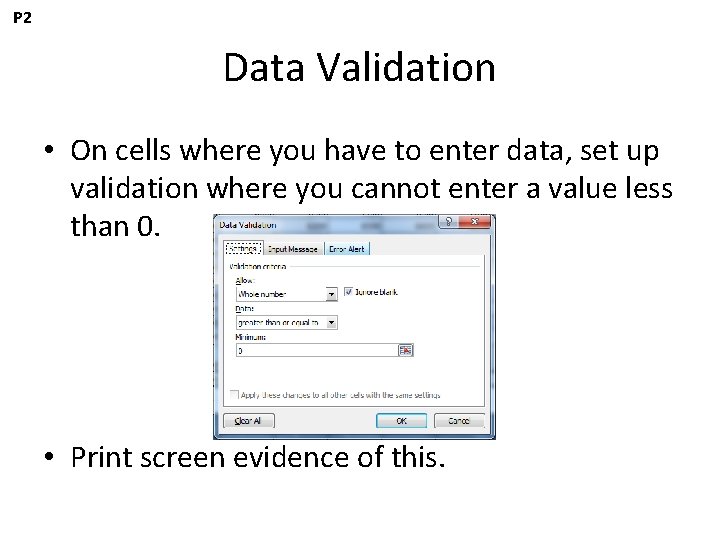
P 2 Data Validation • On cells where you have to enter data, set up validation where you cannot enter a value less than 0. • Print screen evidence of this.
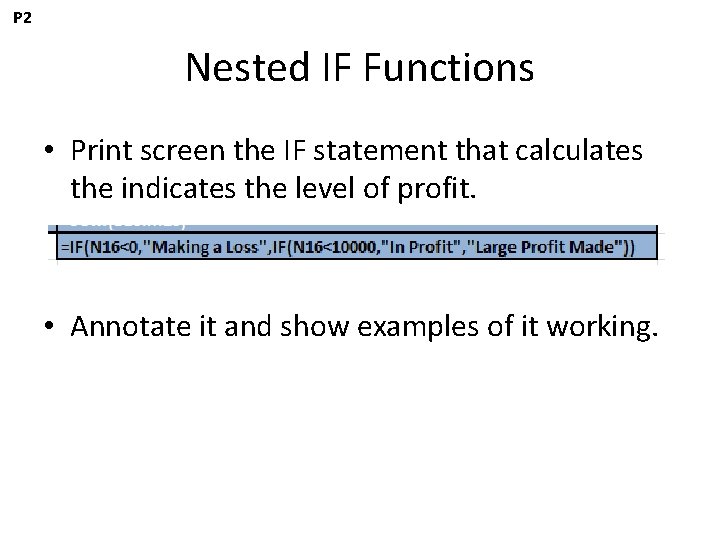
P 2 Nested IF Functions • Print screen the IF statement that calculates the indicates the level of profit. • Annotate it and show examples of it working.
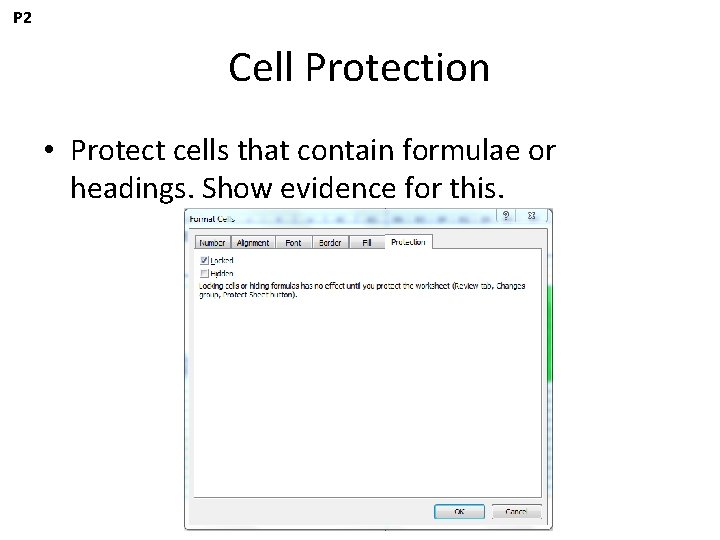
P 2 Cell Protection • Protect cells that contain formulae or headings. Show evidence for this.
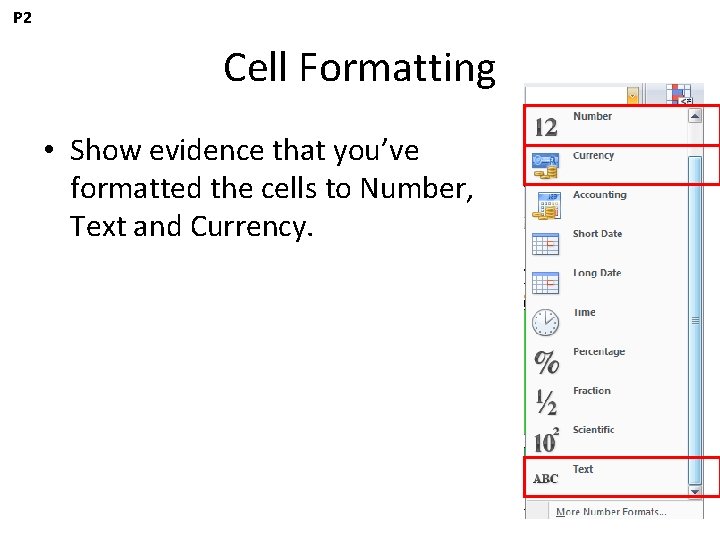
P 2 Cell Formatting • Show evidence that you’ve formatted the cells to Number, Text and Currency.
P 3 – USE FORMULAE, FEATURES AND FUNCTIONS TO PROCESS INFORMATION
P 3 Relative References • Print screen formulas where you have relative cell references (no $ in the formula) • Explain what the formulas do.

P 3 Absolute References • Print screen formulas where you have an absolute cell reference (with a $) • Explain what the formulas do.
P 3 Logical Functions • Show evidence of IF and SUMIF functions and explain what they do within your spreadsheet.
P 3 Correct Operators • Show formulae that includes +, -, * and / • Explain what the formulas do within your spreadsheet.
P 3 Named Ranges • Print screen to show that you’ve name a range of cells.
P 3 Built-in Functions • Show evidence of cell functions, lookup functions, text functions or statistical functions.
M 1 – REFINE A COMPLEX SPREADSHEET MODEL BY CHANGING RULES AND VALUES
M 1 Improving Efficiency • Show evidence of shortcuts and aides for navigation.
M 1 Formatting • Show evidence of fonts, page orientation, header and footer, print area, use of colour or conditional formatting.
P 4 – USE APPROPRIATE TOOLS TO PRESENT DATA
P 4 Charts • Show evidence of each of the charts that you have created – annotate to show labels, titles, colours and that you’ve used and appropriate type of chart (line, bar, column, pie, xy – scatter).
P 4 Pivot Table • Print screen the pivot table you have annotated.
P 4 Filtering Data • Show some form of filtering within your spreadsheet.
P 5 – CUSTOMISE THE SPREADSHEET MODEL TO MEET A GIVEN REQUIREMENT
P 5 Checking Data • Show evidence of data validation and range checking.
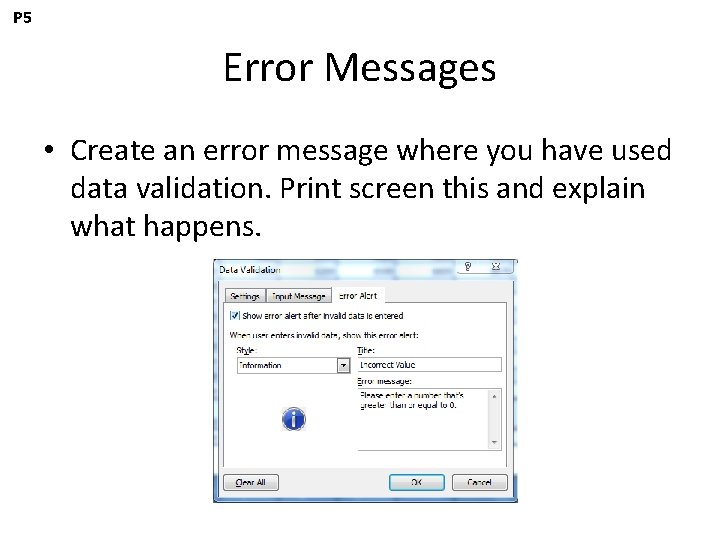
P 5 Error Messages • Create an error message where you have used data validation. Print screen this and explain what happens.
P 5 Protecting Cells and Sheets • Show print screen evidence of protecting cells and sheets.
P 6 – USE AUTOMATED FEATURES IN THE SPREADSHEET MODEL TO MEET A GIVEN REQUIREMENT.

P 6 Macros • Print screen the macros you have set up.
P 6 Control Toolbox • Show that you have used the Control Toolbox to produce buttons that are then linked to a macro.
P 6 Visual Basic • Show the Visual Basic code for your macros.
M 3 – COMPARE DIFFERENT AUTOMATION METHODS
M 3 Comparing Automation Methods • Write a comparison of the different automation methods you have used (macros, Control Toolbox, Visual Basic)
- Slides: 34