
Spreadsheet concepts not a word processor not just
- Slides: 11
Spreadsheet concepts • not a word processor, not just a single text-based workspace • workspace composed of rows and columns • Cell = intersection of a row and column • Cell can contain: – Constants ( values do not change unless you edit them) • Text (labels) • Number (numeric values) • Date/time – Formulas (values change if you change the contents of reference) • calculated result based on reference to one or more cells [KBrown - 06/03] 1
Concepts (con’t) • Excel worksheet: single page workspace – rows 1 thru 65, 536 (216 = 17 bits) [9 bit x 17 bit addr] – columns A thru Z, AA. . AZ, thru IA. . IV (256=28) • Excel workbook: – file containing one or more worksheets • References: (used in formulas) – Relative address (A 1, J 23) adjusts to changes – Absolute reference ($A$1, $J 23) is static addr [KBrown - 06/03] 2
Terms to know: • worksheet vs workbook • Excel’s workspace (window) includes: -title bar -menu bar -toolbar(s): standard, formatting, chart, etc… -name box -formula bar -worksheet window: -frame, cells, tabs, scroll bars -status bar [KBrown - 06/03] 3
Terms, etc… (cont): • cell address = – column letter, row number • current (or active) cell • sheet tab • navigation: – – – Ctrl + Home = makes A 1 the current cell End, = lower right corner of worksheet (IV 65536) End, = last row in worksheet (row 65536) F 5 (Go. To) = type in cell address Esc = to quit current operation without changing values [KBrown - 06/03] 4
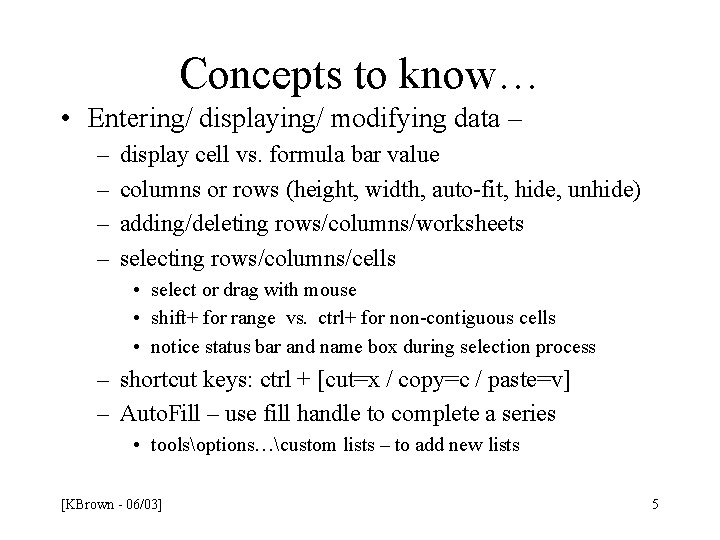
Concepts to know… • Entering/ displaying/ modifying data – – – display cell vs. formula bar value columns or rows (height, width, auto-fit, hide, unhide) adding/deleting rows/columns/worksheets selecting rows/columns/cells • select or drag with mouse • shift+ for range vs. ctrl+ for non-contiguous cells • notice status bar and name box during selection process – shortcut keys: ctrl + [cut=x / copy=c / paste=v] – Auto. Fill – use fill handle to complete a series • toolsoptions…custom lists – to add new lists [KBrown - 06/03] 5
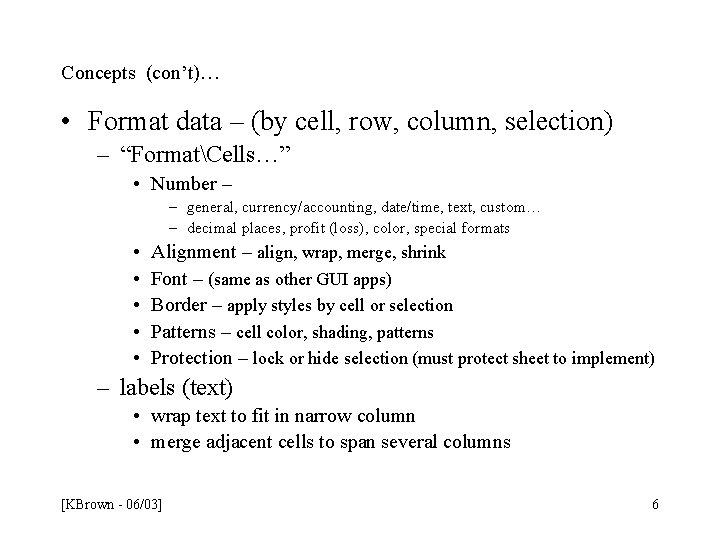
Concepts (con’t)… • Format data – (by cell, row, column, selection) – “FormatCells…” • Number – – general, currency/accounting, date/time, text, custom… – decimal places, profit (loss), color, special formats • • • Alignment – align, wrap, merge, shrink Font – (same as other GUI apps) Border – apply styles by cell or selection Patterns – cell color, shading, patterns Protection – lock or hide selection (must protect sheet to implement) – labels (text) • wrap text to fit in narrow column • merge adjacent cells to span several columns [KBrown - 06/03] 6
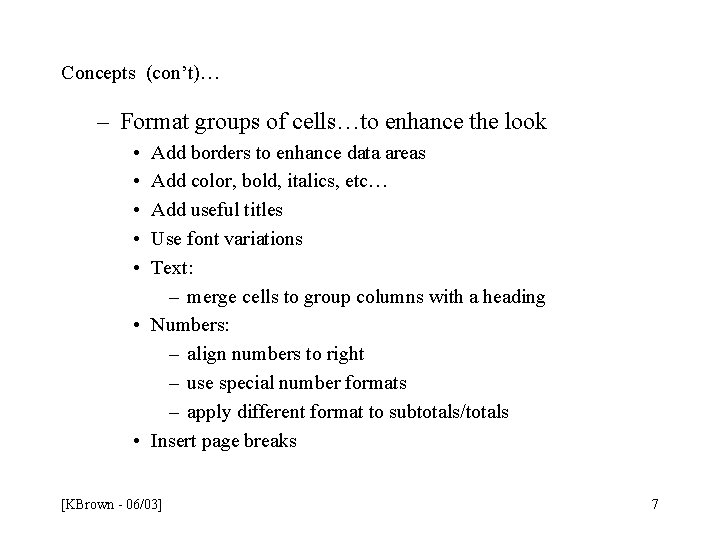
Concepts (con’t)… – Format groups of cells…to enhance the look • • • Add borders to enhance data areas Add color, bold, italics, etc… Add useful titles Use font variations Text: – merge cells to group columns with a heading • Numbers: – align numbers to right – use special number formats – apply different format to subtotals/totals • Insert page breaks [KBrown - 06/03] 7
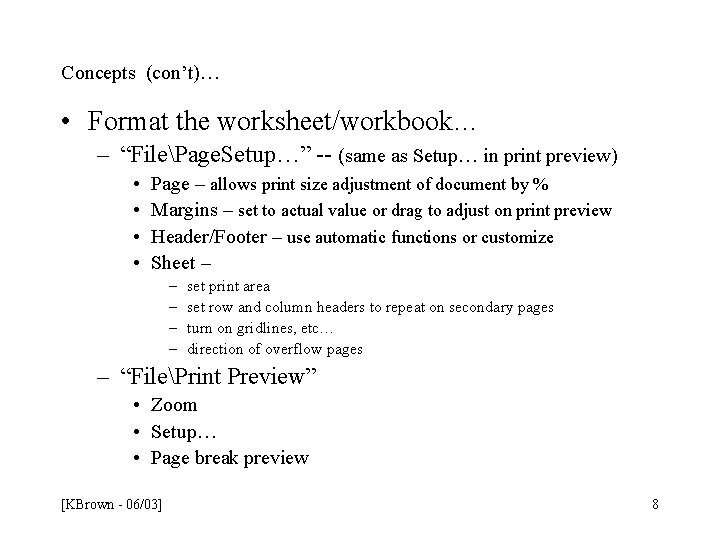
Concepts (con’t)… • Format the worksheet/workbook… – “FilePage. Setup…” -- (same as Setup… in print preview) • • Page – allows print size adjustment of document by % Margins – set to actual value or drag to adjust on print preview Header/Footer – use automatic functions or customize Sheet – – – set print area set row and column headers to repeat on secondary pages turn on gridlines, etc… direction of overflow pages – “FilePrint Preview” • Zoom • Setup… • Page break preview [KBrown - 06/03] 8
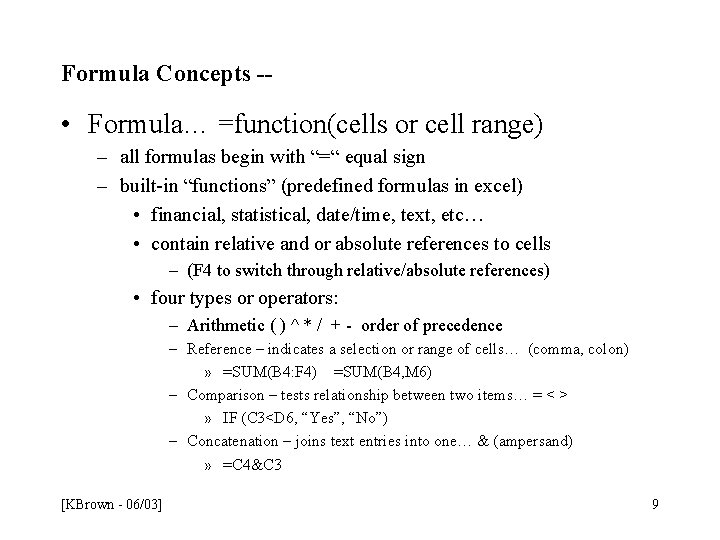
Formula Concepts -- • Formula… =function(cells or cell range) – all formulas begin with “=“ equal sign – built-in “functions” (predefined formulas in excel) • financial, statistical, date/time, text, etc… • contain relative and or absolute references to cells – (F 4 to switch through relative/absolute references) • four types or operators: – Arithmetic ( ) ^ * / + - order of precedence – Reference – indicates a selection or range of cells… (comma, colon) » =SUM(B 4: F 4) =SUM(B 4, M 6) – Comparison – tests relationship between two items… = < > » IF (C 3<D 6, “Yes”, “No”) – Concatenation – joins text entries into one… & (ampersand) » =C 4&C 3 [KBrown - 06/03] 9
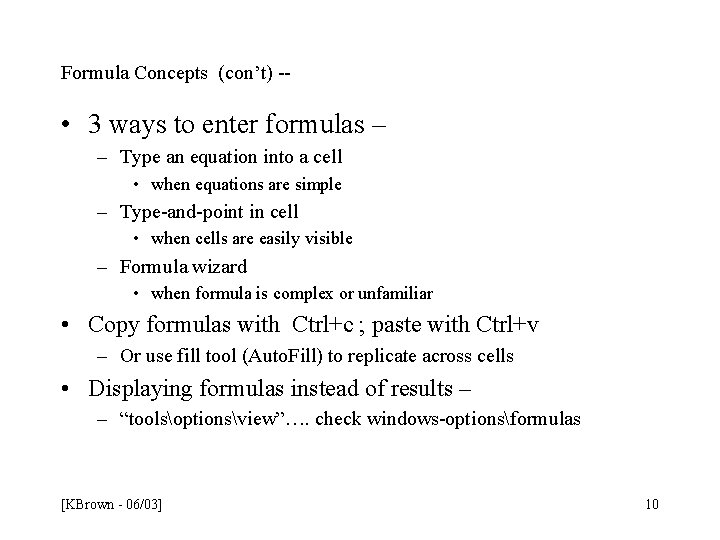
Formula Concepts (con’t) -- • 3 ways to enter formulas – – Type an equation into a cell • when equations are simple – Type-and-point in cell • when cells are easily visible – Formula wizard • when formula is complex or unfamiliar • Copy formulas with Ctrl+c ; paste with Ctrl+v – Or use fill tool (Auto. Fill) to replicate across cells • Displaying formulas instead of results – – “toolsoptionsview”…. check windows-optionsformulas [KBrown - 06/03] 10
** Homework assignment ** due June 30 th to review in class • Read your e-mail on osprey • Excel 2000 Essentials, – Project 5, Challenge Exercise (page 132 -134) Challenge exercise # 1 -4 – Project 6, Challenge Exercise (page 161 -162) Challenge exercise # 1 -4 – The files you need are • XL 1 -0505. xls and XL 1 -0603. xls [KBrown - 06/03] 11