
SPLA Reporting Tool Step by Step Guide Ingram
SPLA Reporting Tool Step by Step Guide
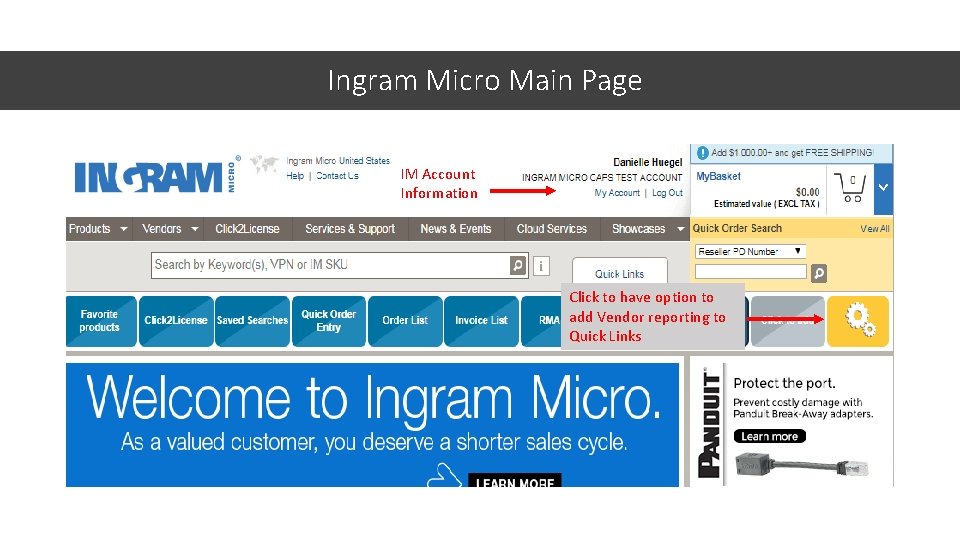
Ingram Micro Main Page IM Account IMInformation Account Information Click to have option to add Vendor reporting to Click to have option to Quick Links add Vendor reporting to Quick Links
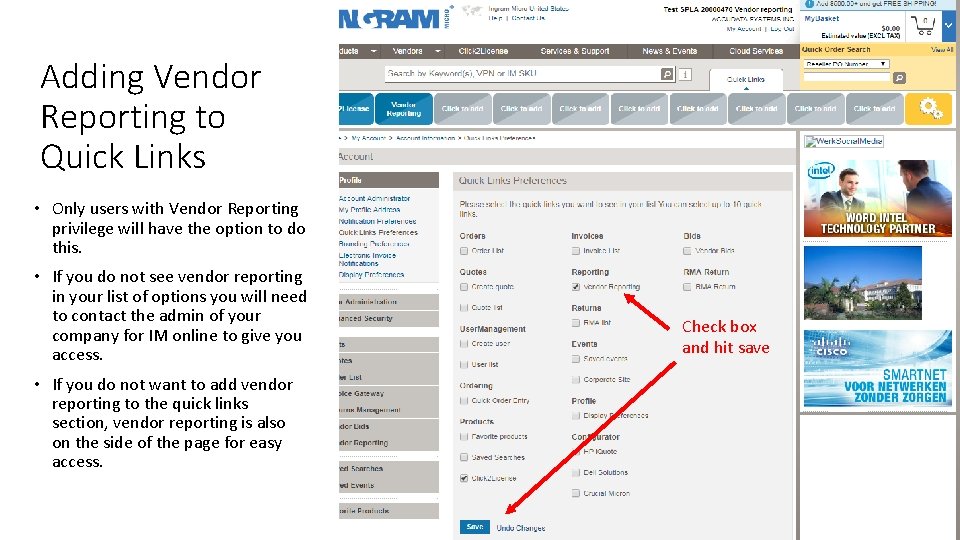
Adding Vendor Reporting to Quick Links • Only users with Vendor Reporting privilege will have the option to do this. • If you do not see vendor reporting in your list of options you will need to contact the admin of your company for IM online to give you access. • If you do not want to add vendor reporting to the quick links section, vendor reporting is also on the side of the page for easy access. Check box and hit save
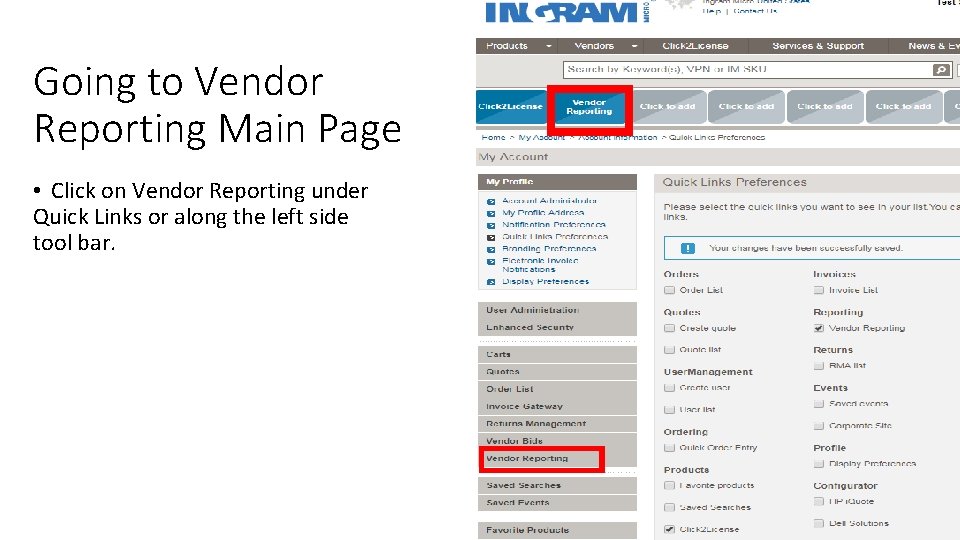
Going to Vendor Reporting Main Page • Click on Vendor Reporting under Quick Links or along the left side tool bar.
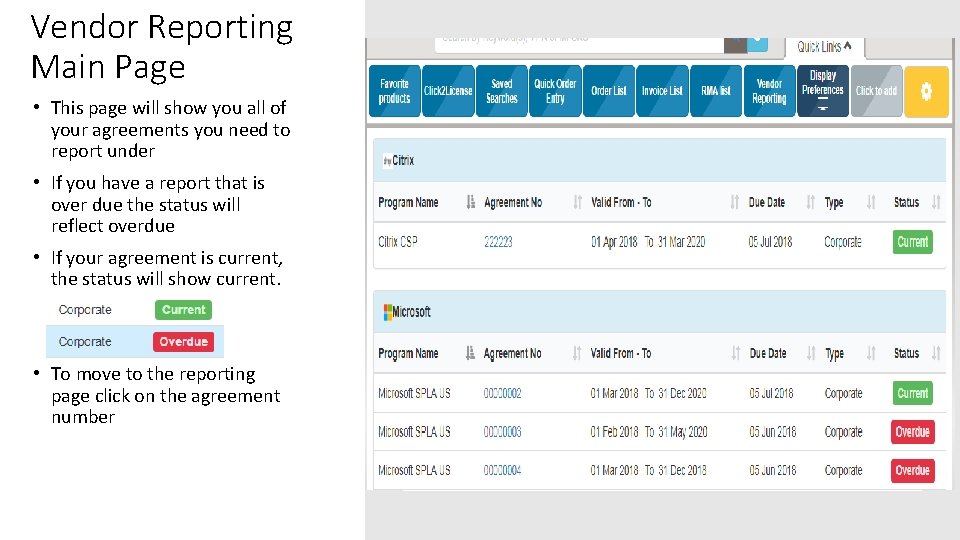
Vendor Reporting Main Page • This page will show you all of your agreements you need to report under • If you have a report that is over due the status will reflect overdue • If your agreement is current, the status will show current. • To move to the reporting page click on the agreement number
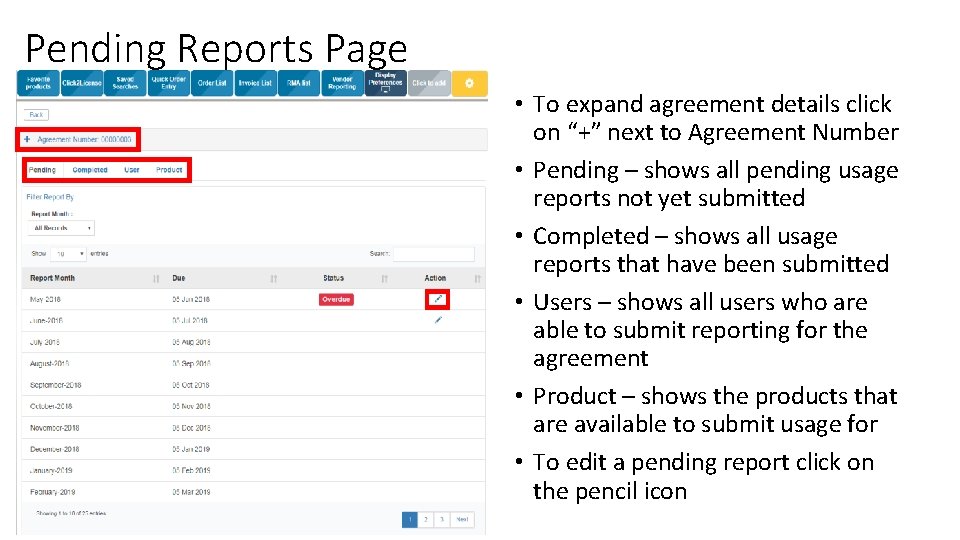
Pending Reports Page • To expand agreement details click on “+” next to Agreement Number • Pending – shows all pending usage reports not yet submitted • Completed – shows all usage reports that have been submitted • Users – shows all users who are able to submit reporting for the agreement • Product – shows the products that are available to submit usage for • To edit a pending report click on the pencil icon
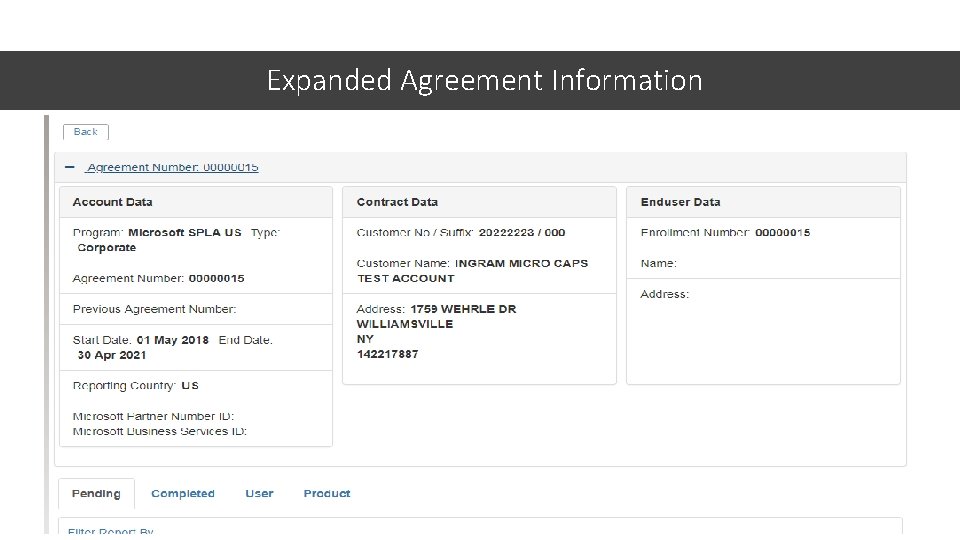
Expanded Agreement Information
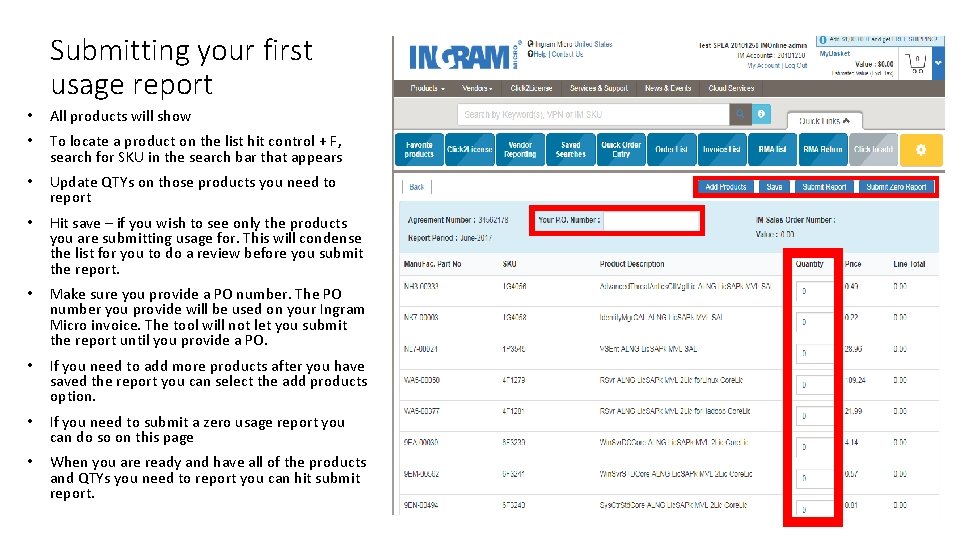
Submitting your first usage report • All products will show • To locate a product on the list hit control + F, search for SKU in the search bar that appears • Update QTYs on those products you need to report • Hit save – if you wish to see only the products you are submitting usage for. This will condense the list for you to do a review before you submit the report. • Make sure you provide a PO number. The PO number you provide will be used on your Ingram Micro invoice. The tool will not let you submit the report until you provide a PO. • If you need to add more products after you have saved the report you can select the add products option. • If you need to submit a zero usage report you can do so on this page • When you are ready and have all of the products and QTYs you need to report you can hit submit report.
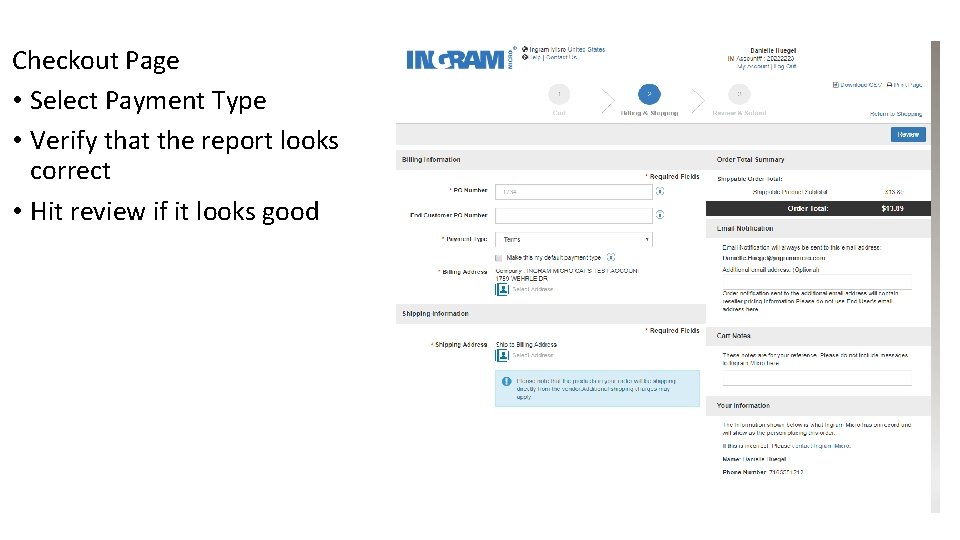
Checkout Page • Select Payment Type • Verify that the report looks correct • Hit review if it looks good
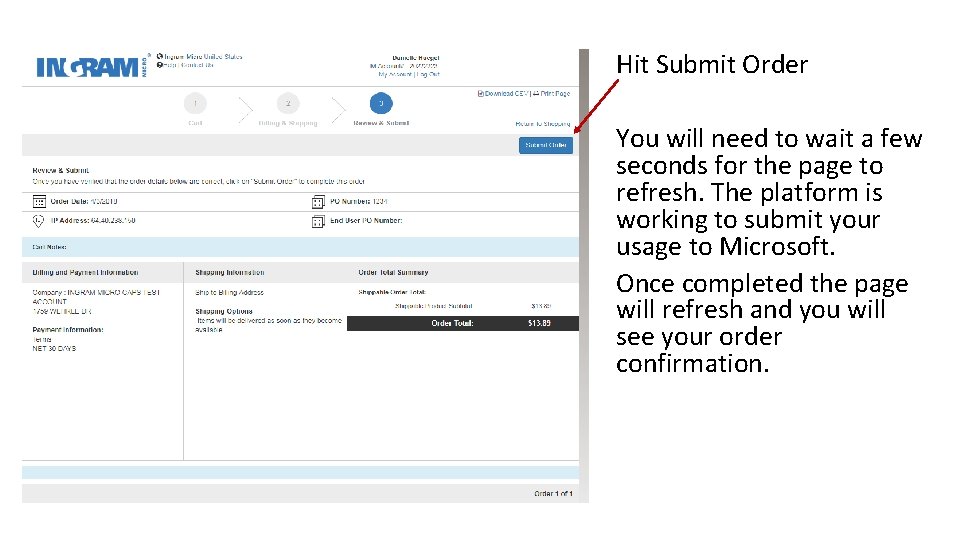
Hit Submit Order You will need to wait a few seconds for the page to refresh. The platform is working to submit your usage to Microsoft. Once completed the page will refresh and you will see your order confirmation.
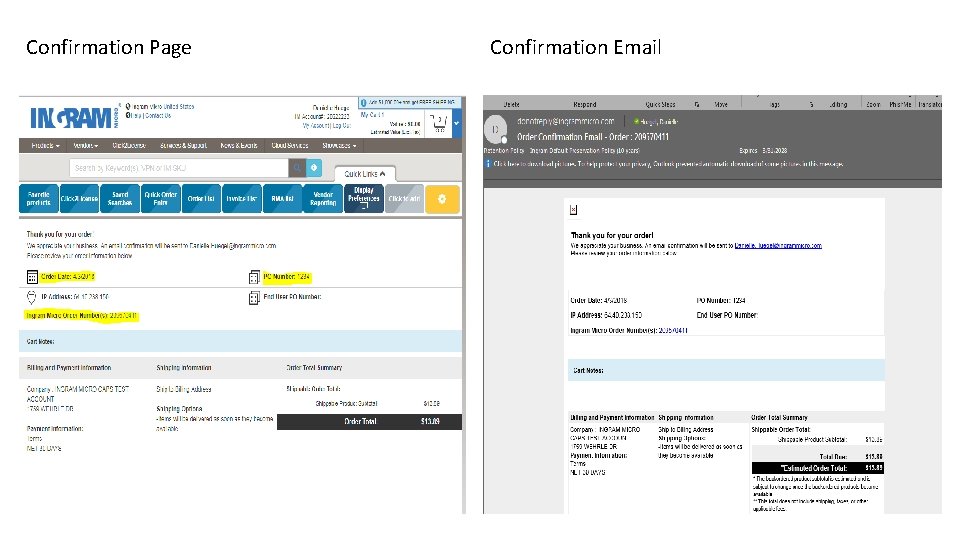
Confirmation Page Confirmation Email
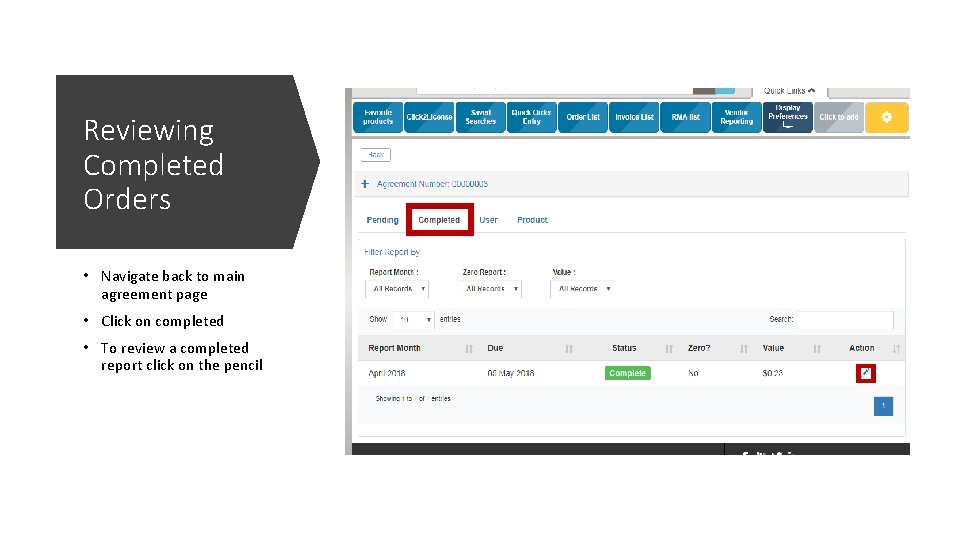
Reviewing Completed Orders • Navigate back to main agreement page • Click on completed • To review a completed report click on the pencil
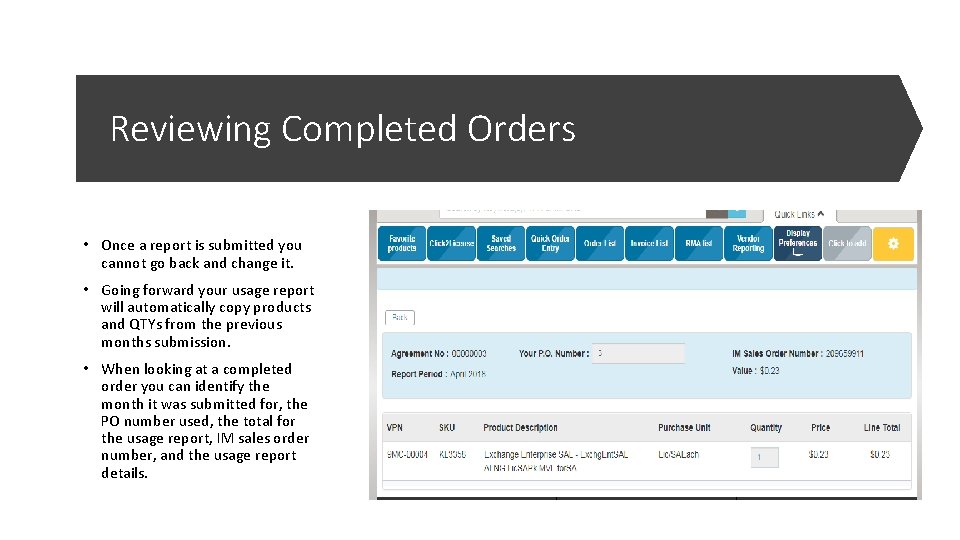
Reviewing Completed Orders • Once a report is submitted you cannot go back and change it. • Going forward your usage report will automatically copy products and QTYs from the previous months submission. • When looking at a completed order you can identify the month it was submitted for, the PO number used, the total for the usage report, IM sales order number, and the usage report details.
Action Items • Make sure you have a user name and password to log into https: //usa. ingrammicro. com/ • Once you are in the website check to see if you have Vendor Reporting access • If you do not have access you will need to contact the administrator at your organization for Ingram. Micro. com to provide you with vendor Reporting access as well as rights to place orders online (please see User Setting for IM Online Step by Step Guide). • If you do not have access and/or do not know who the admin is at your organization please contact our ecommerce team at Electronic. Services@Ingram. Micro. com or 1 -800 -616 -4665 • If you have questions please contact our team at Microsoft. SPLA@ingrammicro. com
- Slides: 14