
SPL basic Add Shape Entities SPL First Beginner
SPL basic – Add Shape Entities SPL First Beginner Course – 04 Young Joon Kim http: //www. helloapps. com
Topics • Add a single shape entity • Add a multi-shapes entity • Add multi-entities 2
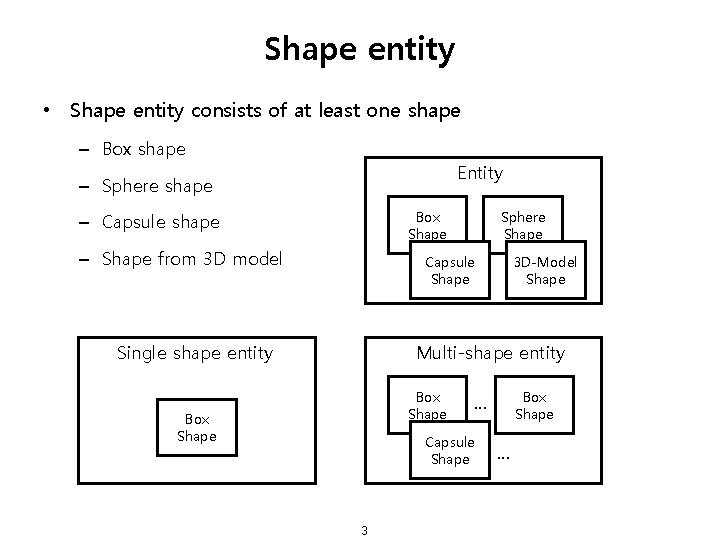
Shape entity • Shape entity consists of at least one shape – Box shape Entity – Sphere shape Box Shape – Capsule shape – Shape from 3 D model Sphere Shape Capsule Shape Single shape entity 3 D-Model Shape Multi-shape entity Box Shape Capsule Shape 3 Box Shape … …
Add a single shape entity 4
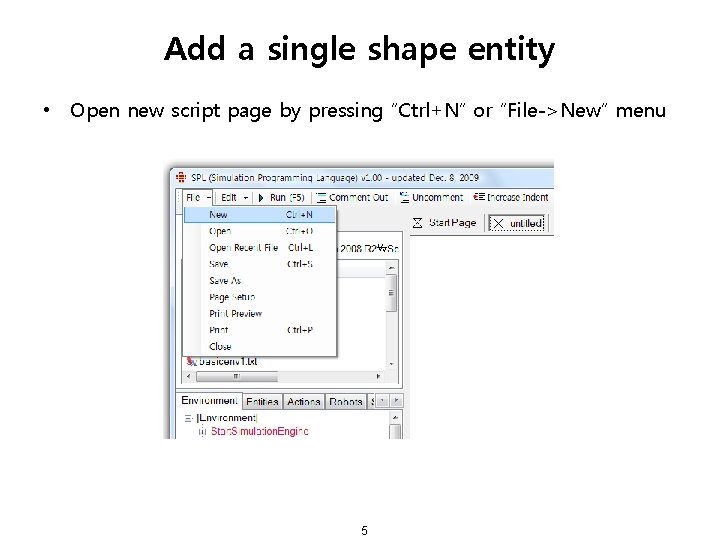
Add a single shape entity • Open new script page by pressing “Ctrl+N” or “File->New” menu 5
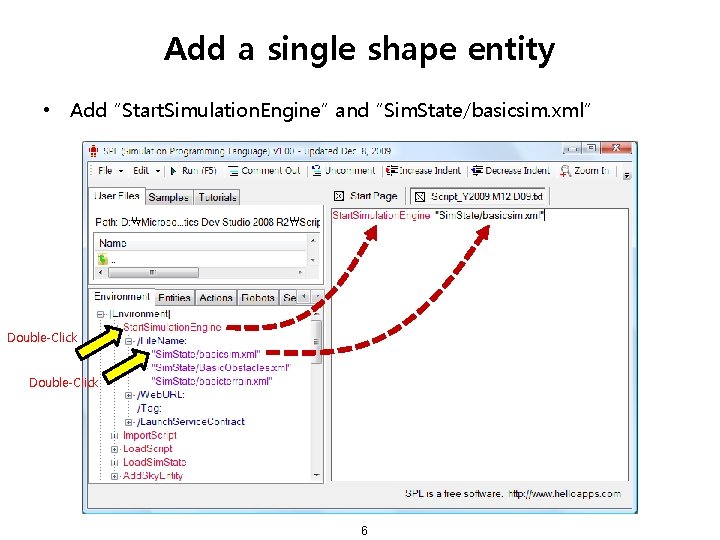
Add a single shape entity • Add “Start. Simulation. Engine” and “Sim. State/basicsim. xml” Double-Click 6
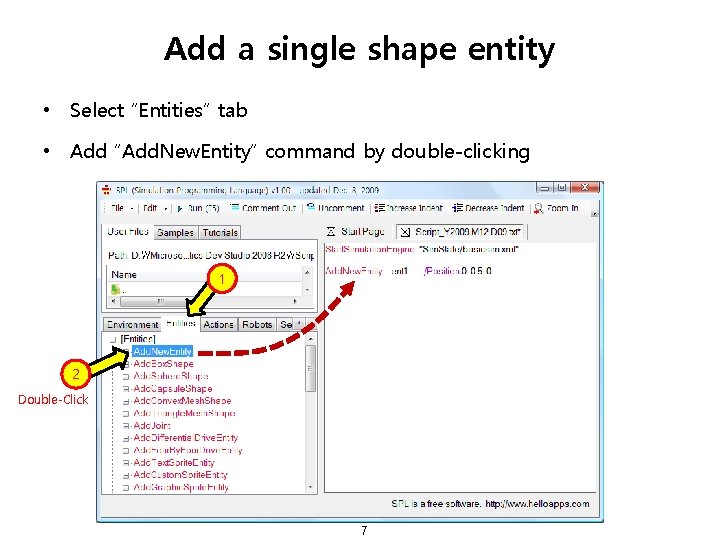
Add a single shape entity • Select “Entities” tab • Add “Add. New. Entity” command by double-clicking 1 2 Double-Click 7
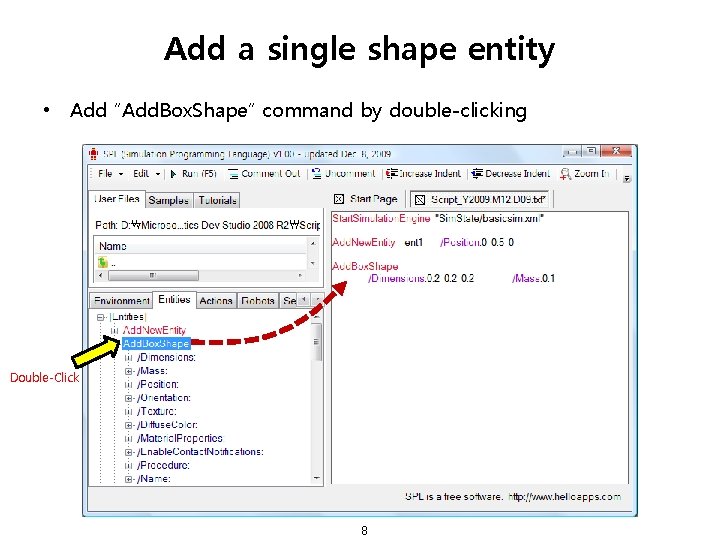
Add a single shape entity • Add “Add. Box. Shape” command by double-clicking Double-Click 8
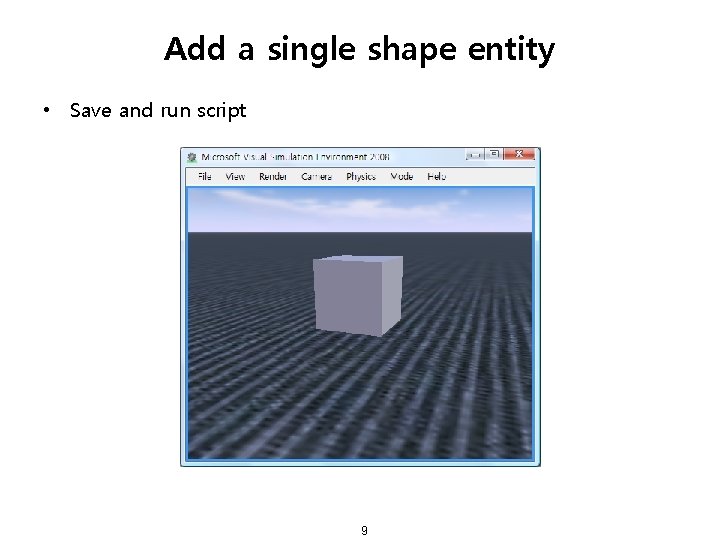
Add a single shape entity • Save and run script 9
Position in the simulation 10
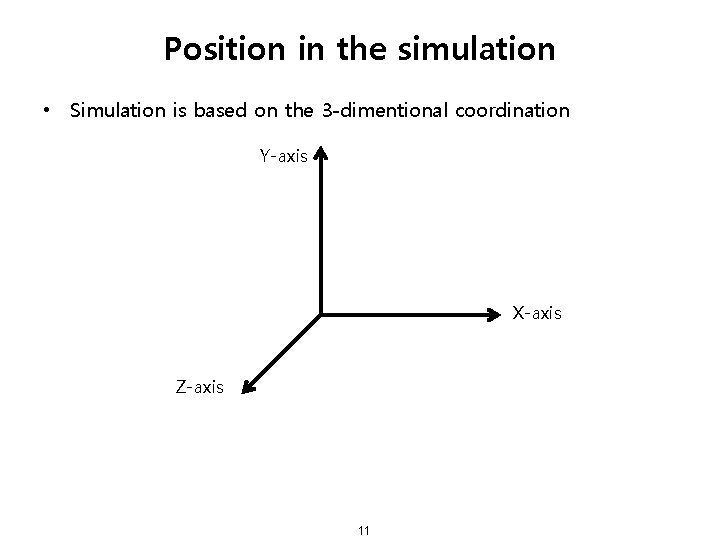
Position in the simulation • Simulation is based on the 3 -dimentional coordination Y-axis X-axis Z-axis 11
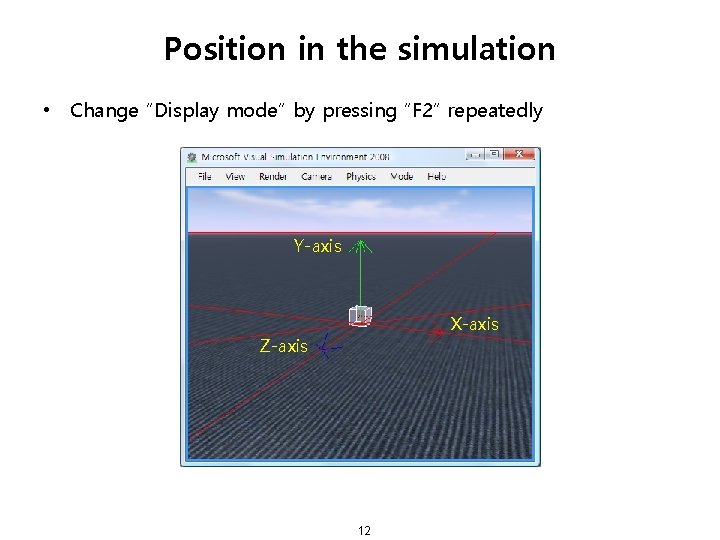
Position in the simulation • Change “Display mode” by pressing “F 2” repeatedly Y-axis X-axis Z-axis 12
Position in the simulation • Position is denoted by meter scale – Ex) 0. 5 means 0. 5 meter 13
Dimensions of box shape 14
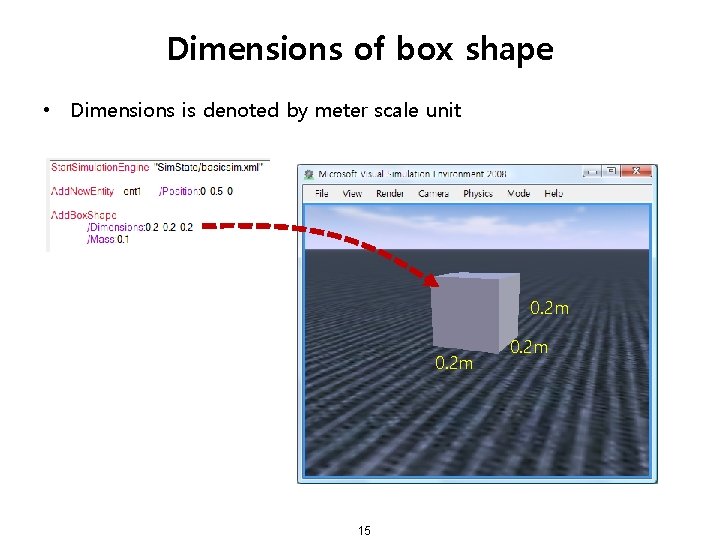
Dimensions of box shape • Dimensions is denoted by meter scale unit 0. 2 m 15 0. 2 m
Change position of entity 16
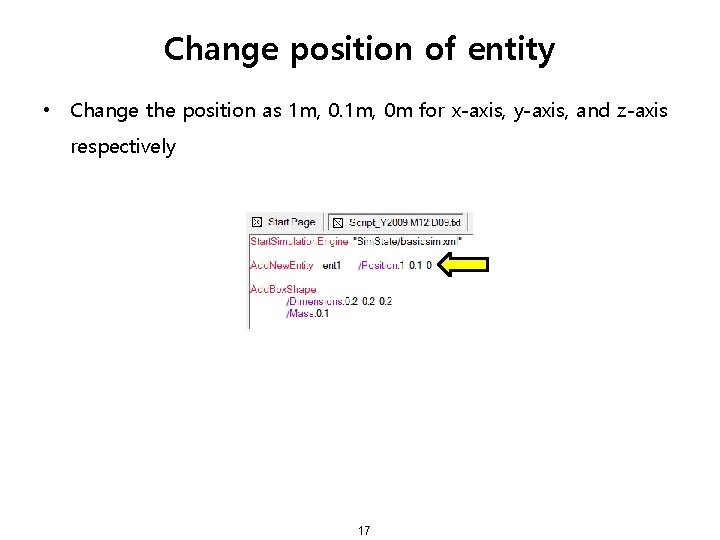
Change position of entity • Change the position as 1 m, 0 m for x-axis, y-axis, and z-axis respectively 17
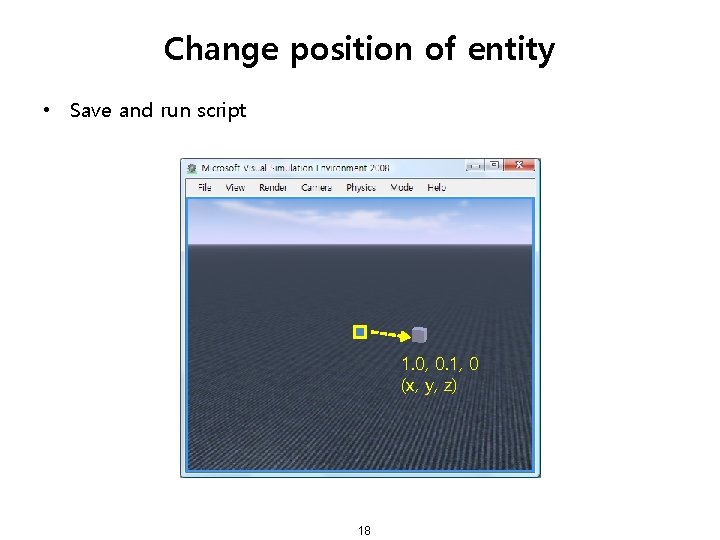
Change position of entity • Save and run script 1. 0, 0. 1, 0 (x, y, z) 18
Change box dimensions 19
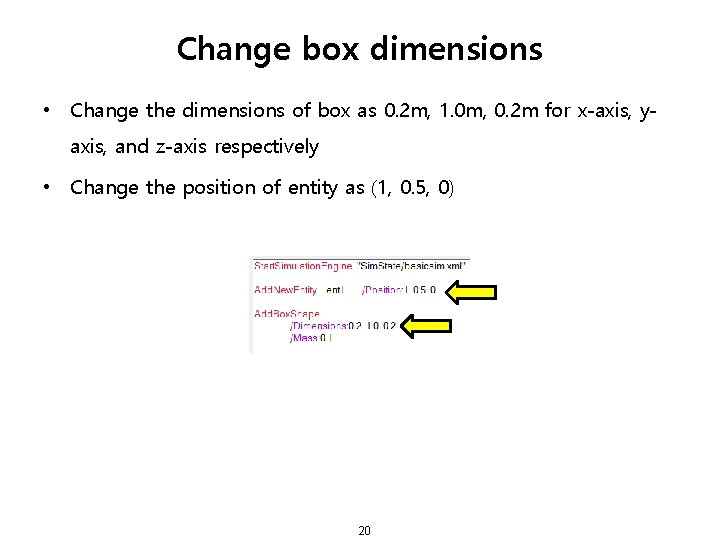
Change box dimensions • Change the dimensions of box as 0. 2 m, 1. 0 m, 0. 2 m for x-axis, yaxis, and z-axis respectively • Change the position of entity as (1, 0. 5, 0) 20
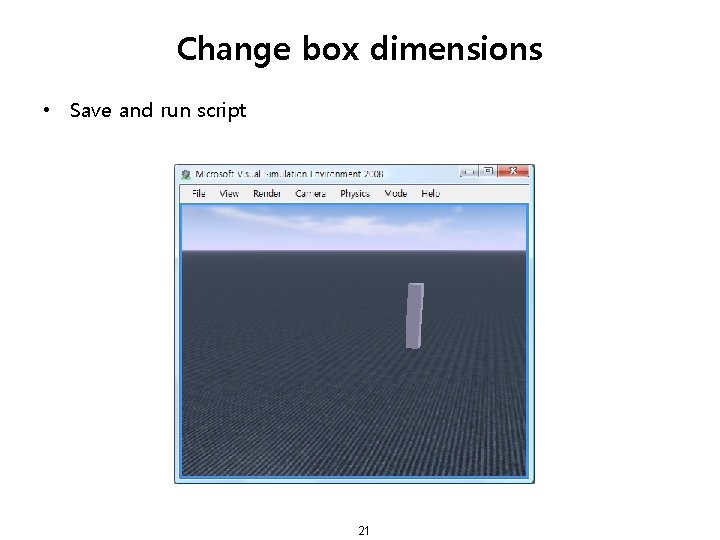
Change box dimensions • Save and run script 21
Change the position of shape 22
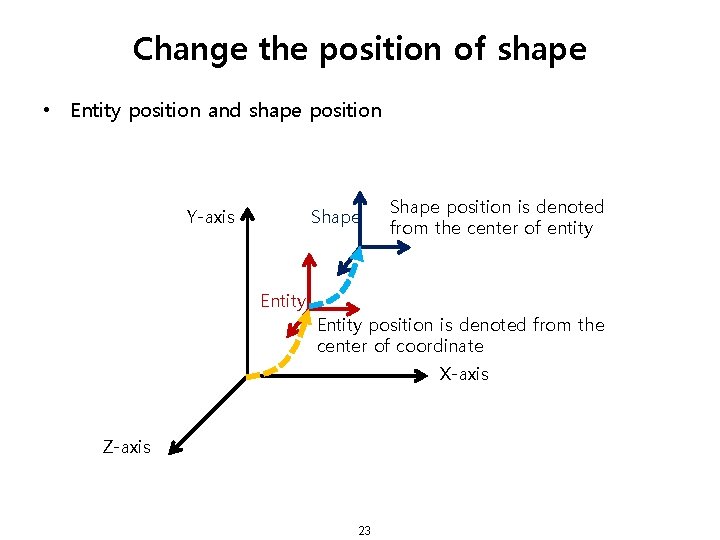
Change the position of shape • Entity position and shape position Y-axis Shape Entity Shape position is denoted from the center of entity Entity position is denoted from the center of coordinate X-axis Z-axis 23
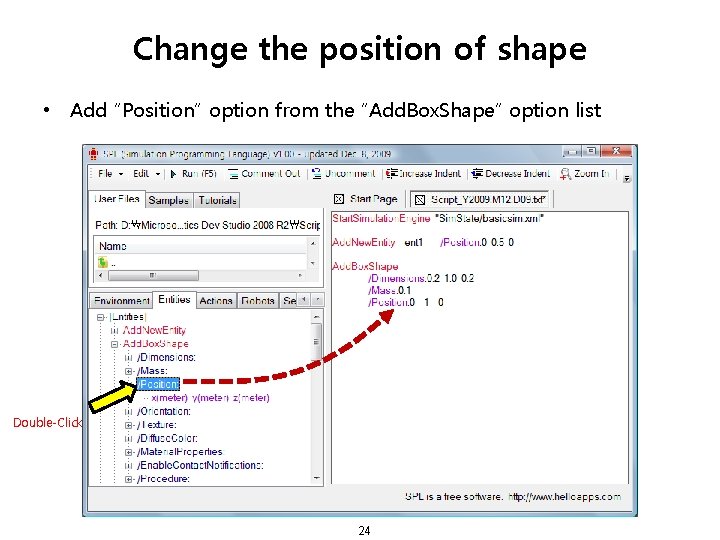
Change the position of shape • Add “Position” option from the “Add. Box. Shape” option list Double-Click 24
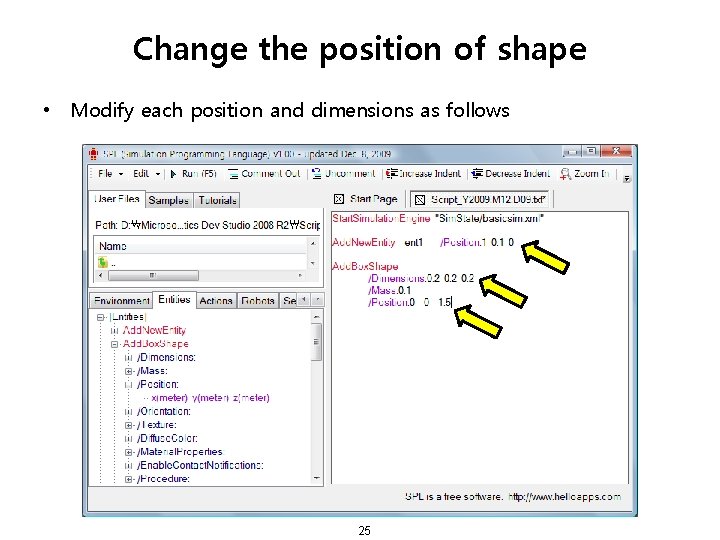
Change the position of shape • Modify each position and dimensions as follows 25
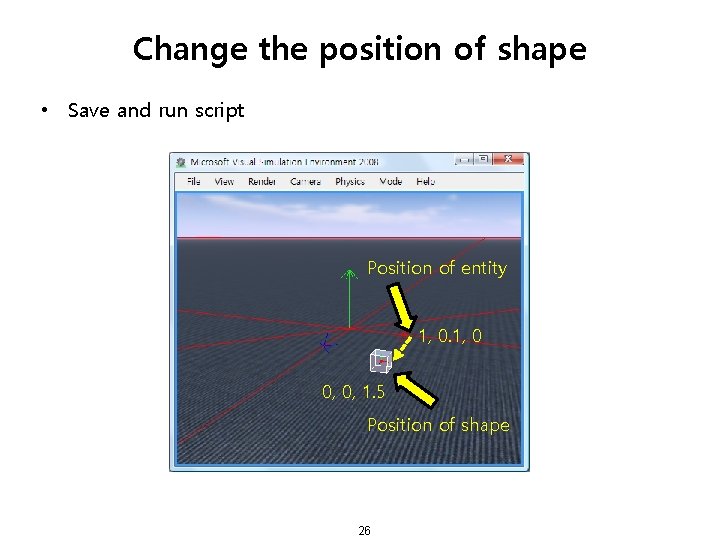
Change the position of shape • Save and run script Position of entity 1, 0 0, 0, 1. 5 Position of shape 26
Add a multi-shapes entity 27
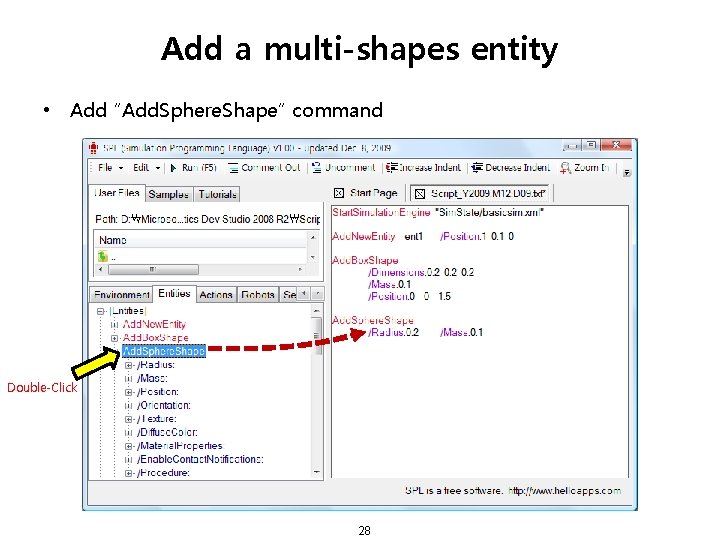
Add a multi-shapes entity • Add “Add. Sphere. Shape” command Double-Click 28
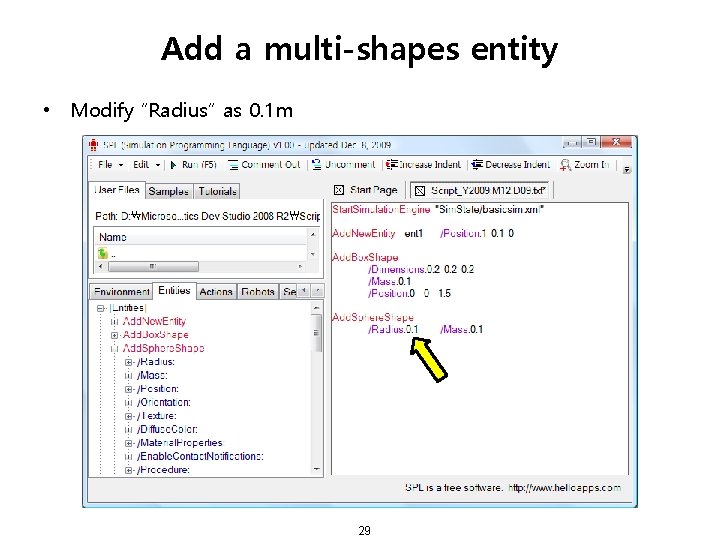
Add a multi-shapes entity • Modify “Radius” as 0. 1 m 29
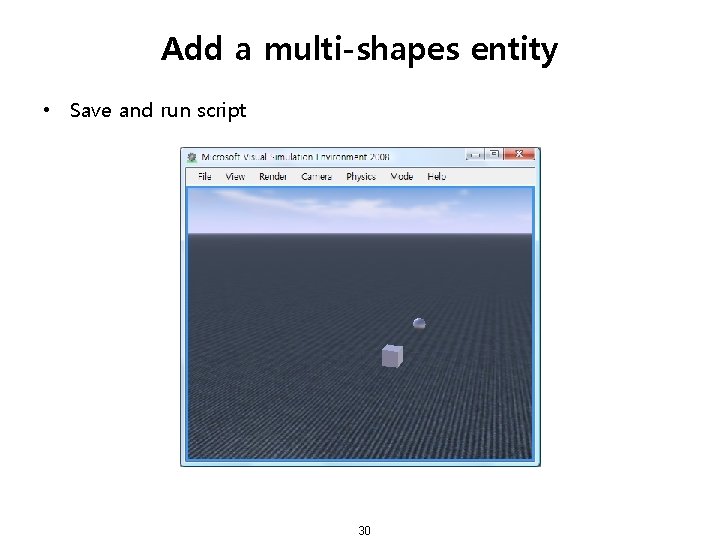
Add a multi-shapes entity • Save and run script 30
Add multi-entities 31
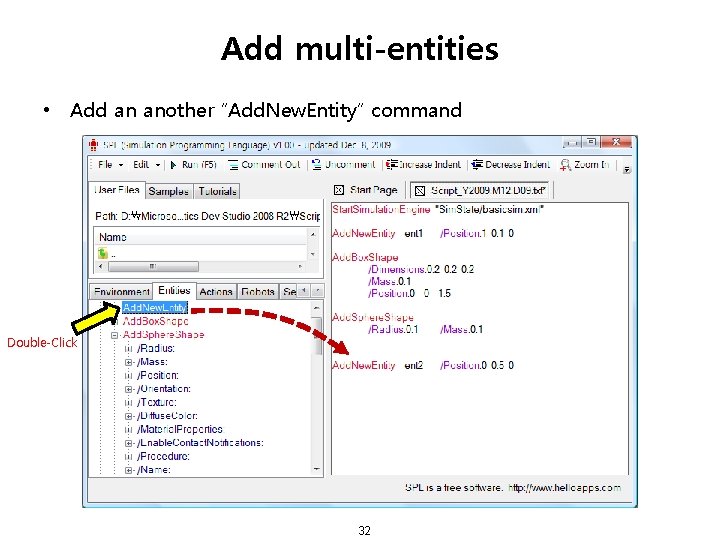
Add multi-entities • Add an another “Add. New. Entity” command Double-Click 32
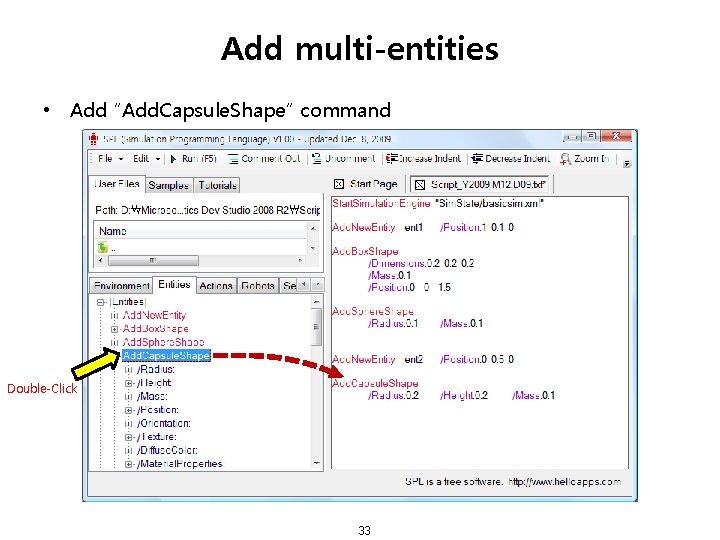
Add multi-entities • Add “Add. Capsule. Shape” command Double-Click 33
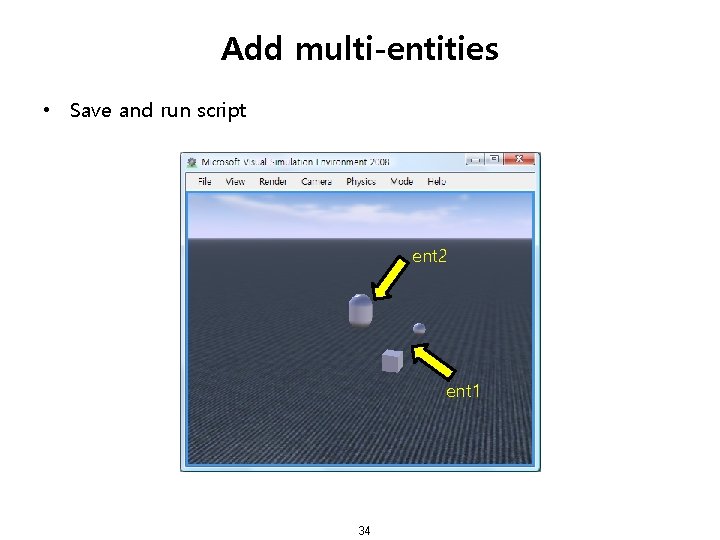
Add multi-entities • Save and run script ent 2 ent 1 34
- Slides: 34