
Specification Change Notice 6 16 2009 Log on

- Slides: 10
Specification Change Notice 6 -16 -2009
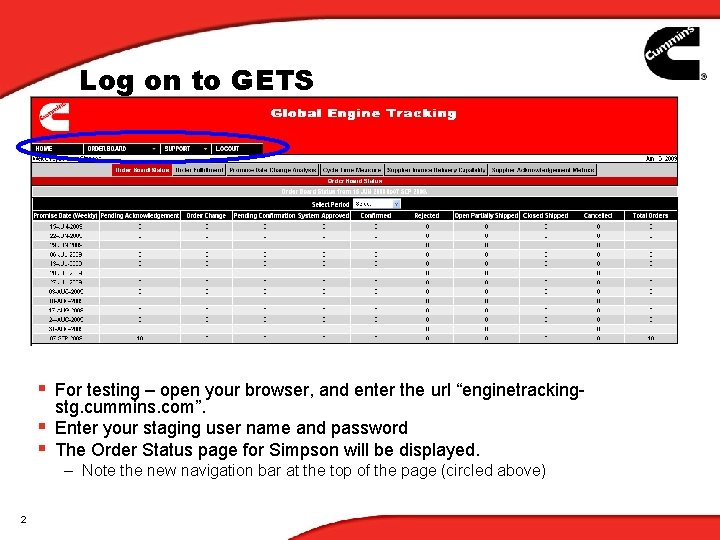
Log on to GETS § For testing – open your browser, and enter the url “enginetrackingstg. cummins. com”. § Enter your staging user name and password § The Order Status page for Simpson will be displayed. – Note the new navigation bar at the top of the page (circled above) 2
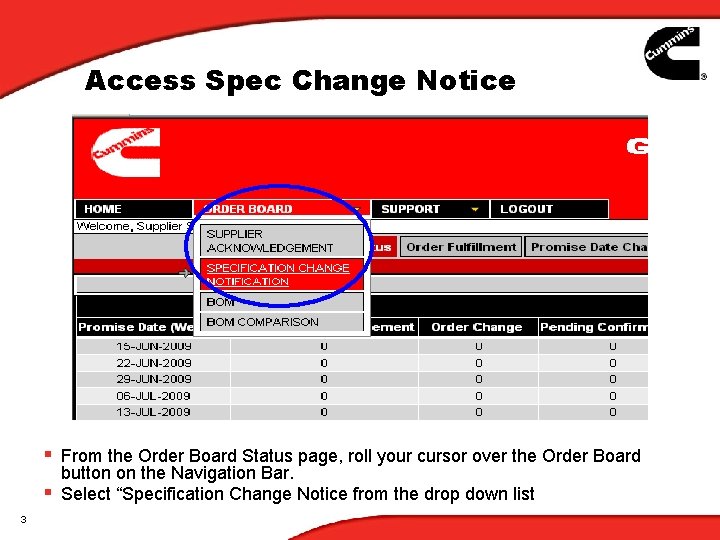
Access Spec Change Notice § From the Order Board Status page, roll your cursor over the Order Board button on the Navigation Bar. § Select “Specification Change Notice from the drop down list 3
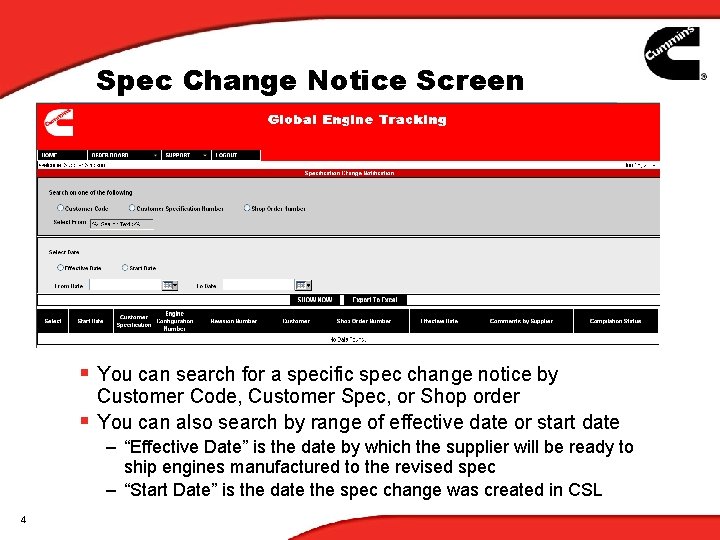
Spec Change Notice Screen § You can search for a specific spec change notice by Customer Code, Customer Spec, or Shop order § You can also search by range of effective date or start date – “Effective Date” is the date by which the supplier will be ready to ship engines manufactured to the revised spec – “Start Date” is the date the spec change was created in CSL 4
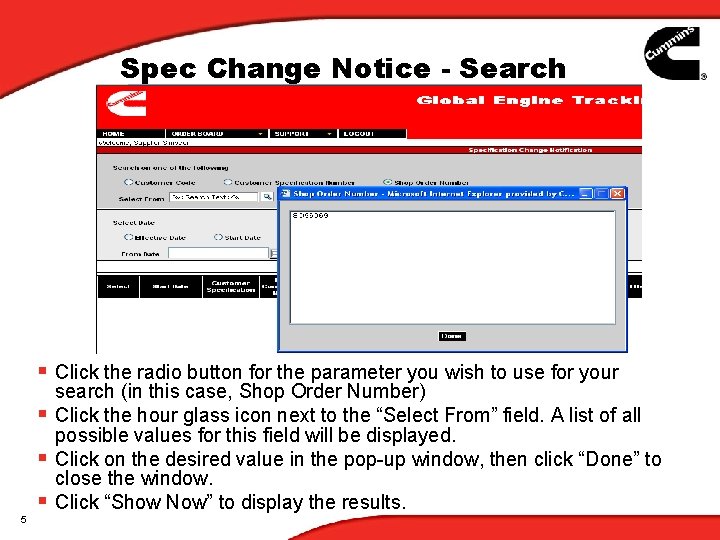
Spec Change Notice - Search § Click the radio button for the parameter you wish to use for your search (in this case, Shop Order Number) § Click the hour glass icon next to the “Select From” field. A list of all possible values for this field will be displayed. § Click on the desired value in the pop-up window, then click “Done” to close the window. § Click “Show Now” to display the results. 5
Spec Change Notice - Results § Start Date = date at which spec change was released § Revision Number = Spec Change Notice number generated from 6 CSL § Effective Date = date at which change will be available at the plant
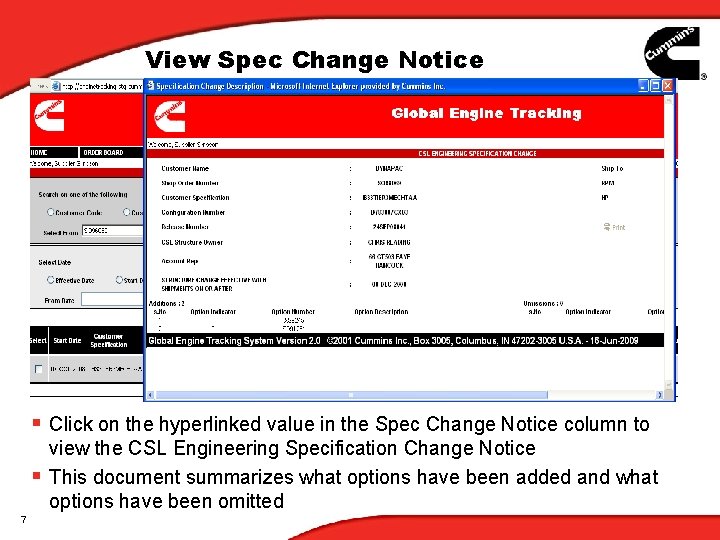
View Spec Change Notice § Click on the hyperlinked value in the Spec Change Notice column to view the CSL Engineering Specification Change Notice § This document summarizes what options have been added and what options have been omitted 7
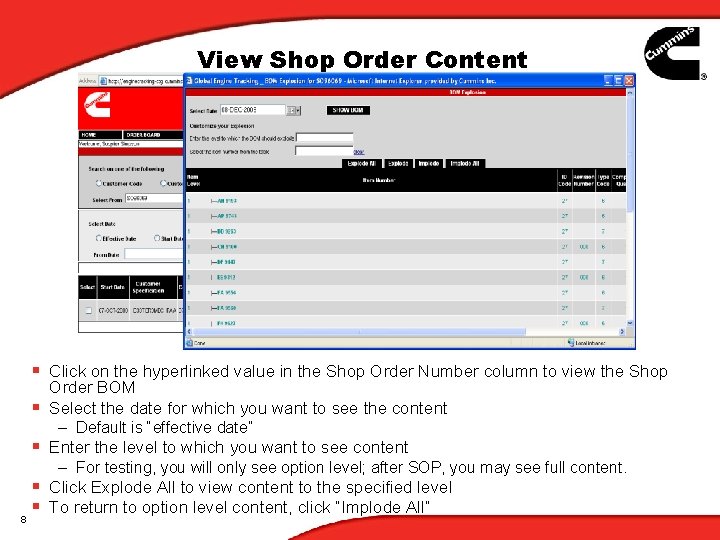
View Shop Order Content § Click on the hyperlinked value in the Shop Order Number column to view the Shop § § 8 Order BOM Select the date for which you want to see the content – Default is “effective date” Enter the level to which you want to see content – For testing, you will only see option level; after SOP, you may see full content. Click Explode All to view content to the specified level To return to option level content, click “Implode All”
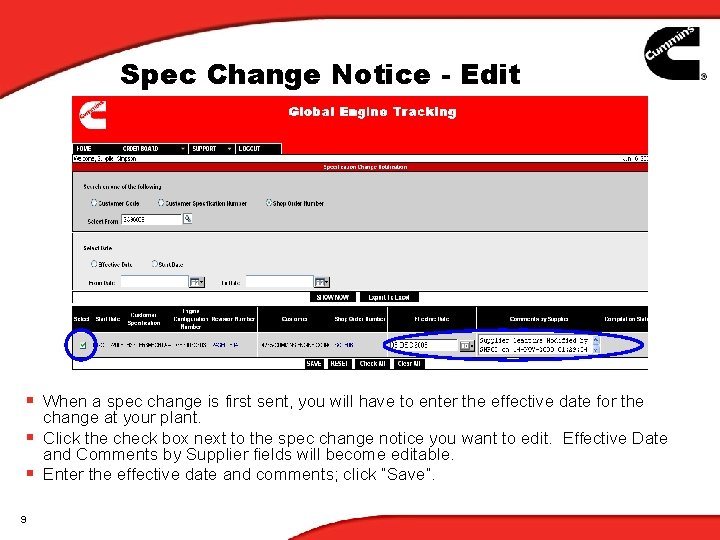
Spec Change Notice - Edit § When a spec change is first sent, you will have to enter the effective date for the change at your plant. § Click the check box next to the spec change notice you want to edit. Effective Date and Comments by Supplier fields will become editable. § Enter the effective date and comments; click “Save”. 9
Questions? Send an email to Virtual. Plant. Websupport@notes. cummins. com 10