
Sourcing Event Tool Kit RFX Scoring User Guide
- Slides: 53
Sourcing Event Tool Kit RFX Scoring User Guide March, 2004 © 2004 My. Florida. Market. Place. All rights reserved.
Contents Overview Team Scoring Automatic Scoring Resources © 2004 My. Florida. Market. Place. All rights reserved. 2
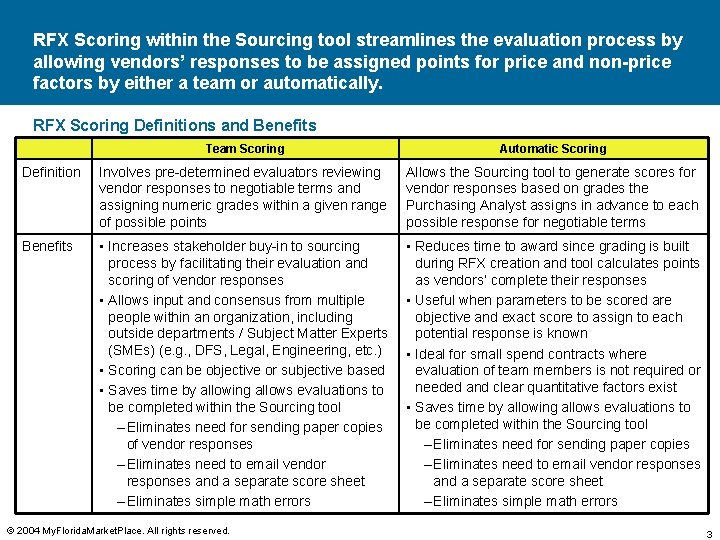
RFX Scoring within the Sourcing tool streamlines the evaluation process by allowing vendors’ responses to be assigned points for price and non-price factors by either a team or automatically. RFX Scoring Definitions and Benefits Team Scoring Automatic Scoring Definition Involves pre-determined evaluators reviewing vendor responses to negotiable terms and assigning numeric grades within a given range of possible points Allows the Sourcing tool to generate scores for vendor responses based on grades the Purchasing Analyst assigns in advance to each possible response for negotiable terms Benefits • Increases stakeholder buy-in to sourcing process by facilitating their evaluation and scoring of vendor responses • Allows input and consensus from multiple people within an organization, including outside departments / Subject Matter Experts (SMEs) (e. g. , DFS, Legal, Engineering, etc. ) • Scoring can be objective or subjective based • Saves time by allowing allows evaluations to be completed within the Sourcing tool – Eliminates need for sending paper copies of vendor responses – Eliminates need to email vendor responses and a separate score sheet – Eliminates simple math errors • Reduces time to award since grading is built during RFX creation and tool calculates points as vendors’ complete their responses • Useful when parameters to be scored are objective and exact score to assign to each potential response is known • Ideal for small spend contracts where evaluation of team members is not required or needed and clear quantitative factors exist • Saves time by allowing allows evaluations to be completed within the Sourcing tool – Eliminates need for sending paper copies – Eliminates need to email vendor responses and a separate score sheet – Eliminates simple math errors © 2004 My. Florida. Market. Place. All rights reserved. 3
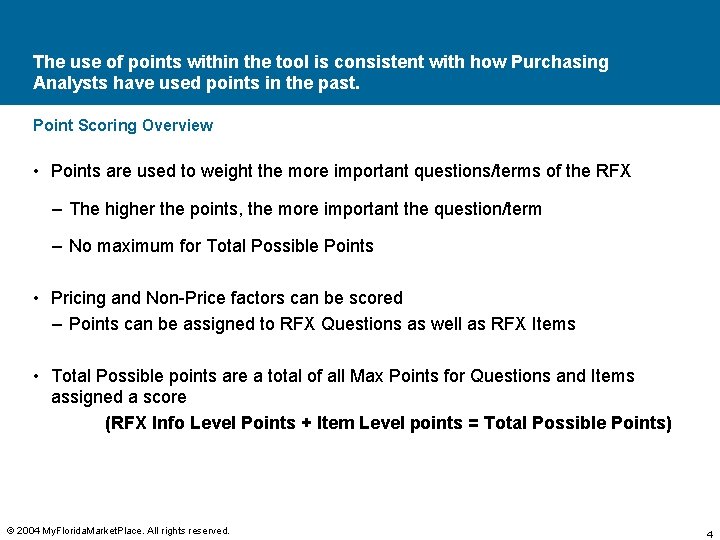
The use of points within the tool is consistent with how Purchasing Analysts have used points in the past. Point Scoring Overview • Points are used to weight the more important questions/terms of the RFX – The higher the points, the more important the question/term – No maximum for Total Possible Points • Pricing and Non-Price factors can be scored – Points can be assigned to RFX Questions as well as RFX Items • Total Possible points are a total of all Max Points for Questions and Items assigned a score (RFX Info Level Points + Item Level points = Total Possible Points) © 2004 My. Florida. Market. Place. All rights reserved. 4
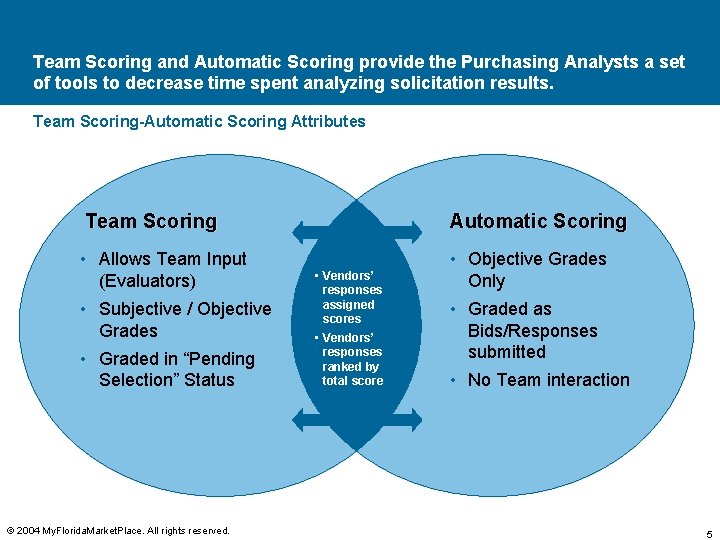
Team Scoring and Automatic Scoring provide the Purchasing Analysts a set of tools to decrease time spent analyzing solicitation results. Team Scoring-Automatic Scoring Attributes Team Scoring • Allows Team Input (Evaluators) • Subjective / Objective Grades • Graded in “Pending Selection” Status © 2004 My. Florida. Market. Place. All rights reserved. Automatic Scoring • Vendors’ responses assigned scores • Vendors’ responses ranked by total score • Objective Grades Only • Graded as Bids/Responses submitted • No Team interaction 5
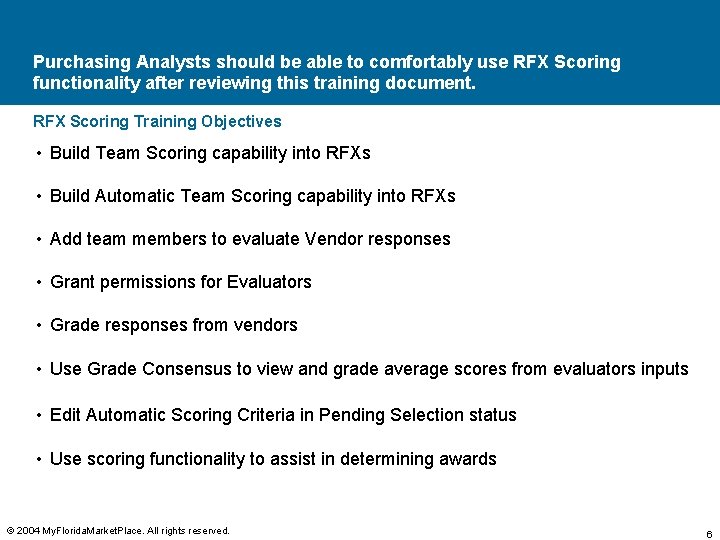
Purchasing Analysts should be able to comfortably use RFX Scoring functionality after reviewing this training document. RFX Scoring Training Objectives • Build Team Scoring capability into RFXs • Build Automatic Team Scoring capability into RFXs • Add team members to evaluate Vendor responses • Grant permissions for Evaluators • Grade responses from vendors • Use Grade Consensus to view and grade average scores from evaluators inputs • Edit Automatic Scoring Criteria in Pending Selection status • Use scoring functionality to assist in determining awards © 2004 My. Florida. Market. Place. All rights reserved. 6
Contents Overview Team Scoring Automatic Scoring Resources © 2004 My. Florida. Market. Place. All rights reserved. 7
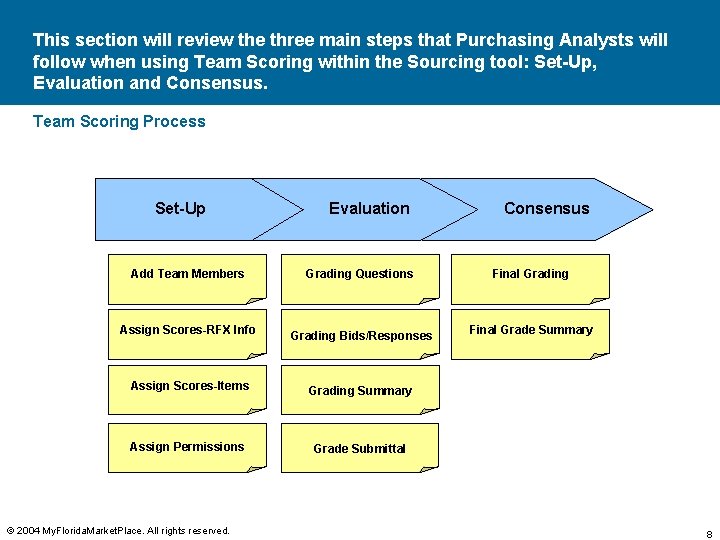
This section will review the three main steps that Purchasing Analysts will follow when using Team Scoring within the Sourcing tool: Set-Up, Evaluation and Consensus. Team Scoring Process Set-Up Add Team Members Assign Scores-RFX Info Evaluation Grading Questions Grading Bids/Responses Assign Scores-Items Grading Summary Assign Permissions Grade Submittal © 2004 My. Florida. Market. Place. All rights reserved. Consensus Final Grading Final Grade Summary 8
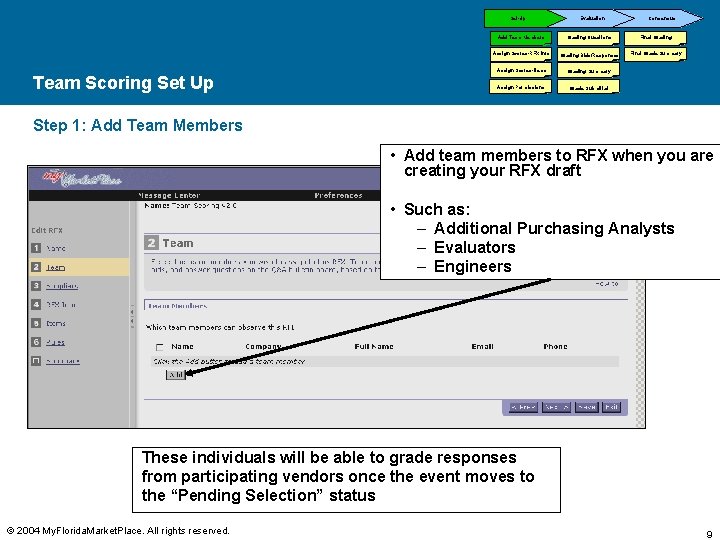
Set-Up Team Scoring Set Up Evaluation Consensus Add Team Members Grading Questions Final Grading Assign Scores-RFX Info Grading Bids/Responses Final Grade Summary Assign Scores-Items Grading Summary Assign Permissions Grade Submittal Step 1: Add Team Members • Add team members to RFX when you are creating your RFX draft • Such as: – Additional Purchasing Analysts – Evaluators – Engineers These individuals will be able to grade responses from participating vendors once the event moves to the “Pending Selection” status © 2004 My. Florida. Market. Place. All rights reserved. 9
Set-Up Team Scoring Set Up Evaluation Consensus Add Team Members Grading Questions Final Grading Assign Scores-RFX Info Grading Bids/Responses Final Grade Summary Assign Scores-Items Grading Summary Assign Permissions Grade Submittal Step 2: Assigning Scores-RFX Level • Enter Questions and/or internal information in the RFX Info-Organization page • On the RFX Info-Scoring page enter the maximum number of points for each question or internal information you want scored in the Max Points field. – Internal Information is viewable by Team Members only and can be used for things such as a Bidder’s Quality Rating • Leave the Max Points field blank if you do not want to score that information. © 2004 My. Florida. Market. Place. All rights reserved. 10
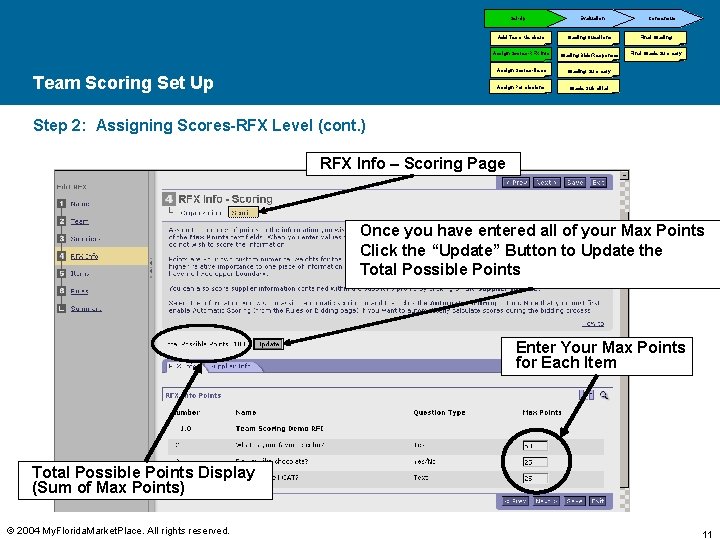
Set-Up Team Scoring Set Up Evaluation Consensus Add Team Members Grading Questions Final Grading Assign Scores-RFX Info Grading Bids/Responses Final Grade Summary Assign Scores-Items Grading Summary Assign Permissions Grade Submittal Step 2: Assigning Scores-RFX Level (cont. ) RFX Info – Scoring Page Once you have entered all of your Max Points Click the “Update” Button to Update the Total Possible Points Enter Your Max Points for Each Item Total Possible Points Display (Sum of Max Points) © 2004 My. Florida. Market. Place. All rights reserved. 11
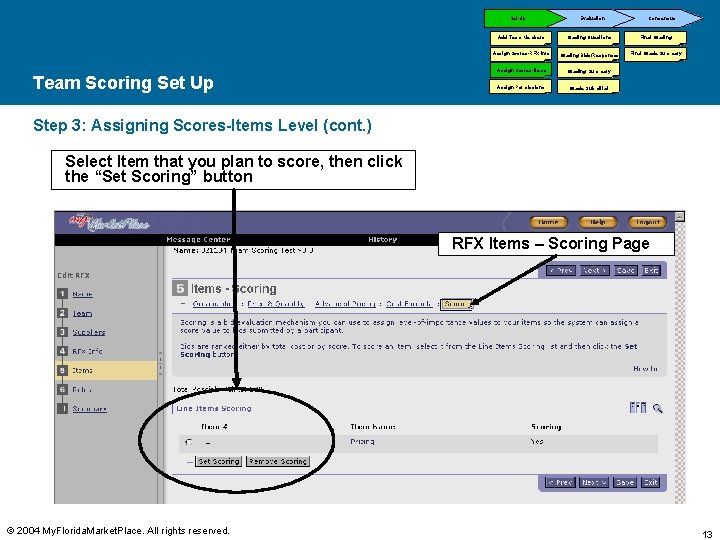
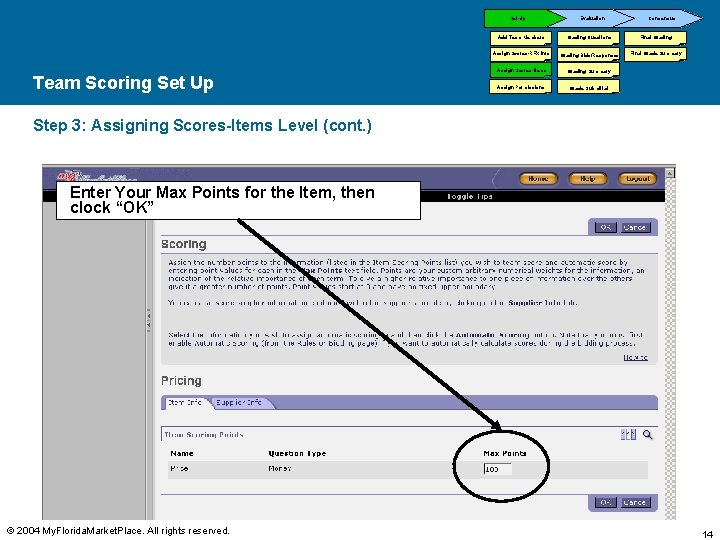
Set-Up Team Scoring Set Up Evaluation Consensus Add Team Members Grading Questions Final Grading Assign Scores-RFX Info Grading Bids/Responses Final Grade Summary Assign Scores-Items Grading Summary Assign Permissions Grade Submittal Step 3: Assigning Scores-Item Level • Enter Line item information in the Items-Organization page • On the Item-Scoring page select the item to score • A Scoring will page open. Enter the maximum number of points for the item you want scored in the Max Points field. • Leave the Max Points field blank if you do not want to score that information. © 2004 My. Florida. Market. Place. All rights reserved. 12
Set-Up Team Scoring Set Up Evaluation Consensus Add Team Members Grading Questions Final Grading Assign Scores-RFX Info Grading Bids/Responses Final Grade Summary Assign Scores-Items Grading Summary Assign Permissions Grade Submittal Step 3: Assigning Scores-Items Level (cont. ) Select Item that you plan to score, then click the “Set Scoring” button RFX Items – Scoring Page © 2004 My. Florida. Market. Place. All rights reserved. 13
Set-Up Team Scoring Set Up Evaluation Consensus Add Team Members Grading Questions Final Grading Assign Scores-RFX Info Grading Bids/Responses Final Grade Summary Assign Scores-Items Grading Summary Assign Permissions Grade Submittal Step 3: Assigning Scores-Items Level (cont. ) Enter Your Max Points for the Item, then clock “OK” © 2004 My. Florida. Market. Place. All rights reserved. 14
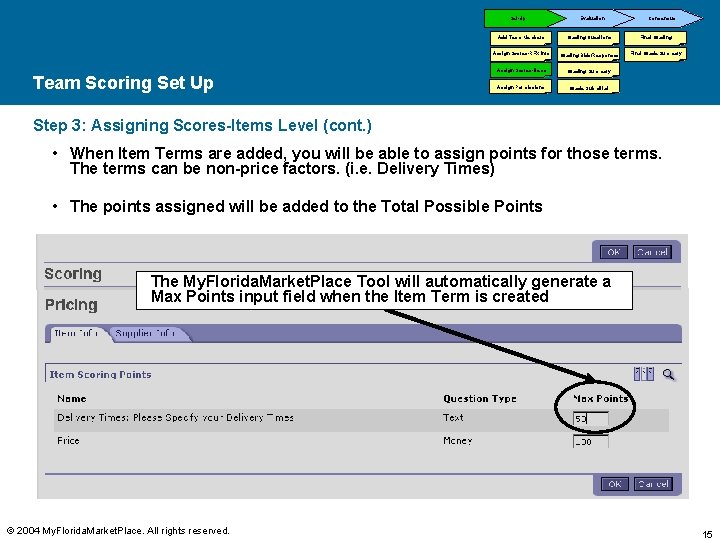
Set-Up Team Scoring Set Up Evaluation Consensus Add Team Members Grading Questions Final Grading Assign Scores-RFX Info Grading Bids/Responses Final Grade Summary Assign Scores-Items Grading Summary Assign Permissions Grade Submittal Step 3: Assigning Scores-Items Level (cont. ) • When Item Terms are added, you will be able to assign points for those terms. The terms can be non-price factors. (i. e. Delivery Times) • The points assigned will be added to the Total Possible Points The My. Florida. Market. Place Tool will automatically generate a Max Points input field when the Item Term is created © 2004 My. Florida. Market. Place. All rights reserved. 15
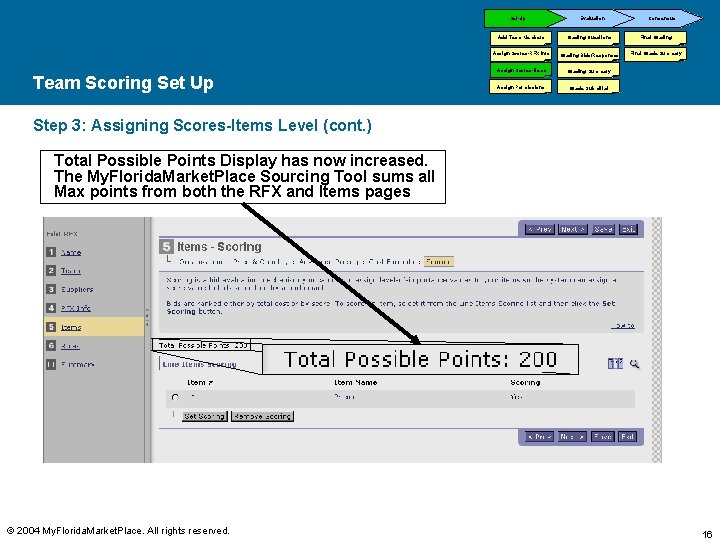
Set-Up Team Scoring Set Up Evaluation Consensus Add Team Members Grading Questions Final Grading Assign Scores-RFX Info Grading Bids/Responses Final Grade Summary Assign Scores-Items Grading Summary Assign Permissions Grade Submittal Step 3: Assigning Scores-Items Level (cont. ) Total Possible Points Display has now increased. The My. Florida. Market. Place Sourcing Tool sums all Max points from both the RFX and Items pages © 2004 My. Florida. Market. Place. All rights reserved. 16
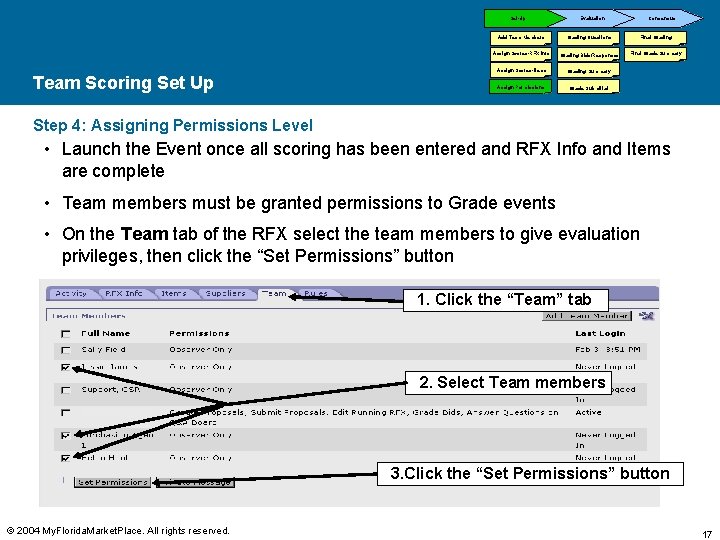
Set-Up Team Scoring Set Up Evaluation Consensus Add Team Members Grading Questions Final Grading Assign Scores-RFX Info Grading Bids/Responses Final Grade Summary Assign Scores-Items Grading Summary Assign Permissions Grade Submittal Step 4: Assigning Permissions Level • Launch the Event once all scoring has been entered and RFX Info and Items are complete • Team members must be granted permissions to Grade events • On the Team tab of the RFX select the team members to give evaluation privileges, then click the “Set Permissions” button 1. Click the “Team” tab 2. Select Team members 3. Click the “Set Permissions” button © 2004 My. Florida. Market. Place. All rights reserved. 17
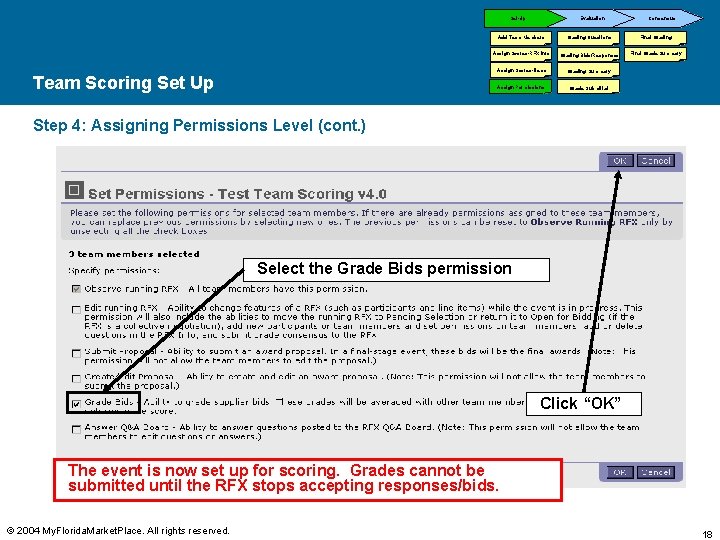
Set-Up Team Scoring Set Up Evaluation Consensus Add Team Members Grading Questions Final Grading Assign Scores-RFX Info Grading Bids/Responses Final Grade Summary Assign Scores-Items Grading Summary Assign Permissions Grade Submittal Step 4: Assigning Permissions Level (cont. ) Select the Grade Bids permission Click “OK” The event is now set up for scoring. Grades cannot be submitted until the RFX stops accepting responses/bids. © 2004 My. Florida. Market. Place. All rights reserved. 18
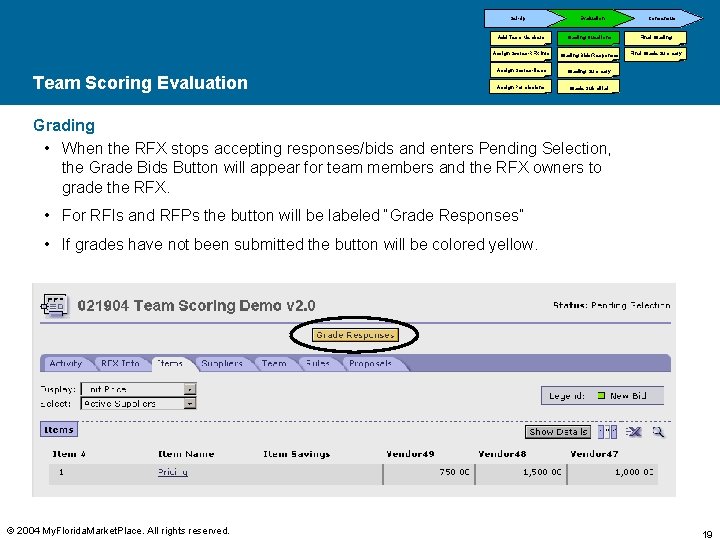
Set-Up Team Scoring Evaluation Consensus Add Team Members Grading Questions Final Grading Assign Scores-RFX Info Grading Bids/Responses Final Grade Summary Assign Scores-Items Grading Summary Assign Permissions Grade Submittal Grading • When the RFX stops accepting responses/bids and enters Pending Selection, the Grade Bids Button will appear for team members and the RFX owners to grade the RFX. • For RFIs and RFPs the button will be labeled “Grade Responses” • If grades have not been submitted the button will be colored yellow. © 2004 My. Florida. Market. Place. All rights reserved. 19
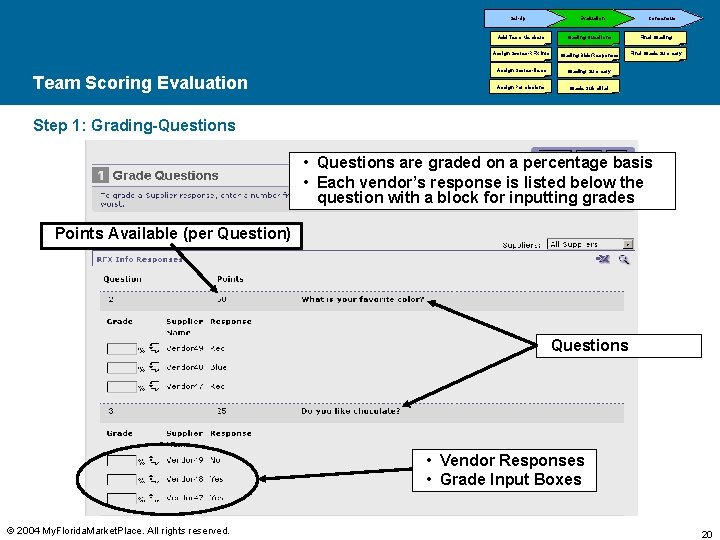
Set-Up Team Scoring Evaluation Consensus Add Team Members Grading Questions Final Grading Assign Scores-RFX Info Grading Bids/Responses Final Grade Summary Assign Scores-Items Grading Summary Assign Permissions Grade Submittal Step 1: Grading-Questions • Questions are graded on a percentage basis • Each vendor’s response is listed below the question with a block for inputting grades Points Available (per Question) Questions • Vendor Responses • Grade Input Boxes © 2004 My. Florida. Market. Place. All rights reserved. 20
Set-Up Team Scoring Evaluation Consensus Add Team Members Grading Questions Final Grading Assign Scores-RFX Info Grading Bids/Responses Final Grade Summary Assign Scores-Items Grading Summary Assign Permissions Grade Submittal Step 1: Grading-Questions • Grades are assigned on a percentage. • The scale is defined by the Max Points for that particular question. Max Points Assigned- 50 – 100% = 50 Points – 75% = 37. 5 Points – 50% = 25 Points • Grades are not mutually exclusive (e. g. two or more vendors can be graded with the same grade) – Each grade in independent of another – Grades DO NOT have to equal 100% • Total Score for the vendor is the sum of all points after grading from both the Questions and the Items © 2004 My. Florida. Market. Place. All rights reserved. 21
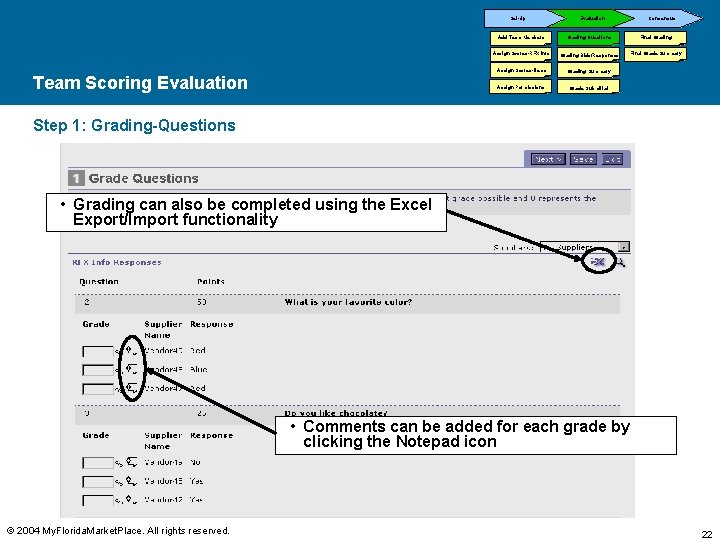
Set-Up Team Scoring Evaluation Consensus Add Team Members Grading Questions Final Grading Assign Scores-RFX Info Grading Bids/Responses Final Grade Summary Assign Scores-Items Grading Summary Assign Permissions Grade Submittal Step 1: Grading-Questions • Grading can also be completed using the Excel Export/Import functionality • Comments can be added for each grade by clicking the Notepad icon © 2004 My. Florida. Market. Place. All rights reserved. 22
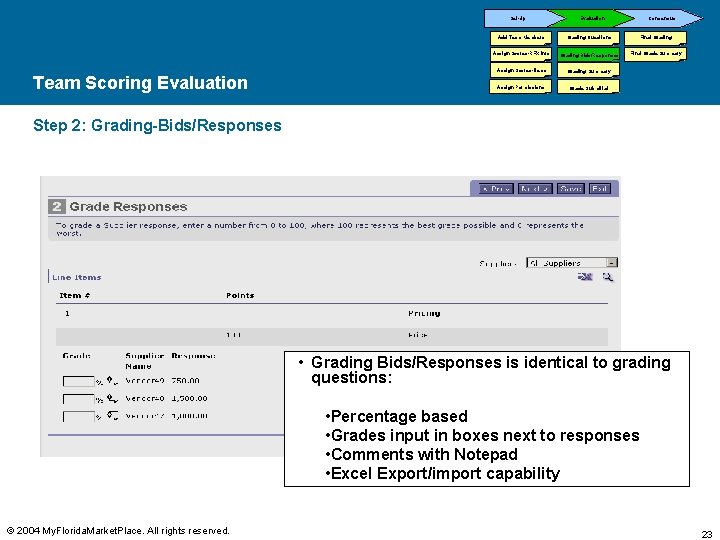
Set-Up Team Scoring Evaluation Consensus Add Team Members Grading Questions Final Grading Assign Scores-RFX Info Grading Bids/Responses Final Grade Summary Assign Scores-Items Grading Summary Assign Permissions Grade Submittal Step 2: Grading-Bids/Responses • Grading Bids/Responses is identical to grading questions: • Percentage based • Grades input in boxes next to responses • Comments with Notepad • Excel Export/import capability © 2004 My. Florida. Market. Place. All rights reserved. 23
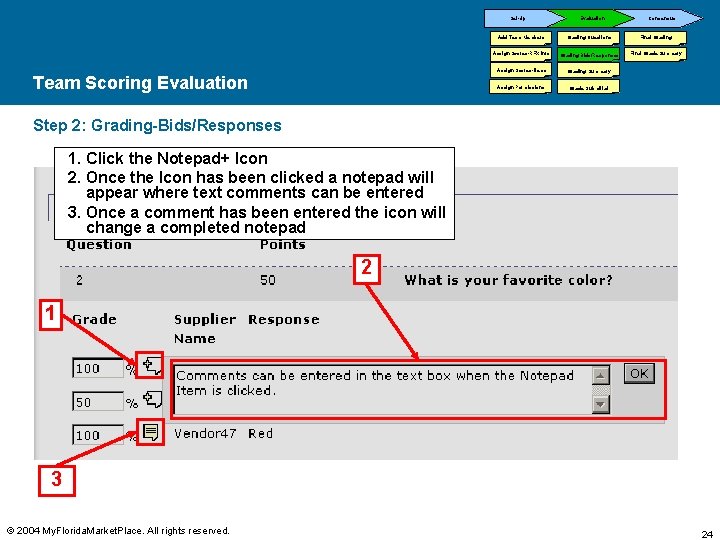
Set-Up Team Scoring Evaluation Consensus Add Team Members Grading Questions Final Grading Assign Scores-RFX Info Grading Bids/Responses Final Grade Summary Assign Scores-Items Grading Summary Assign Permissions Grade Submittal Step 2: Grading-Bids/Responses 1. Click the Notepad+ Icon 2. Once the Icon has been clicked a notepad will appear where text comments can be entered 3. Once a comment has been entered the icon will change a completed notepad 2 1 3 © 2004 My. Florida. Market. Place. All rights reserved. 24
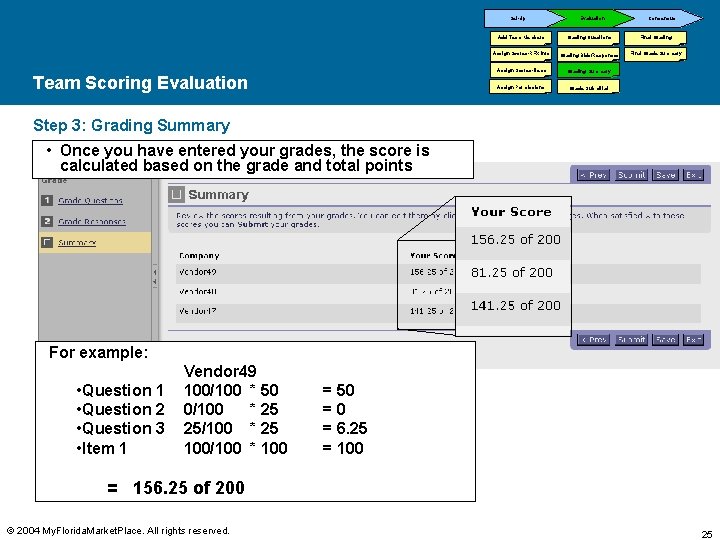
Set-Up Team Scoring Evaluation Consensus Add Team Members Grading Questions Final Grading Assign Scores-RFX Info Grading Bids/Responses Final Grade Summary Assign Scores-Items Grading Summary Assign Permissions Grade Submittal Step 3: Grading Summary • Once you have entered your grades, the score is calculated based on the grade and total points For example: • Question 1 • Question 2 • Question 3 • Item 1 Vendor 49 100/100 * 50 0/100 * 25 25/100 * 25 100/100 * 100 = 50 =0 = 6. 25 = 100 = 156. 25 of 200 © 2004 My. Florida. Market. Place. All rights reserved. 25
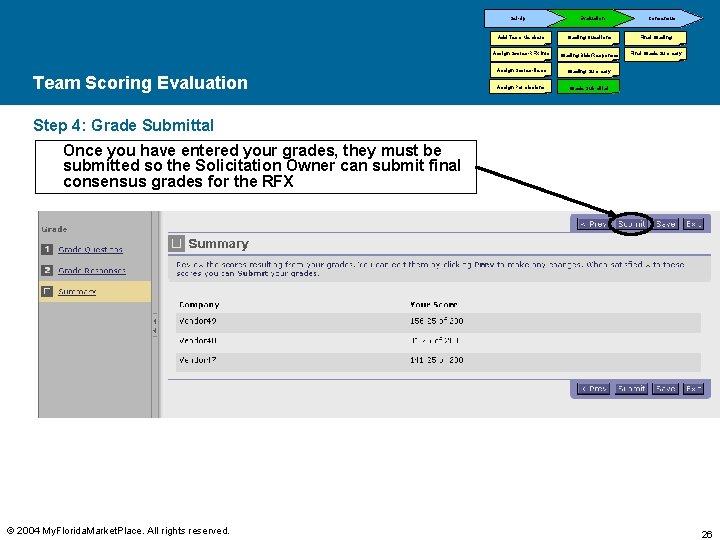
Set-Up Team Scoring Evaluation Consensus Add Team Members Grading Questions Final Grading Assign Scores-RFX Info Grading Bids/Responses Final Grade Summary Assign Scores-Items Grading Summary Assign Permissions Grade Submittal Step 4: Grade Submittal Once you have entered your grades, they must be submitted so the Solicitation Owner can submit final consensus grades for the RFX © 2004 My. Florida. Market. Place. All rights reserved. 26
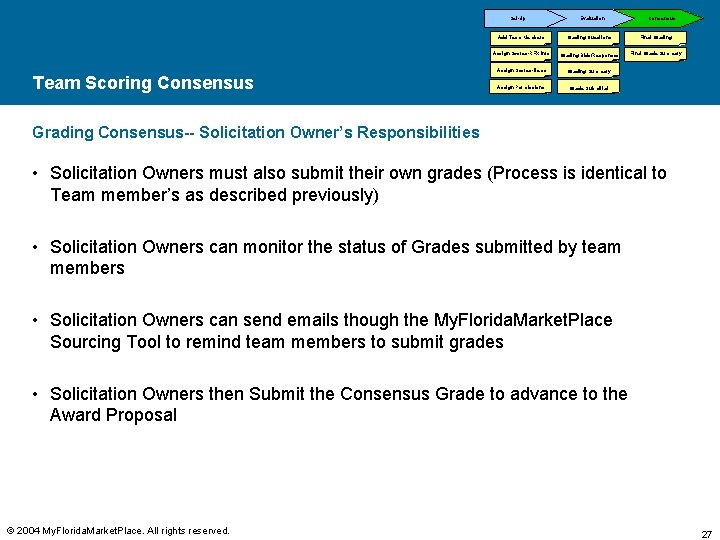
Set-Up Team Scoring Consensus Evaluation Consensus Add Team Members Grading Questions Final Grading Assign Scores-RFX Info Grading Bids/Responses Final Grade Summary Assign Scores-Items Grading Summary Assign Permissions Grade Submittal Grading Consensus-- Solicitation Owner’s Responsibilities • Solicitation Owners must also submit their own grades (Process is identical to Team member’s as described previously) Evaluation (Grading) • Solicitation Owners can monitor the status of Grades submitted by team members • Solicitation Owners can send emails though the My. Florida. Market. Place Sourcing Tool to remind team members to submit grades • Solicitation Owners then Submit the Consensus Grade to advance to the Award Proposal © 2004 My. Florida. Market. Place. All rights reserved. 27
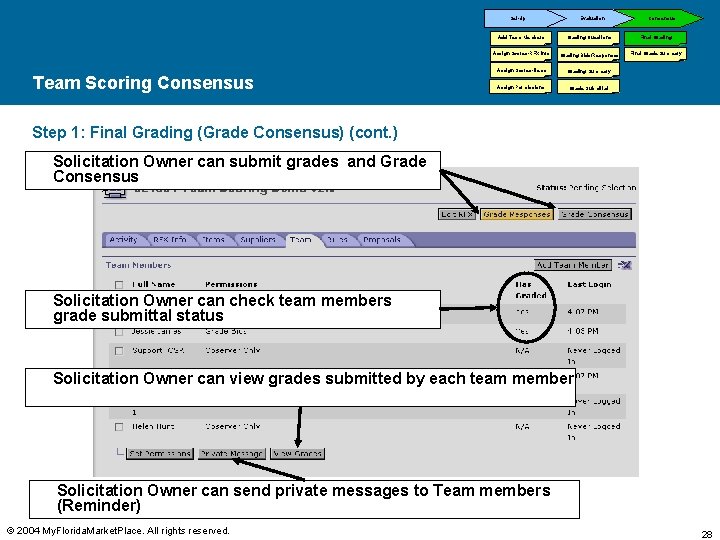
Set-Up Team Scoring Consensus Evaluation Consensus Add Team Members Grading Questions Final Grading Assign Scores-RFX Info Grading Bids/Responses Final Grade Summary Assign Scores-Items Grading Summary Assign Permissions Grade Submittal Step 1: Final Grading (Grade Consensus) (cont. ) Solicitation Owner can submit grades and Grade Consensus Solicitation Owner can check team members grade submittal status Solicitation Owner can view grades submitted by each team member Solicitation Owner can send private messages to Team members (Reminder) © 2004 My. Florida. Market. Place. All rights reserved. 28
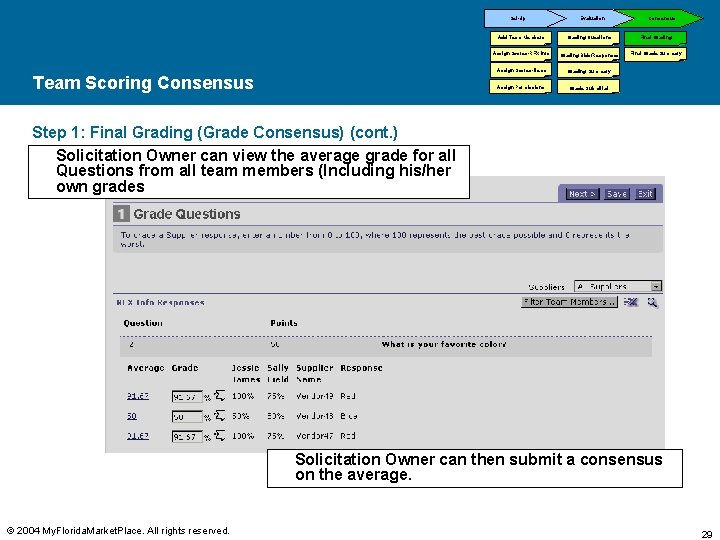
Set-Up Team Scoring Consensus Evaluation Consensus Add Team Members Grading Questions Final Grading Assign Scores-RFX Info Grading Bids/Responses Final Grade Summary Assign Scores-Items Grading Summary Assign Permissions Grade Submittal Step 1: Final Grading (Grade Consensus) (cont. ) Solicitation Owner can view the average grade for all Questions from all team members (Including his/her own grades Solicitation Owner can then submit a consensus on the average. © 2004 My. Florida. Market. Place. All rights reserved. 29
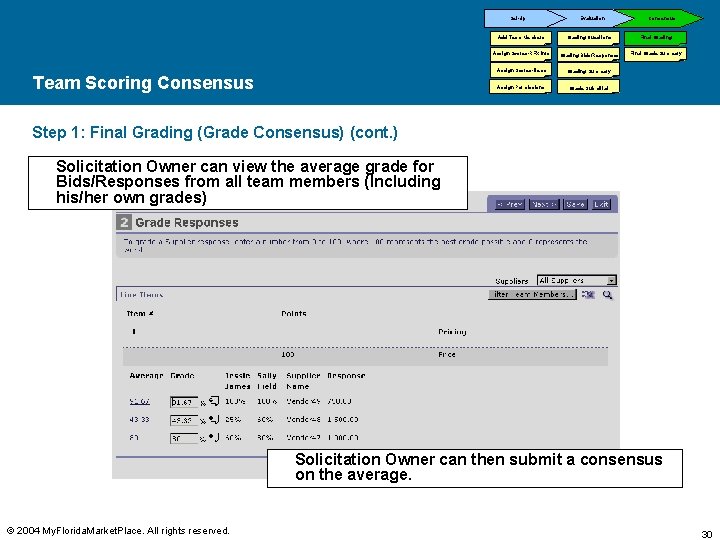
Set-Up Team Scoring Consensus Evaluation Consensus Add Team Members Grading Questions Final Grading Assign Scores-RFX Info Grading Bids/Responses Final Grade Summary Assign Scores-Items Grading Summary Assign Permissions Grade Submittal Step 1: Final Grading (Grade Consensus) (cont. ) Solicitation Owner can view the average grade for Bids/Responses from all team members (Including his/her own grades) Solicitation Owner can then submit a consensus on the average. © 2004 My. Florida. Market. Place. All rights reserved. 30
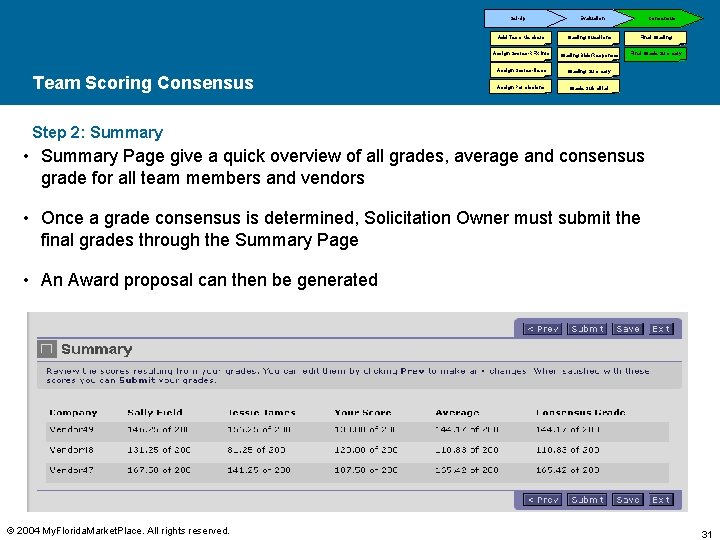
Set-Up Team Scoring Consensus Evaluation Consensus Add Team Members Grading Questions Final Grading Assign Scores-RFX Info Grading Bids/Responses Final Grade Summary Assign Scores-Items Grading Summary Assign Permissions Grade Submittal Step 2: Summary • Summary Page give a quick overview of all grades, average and consensus grade for all team members and vendors • Once a grade consensus is determined, Solicitation Owner must submit the final grades through the Summary Page • An Award proposal can then be generated © 2004 My. Florida. Market. Place. All rights reserved. 31
Contents Overview Team Scoring Automatic Scoring Resources © 2004 My. Florida. Market. Place. All rights reserved. 32
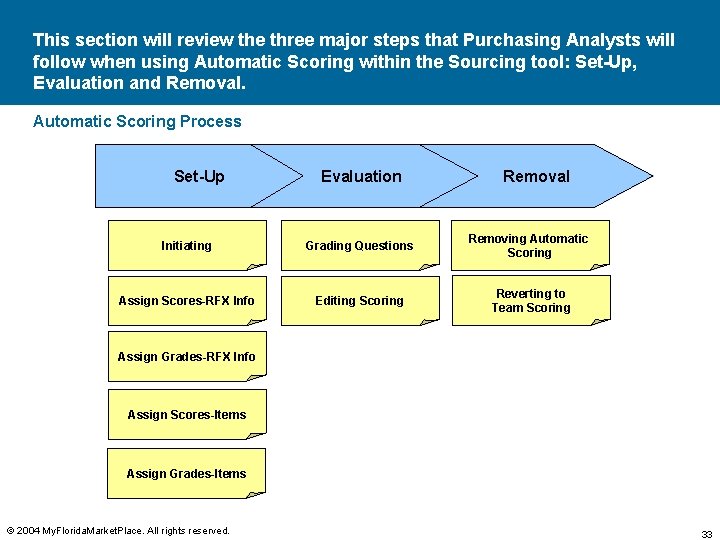
This section will review the three major steps that Purchasing Analysts will follow when using Automatic Scoring within the Sourcing tool: Set-Up, Evaluation and Removal. Automatic Scoring Process Set-Up Evaluation Removal Initiating Grading Questions Removing Automatic Scoring Assign Scores-RFX Info Editing Scoring Reverting to Team Scoring Assign Grades-RFX Info Assign Scores-Items Assign Grades-Items © 2004 My. Florida. Market. Place. All rights reserved. 33
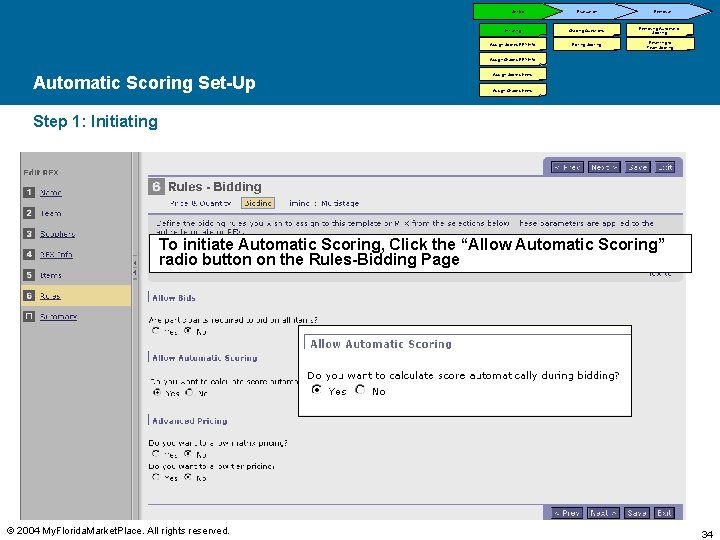
Set-Up Evaluation Initiating Grading Questions Assign Scores-RFX Info Editing Scoring Removal Removing Automatic Scoring Reverting to Team Scoring Assign Grades-RFX Info Automatic Scoring Set-Up Assign Scores-Items Assign Grades-Items Step 1: Initiating To initiate Automatic Scoring, Click the “Allow Automatic Scoring” radio button on the Rules-Bidding Page © 2004 My. Florida. Market. Place. All rights reserved. 34
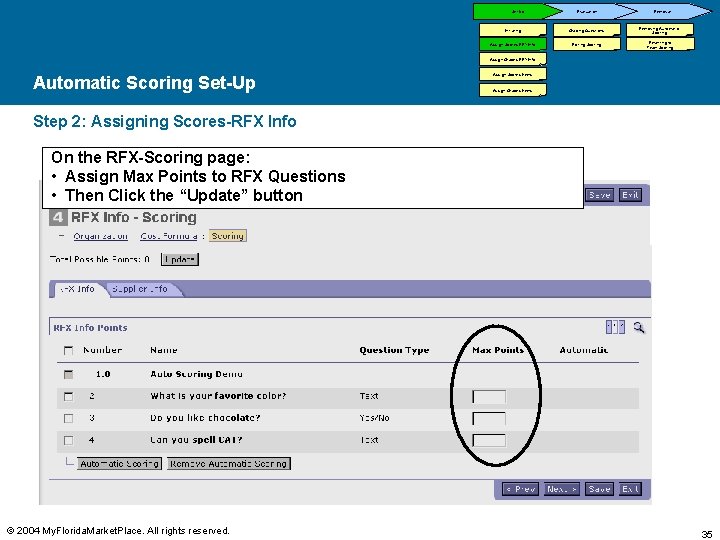
Set-Up Evaluation Initiating Grading Questions Assign Scores-RFX Info Editing Scoring Removal Removing Automatic Scoring Reverting to Team Scoring Assign Grades-RFX Info Automatic Scoring Set-Up Assign Scores-Items Assign Grades-Items Step 2: Assigning Scores-RFX Info On the RFX-Scoring page: • Assign Max Points to RFX Questions • Then Click the “Update” button © 2004 My. Florida. Market. Place. All rights reserved. 35
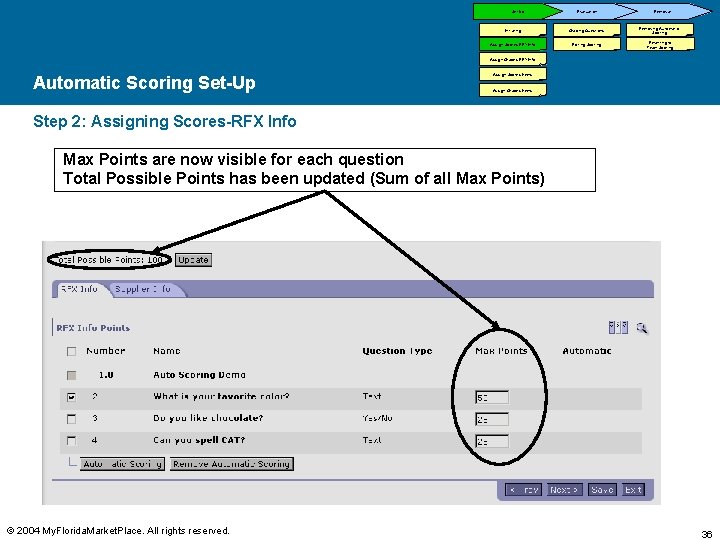
Set-Up Evaluation Initiating Grading Questions Assign Scores-RFX Info Editing Scoring Removal Removing Automatic Scoring Reverting to Team Scoring Assign Grades-RFX Info Automatic Scoring Set-Up Assign Scores-Items Assign Grades-Items Step 2: Assigning Scores-RFX Info Max Points are now visible for each question Total Possible Points has been updated (Sum of all Max Points) © 2004 My. Florida. Market. Place. All rights reserved. 36
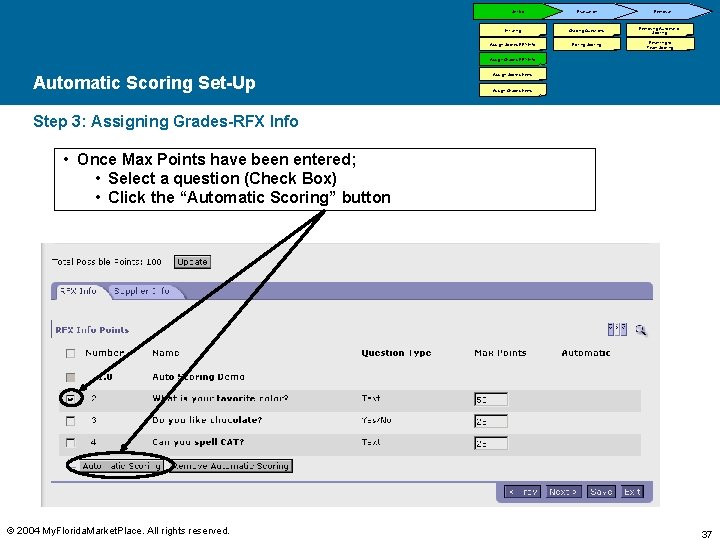
Set-Up Evaluation Initiating Grading Questions Assign Scores-RFX Info Editing Scoring Removal Removing Automatic Scoring Reverting to Team Scoring Assign Grades-RFX Info Automatic Scoring Set-Up Assign Scores-Items Assign Grades-Items Step 3: Assigning Grades-RFX Info • Once Max Points have been entered; • Select a question (Check Box) • Click the “Automatic Scoring” button © 2004 My. Florida. Market. Place. All rights reserved. 37
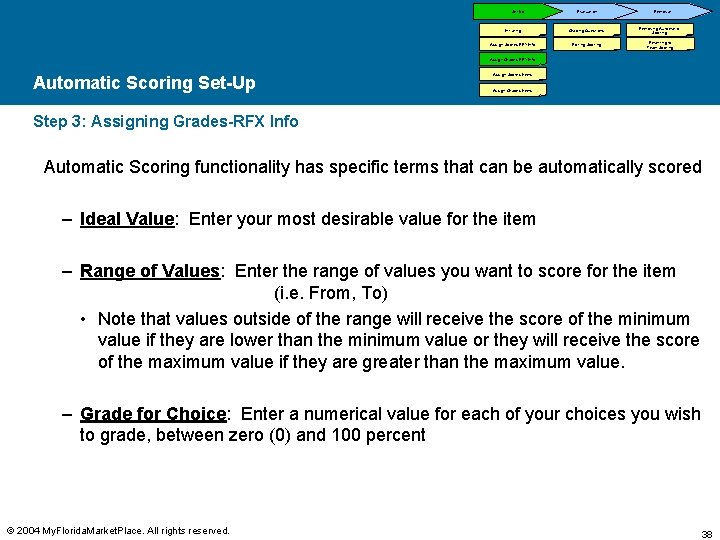
Set-Up Evaluation Initiating Grading Questions Assign Scores-RFX Info Editing Scoring Removal Removing Automatic Scoring Reverting to Team Scoring Assign Grades-RFX Info Automatic Scoring Set-Up Assign Scores-Items Assign Grades-Items Step 3: Assigning Grades-RFX Info Automatic Scoring functionality has specific terms that can be automatically scored – Ideal Value: Enter your most desirable value for the item – Range of Values: Enter the range of values you want to score for the item (i. e. From, To) • Note that values outside of the range will receive the score of the minimum value if they are lower than the minimum value or they will receive the score of the maximum value if they are greater than the maximum value. – Grade for Choice: Enter a numerical value for each of your choices you wish to grade, between zero (0) and 100 percent © 2004 My. Florida. Market. Place. All rights reserved. 38
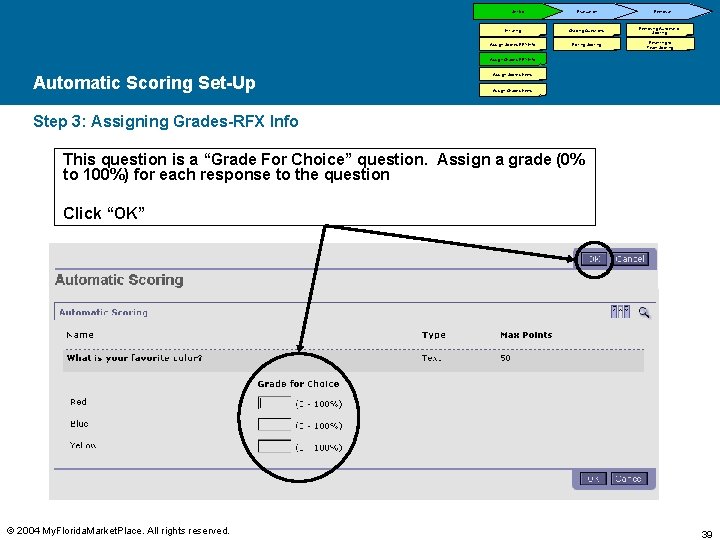
Set-Up Evaluation Initiating Grading Questions Assign Scores-RFX Info Editing Scoring Removal Removing Automatic Scoring Reverting to Team Scoring Assign Grades-RFX Info Automatic Scoring Set-Up Assign Scores-Items Assign Grades-Items Step 3: Assigning Grades-RFX Info This question is a “Grade For Choice” question. Assign a grade (0% to 100%) for each response to the question Click “OK” © 2004 My. Florida. Market. Place. All rights reserved. 39
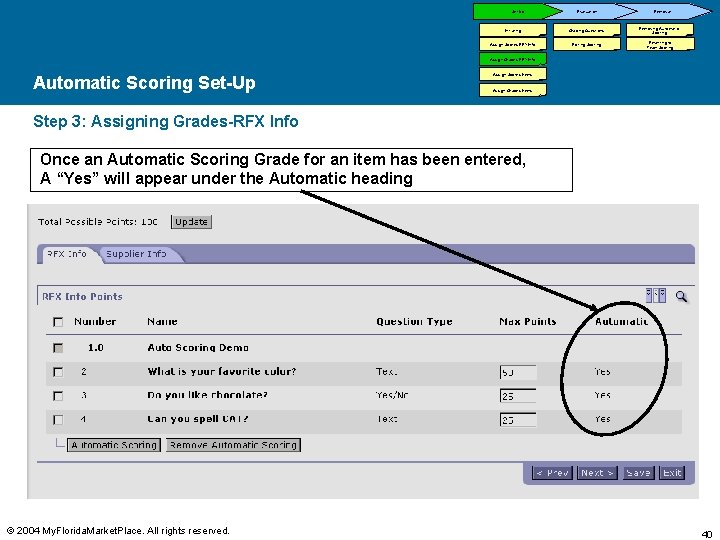
Set-Up Evaluation Initiating Grading Questions Assign Scores-RFX Info Editing Scoring Removal Removing Automatic Scoring Reverting to Team Scoring Assign Grades-RFX Info Automatic Scoring Set-Up Assign Scores-Items Assign Grades-Items Step 3: Assigning Grades-RFX Info Once an Automatic Scoring Grade for an item has been entered, A “Yes” will appear under the Automatic heading © 2004 My. Florida. Market. Place. All rights reserved. 40
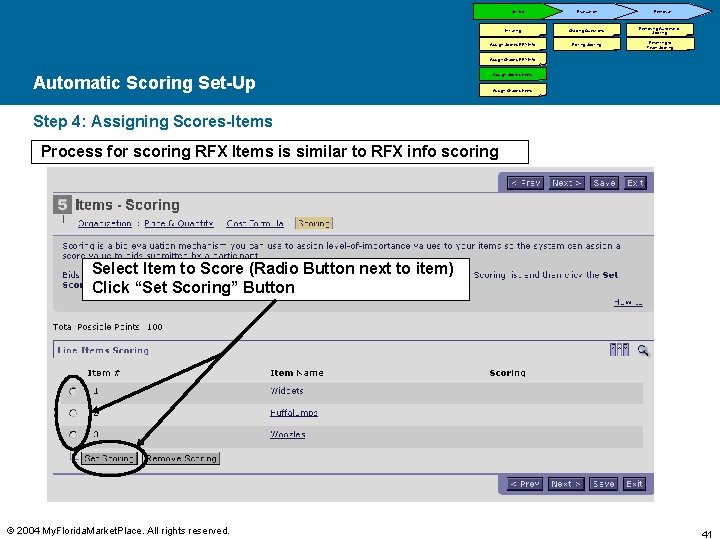
Set-Up Evaluation Initiating Grading Questions Assign Scores-RFX Info Editing Scoring Removal Removing Automatic Scoring Reverting to Team Scoring Assign Grades-RFX Info Automatic Scoring Set-Up Assign Scores-Items Assign Grades-Items Step 4: Assigning Scores-Items Process for scoring RFX Items is similar to RFX info scoring Select Item to Score (Radio Button next to item) Click “Set Scoring” Button © 2004 My. Florida. Market. Place. All rights reserved. 41
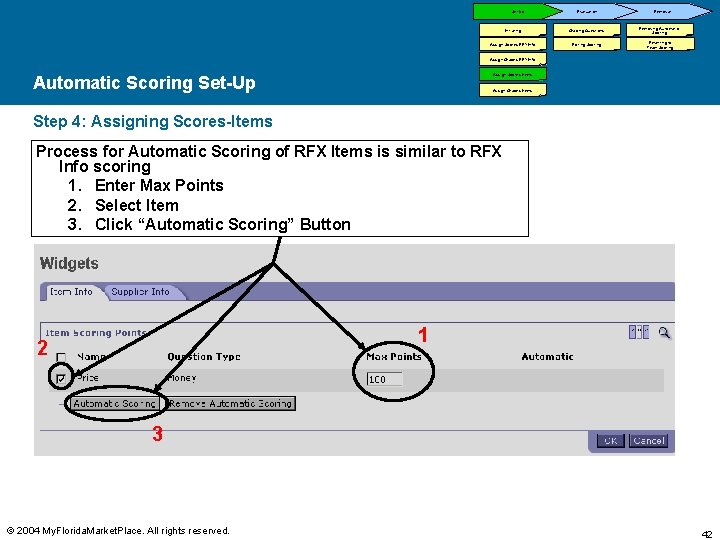
Set-Up Evaluation Initiating Grading Questions Assign Scores-RFX Info Editing Scoring Removal Removing Automatic Scoring Reverting to Team Scoring Assign Grades-RFX Info Assign Scores-Items Automatic Scoring Set-Up Assign Grades-Items Step 4: Assigning Scores-Items Process for Automatic Scoring of RFX Items is similar to RFX Info scoring 1. Enter Max Points 2. Select Item 3. Click “Automatic Scoring” Button 1 2 3 © 2004 My. Florida. Market. Place. All rights reserved. 42
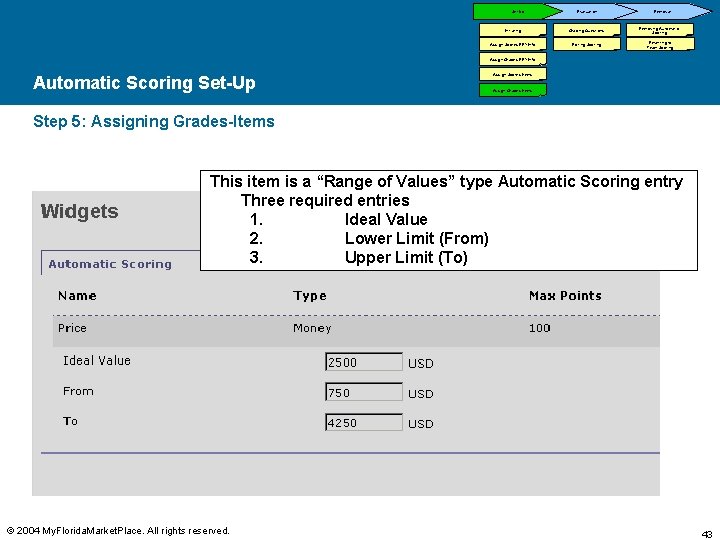
Set-Up Evaluation Initiating Grading Questions Assign Scores-RFX Info Editing Scoring Removal Removing Automatic Scoring Reverting to Team Scoring Assign Grades-RFX Info Automatic Scoring Set-Up Assign Scores-Items Assign Grades-Items Step 5: Assigning Grades-Items This item is a “Range of Values” type Automatic Scoring entry Three required entries 1. Ideal Value 2. Lower Limit (From) 3. Upper Limit (To) © 2004 My. Florida. Market. Place. All rights reserved. 43
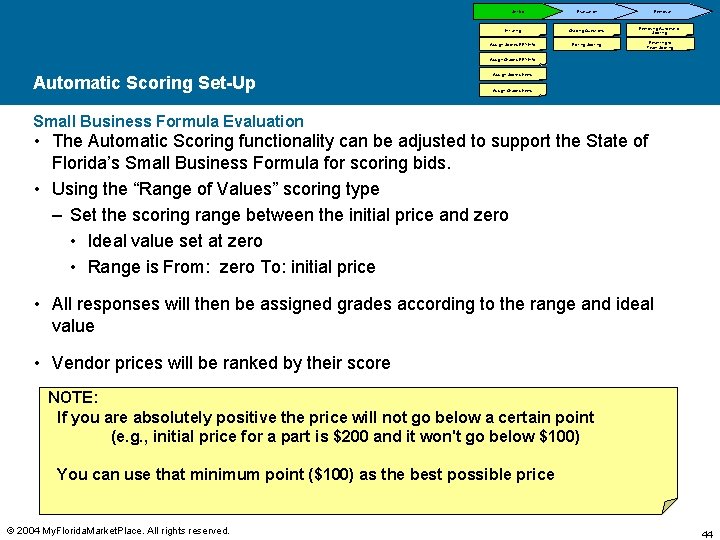
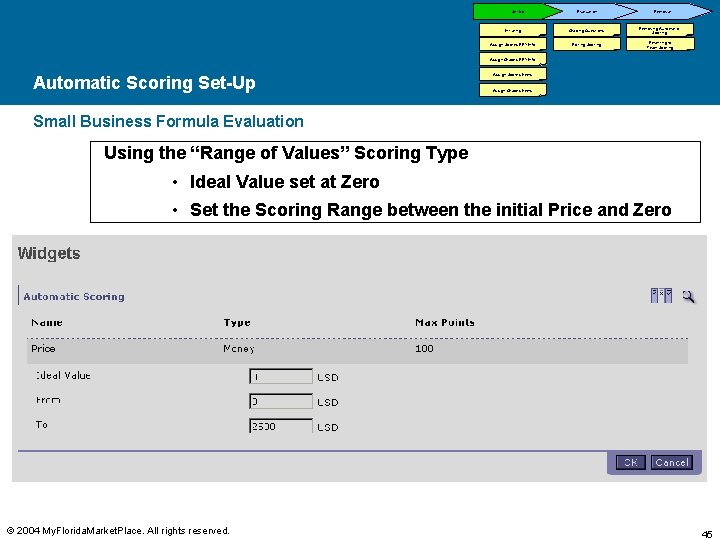
Set-Up Evaluation Initiating Grading Questions Assign Scores-RFX Info Editing Scoring Removal Removing Automatic Scoring Reverting to Team Scoring Assign Grades-RFX Info Automatic Scoring Set-Up Assign Scores-Items Assign Grades-Items Small Business Formula Evaluation • The Automatic Scoring functionality can be adjusted to support the State of Florida’s Small Business Formula for scoring bids. • Using the “Range of Values” scoring type – Set the scoring range between the initial price and zero • Ideal value set at zero • Range is From: zero To: initial price • All responses will then be assigned grades according to the range and ideal value • Vendor prices will be ranked by their score NOTE: If you are absolutely positive the price will not go below a certain point (e. g. , initial price for a part is $200 and it won't go below $100) You can use that minimum point ($100) as the best possible price © 2004 My. Florida. Market. Place. All rights reserved. 44
Set-Up Evaluation Initiating Grading Questions Assign Scores-RFX Info Editing Scoring Removal Removing Automatic Scoring Reverting to Team Scoring Assign Grades-RFX Info Automatic Scoring Set-Up Assign Scores-Items Assign Grades-Items Small Business Formula Evaluation Using the “Range of Values” Scoring Type • Ideal Value set at Zero • Set the Scoring Range between the initial Price and Zero © 2004 My. Florida. Market. Place. All rights reserved. 45
Set-Up Evaluation Initiating Grading Questions Assign Scores-RFX Info Editing Scoring Removal Removing Automatic Scoring Reverting to Team Scoring Assign Grades-RFX Info Automatic Scoring Evaluation Assign Scores-Items Assign Grades-Items Step 1: Grading Bids/Responses • Event is launched as normal • Team member permissions can be edited while the event is in an open status – Scoring criteria cannot be edited unless Team member has full RFX editing permissions (Slide 17 and 18) • Event stops accepting bids/responses • Once event moves to a Pending Selection status, Grades cannot be edited, but assigned scoring criteria can be edited (Slide 51) • Grades and have been assigned and scores calculated automatically as the event ran. (Slide 51) © 2004 My. Florida. Market. Place. All rights reserved. 46
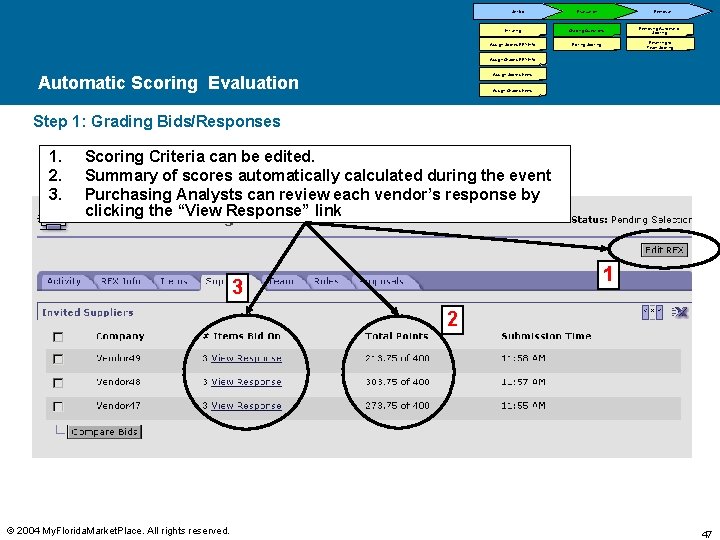
Set-Up Evaluation Removal Initiating Grading Questions Assign Scores-RFX Info Editing Scoring Removing Automatic Scoring Reverting to Team Scoring Assign Grades-RFX Info Assign Scores-Items Automatic Scoring Evaluation Assign Grades-Items Step 1: Grading Bids/Responses 1. 2. 3. Scoring Criteria can be edited. Summary of scores automatically calculated during the event Purchasing Analysts can review each vendor’s response by clicking the “View Response” link 1 3 2 © 2004 My. Florida. Market. Place. All rights reserved. 47
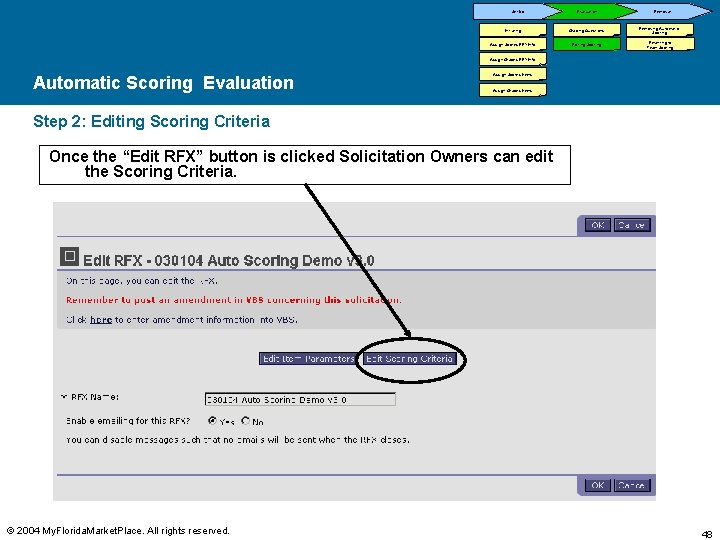
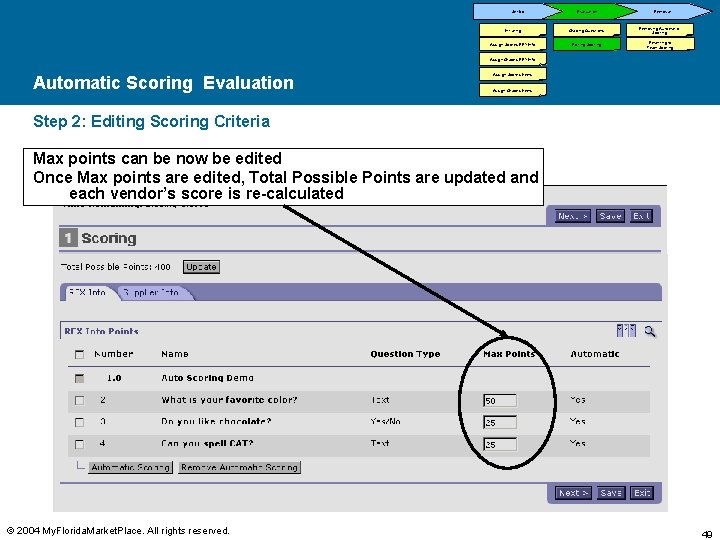
Set-Up Evaluation Initiating Grading Questions Assign Scores-RFX Info Editing Scoring Removal Removing Automatic Scoring Reverting to Team Scoring Assign Grades-RFX Info Automatic Scoring Evaluation Assign Scores-Items Assign Grades-Items Step 2: Editing Scoring Criteria Once the “Edit RFX” button is clicked Solicitation Owners can edit the Scoring Criteria. © 2004 My. Florida. Market. Place. All rights reserved. 48
Set-Up Evaluation Initiating Grading Questions Assign Scores-RFX Info Editing Scoring Removal Removing Automatic Scoring Reverting to Team Scoring Assign Grades-RFX Info Automatic Scoring Evaluation Assign Scores-Items Assign Grades-Items Step 2: Editing Scoring Criteria Max points can be now be edited Once Max points are edited, Total Possible Points are updated and each vendor’s score is re-calculated © 2004 My. Florida. Market. Place. All rights reserved. 49
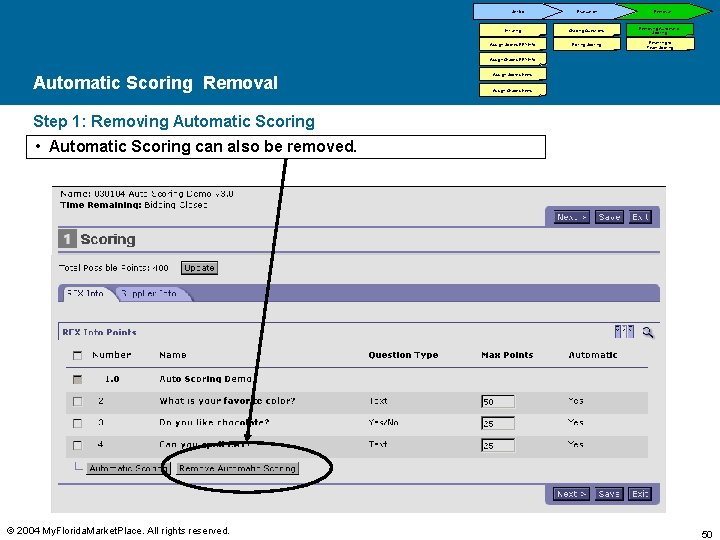
Set-Up Evaluation Initiating Grading Questions Assign Scores-RFX Info Editing Scoring Removal Removing Automatic Scoring Reverting to Team Scoring Assign Grades-RFX Info Automatic Scoring Removal Assign Scores-Items Assign Grades-Items Step 1: Removing Automatic Scoring • Automatic Scoring can also be removed. © 2004 My. Florida. Market. Place. All rights reserved. 50
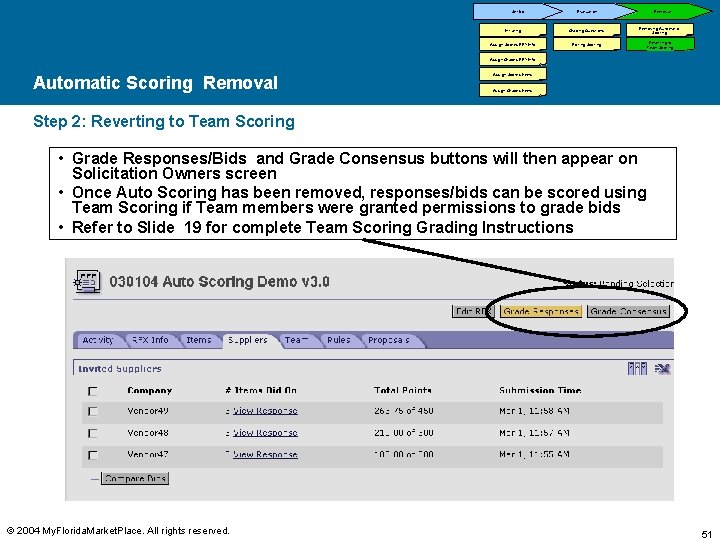
Set-Up Evaluation Initiating Grading Questions Assign Scores-RFX Info Editing Scoring Removal Removing Automatic Scoring Reverting to Team Scoring Assign Grades-RFX Info Automatic Scoring Removal Assign Scores-Items Assign Grades-Items Step 2: Reverting to Team Scoring • Grade Responses/Bids and Grade Consensus buttons will then appear on Solicitation Owners screen • Once Auto Scoring has been removed, responses/bids can be scored using Team Scoring if Team members were granted permissions to grade bids • Refer to Slide 19 for complete Team Scoring Grading Instructions © 2004 My. Florida. Market. Place. All rights reserved. 51
Contents Overview Team Scoring Automatic Scoring Resources © 2004 My. Florida. Market. Place. All rights reserved. 52
If you have any questions after completing this training, please contact your Agency Sourcing Liaison or the My. Florida. Market. Place Customer Service Desk. Available Resources • My. Florida. Market. Place Sourcing Tool Buyer Help Page – https: //marketplace. myflorida. com/buyer_solicitation_help. htm • My. Florida. Market. Place Customer Service Desk – 1 -866 -FLA-EPRO (1 -866 -352 -3776) – Available Mon-Fri between 8: 00 AM and 5: 30 PM (except holidays) © 2004 My. Florida. Market. Place. All rights reserved. 53