
SOSE 2017 Step for Paper Registration and Payment
- Slides: 8
SOSE 2017 Step for Paper Registration and Payment, Copyright
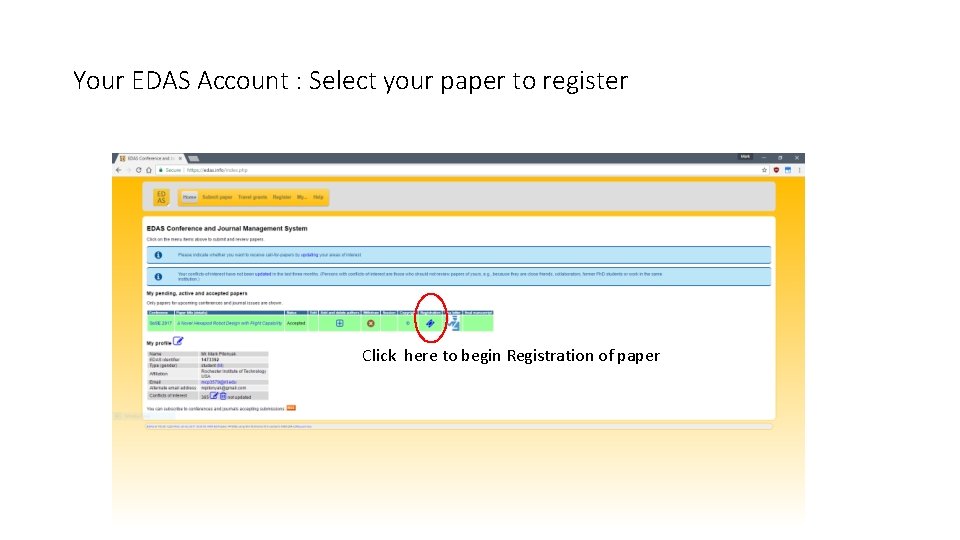
Your EDAS Account : Select your paper to register Click here to begin Registration of paper
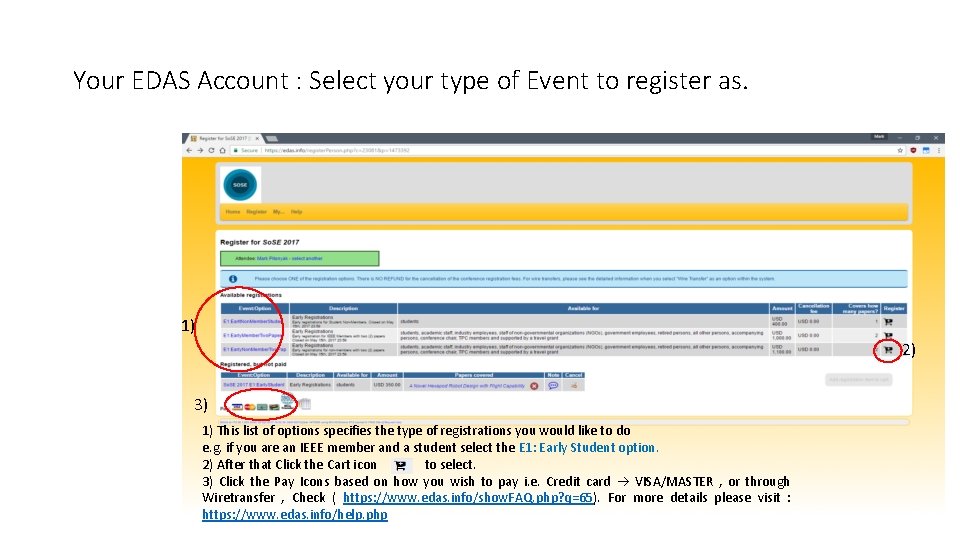
Your EDAS Account : Select your type of Event to register as. 1) 2) 3) 1) This list of options specifies the type of registrations you would like to do e. g. if you are an IEEE member and a student select the E 1: Early Student option. 2) After that Click the Cart icon to select. 3) Click the Pay Icons based on how you wish to pay i. e. Credit card VISA/MASTER , or through Wiretransfer , Check ( https: //www. edas. info/show. FAQ. php? q=65). For more details please visit : https: //www. edas. info/help. php
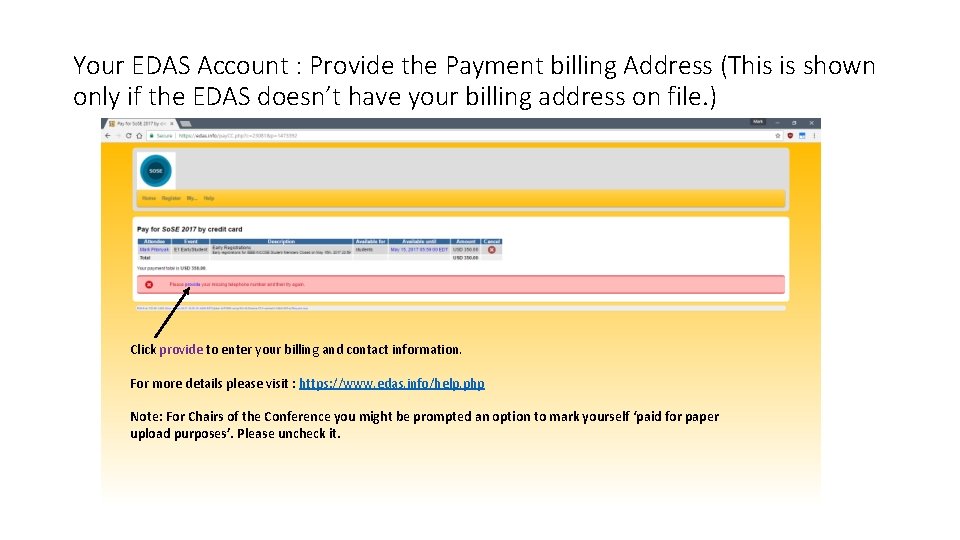
Your EDAS Account : Provide the Payment billing Address (This is shown only if the EDAS doesn’t have your billing address on file. ) Click provide to enter your billing and contact information. For more details please visit : https: //www. edas. info/help. php Note: For Chairs of the Conference you might be prompted an option to mark yourself ‘paid for paper upload purposes’. Please uncheck it.
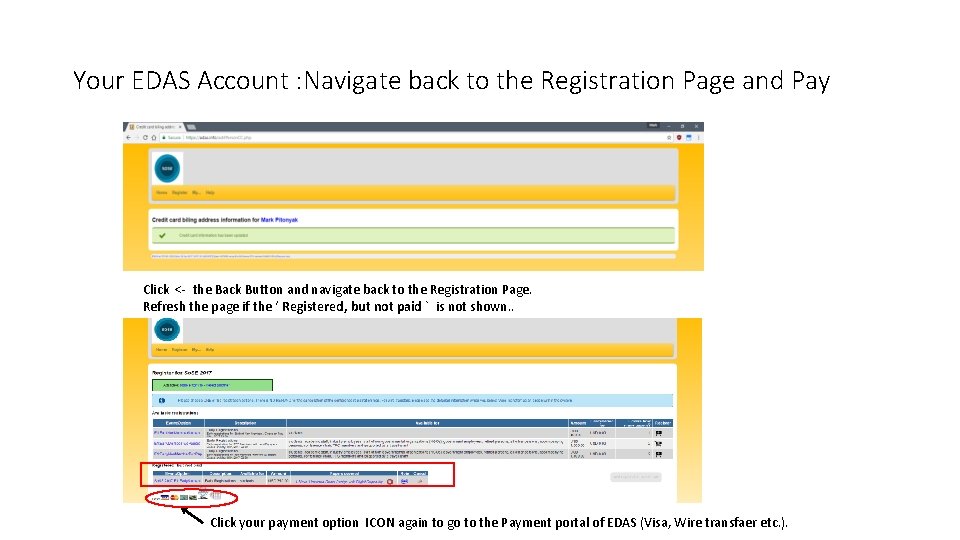
Your EDAS Account : Navigate back to the Registration Page and Pay Click <- the Back Button and navigate back to the Registration Page. Refresh the page if the ‘ Registered, but not paid ` is not shown. . Click your payment option ICON again to go to the Payment portal of EDAS (Visa, Wire transfaer etc. ).
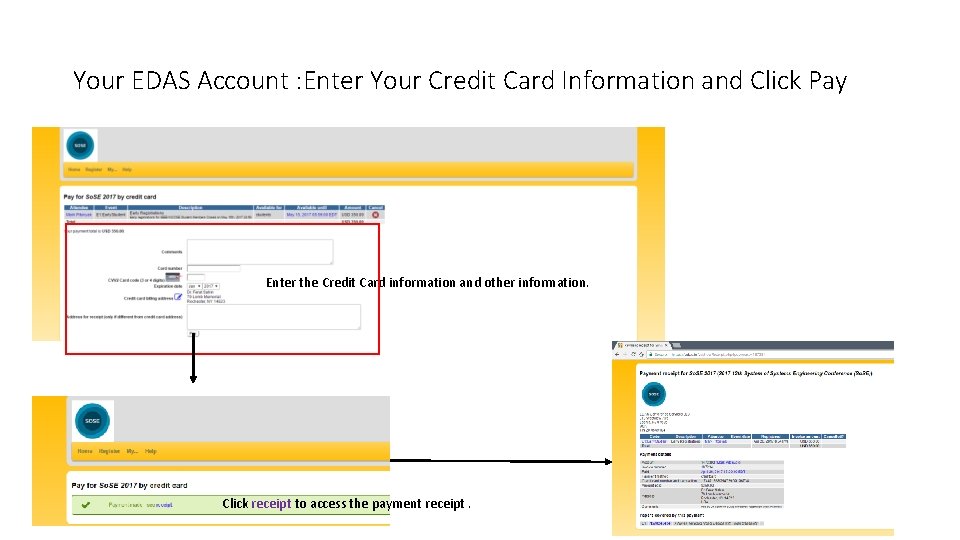
Your EDAS Account : Enter Your Credit Card Information and Click Pay Enter the Credit Card information and other information. Click receipt to access the payment receipt.
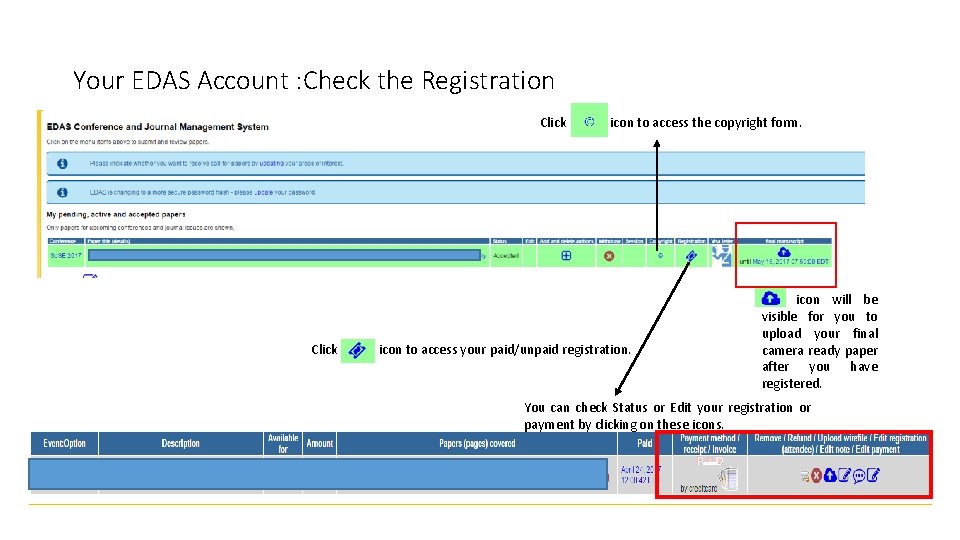
Your EDAS Account : Check the Registration Click icon to access the copyright form. icon to access your paid/unpaid registration. This icon will be visible for you to upload your final camera ready paper after you have registered. You can check Status or Edit your registration or payment by clicking on these icons.
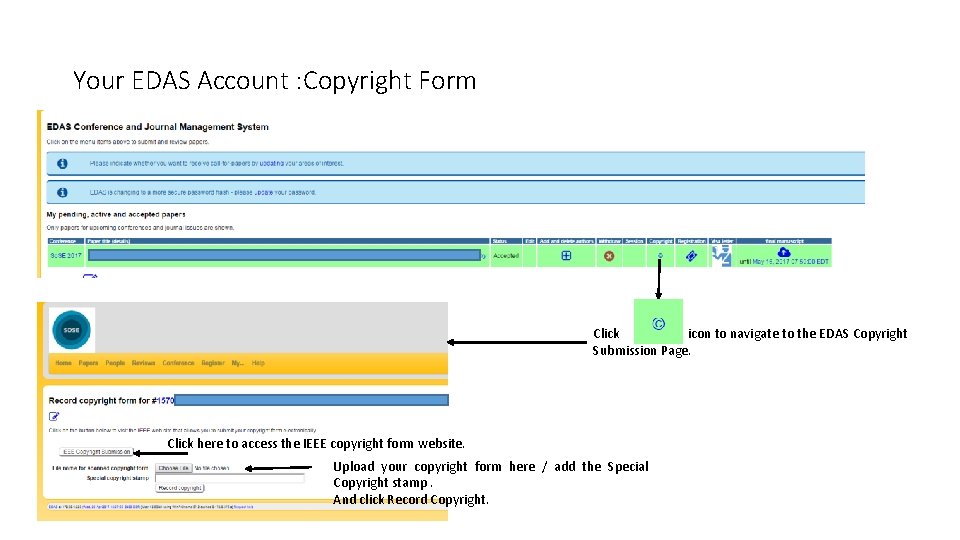
Your EDAS Account : Copyright Form Click icon to navigate to the EDAS Copyright Submission Page. Click here to access the IEEE copyright form website. Upload your copyright form here / add the Special Copyright stamp. And click Record Copyright.