
Sonic Pi for Primary Schools Ben Davies Sarah
Sonic Pi for Primary Schools Ben Davies & Sarah Zaman CAS Master Teachers Thursday 21 st May 2015 ben. davies@computingatschool. org. uk sarah. zaman@computingatschool. org. uk @b 3 ndavi 3 s @sezzyann 72 @Comp. At. Sch
Session Aims Introduce Sonic Pi Software • Identify how it meets the requirements of the KS 2 Computing programme of study • Develop teaching approaches using the software • Demonstrate how Sonic Pi will be used at the Beats & Bytes event •
What is Sonic Pi? Free Music synthesizing software available for Raspberry Pi, Windows and Mac • • • Uses the programing language Ruby to create music Meets the requirements of the KS 2 computing programme of study (cs)
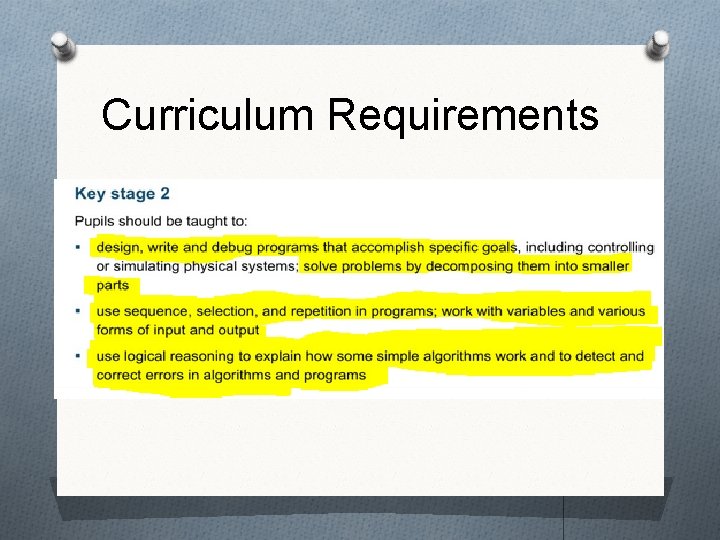
Curriculum Requirements
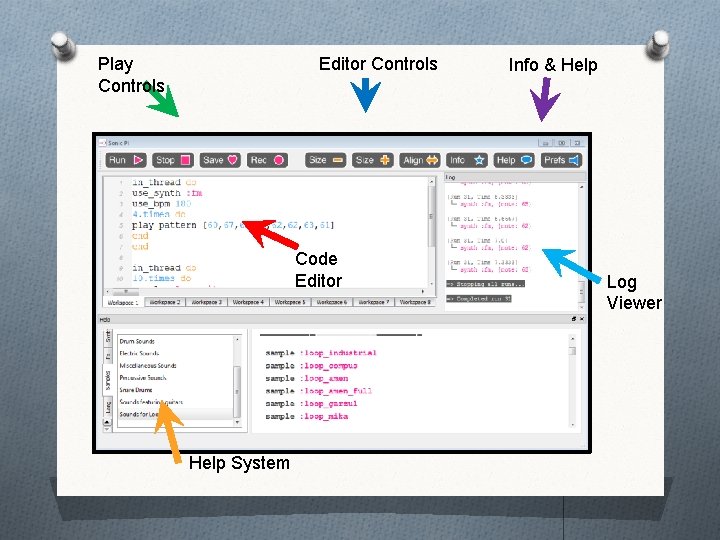
Editor Controls Play Controls Code Editor Help System Info & Help Log Viewer
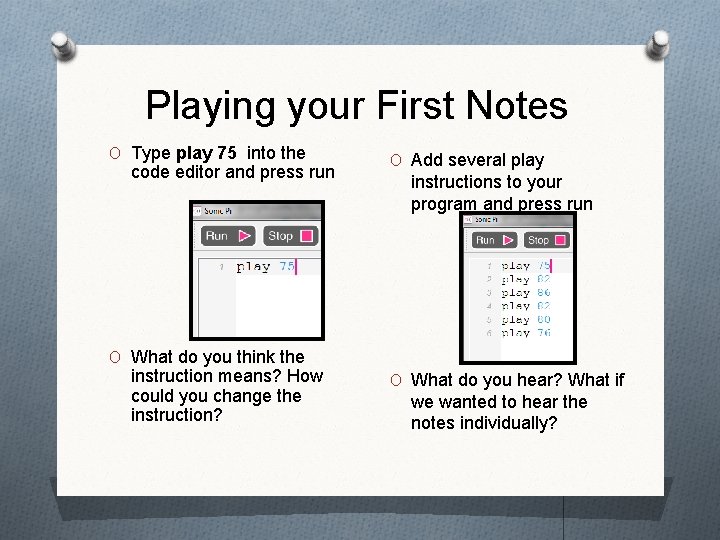
Playing your First Notes O Type play 75 into the code editor and press run O Add several play instructions to your program and press run O What do you think the instruction means? How could you change the instruction? O What do you hear? What if we wanted to hear the notes individually?
Syntax and Debugging O All programing languages O Sonic Pi contains many of O play 75 pley 75 75 play O Using children’s existing have their own set of predetermined language and structure O Some children find it easier to debug with Sonic Pi because they can hear the mistake and know where to look for the bug (logical reasoning) the functions that children have experienced in other languages. knowledge can be useful. “How would we do that in scratch/kodu/logo etc” O The error message line also identifies where a bug exists
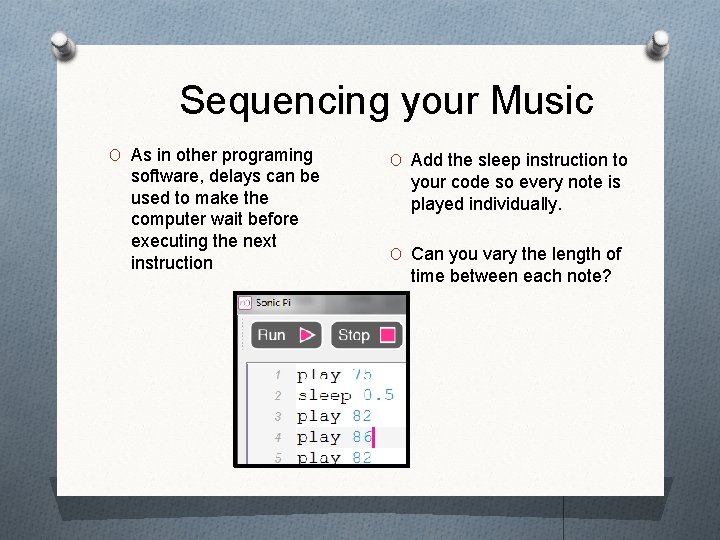
Sequencing your Music O As in other programing software, delays can be used to make the computer wait before executing the next instruction O Add the sleep instruction to your code so every note is played individually. O Can you vary the length of time between each note?
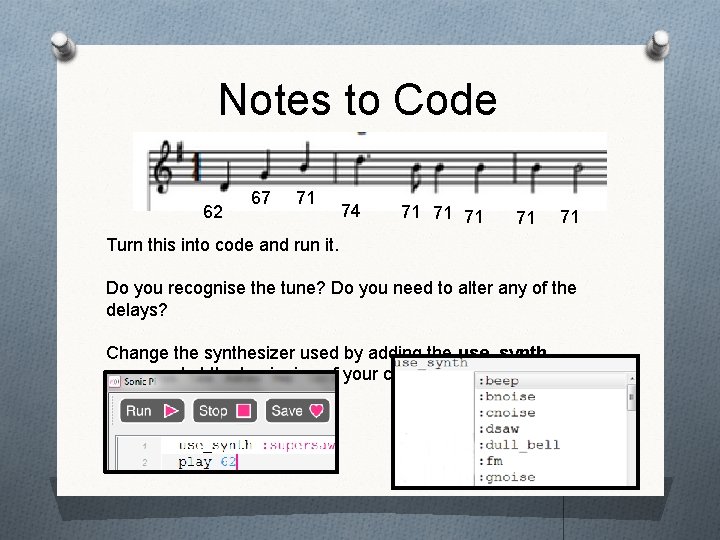
Notes to Code 62 67 71 74 71 71 71 Turn this into code and run it. Do you recognise the tune? Do you need to alter any of the delays? Change the synthesizer used by adding the use_synth command at the beginning of your code.
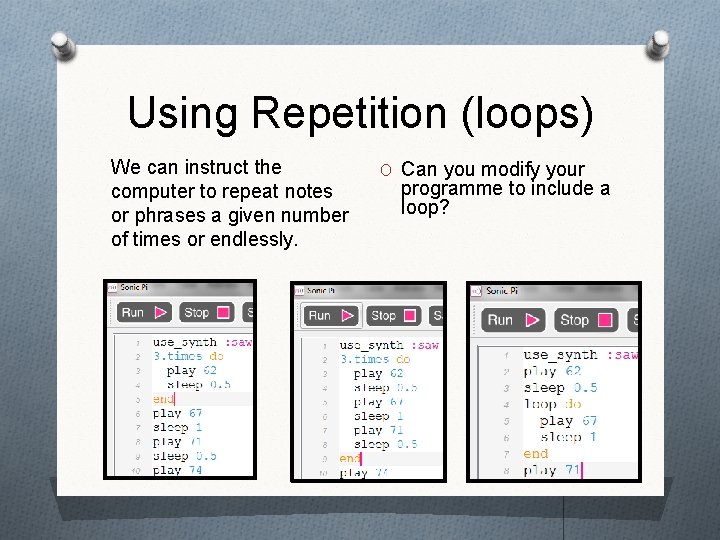
Using Repetition (loops) We can instruct the computer to repeat notes or phrases a given number of times or endlessly. O Can you modify your programme to include a loop?
Code Sabotage O A strategy to promote skill application, problem solving and debugging skills. O Make several changes to your code so it doesn’t run O One person move to another group. O The new member tries to fix the code so the code runs and sounds correct.
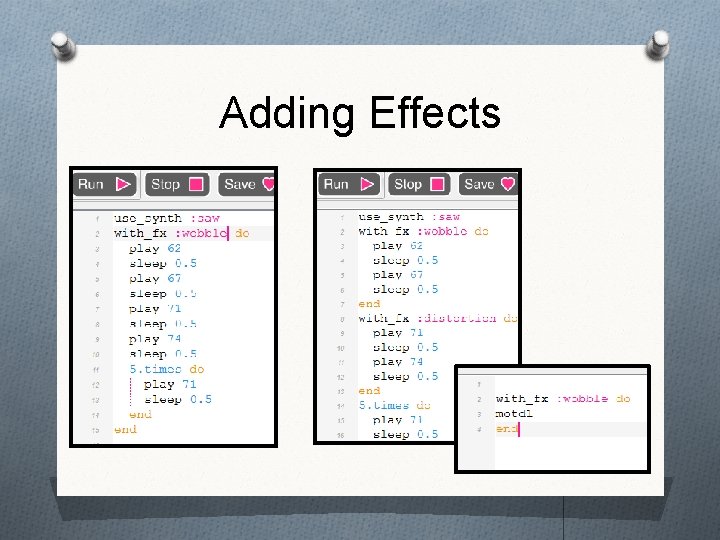
Adding Effects O You can add many effects to the music you have created using the with_fx command. O The intellisense feature will give you options. Children love playing about and seeing what works and what doesn’t O Effects can be added to all of your program, a selection of your program and even used with functions.
Adding Effects
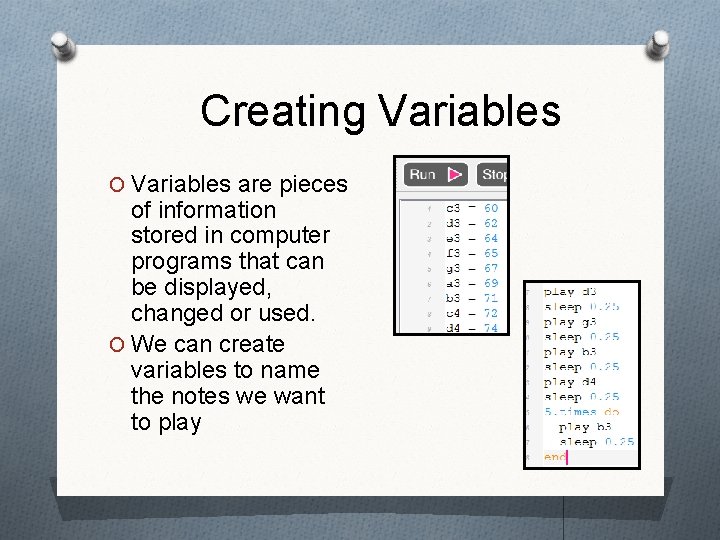
Creating Variables O Variables are pieces of information stored in computer programs that can be displayed, changed or used. O We can create variables to name the notes we want to play
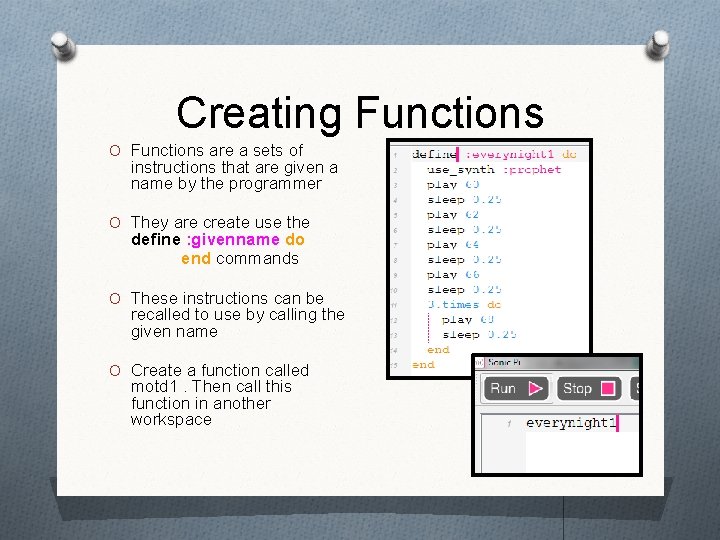
Creating Functions O Functions are a sets of instructions that are given a name by the programmer O They are create use the define : givenname do end commands O These instructions can be recalled to use by calling the given name O Create a function called motd 1. Then call this function in another workspace
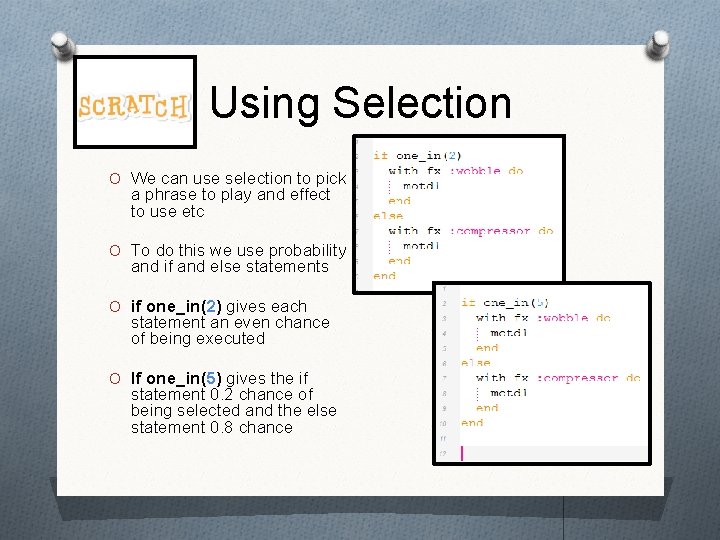
Using Selection O We can use selection to pick a phrase to play and effect to use etc O To do this we use probability and if and else statements O if one_in(2) gives each statement an even chance of being executed O If one_in(5) gives the if statement 0. 2 chance of being selected and the else statement 0. 8 chance
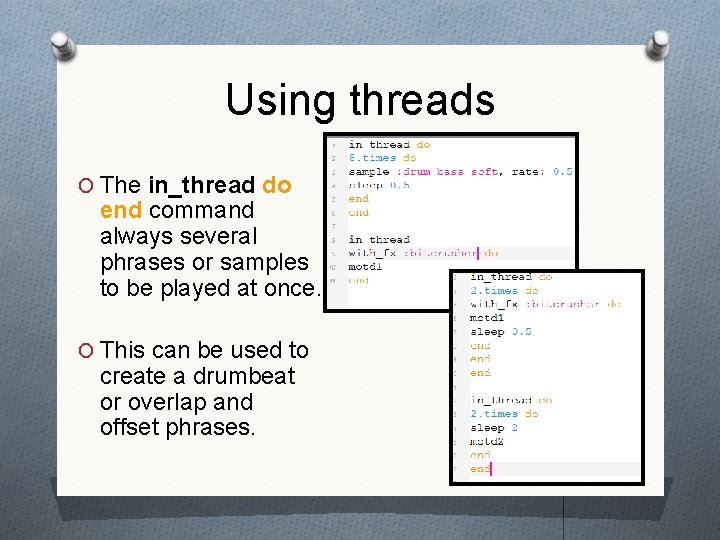
Using threads O The in_thread do end command always several phrases or samples to be played at once. O This can be used to create a drumbeat or overlap and offset phrases.
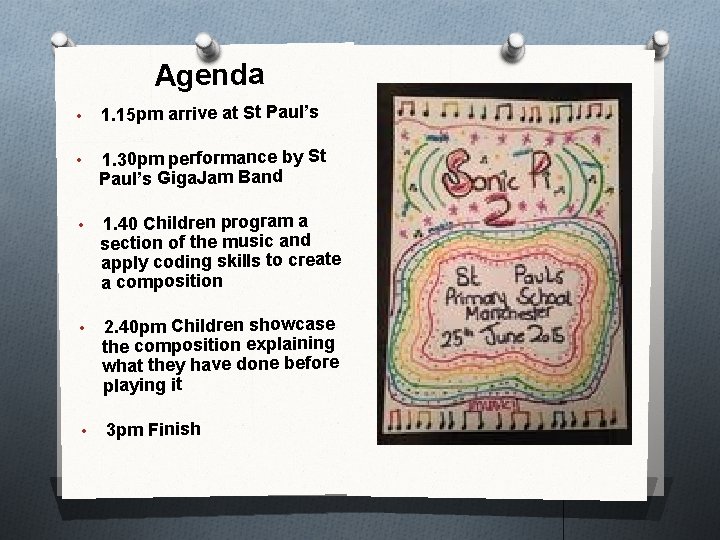
Agenda • 1. 15 pm arrive at St Paul’s • 1. 30 pm performance by St Paul’s Giga. Jam Band • 1. 40 Children program a section of the music and apply coding skills to create a composition • 2. 40 pm Children showcase the composition explaining what they have done before playing it • 3 pm Finish
What can I do to prepare? Download Sonic Pi Let children tinker with it Let groups use the Match of the Day activity to get familiar with Sonic Pi Use the Sonic Pi Plan and resources as a computing unit for Summer 2 Share your ideas with the group Contact Sarah or Ben if you have any questions
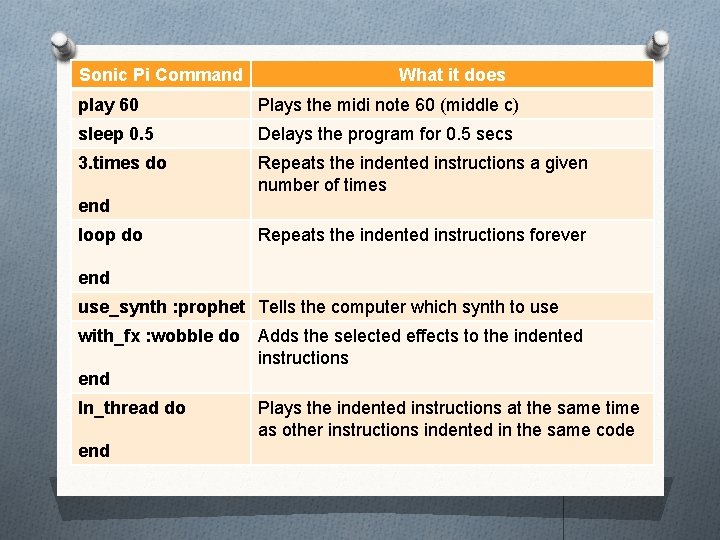
Sonic Pi Command What it does play 60 Plays the midi note 60 (middle c) sleep 0. 5 Delays the program for 0. 5 secs 3. times do Repeats the indented instructions a given number of times end loop do Repeats the indented instructions forever end use_synth : prophet Tells the computer which synth to use with_fx : wobble do Adds the selected effects to the indented instructions end In_thread do end Plays the indented instructions at the same time as other instructions indented in the same code
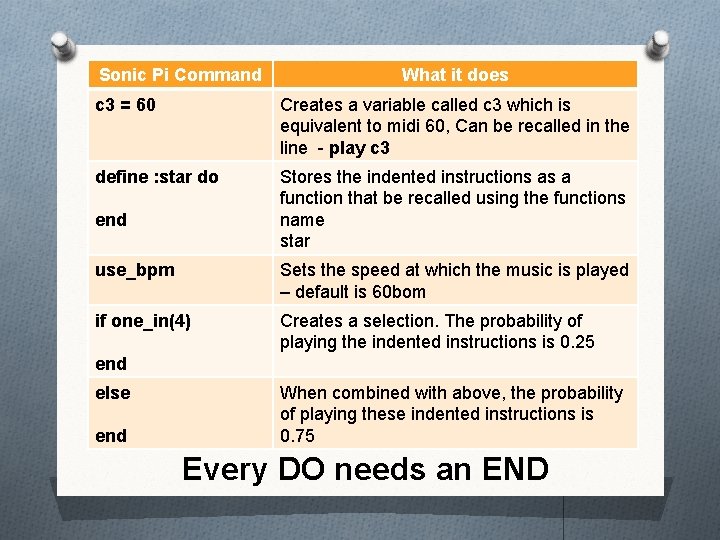
Sonic Pi Command What it does c 3 = 60 Creates a variable called c 3 which is equivalent to midi 60, Can be recalled in the line - play c 3 define : star do Stores the indented instructions as a function that be recalled using the functions name star end use_bpm Sets the speed at which the music is played – default is 60 bom if one_in(4) Creates a selection. The probability of playing the indented instructions is 0. 25 end else end When combined with above, the probability of playing these indented instructions is 0. 75 Every DO needs an END
Sonic Pi for Primary Schools Ben Davies & Sarah Zaman CAS Master Teachers Thursday 21 st May 2015 ben. davies@computingatschool. org. uk sarah. zaman@computingatschool. org. uk @b 3 ndavi 3 s @sezzyann 72 @Comp. At. Sch
CAS South Manchester Primary Hub Meetings Sally Jordan & Ben Davies CAS Master Teachers Acacias Primary School 4. 00 - 5. 30 pm Tuesday 23 rd June 2015 ben. davies@computingatschool. org. uk sally. jordan@computingatschool. org. uk @b 3 ndavi 3 s @slr 112 @Comp. At. Sch

- Slides: 24