
Some Linux Commands Connecting to a UnixLinux system
- Slides: 47
Some Linux Commands
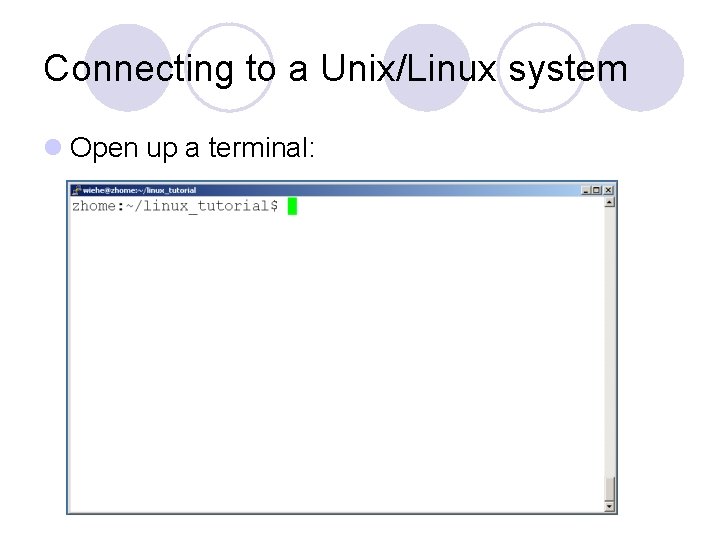
Connecting to a Unix/Linux system l Open up a terminal:
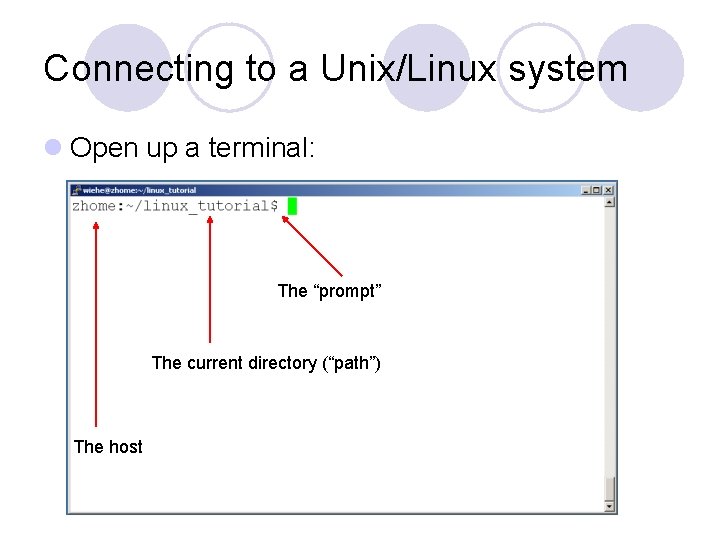
Connecting to a Unix/Linux system l Open up a terminal: The “prompt” The current directory (“path”) The host
What exactly is a “shell”? l After logging in, Linux/Unix starts another program called the shell l The shell interprets commands the user types and manages their execution l The shell communicates with the internal part of the operating system called the kernel l The most popular shells are: tcsh, korn, and bash l The differences are most times subtle l For this tutorial, we are using bash l Shell commands are CASE SENSITIVE!
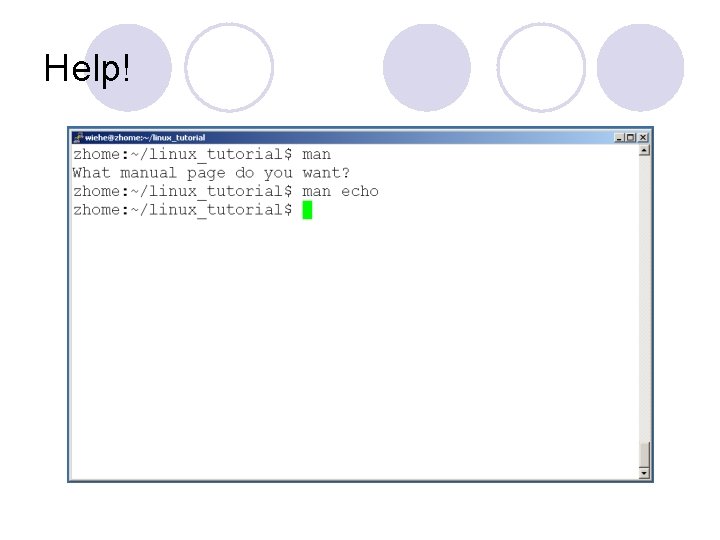
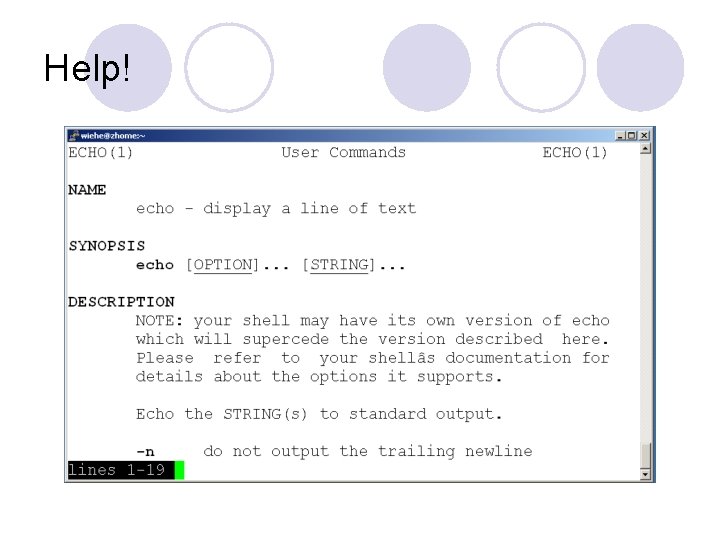
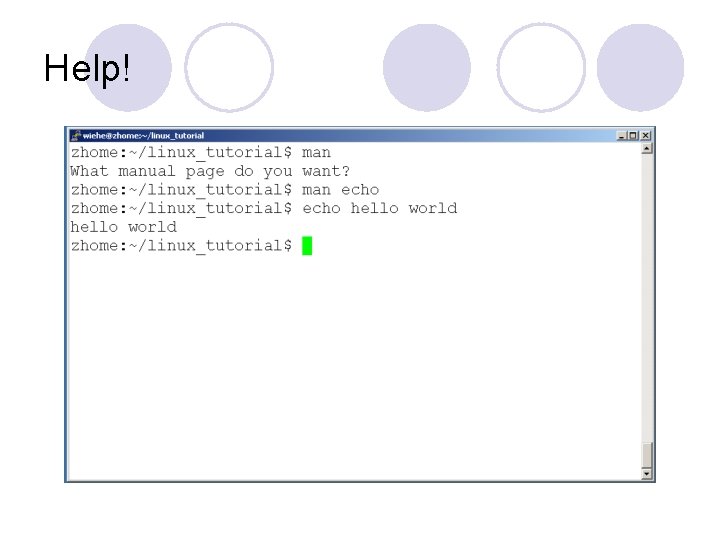
Help! l Whenever you need help with a command type “man” and the command name
Help!
Help!
Help!
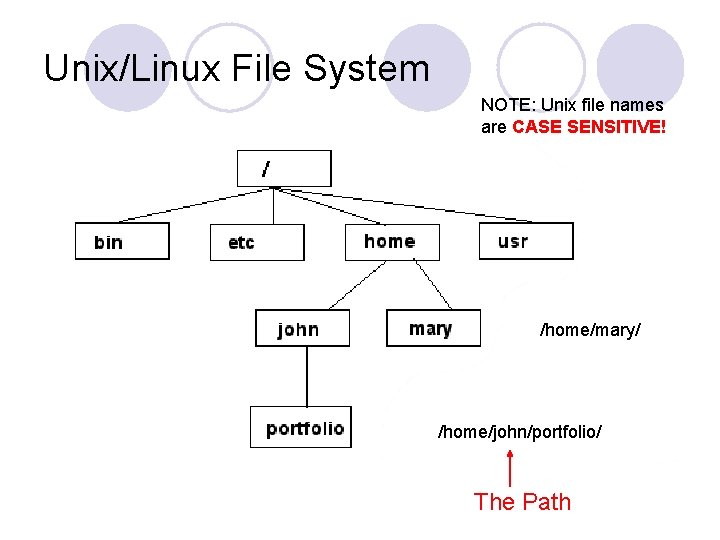
Unix/Linux File System NOTE: Unix file names are CASE SENSITIVE! /home/mary/ /home/john/portfolio/ The Path
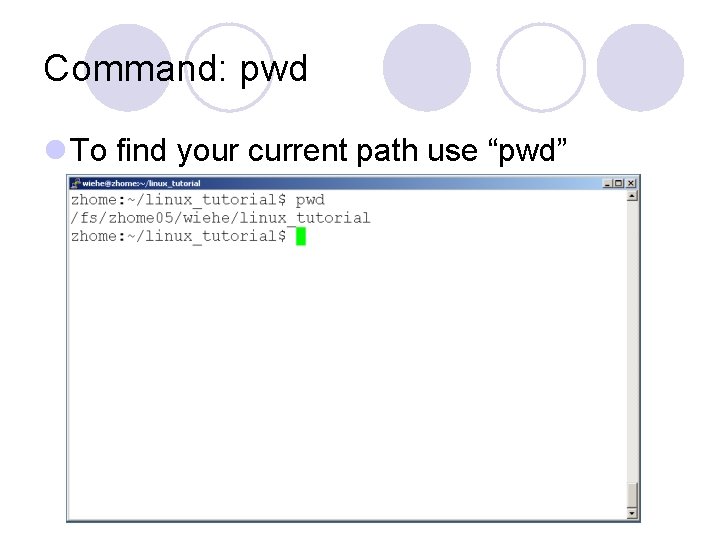
Command: pwd l To find your current path use “pwd”
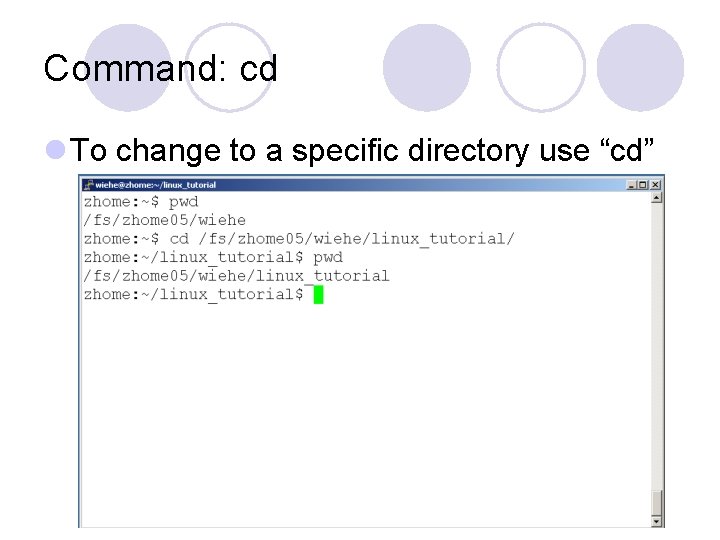
Command: cd l To change to a specific directory use “cd”
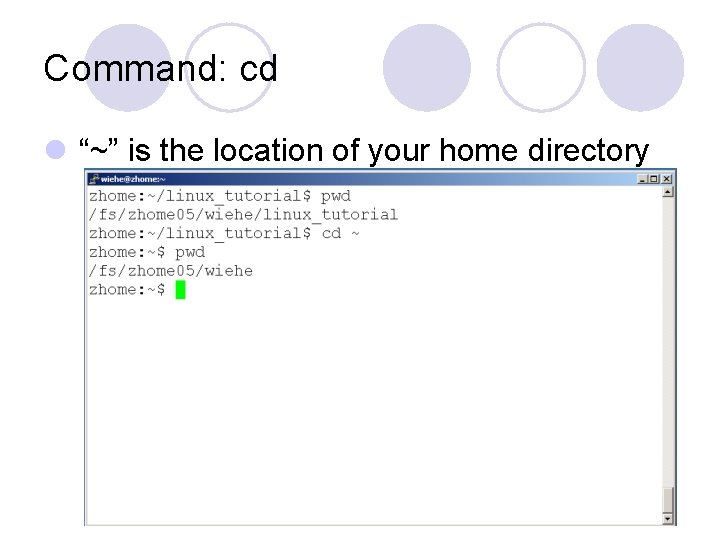
Command: cd l “~” is the location of your home directory
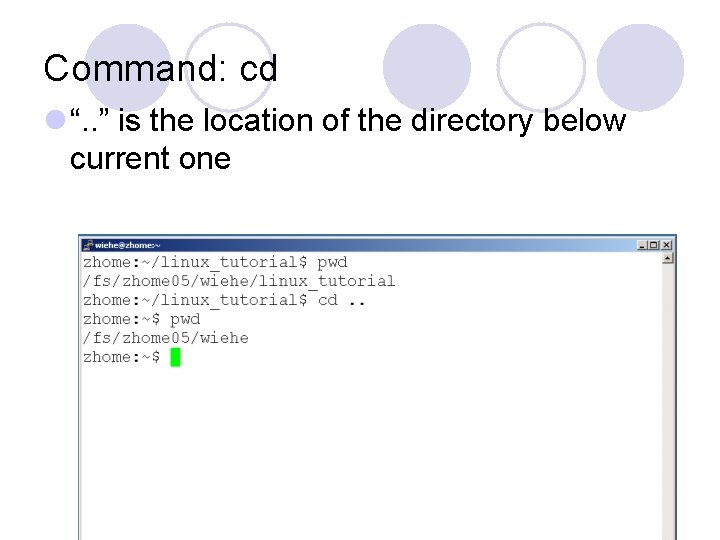
Command: cd l “. . ” is the location of the directory below current one
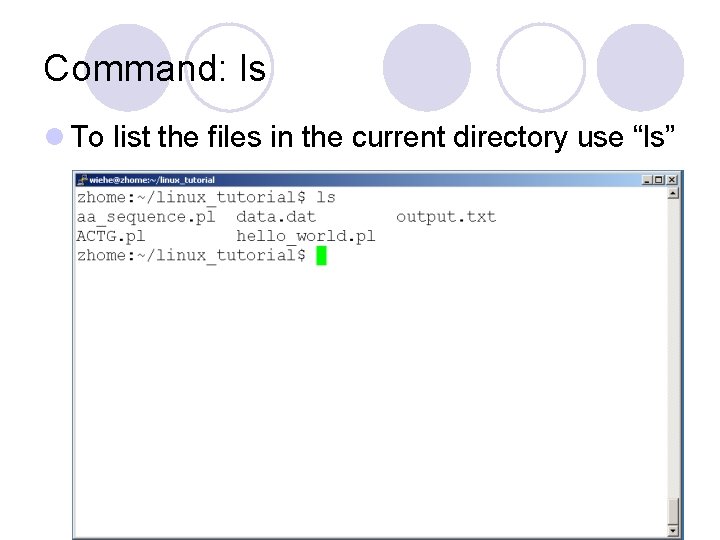
Command: ls l To list the files in the current directory use “ls”
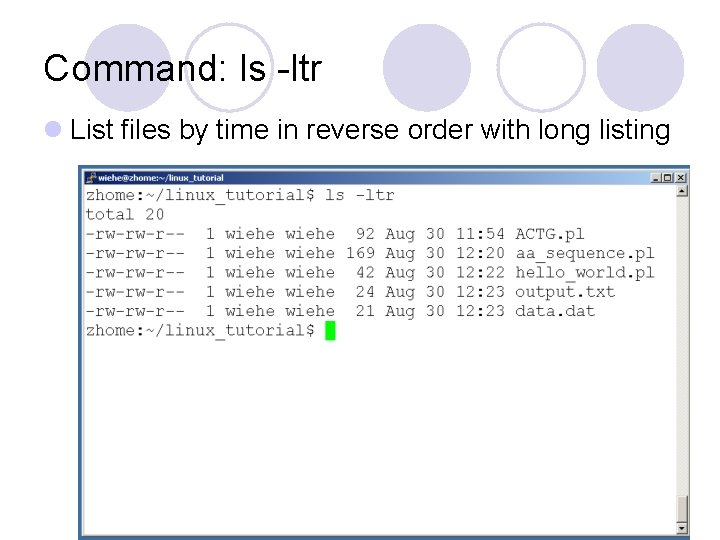
Command: ls l ls has many options ¡ -l long list (displays lots of info) ¡ -t sort by modification time ¡ -S sort by size ¡ -h list file sizes in human readable format ¡ -r reverse the order l “man ls” for more options l Options can be combined: “ls -ltr”
Command: ls -ltr l List files by time in reverse order with long listing
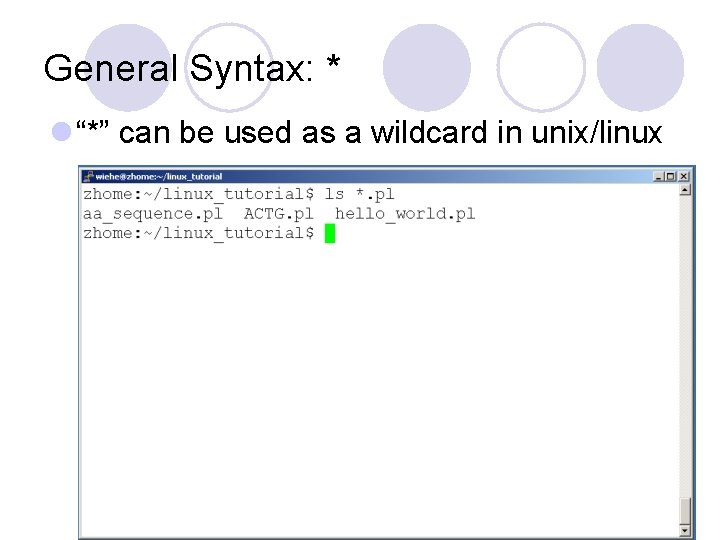
General Syntax: * l “*” can be used as a wildcard in unix/linux
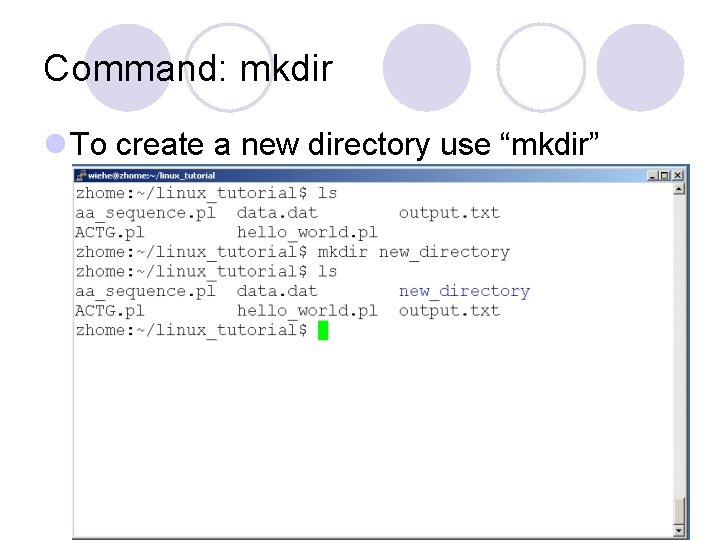
Command: mkdir l To create a new directory use “mkdir”
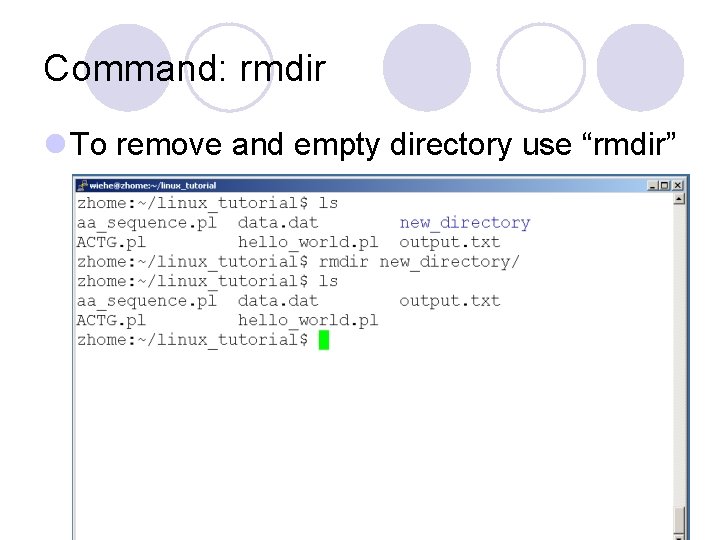
Command: rmdir l To remove and empty directory use “rmdir”
Displaying a file l Various ways to display a file in Unix ¡ cat ¡ less ¡ head ¡ tail
Command: cat l Dumps an entire file to standard output l Good for displaying short, simple files
Command: less l “less” displays a file, allowing forward/backward movement within it ¡return scrolls forward one line, space one page ¡y scrolls back one line, b one page l use “/” to search for a string l Press q to quit
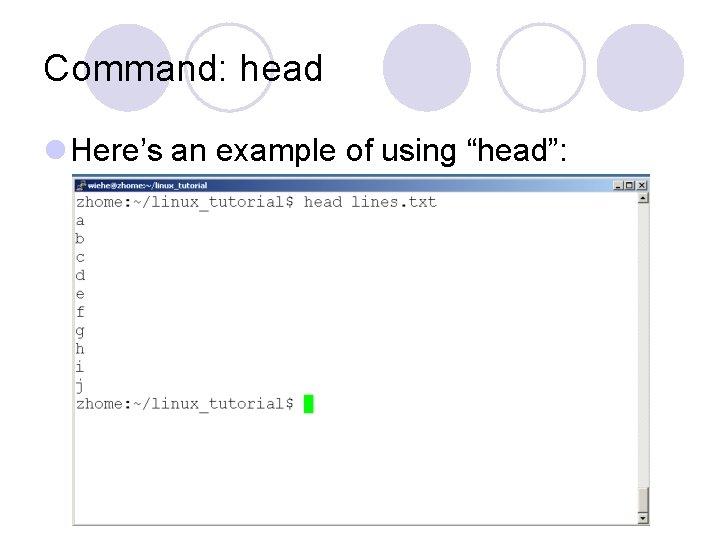
Command: head l “head” displays the top part of a file l By default it shows the first 10 lines l -n option allows you to change that l “head -n 50 file. txt” displays the first 50 lines of file. txt
Command: head l Here’s an example of using “head”:
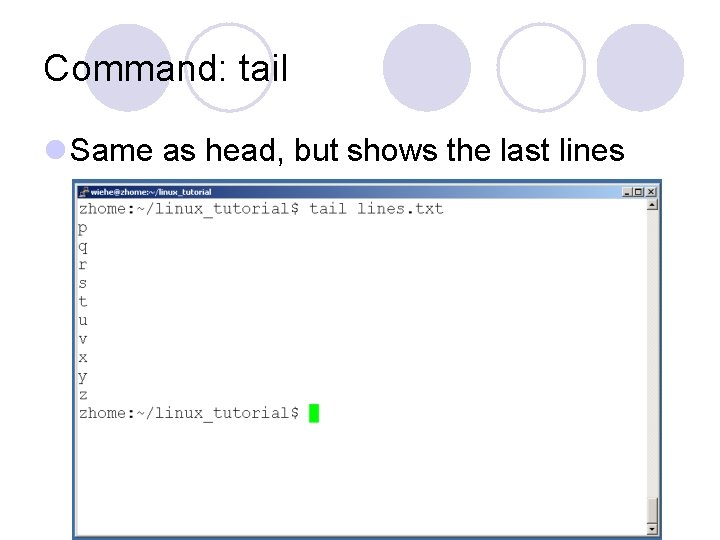
Command: tail l Same as head, but shows the last lines
File Commands l Copying a file: cp l Move or rename a file: mv l Remove a file: rm
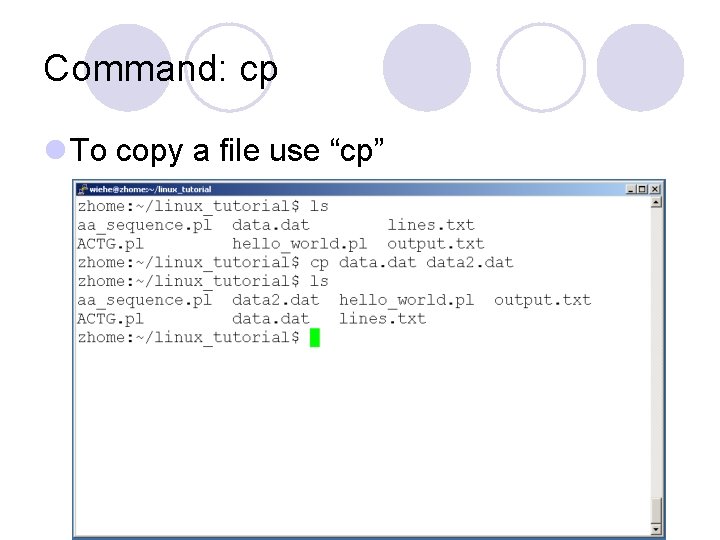
Command: cp l To copy a file use “cp”
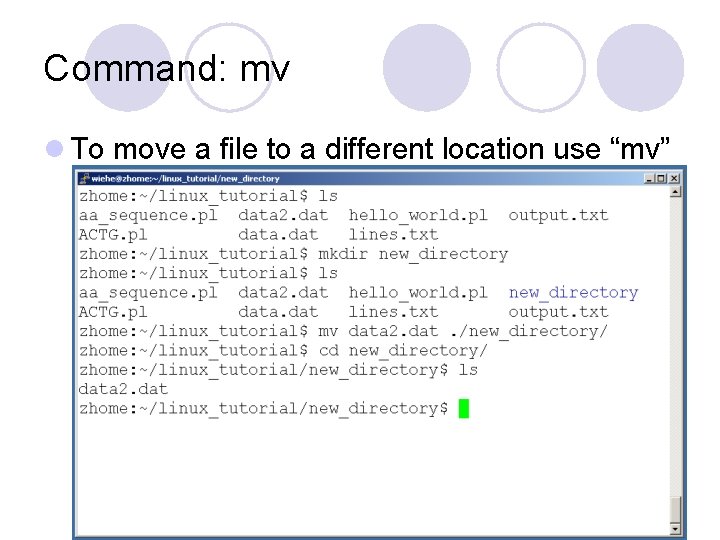
Command: mv l To move a file to a different location use “mv”
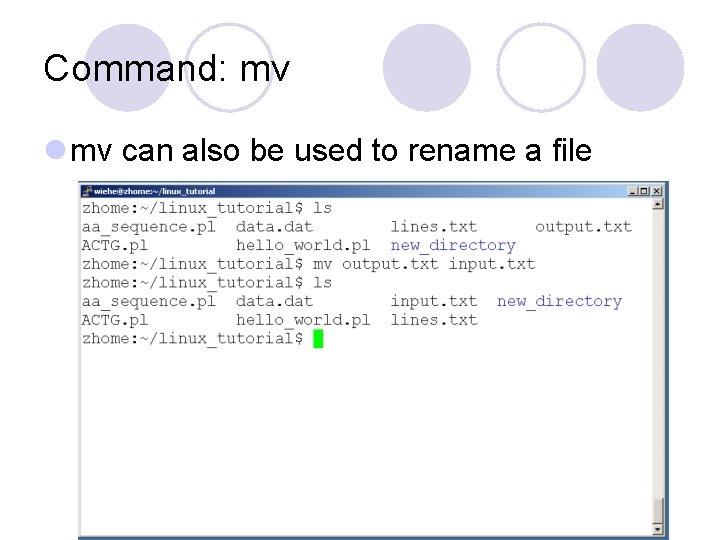
Command: mv l mv can also be used to rename a file
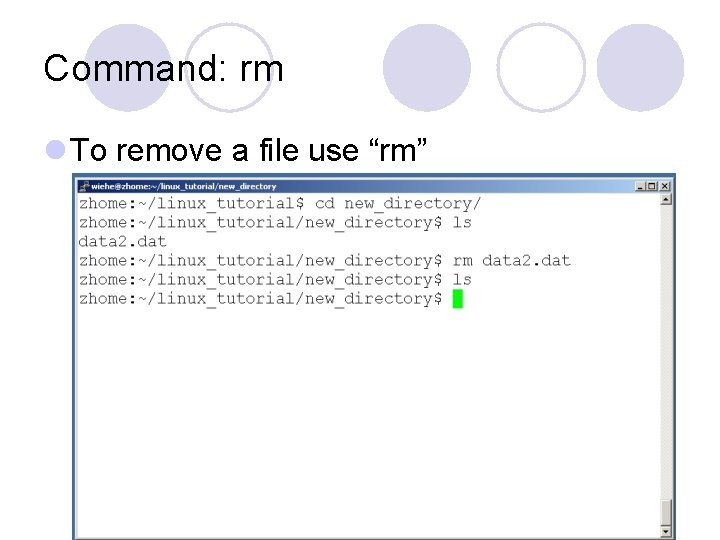
Command: rm l To remove a file use “rm”
Command: rm l To remove a file “recursively”: rm –r l Used to remove all files and directories l Be very careful, deletions are permanent in Unix/Linux
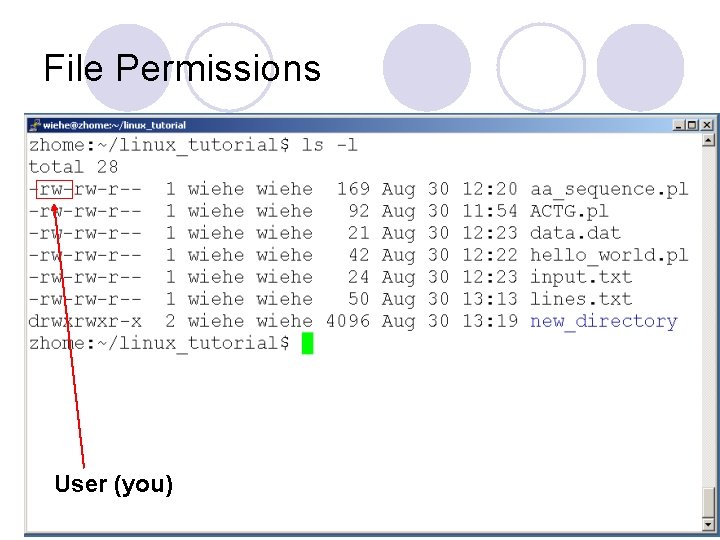
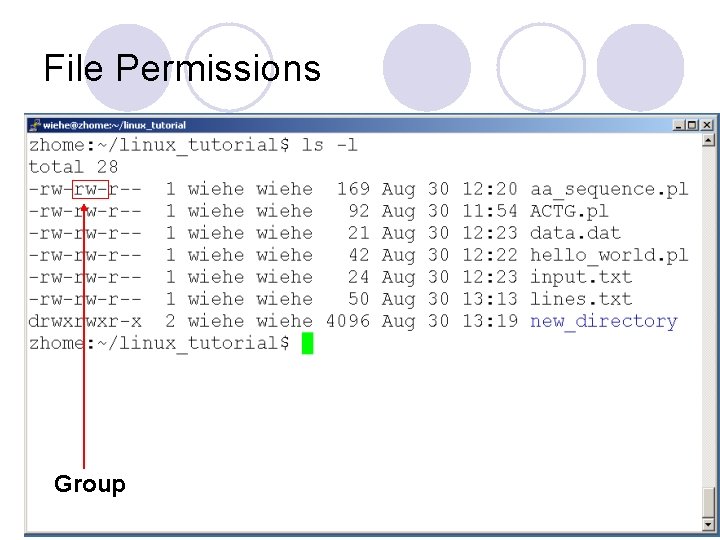
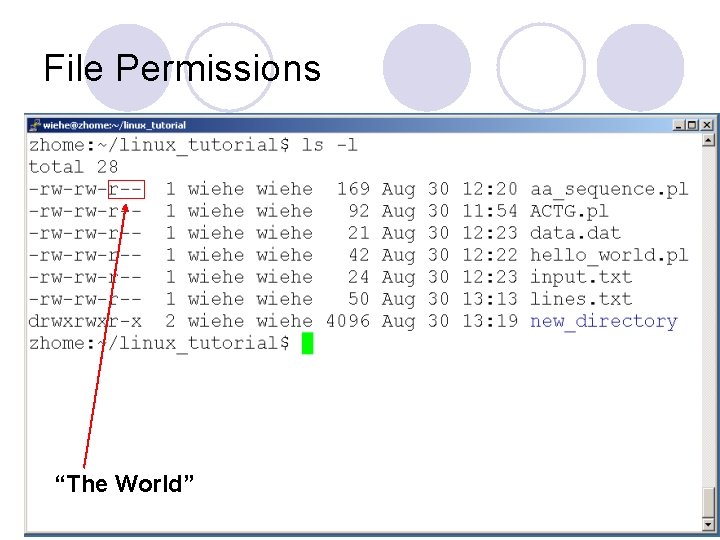
File permissions l Each file in Unix/Linux has an associated permission level l This allows the user to prevent others from reading/writing/executing their files or directories l Use “ls -l filename” to find the permission level of that file
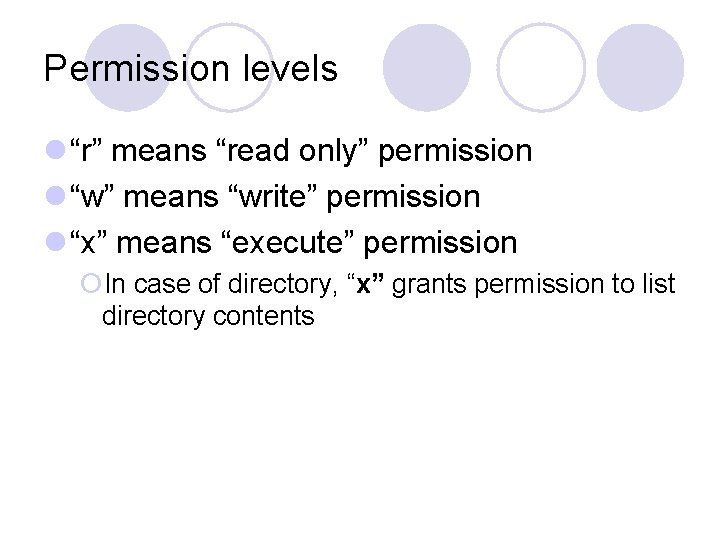
Permission levels l “r” means “read only” permission l “w” means “write” permission l “x” means “execute” permission ¡In case of directory, “x” grants permission to list directory contents
File Permissions User (you)
File Permissions Group
File Permissions “The World”
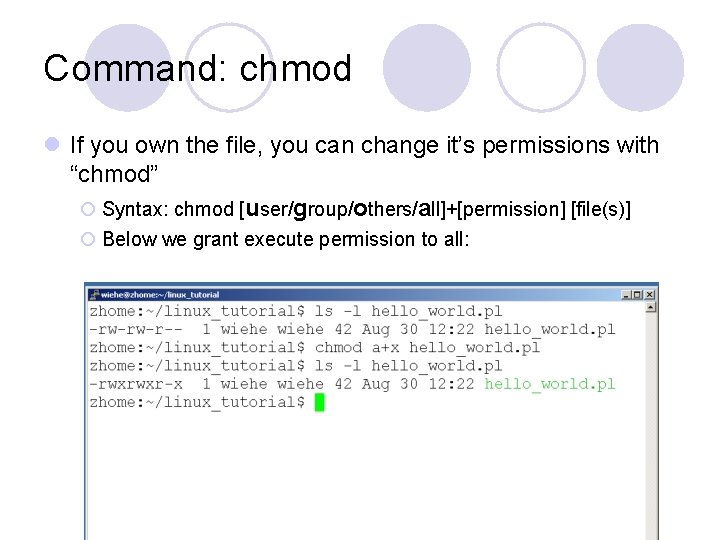
Command: chmod l If you own the file, you can change it’s permissions with “chmod” ¡ Syntax: chmod [user/group/others/all]+[permission] [file(s)] ¡ Below we grant execute permission to all:
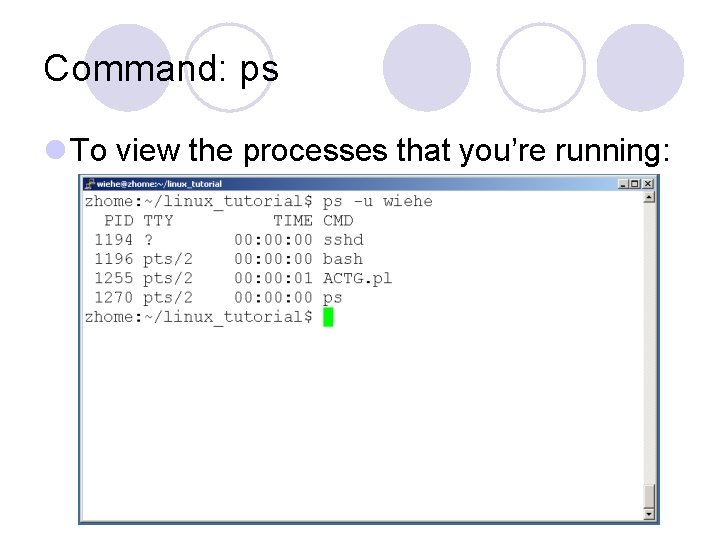
Command: ps l To view the processes that you’re running:
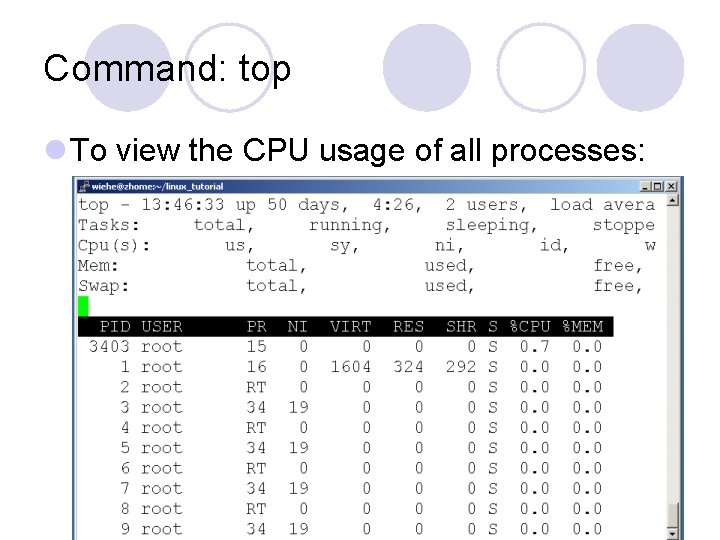
Command: top l To view the CPU usage of all processes:
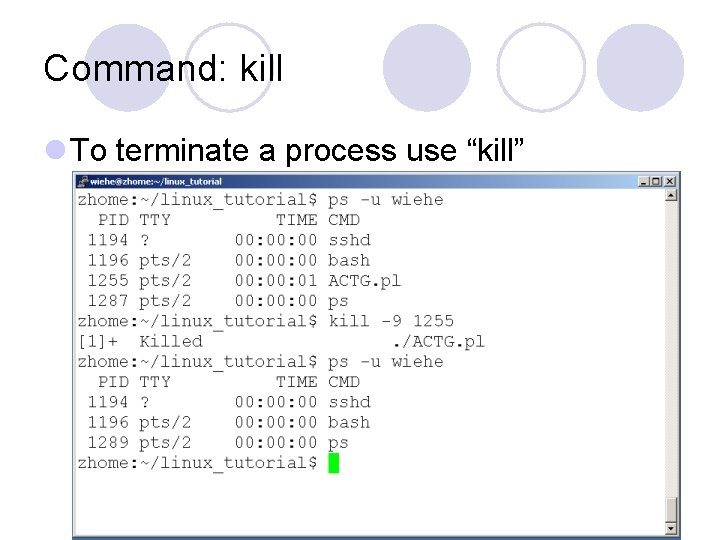
Command: kill l To terminate a process use “kill”
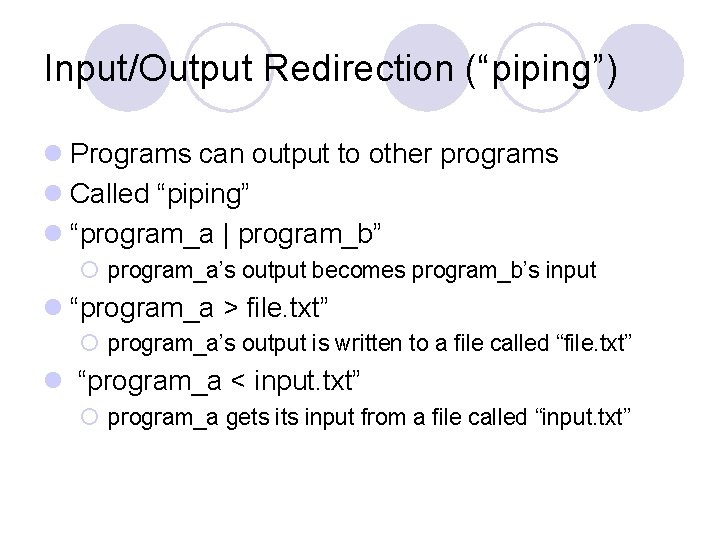
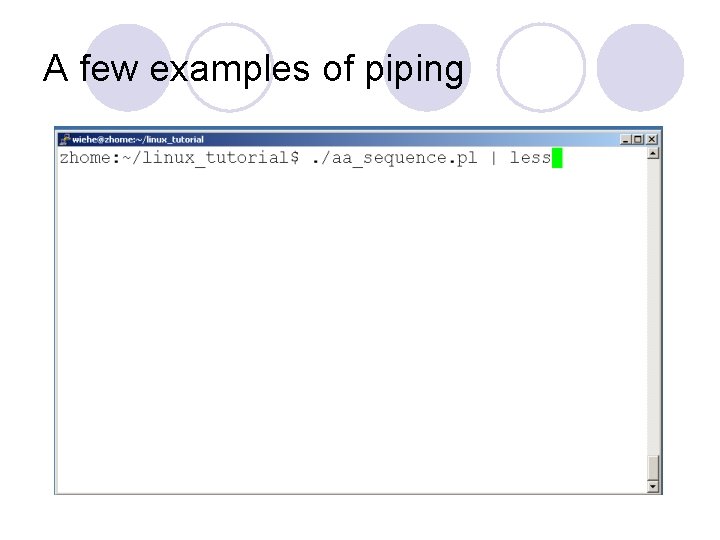
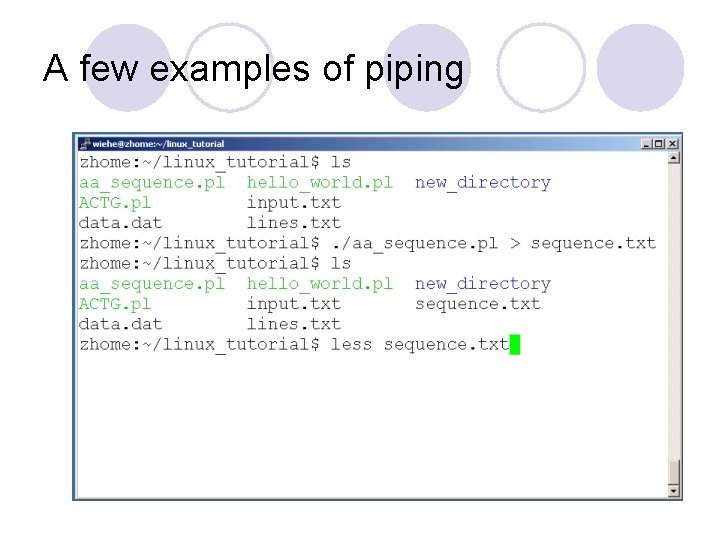
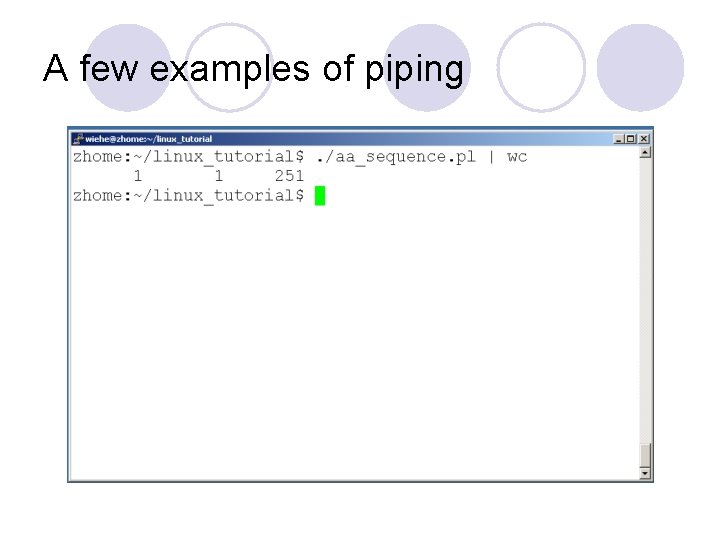
Input/Output Redirection (“piping”) l Programs can output to other programs l Called “piping” l “program_a | program_b” ¡ program_a’s output becomes program_b’s input l “program_a > file. txt” ¡ program_a’s output is written to a file called “file. txt” l “program_a < input. txt” ¡ program_a gets input from a file called “input. txt”
A few examples of piping
A few examples of piping
Command: wc l To count the characters, words, and lines in a file use “wc” l The first column in the output is lines, the second is words, and the last is characters
A few examples of piping
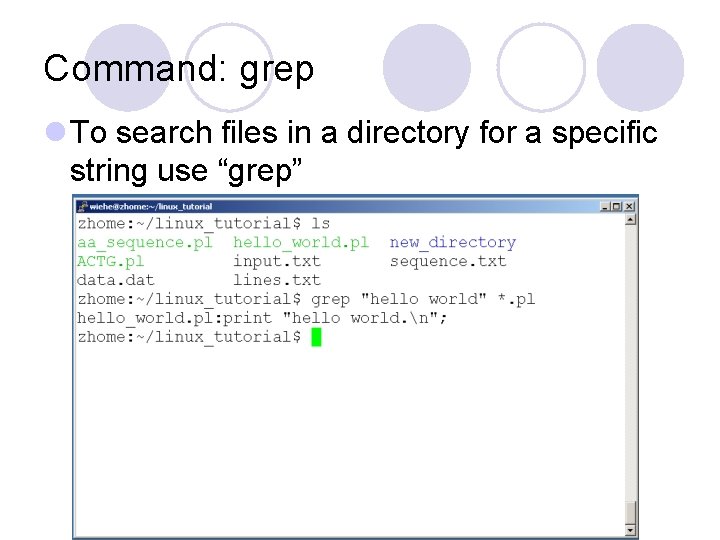
Command: grep l To search files in a directory for a specific string use “grep”
Command: diff l To compare to files for differences use “diff” ¡Try: diff /dev/null hello. txt ¡/dev/null is a special address -- it is always empty, and anything moved there is deleted