
Solid Edge ST 6 Training Creating detailed drawings
- Slides: 12
Solid Edge ST 6 Training Creating detailed drawings © 2013. Siemens Product Lifecycle Management Software Inc. All rights reserved Siemens PLM Software
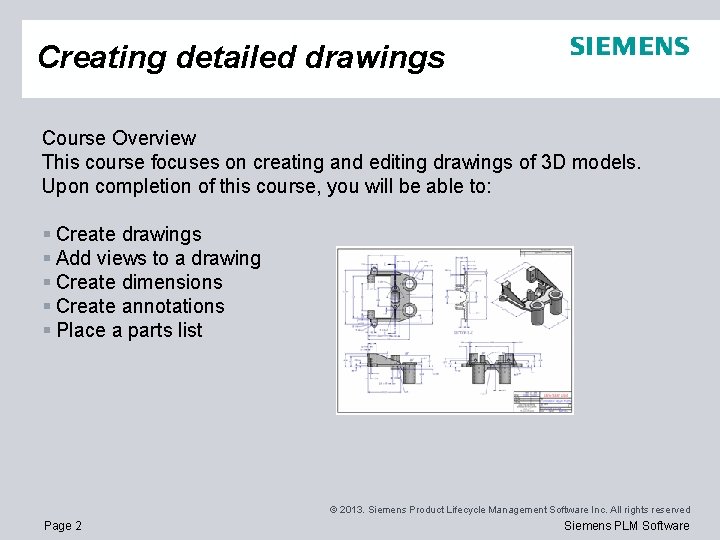
Creating detailed drawings Course Overview This course focuses on creating and editing drawings of 3 D models. Upon completion of this course, you will be able to: § Create drawings § Add views to a drawing § Create dimensions § Create annotations § Place a parts list © 2013. Siemens Product Lifecycle Management Software Inc. All rights reserved Page 2 Siemens PLM Software
Drawing view types When working from a 3 D model, you can create the following types of drawing views: § Principal views § Auxiliary views (created using a fold line) § Detail views (dependent and independent) § Section views (created using a cutting plane line) § Broken views § Exploded assembly drawings § Custom views (for example, perspective) § Alternate position assembly drawing view © 2013. Siemens Product Lifecycle Management Software Inc. All rights reserved Page 3 Siemens PLM Software
Drawing production workflow § Workflow to create a part drawing § Workflow to create an assembly drawing § Using the Drawing View Creation Wizard § Simplified mode § Step-by-step mode § Saving and reusing drawing view formats by model type § Specifying a drawing view preview type (VHL or extent box) § Adding drawing views to the document § Creating drawing views from a model dragged onto a sheet © 2013. Siemens Product Lifecycle Management Software Inc. All rights reserved Page 4 Siemens PLM Software
Drawing sheets, properties, and formatting § Opening and saving draft documents § Drawing sheets § Defining drawing standards § Drawing view manipulation § Drawing view updates § Drawing view properties © 2013. Siemens Product Lifecycle Management Software Inc. All rights reserved Page 5 Siemens PLM Software
Drawing views activities § Activity: Drawing view placement § Activity: Assembly drawing creation § Activity: Quicksheet § Activity: Broken view creation § Activity: Broken-out section creation © 2013. Siemens Product Lifecycle Management Software Inc. All rights reserved Page 6 Siemens PLM Software
Types of dimensions § Types of dimensions: § Linear dimensions § Angular dimensions § Diameter dimensions § Radial dimensions § Class fit dimensions § Smart Dimension and other dimension commands § Dimension groups § Using locked dimensions to control elements § Locking and unlocking dimensions § Locked (driving) dimension color (black/white) § Unlocked (driven) dimension color (dark cyan) © 2013. Siemens Product Lifecycle Management Software Inc. All rights reserved Page 7 Siemens PLM Software
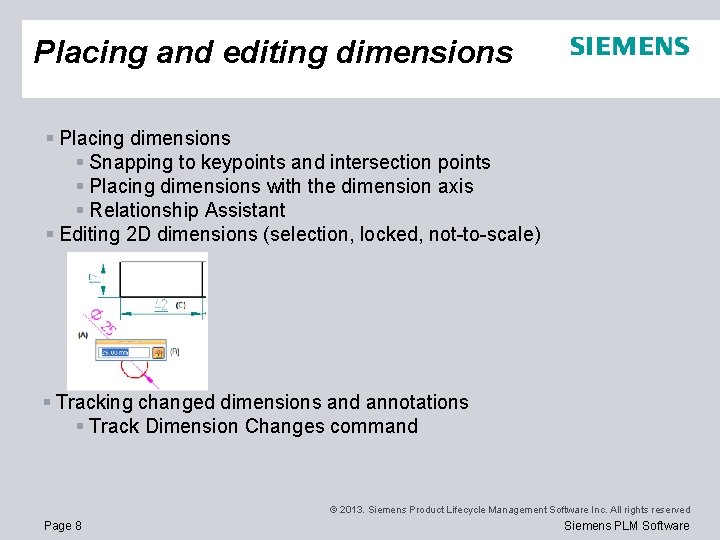
Placing and editing dimensions § Placing dimensions § Snapping to keypoints and intersection points § Placing dimensions with the dimension axis § Relationship Assistant § Editing 2 D dimensions (selection, locked, not-to-scale) § Tracking changed dimensions and annotations § Track Dimension Changes command © 2013. Siemens Product Lifecycle Management Software Inc. All rights reserved Page 8 Siemens PLM Software
Formatting dimensions § Adding breaks to dimension projection lines § Copying dimension data § Using the mouse scroll wheel to change dimensions § Using expressions in dimensions § Setting or modifying units of measure § Showing variability © 2013. Siemens Product Lifecycle Management Software Inc. All rights reserved Page 9 Siemens PLM Software
Annotations § Types of annotations on this drawing: § Datum frames (geometric tolerance) § Feature control frames (geometric tolerance) § Surface texture symbols § Edge condition symbols § Center lines and center marks § Drawing notes (text boxes) § Auto-balloons on parts lists § Snapping to keypoints and intersection points (shortcut keys: M, I, C, E) § Adding leaders § Inserting and deleting vertices on leaders § Annotations and associativity § Formatting annotations § Saving annotations § Tracking changed dimensions and annotations © 2013. Siemens Product Lifecycle Management Software Inc. All rights reserved Page 10 Siemens PLM Software
Parts lists § Using the Parts List command for assembly drawing views § Specifying the format using the Parts List Properties dialog box § Specifying the location on the Location tab § Using the Columns tab to define the parts list content § Specifying balloon formatting on the Balloon tab § Specifying the format of an exploded parts list § Auto-balloons on parts lists § Rearranging auto-balloons using an annotation alignment shape © 2013. Siemens Product Lifecycle Management Software Inc. All rights reserved Page 11 Siemens PLM Software
Dimension, annotation and parts list activities § Activity: Retrieving and placing dimensions § Activity: Placing annotations § Activity: Placing a parts list © 2013. Siemens Product Lifecycle Management Software Inc. All rights reserved Page 12 Siemens PLM Software