
Software Runs The Machine System software Most important
- Slides: 14
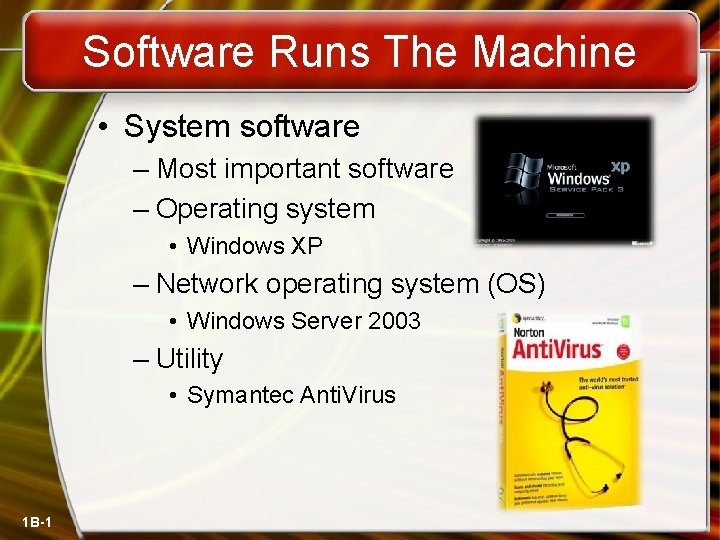
Software Runs The Machine • System software – Most important software – Operating system • Windows XP – Network operating system (OS) • Windows Server 2003 – Utility • Symantec Anti. Virus 1 B-1
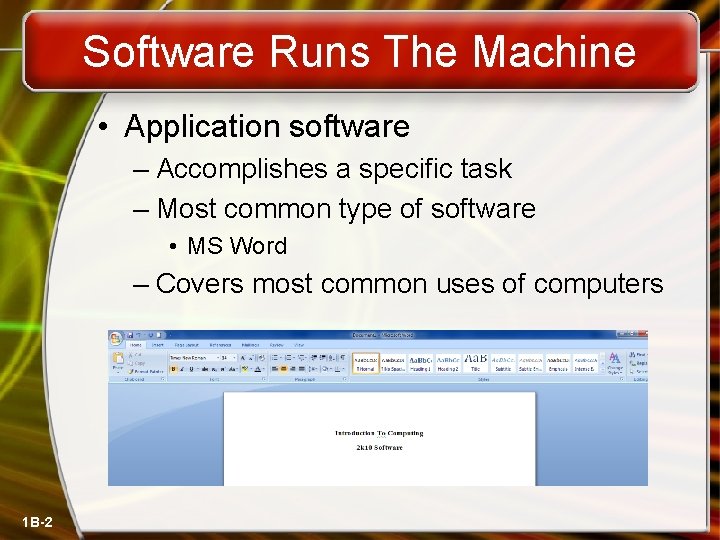
Software Runs The Machine • Application software – Accomplishes a specific task – Most common type of software • MS Word – Covers most common uses of computers 1 B-2
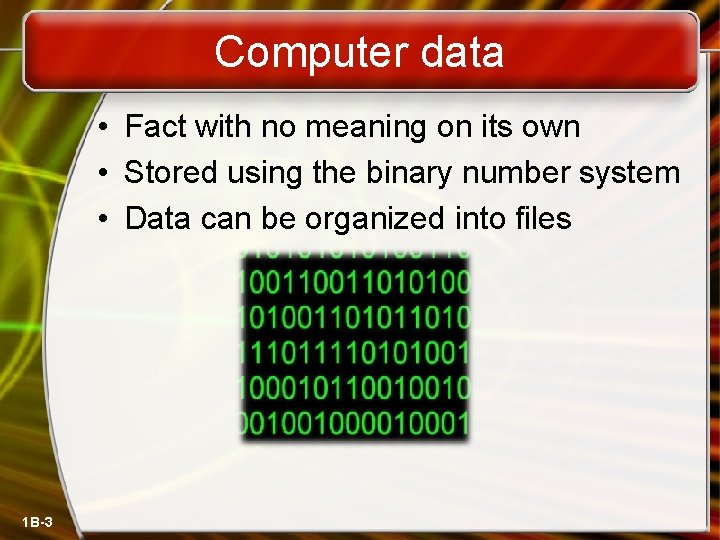
Computer data • Fact with no meaning on its own • Stored using the binary number system • Data can be organized into files 1 B-3
Computer users • Role depends on ability – Setup the system – Install software – Mange files – Maintain the system • “Userless” computers – Run with no user input – Automated systems 1 B-4
Using the Keyboard And Mouse Mc. Graw-Hill Technology Education Copyright © 2006 by The Mc. Graw-Hill Companies, Inc. All rights reserved.
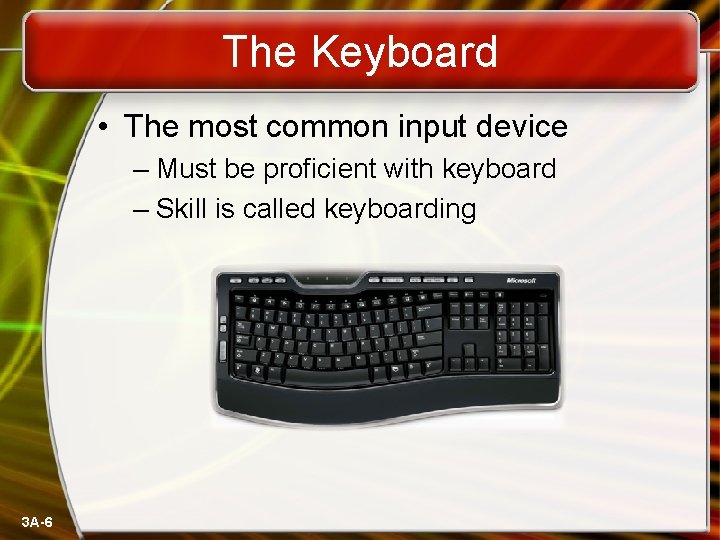
The Keyboard • The most common input device – Must be proficient with keyboard – Skill is called keyboarding 3 A-6
The Keyboard • How keyboard works – Keyboard controller detects a key press – Controller sends a code to the CPU • Code represents the key pressed – Controller notifies the operating system – Operating system responds – Controller repeats the letter if held 3 A-7
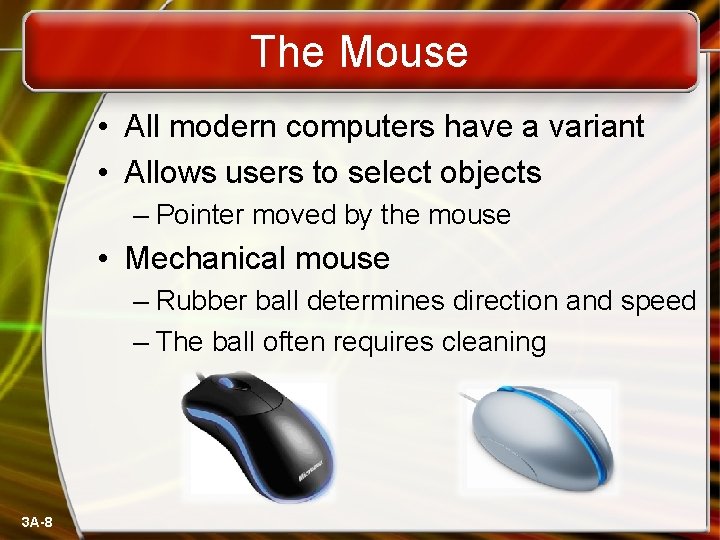
The Mouse • All modern computers have a variant • Allows users to select objects – Pointer moved by the mouse • Mechanical mouse – Rubber ball determines direction and speed – The ball often requires cleaning 3 A-8
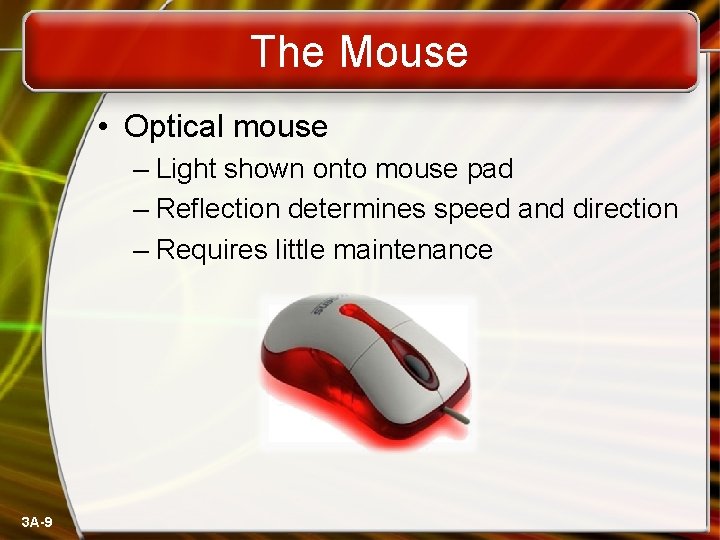
The Mouse • Optical mouse – Light shown onto mouse pad – Reflection determines speed and direction – Requires little maintenance 3 A-9
The Mouse • Interacting with a mouse – Actions involve pointing to an object – Clicking selects the object – Clicking and holding drags the object – Releasing an object is a drop – Right clicking activates the shortcut menu – Modern mice include a scroll wheel 3 A-10
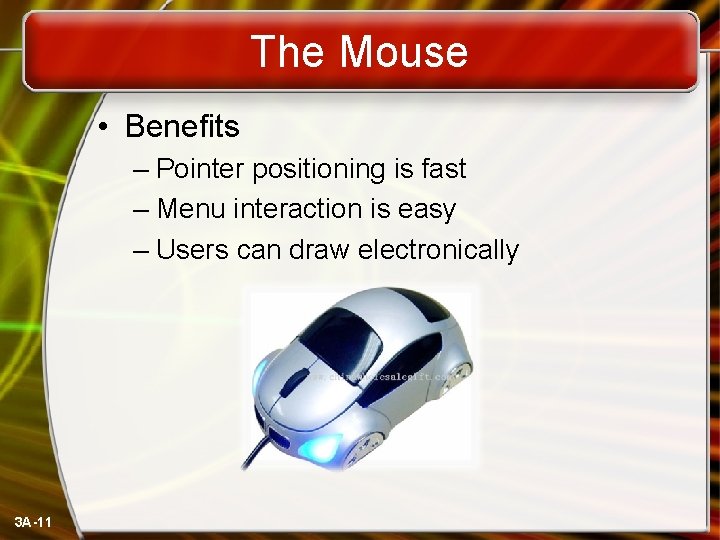
The Mouse • Benefits – Pointer positioning is fast – Menu interaction is easy – Users can draw electronically 3 A-11
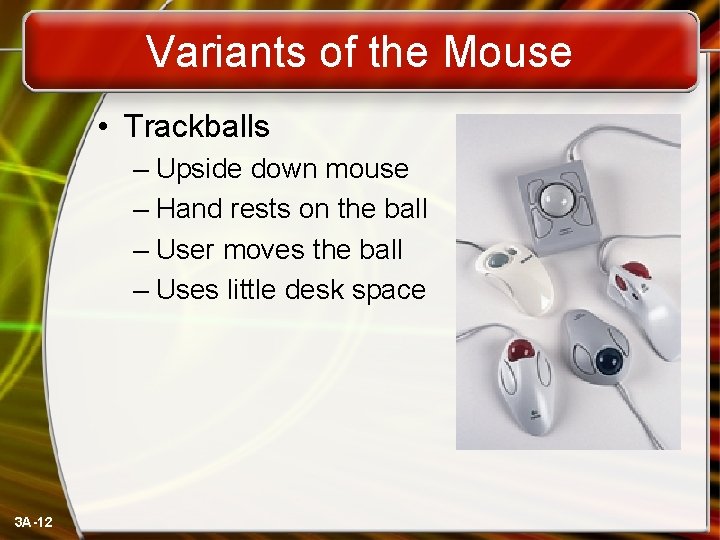
Variants of the Mouse • Trackballs – Upside down mouse – Hand rests on the ball – User moves the ball – Uses little desk space 3 A-12
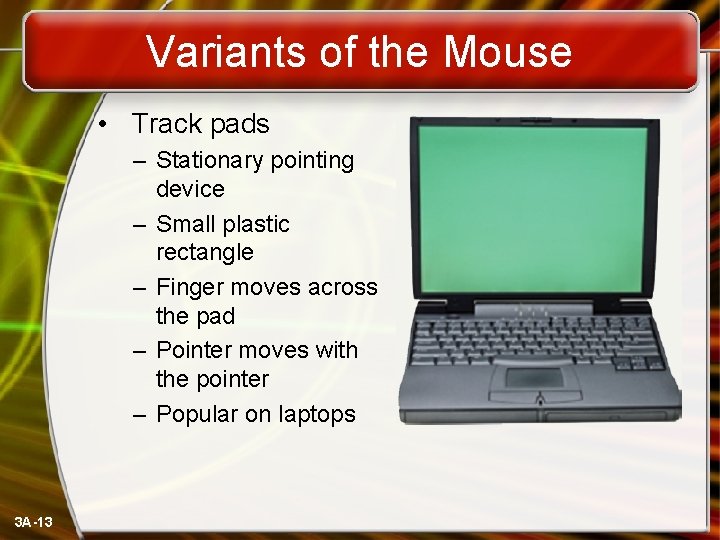
Variants of the Mouse • Track pads – Stationary pointing device – Small plastic rectangle – Finger moves across the pad – Pointer moves with the pointer – Popular on laptops 3 A-13
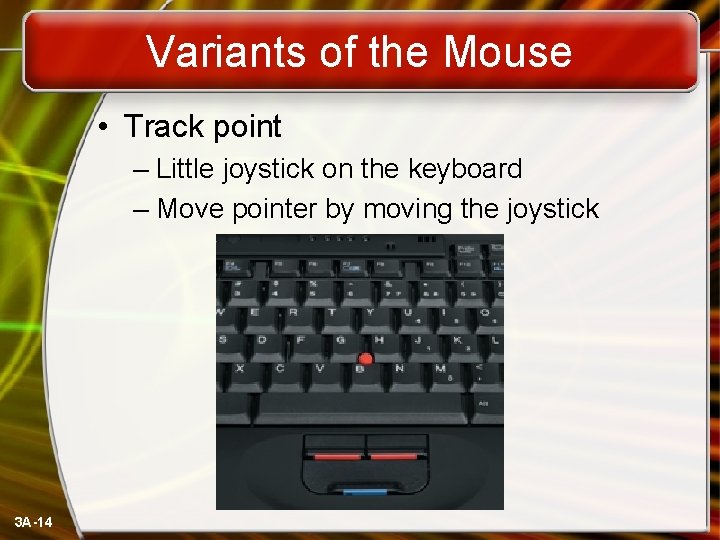
Variants of the Mouse • Track point – Little joystick on the keyboard – Move pointer by moving the joystick 3 A-14