
Software Engineering Module Core of Java Topic IDE
- Slides: 30
Software Engineering Module: Core of Java Topic: IDE Introduction and Structured Program (Using Eclipse) TALENTSPRINT | © Copyright 2012
Using Eclipse The content in this presentation is aimed at teaching learners to: • Create projects in eclipse • Create classes in eclipse. • Understand the disadvantages of bad coding styles TALENTSPRINT | © Copyright 2012 2
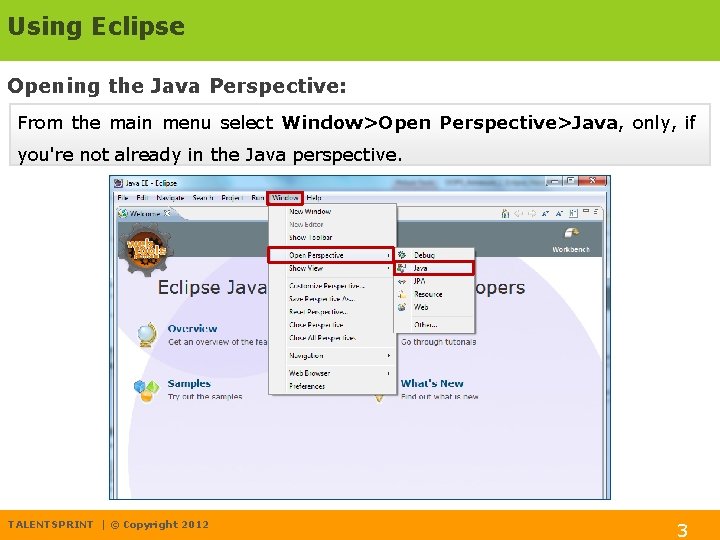
Using Eclipse Opening the Java Perspective: From the main menu select Window>Open Perspective>Java, only, if you're not already in the Java perspective. TALENTSPRINT | © Copyright 2012 3
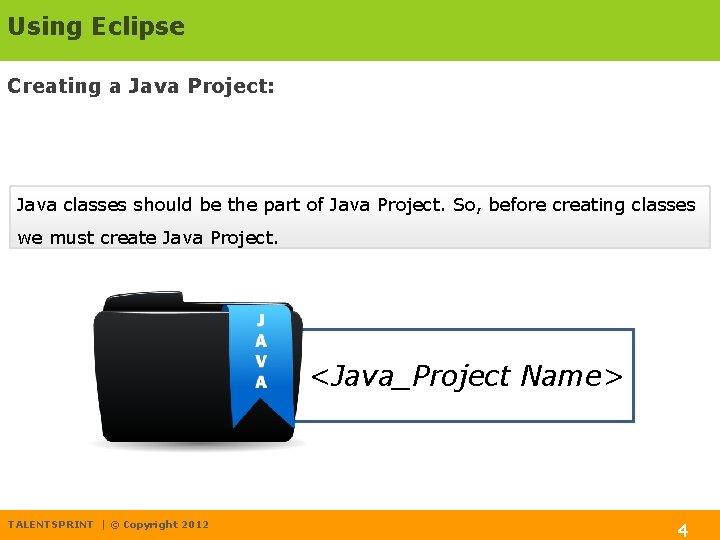
Using Eclipse Creating a Java Project: Java classes should be the part of Java Project. So, before creating classes we must create Java Project. <Java_Project Name> TALENTSPRINT | © Copyright 2012 4
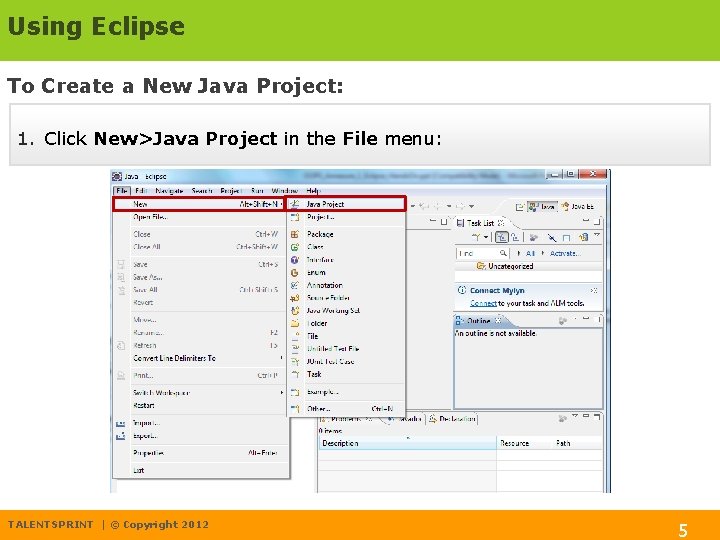
Using Eclipse To Create a New Java Project: 1. Click New>Java Project in the File menu: TALENTSPRINT | © Copyright 2012 5
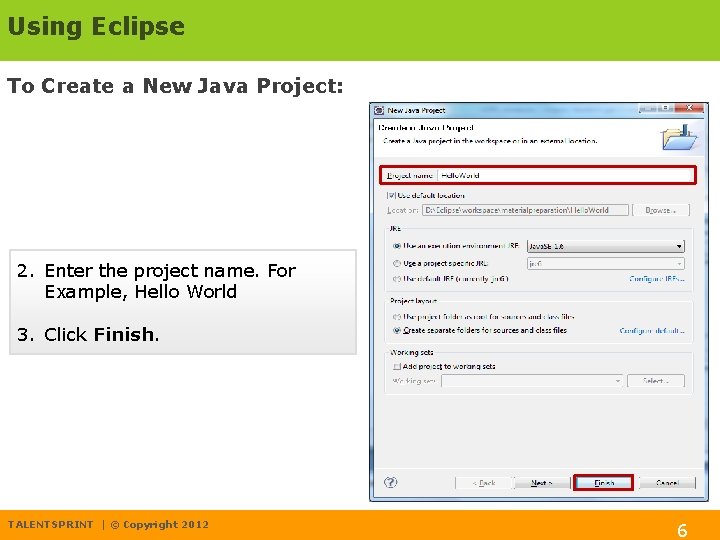
Using Eclipse To Create a New Java Project: 2. Enter the project name. For Example, Hello World 3. Click Finish. TALENTSPRINT | © Copyright 2012 6
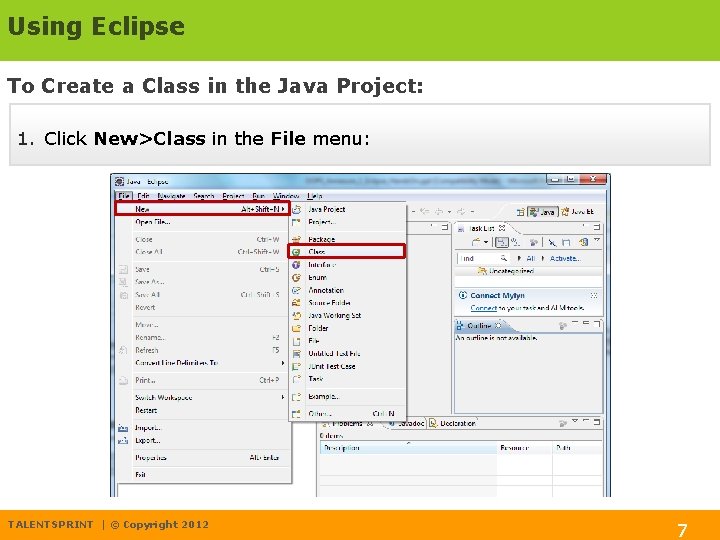
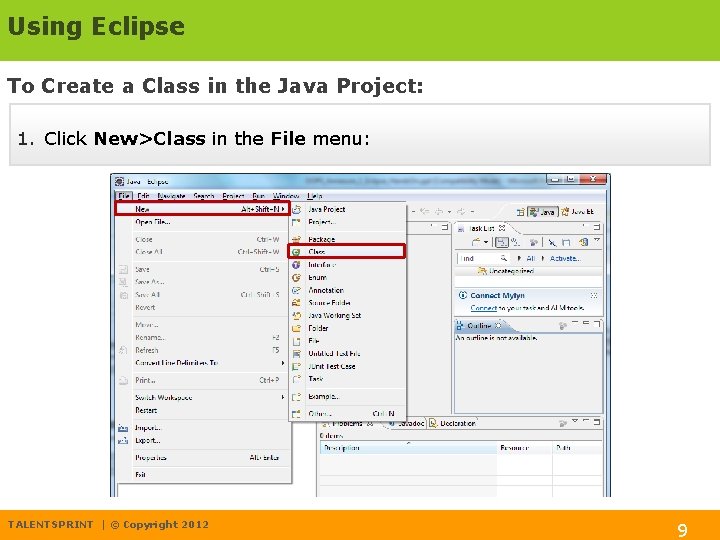
Using Eclipse To Create a Class in the Java Project: 1. Click New>Class in the File menu: TALENTSPRINT | © Copyright 2012 7
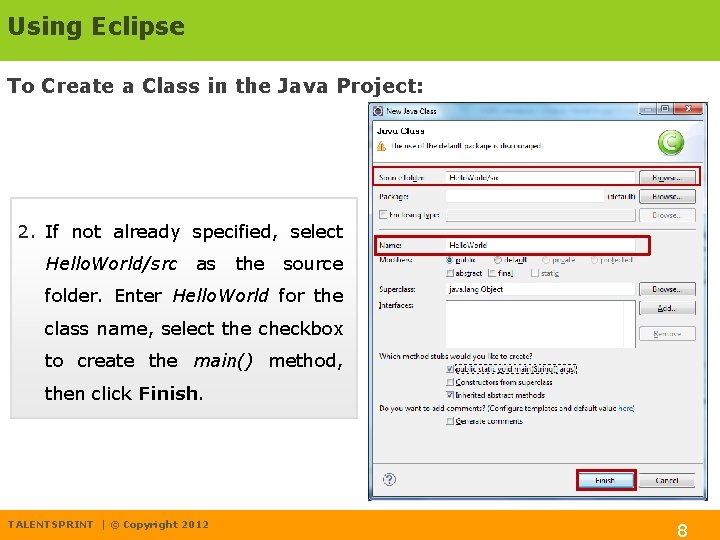
Using Eclipse To Create a Class in the Java Project: 2. If not already specified, select Hello. World/src as the source folder. Enter Hello. World for the class name, select the checkbox to create the main() method, then click Finish. TALENTSPRINT | © Copyright 2012 8
Using Eclipse To Create a Class in the Java Project: 1. Click New>Class in the File menu: TALENTSPRINT | © Copyright 2012 9
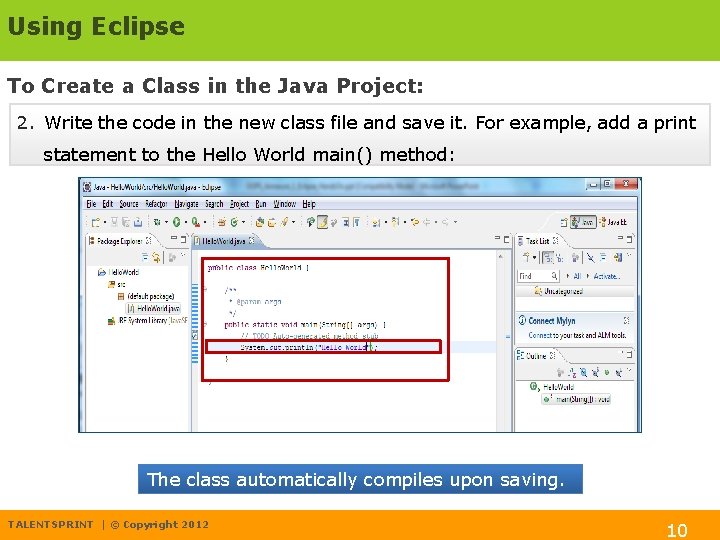
Using Eclipse To Create a Class in the Java Project: 2. Write the code in the new class file and save it. For example, add a print statement to the Hello World main() method: The class automatically compiles upon saving. TALENTSPRINT | © Copyright 2012 10
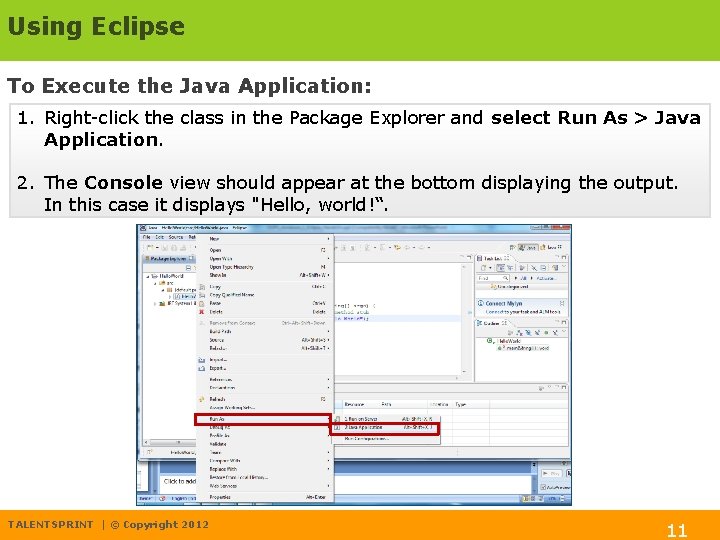
Using Eclipse To Execute the Java Application: 1. Right-click the class in the Package Explorer and select Run As > Java Application. 2. The Console view should appear at the bottom displaying the output. In this case it displays "Hello, world!“. TALENTSPRINT | © Copyright 2012 11
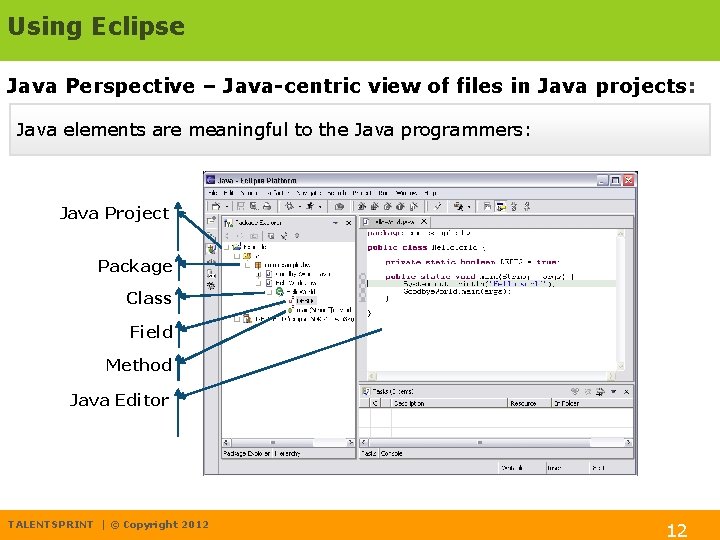
Using Eclipse Java Perspective – Java-centric view of files in Java projects: Java elements are meaningful to the Java programmers: Java Project Package Class Field Method Java Editor TALENTSPRINT | © Copyright 2012 12
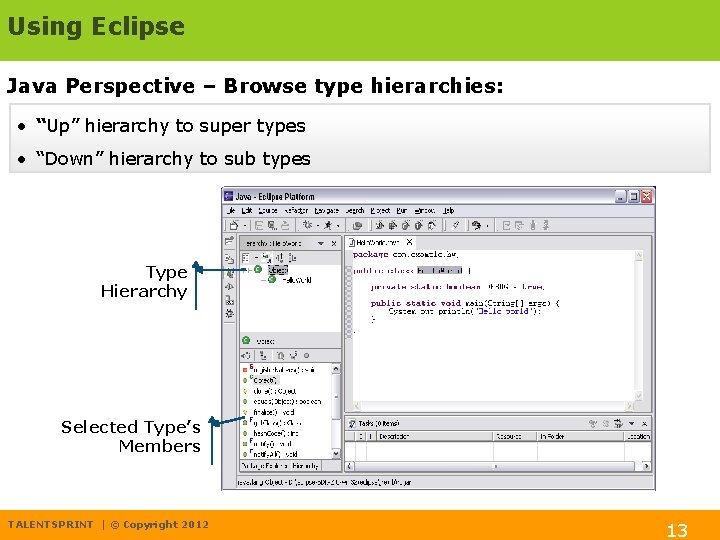
Using Eclipse Java Perspective – Browse type hierarchies: • “Up” hierarchy to super types • “Down” hierarchy to sub types Type Hierarchy Selected Type’s Members TALENTSPRINT | © Copyright 2012 13
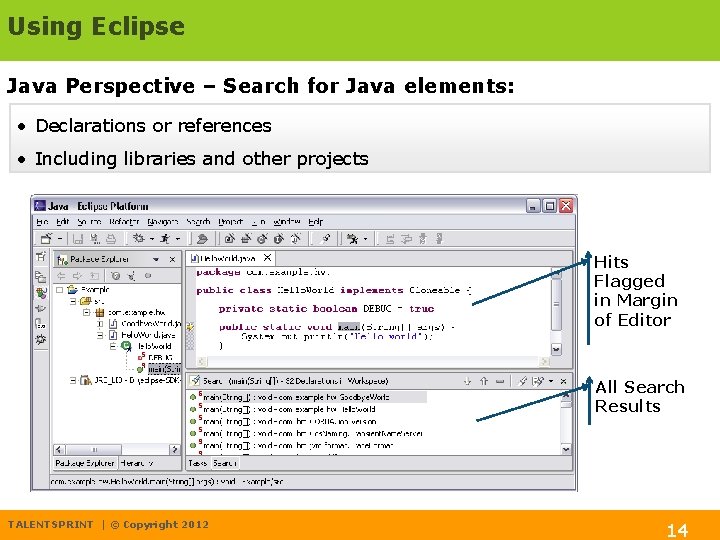
Using Eclipse Java Perspective – Search for Java elements: • Declarations or references • Including libraries and other projects Hits Flagged in Margin of Editor All Search Results TALENTSPRINT | © Copyright 2012 14
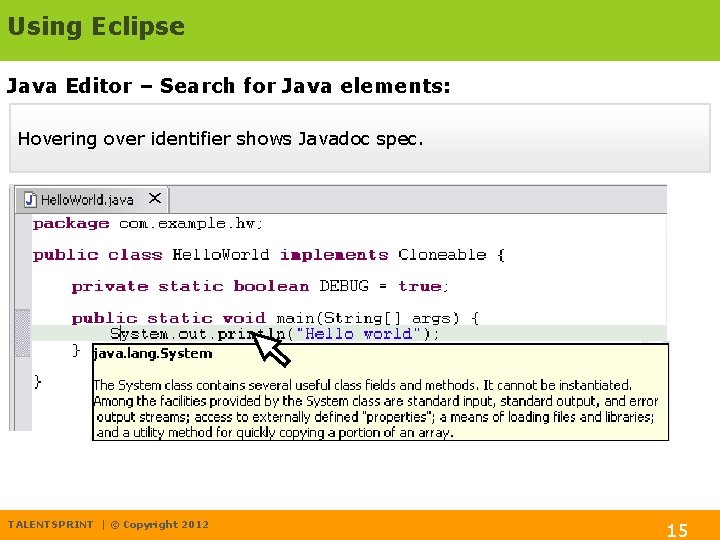
Using Eclipse Java Editor – Search for Java elements: Hovering over identifier shows Javadoc spec. TALENTSPRINT | © Copyright 2012 15
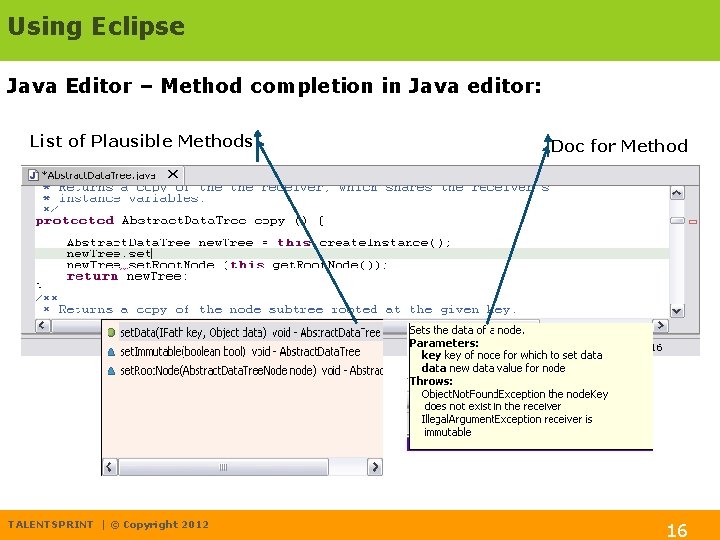
Using Eclipse Java Editor – Method completion in Java editor: List of Plausible Methods TALENTSPRINT | © Copyright 2012 Doc for Method 16
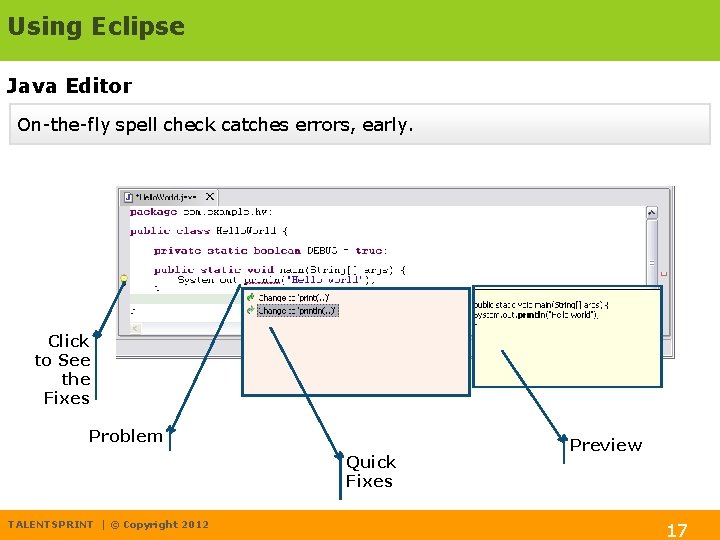
Using Eclipse Java Editor On-the-fly spell check catches errors, early. Click to See the Fixes Problem Quick Fixes TALENTSPRINT | © Copyright 2012 Preview 17
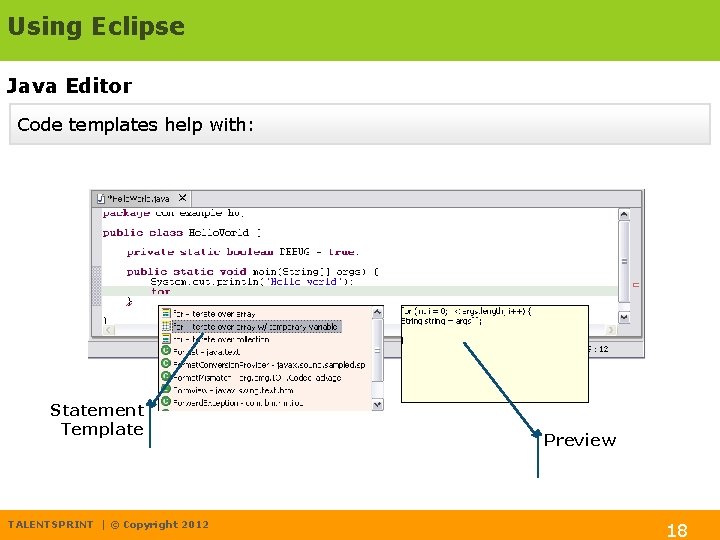
Using Eclipse Java Editor Code templates help with: Statement Template TALENTSPRINT | © Copyright 2012 Preview 18
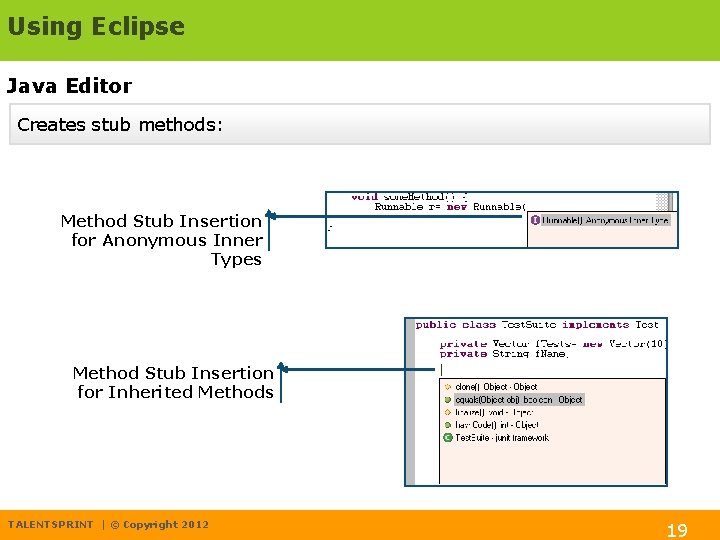
Using Eclipse Java Editor Creates stub methods: Method Stub Insertion for Anonymous Inner Types Method Stub Insertion for Inherited Methods TALENTSPRINT | © Copyright 2012 19
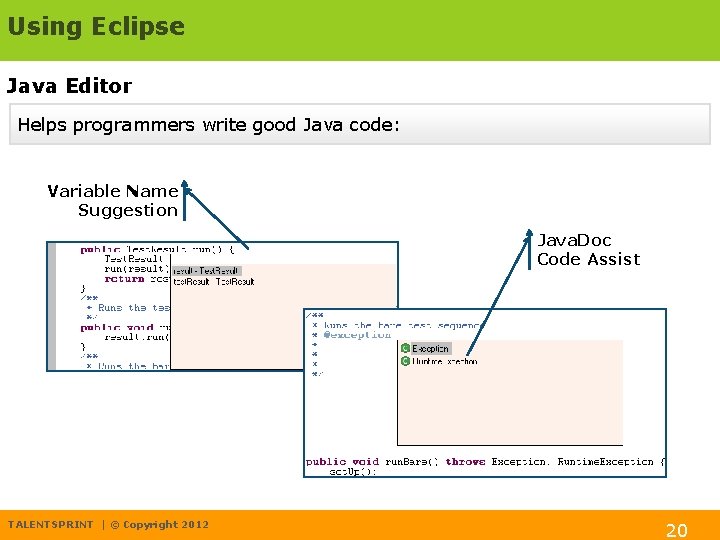
Using Eclipse Java Editor Helps programmers write good Java code: Variable Name Suggestion Java. Doc Code Assist TALENTSPRINT | © Copyright 2012 20
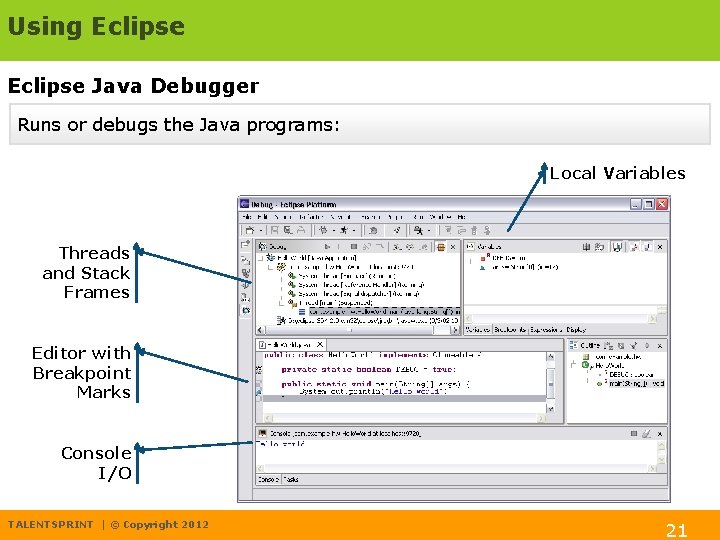
Using Eclipse Java Debugger Runs or debugs the Java programs: Local Variables Threads and Stack Frames Editor with Breakpoint Marks Console I/O TALENTSPRINT | © Copyright 2012 21
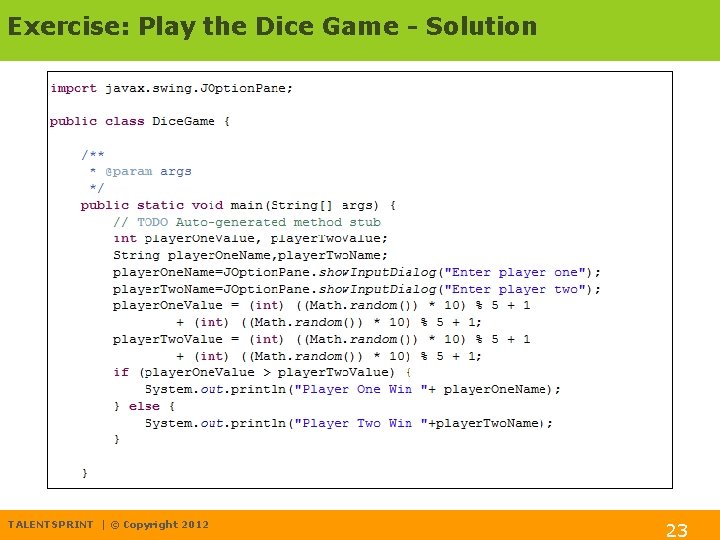
Exercise: Play the Dice Game TRY IT Write a java program for the following specifications: • Two player play the game • Players roll two dice each and the one with greatest total wins TALENTSPRINT | © Copyright 2012 22
Exercise: Play the Dice Game - Solution TALENTSPRINT | © Copyright 2012 23
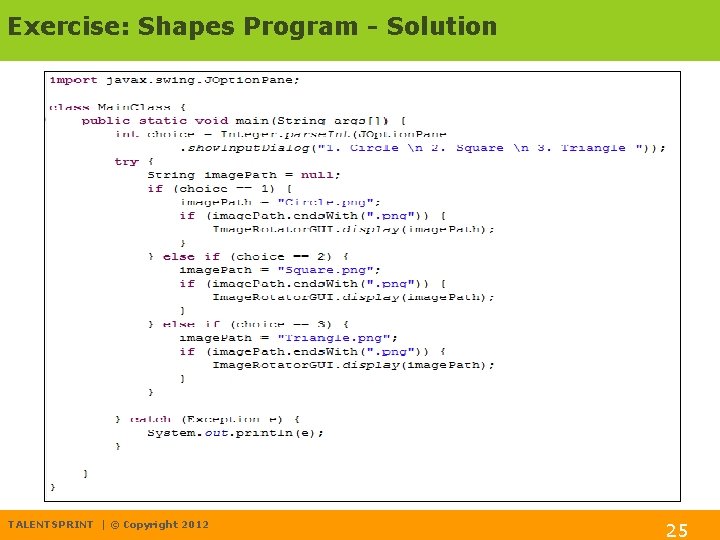
Exercise: Shapes Program TRY IT Write a java program for the following specifications • There will be three shapes - Square, Triangle and Circle. • When the user selects a shape the shape rotates clockwise 3600 if it is png. TALENTSPRINT | © Copyright 2012 24
Exercise: Shapes Program - Solution TALENTSPRINT | © Copyright 2012 25
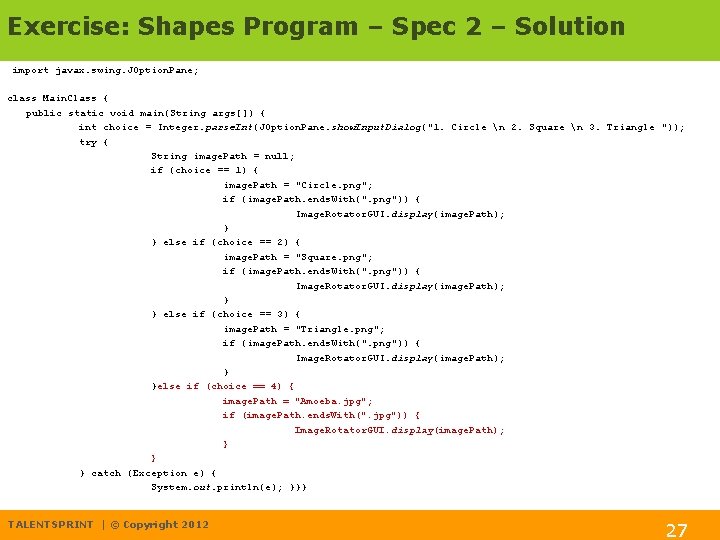
Exercise: Shapes Program – Spec 2 TRY IT Change In Specification: • Add one more Shape – amoeba • When user selects amoeba it rotates only if it is a jpg image TALENTSPRINT | © Copyright 2012 26
Exercise: Shapes Program – Spec 2 – Solution import javax. swing. JOption. Pane; class Main. Class { public static void main(String args[]) { int choice = Integer. parse. Int(JOption. Pane. show. Input. Dialog("1. Circle n 2. Square n 3. Triangle ")); try { String image. Path = null; if (choice == 1) { image. Path = "Circle. png"; if (image. Path. ends. With(". png")) { Image. Rotator. GUI. display(image. Path); } } else if (choice == 2) { image. Path = "Square. png"; if (image. Path. ends. With(". png")) { Image. Rotator. GUI. display(image. Path); } } else if (choice == 3) { image. Path = "Triangle. png"; if (image. Path. ends. With(". png")) { Image. Rotator. GUI. display(image. Path); } }else if (choice == 4) { image. Path = "Amoeba. jpg"; if (image. Path. ends. With(". jpg")) { Image. Rotator. GUI. display(image. Path); } } } catch (Exception e) { System. out. println(e); }}} TALENTSPRINT | © Copyright 2012 27
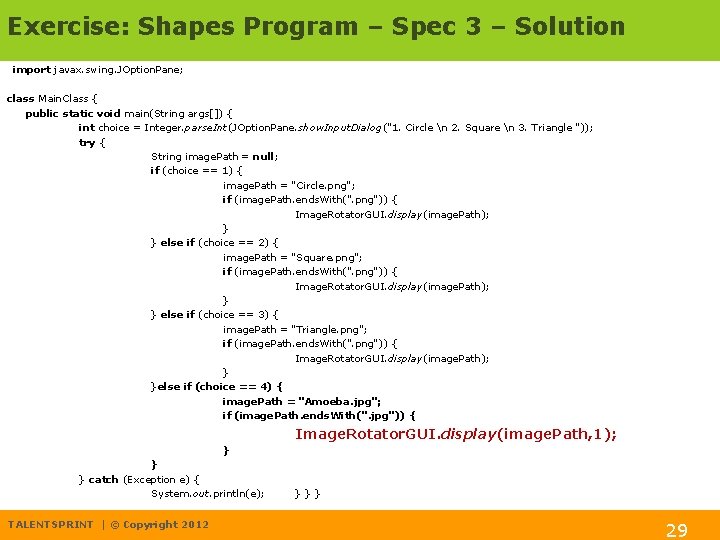
Exercise: Shapes Program – Spec 3 TRY IT One more change: The amoeba rotation point should be at the corner not centre. TALENTSPRINT | © Copyright 2012 28
Exercise: Shapes Program – Spec 3 – Solution import javax. swing. JOption. Pane; class Main. Class { public static void main(String args[]) { int choice = Integer. parse. Int(JOption. Pane. show. Input. Dialog("1. Circle n 2. Square n 3. Triangle ")); try { String image. Path = null; if (choice == 1) { image. Path = "Circle. png"; if (image. Path. ends. With(". png")) { Image. Rotator. GUI. display(image. Path); } } else if (choice == 2) { image. Path = "Square. png"; if (image. Path. ends. With(". png")) { Image. Rotator. GUI. display(image. Path); } } else if (choice == 3) { image. Path = "Triangle. png"; if (image. Path. ends. With(". png")) { Image. Rotator. GUI. display(image. Path); } }else if (choice == 4) { image. Path = "Amoeba. jpg"; if (image. Path. ends. With(". jpg")) { Image. Rotator. GUI. display(image. Path, 1); } } } catch (Exception e) { System. out. println(e); TALENTSPRINT | © Copyright 2012 }}} 29
Using Eclipse TALENTSPRINT | © Copyright 2012 30