
SOFTWARE ENGINEERING 1 Topics Definitions Working Scenarios Revision
![Working with a Managed Team [change accepted] Configuration Manager Push to Project repository [change](https://slidetodoc.com/presentation_image_h2/a12b1c0f152d48faeae15cd95136afa6/image-12.jpg "Working with a Managed Team [change accepted] Configuration Manager Push to Project repository [change")

- Slides: 16
SOFTWARE ENGINEERING 1
Topics • Definitions • Working Scenarios • Revision Control Functions • Git and Git. Hub 2
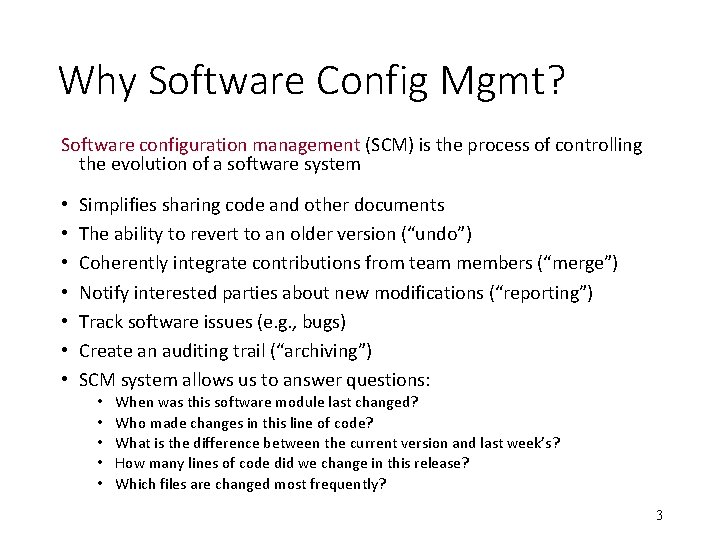
Why Software Config Mgmt? Software configuration management (SCM) is the process of controlling the evolution of a software system • • Simplifies sharing code and other documents The ability to revert to an older version (“undo”) Coherently integrate contributions from team members (“merge”) Notify interested parties about new modifications (“reporting”) Track software issues (e. g. , bugs) Create an auditing trail (“archiving”) SCM system allows us to answer questions: • • • When was this software module last changed? Who made changes in this line of code? What is the difference between the current version and last week’s? How many lines of code did we change in this release? Which files are changed most frequently? 3
Why Software Config Mgmt? • SCM simplifies collaboration and increases productivity • But it all can be done with old-fashioned email, file system, etc. • Naming convention? • How to reconcile your version #1 with my version #1? 4
Definitions • A software configuration is a collection of work products (“artifacts”) created during a project lifetime • Software configuration item (SCI) is any piece of knowledge (a. k. a. “work product” or “artifact”) created by a person (developer or customer) • A snapshot of a software configuration or a configuration item represents the version of that item at a specific time • A commit (or “check-in”) refers to submitting a software configuration to the project database (“repository”) • A build is a version of a program code (part of a software configuration), and a process by which program code is converted into a stand-alone form that can be run on a computer (“executable code”) 5
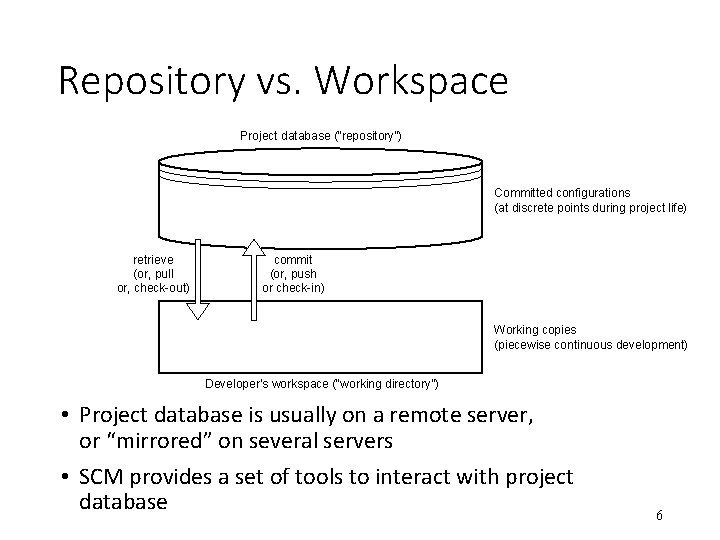
Repository vs. Workspace Project database (“repository”) Committed configurations (at discrete points during project life) retrieve (or, pull or, check-out) commit (or, push or check-in) Working copies (piecewise continuous development) Developer’s workspace (“working directory”) • Project database is usually on a remote server, or “mirrored” on several servers • SCM provides a set of tools to interact with project database 6
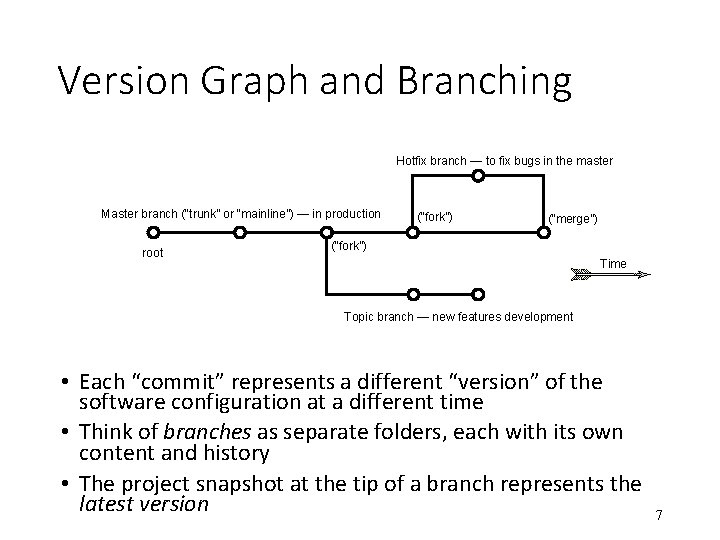
Version Graph and Branching Hotfix branch — to fix bugs in the master Master branch (“trunk” or “mainline”) — in production root (“fork”) (“merge”) (“fork”) Time Topic branch — new features development • Each “commit” represents a different “version” of the software configuration at a different time • Think of branches as separate folders, each with its own content and history • The project snapshot at the tip of a branch represents the latest version 7
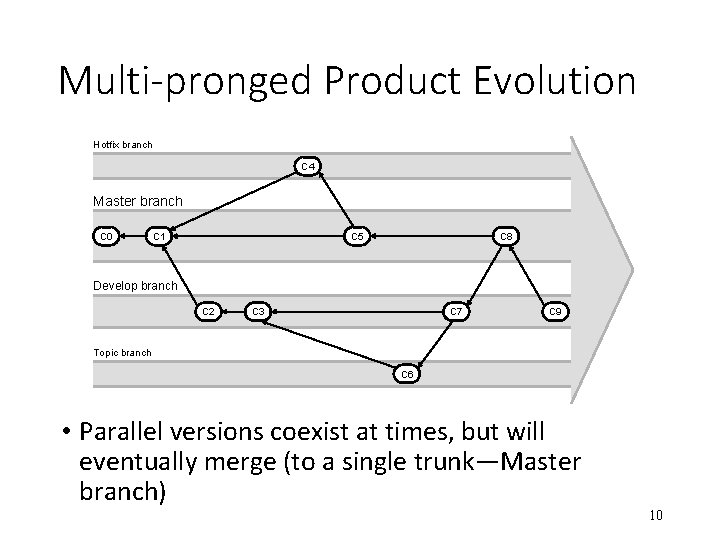
Example Working Scenarios • Undoing mistakes in new work • Supporting multi-pronged product evolution • Parallel versions coexist at times, but will eventually merge (single trunk—“Master”) • Developing product lines • Coexisting parallel versions (same product for different markets) that will never merge (multiple trunks) • but they still need synchronization so that versions for different markets are at the same “level” • Working with a small team of peers • All developers can write to the project database • Working with a managed team • Only configuration manager can write to the project database 8
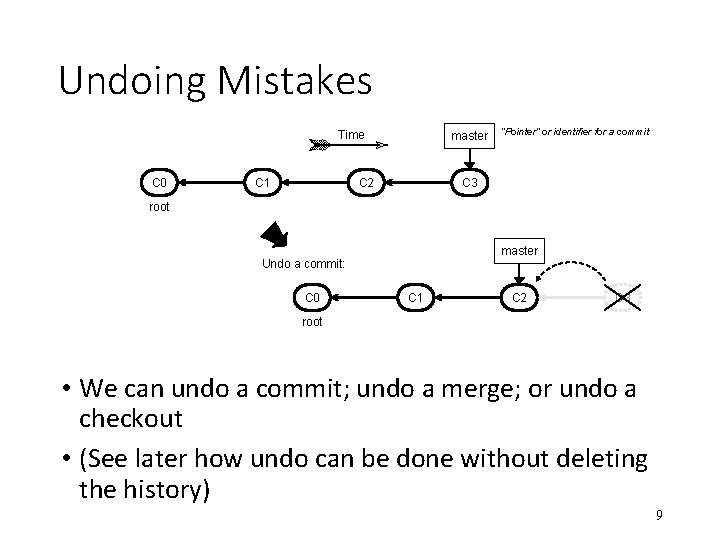
Undoing Mistakes Time C 0 C 1 master C 2 “Pointer” or identifier for a commit C 3 root master Undo a commit: C 0 C 1 C 2 C 3 root • We can undo a commit; undo a merge; or undo a checkout • (See later how undo can be done without deleting the history) 9
Multi-pronged Product Evolution Hotfix branch C 4 Master branch C 0 C 1 C 5 C 8 Develop branch C 2 C 3 C 7 C 9 Topic branch C 6 • Parallel versions coexist at times, but will eventually merge (to a single trunk—Master branch) 10
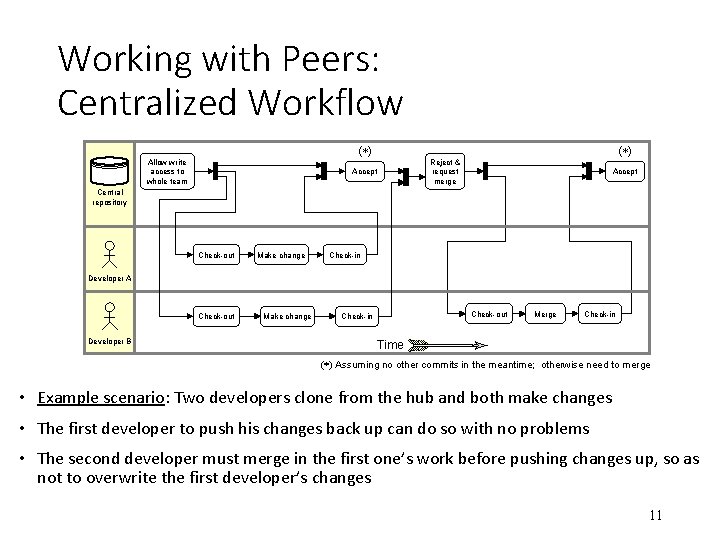
Working with Peers: Centralized Workflow ( ) Allow write access to whole team Accept ( ) Reject & request merge Accept Central repository Check-out Make change Check-in Developer A Check-out Developer B Make change Check-out Check-in Merge Check-in Time ( ) Assuming no other commits in the meantime; otherwise need to merge • Example scenario: Two developers clone from the hub and both make changes • The first developer to push his changes back up can do so with no problems • The second developer must merge in the first one’s work before pushing changes up, so as not to overwrite the first developer’s changes 11
Working with a Managed Team [change accepted] Configuration Manager Push to Project repository [change rejected] Merge with Developer’s repository Push to Project repository [accepted] Notify or request revise & resubmit [rejected] Project repository Developer Pull Make change Push to Developer’s repository Pull request Developer’s public repository Revise Push to Developer’s repository Pull request Time • Example scenario: • 1. The configuration manager pushes the current version to the main project repository • 2. A contributor clones that repository and makes changes • 3. The contributor pushes the changed version to his own public repository • 4. The contributor notifies the configuration manager requesting to pull changes • 5. The configuration manager adds the contributor’s repository as a remote and merges locally • 6. The configuration manager pushes merged changes to the main project repository 12
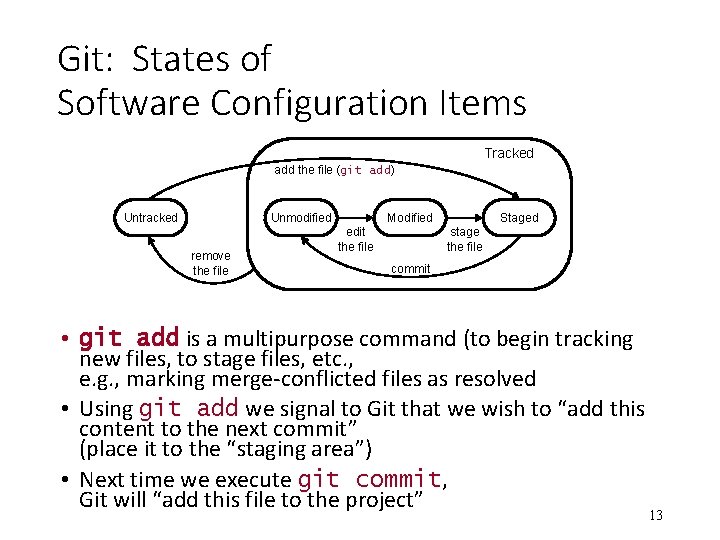
Git: States of Software Configuration Items Tracked add the file (git add) Untracked Unmodified remove the file Modified edit the file Staged stage the file commit • git add is a multipurpose command (to begin tracking new files, to stage files, etc. , e. g. , marking merge-conflicted files as resolved • Using git add we signal to Git that we wish to “add this content to the next commit” (place it to the “staging area”) • Next time we execute git commit, Git will “add this file to the project” 13
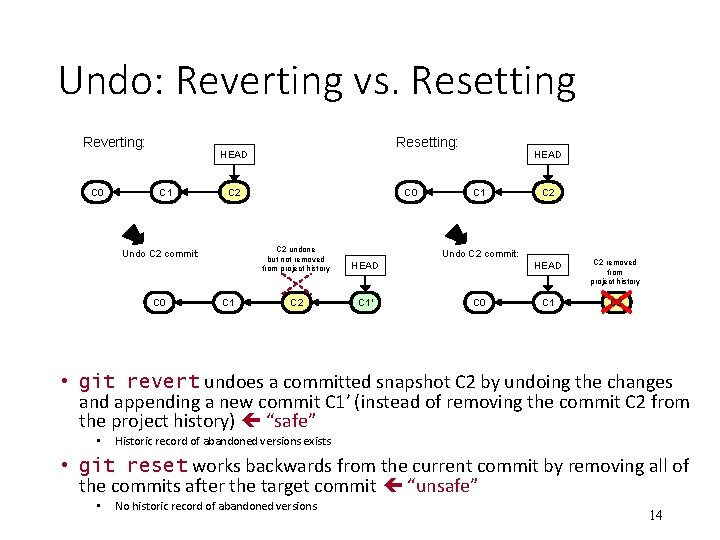
Undo: Reverting vs. Resetting Reverting: C 0 Resetting: HEAD C 1 C 2 Undo C 2 commit: C 0 C 1 C 0 C 2 undone but not removed from project history HEAD C 2 C 1′ HEAD C 1 C 2 Undo C 2 commit: C 0 HEAD C 2 removed from project history C 1 C 2 • git revert undoes a committed snapshot C 2 by undoing the changes and appending a new commit C 1′ (instead of removing the commit C 2 from the project history) “safe” • Historic record of abandoned versions exists • git reset works backwards from the current commit by removing all of the commits after the target commit “unsafe” • No historic record of abandoned versions 14
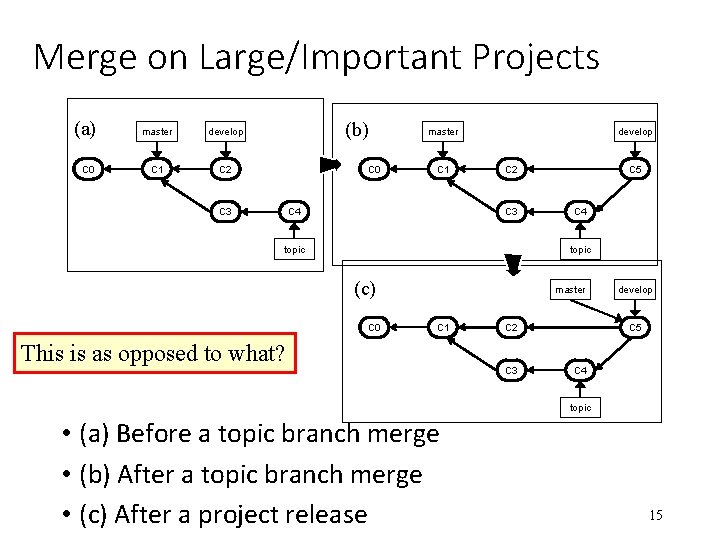
Merge on Large/Important Projects (a) C 0 master develop C 1 C 2 (b) C 0 C 3 master C 1 C 4 develop C 5 C 2 C 3 topic C 4 topic (c) C 0 master C 1 This is as opposed to what? C 2 C 3 develop C 5 C 4 topic • (a) Before a topic branch merge • (b) After a topic branch merge • (c) After a project release 15
16