
So You Think You Know October 14 2016
So You Think You Know… October 14, 2016 Diocese of Phoenix Educator Day
We expect information we find on the Internet to be accurate and easily accessible. • Lots of results • They look good—I must be searching well!! First, let’s cover some basic Internet knowledge and terms…

What is the Internet? The internet is a global network of computers. It is millions of computers around the world, all connected. People often think of the internet as a cloud in space. In reality, every computer in the "inter-network", or internet, is connected by actual wires -- ethernet cables, phone lines, and fiber optic wiring on the ocean floor! Google Confidential and Proprietary
What is the Web? People often use the words "the internet" and "the web" interchangeably. Is there a difference? The World Wide Web is just one part of the internet. The internet also includes e-mail, instant messaging, multiplayer gaming, databases, catalogs, etc. Google Confidential and Proprietary
Deep Web vs. Visible Web When you use a search engine, you only have access to the visible web -- the part of the web your search engine has indexed. The entire web is much larger than any one search engine's index. It is estimated that the deep web is over 500 times the size of the visible web! The deep web includes webpages that are not linked to by other pages, passwordprotected sites, and private databases (such as library catalogs). Google Confidential and Proprietary
What is a Search Engine? A search engine is a program to help you find webpages on the internet. Search engines do not search the whole web, but only an index of the web. Some examples of search engines include Google, Bing, Yahoo, and Ask. Google Confidential and Proprietary
How do I know my information is accurate? And how can I quickly find just what I need?
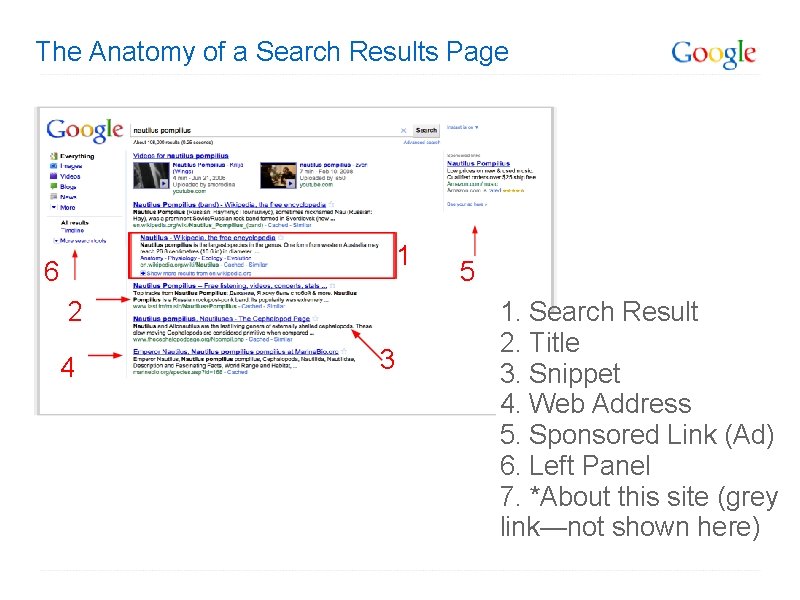
The Anatomy of a Search Results Page 1 6 2 4 3 5 1. Search Result 2. Title 3. Snippet 4. Web Address 5. Sponsored Link (Ad) 6. Left Panel 7. *About this site (grey link—not shown here)
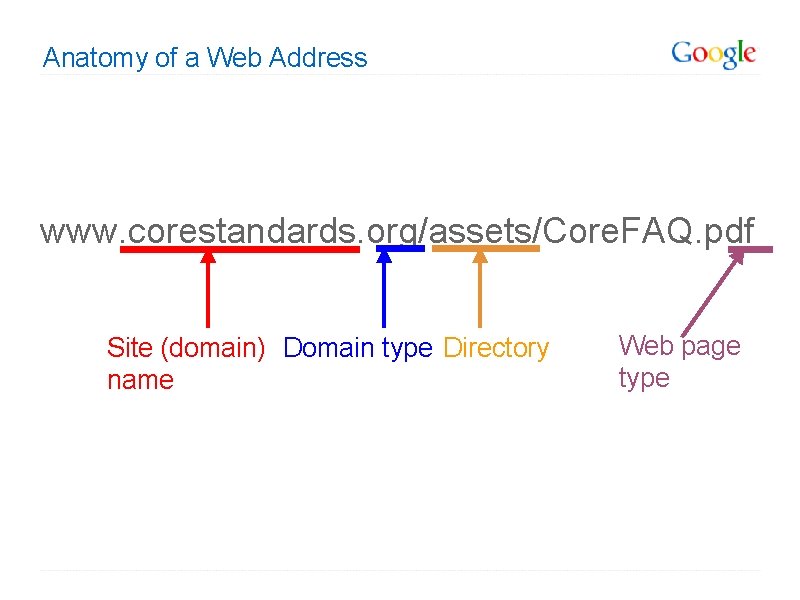
Anatomy of a Web Address www. corestandards. org/assets/Core. FAQ. pdf Site (domain) Domain type Directory name Web page type
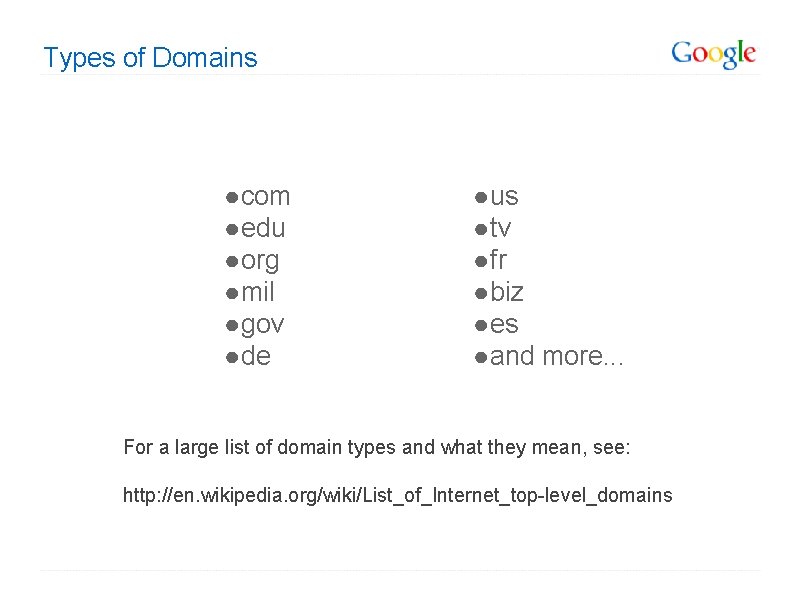
Types of Domains ● com ● edu ● org ● mil ● gov ● de ● us ● tv ● fr ● biz ● es ● and more. . . For a large list of domain types and what they mean, see: http: //en. wikipedia. org/wiki/List_of_Internet_top-level_domains
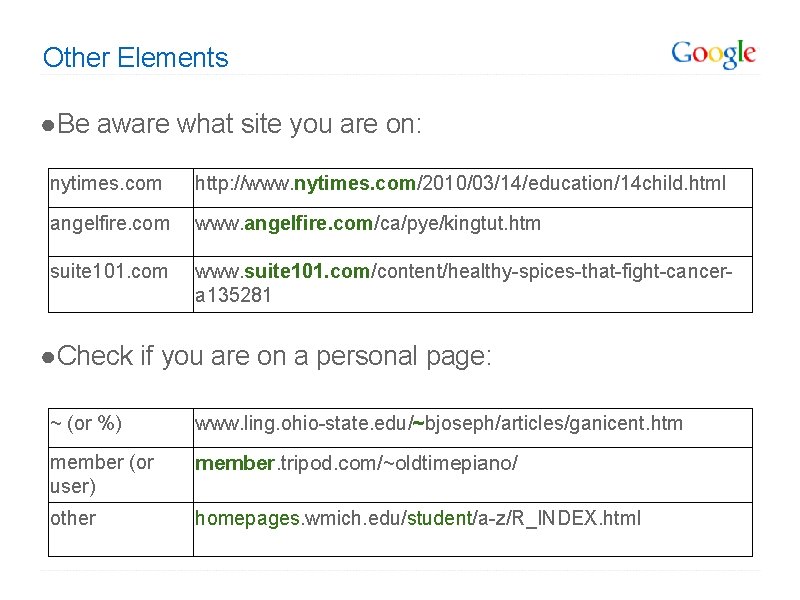
Other Elements ● Be aware what site you are on: nytimes. com http: //www. nytimes. com/2010/03/14/education/14 child. html angelfire. com www. angelfire. com/ca/pye/kingtut. htm suite 101. com www. suite 101. com/content/healthy-spices-that-fight-cancera 135281 ● Check if you are on a personal page: ~ (or %) www. ling. ohio-state. edu/~bjoseph/articles/ganicent. htm member (or user) member. tripod. com/~oldtimepiano/ other homepages. wmich. edu/student/a-z/R_INDEX. html
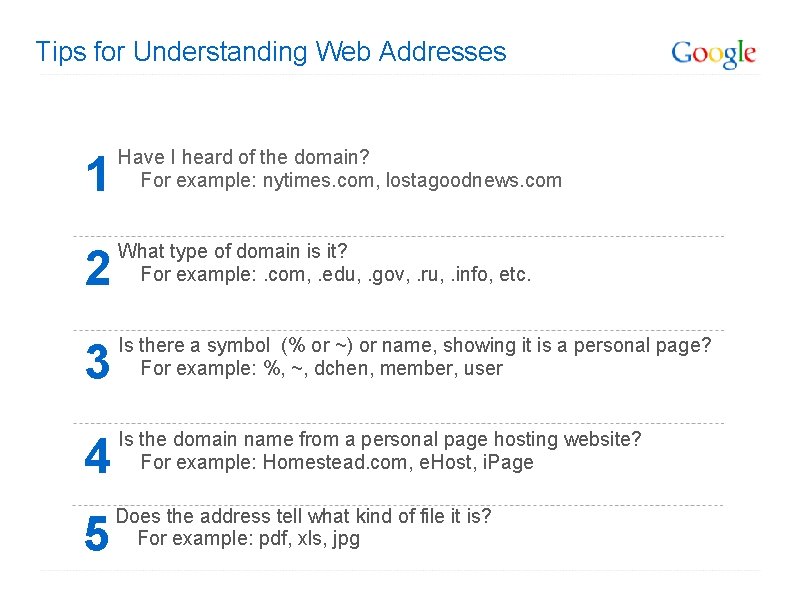
Tips for Understanding Web Addresses 1 Have I heard of the domain? For example: nytimes. com, lostagoodnews. com 2 What type of domain is it? For example: . com, . edu, . gov, . ru, . info, etc. 3 Is there a symbol (% or ~) or name, showing it is a personal page? For example: %, ~, dchen, member, user 4 Is the domain name from a personal page hosting website? For example: Homestead. com, e. Host, i. Page 5 Does the address tell what kind of file it is? For example: pdf, xls, jpg
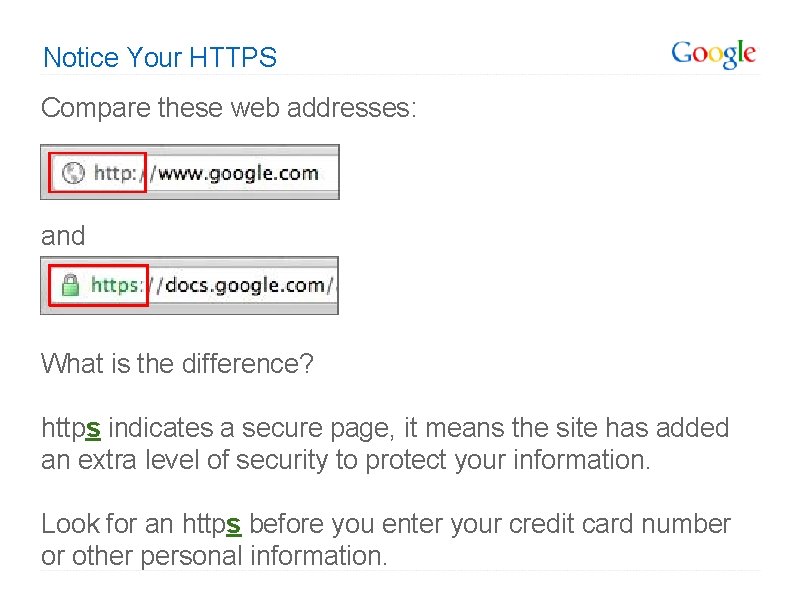
Notice Your HTTPS Compare these web addresses: and What is the difference? https indicates a secure page, it means the site has added an extra level of security to protect your information. Look for an https before you enter your credit card number or other personal information.

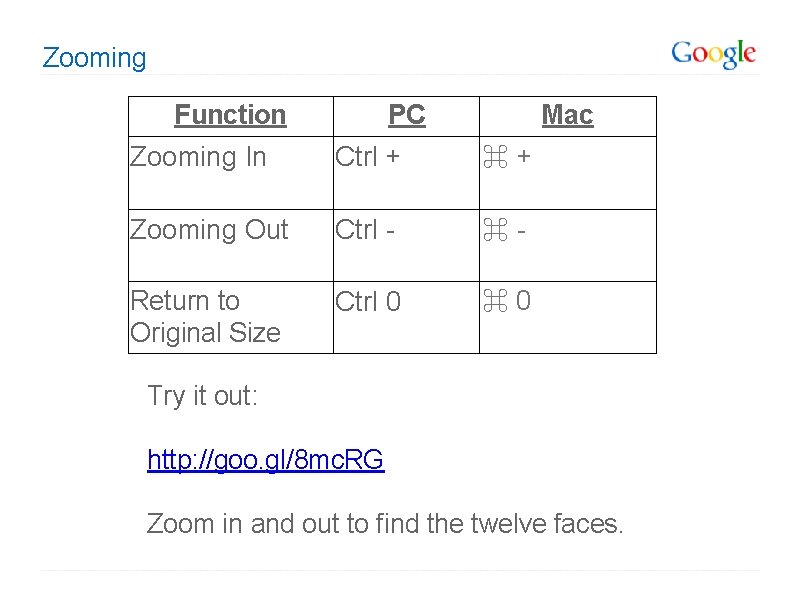
Zooming Function PC Mac Zooming In Ctrl + ⌘+ Zooming Out Ctrl - ⌘- Return to Original Size Ctrl 0 ⌘ 0 Try it out: http: //goo. gl/8 mc. RG Zoom in and out to find the twelve faces.
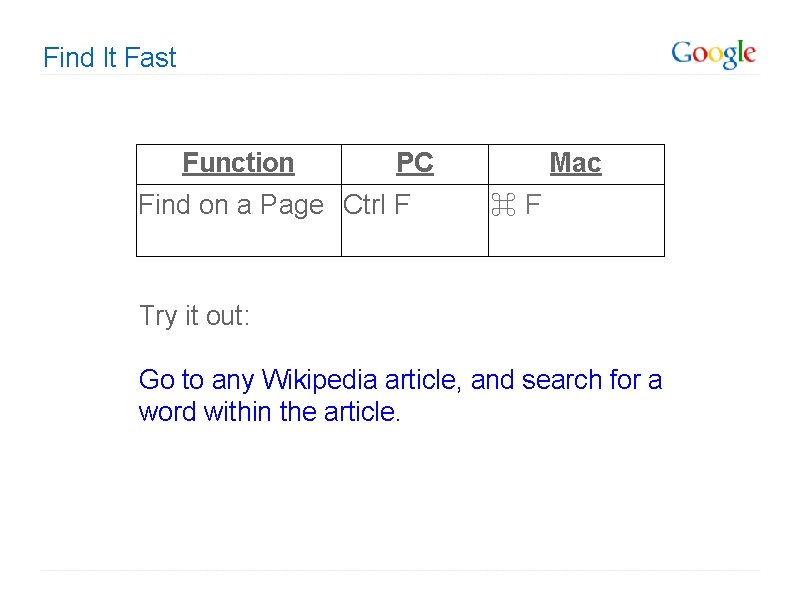
Find It Fast Function PC Find on a Page Ctrl F Mac ⌘F Try it out: Go to any Wikipedia article, and search for a word within the article.
![What Matters In My Search Query? Every word matters. 1 Try searching for [who],](http://slidetodoc.com/presentation_image_h2/5def61bad576782a0e18872e615ca814/image-17.jpg "What Matters In My Search Query? Every word matters. 1 Try searching for [who],")
What Matters In My Search Query? Every word matters. 1 Try searching for [who], [the who], and [a who] .
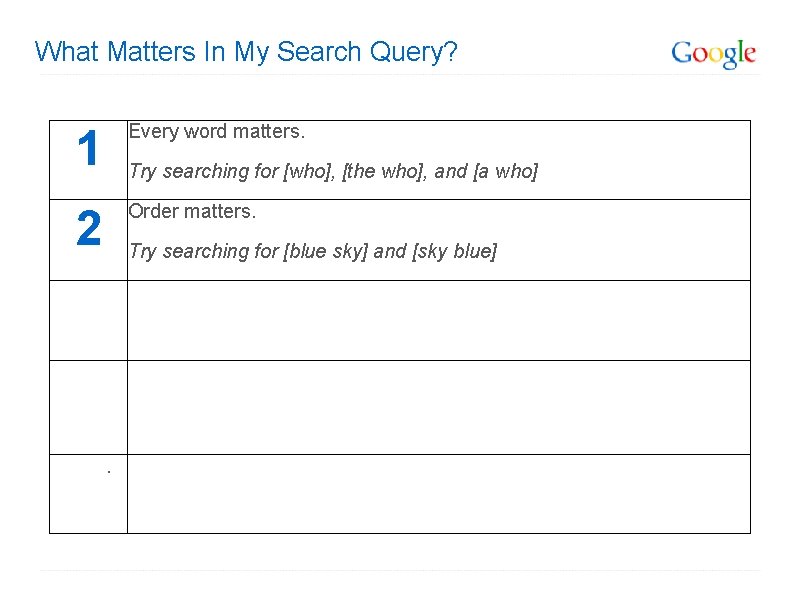
What Matters In My Search Query? 1 Every word matters. 2 Order matters. Try searching for [who], [the who], and [a who] Try searching for [blue sky] and [sky blue] .
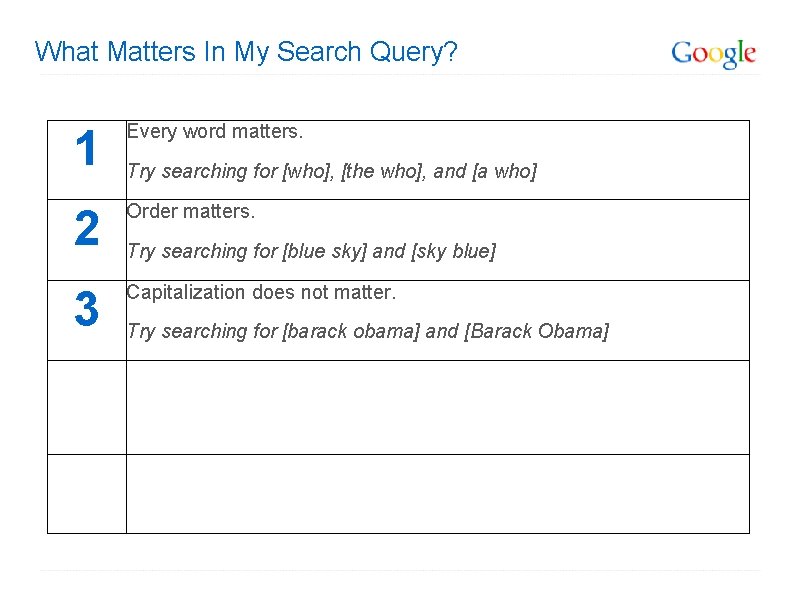
What Matters In My Search Query? 1 Every word matters. 2 Order matters. 3 Capitalization does not matter. Try searching for [who], [the who], and [a who] Try searching for [blue sky] and [sky blue] Try searching for [barack obama] and [Barack Obama]
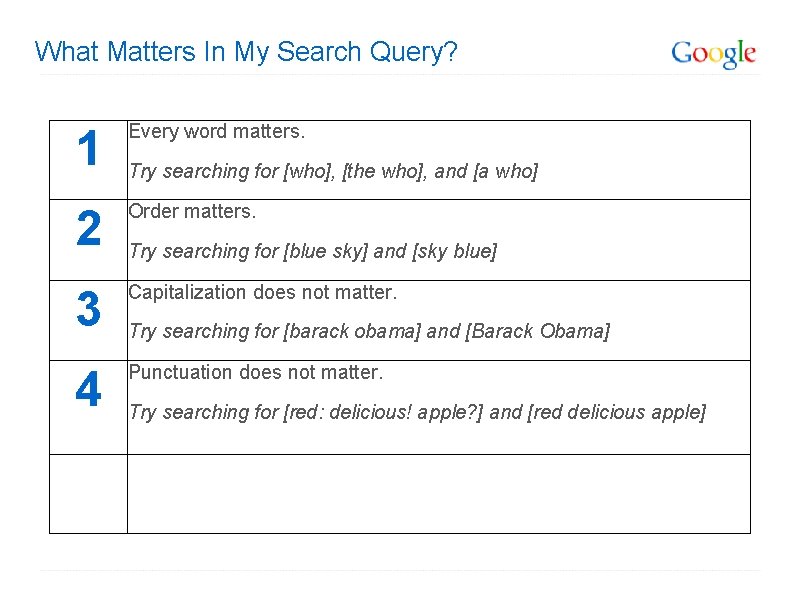
What Matters In My Search Query? 1 Every word matters. 2 Order matters. 3 Capitalization does not matter. 4 Punctuation does not matter. Try searching for [who], [the who], and [a who] Try searching for [blue sky] and [sky blue] Try searching for [barack obama] and [Barack Obama] Try searching for [red: delicious! apple? ] and [red delicious apple]
![Arrow Navigation: Autocomplete ● Navigate among autocomplete suggestions ● Try the [elk yellowstone] search,](http://slidetodoc.com/presentation_image_h2/5def61bad576782a0e18872e615ca814/image-21.jpg "Arrow Navigation: Autocomplete ● Navigate among autocomplete suggestions ● Try the [elk yellowstone] search,")
Arrow Navigation: Autocomplete ● Navigate among autocomplete suggestions ● Try the [elk yellowstone] search, and use the arrow keys to view the “I’m Feeling Lucky” result
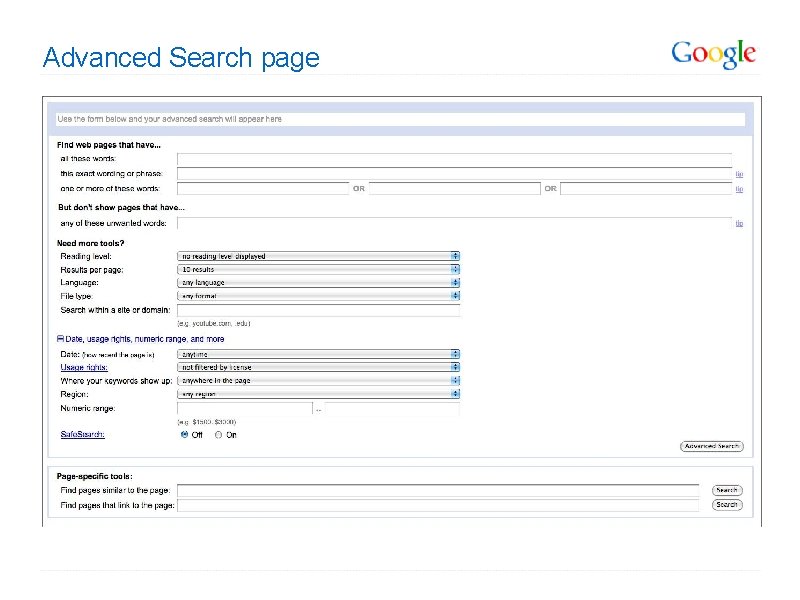
Advanced Search page
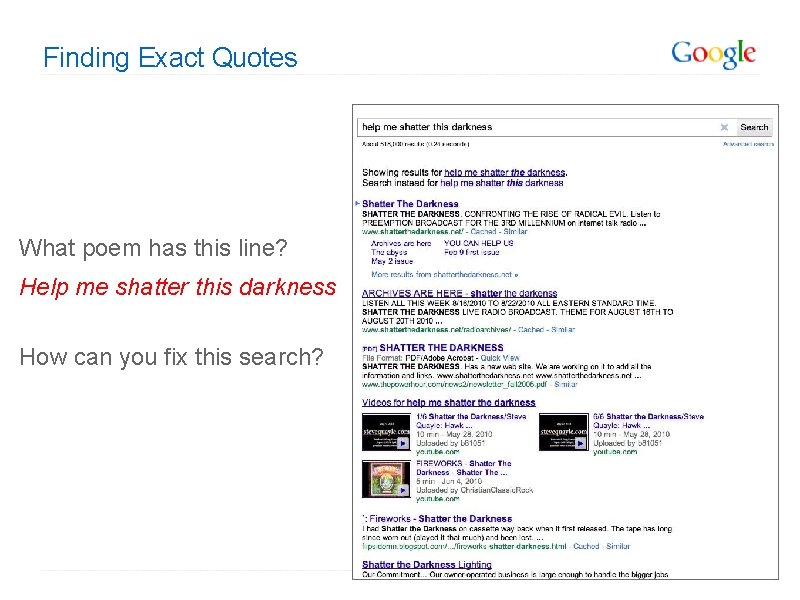
Finding Exact Quotes What poem has this line? Help me shatter this darkness How can you fix this search?
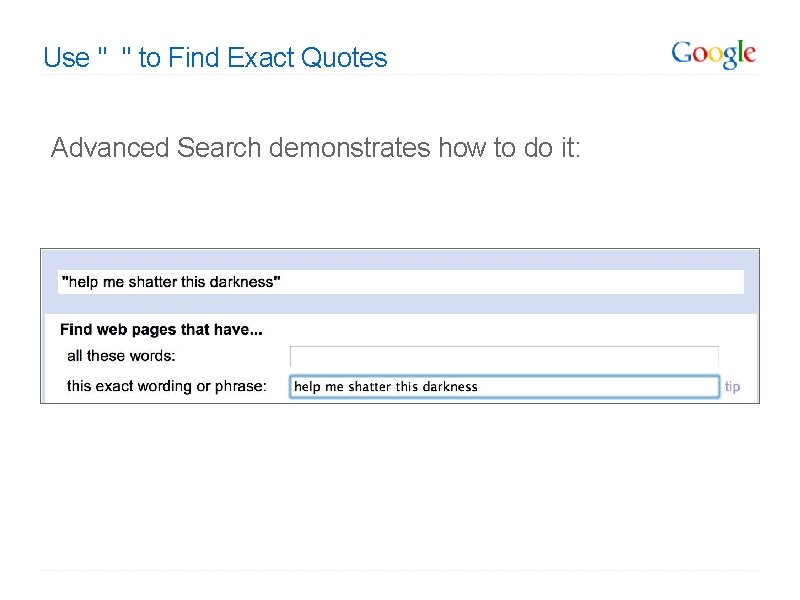
Use " " to Find Exact Quotes Advanced Search demonstrates how to do it:
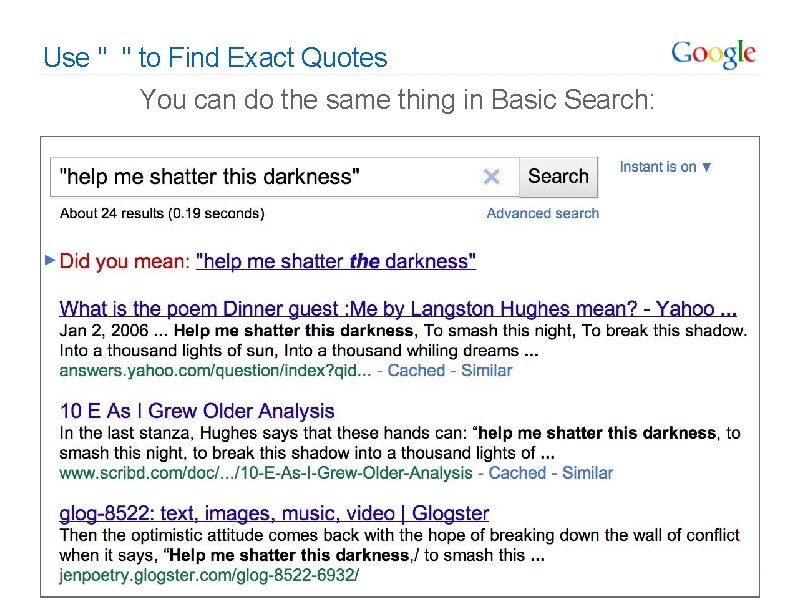
Use " " to Find Exact Quotes You can do the same thing in Basic Search:
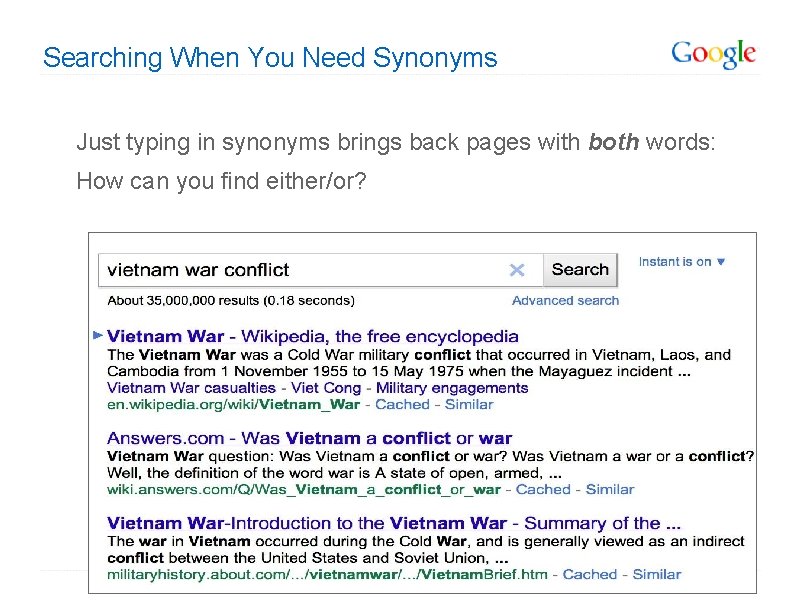
Searching When You Need Synonyms Just typing in synonyms brings back pages with both words: How can you find either/or?
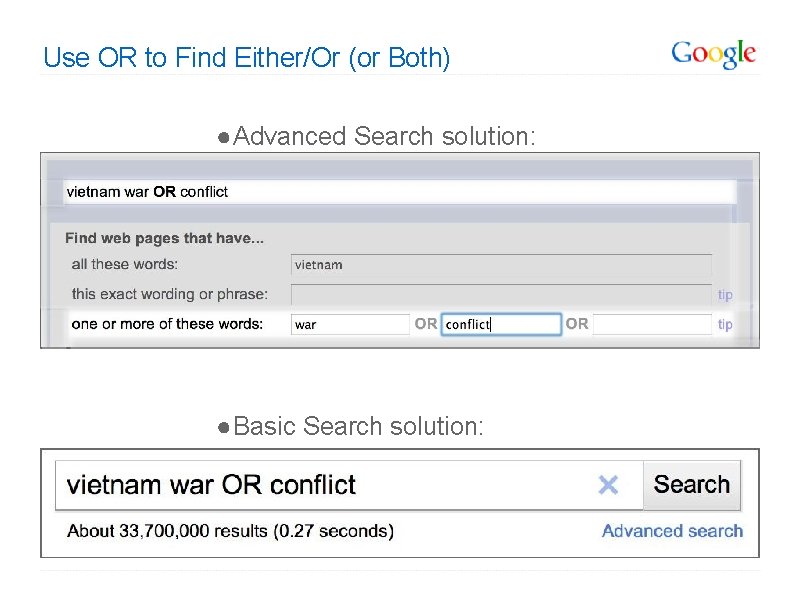
Use OR to Find Either/Or (or Both) ● Advanced Search solution: ● Basic Search solution:
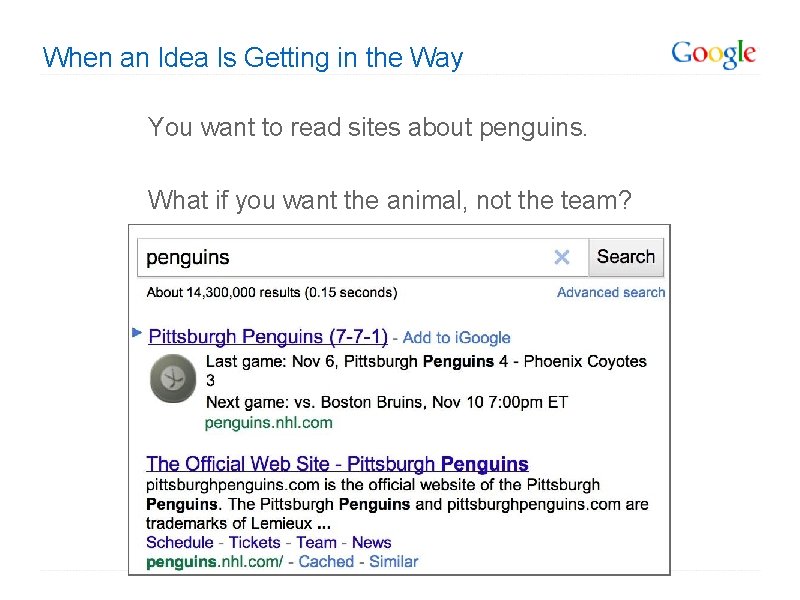
When an Idea Is Getting in the Way You want to read sites about penguins. What if you want the animal, not the team?
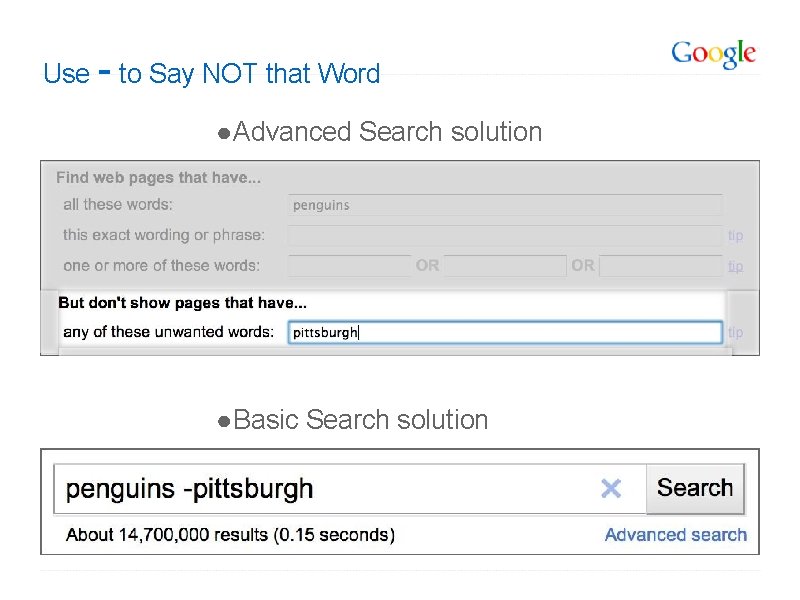
Use - to Say NOT that Word ● Advanced Search solution ● Basic Search solution
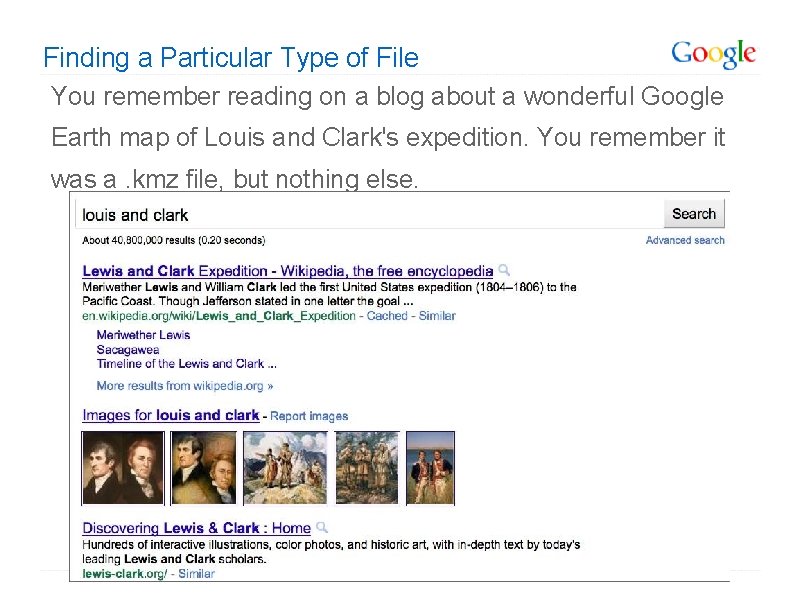
Finding a Particular Type of File You remember reading on a blog about a wonderful Google Earth map of Louis and Clark's expedition. You remember it was a. kmz file, but nothing else.
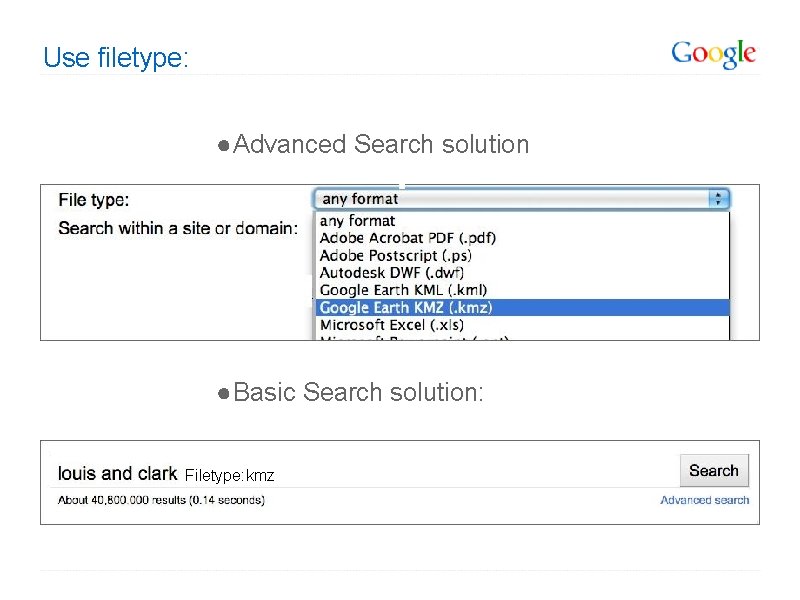
Use filetype: ● Advanced Search solution ● Basic Search solution: Filetype: kmz
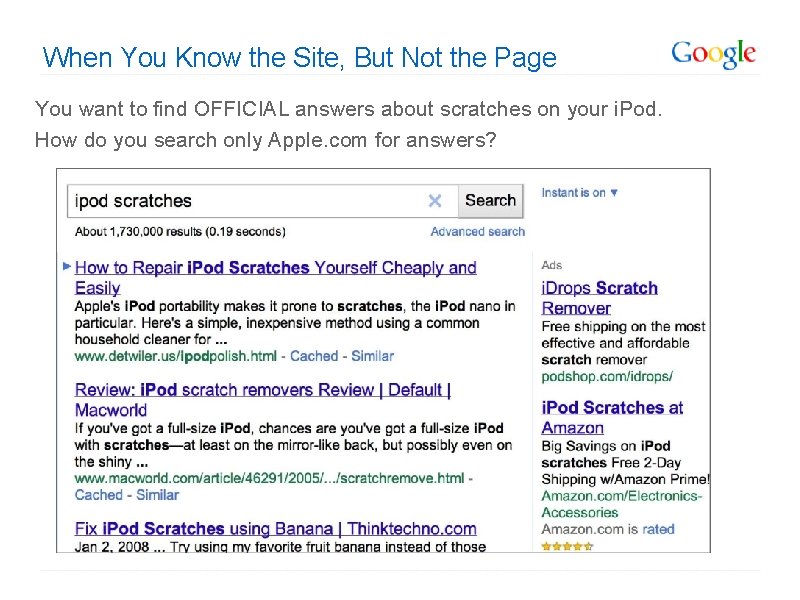
When You Know the Site, But Not the Page You want to find OFFICIAL answers about scratches on your i. Pod. How do you search only Apple. com for answers?
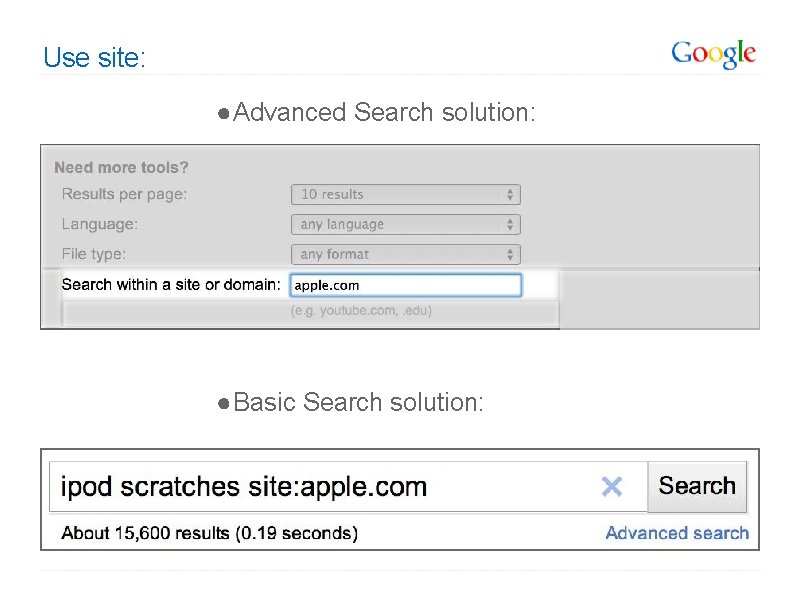
Use site: ● Advanced Search solution: ● Basic Search solution:
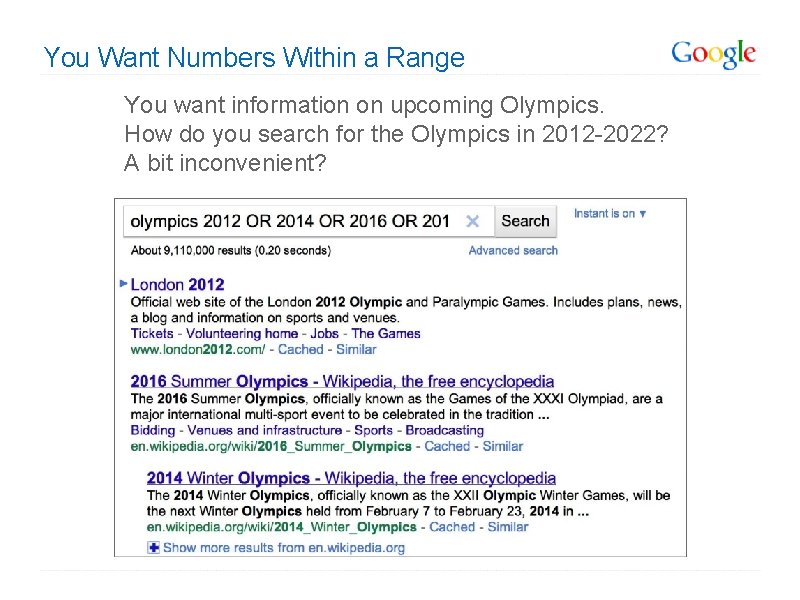
You Want Numbers Within a Range You want information on upcoming Olympics. How do you search for the Olympics in 2012 -2022? A bit inconvenient?
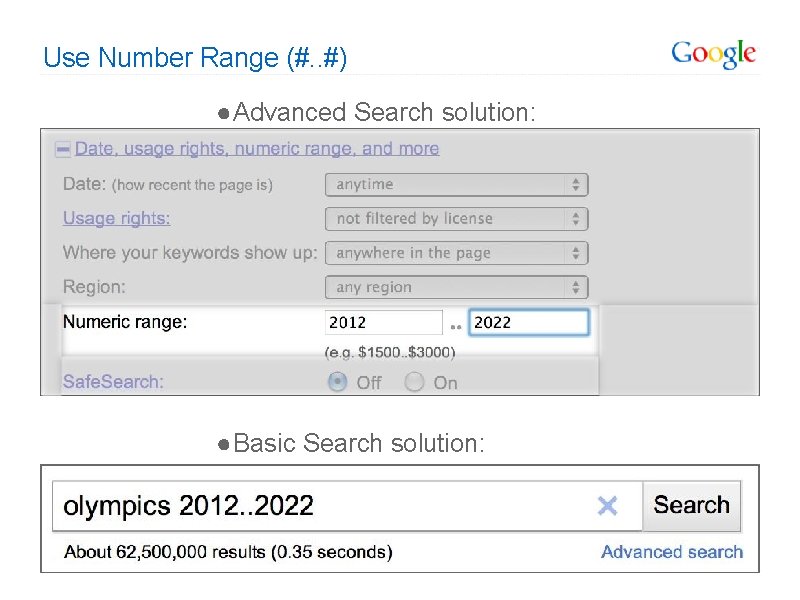
Use Number Range (#. . #) ● Advanced Search solution: ● Basic Search solution:
Wildcard (*) Can be used as a substitution for words or letters; Broadens your search * is used within quotation marks, in the middle of a phrase, to "fill in the blank. " Examples: • Driv* • wom*n • Hon*r (to include honor and honour) • “Harry Potter and the * of fire”
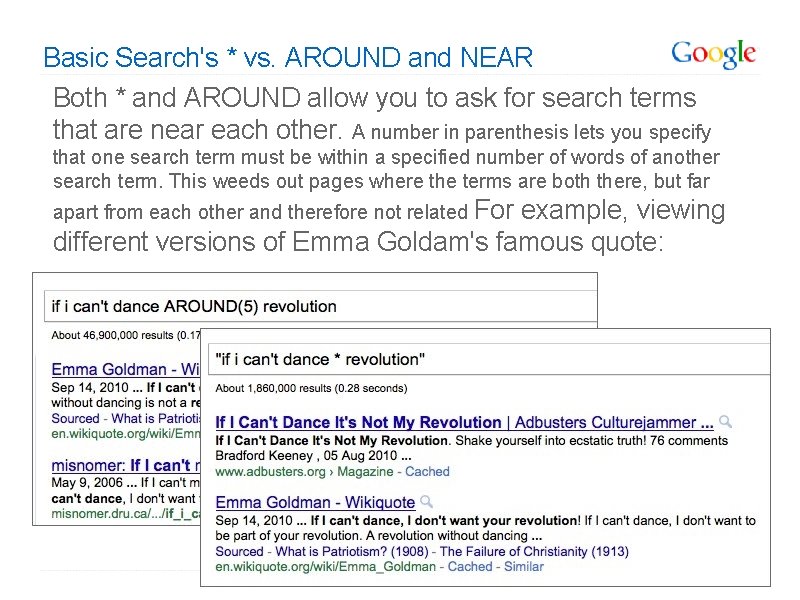
Basic Search's * vs. AROUND and NEAR Both * and AROUND allow you to ask for search terms that are near each other. A number in parenthesis lets you specify that one search term must be within a specified number of words of another search term. This weeds out pages where the terms are both there, but far apart from each other and therefore not related For example, viewing different versions of Emma Goldam's famous quote:
OR Can be used to search synonyms of a word Examples: • Soldier OR veteran • Cars OR automobiles
What Would Make Me Happy? Stop and think for a moment about what your perfect answer will look like: 1. WHO cares about what I care about? Who do I trust to give me the information I need? 2. WHAT words would I use to describe it, what words would my trusted source use? Which would be most common? 3. WHERE would my trusted source publish this information? 4. WHY would someone use one format or another to communicate this information? 5. HOW will I know when I found what I want?
Think About Using Context Terms Are there any concepts that describe what you want that would actually appear on the page? ● Information about Michael Jackson o [Michael Jackson fan site] o [Michael Jackson official] ● A collection of information about an aspect of science fiction o [science fiction database OR list OR index OR archive] ● A more academic look at democracy in South America o [democracy south america bibliography OR “works cited”]
Try Visualizing Who are the two main actors in the film Desk Set? Visualize the source that has the answer. What is it? ● IMDB. com o [desk set site: imdb. com] ● Most common wording in articles: “…the movie Desk Set, starring…” o [desk set starring] ● A movie poster showing the actors o [desk set] in Google Images
Tips For Better Searches 1 Keep it simple. Describe what you want in as few terms as possible. 2 Think of how the page you want will be written. Use words that are likely to appear on the page. 3 Use descriptive, specific words. Avoid general or common words.
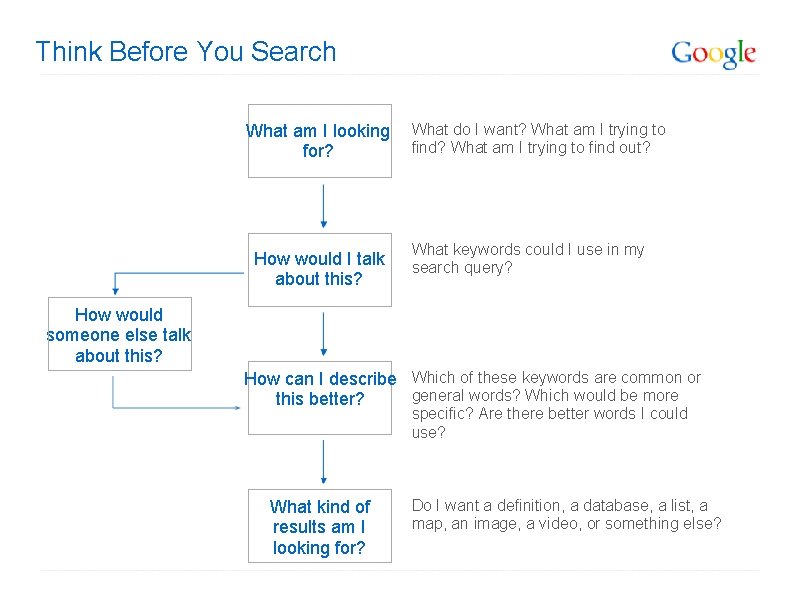
Think Before You Search What am I looking for? How would I talk about this? What do I want? What am I trying to find out? What keywords could I use in my search query? How would someone else talk about this? How can I describe Which of these keywords are common or general words? Which would be more this better? specific? Are there better words I could use? What kind of results am I looking for? Do I want a definition, a database, a list, a map, an image, a video, or something else?
Questions to ponder: • Searching takes time and effort. But can we ever find the perfect information? • Is Google the best search engine to find perfect information? Maybe not for certain academic research…

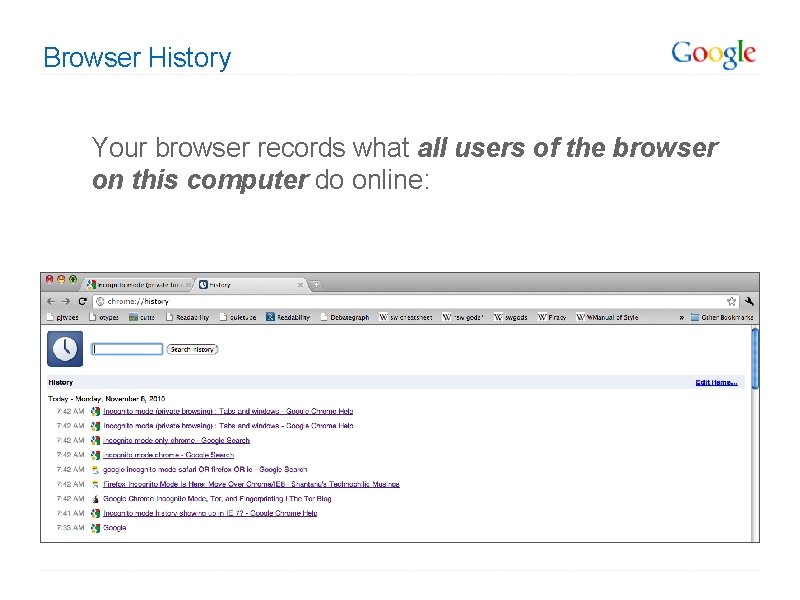
Browser History Your browser records what all users of the browser on this computer do online:
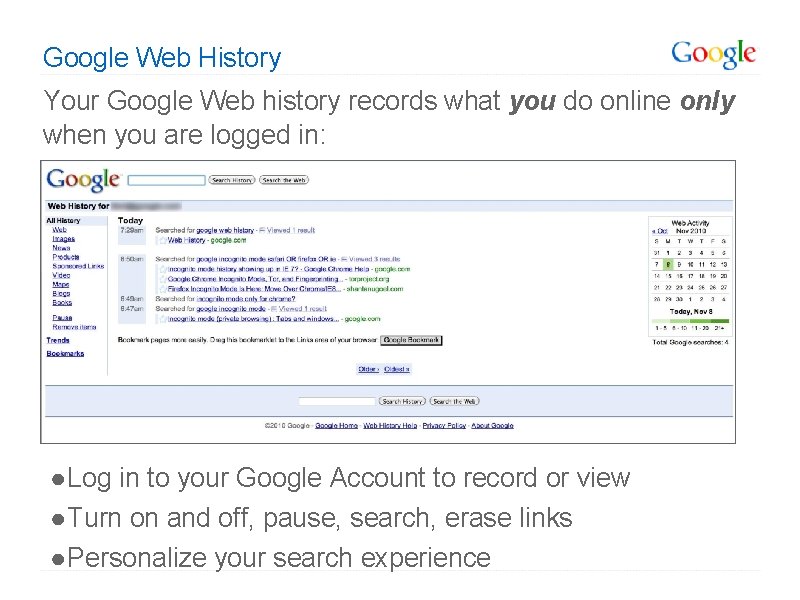
Google Web History Your Google Web history records what you do online only when you are logged in: ● Log in to your Google Account to record or view ● Turn on and off, pause, search, erase links ● Personalize your search experience
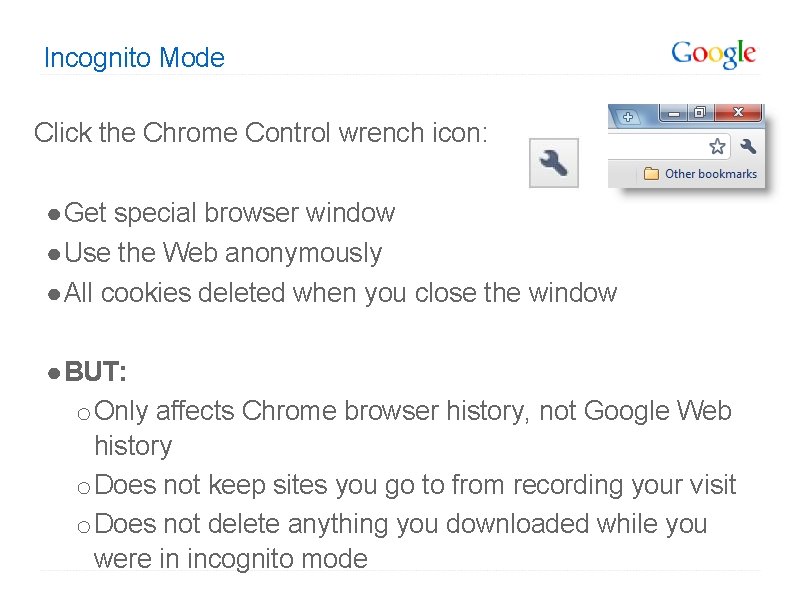
Incognito Mode Click the Chrome Control wrench icon: ● Get special browser window ● Use the Web anonymously ● All cookies deleted when you close the window ● BUT: o Only affects Chrome browser history, not Google Web history o Does not keep sites you go to from recording your visit o Does not delete anything you downloaded while you were in incognito mode
These lessons were developed by: Daniel Russell Tasha Bergson-Michelson Trent Maverick This lesson is licensed under a Creative Commons Attribution-Share. Alike license. You can change it, transmit it, show it to other people. Just always give credit to Google. com ("Attribution"), and make sure that any works you make based on these lessons are also under the same Creative Commons Attribution-Share-Alike license ("Share-Alike"). http: //creativecommons. org/licenses/by-sa/3. 0/legalcode.
Thank you for coming! I hope you learned a few good searching tips! This presentation is available in the Canvas Commons under “So You Think You Know Google. ” If you do not have access to Canvas and would like a copy of this lesson, please email me at MNowak@Seton. Catholic. org.
- Slides: 50