
SMETS 2 to SMETS 2 PPMID Exchange Process
- Slides: 3
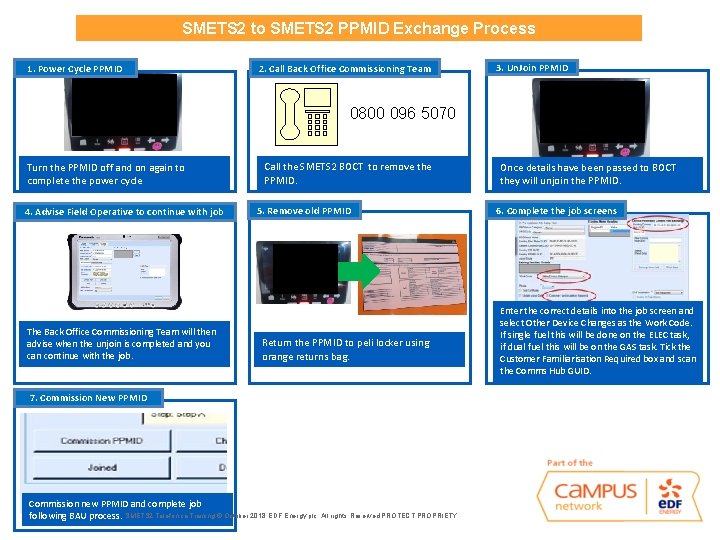
SMETS 2 to SMETS 2 PPMID Exchange Process 1. Power Cycle PPMID 2. Call Back Office Commissioning Team 3. Un. Join PPMID 0800 096 5070 Turn the PPMID off and on again to complete the power cycle 4. Advise Field Operative to continue with job The Back Office Commissioning Team will then advise when the unjoin is completed and you can continue with the job. Call the SMETS 2 BOCT to remove the PPMID. 5. Remove old PPMID Return the PPMID to peli locker using orange returns bag. 7. Commission New PPMID Commission new PPMID and complete job following BAU process. SMETS 2 Telefonica Training © October 2018 EDF Energy plc. All rights Reserved PROTECT PROPRIETY Once details have been passed to BOCT they will unjoin the PPMID. 6. Complete the job screens Enter the correct details into the job screen and select Other Device Changes as the Work Code. If single fuel this will be done on the ELEC task, if dual fuel this will be on the GAS task. Tick the Customer Familiarisation Required box and scan the Comms Hub GUID.
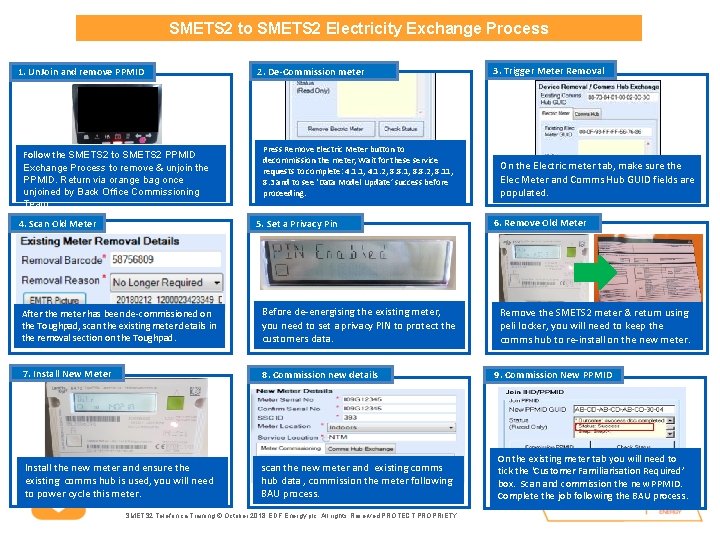
SMETS 2 to SMETS 2 Electricity Exchange Process 1. Un. Join and remove PPMID Follow the SMETS 2 to SMETS 2 PPMID Exchange Process to remove & unjoin the PPMID. Return via orange bag once unjoined by Back Office Commissioning Team. 4. Scan Old Meter 2. De-Commission meter Press Remove Electric Meter button to decommission the meter, Wait for these service requests to complete: 4. 1. 1, 4. 1. 2, 8. 8. 1, 8. 8. 2, 8. 11, 8. 3 and to see ‘Data Model Update’ success before proceeding. 5. Set a Privacy Pin After the meter has been de-commissioned on the Toughpad, scan the existing meter details in the removal section on the Toughpad. Before de-energising the existing meter, you need to set a privacy PIN to protect the customers data. 7. Install New Meter 8. Commission new details Install the new meter and ensure the existing comms hub is used, you will need to power cycle this meter. scan the new meter and existing comms hub data , commission the meter following BAU process. SMETS 2 Telefonica Training © October 2018 EDF Energy plc. All rights Reserved PROTECT PROPRIETY 3. Trigger Meter Removal On the Electric meter tab, make sure the Elec Meter and Comms Hub GUID fields are populated. 6. Remove Old Meter Remove the SMETS 2 meter & return using peli locker, you will need to keep the comms hub to re-install on the new meter. 9. Commission New PPMID On the existing meter tab you will need to tick the ‘Customer Familiarisation Required’ box. Scan and commission the new PPMID. Complete the job following the BAU process.
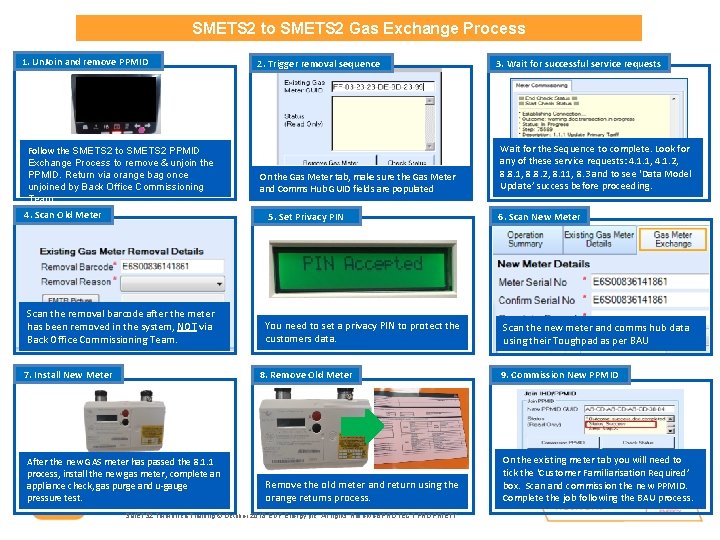
SMETS 2 to SMETS 2 Gas Exchange Process 1. Un. Join and remove PPMID Follow the SMETS 2 to SMETS 2 PPMID Exchange Process to remove & unjoin the PPMID. Return via orange bag once unjoined by Back Office Commissioning Team. 4. Scan Old Meter 2. Trigger removal sequence On the Gas Meter tab, make sure the Gas Meter and Comms Hub GUID fields are populated 5. Set Privacy PIN Scan the removal barcode after the meter has been removed in the system, NOT via Back Office Commissioning Team. 7. Install New Meter You need to set a privacy PIN to protect the customers data. 8. Remove Old Meter After the new GAS meter has passed the 8. 1. 1 process, install the new gas meter, complete an appliance check, gas purge and u-gauge pressure test. Remove the old meter and return using the orange returns process. SMETS 2 Telefonica Training © October 2018 EDF Energy plc. All rights Reserved PROTECT PROPRIETY 3. Wait for successful service requests Wait for the Sequence to complete. Look for any of these service requests: 4. 1. 1, 4. 1. 2, 8. 8. 1, 8. 8. 2, 8. 11, 8. 3 and to see ‘Data Model Update’ success before proceeding. 6. Scan New Meter Scan the new meter and comms hub data using their Toughpad as per BAU 9. Commission New PPMID On the existing meter tab you will need to tick the ‘Customer Familiarisation Required’ box. Scan and commission the new PPMID. Complete the job following the BAU process.