
SMART Training Tip Sheets This tip sheet outlines
- Slides: 3
SMART Training Tip Sheets This tip sheet outlines the procedures required to Discharge a client. Total Pages: 3 Maryland February 2008 IGSR Technical Support: 301. 397. 2330 Discharge Closing a Case
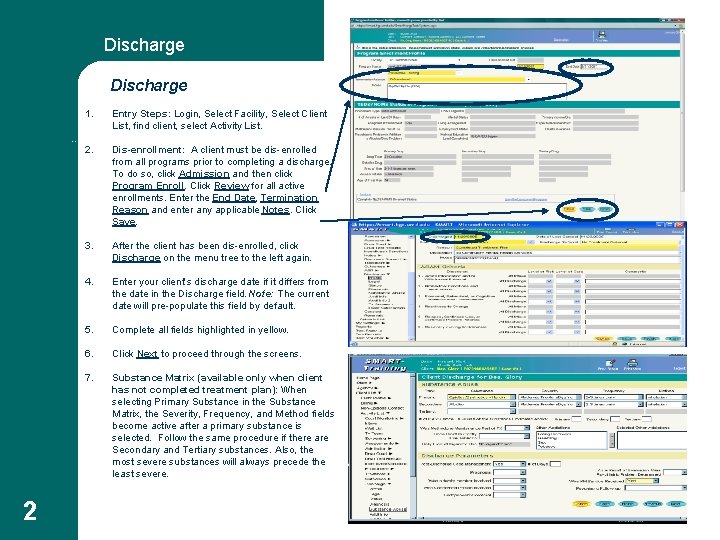
Discharge 1. Entry Steps: Login, Select Facility, Select Client List, find client, select Activity List. 2. Dis-enrollment: A client must be dis-enrolled from all programs prior to completing a discharge. To do so, click Admission and then click Program Enroll. Click Review for all active enrollments. Enter the End Date, Termination Reason and enter any applicable Notes. Click Save. 3. After the client has been dis-enrolled, click Discharge on the menu tree to the left again. 4. Enter your client’s discharge date if it differs from the date in the Discharge field. Note: The current date will pre-populate this field by default. 5. Complete all fields highlighted in yellow. 6. Click Next to proceed through the screens. 7. Substance Matrix (available only when client has not completed treatment plan): When selecting Primary Substance in the Substance Matrix, the Severity, Frequency, and Method fields become active after a primary substance is selected. Follow the same procedure if there are Secondary and Tertiary substances. Also, the most severe substances will always precede the least severe. Discharge 2
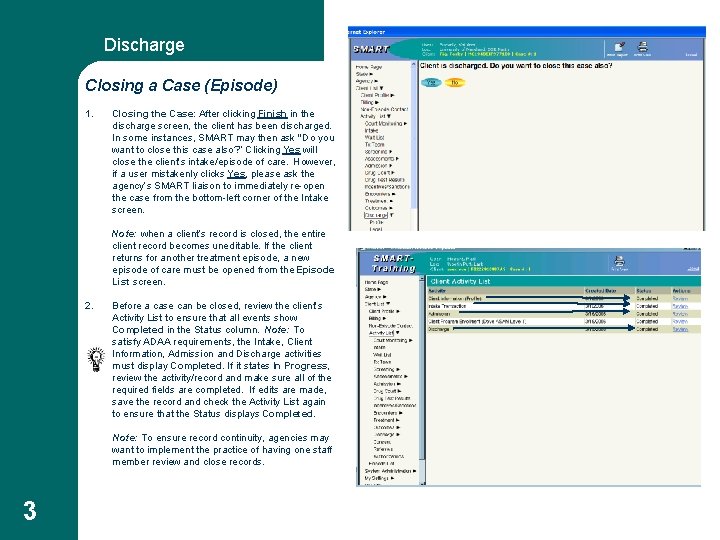
Discharge Closing a Case (Episode) 1. Closing the Case: After clicking Finish in the discharge screen, the client has been discharged. In some instances, SMART may then ask “Do you want to close this case also? ” Clicking Yes will close the client’s intake/episode of care. However, if a user mistakenly clicks Yes, please ask the agency’s SMART liaison to immediately re-open the case from the bottom-left corner of the Intake screen. Note: when a client’s record is closed, the entire client record becomes uneditable. If the client returns for another treatment episode, a new episode of care must be opened from the Episode List screen. 2. Before a case can be closed, review the client’s Activity List to ensure that all events show Completed in the Status column. Note: To satisfy ADAA requirements, the Intake, Client Information, Admission and Discharge activities must display Completed. If it states In Progress, review the activity/record and make sure all of the required fields are completed. If edits are made, save the record and check the Activity List again to ensure that the Status displays Completed. Note: To ensure record continuity, agencies may want to implement the practice of having one staff member review and close records. 3