
SLU Budget Financial Planning Colleague Budget Management Questions

SLU Budget & Financial Planning Colleague Budget Management Questions & Comments Contact Paula Sturge x 5559
ISSUES • Internet Explorer is the recommended browser, Firefox 3. 6 or newer is not supported • Working from off-campus: • Must use VPN • Requires correct versions of Java and Silverlight HEADS UP • Approximate 20 minute Activity Timeout - No Warning • Be careful with SAVE ALL • Be even MORE careful with CANCEL ALL !!
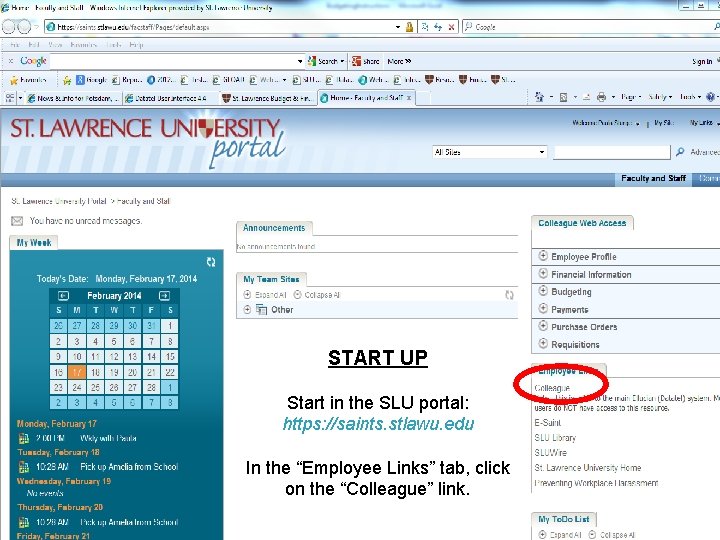
START UP Start in the SLU portal: https: //saints. stlawu. edu In the “Employee Links” tab, click on the “Colleague” link.
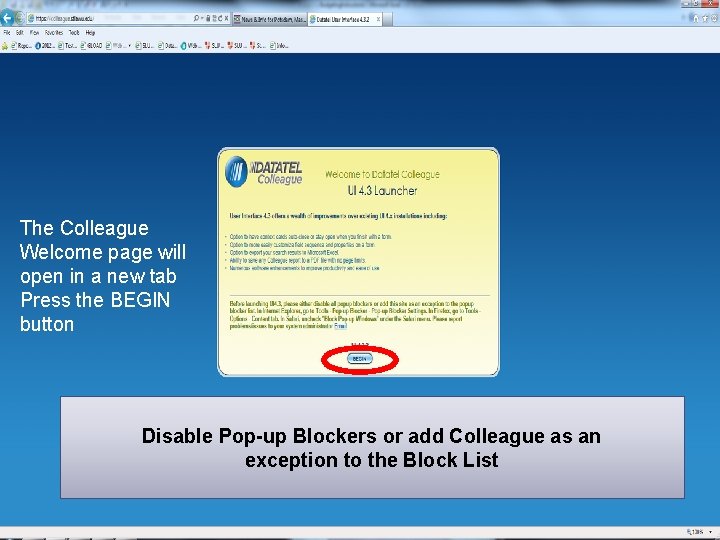
The Colleague Welcome page will open in a new tab Press the BEGIN button Disable Pop-up Blockers or add Colleague as an exception to the Block List
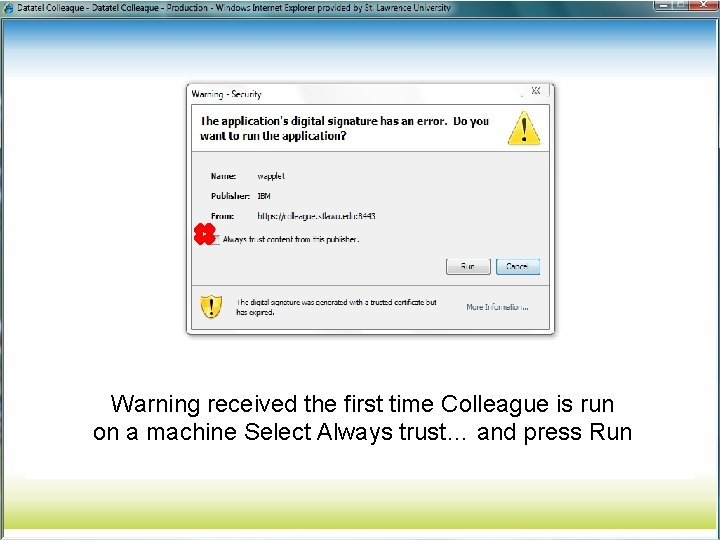
Warning received the first time Colleague is run on a machine Select Always trust… and press Run
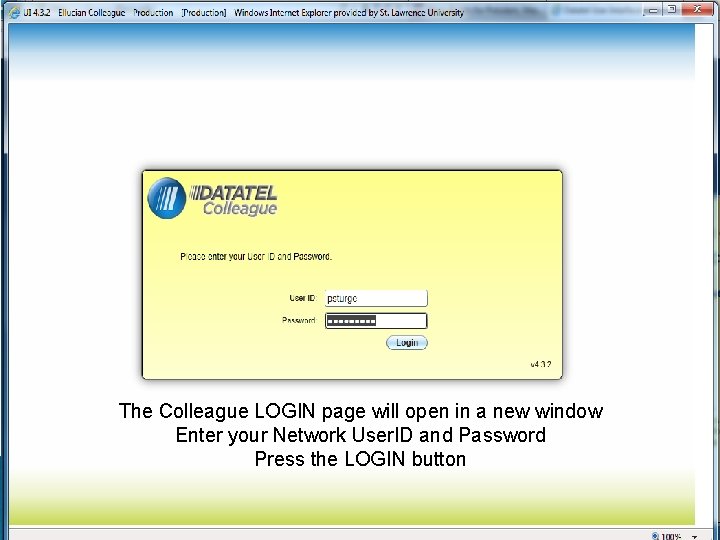
The Colleague LOGIN page will open in a new window Enter your Network User. ID and Password Press the LOGIN button
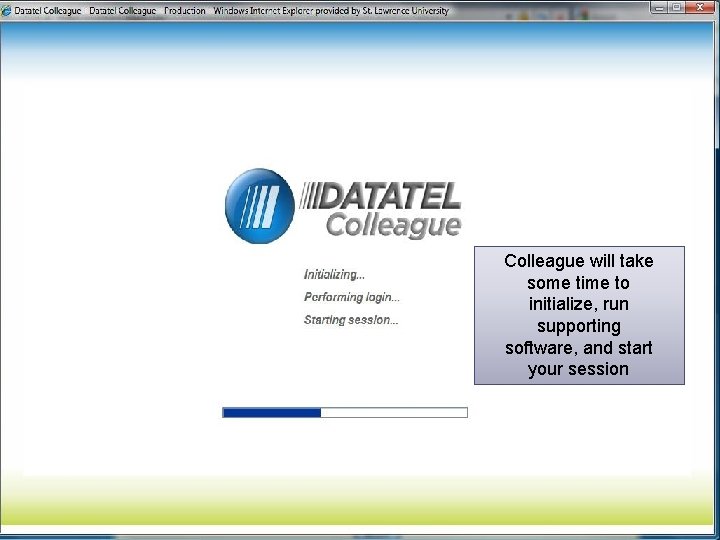
Colleague will take some time to initialize, run supporting software, and start your session
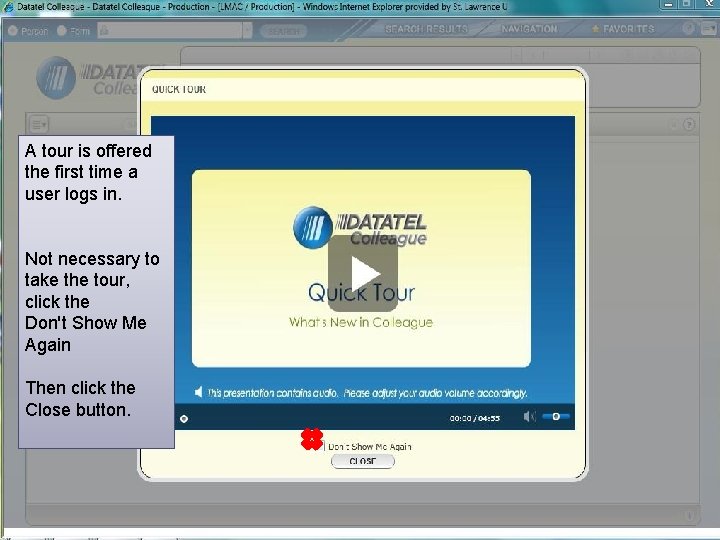
A tour is offered the first time a user logs in. Not necessary to take the tour, click the Don't Show Me Again Then click the Close button.
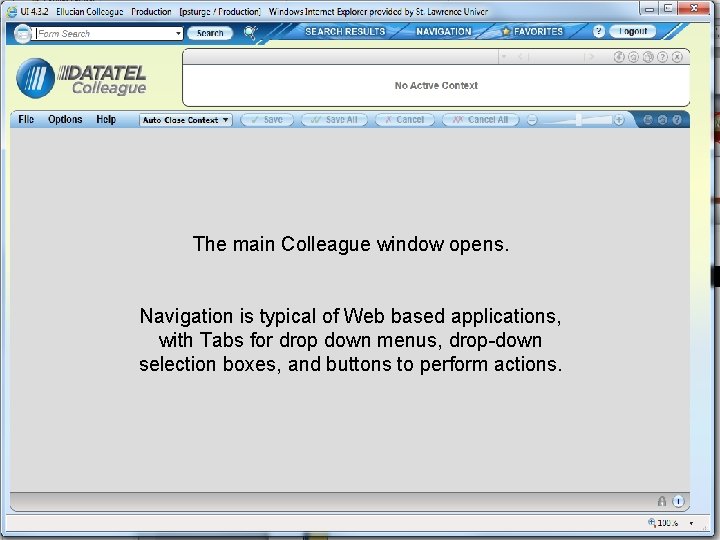
The main Colleague window opens. Navigation is typical of Web based applications, with Tabs for drop down menus, drop-down selection boxes, and buttons to perform actions.
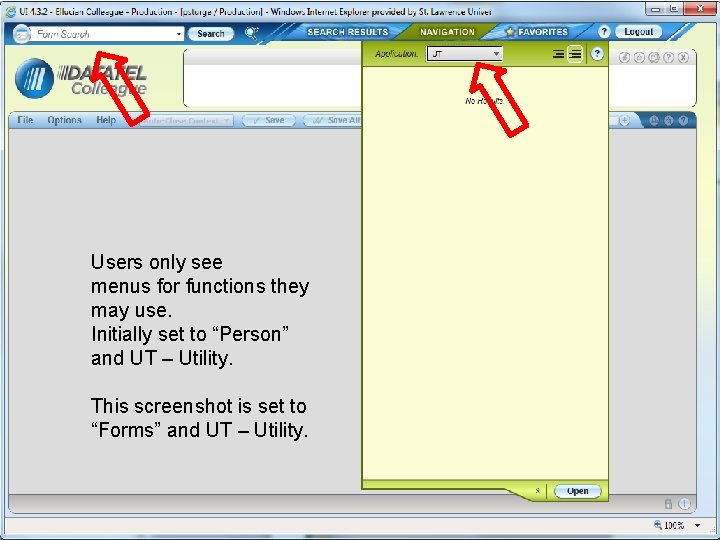
Users only see menus for functions they may use. Initially set to “Person” and UT – Utility. This screenshot is set to “Forms” and UT – Utility.
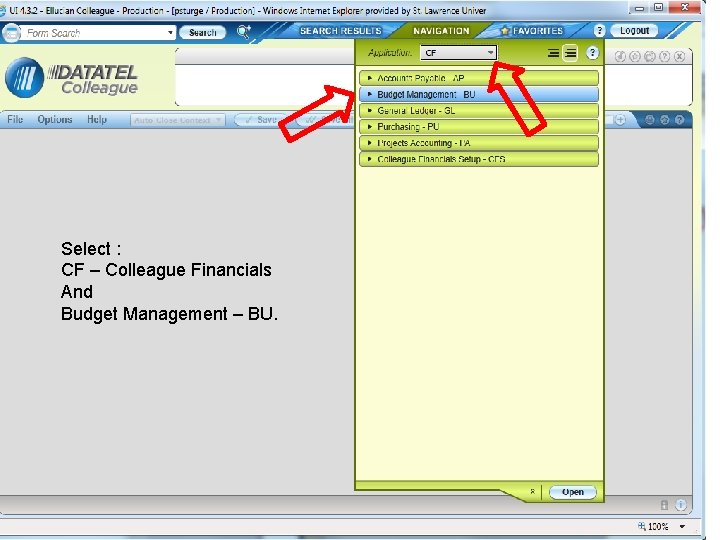
Select : CF – Colleague Financials And Budget Management – BU.
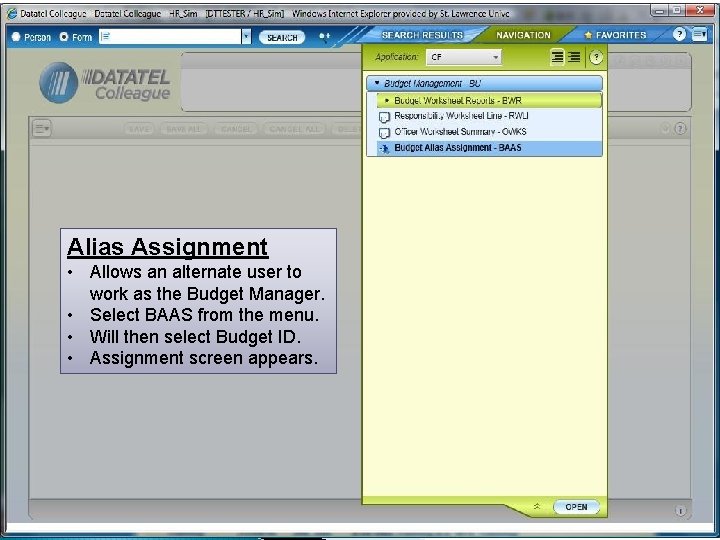
Alias Assignment • Allows an alternate user to work as the Budget Manager. • Select BAAS from the menu. • Will then select Budget ID. • Assignment screen appears.
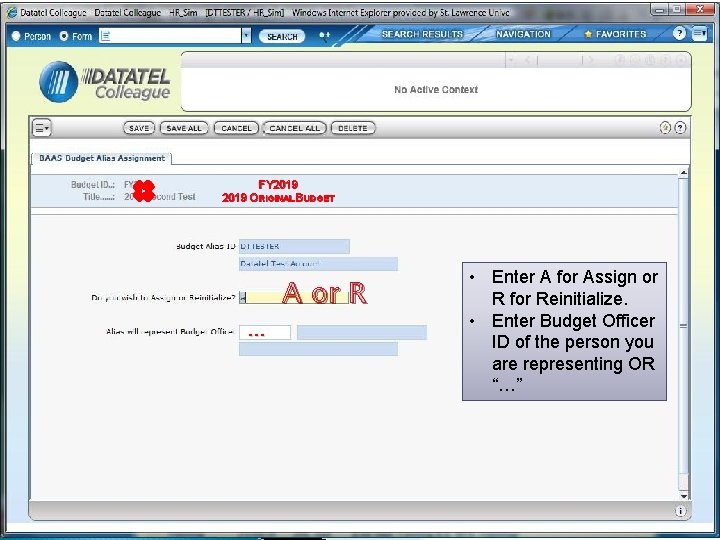
FY 2019 ORIGINAL BUDGET … A or R • Enter A for Assign or R for Reinitialize. • Enter Budget Officer ID of the person you are representing OR “…”
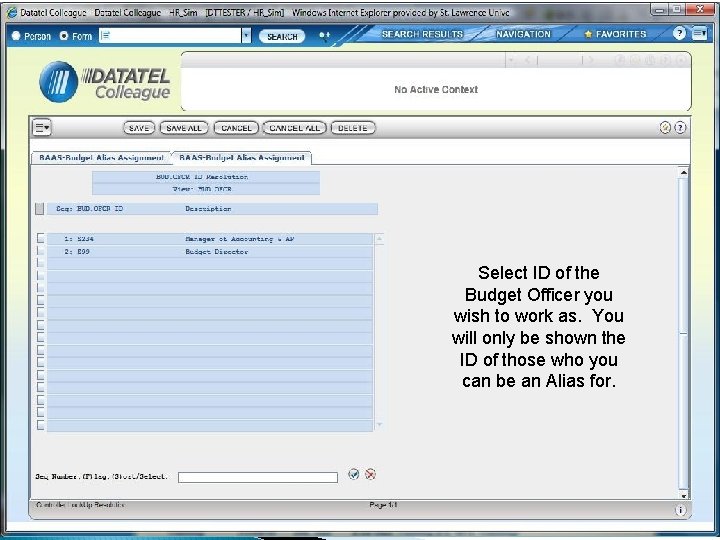
Select ID of the Budget Officer you wish to work as. You will only be shown the ID of those who you can be an Alias for.
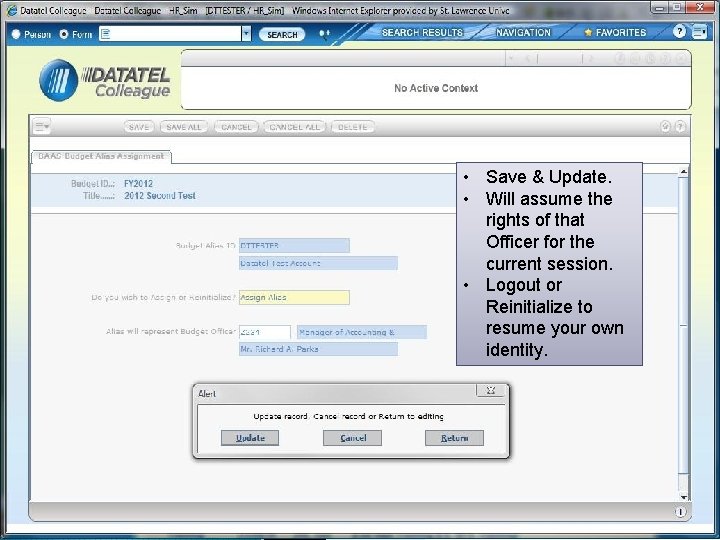
• Save & Update. • Will assume the rights of that Officer for the current session. • Logout or Reinitialize to resume your own identity.
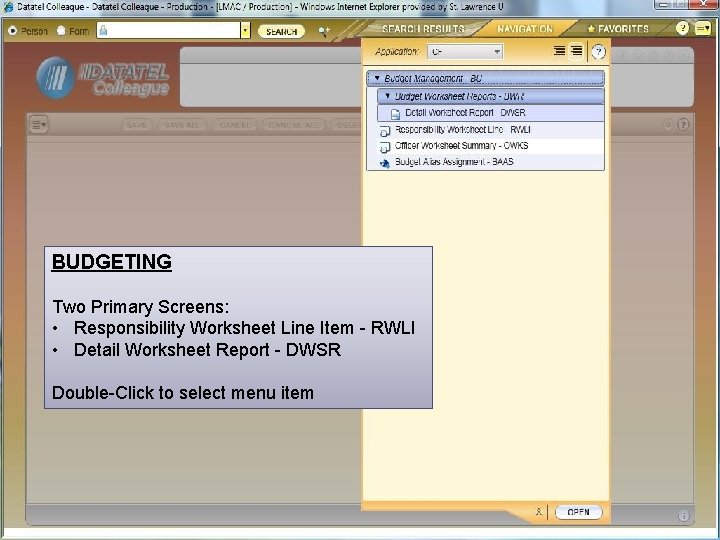
BUDGETING Two Primary Screens: • Responsibility Worksheet Line Item - RWLI • Detail Worksheet Report - DWSR Double-Click to select menu item
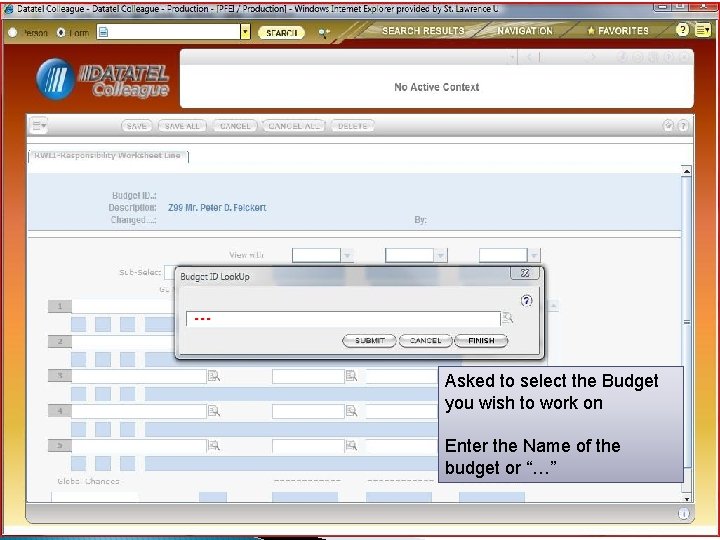
… Asked to select the Budget you wish to work on Enter the Name of the budget or “…”
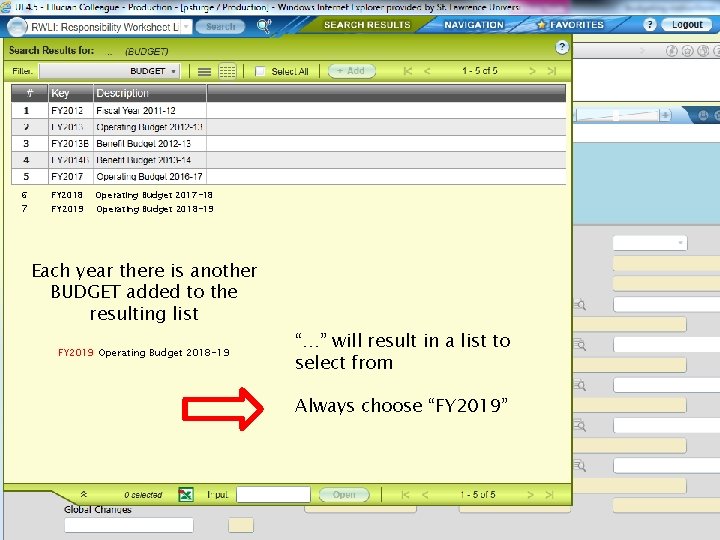
6 FY 2018 Operating Budget 2017 -18 There. Operating will Budget be 2018 -19 7 FY 2019 another BUDGET added to the resulting list is another Each year there BUDGET added to the # FY 2017 Operating Budget 2016 -17 resulting list FY 2019 Operating Budget 2018 -19 “…” will result in a list to select from Always choose "FY 2017" Always choose “FY 2019”
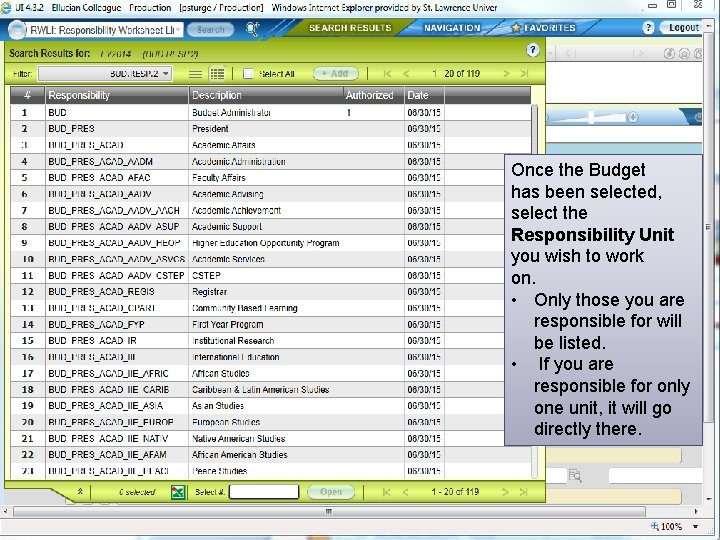
Once the Budget has been selected, select the Responsibility Unit you wish to work on. • Only those you are responsible for will be listed. • If you are responsible for only one unit, it will go directly there.
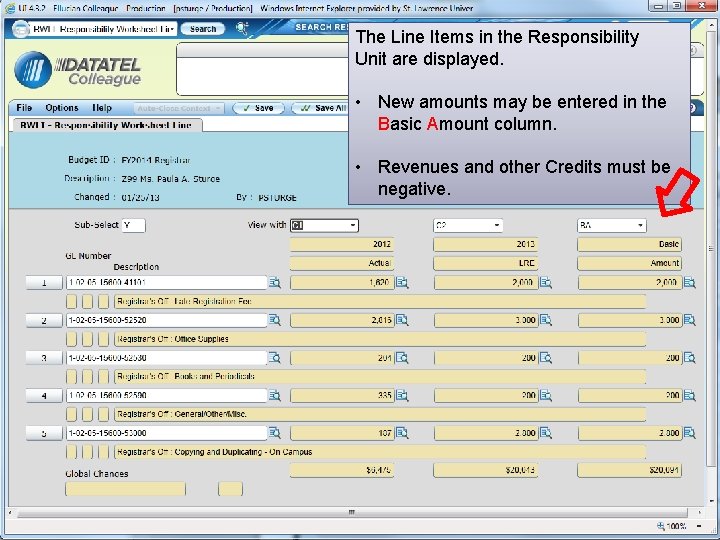
The Line Items in the Responsibility Unit are displayed. • New amounts may be entered in the Basic Amount column. • Revenues and other Credits must be negative.
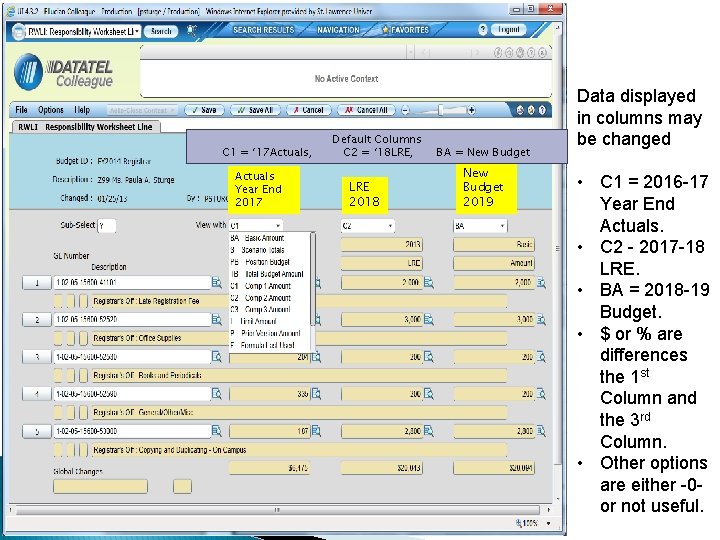
C 1 = ‘ 17 Actuals, Actuals Year End 2017 Default Columns C 2 = ‘ 18 LRE, LRE 2018 BA = New Budget 2019 Data displayed in columns may be changed • C 1 = 2016 -17 Year End Actuals. • C 2 - 2017 -18 LRE. • BA = 2018 -19 Budget. • $ or % are differences the 1 st Column and the 3 rd Column. • Other options are either -0 or not useful.
Navigation • “Internal” & “External” Scroll Bars • Click on a cell to Select • Enter or Tab may be used…May have different action Entering Line Item Amounts: • Only the 2018 -19 Budget may be changed • Displayed as BA (Basic Amount) • May be in any of the columns Entry Options: • • • Replace Amount + = increase by $ amount - = decrease by $ amount + or - a % change Type Over replaces the $ amount Totals and Comparisons recalculate automatically Sub-Select & Global Changes ?
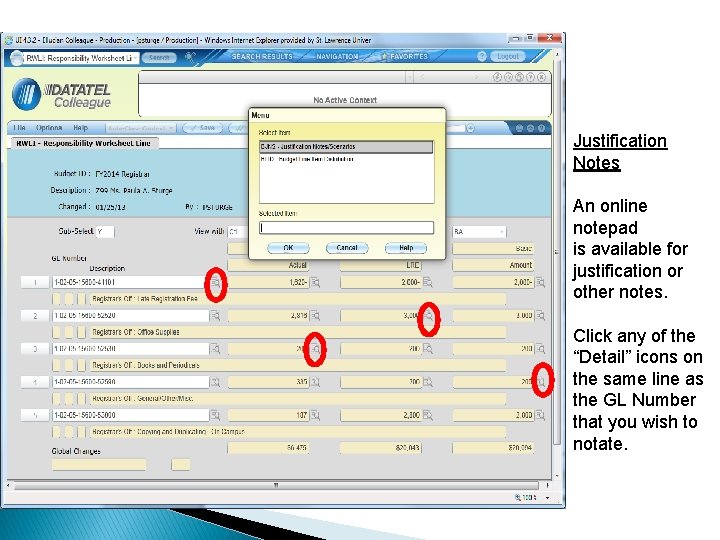
Justification Notes An online notepad is available for justification or other notes. Click any of the “Detail” icons on the same line as the GL Number that you wish to notate.
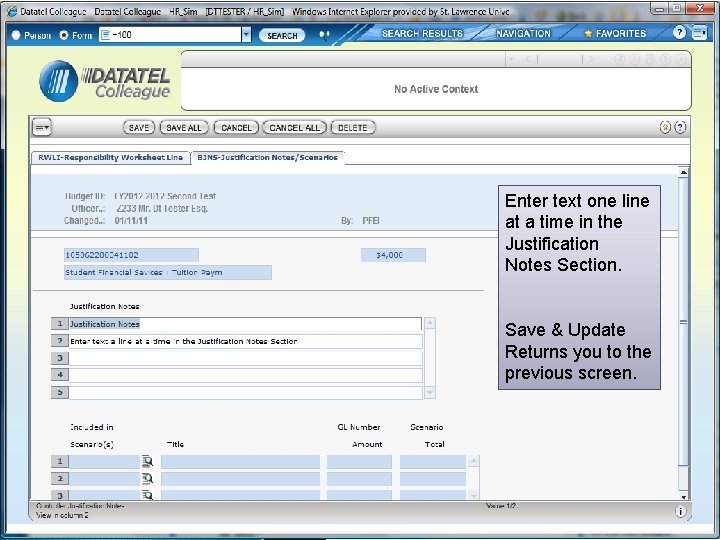
Enter text one line at a time in the Justification Notes Section. Save & Update Returns you to the previous screen.
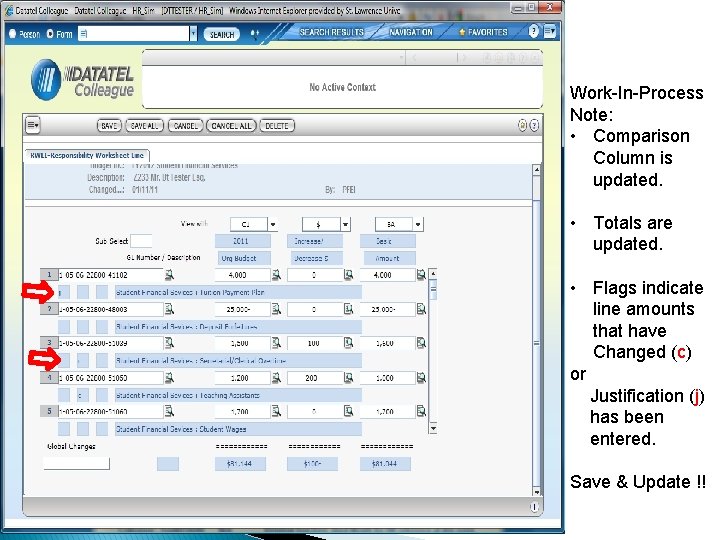
Work-In-Process Note: • Comparison Column is updated. • Totals are updated. • Flags indicate line amounts that have Changed (c) or Justification (j) has been entered. Save & Update !!
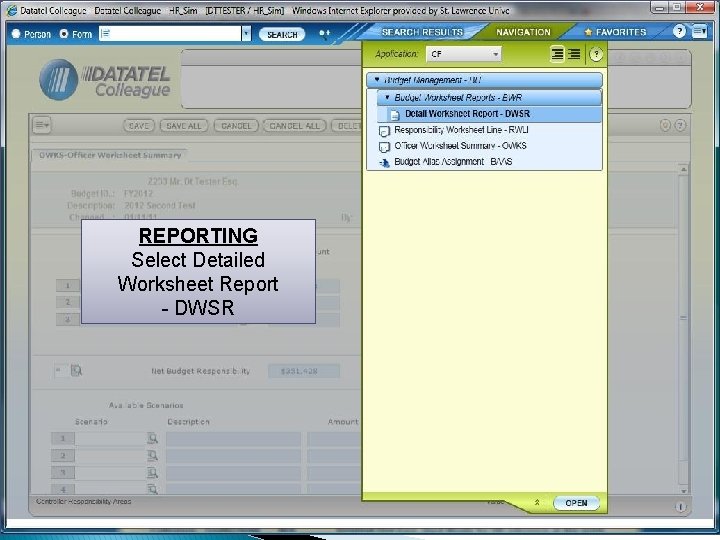
REPORTING Select Detailed Worksheet Report - DWSR
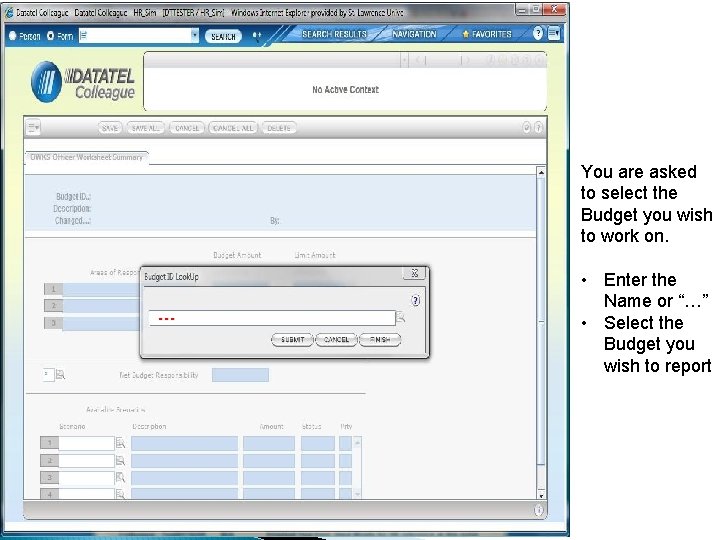
You are asked to select the Budget you wish to work on. … • Enter the Name or “…” • Select the Budget you wish to report
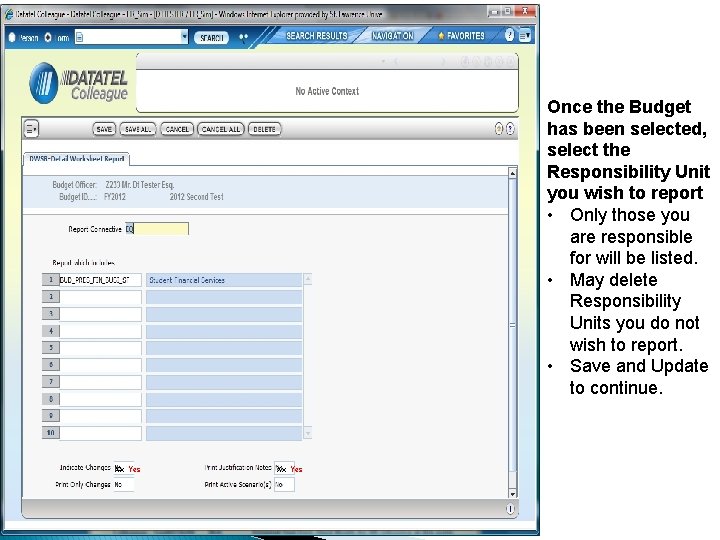
Once the Budget has been selected, select the Responsibility Unit you wish to report • Only those you are responsible for will be listed. • May delete Responsibility Units you do not wish to report. • Save and Update to continue. Xx Yes
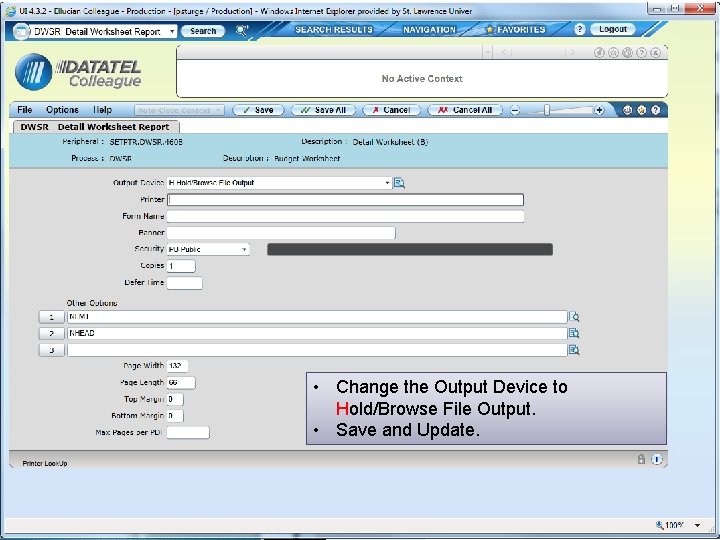
• Change the Output Device to Hold/Browse File Output. • Save and Update.
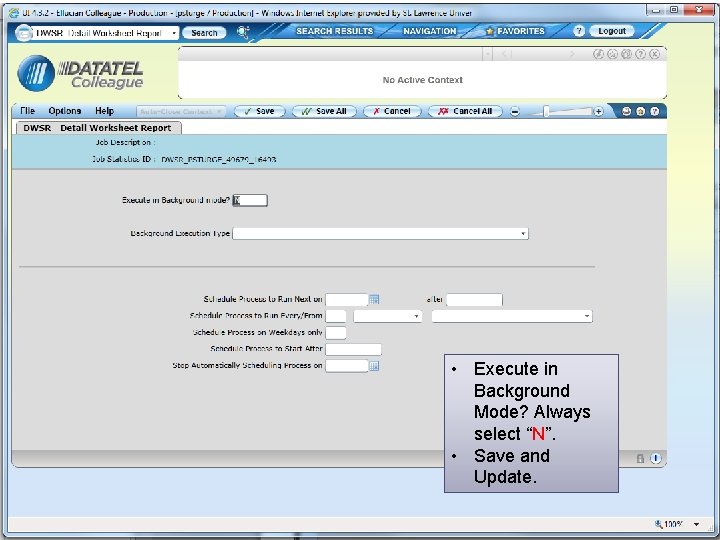
• Execute in Background Mode? Always select “N”. • Save and Update.
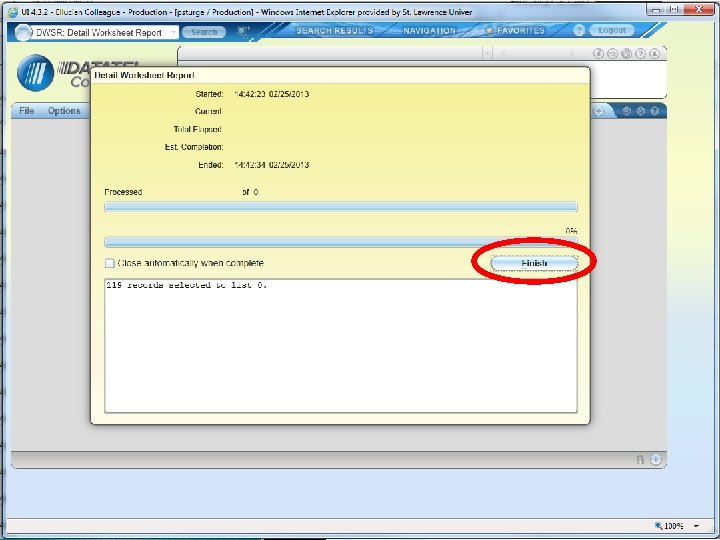
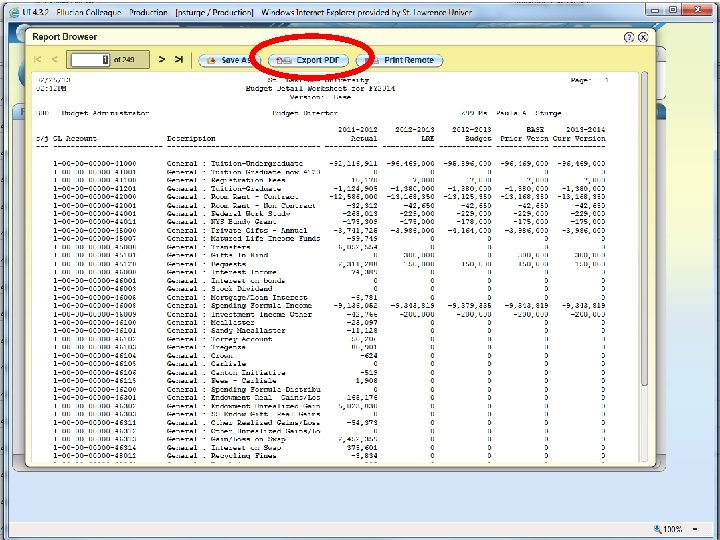
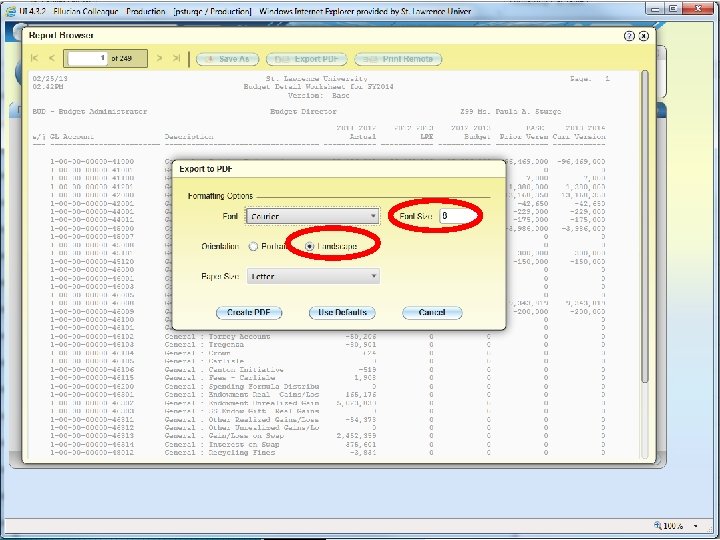
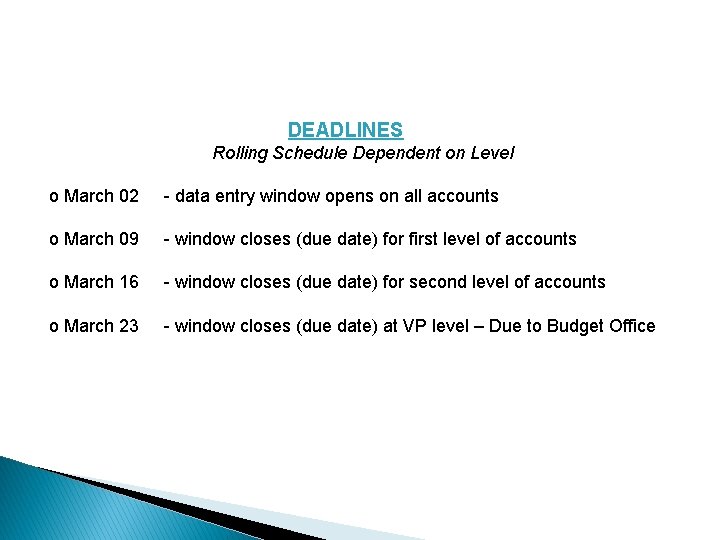
DEADLINES Rolling Schedule Dependent on Level o March 02 - data entry window opens on all accounts o March 09 - window closes (due date) for first level of accounts o March 16 - window closes (due date) for second level of accounts o March 23 - window closes (due date) at VP level – Due to Budget Office
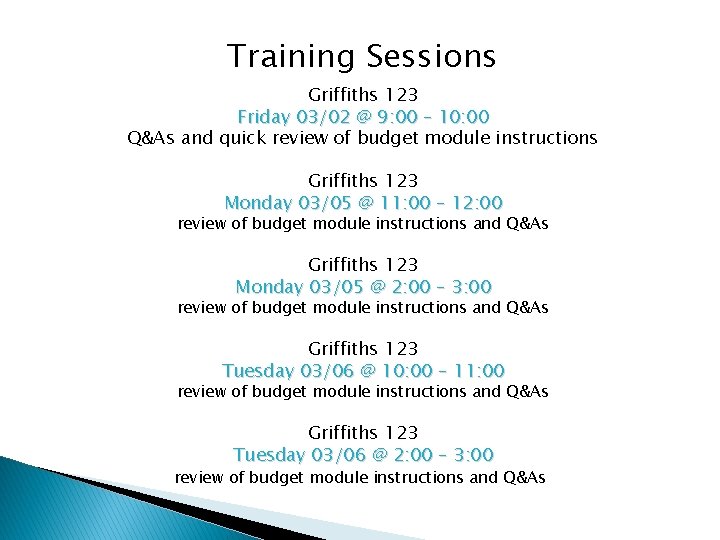
Training Sessions Griffiths 123 Friday 03/02 @ 9: 00 – 10: 00 Q&As and quick review of budget module instructions Griffiths 123 Monday 03/05 @ 11: 00 – 12: 00 review of budget module instructions and Q&As Griffiths 123 Monday 03/05 @ 2: 00 – 3: 00 review of budget module instructions and Q&As Griffiths 123 Tuesday 03/06 @ 10: 00 – 11: 00 review of budget module instructions and Q&As Griffiths 123 Tuesday 03/06 @ 2: 00 – 3: 00 review of budget module instructions and Q&As
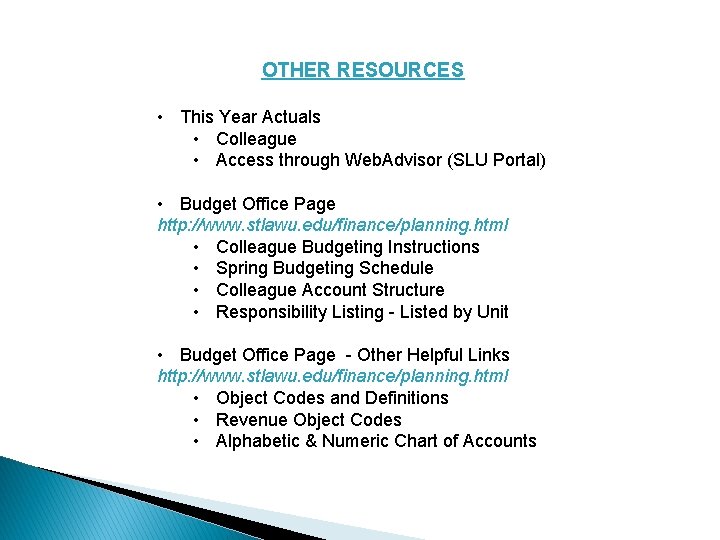
OTHER RESOURCES • This Year Actuals • Colleague • Access through Web. Advisor (SLU Portal) • Budget Office Page http: //www. stlawu. edu/finance/planning. html • Colleague Budgeting Instructions • Spring Budgeting Schedule • Colleague Account Structure • Responsibility Listing - Listed by Unit • Budget Office Page - Other Helpful Links http: //www. stlawu. edu/finance/planning. html • Object Codes and Definitions • Revenue Object Codes • Alphabetic & Numeric Chart of Accounts

Questions?
- Slides: 37