
Slicer RT Handson tutorial Csaba Pinter Laboratory for
Slicer. RT Hands-on tutorial Csaba Pinter Laboratory for Percutaneous Surgery, Queen’s University, Canada
Preparations • Prepare the environment – Install 3 D Slicer – Install Slicer. RT – Load test data • If you do not have a computer, please team up with somebody • Those who fall behind, please signal • Nothing is lost for those who start late, please ask Laboratory for Percutaneous Surgery – Copyright © Queen’s University, 2013 -2 -
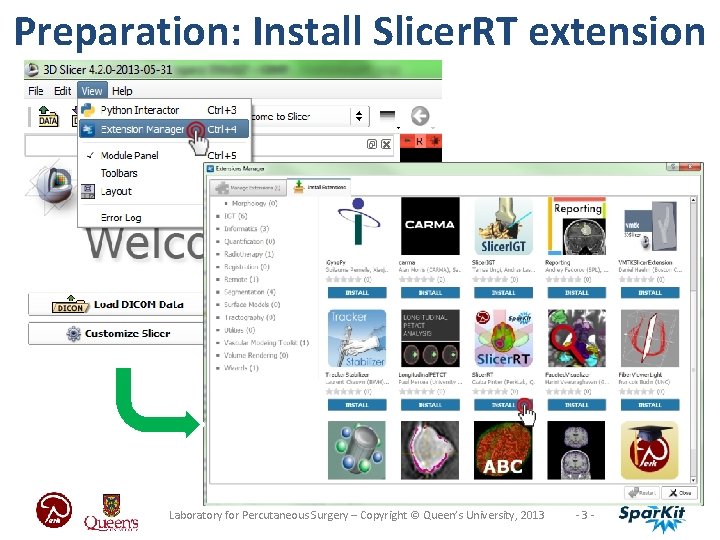
Preparation: Install Slicer. RT extension Laboratory for Percutaneous Surgery – Copyright © Queen’s University, 2013 -3 -
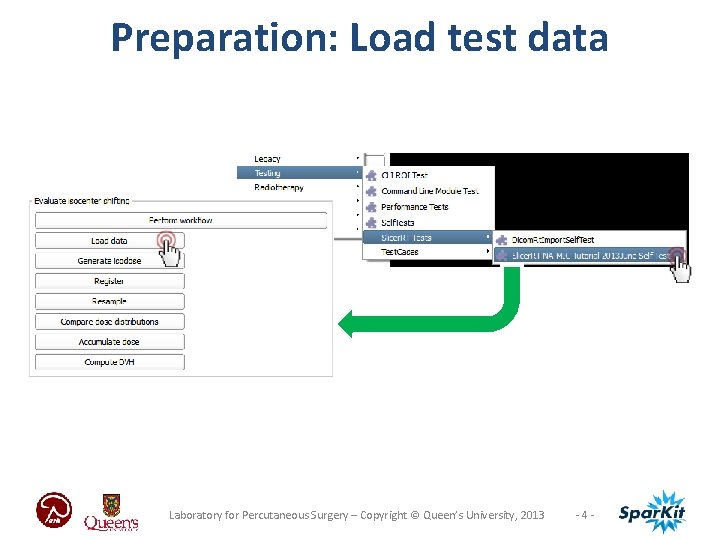
Preparation: Load test data Laboratory for Percutaneous Surgery – Copyright © Queen’s University, 2013 -4 -
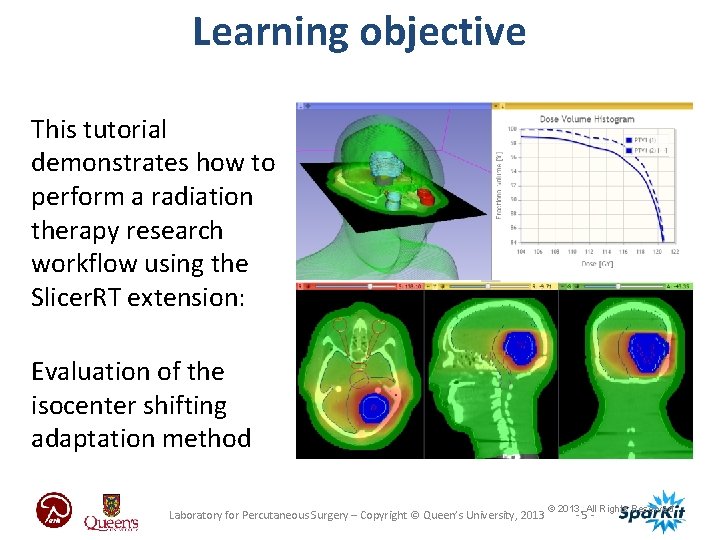
Learning objective This tutorial demonstrates how to perform a radiation therapy research workflow using the Slicer. RT extension: Evaluation of the isocenter shifting adaptation method [picture to illustrate the learning objective] Laboratory for Percutaneous Surgery – Copyright © Queen’s University, 2013 © 2013, All Rights Reserved -5 -
Evaluation of adaptation techniques through dose accumulation and DVH 1. Import, load, and visualize DICOM-RT data 2. Register planning CT to day 2 CT Rigid and deformable → three scenarios – No registration = no adaptation – Rigid registration ≈ isocenter shifting – Deformable registration ≈ re-planning 3. Accumulate dose 4. Compute DVH 5. Compare DVH curves and metrics for the methods Laboratory for Percutaneous Surgery – Copyright © Queen’s University, 2013 -6 -
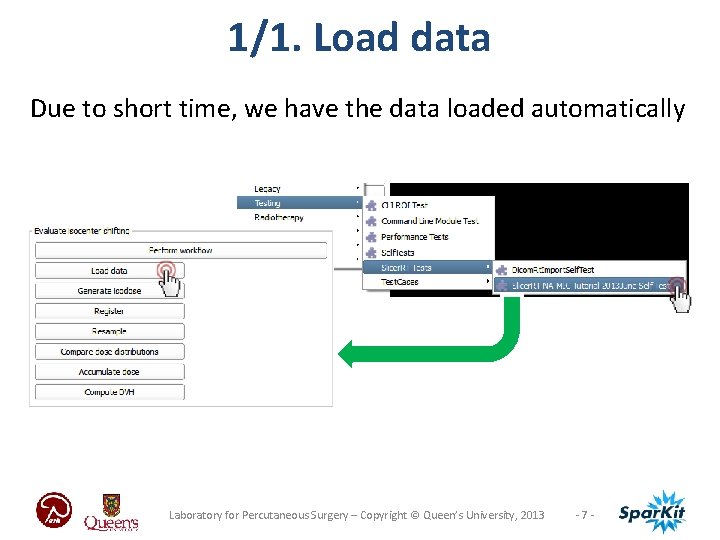
1/1. Load data Due to short time, we have the data loaded automatically Laboratory for Percutaneous Surgery – Copyright © Queen’s University, 2013 -7 -
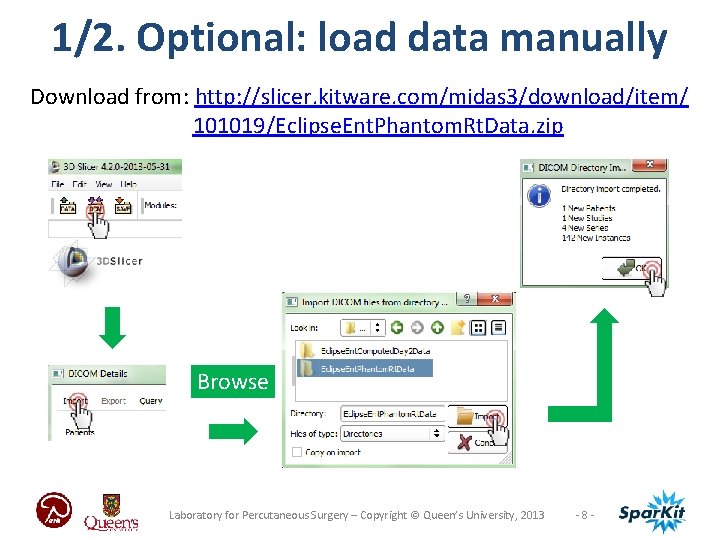
1/2. Optional: load data manually Download from: http: //slicer. kitware. com/midas 3/download/item/ 101019/Eclipse. Ent. Phantom. Rt. Data. zip Browse Laboratory for Percutaneous Surgery – Copyright © Queen’s University, 2013 -8 -
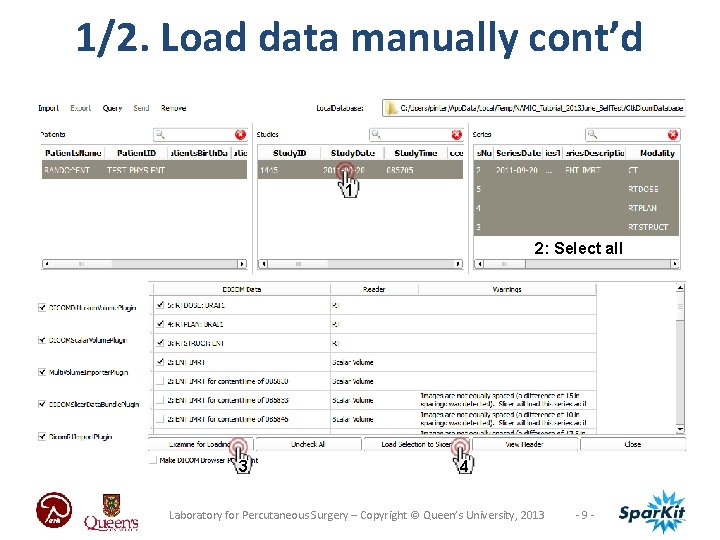
1/2. Load data manually cont’d 1 2: Select all 3 4 Laboratory for Percutaneous Surgery – Copyright © Queen’s University, 2013 -9 -
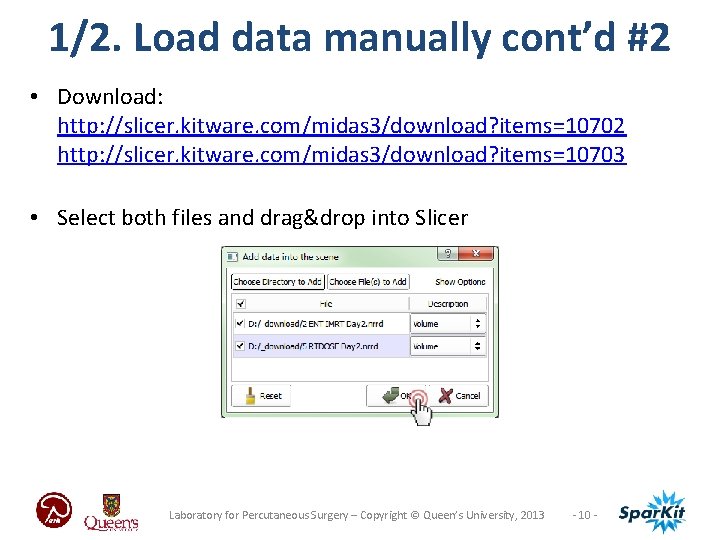
1/2. Load data manually cont’d #2 • Download: http: //slicer. kitware. com/midas 3/download? items=10702 http: //slicer. kitware. com/midas 3/download? items=10703 • Select both files and drag&drop into Slicer Laboratory for Percutaneous Surgery – Copyright © Queen’s University, 2013 - 10 -
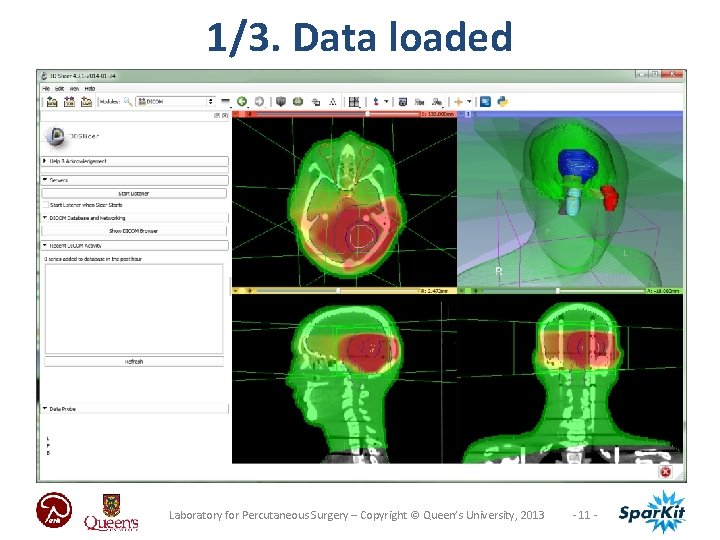
1/3. Data loaded Laboratory for Percutaneous Surgery – Copyright © Queen’s University, 2013 - 11 -
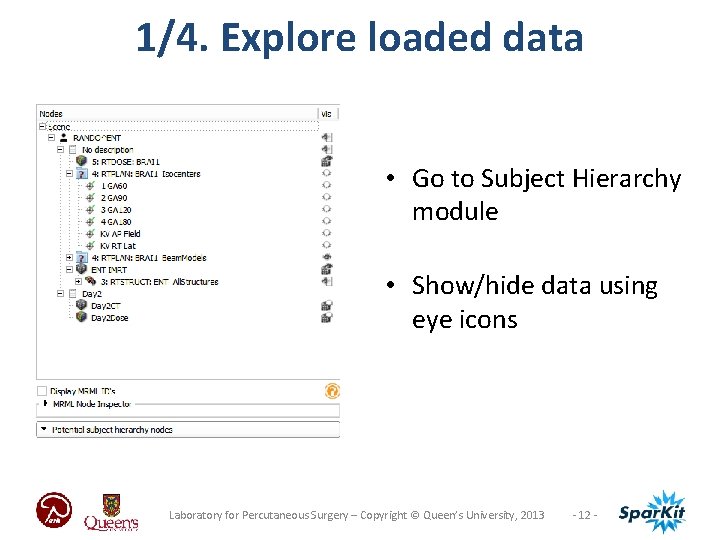
1/4. Explore loaded data • Go to Subject Hierarchy module • Show/hide data using eye icons Laboratory for Percutaneous Surgery – Copyright © Queen’s University, 2013 - 12 -
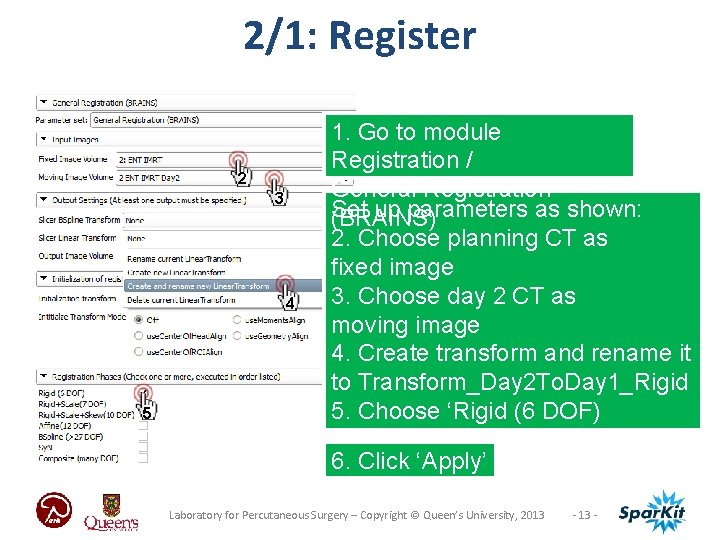
2/1: Register 2 3 4 5 1. Go to module Registration / General Registration Set up parameters as shown: (BRAINS) 2. Choose planning CT as fixed image 3. Choose day 2 CT as moving image 4. Create transform and rename it to Transform_Day 2 To. Day 1_Rigid 5. Choose ‘Rigid (6 DOF) 6. Click ‘Apply’ Laboratory for Percutaneous Surgery – Copyright © Queen’s University, 2013 -
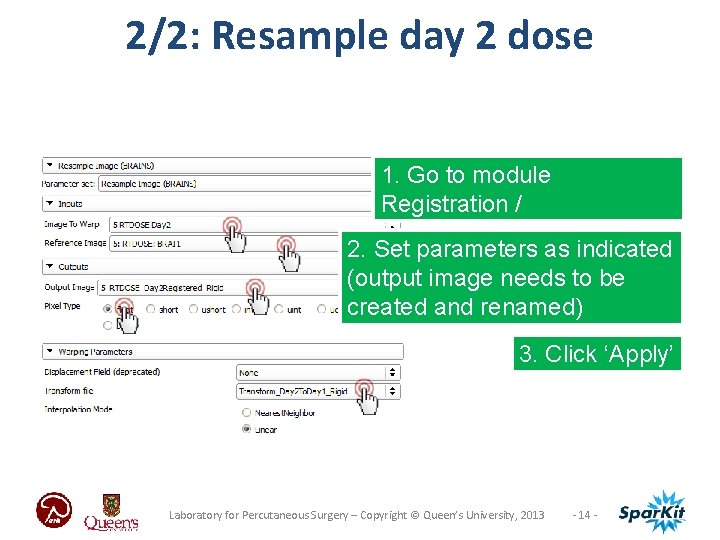
2/2: Resample day 2 dose 1. Go to module Registration / Resample Image (BRAINS) 2. Set parameters as indicated (output image needs to be created and renamed) 3. Click ‘Apply’ Laboratory for Percutaneous Surgery – Copyright © Queen’s University, 2013 - 14 -
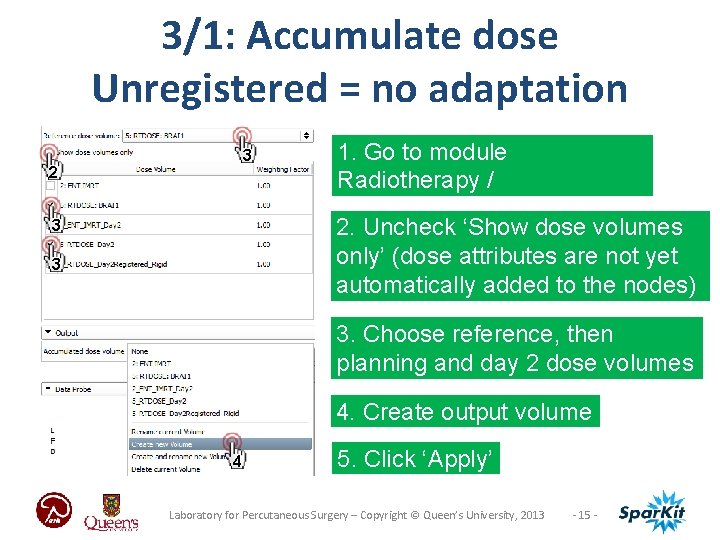
3/1: Accumulate dose Unregistered = no adaptation 3 2 3 3 1. Go to module Radiotherapy / Dose Accumulation 2. Uncheck ‘Show dose volumes only’ (dose attributes are not yet automatically added to the nodes) 3. Choose reference, then planning and day 2 dose volumes 4. Create output volume 4 5. Click ‘Apply’ Laboratory for Percutaneous Surgery – Copyright © Queen’s University, 2013 - 15 -
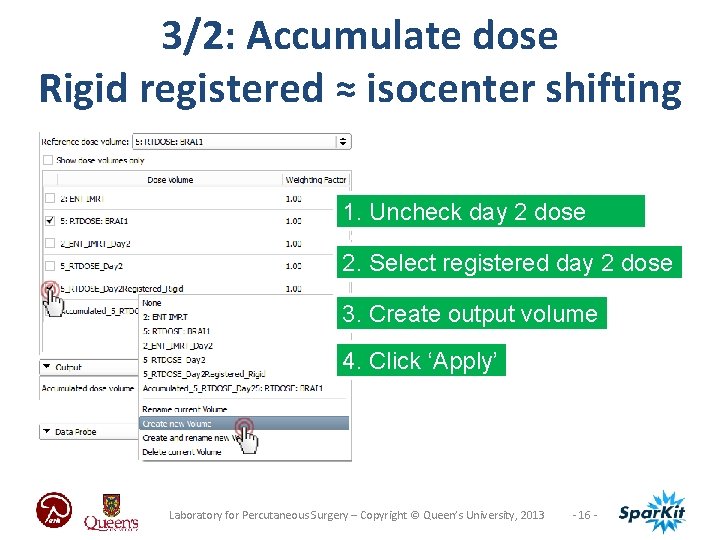
3/2: Accumulate dose Rigid registered ≈ isocenter shifting 1. Uncheck day 2 dose volume 2. Select registered day 2 dose 3. Create output volume 4. Click ‘Apply’ Laboratory for Percutaneous Surgery – Copyright © Queen’s University, 2013 - 16 -
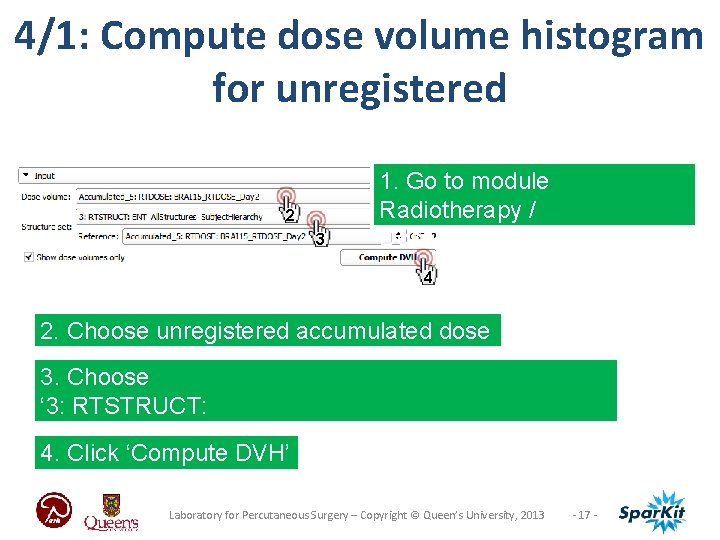
4/1: Compute dose volume histogram for unregistered 2 3 1. Go to module Radiotherapy / Dose Volume Histogram 4 2. Choose unregistered accumulated dose 3. Choose ‘ 3: RTSTRUCT: ENT_All. Structures_Subject. Hierarchy’ 4. Click ‘Compute DVH’ Laboratory for Percutaneous Surgery – Copyright © Queen’s University, 2013 - 17 -
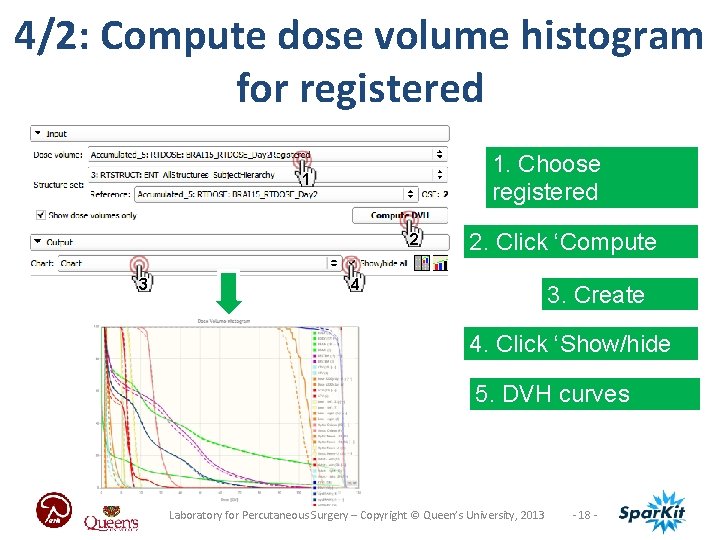
4/2: Compute dose volume histogram for registered 1 2 3 4 1. Choose registered accumulated dose 2. Click ‘Compute DVH’ 3. Create chart 4. Click ‘Show/hide all’ 5. DVH curves appear Laboratory for Percutaneous Surgery – Copyright © Queen’s University, 2013 - 18 -
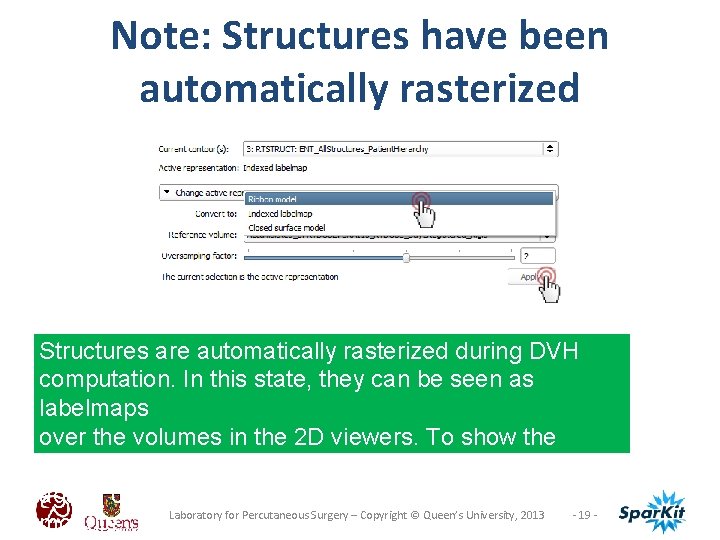
Note: Structures have been automatically rasterized Structures are automatically rasterized during DVH computation. In this state, they can be seen as labelmaps over the volumes in the 2 D viewers. To show the models again, convert back in the Radiotherapy / Contours Laboratory for Percutaneous Surgery – Copyright © Queen’s University, 2013 - 19 module.
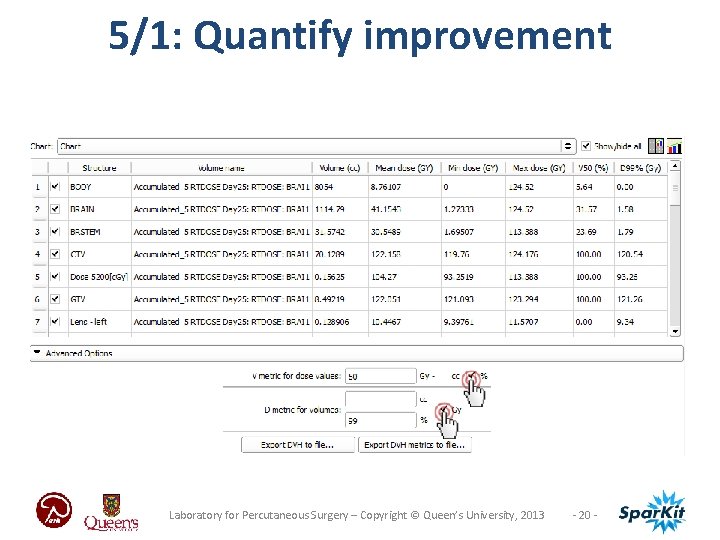
5/1: Quantify improvement Laboratory for Percutaneous Surgery – Copyright © Queen’s University, 2013 - 20 -
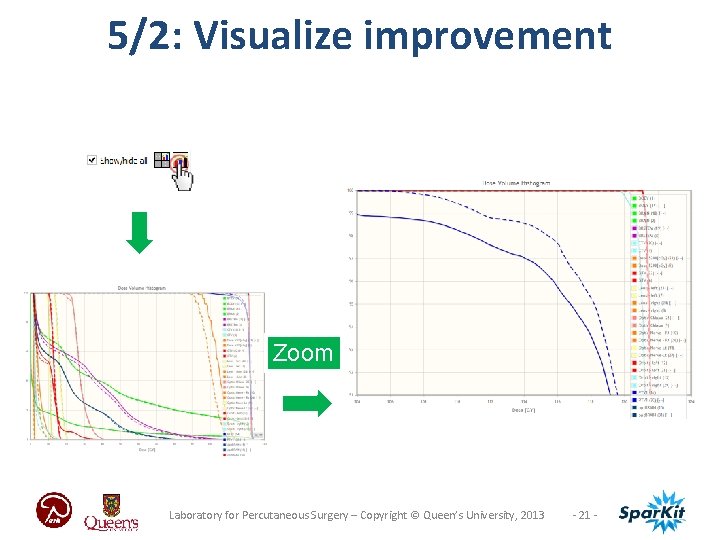
5/2: Visualize improvement Zoom Laboratory for Percutaneous Surgery – Copyright © Queen’s University, 2013 - 21 -
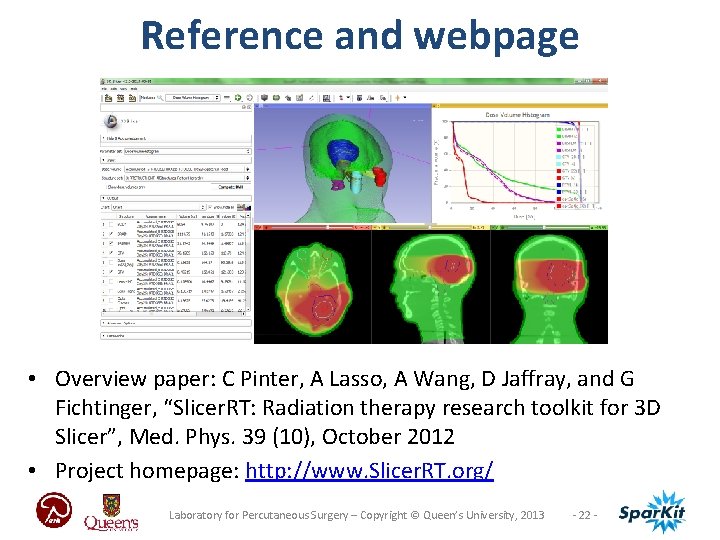
Reference and webpage • Overview paper: C Pinter, A Lasso, A Wang, D Jaffray, and G Fichtinger, “Slicer. RT: Radiation therapy research toolkit for 3 D Slicer”, Med. Phys. 39 (10), October 2012 • Project homepage: http: //www. Slicer. RT. org/ Laboratory for Percutaneous Surgery – Copyright © Queen’s University, 2013 - 22 -
Acknowledgments National Alliance for Medical Image Computing NIH U 54 EB 005149 Cancer Care Ontario Spar. Kit (Software Platform and Adaptive Radiotherapy Kit) Laboratory for Percutaneous Surgery – Copyright © Queen’s University, 2013 - 23 -
Thank you for participating! Laboratory for Percutaneous Surgery – Copyright © Queen’s University, 2013 - 24 -
- Slides: 24